If you want to record your screen in Chrome, the easiest way is with a browser extension. These little add-ons let you capture your screen, a specific tab, or your webcam with just a couple of clicks, right from the browser you’re already working in.
Why Bother Recording in Chrome?
Think about it: for most of us, Chrome is more than just a browser. It’s where we work, collaborate, and manage our daily tasks. Given its massive market share, being able to quickly create and share videos without ever leaving your browser is a game-changer for sales, customer support, and marketing teams.
This chart really puts Chrome’s dominance in perspective.
The numbers don’t lie. Since your team and your customers are already living in Chrome, mastering screen recording there is one of the most efficient ways to communicate.
The Problem With Most Screen Recordings
But here’s the catch. While anyone can hit “record,” creating a video that’s actually polished and professional is a different story. I’ve seen countless teams get stuck in one of two traps.
They either use a simple tool like Loom, which is great for speed but often results in rambling videos that are 50-100% longer than they need to be, full of “ums,” “ahs,” and dead air. Or, they aim for perfection with professional software like Camtasia or Adobe Premiere Pro, which requires expert video editing knowledge.
This leaves teams with a frustrating choice: either share long, unedited videos that waste the viewer’s time or sink hours and resources into getting them properly edited. It’s a huge bottleneck that prevents clear, efficient communication.
A Smarter Way to Create How-To Videos
This is where AI-powered tools are completely changing the game. With a tool like Tutorial AI, you can generate video tutorials based on your screen recordings. Tutorial AI’s tools let you speak freely without any practice and still your video will look professional as if it was edited in Adobe Premiere Pro. It allows the subject matter expert to create on-brand videos extremely efficiently.
It’s the perfect middle ground, letting your subject matter experts create on-brand videos without the headache. This is incredibly useful for things like:
- Creating slick product demos and explainer videos
- Building out employee onboarding videos and training modules
- Announcing new feature release videos to customers
- Populating a knowledge base with video guides
- Creating videos for support articles or bug reports
Back in 2023, Chrome owned a massive 65% of the global desktop browser market. On top of that, studies have shown that adding a personal video to a sales email can boost response rates by as much as 41%. Having a way to create these videos effortlessly gives you a serious edge. You can find more stats on how to record your Chrome screen effectively if you’re curious.
In this guide, I’ll walk you through exactly how to use the Tutorial AI extension to do just that.
Ready to start creating great tutorials? The first thing you’ll need to do is add the Tutorial AI extension to your Chrome browser. It’s a quick process that should have you up and running in just a couple of minutes.
Your first stop is the Chrome Web Store. Just pop “Tutorial AI” into the search bar, and when you spot it, hit “Add to Chrome.” You’ll see a pop-up asking for permission to use your microphone and camera. This is totally normal for any screen recorder—it’s just making sure the tool is ready if you decide to record your voice or face.
Pinning for Quick Access
Once it’s installed, you might not see the icon right away. It sometimes hides behind the little puzzle piece icon in your toolbar. To keep it visible for one-click access, click that puzzle piece and then find the pin icon next to Tutorial AI. Click it.
Trust me, this little step makes a huge difference in your workflow when you need to start a recording on the fly.
Now, about those permissions. The first time you launch Tutorial AI, Chrome will double-check that you want to grant it access to your camera and mic. This doesn’t mean it’s always listening in. It’s simply giving the tool permission to use them only when you tell it to. You’re always in complete control of what gets captured.
How AI Changes the Video Creation Game
Think about it: easy to use recording such as recording via Loom is often 50-100% longer than necessary whereas professional video editing sofware such as Camtasia or Adobe Premier Pro requires expert video editing knowledge.
This is exactly the problem Tutorial AI was built to solve. You, the expert, can just hit record and speak naturally without worrying about a script. The AI then steps in and automatically edits your raw take into a polished video that looks like it was professionally produced. Tutorial AI’s tools let you speak freely without a any practice and still your video will look professional as if it was edited in Adobe Premiere Pro. It allows the subject matter expert to create on-brand videos extremely efficiently. This allows you to generate all sorts of helpful, on-brand video tutorials based on your screen recordings:
- Product demos showing off a new feature.
- Onboarding videos for new hires.
- Explainer videos that untangle complicated ideas.
- Feature release videos for product updates.
- Knowledge base videos for a support queue.
- Support article videos to add visual context.
While Tutorial AI is specialized for this kind of work, it’s also worth looking into the broader world of AI content creation tools to see what else you can automate.
Ready to give it a try? You can download the Tutorial AI extension right now and follow along with the rest of this guide.
Making Your First Recording with Tutorial AI
Alright, you’ve got the Tutorial AI extension installed and pinned to your browser. Now for the fun part—actually using it. This is where you’ll see just how easy it is to capture high-quality screen recordings without ever leaving Chrome. Let’s walk through creating your first one.
Before you hit that big red button, the most important decision you’ll make is choosing your recording mode. Getting this right from the start is the key to a clean, professional video. It prevents you from accidentally sharing personal notifications, a messy desktop, or a dozen irrelevant browser tabs with your audience.
Choosing the Right Recording Mode
With Tutorial AI, you have three core options. Each one is built for a specific job.
- Browser Tab: This is your go-to for focused demos. If you’re showing off a feature in a web app or walking through a single webpage, this mode keeps the recording locked to that one tab. No distractions, just clean content.
- Full Screen: Need to show a process that involves more than just your browser? This is the mode for you. It’s perfect for demonstrating workflows that jump between different desktop applications, like moving data from a spreadsheet into your CRM.
- Camera Only: Sometimes, you don’t need to share your screen at all. Use this mode to record a personal welcome, a quick message to a colleague, or a concluding thought. It puts you front and center.
For anyone creating training materials or product walkthroughs, the ability to quickly capture a user’s journey is a massive time-saver. Some tools have made this a one-click process, helping teams cut down their documentation time by as much as 50%.
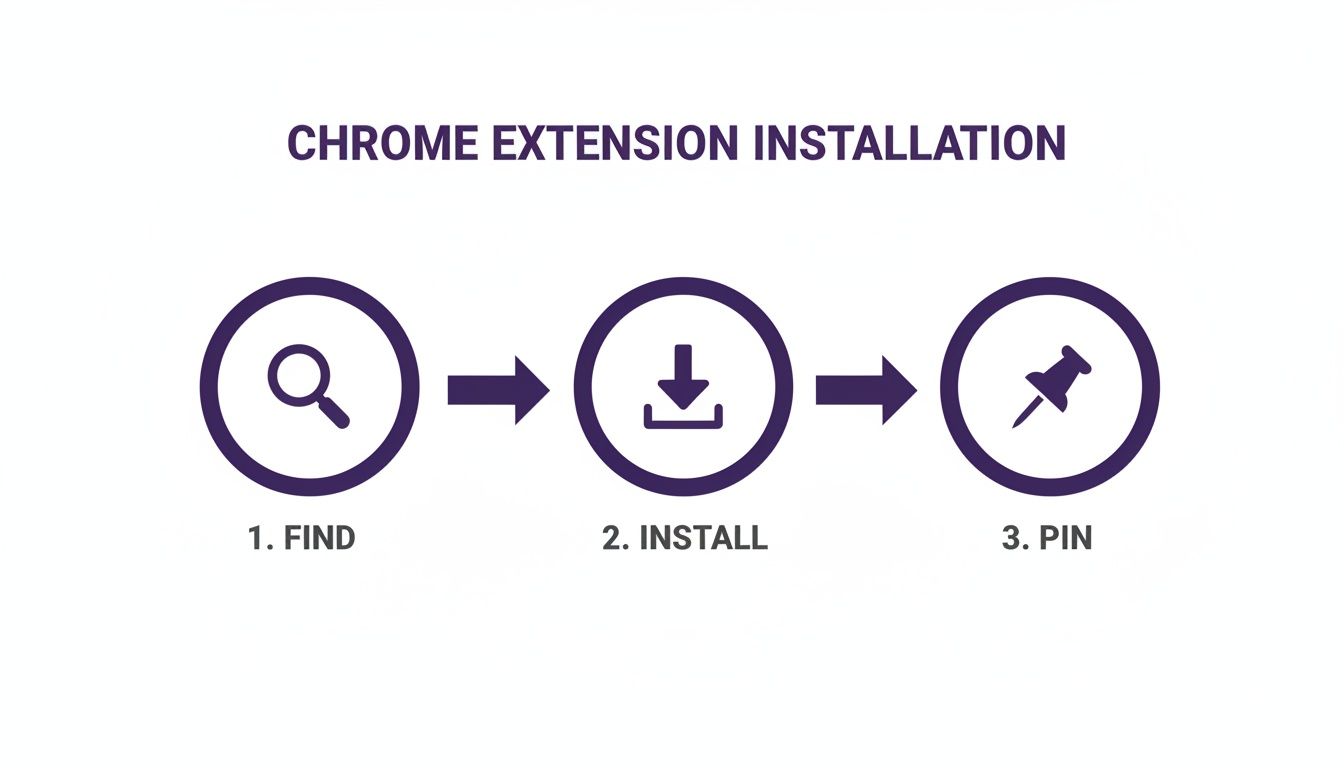
This simple Find, Install, and Pin sequence is the standard for adding powerful new tools like a screen recorder directly into your browser.
To help you decide on the fly, here’s a quick reference guide for picking the best mode for your task.
Tutorial AI Recording Modes: When to Use Each
| Recording Mode | Best For | Example Use Case |
|---|---|---|
| Browser Tab | Focused, distraction-free demos of web-based tools. | Showing a customer how to use a specific feature in your SaaS platform. |
| Full Screen | Complex workflows that involve multiple applications. | Demonstrating a process that moves from email to a project management tool. |
| Camera Only | Personal messages, introductions, and direct-to-camera updates. | Sending a personalized video message to a new team member. |
Picking the right mode from the start saves a ton of editing time later. You get exactly what you need, and nothing you don’t.
Setting Up Your Mic and Camera
After you’ve picked your mode, you’ll see a couple of toggles for your microphone and camera. This is where you decide if you want to record with your voice, create a silent video, or include a small webcam bubble of yourself in the corner.
One of the best parts about using Tutorial AI is that you don’t need a script. Just talk through the process naturally. The AI is designed to clean up your pauses and mistakes later. If you want a few more pointers, we have a whole guide on how to screen record with sound that dives deeper.
The real magic of Tutorial AI is that it empowers subject matter experts to create polished, on-brand videos without any real video production skills. Easy to use recording such as recording via Loom is often 50-100% longer than necessary whereas professional video editing sofware such as Camtasia or Adobe Premier Pro requires expert video editing knowledge. Tutorial AI’s tools let you speak freely without a any practice and still your video will look professional as if it was edited in Adobe Premiere Pro. Once your settings are dialed in, just hit the record button. You can use the on-screen controls to pause if you need a moment or stop the recording when you’re done. Don’t sweat any mistakes you make along the way—our next step is all about turning that raw footage into a perfect demo.
Turning Raw Recordings into Polished Demos
So you’ve finished your screen recording. Now what? The reality is that transforming that raw footage into a polished, professional video is where the real work begins—and where most people get bogged down.
If you’ve ever tried recording off-the-cuff, you know what I’m talking about. A typical unscripted take is often 50-100% longer than it needs to be, packed with awkward pauses, “ums” and “ahs,” and meandering mouse movements.
The old-school approach meant firing up complex video editors like Adobe Premiere Pro or Camtasia. While those tools are incredibly powerful, they come with a steep learning curve and can turn a quick recording session into a multi-hour editing nightmare. This is a massive bottleneck, especially for experts who just need to get their knowledge out there without becoming a full-time video editor.
This is exactly the problem Tutorial AI was built to solve. It lets you record freely, without a script or a single practice run, and still end up with a video that looks like it was cut in a professional studio. It’s built for the subject matter expert, not the video pro.
Edit Your Video by Editing Text
What really makes Tutorial AI different is its text-based editing. The moment you stop recording, the platform gets to work transcribing your entire narration automatically. Forget about scrubbing through a clunky timeline—you can now edit your video just by editing a text document.
Did you stumble over a word or go off on a tangent? Just find that sentence in the transcript and delete it. The corresponding video and audio are instantly snipped out. It’s an incredibly intuitive process that makes cleaning up a recording feel more like editing a blog post than a video.
This approach is a lifesaver for generating video tutorials from screen recordings with surprising speed:
- Product Demos: Show off new features without stressing about a perfect take.
- Onboarding Videos: Create clear, concise training for new hires.
- Explainer Videos: Break down complex ideas into easy-to-follow visual guides.
- Knowledge Base Videos: Build out a library of video answers for common customer questions.
- Support Article Videos: Add visual context to your technical documentation.
- Feature Release Videos: Announce product updates with a polished flair.
Go Global with AI Voice Generation
But what if you need the video in another language? Or maybe you just can’t stand the sound of your own voice on a recording (we’ve all been there). Tutorial AI has a clever solution for this: professional AI voice regeneration.
Once you’ve tidied up the script, you can replace your own narration with a professional-sounding AI voice clone in over 30 different languages. This means a single recording can be adapted for a global audience in minutes, all with a consistently high-quality voiceover. It empowers one person to do the work of an entire production team.
Tutorial AI bridges the gap between easy-to-use recorders and professional editing software. It lets you speak freely and still produce a tight, on-brand video as if it was edited by a pro, making it the most efficient way for an expert to generate high-quality video tutorials like demos, onboarding videos, or explainer videos.
Add Professional Polish in Clicks
Beyond cleaning up the audio and video, Tutorial AI provides a suite of smart features to add that final layer of polish. These aren’t complicated manual effects; you can apply them with a single click.
- Smart Zooms: The AI automatically detects key moments in your recording and applies smooth zoom-ins to highlight exactly what you’re talking about.
- Branded Elements: Easily add your company’s logo, use custom fonts, and insert animated slides that match your brand colors. Every video will look perfectly on-brand.
- Cursor Highlighting: Make your cursor bigger, smoother, or add a highlight effect to make it crystal clear where viewers should be looking.
These tools take a simple screen capture and turn it into an engaging tutorial that’s ready for your sales, support, or marketing channels. If you’re looking for more ways to make your video creation process even smoother, our guide on easy video editing software has some great tips.
And to get the most mileage out of your work, you can even learn how to create YouTube Shorts from existing video content, repurposing your polished demos into snackable clips for social media.
Advanced Tips for Professional Screen Recordings
Hitting “stop” on your recording is really just the starting line. The next step is turning that raw footage into something that’s actually polished and easy for your audience to watch. This is where a few pro techniques can elevate your screen recordings from just “good enough” to genuinely great.
You’ve probably seen videos made with simple tools like Loom. They’re fast to make, sure, but they often end up 50-100% longer than necessary, filled with awkward pauses, “ums,” and meandering mouse movements. On the flip side, you have powerhouse editors like Adobe Premiere Pro or Camtasia, which require expert video editing knowledge.
Bridging the Gap Between Simple and Pro
This is exactly where Tutorial AI changes the game. It’s built for subject matter experts who need to record their screen in Chrome but don’t have the time to become professional video editors. You can just talk and record naturally, without a script, and let the AI handle the heavy lifting of making it look polished.
The whole idea is to let the person who knows the material best—you—create a finished video without handing it off to a separate editing team. This completely cuts out the back-and-forth and dramatically speeds up production time.
Tutorial AI is built for the expert, not the editor. It lets you speak freely, knowing the AI will transform your unpracticed recording into a tight, professional video that looks like it came from a production studio. It allows the subject matter expert to create on-brand videos extremely efficiently. This is a massive advantage when you need to generate video tutorials from screen recordings for content like:
- Product Demos: Showcasing new features without worrying about mistakes.
- Onboarding Videos: Getting new hires up to speed with clear, concise walkthroughs.
- Explainer Videos: Breaking down complex ideas for customers.
- Feature Release Videos: Announcing product updates with a polished flair.
- Knowledge Base Videos: Building out a library of visual, easy-to-follow guides.
- Support Article Videos: Adding a visual layer to your help docs.
Protecting Sensitive Information with Smart Blurs
When you record your screen in Chrome, you’re often working in live or staging environments. That means sensitive data—like customer names, email addresses, or internal metrics—can easily end up on screen. Going back and manually blurring every instance of that data is a nightmare. It’s tedious and far too easy to miss something.
Tutorial AI has a smart blur feature that makes this incredibly simple. You can draw a box over a sensitive area, and the tool will apply a persistent blur that sticks with that spot throughout the video. It’s a set-it-and-forget-it solution for keeping private information secure, which is essential for any customer-facing demo or internal training.
Guiding Your Viewer’s Attention
Ever watched a tutorial where the cursor darts all over the screen? It’s incredibly distracting and makes the whole process hard to follow. Your mouse movements might make sense to you, but they can be confusing for a first-time viewer.
With Tutorial AI, you can fix this after the fact. The software lets you smooth out jerky cursor paths, make the cursor bigger, or even add a highlight effect so it’s impossible to miss.
You can also add a layer of professionalism by using animated slides. Drop in a title slide to set the stage, use chapter slides to break up longer videos into logical sections, and end with a call-to-action slide. These simple additions give your recording a clean, professional structure that guides the viewer from start to finish.
Common Questions About Screen Recording
When you’re just starting out with screen recording in Chrome, a few questions always seem to pop up. Getting those sorted out early on will save you a ton of headaches and help you start creating great videos right away.
The first hurdle for many is the software itself. I get asked all the time if you need to shell out for expensive, complicated software to get a good result. The short answer? Absolutely not.
Sure, professional-grade editors like Adobe Premiere Pro or Camtasia are powerful, but they also come with a steep learning curve. They’re often total overkill for the quick tutorials or demos most of us need to make.
On the flip side, you have super-simple tools like Loom. They make recording a breeze, but you’re usually left with raw footage that’s 50-100% longer than it needs to be. All the “ums,” “ahs,” pauses, and accidental wrong clicks make for a pretty rough viewing experience.
Can I Make Polished Videos Without Editing Experience?
Yes, you absolutely can. This is where the gap between simple recorders and pro editors gets filled. AI-powered tools are changing the game here, and a platform like Tutorial AI is a perfect example.
It’s built on the idea that you, the expert, should be able to just hit record and talk through your process naturally. You don’t need a script or a dozen practice runs. Tutorial AI’s tools let you speak freely without any practice and still your video will look professional as if it was edited in Adobe Premiere Pro.
The goal is to let you focus entirely on sharing what you know, without ever having to touch a traditional video timeline. You get the ease of a simple recorder with the quality of a professional edit, allowing any subject matter expert to create on-brand videos like demos, onboarding videos, and explainer videos with extreme efficiency. This approach is a lifesaver for generating high-quality video tutorials from screen recordings fast. Think about all the things you could create:
- Marketing demos and explainer videos
- Onboarding materials for new team members
- Product update announcements for your customers
- Knowledge base articles that show, not just tell
- Visual aids for complex support tickets
What About Recording Audio and My Webcam?
Another common worry is juggling your screen, your voice, and your face all at once. Most modern Chrome recorders, including Tutorial AI, are designed to capture everything simultaneously. You can easily record your microphone, any audio playing on your computer, and a small webcam bubble to add that personal touch.
And if you’re nervous about misspeaking, don’t be. This is my favorite part. With Tutorial AI, your recording is automatically transcribed. To edit the video, you just edit the text.
If you find a sentence where you stumbled over your words, just delete that sentence from the transcript. The corresponding video and audio are instantly cut. It’s the fastest and most intuitive way to clean up a recording.
Ready to see how easy it is to go from a casual screen recording to a polished, professional demo? Tutorial AI helps you create impressive videos in a fraction of the time. Try Tutorial AI for free and experience it for yourself.