A customer opens three help center tutorials in a row and gets three different companies. The intro colors shift, one narrator says workspace while another says project, and the oldest video shows a navigation bar that no longer exists. Learning how to keep software training videos on brand starts with fixing that drift as a production system, not as a final polish pass.
Why Training Videos Slip Off Brand
Most drift doesn’t come from careless design. It comes from several teams publishing under deadline, each solving a local problem. Support records a quick workaround, product marketing records a launch walkthrough, and L&D builds a longer onboarding module, all from different templates and interface states.
The damage is cumulative. A learner who sees inconsistent product naming has to translate between terms while also learning the task. A learner who sees an outdated screen has to decide whether the instruction still applies, and that hesitation erodes trust faster than a mismatched accent color.
Four Failure Patterns That Repeat
- Terminology drift: The same feature gets different names, capitalization, or abbreviations across modules, so search, captions, and narration stop matching.
- Mismatched UI states: One video uses a clean demo account, another shows beta flags or personal data, and a third predates a redesign.
- Decorative noise: Competing callouts, animated text, and background music draw attention away from the control the learner must click.
- One-off bypasses: Urgent fixes skip review, then stay published for months as accidental templates for later work.
Treating brand as a logo overlay won’t catch any of those problems. Colors can match while the instruction is wrong, the caption misspells a command, or the closing frame sends learners to a retired page. That’s why brand control belongs in the release pipeline, alongside factual review and accessibility checks.
The business case isn’t abstract. In the 2021 Lucidpress brand consistency research, 68% of respondents credited brand consistency with contributing to revenue growth of 10% or more. That finding isn’t specific to instructional video, but it gives training teams a useful benchmark for treating governance as an operational investment rather than a creative preference.
The practical fix has two parts. First, a small brand kit locks the decisions that recur in every tutorial. Second, a four-stage workflow, storyboard, record, edit, and review, applies those decisions before anyone hits publish. The rest of this article builds both parts, then covers localization, measurement, and maintenance across product releases.
The Assets That Belong in a Training Brand Kit
A training brand kit isn’t a condensed marketing guideline. Marketing guidelines define identity, while a training kit defines identity under instructional conditions, small screens, dense interfaces, captions competing for space, and screens that change every release. Teams building the broader foundation first can use Carlos Alba Media brand guidelines as a reference for structuring the parent document, then add the video-specific decisions below.
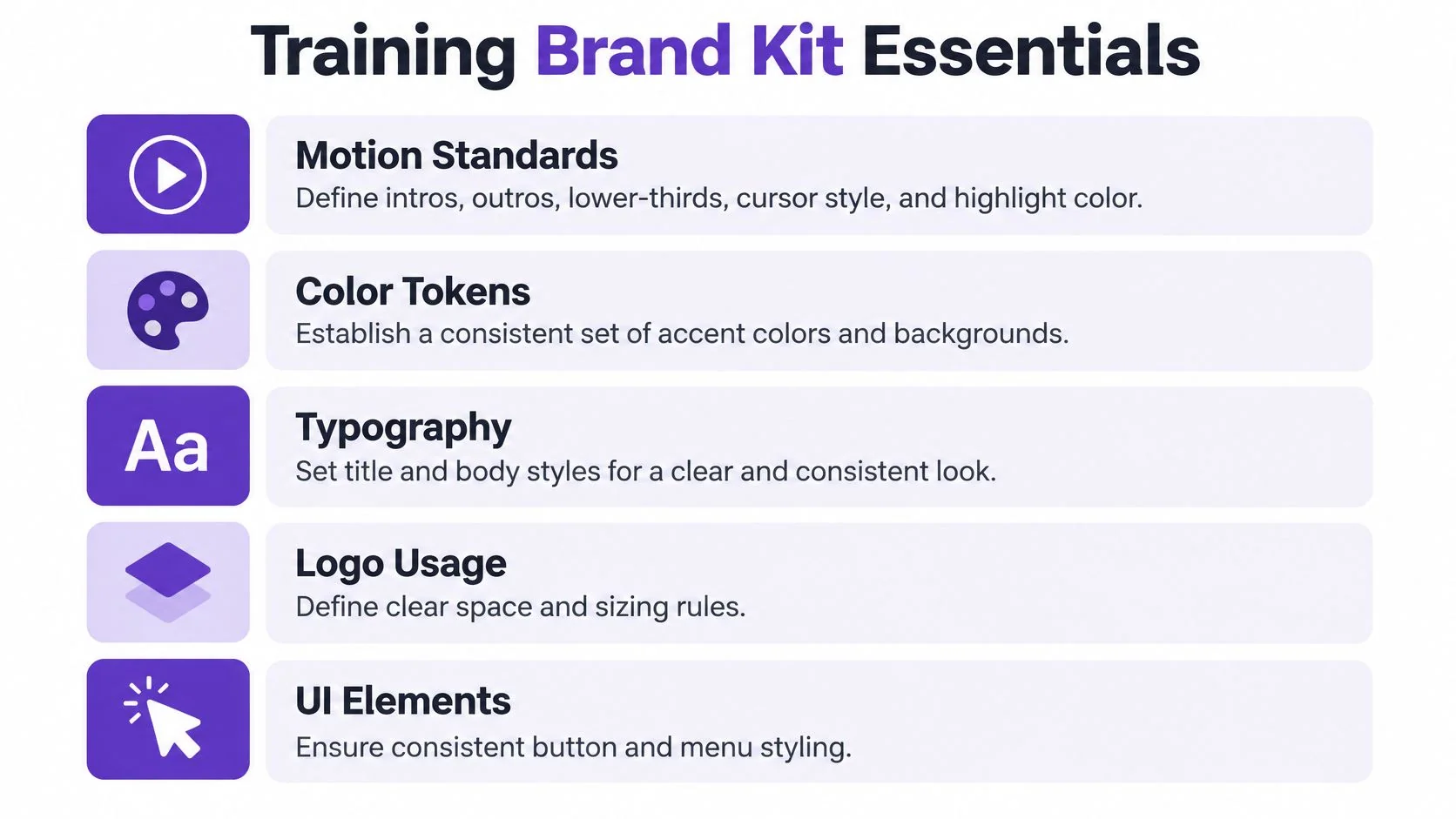
Training Brand Kit Checklist
| Asset | Decision to lock down | Why it matters for training |
|---|---|---|
| Motion standards | Intro and outro length, transition style, lower-third placement | Predictable openings signal structure and reduce setup time per module |
| Color tokens | Named accent, highlight, warning, and background values | Highlights stay recognizable as attention cues, not decoration |
| Typography | Title, body, and caption sizes with minimum mobile sizes | Text remains legible inside embedded players and LMS frames |
| Logo usage | Placement, clear space, and approved opening and closing frames | Identity stays consistent without covering interface controls |
| UI treatment | Cursor size and color, zoom depth, callout style, safe areas | Learners can follow the pointer and read labels at recording scale |
| Terminology glossary | Approved product names, UI strings, acronyms, pronunciation | Narration, captions, and docs use one vocabulary |
| Accessibility defaults | Caption contrast, font size, speaker labels, transcript format | Compliance gets built in rather than retrofitted per video |
Cursor treatment deserves more attention than it usually gets. If one module uses a small default pointer and the next uses a large highlighted cursor, learners spend the first seconds of each video recalibrating where to look. A fixed cursor color and click highlight turns the pointer into a stable teaching signal across the whole library.
Lower-thirds need the same discipline. They carry chapter titles, speaker names, and warnings, so inconsistent placement can cover menus or captions. Reviewing consistent lower-third examples for training layouts helps teams settle size, position, and duration before dozens of videos inherit a bad default.
Two assets are easy to forget. The narrator persona should specify tone, pacing, and pronunciation rules for product terms, whether narration is recorded by staff or generated. The privacy rule set should define demo data, background blur for sensitive fields, and which account states are approved for recording. Without those rules, visual consistency can still ship with inconsistent voice and risky screens.
Practical rule: If a decision will be made in every video, it belongs in the kit. If it only affects one campaign, it doesn’t.
A Four-Stage Workflow for On-Brand Production
A kit sitting in a shared drive changes nothing. The workflow is what forces each video through the same decisions in the same order, so brand checks happen while fixes are still cheap.
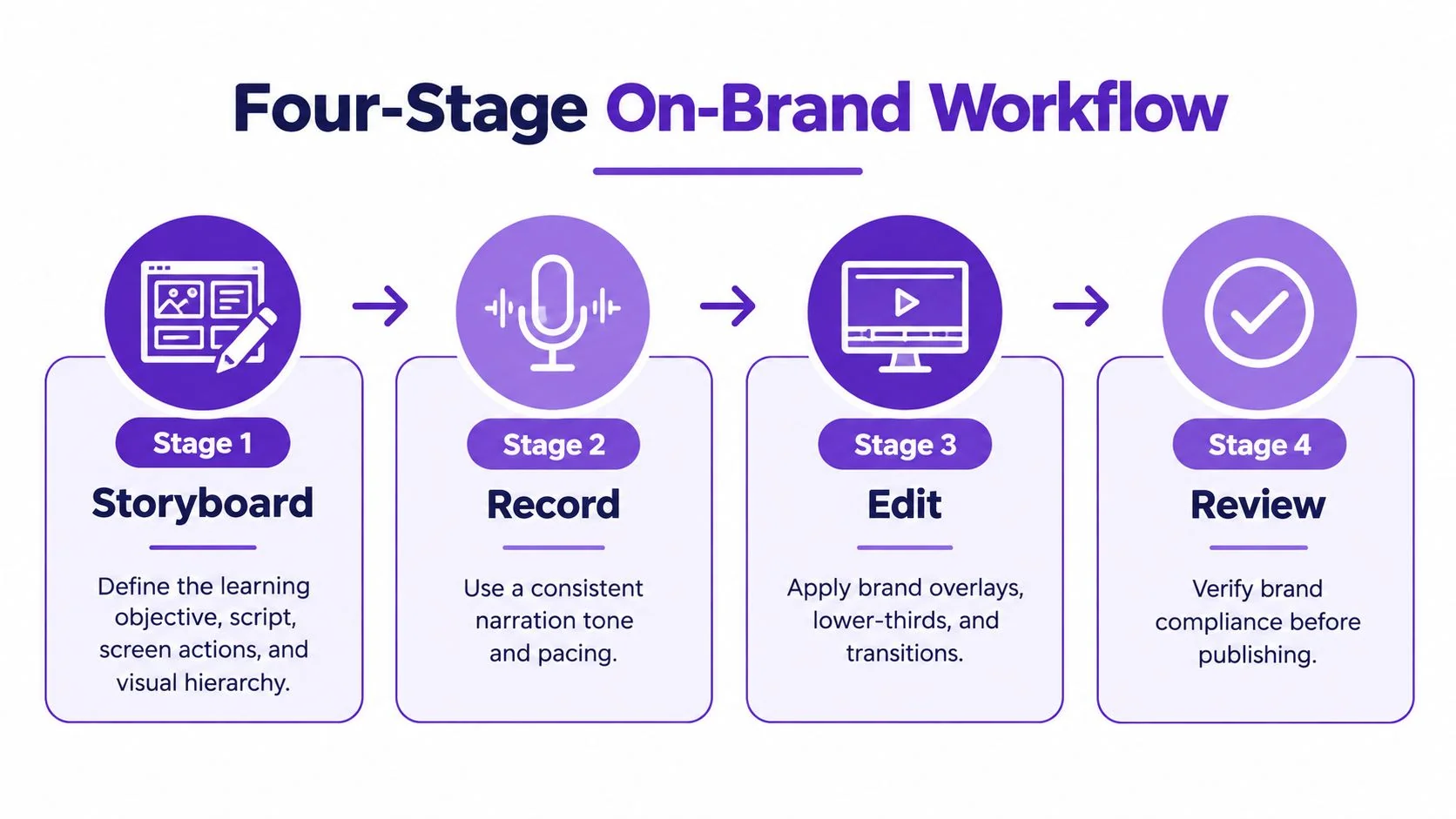
Stage 1, storyboard. Each module starts with one learning objective, the spoken script, the screen actions in sequence, and the visual hierarchy for every scene. Storyboarding removes ambiguity before recording, because disagreements about terminology or scope surface in a document rather than in an edit. It also enforces scope, since a storyboard tied to one outcome exposes steps that belong in a different module.
Stage 2, record. Recording uses a standardized interface state, approved demo data, and the glossary terms exactly as written. Delivery stays conversational, and narration names the control being clicked rather than describing it vaguely. Teams working with tight resources can borrow pacing and planning discipline from small business video production tips, since the constraint is similar, limited time, repeatable output, no dedicated studio.
Edit for Signaling and Review for Release
Stage 3, edit. Editing applies signaling, cursor emphasis, callouts, headings, and highlights that point attention at the relevant control. Guidance from Columbia University guidance on effective educational videos supports removing nonessential words and visuals, placing related words and images close together, and using signaling to emphasize key concepts. Decorative effects that don’t direct attention get cut, even when they look polished.
Length is decided at this stage too. Cutting a long demonstration into arbitrary chapters doesn’t work, because learners can’t tell what each segment teaches. The stronger pattern uses single-concept segments shorter than six minutes, each tied to one learner outcome from the storyboard. A billing demo, for example, becomes separate modules for adding a payment method, changing a plan, and downloading an invoice, rather than one recording with three unrelated goals.
Stage 4, review. Pre-publication review checks factual accuracy, terminology, visual consistency, captions, and accessibility against the kit. A scored audit makes the decision auditable instead of subjective.
- Ten binary checks: Identity, typography, color, narration, terminology, layout, cursor treatment, accessibility, privacy, and version accuracy each pass or fail.
- Release threshold: Teams can require a score such as 90% before publishing, with failures routed back to the responsible stage.
- Version metadata: The recording date and product version get logged so outdated modules can be found after the next release.
Skipping a stage doesn’t save time. It moves the cost downstream, where a terminology fix means re-recording narration instead of editing one storyboard line.
Applying a Brand Kit Inside an AI Tutorial Maker
The workflow above gets easier when the tool holds the standards instead of each author remembering them. In an AI tutorial maker, the practical setup starts by loading approved logos, fonts, and color tokens into a reusable kit, following the structure described in the Brand Kits setup documentation. Every generated tutorial then inherits those assets by default, including opening and closing treatments.
The screenshot below shows the editing environment where those defaults get applied to a recording.
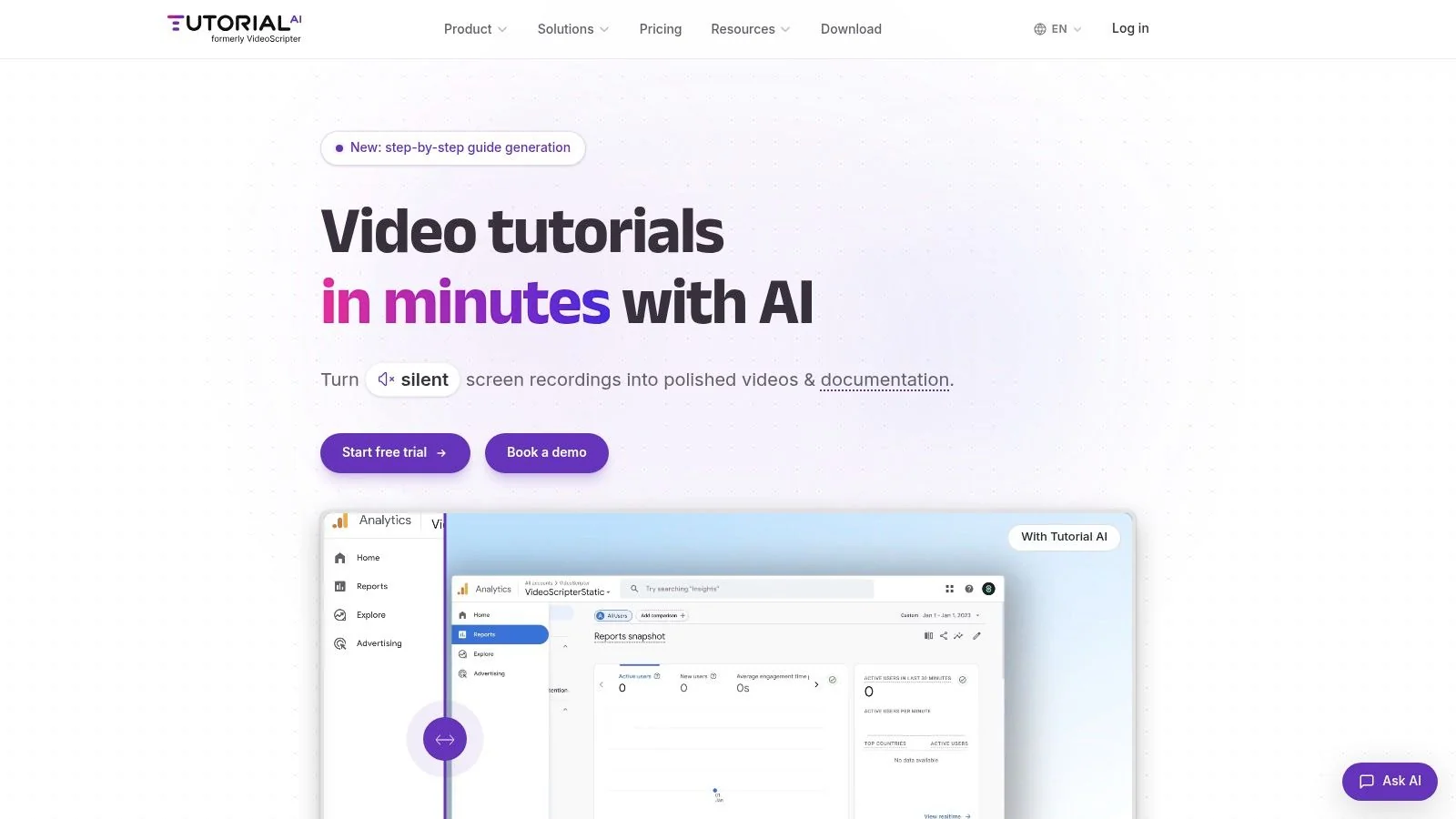
Production starts with a screen recording of the task, captured on Mac, Windows, iPhone, iPad, or directly in Chrome, with or without spoken narration. Tutorial AI is one option built for this pattern, it turns that recording into a polished tutorial video and a written guide with screenshots from the same source. Because both outputs come from one recording, the video and the help center article can’t drift into different terminology or step order.
Edit the Script and Regenerate the Rest
The brand-critical feature is edit-as-a-doc revision. When a reviewer rewrites a sentence to match the approved glossary, the voiceover, captions, and timing regenerate from the new script. A product rename therefore becomes a text edit and re-review, not a re-recording session with a narrator who may no longer be available.
Visual signaling gets handled at the same layer. Cursor size, smoothing, and click highlights can be set once and reused, smart zooms focus attention on the active control, and background blur protects sensitive data that slipped into a recording. Animated slides serve as consistent transitions between concepts, replacing the ad hoc title cards authors tend to invent per video.
The short walkthrough below shows the recording-to-tutorial flow in practice.
Collaboration controls keep multi-author libraries inside the same system. Shared workspaces mean support, L&D, and product marketing publish from one kit rather than three similar ones. Versioning preserves earlier editions when a workflow changes, and guest sharing lets subject matter experts review without full editing access.
Distribution is the last place brand usually breaks, since embeds inside an LMS, CMS, CRM, or documentation tool can restyle a player. Embeddable players that carry the kit styling and a built-in language selector keep the presentation stable wherever the tutorial surfaces. The trade-off is real, though. A team needing frame-level cinematic editing or avatar presenters will outgrow a recording-first tool, and a general video editor may fit better despite weaker template enforcement.
Localization Decisions That Protect Brand Intent
Localization fails when it’s treated as sentence translation applied to a finished video. The better question is which brand elements must remain identical in every market and which ones should adapt, a distinction covered in depth in practical localization best practices for tutorials.
Keep identical globally. Product names, feature names, safety warnings, core promises, and calls to action stay controlled through a central glossary with approved translations. If the product name changes capitalization or wording between markets, search results, support macros, and in-product strings stop matching the tutorials that explain them.
Adapt deliberately. Idioms, examples, date and decimal formats, reading order, and voice style should follow local conventions. Guidance in the Guidde overview of localizing instructional videos makes the same point, effective adaptation accounts for cultural context, regional formats, visual elements, and technical terminology rather than merely translating speech. Forcing pixel-identical visuals can damage comprehension when translated text runs longer and crushes the original layout.
Protect the Visual Meaning of Each Step
The priority during translation is the visual meaning of every step, the highlighted control, the cursor path, and the zoom target. Narration and captions can expand or contract, but the learner must still see the same action at the moment it’s described. Translated captions that cover a button or drift out of sync with the cursor break the instruction, not just the styling.
- Do keep brand terms locked: Product and feature names come from the glossary, never from a translator’s judgment call.
- Do freeze scene intent: Each segment keeps its highlighted control and zoom target while narration timing adjusts around it.
- Don’t burn text into video: Burned-in labels can’t be replaced, which forces either a re-record or an untranslated remnant.
- Don’t ship untranslated UI labels: If the interface itself isn’t localized, narration should name the on-screen string learners will see.
Accessibility travels with localization, not after it. Captions need human review in each language for terminology, synchronization, and placement on mobile screens. The stakes are practical, since a UMBC compilation on captioned video use reports that 80% of adults are more likely to finish a video when captions are available and 70% of Gen Z viewers use captions when offered. Each localized version should get regional SME review and a side-by-side brand audit against the source before release, with completion and replay hotspots compared after publishing.
Global consistency means consistent intent and hierarchy in every language. It doesn’t mean identical pixels.
Measuring Brand Compliance Over Time
Brand rules without metrics become taste arguments. A governance dashboard turns the kit and workflow into numbers a team can act on during release planning, not after a customer reports a broken tutorial.
| Metric | What it reveals |
|---|---|
| Template adoption | Percentage of published videos using approved templates and frames |
| Terminology compliance | Glossary adherence across narration, captions, and written guides |
| Caption quality | Word-error sampling against the master script per language |
| Update latency | Time required to revise a workflow after a UI change ships |
| Learner behavior | Completion rates plus replay and rewind hotspots that signal confusion |
Caption accuracy deserves a hard standard. Massachusetts accessibility guidance for video training states that captions must be 99% accurate and warns that automatically generated captions must be checked. For training content, that check should cover command names, product terms, speaker identification, and synchronization, since one wrong word in a security step can undo an otherwise polished video.
The scored audit from the workflow section supplies the release gate. A video scoring below the threshold gets a defined outcome, fix and re-review, relink to a current module, or retire it. Letting below-threshold tutorials linger is the most common governance failure, because outdated content keeps ranking in search and keeps teaching retired workflows.
Measurement should also allow recognizable, trustworthy variation. Customer-facing tutorials, internal IT training, and sales demos carry different disclosure rules and tones, so strict visual uniformity across all three can be less valuable than shared core assets with audience-appropriate variation. That distinction matters because polish alone doesn’t produce learning. Data in the Moodle report on workplace training in America shows 25% of employees say workplace training is not impactful or does not adequately prepare them, while 46% speed up training videos or multitask during them. Completion counts therefore need company from task success, support ticket trends, and learner confidence, not views alone.
Maintaining the System and Next Steps
A brand kit decays on the same schedule as the product. Maintenance works best as a short recurring checklist tied to release cycles rather than an annual cleanup project nobody owns.
- After each UI release: Refresh affected screenshots and recordings, starting with the highest-traffic modules.
- When the design system changes: Update color tokens, typography, and frames in the kit first, then regenerate affected outputs.
- Quarterly: Audit terminology compliance and caption accuracy on a sample, and retire or relink videos below threshold.
- Continuously: Log version and date metadata so stale tutorials can be located without watching the library.
The underlying principle stays simple. Brand consistency in training video is a release process with owners, checks, and metrics, and the logo is the smallest part of it. Teams that build the kit, run the four stages, and audit on schedule stop rediscovering the same drift every quarter.
For teams ready to apply this system, Tutorial AI turns a screen recording of a real software task into a tutorial video and written guide that can inherit a shared Brand Kit, approved terminology through script editing, and regenerated narration and captions. Recording one existing workflow and running it through the kit, workflow, and audit described above is a practical way to test whether the standards hold before rolling them across a full training library.