You just recorded a product demo that explains the feature perfectly. Then the actual work begins. You still need to trim pauses, clean up the narration, add captions, and write the matching help article that support, sales, and customer success will all ask for tomorrow.
That gap is why the modern screen recorder with transcription matters. It isn’t just a captioning tool anymore. For teams producing product demos, feature release videos, customer onboarding, help-center videos, support article videos, internal training, SOPs, and sales enablement walkthroughs, transcription now sits at the center of the production workflow.
The category is expanding fast. Fortune Business Insights projects the screen recording software market will reach USD $2.95 billion in 2026 and USD $11.45 billion by 2034, with a 17.08% CAGR observed between 2025 and 2030, tied in part to demand for tools that combine recording with AI transcription and analysis (Fortune Business Insights screen recording software market outlook). That’s showing up in day-to-day work too. Teams want recordings that become searchable, editable content, not just video files.
The strongest tools now go beyond transcripts. They help you repurpose expertise into multiple assets, which is the same broader shift behind MicroPoster’s AI content strategy. Below are the tools that matter most if you need a screen recorder with transcription and care about the full workflow from raw capture to polished tutorial and written documentation.
1. Tutorial AI
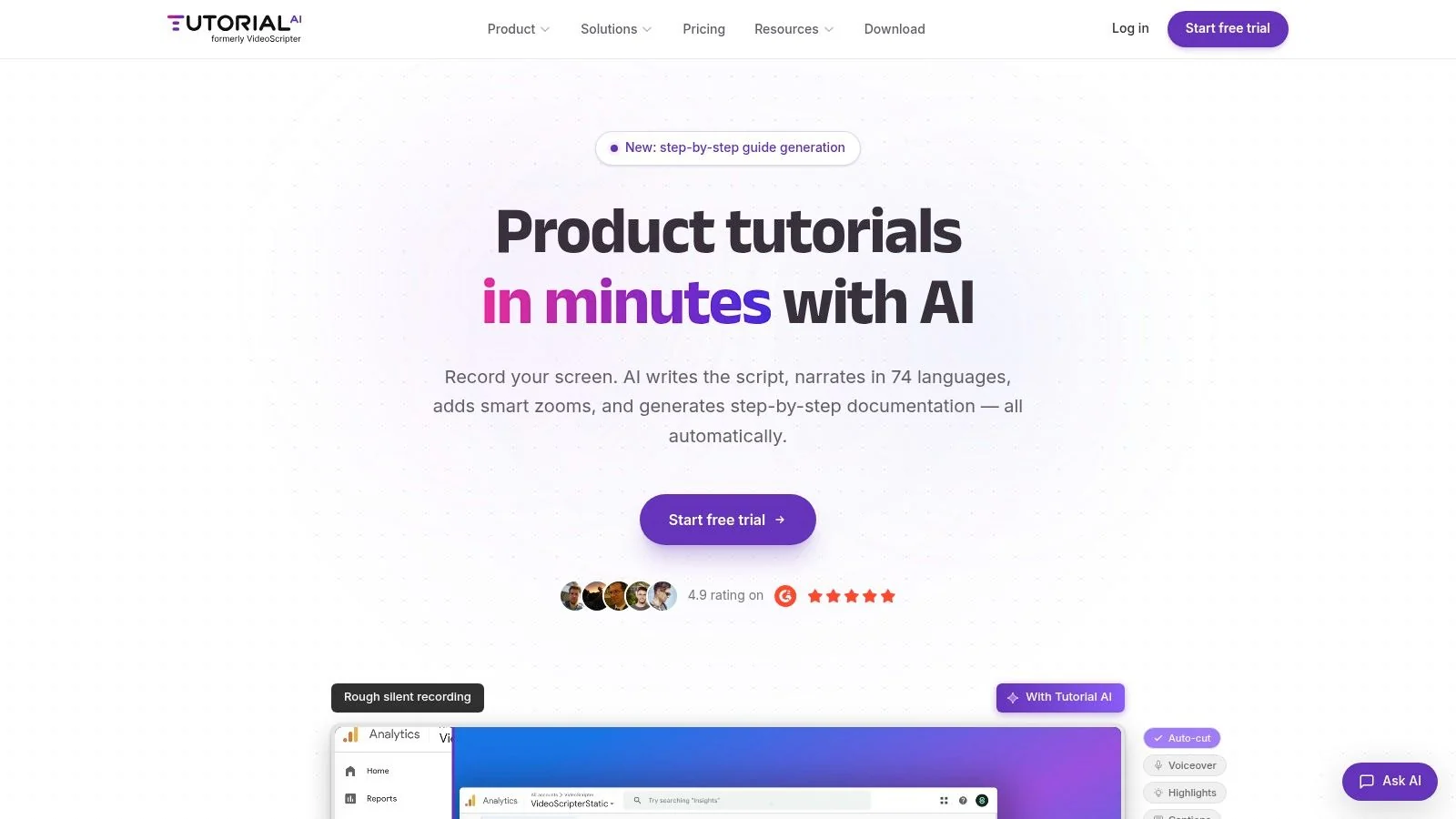
You finish a product walkthrough, then the actual work starts. The transcript needs cleanup, captions need timing fixes, the narration needs a second pass, and someone still has to turn the same material into a help article. Tutorial AI is built for that production chain, not just for recording a video and handing you text.
That workflow focus is what separates it from generic screen recorders. You can capture the screen with narration, or record visuals first and add a cleaner voice track later. The platform then uses the transcript as the editing layer. Revise the wording, and it can update voiceover, captions, and timing together. For teams producing tutorials at volume, that is a much better operating model than cutting every revision by hand on a timeline.
The strongest part of the product is how directly it connects raw capture to publishable assets. Tutorial AI can generate a written guide with screenshots from the same recording, which cuts out a separate documentation pass for support centers, internal SOPs, and onboarding libraries. If your benchmark is a polished tutorial rather than an async message, that distinction matters. Teams comparing that kind of output against lighter recorders can also review these Loom alternatives for more polished tutorials.
Why the workflow stands out
Tutorial AI treats the transcript like source material, not a sidecar file. If a subject-matter expert says the right thing in the wrong way, the fix happens at the script level. That is faster than re-recording, and it is easier for product marketers, trainers, and support leads who are comfortable editing language but do not want to spend time inside a traditional video editor. The platform’s edit like a doc workflow shows the model clearly.
It also handles many of the polish steps that usually force a handoff to a dedicated editor. Cursor emphasis, zooms, blurs, backgrounds, pacing cleanup, and synced voice updates help turn a rough walkthrough into something you can ship.
Practical rule: If the viewer needs to see the real product interface and follow real UI states, use a recorder built for screen capture and transcript-driven revision. Avatar tools and slide generators solve a different problem.
A useful detail from the Chrome Web Store listing is that Tutorial.ai can automatically transcribe narration and clean up filler words such as “ums” and “ahs,” which reduces manual audio cleanup for teams recording frequent walkthroughs (Tutorial.ai Chrome Web Store listing).
Best fit and trade-offs
Tutorial AI fits teams that need one recording session to produce several outputs. Customer education, enablement, L&D, product marketing, and support teams will get the most value because they often need a finished video, captions, localized narration, and a matching written article from the same source material. Its multilingual publishing options are especially useful if one tutorial has to be reused across regions without rebuilding the asset from scratch.
There are trade-offs. Advanced voice features and enterprise controls sit higher in the pricing stack, and transcript review is still necessary for product names, acronyms, and technical pronunciation. That is standard for AI transcription in any tool. If you want a broader view of how teams handle those accuracy issues in production, Rooy Development’s AI transcription insights are worth reading.
For teams judged on polished tutorials rather than quick internal explainers, Tutorial AI is one of the few products in this category that treats transcription as the backbone of the full content workflow.
2. Loom
Loom is still the default choice for quick internal communication. If your job is to explain a bug, show a workflow, or send a customer a fast walkthrough, Loom gets that done with almost no setup friction.
That’s also where its limits show. A quick async recorder is not automatically a polished tutorial system. Recordings often include pauses, restarts, and off-the-cuff narration that make sense in internal communication but feel too loose for a help center, onboarding sequence, or feature release video.
Where Loom works best
Loom is best when speed matters more than production value. Teams can record screen plus camera, capture system audio, rely on automatic transcripts and closed captions, and share by link immediately. Higher tiers add summaries, chapters, and transcript-based editing, which helps if you need a cleaner version after the fact.
The practical issue is pacing. Casual recorders tend to preserve the full human recording process. For tutorials, that’s a problem because the content often runs much longer than the final viewer-friendly version needs to. If you’re weighing tools in that category, this roundup of Loom alternatives for more polished tutorials is a useful comparison.
Loom is excellent for “watch this and reply.” It’s less ideal for “publish this in the help center and keep it on-brand.”
Trade-offs to expect
Loom’s team libraries and analytics help with adoption across sales, support, and product teams. People use it because it feels easy. That’s a genuine strength.
But if you need tighter pacing, stronger visual polish, multilingual publishing, or a written article from the same recording, you’ll hit the ceiling quickly. Loom is a very good async recorder. It isn’t the strongest end-to-end screen recorder with transcription for documentation-heavy workflows.
Website: Loom
3. Descript
Descript is the tool I recommend when someone says, “I want transcript editing, but I still want control.” It sits between casual recorders and full manual editors. That’s why it remains a favorite for tutorial production, webinars, product explainers, and creator workflows.
Its main strength is simple. You edit the transcript, and the media follows. That text-first approach is still one of the most intuitive ways to clean up spoken screen recordings, especially if you’re more comfortable shaping language than trimming clips on a timeline.
Best use case
Descript is a strong fit for teams that already think in scripts. Product marketers, educators, and training teams often work this way naturally. You can record screen, camera, and microphone, generate a transcript, revise the text, and still drop into a timeline when needed.
That combination makes it more flexible than lightweight recorders. If you’re evaluating the role transcription should play in production, this explainer on what video transcription is and how it supports editing is a useful framing.
What it does well and where it drags
Descript gives you more precise control than Loom and less manual overhead than Camtasia or Adobe Premiere Pro. That middle ground is its real value. You can create polished content without becoming a full-time editor, but the system still assumes you want to manage the project actively.
- Strong transcript workflow: Editing by text feels natural for spoken tutorials, demos, and educational content.
- Flexible production path: You can stay in transcript view or move into more traditional editing when the project needs it.
- More moving parts: Media minutes, AI credits, and browser-recorder limitations can add operational friction for larger teams.
If your team wants text-based editing without giving up too much control, Descript is one of the strongest picks in this category.
Website: Descript
4. Camtasia
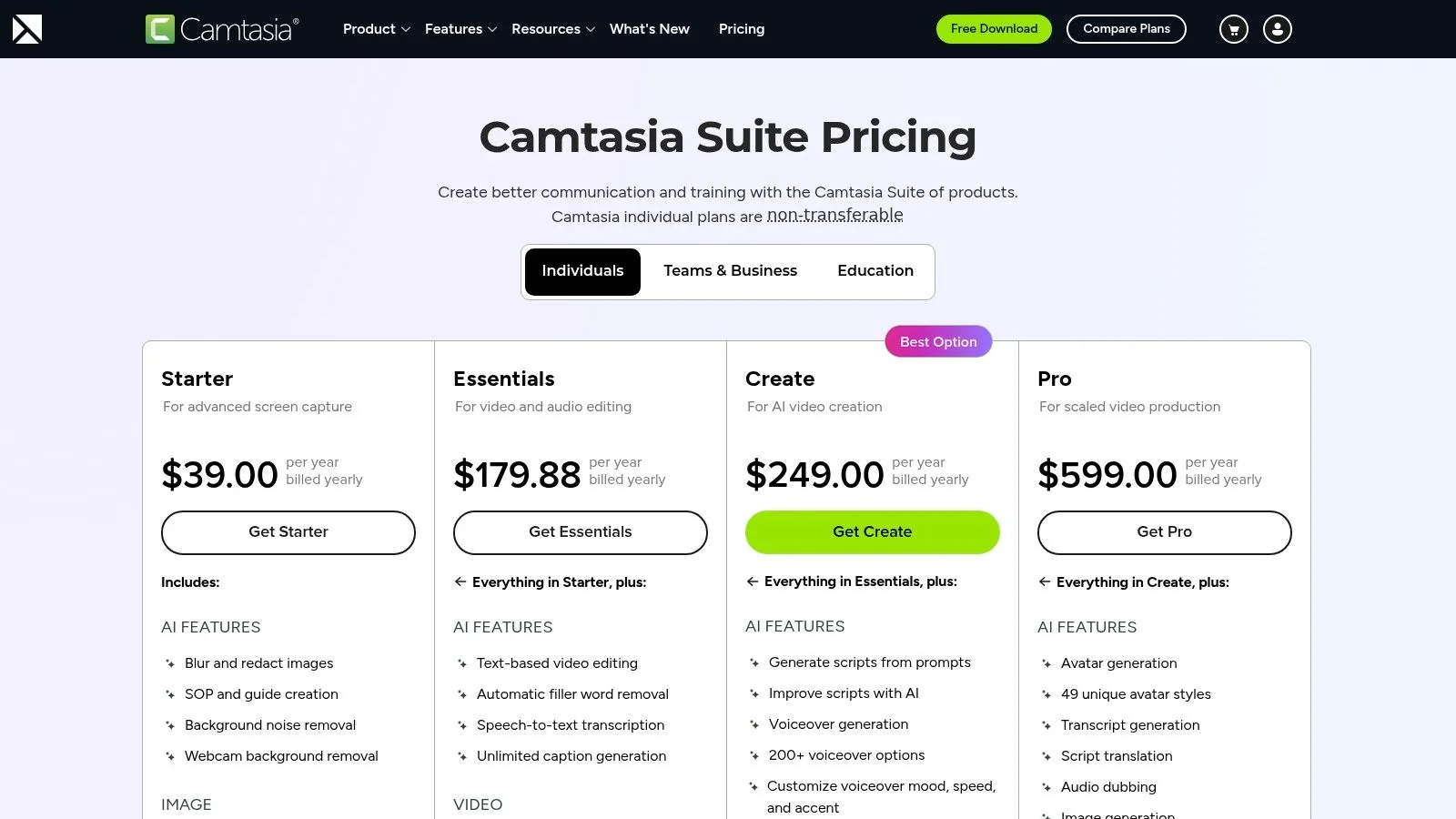
Camtasia is what many training teams choose when they need a serious editor that also records the screen well. If SCORM exports, quizzes, cursor effects, and detailed timeline control matter, Camtasia is still a dependable option.
It now includes transcription and caption workflows, which makes it relevant in a screen recorder with transcription comparison. But transcription isn’t the main event here. Manual editing is.
Why teams still choose it
Camtasia is built for finished instructional content. Internal training teams, L&D departments, and product education groups often need exact control over callouts, zooms, transitions, and export formats. Camtasia delivers that.
It also fits organizations that already have people comfortable with project-based editing. If that’s your setup, Camtasia remains practical because it combines recording, editing, and training-oriented outputs in one desktop tool.
Field note: Camtasia can absolutely produce polished tutorials. The cost is editor time, not just software cost.
The trade-off nobody should ignore
For subject-matter experts working solo, Camtasia can feel heavy fast. You don’t just record and publish. You open a project, refine the timeline, manage assets, and make dozens of presentation decisions manually. That’s powerful, but it isn’t lightweight.
This is also where positioning matters. Compared with Camtasia, Adobe Premiere Pro, or Final Cut, Tutorial AI’s appeal is that it reaches similar polish without requiring the same editing skill. If your team has dedicated editors, Camtasia still makes sense. If your SME is the editor by default, it often slows production.
Website: Camtasia
5. ScreenPal
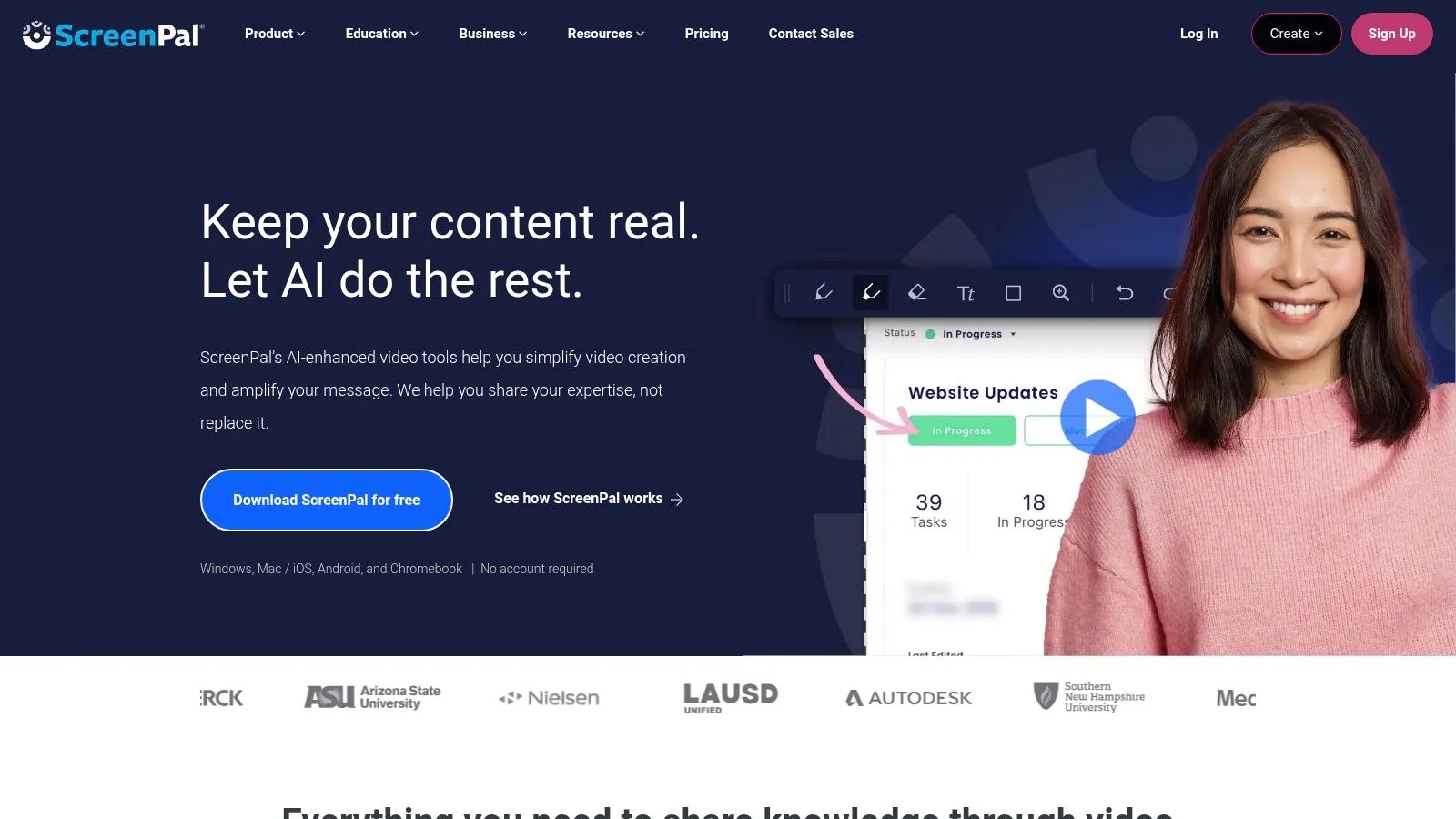
ScreenPal stays relevant because it doesn’t try to be fancy. It gives educators, small teams, and internal trainers a straightforward path from recording to basic editing, captions, hosting, and sharing.
That simplicity is useful when the team creating content isn’t specialized. If support managers, trainers, or customer success leads need to make videos themselves, ScreenPal is approachable enough to get adopted quickly.
Practical strengths
ScreenPal covers the basics well. You can record from desktop or web, edit quickly, generate captions and transcripts, and use auto-chapters and translation features on eligible plans. For schools, SMBs, and lightweight training operations, that’s often enough.
Its accessibility tooling is also a selling point. Teams that need readable captions and clearer navigation without building a complex production stack will appreciate the balance.
Where it falls short
The editor is intentionally simpler than a full non-linear editor, and that’s both its strength and limitation. You won’t get the same degree of polish, control, or brand consistency you’d get from heavier editing systems or more automation-focused tutorial tools.
If your output is mostly internal training, course support, or basic walkthroughs, ScreenPal works. If you’re building a polished customer-facing knowledge base with multilingual distribution and tightly structured documentation, it starts to feel narrow.
Website: ScreenPal
6. Screencastify
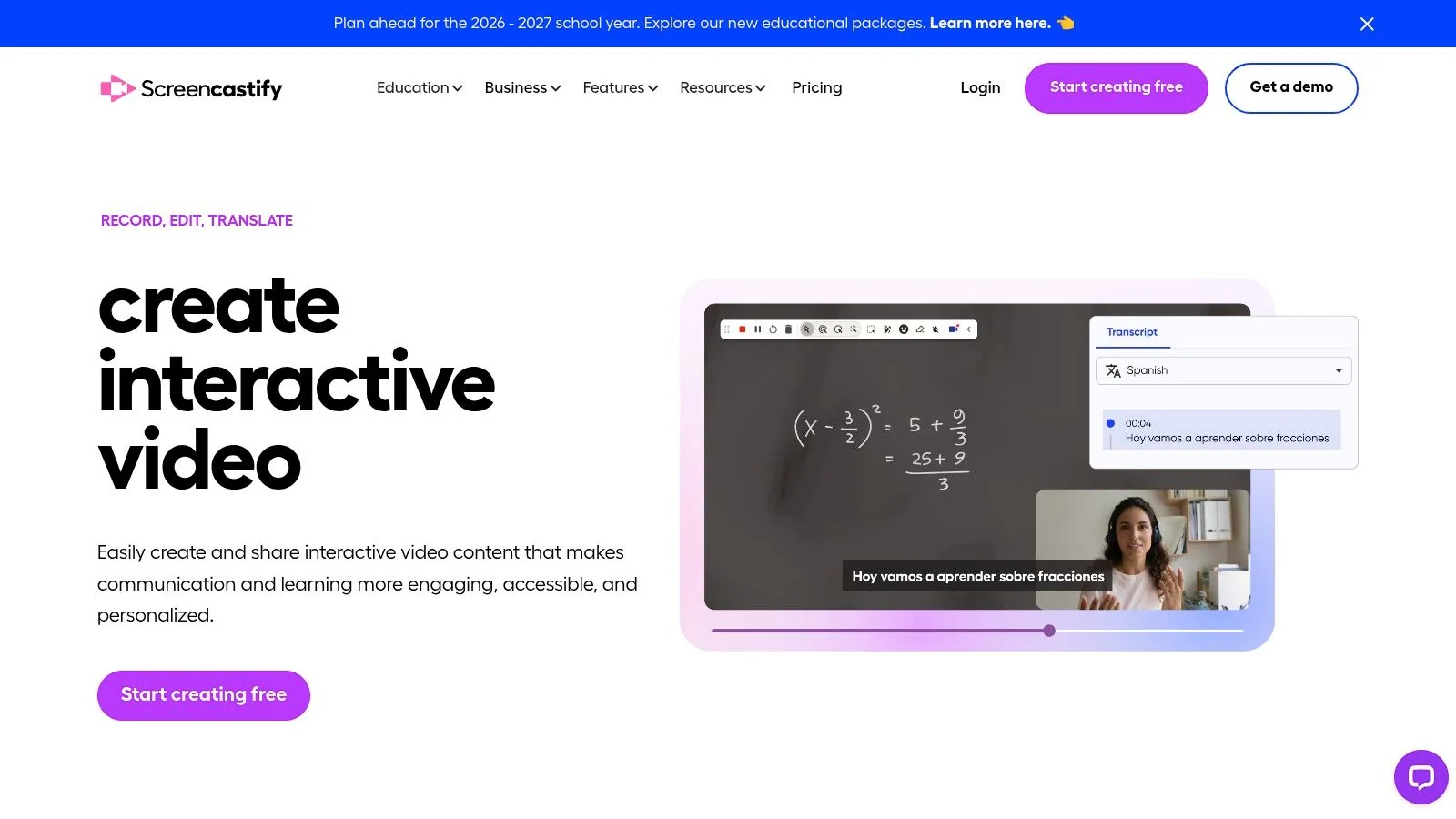
Screencastify makes the most sense in browser-first environments. If your workflow already lives in Chrome and Google Workspace, it feels lightweight in a good way. Open the extension, capture the workflow, add captions, and share.
That’s why it remains popular in education and simple browser-based training. It lowers the barrier to entry so far that even non-video people use it.
Good fit for fast browser capture
Screencastify offers browser-based recording, transcripts, captions, and transcript-based editing on higher tiers. It also supports caption translation into 50+ languages, which is helpful if your audience is broad but your production process is simple.
The strength here is operational speed. For quick tutorials, student instruction, and lightweight process documentation, it gets users from recording to distribution quickly.
- Minimal setup: Great for teams that don’t want desktop software or production-heavy workflows.
- Accessible editing: Transcript-based edits reduce friction for non-editors.
- Plan limitations: The free tier is restrictive, and advanced features sit behind paid plans.
When to choose something else
Screencastify is less compelling for large-scale documentation programs. Browser-first recording is convenient, but it isn’t the same as a polished content engine. If you need stronger branding, richer repurposing, or more enterprise controls, another tool will fit better.
For browser capture plus transcription, though, it remains one of the easiest tools to adopt.
Website: Screencastify
7. VEED
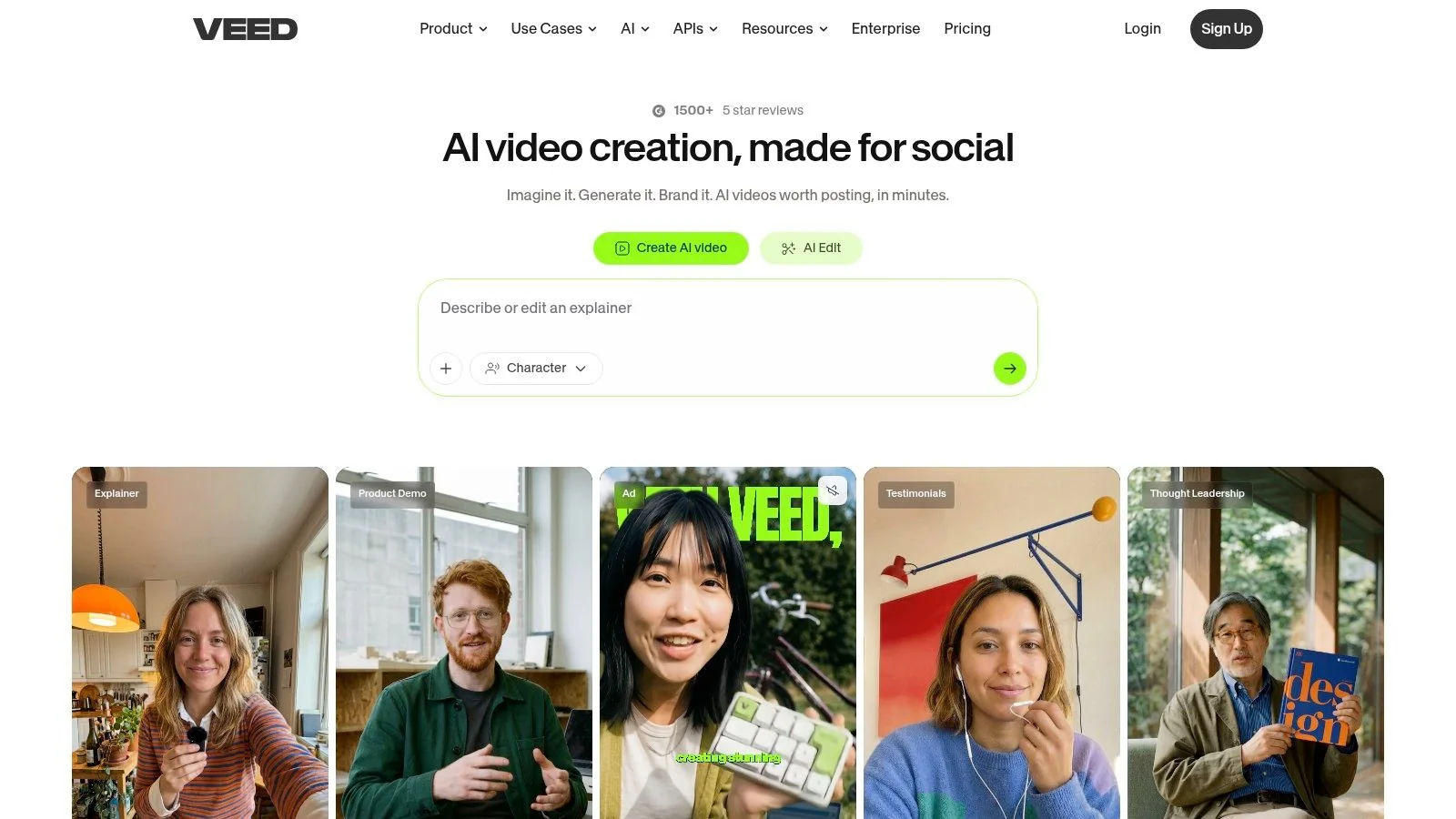
VEED is strongest when caption presentation matters almost as much as the recording itself. If your team publishes customer-facing videos that need styled subtitles, translated captions, and web-based collaboration, VEED earns a spot on the shortlist.
This is less about pure screen capture and more about what happens immediately after recording. In that sense, it’s a subtitle and light editing platform with recording built in.
Where VEED is useful
VEED gives you browser-based recording, an online editor, auto-subtitles, subtitle styling, translation, and exports to common caption formats. That’s a practical combination for marketing teams, creators, and educators who care about accessibility and branding without installing desktop software.
It also works well for distributed teams because collaboration happens in the browser. Review and revision tend to be easier when nobody has to pass project files around.
Good subtitles don’t just improve accessibility. They also make demos and onboarding videos easier to skim, search, and reuse.
What to watch for
VEED’s credit and plan structure can become a constraint if your team leans hard on heavier features. Lower tiers also come with the typical web-tool compromises around exports and watermarks.
For polished subtitle workflows, VEED is one of the better browser tools. For complex tutorial production where the recording must turn into both video and structured documentation, it’s not as complete as tools designed specifically for instructional content.
Website: VEED
8. Vimeo
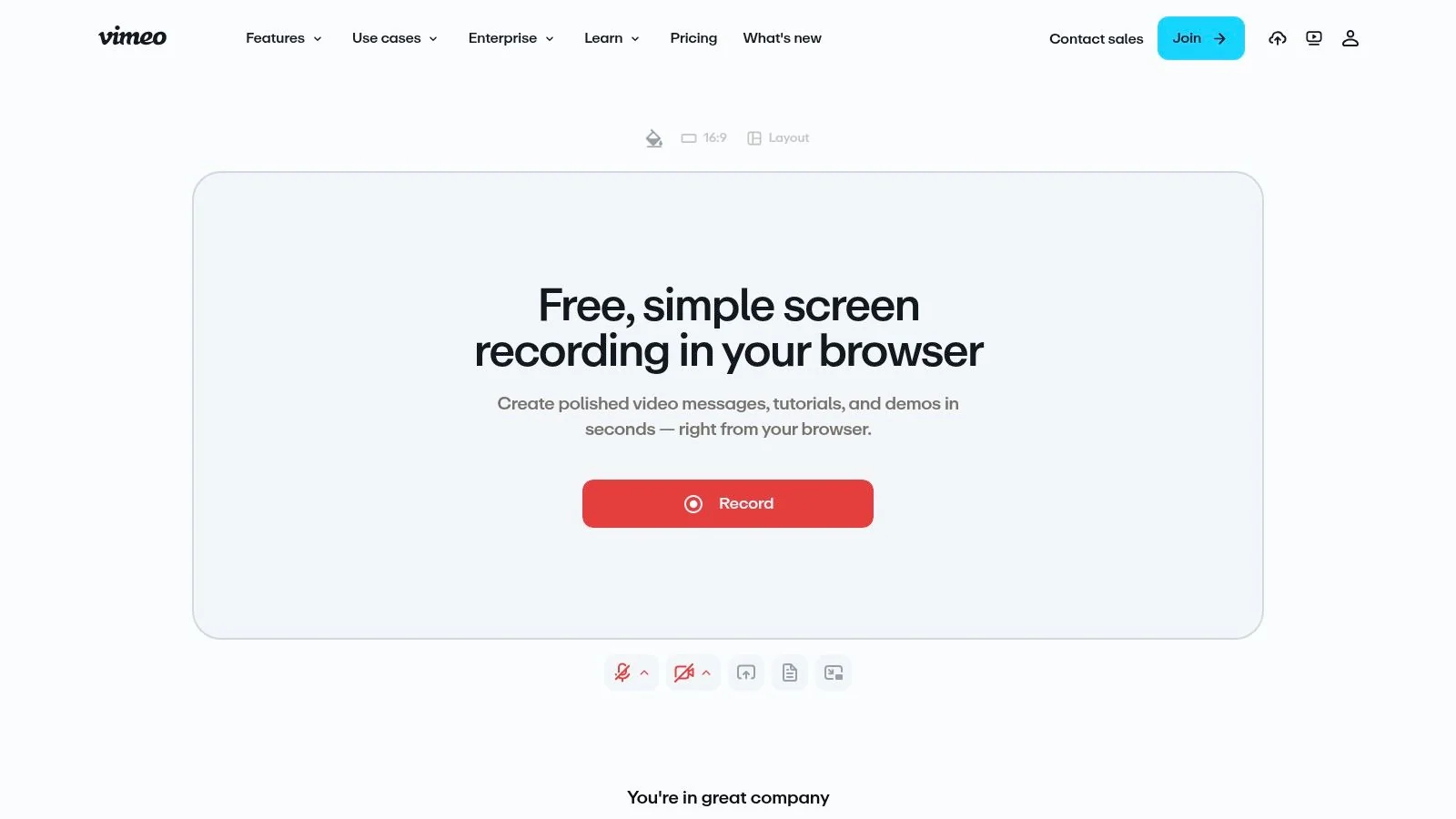
Vimeo is worth considering when hosting and distribution are as important as recording. A lot of teams don’t just need a recorder. They need a player, embeds, permissions, analytics, and a content library that doesn’t feel bolted together from separate tools.
That’s Vimeo’s advantage. It combines in-browser recording and editing with the broader publishing infrastructure many organizations already trust.
Better for distribution-heavy teams
Paid Vimeo plans include automatic closed captions for recorded or uploaded videos, alongside hosting, embeds, brand controls, and analytics. If your company already relies on Vimeo for delivery, adding screen-recorded tutorials into that environment is operationally simple.
The searchable video library can also help large teams reuse content instead of recreating the same explanation repeatedly. That’s especially useful for enablement and internal communications.
Why it isn’t always the best recorder
Vimeo’s screen recorder is part of a larger video platform, so the workflow can feel broad rather than specialized. You get a lot of infrastructure, but not always the deepest recording-to-documentation path.
For teams prioritizing enterprise distribution, it’s a strong option. For teams prioritizing tutorial polish from raw capture with minimal editing effort, the workflow can feel less purpose-built.
Website: Vimeo screen recorder
9. Vidyard
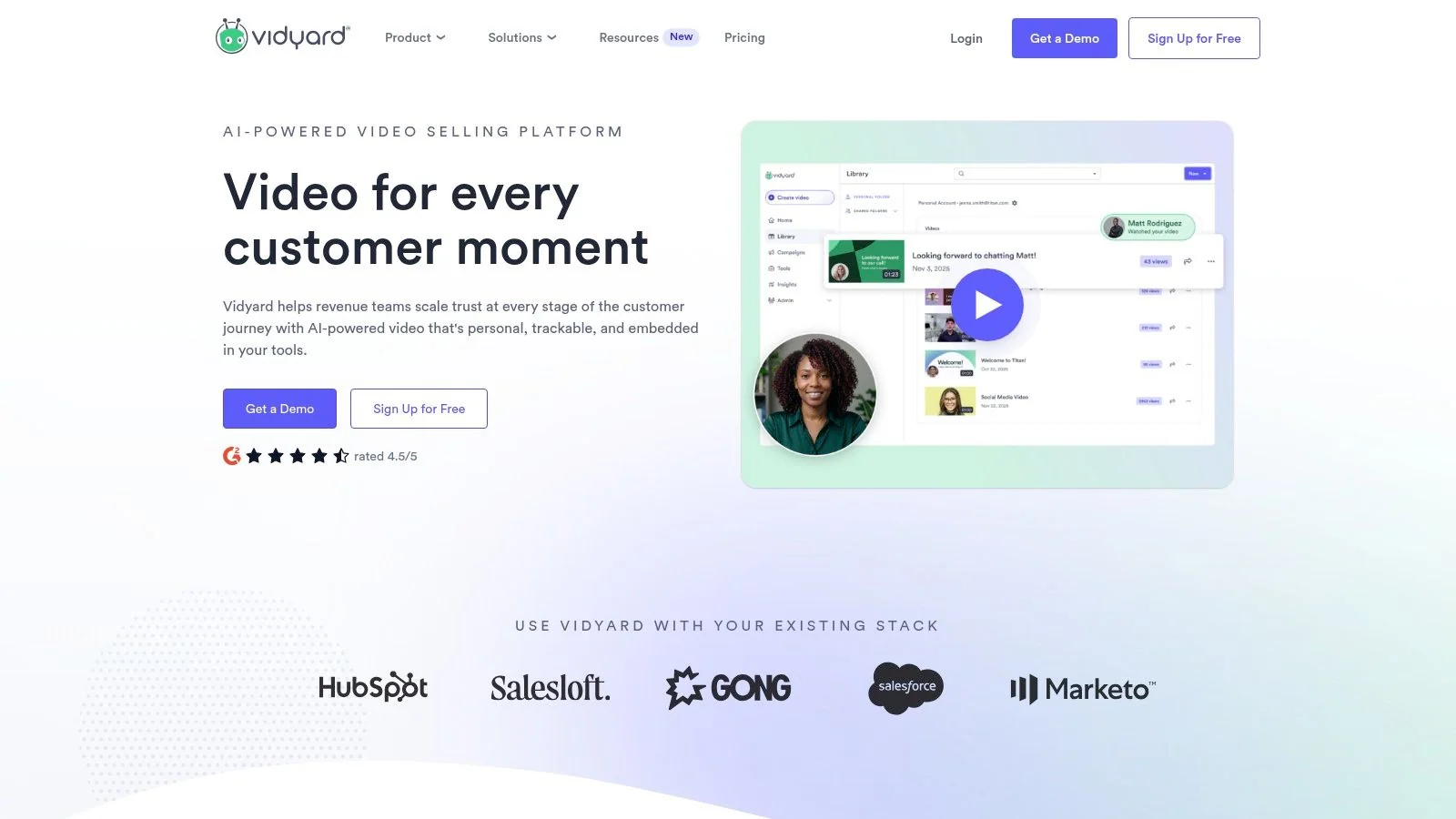
Vidyard belongs on this list for one reason. Sales teams use screen recording differently from support and documentation teams. They care about response speed, personalization, CTAs, and viewer tracking.
If that’s your world, Vidyard makes more sense than many tutorial-first tools. It isn’t trying to turn every recording into a mini course. It’s trying to help go-to-market teams send effective videos quickly.
Best for sales and customer-facing outreach
Vidyard supports screen and camera recording through browser and desktop workflows. Captions can be requested per video, edited in-app, and paired with human caption options on paid paths. It also includes in-player CTAs, forms, analytics, and CRM integrations.
That package is useful for SDRs, account executives, presales teams, and customer-facing reps who need to know whether a recipient watched, clicked, or responded.
Important limitation
Vidyard’s caption workflow is less integrated than tools where transcription is always central to editing. It also isn’t the strongest fit for knowledge-base production or structured training assets. Captions aren’t burned into downloaded videos by default, and some workflows depend on the hosted player experience.
If your goal is sales communication with analytics, Vidyard is a good fit. If your goal is an evergreen support article with a matching polished tutorial, look elsewhere.
Website: Vidyard
10. Microsoft Clipchamp
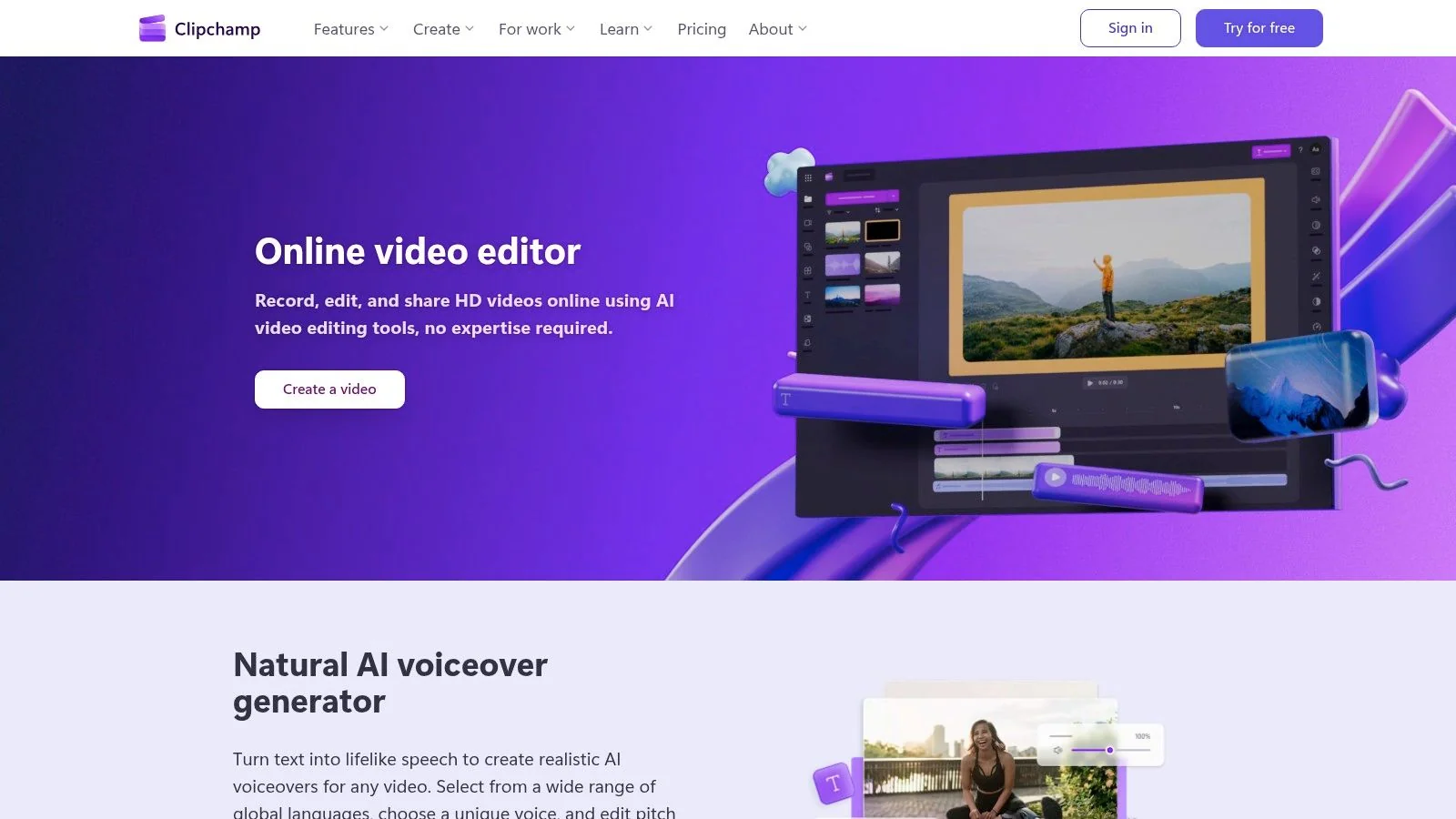
Clipchamp is the practical choice for people who want a simple editor and already live inside the Microsoft ecosystem. It isn’t trying to compete with specialized training tools or editor-heavy suites. It focuses on making basic video creation approachable.
That makes it easy to recommend for occasional creators. Product managers, internal communicators, and Windows users can record, caption, and export without much training.
Why it’s useful
Clipchamp includes screen, camera, and voice recording directly in the editor. Automatic captions are available in multiple languages, and the subtitle text is editable. For many Microsoft 365 users, that’s enough to create serviceable demos, updates, and walkthroughs.
The editor also feels familiar to non-specialists. That matters more than feature depth when adoption is the priority.
Where it stops being enough
Clipchamp is lighter than dedicated editors and more limited than specialized tutorial tools. If you need stronger branding controls, deeper automation, or outputs that become full written documentation, you’ll outgrow it.
For a basic screen recorder with transcription that fits naturally into Microsoft-centric workflows, though, it’s a solid and low-friction option.
Website: Microsoft Clipchamp
Top 10 Screen Recorders with Transcription: Feature Comparison
| Product | Core features | UX / Quality | Price & Value | Target audience | Standout / USP |
|---|---|---|---|---|---|
| Tutorial AI 🏆 | AI screen recorder + “edit like a doc”, 74-lang TTS, AutoRetime, docs & exports | ★★★★★ · 4.9 G2 | 💰 Free → Enterprise; advanced voices/cloning on paid plans | 👥 Customer education, L&D, docs, sales enablement | ✨ Rewrites update voiceover/captions instantly; AutoRetime localization; cursor effects & doc generator |
| Loom | Quick async screen + camera recording, transcripts, edit-by-transcript, team libs | ★★★★ · very fast | 💰 Free + Pro/Business (AI on higher tiers) | 👥 Product, support, sales teams | ✨ Speedy capture-to-share, viewer analytics & team libraries |
| Descript | Recorder + auto-transcript + text-based editing, AI voices & teleprompter | ★★★★ · transcript-first control | 💰 Freemium; paid plans for more minutes/AI credits | 👥 Creators, tutorial producers, script-driven teams | ✨ Best-in-class text-driven editing; precise transcript edits |
| Camtasia | Multitrack timeline editor, cursor effects, SCORM export, AI captions | ★★★★ · pro-grade, steeper learning curve | 💰 Paid subscription/license (pro) | 👥 L&D, training teams, instructional designers | ✨ Granular timeline control, LMS/SCORM-ready exports |
| ScreenPal (Screencast-O-Matic) | Desktop/web recorder, AI captions/transcripts, auto-chapters, quizzes | ★★★★ · accessible workflow | 💰 Free → Paid (advanced AI on higher plans) | 👥 Education, SMBs, teachers | ✨ Built-in accessibility (captions/chapters) and simple hosting |
| Screencastify | Chrome-first recorder, auto-captions, transcript editing, Google Drive | ★★★ · education-friendly | 💰 Free (limits) → Pro/Enterprise | 👥 Educators & schools | ✨ Browser-native capture + easy Google integrations |
| VEED | Web editor + recorder, auto-subtitles/styling, translation, brand templates | ★★★★ · collaborative web UX | 💰 Freemium; credits for heavy AI use | 👥 Social creators, small teams | ✨ Powerful subtitle styling, web-based team collaboration |
| Vimeo (Recorder + Editor) | In-browser recorder, hosting/player, auto-captions (paid), analytics | ★★★★ · integrated distribution | 💰 Paid plans for hosting/captions/analytics | 👥 Enterprise, marketing & events teams | ✨ End-to-end capture → host → distribute with analytics |
| Vidyard | Browser/desktop recorder, requestable captions, CTAs, CRM integrations | ★★★★ · sales-focused metrics | 💰 Free → Paid (analytics/CRM on paid tiers) | 👥 Sales, GTM, customer-facing teams | ✨ In-player CTAs, viewer tracking & CRM workflow |
| Microsoft Clipchamp | Lightweight recorder/editor, free auto-captions, templates, MS integration | ★★★★ · simple & familiar | 💰 Free; full features via Microsoft 365 | 👥 Windows & Microsoft 365 users | ✨ Free editable captions + native MS ecosystem convenience |
Turn Your Expertise into Your Best Content
A common documentation bottleneck starts after the recording is done. The walkthrough is clear. The transcript exists. But the core work still sits with the subject-matter expert or docs team: clean the wording, pull screenshots, structure steps, localize the content, and publish both video and written instructions before the product changes again.
That is the standard worth using in this category. A recorder with transcription should not stop at captions. It should shorten the path from raw capture to a tutorial someone can watch, scan, search, and reuse.
Analysts at Lucintel expect continued growth in the screen recorder market, with automation in post-recording work playing a larger role in buying decisions. That matches what teams currently evaluate. Recording quality still matters, but workflow depth matters more once you are producing repeatable tutorials, onboarding guides, SOPs, release notes, and support content at volume.
The trade-offs are clear across the tools in this list. Loom is efficient for fast internal communication. Vidyard fits sales and customer-facing follow-up. Camtasia gives experienced editors more control. Descript remains strong for transcript-led editing. Those are all valid choices. The deciding factor is usually what happens after the transcript appears.
Teams that publish polished training and documentation need more than editable captions. They need a system that turns one recording into multiple usable assets without duplicating effort. That includes written steps, screenshots, formatting, review-ready outputs, and in many cases translation.
Tutorial AI is notable for that workflow. One rough screen recording can become a cleaned-up tutorial video and a matching written guide with screenshots, instead of forcing the team to record once for video and then rebuild the same explanation as an article. The product demo shows that video-to-documentation flow clearly (Tutorial AI product demo showing video plus article generation).
Security deserves a place in the evaluation too. Cloud transcription is convenient, but teams working with internal systems, regulated data, or unreleased product footage may need tighter control over where audio and video are processed. Interest in offline transcription options is growing, especially for sensitive workflows, and it should be part of the shortlist criteria for IT, healthcare, finance, and technical enablement teams (iFLYTEK offline transcription discussion).
If your team keeps recording a demo, editing it manually, and then rewriting the same material as separate documentation, Tutorial AI is the first product I would test. It is built for the full tutorial workflow: record once, generate a polished video, create matching documentation, and prepare content for broader distribution without turning experts into part-time video editors.