When you hear “capture a YouTube video,” your mind might jump to downloading someone else’s content. But for professionals, it’s about something entirely different: creating your own high-value videos—like product demos, tutorials, or training guides—by recording your screen. It’s about capturing your expertise.
A Modern Way to Create Tutorial Videos
For years, creating polished tutorial videos felt like a choice between two bad options, creating a huge bottleneck for anyone trying to produce content.
On one hand, you had the quick-and-dirty screen recorders. Tools like Loom are fantastic for getting something recorded fast, but the end result is often a rambling, unedited video that’s 50-100% longer than it needs to be. They’re simple to use but lack the professional polish required for a great user experience.
On the other end of the spectrum, you have the heavy-duty video editing suites like Adobe Premiere Pro or Camtasia. These are incredibly powerful, but they come with a steep learning curve that requires expert video editing knowledge. Most subject matter experts (SMEs) don’t have the time or desire to become professional video editors.
The AI-Powered Alternative
This is where AI-driven workflows are completely changing the game. Tutorial AI, for example, generates professional video tutorials from simple screen recordings, finally bridging the gap between ease of use and professional quality. Its tools are designed to let you speak freely without any practice and still produce a video that looks as if it was edited in Adobe Premiere Pro.
The concept is refreshingly straightforward: you just talk and record your screen naturally, without worrying about a script or making mistakes. The AI then takes that raw recording—perfect for demos, onboarding videos, explainer videos, feature release videos, knowledge base videos, and support article videos—and automatically edits it into a tight, professional video that looks like it was cut by an expert.
The big shift here is that the subject matter expert can now create on-brand videos extremely efficiently. It’s no longer about mastering complex software; it’s about capturing your knowledge.
From Raw Recording to Polished Product
So, what does this new process actually look like? It boils down the entire video creation journey into a few simple stages.
This flowchart shows how an AI-assisted model transforms a messy screen recording into a polished, ready-to-share asset.
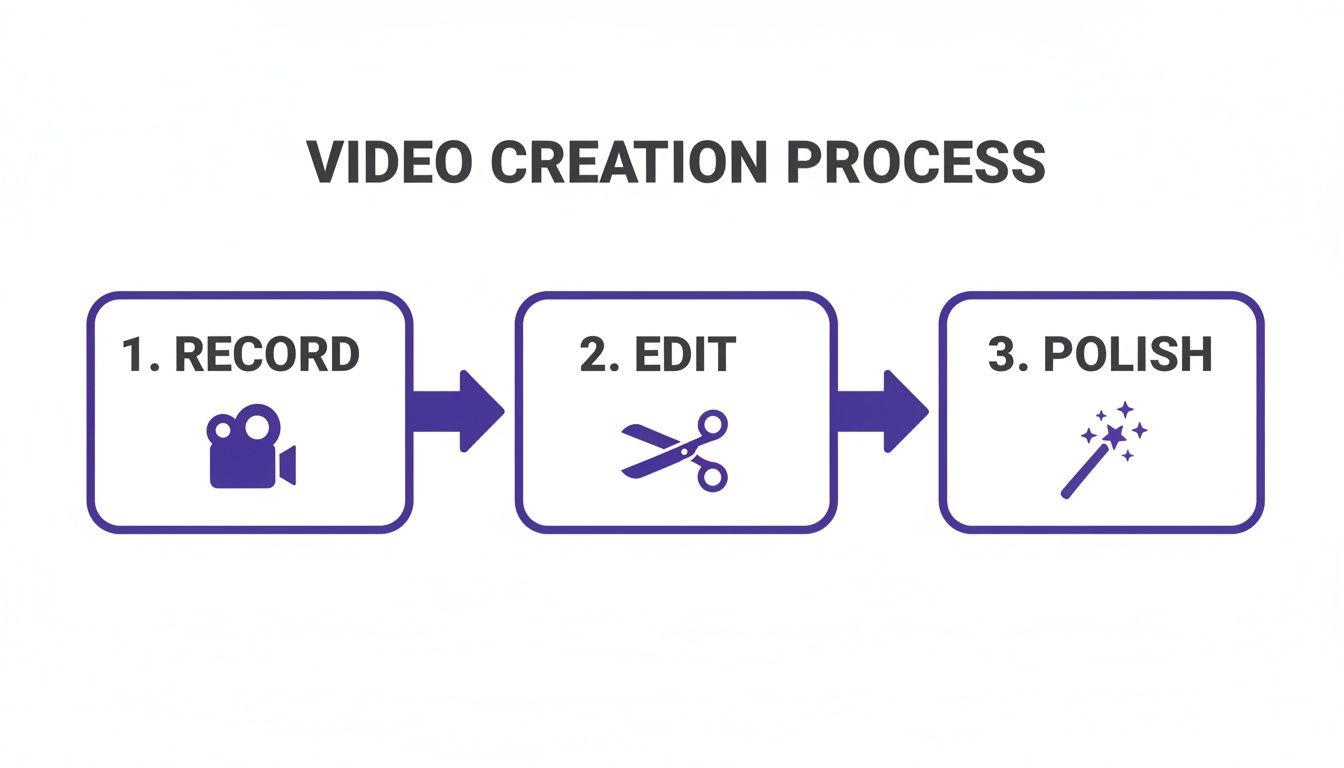
As you can see, the path from initial recording to a finished tutorial is no longer a complicated, multi-tool headache. By integrating the entire process into a single, intelligent workflow, the time it takes to get from an idea to a published video is cut down dramatically.
Video Capture & Editing Method Comparison
To put these different approaches in perspective, here’s a quick comparison of the workflows. It highlights the trade-offs between speed, effort, and the quality of the final video you can expect from each method.
| Method | Recording Ease | Editing Effort & Skill | Final Quality | Best For |
|---|---|---|---|---|
| Simple Screen Recorder (e.g., Loom) | Very Easy | Low / None | Low-to-Medium | Quick, informal internal updates or one-off messages. |
| Professional Editor (e.g., Premiere Pro) | Easy | Very High | High-to-Professional | Marketing videos, high-stakes content, or teams with dedicated video editors. |
| AI-Powered Workflow (e.g., Tutorial AI) | Very Easy | Low (AI-assisted) | High-to-Professional | SMEs creating polished tutorials, product demos, and knowledge base videos at scale. |
Ultimately, choosing the right method depends on your goal. While a quick recording has its place, an AI-powered workflow offers the best balance for creating consistently high-quality instructional content without the traditional overhead.
Keeping Up with the Demand for Video
The need to produce video efficiently has never been more pressing. In 2026, the growth of video on YouTube has been staggering, with creators uploading an astonishing 700 hours of video every single minute. This 40% jump from 2022 figures is fueled in large part by a 63% rise in the use of AI-assisted video production tools. For anyone creating tutorials, this means that while it’s easier than ever to make a video, you need precision and quality to stand out.
An AI-driven approach is perfect for creating the kind of high-value assets that audiences demand, such as:
- Product Demos: Clearly showcase new features with concise, step-by-step walkthroughs.
- Onboarding Videos: Get new users up to speed quickly and reduce support tickets.
- Explainer Videos: Break down complex ideas into simple, easy-to-follow visual guides.
- Knowledge Base Videos: Add visual instructions to your help docs to improve comprehension.
If your tutorials need to reference external clips or specific examples, a good YouTube Video Downloader can be a handy tool for grabbing that source material. Just remember to always make sure you have the proper rights or that your use case falls under fair use guidelines before incorporating content you didn’t create.
Recording Your Screen Without a Script
The best tutorials aren’t born from a perfect script. They come from genuine expertise, shared in the moment. The most powerful way to teach something is to just show it, and the best way to capture that magic is with a raw, unscripted screen recording.
So, forget about memorizing lines or practicing until you get the “perfect” take. The idea here is to record freely without any practice. Just fire up your screen recorder and start talking through your process, as if you were showing a colleague how to do something over their shoulder.
Don’t worry about getting it right on the first try. It’s actually better if you don’t! Go ahead and speak your mind, correct yourself on the fly, and even go back to a previous step if you miss something. The initial recording might feel messy—full of pauses, “ums,” and tangents—but that’s exactly what we’re looking for.
The Power of Raw Footage
So, why is a long, imperfect recording the ideal starting point? While simple recorders like Loom make it easy to capture your screen, the final video is often 50-100% longer than it needs to be, and viewers have to sit through all the unedited bits. On the flip side, trying to clean up that raw footage with professional tools like Adobe Premiere Pro or Camtasia requires serious video editing skills and a huge time commitment.
This is where an AI-powered workflow really shines. A tool like Tutorial AI is built specifically to handle this kind of authentic, raw footage. By capturing your entire thought process, you give the AI all the audio and visual material it needs to piece together a tight, polished video. The better the raw ingredients, the better the final dish.
The goal is to let your subject matter experts do what they do best: be experts. You focus on sharing the knowledge, and let the AI handle the tedious video editing that turns a free-flowing demo into a professional-grade tutorial. With this approach, you can create on-brand videos incredibly efficiently, without spending hours memorizing a script or days battling a video editing timeline.
Choosing Your Recording Tool
When you’re ready to capture your screen, you’ve basically got two options: a desktop app or a browser extension. Knowing which one to use for the job will make your life a whole lot easier.
- Desktop App: If your tutorial involves bouncing between different programs, digging into system files, or showing anything outside of a web browser, a desktop recorder is the way to go. It captures your entire screen (or just a section of it), giving you the freedom to show a complete workflow.
- Chrome Plugin: For any task that lives entirely in your browser, a Chrome plugin is a fantastic and lightweight choice. It’s perfect for walking through a web app, showing off a website’s features, or creating quick onboarding videos for an online service.
Modern tools like Tutorial AI give you the best of both worlds, offering a full-featured desktop app and a handy Chrome extension so you can always grab the right tool for the task.
Most modern recorders have a simple, clean interface that lets you get started with a single click.
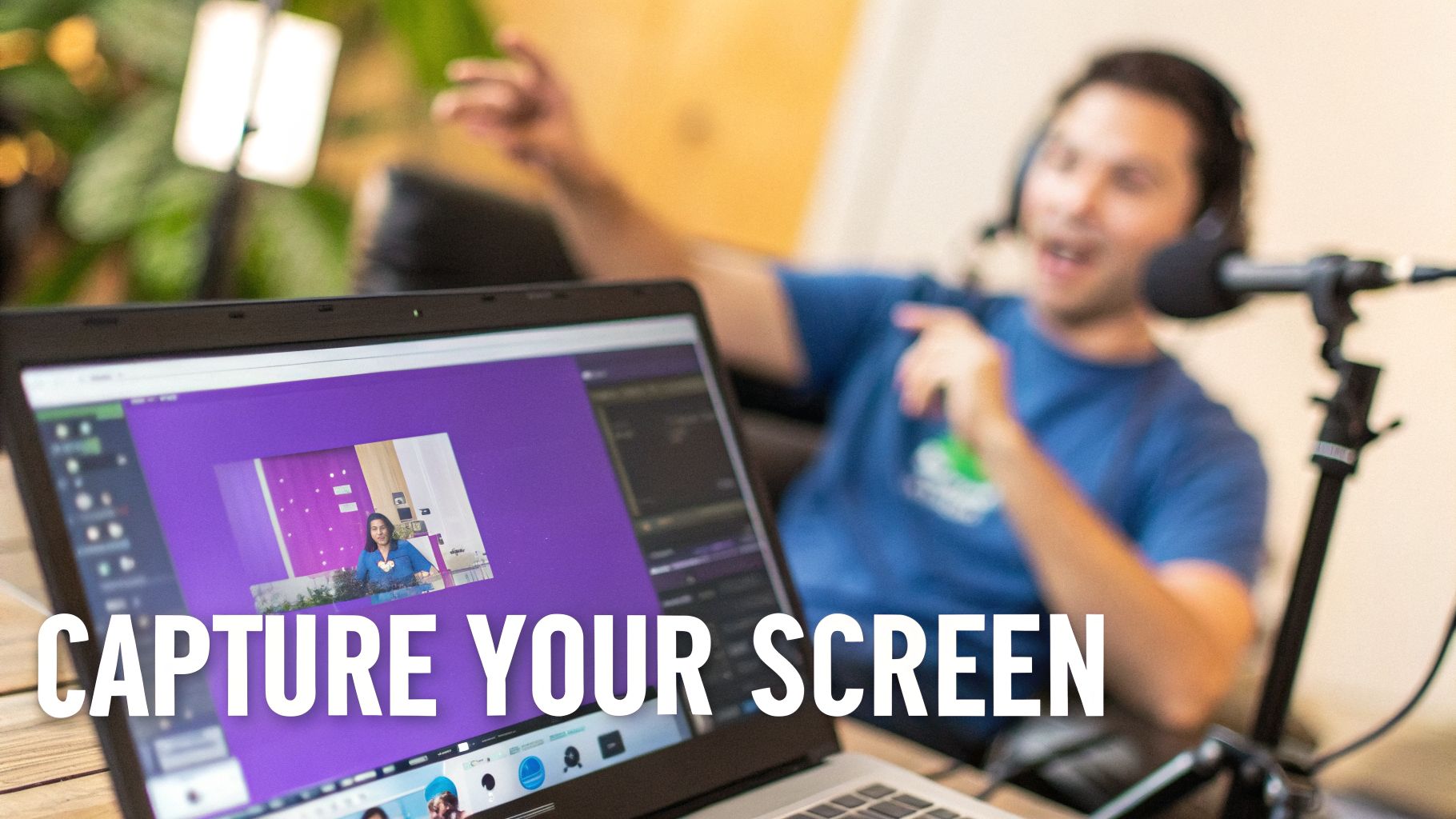
This kind of simplicity is key because it lets you focus on what you’re saying and doing, not on fiddling with complicated settings. It encourages that natural, off-the-cuff style that makes for a great recording.
What to Record with This Method
This unscripted, AI-assisted method is a game-changer for a whole range of content where clarity and expertise are front and center. I’ve found it works especially well for creating:
- Demos and Explainer Videos: Showing exactly how a product or feature works.
- Onboarding Videos: Guiding new users through their first steps with your software.
- Feature Release Videos: Quickly creating content to announce and explain what’s new.
- Knowledge Base and Support Videos: Transforming dry support articles into engaging guides that solve customer problems faster.
If you’re still exploring your options, we’ve put together a guide on the best free screen capture software that can help you find the right fit. By recording without a script, you capture a natural, conversational tone that makes your content more authentic and effective. That raw recording becomes the perfect canvas for the AI to work its magic.
Editing Your Video by Simply Editing Text
You’ve got your raw screen recording. Great. But now comes the part that most people dread: the editing. This is often where a subject matter expert (SME) either throws in the towel or has to pass their footage to a dedicated video editor, which adds time and money to the project. But what if you could create a polished, studio-quality tutorial without ever touching a complex video timeline?
This is where an AI-powered workflow really starts to shine. Imagine editing your video just like you would a Word doc. With a tool like Tutorial AI, your entire narration is automatically transcribed the second you stop recording. Your spoken words are laid out as text, and that text becomes your editing suite.
This script-based approach completely flips the script on video creation. Did you stumble over a sentence? Just find it in the transcript, highlight the text, and hit delete. The corresponding video and audio are instantly removed, and the remaining clips are stitched together perfectly—no jump cuts or jarring transitions.
The Power of Text-Based Video Editing
For anyone who isn’t a full-time video pro—think L&D trainers making knowledge base videos or sales engineers building product demos—this is a total game-changer. You don’t need to learn about keyframes, timelines, or how to split clips. If you can edit a Google Doc, you now have the skills to edit a professional video.
It’s especially useful for cleaning up those long, unscripted recordings we talked about earlier. Those first takes are often 50-100% longer than they need to be. Instead of spending hours scrubbing through footage, you can just read the transcript, nuke all the filler words, and cut entire paragraphs that don’t add value.
- Demos and Onboarding Videos: Quickly tighten up a product walkthrough by deleting repetitive explanations or mistakes right from the text.
- Feature Release Videos: Get straight to the point in your announcements by trimming the script down to only the most critical information.
- Support Article Videos: Turn a long troubleshooting session into a short, punchy guide that gets users to a solution in seconds.
The real win here is efficiency. When the expert can work in a familiar, text-based environment, you can crank out high-quality, on-brand videos at a speed that just wasn’t possible before.
Beyond Basic Cuts: Smart AI Enhancements
Editing by text is just the start. The true power comes from the AI features that work with the transcript to automatically add that professional polish. These tools look at your recording and apply effects that would normally take a skilled editor hours of painstaking manual work.
This shot from the Tutorial AI editor shows exactly how the transcript on the left controls the video timeline on the right.
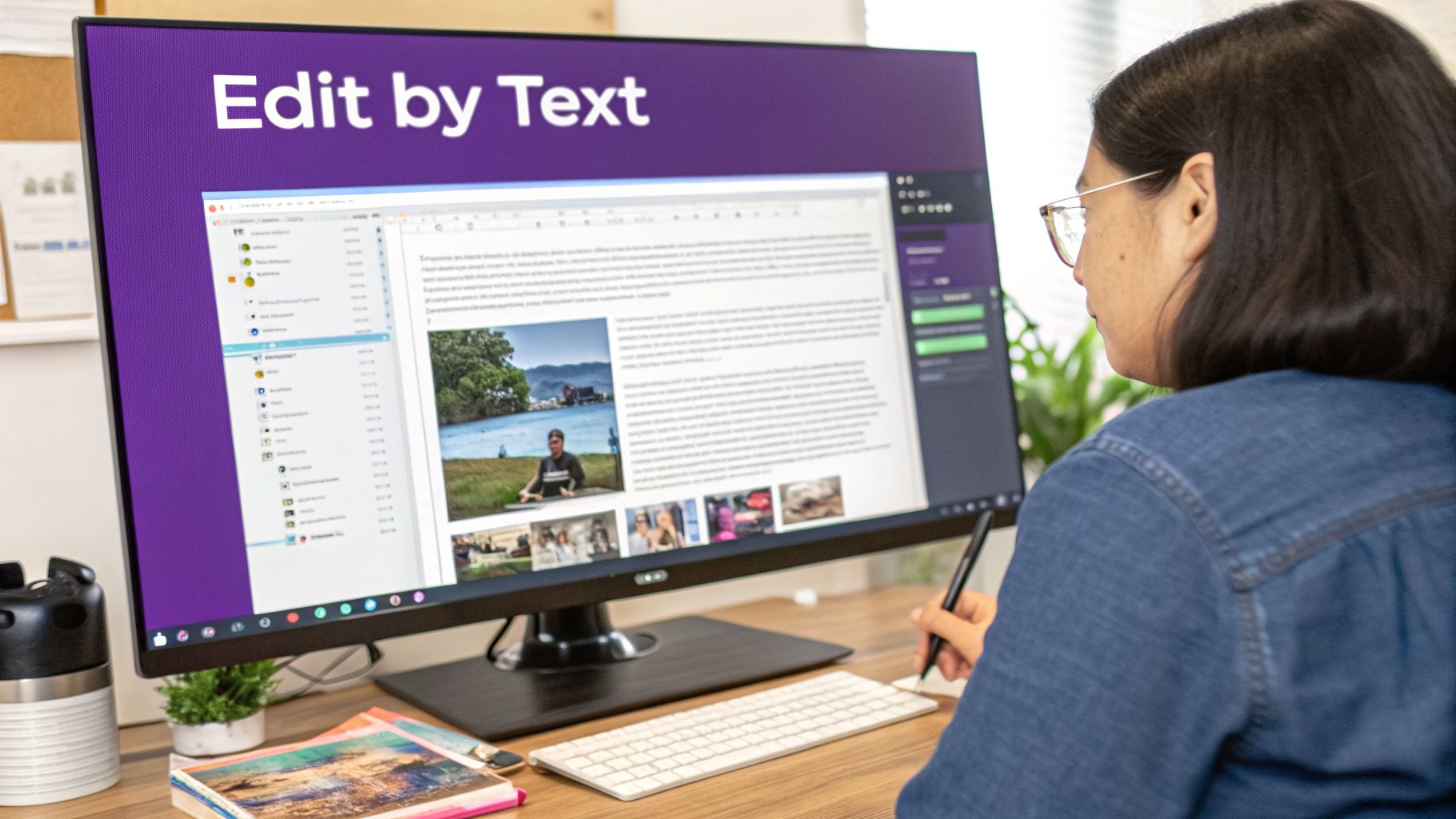
You can see how intuitive it is to spot filler words or incorrect phrases in the script and remove them, with the video cuts happening automatically. That direct link between text and video makes the whole process feel natural and incredibly fast.
What used to take a professional editor hours in a tool like Adobe Premiere Pro—trimming clips, adding zooms, and highlighting actions—can now be done by the subject matter expert in minutes, simply by cleaning up the auto-generated script. The AI isn’t just making cuts; it’s actively improving the viewing experience by guiding your audience’s focus.
- Smart Zooms: The AI figures out where you’re clicking or typing and adds smooth pans and zooms to draw the viewer’s eye right to the action.
- Cursor Highlights: It can automatically put a highlight or halo around your cursor, making your on-screen movements much easier to follow.
- Branded Assets: Adding your company’s intro, outro, and branded backgrounds is a one-click affair, keeping every video consistent and professional.
Of course, for highly complex projects, creative teams often still turn to advanced software. For a deeper look into what that kind of workflow involves, this Adobe Premiere Pro tutorial offers a great overview.
Quality Over Quantity in a Crowded Space
This level of polish isn’t just a nice-to-have anymore. Recent YouTube data shows an interesting trend for educational content. While the average views per video shot up by a massive 76% (from 389.90 to 687.21) between 2024 and 2025, the overall engagement rate actually dropped by 37%. The takeaway? While tutorials are reaching more people, you need a higher standard of quality to hold their attention. You can find more details on these YouTube trends in the full report.
Ultimately, a streamlined editing process lets you focus on what really matters: delivering clear, concise, and valuable information that keeps viewers watching. By removing the technical hurdles to video production, anyone can now record their screen and turn it into a polished tutorial that looks like it came from a professional studio.
Let’s be honest: we’ve all seen it. A beautifully shot tutorial that’s completely unwatchable because of terrible audio—hissing, background noise, or a presenter who sounds nervous. Great audio isn’t just a nice-to-have; it’s what separates a professional video from an amateur one.
But here’s the thing: you don’t need to be a professional voice actor or have a soundproof studio anymore. After capturing your video, AI-driven narration completely changes the game. Your main job shifts from performance to polish.
Just focus on cleaning up the auto-generated script from your recording. Make sure it’s clear, accurate, and sounds like your brand. From there, a high-quality AI voice can regenerate the entire narration track for you. The result? Perfect pacing and a flawless delivery, every single time. No more awkward pauses, “ums,” or the dog barking in the background.
From Good Audio to Flawless Narration
What’s really incredible is that this approach separates the final audio quality from the original recording environment. Your subject matter expert can record a quick walkthrough from a busy office or their kitchen table, and it won’t matter. As long as their speech is clear enough for the AI to transcribe, you’re golden.
You can then handpick a voice from a library that fits your brand’s personality perfectly. It’s as simple as browsing and clicking.
This means you can maintain a consistent, professional tone across all your video content, whether it’s for a support article or a major sales demo. Some tools even let you clone your own voice for that truly personal feel.
It’s an absolute game-changer for creating things like:
- Knowledge base videos: Deliver instructions so clear that support tickets start to drop.
- Onboarding and explainer videos: Give new users a polished and welcoming first impression.
- Feature release videos: Announce updates with a confident and consistent brand voice.
If you’re curious about the tech behind this, you can learn a lot more about using an AI voice generator for your videos. It’s a method that helps ensure every video you produce meets an incredibly high standard.
Taking Your Content Global in Minutes
So, you’ve created a perfectly narrated video. Now, what about reaching your customers in Berlin or Bogotá? In the past, translating a single tutorial was a massive project. You’d need to hire translators, book voice actors for each language, and then pay an editor to painstakingly piece it all together. It could take weeks.
Today, AI can shrink that timeline down to just a few minutes. A feature like ‘AutoRetime’ can translate your video into dozens of languages almost instantly. But it does something far more clever than just swapping out the audio. It actually re-times the video itself.
The AI intelligently adjusts scene lengths, captions, and even on-screen annotations to match the cadence of the new language. A phrase that’s short and punchy in English might take longer to say in German. The technology accounts for this by extending that scene, so the visuals always align with the narration. This completely avoids that awkward, dubbed feeling where the on-screen action doesn’t match the voiceover. The viewing experience feels native, no matter the language.
Think about a SaaS company launching a new feature. Instead of making their Spanish-speaking customers wait weeks for a localized tutorial, they can have a fully translated and professionally narrated version ready to go on day one.
This is how you truly scale your support and sales content. You can provide high-quality, local-language training to your entire global user base without draining your budget or your team’s time. A single video becomes a worldwide resource with just a few clicks.
Publishing and Sharing Your Finished Tutorial
You’ve recorded, edited, and polished your video. Now for the most important part: getting it in front of the people who need it. A great tutorial only delivers value once it’s seen, and a smart distribution strategy is what turns all your hard work into tangible results.
Thankfully, you have flexible options. You can push your video directly to platforms like YouTube or Vimeo with a single click, or you can export a high-quality file—up to 4K resolution—to use in other systems or for offline presentations.
Embedding Videos for Just-in-Time Support
One of the most effective ways to share your tutorial is to embed it directly where your audience works. This brings the learning to them, creating a seamless support experience exactly when they need it most.
Imagine these real-world scenarios:
- Knowledge Base Videos: A customer is reading a Zendesk or Help Scout article but is still confused. By embedding your tutorial right on that page, you give them a visual guide to solve their problem instantly, which can dramatically cut down on support tickets.
- Sales Enablement: Your sales team can embed a quick product demo in an email or a Salesforce record to answer a prospect’s question without needing to schedule another call.
- Internal Training: Drop new training videos directly into your company’s Learning Management System (LMS) to ensure your team’s skills stay current.
Using a clean, brandable player ensures your videos look professional and consistent, no matter where they’re viewed.
Getting Your Team’s Eyes on It Before Publishing
Let’s be honest—video creation is often a team sport. Before you go live, you’ll likely need feedback from colleagues in marketing, product, or sales to ensure the message is spot-on. This is where a shared workspace makes all the difference.
Forget about the headache of emailing massive video files back and forth. You can simply share a private link to your project, allowing team members to leave time-stamped comments and suggestions. This collaborative workflow keeps the feedback process organized and efficient, helping you get final approval without the usual delays.
As you can see below, Tutorial AI centralizes all your sharing and exporting options, giving you full control over who can view, comment on, or download your video.
These controls make it simple to manage everything from a private team review to generating an embed code for your public knowledge base.
Turn Your Tutorial into Snackable YouTube Shorts
Your comprehensive tutorial is the main course, but short-form clips are the perfect appetizer for discovery. You can easily slice up your main video to create several short, punchy clips that highlight a key tip or a “wow” feature.
These clips are tailor-made for YouTube Shorts, which has become the platform’s most powerful engine for reaching new audiences. In fact, Shorts now averages over 70 billion daily views as of 2026—a massive 71% jump from 2023. As YouTube’s explosive growth statistics show, SaaS companies can use Shorts to capture attention and then guide interested viewers back to their longer, more detailed content.
Pro Tip: Use Shorts to create a “content funnel.” Grab a new audience with a quick, engaging clip, and then use that video’s description or a pinned comment to link them to the full tutorial. This dual-format approach gives you the best of both worlds. You attract new users with bite-sized content while also providing the in-depth instruction that builds product experts and loyal customers. Just remember to add clear captions, since most people watch Shorts with the sound off. For a full walkthrough, check out our guide on how to add captions to videos.
Common Questions About Creating Video Tutorials
As you get ready to capture YouTube video or build your own tutorials, a few questions inevitably come up. Let’s clear the air on some of the most common ones so you can start creating with confidence.
First, Let’s Talk About the Legal Side
This one is huge, and for good reason. Just downloading someone else’s YouTube video and sticking your own logo on it is a straight-up copyright violation. Don’t do it.
However, the waters get a bit murkier when you’re screen recording for a new, transformative purpose. Using short clips for critique, commentary, or education can sometimes be protected under “Fair Use.” The absolute key here is that you have to add significant new value or commentary—you can’t just replay the original content.
For any professional or business use, the safest bet is always to capture your own screen. Record your own software, your own processes, and your own expertise. It’s the best way to respect copyright and stay on the right side of YouTube’s terms of service.
Why Bother With an AI Editor Over Traditional Software?
The real game-changer with AI editors is how they handle the workload—and who’s doing it. Powerful tools like Adobe Premiere Pro and Camtasia are fantastic, but they’re built for professional video editors and come with a steep learning curve and a massive time commitment.
An AI editor like Tutorial AI flips the script. It’s designed so the subject matter expert—the person who actually knows the content—can create a professional video without needing an editing degree. The entire process is script-based. You edit the text, and the video changes automatically. This is worlds faster than messing with timelines and keyframes. This means a sales engineer, a support lead, or a trainer can produce a perfectly polished, on-brand tutorial in minutes, not hours. It completely closes the gap between knowing the material and being able to teach it effectively with video.
Can I Use My iPhone to Capture Part of a Tutorial?
Not only can you, but you probably should, especially if your product or workflow has a mobile component. Great tutorials aren’t just stuck on the desktop anymore; many of the best ones show how a user moves between their computer and their phone.
A flexible toolset makes it easy to record your iPhone or iPad screen to show off a mobile app’s functionality. You can then pull that footage right into an AI editor next to your desktop capture.
This lets you build a single, cohesive tutorial that walks users through a complete cross-device experience. It’s perfect for creating comprehensive onboarding flows, support guides, or feature announcements that show off everything your product can do.
Ready to stop wrestling with timelines and start creating studio-quality tutorials in minutes? See how Tutorial AI lets you edit video like a doc, generate flawless AI narration, and take your content global.
Visit / to start your free trial.