Finding the best free screen capture software can transform how you create tutorials, onboard new team members, or build out your knowledge base. Whether you’re a sales leader crafting the perfect demo, a support specialist creating a how-to guide, or an educator producing software walkthroughs, the right tool is essential for clear, effective communication. But the market is crowded with options, each with a unique set of features, strengths, and limitations. How do you choose the right one without spending hours on research and testing?
This comprehensive guide is designed to solve that problem. We’ve rigorously evaluated the top free and freemium screen capture tools available today to help you make an informed decision quickly. We move beyond generic feature lists to provide an honest assessment of what each platform does best and where it falls short. You’ll find detailed analysis tailored for specific use cases, from internal training and IT operations to product marketing and sales enablement.
For each tool, we provide a quick overview, pros and cons, and ideal user profiles, complete with screenshots and direct links to get you started. Once you’ve captured your screen, adding highlights or notes is often the next step. For a deep dive into that process, check out this a complete guide to screen capture annotation.
We’ll also explore how innovative platforms like Tutorial AI are changing the game, allowing subject matter experts to create professional, on-brand video tutorials from raw recordings without needing expert editing skills. This roundup will equip you with the insights needed to select the perfect software that aligns with your specific workflow and goals. Let’s find the right fit for you.
1. Tutorial AI
Best for: AI-powered creation of studio-quality tutorials and demos.
Tutorial AI fundamentally redefines what the best free screen capture software can be by generating polished video tutorials from your screen recordings. It’s engineered to solve a common dilemma: easy-to-use recording via Loom is often 50-100% longer than necessary, while professional video editing software such as Camtasia or Adobe Premiere Pro requires expert video editing knowledge. Tutorial AI bridges this gap. Its tools let you speak freely without any practice, and your video will still look professional, as if it was edited in Adobe Premiere Pro. It allows the subject matter expert to create on-brand videos extremely efficiently.
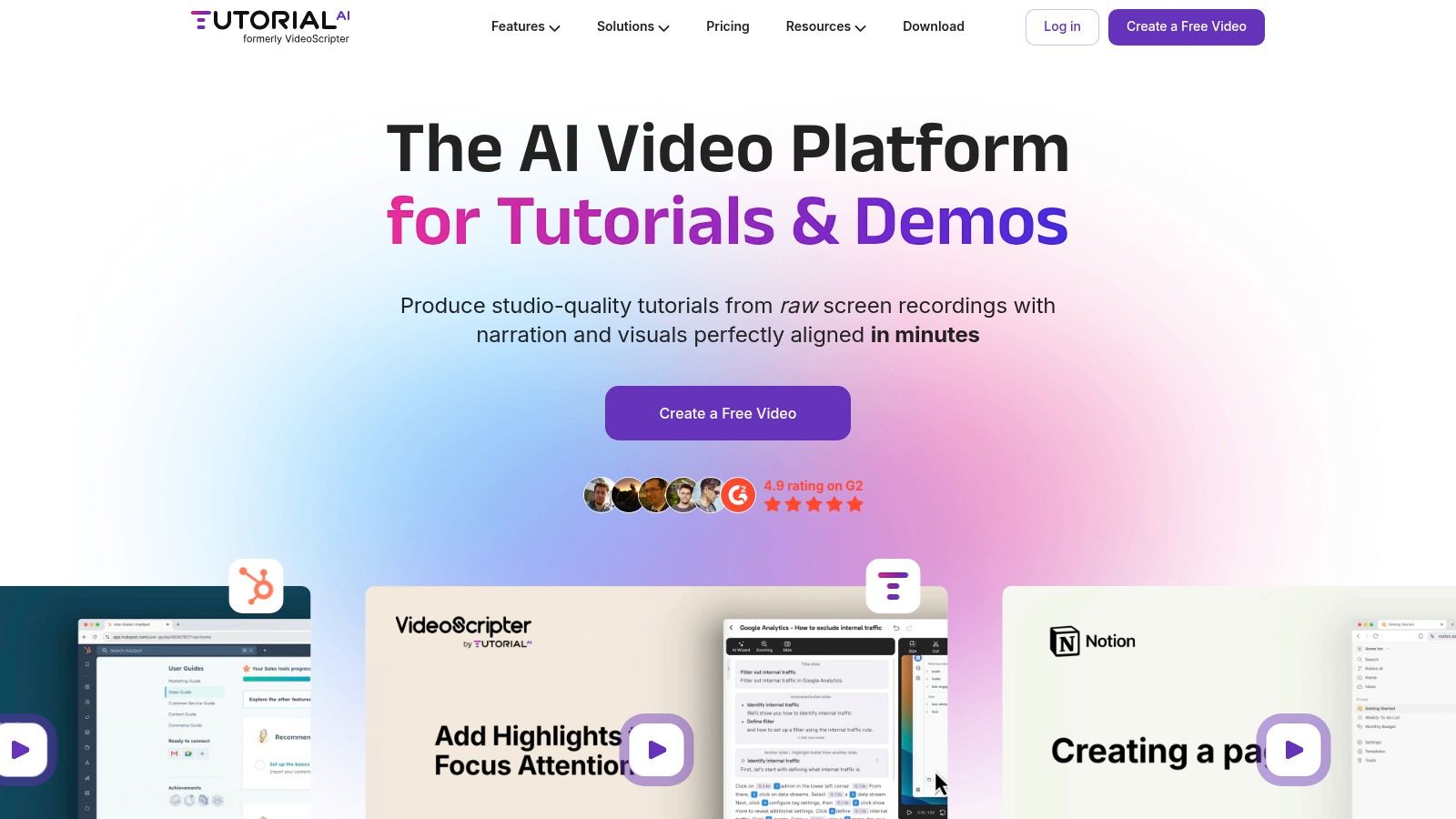
The platform’s core innovation is its “edit like a doc” workflow. After capturing your screen, Tutorial AI transcribes your audio, allowing you to edit the video simply by editing the text. Deleting a sentence automatically removes the corresponding video and audio segment, while correcting a word instantly regenerates the lifelike AI voiceover to match. This process turns a raw, unscripted recording into a tightly paced, professional video without ever touching a complex timeline.
Standout Features & Workflow
Tutorial AI excels in generating video tutorials for demos, onboarding videos, explainer videos, feature release videos, knowledge base videos, and support article videos. Its unique cursor tracking captures mouse movement as data, not pixels, enabling you to add smoothing, highlights, and smart zooms after recording to perfectly direct viewer attention. For those interested in exploring other creative applications of artificial intelligence, you might find inspiration in a complete guide to using AI for image generation which details a different but equally innovative use of AI technology.
The platform’s strengths are particularly evident for teams. Features like Brand Kits, shared workspaces, and a hosted player with easy embedding simplify enterprise-level publishing. Furthermore, its AutoRetime™ technology makes localization effortless, automatically re-syncing scenes, captions, and cuts when translating content into over 30 languages. For a deeper dive into creating effective instructional content, you can learn more about screen recording for training on Tutorial.ai.
- Pricing: A generous Free plan is available, offering 3 projects and 1080p exports. Paid tiers (starting around $18/month) unlock unlimited projects, advanced AI voices, and team features.
- Pros: Turns raw recordings into polished tutorials in minutes; “edit like a doc” workflow is incredibly intuitive; powerful post-production cursor effects and smart zooms; built-in localization and team collaboration tools.
- Cons: The most advanced features (e.g., voice cloning, priority support) are reserved for higher-tier plans; as a cloud-based SaaS, it may not suit organizations with strict on-premise data policies.
Website: https://www.tutorial.ai
2. OBS Studio
OBS Studio is widely regarded as one of the best free screen capture software options available, particularly for users who need professional-grade control over their recordings and live streams. It’s a powerful open-source tool that moves far beyond simple screen grabs, offering a complete production studio on your desktop. This makes it ideal for creating high-quality software tutorials, detailed webinars, and engaging gameplay videos.
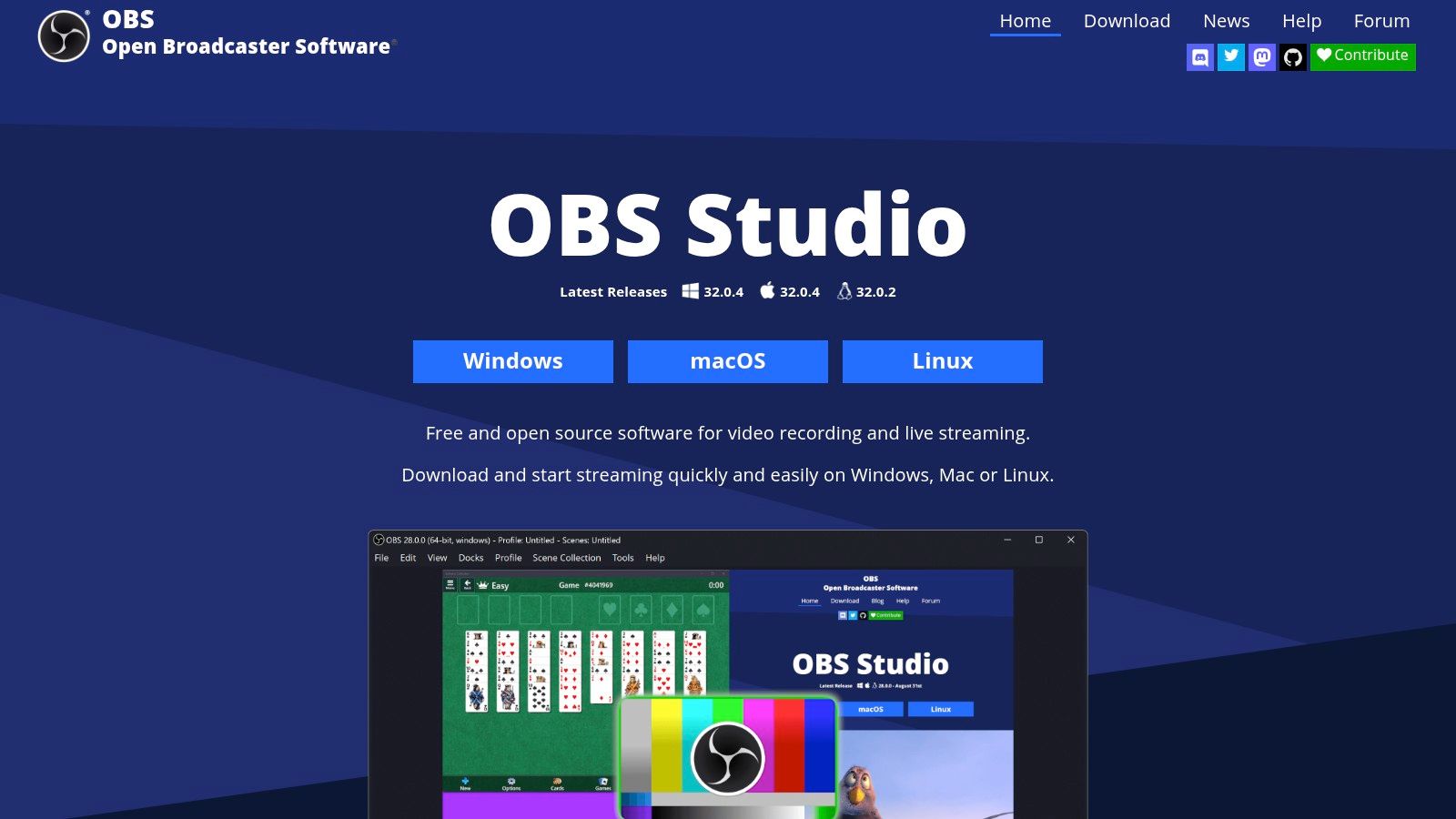
Unlike simple one-click recorders, OBS operates using a system of “scenes” and “sources.” This allows you to compose complex layouts by layering multiple elements like your full screen, specific application windows, webcam footage, images, and text. You can create different scenes for various parts of your presentation and switch between them seamlessly with custom hotkeys, adding a polished, broadcast-quality feel to your recordings.
Key Features and Use Cases
- Multi-Source Compositing: Combine your screen, webcam, and other media sources into a single, professional-looking video. Perfect for sales demos where you need to show your face and a product walkthrough simultaneously.
- Advanced Audio Control: OBS provides a robust audio mixer with per-source filters like noise suppression and gain control. If you need to learn more about screen recording with sound, mastering OBS’s audio capabilities is a great place to start.
- Studio Mode: This feature lets you preview and adjust scenes before pushing them live to your recording or stream, preventing on-screen mistakes.
- Extensive Plugin Support: A vast library of community-created plugins adds new transitions, source types, and integrations, extending its functionality even further.
Our Take: OBS Studio is the ultimate choice for technical content creators who require maximum flexibility and are willing to invest time in learning the software. Its power is unmatched in the free software landscape.
| Feature | Rating |
|---|---|
| Ease of Use | ★★★☆☆ |
| Recording Quality | ★★★★★ |
| Editing Features | ★★☆☆☆ |
| Cost | Free |
Pros:
- Completely free and open-source with no watermarks or limitations.
- Unparalleled control over video and audio sources.
- Strong community support and cross-platform availability (Windows, macOS, Linux).
Cons:
- Steep learning curve for beginners; can feel overwhelming.
- Overkill for users who only need to capture simple screenshots.
You can download it directly from the official website: https://obsproject.com
3. ShareX
ShareX is a powerful, open-source screenshot and screen capture utility for Windows that is a favorite among power users. While many tools focus on simplicity, ShareX offers an unparalleled level of customization and automation, making it some of the best free screen capture software for users who need to build efficient workflows. It excels at taking a capture and then automatically performing a series of “after-capture” tasks, such as annotating, adding a watermark, and uploading it to a specific service.
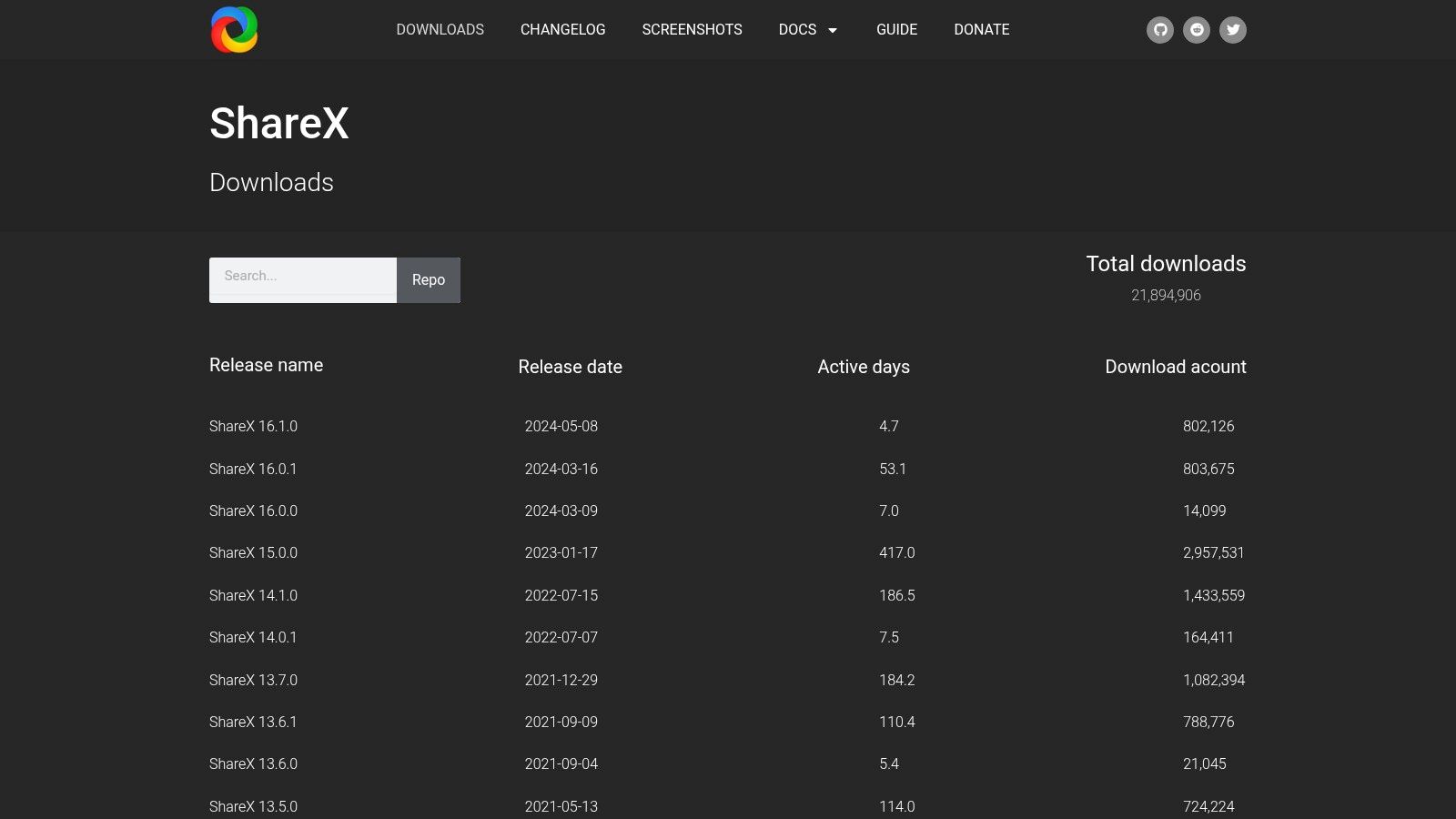
This workflow-based approach makes it incredibly useful for creating documentation, bug reports, or quick tutorials. Instead of manually performing multiple steps, you can configure a single hotkey to capture a region, open it in the built-in image editor for annotations, and then automatically upload the file to Imgur or your cloud storage, copying the link to your clipboard. This level of automation can save a significant amount of time for repetitive tasks.
Key Features and Use Cases
- Advanced Workflow Automation: Create custom “after-capture” tasks, including annotations, watermarking, and automatic uploads to over 80 different destinations. This is ideal for support teams rapidly creating visual aids for tickets.
- Multiple Capture Modes: Beyond standard screenshots, ShareX supports scrolling capture for long web pages, text capture using OCR, and screen recording to both video and GIF formats.
- Built-in Annotation Tools: A robust image editor is included for adding arrows, text, highlights, and obfuscation directly after taking a screenshot.
- Highly Configurable: Nearly every aspect of the tool can be customized through hotkeys, settings, and integrations, allowing you to tailor it perfectly to your needs.
Our Take: ShareX is the ultimate productivity tool for Windows users who frequently capture and share screens. Its steep learning curve is a worthwhile investment for the incredible efficiency gains it provides.
| Feature | Rating |
|---|---|
| Ease of Use | ★★☆☆☆ |
| Recording Quality | ★★★☆☆ |
| Editing Features | ★★★★☆ |
| Cost | Free |
Pros:
- Completely free and open-source with no ads or limitations.
- Powerful workflow automation saves significant time on repetitive tasks.
- Extensive capture options, including scrolling capture and GIF recording.
Cons:
- Only available for Windows.
- The vast number of features and settings can be overwhelming for new users.
You can download it directly from the official website: https://getsharex.org
4. Xbox Game Bar (Windows)
For Windows 10 and 11 users, one of the best free screen capture software options is already built directly into the operating system. The Xbox Game Bar is a surprisingly capable and convenient tool that can be instantly accessed with the Win+G hotkey. While designed for gamers, its straightforward recording and screenshot capabilities make it an excellent choice for anyone needing to capture application windows quickly for training guides, support tickets, or quick demos.
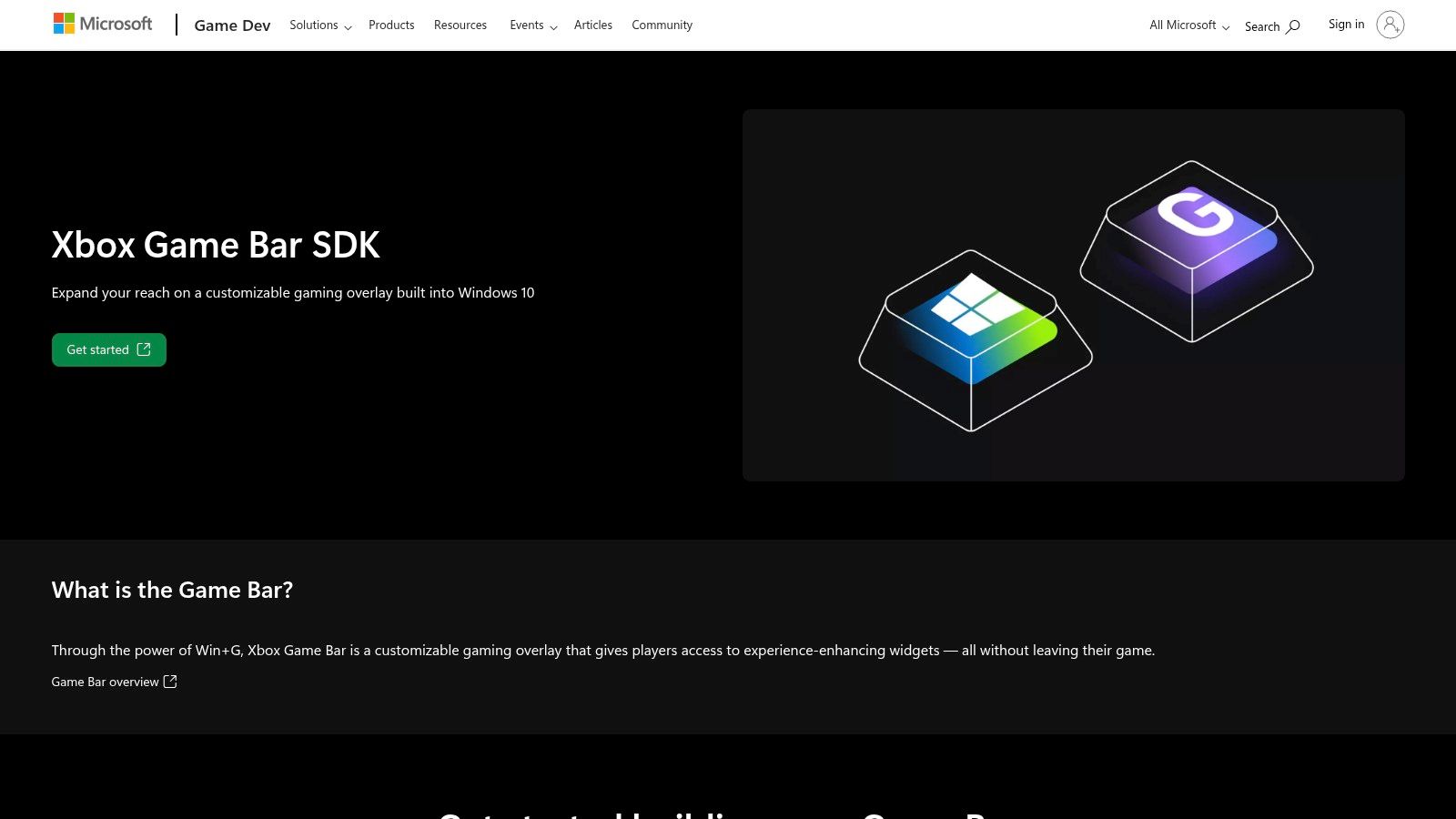
The Game Bar operates as an overlay, providing access to capture controls, performance metrics, and audio settings without leaving your current application. This makes the recording process feel seamless and integrated. Recent updates have expanded its functionality with a Widget Store, allowing users to add third-party integrations for things like Spotify or custom performance monitors, further enhancing its utility beyond simple screen recording.
Key Features and Use Cases
- Instant Access: Simply press
Win+Gto bring up the overlay andWin+Alt+Rto start or stop recording, making it perfect for capturing spontaneous issues or ideas. - Performance Overlays: Monitor your PC’s CPU, GPU, and RAM usage in real-time, which is useful for creating tutorials on software performance or troubleshooting.
- Game Clip Recording: The “record that” feature automatically saves the last 30 seconds of activity, an invaluable tool for capturing intermittent software bugs or user errors.
- System Audio and Mic Control: Easily manage and record application audio and your microphone input directly from the overlay, ideal for quick voice-over recordings.
Our Take: Xbox Game Bar is the ultimate convenience pick for Windows users. It’s the fastest way to record a single application window when you don’t need advanced editing or multi-source layouts.
| Feature | Rating |
|---|---|
| Ease of Use | ★★★★★ |
| Recording Quality | ★★★★☆ |
| Editing Features | ★☆☆☆☆ |
| Cost | Free |
Pros:
- Completely free and pre-installed on modern Windows systems.
- Extremely simple hotkey-driven workflow for instant captures.
- Good performance with minimal impact on system resources.
Cons:
- Lacks advanced features like multi-source recording or a dedicated editor.
- Primarily records a single application window, not the entire desktop or specific regions.
You can learn more about its features on the official Microsoft developer page: https://developer.microsoft.com/en-us/games/products/game-bar/
5. NVIDIA App (formerly GeForce Experience / ShadowPlay)
For users with NVIDIA graphics cards, the NVIDIA App offers some of the best free screen capture software available, with a special focus on high-performance recording. Built directly into the GPU driver software, it leverages dedicated hardware encoders to capture gameplay and desktop activity with a minimal impact on system performance. This makes it a go-to choice for gamers, but its capabilities are equally useful for creating crisp, high-fidelity software demonstrations or tutorials.
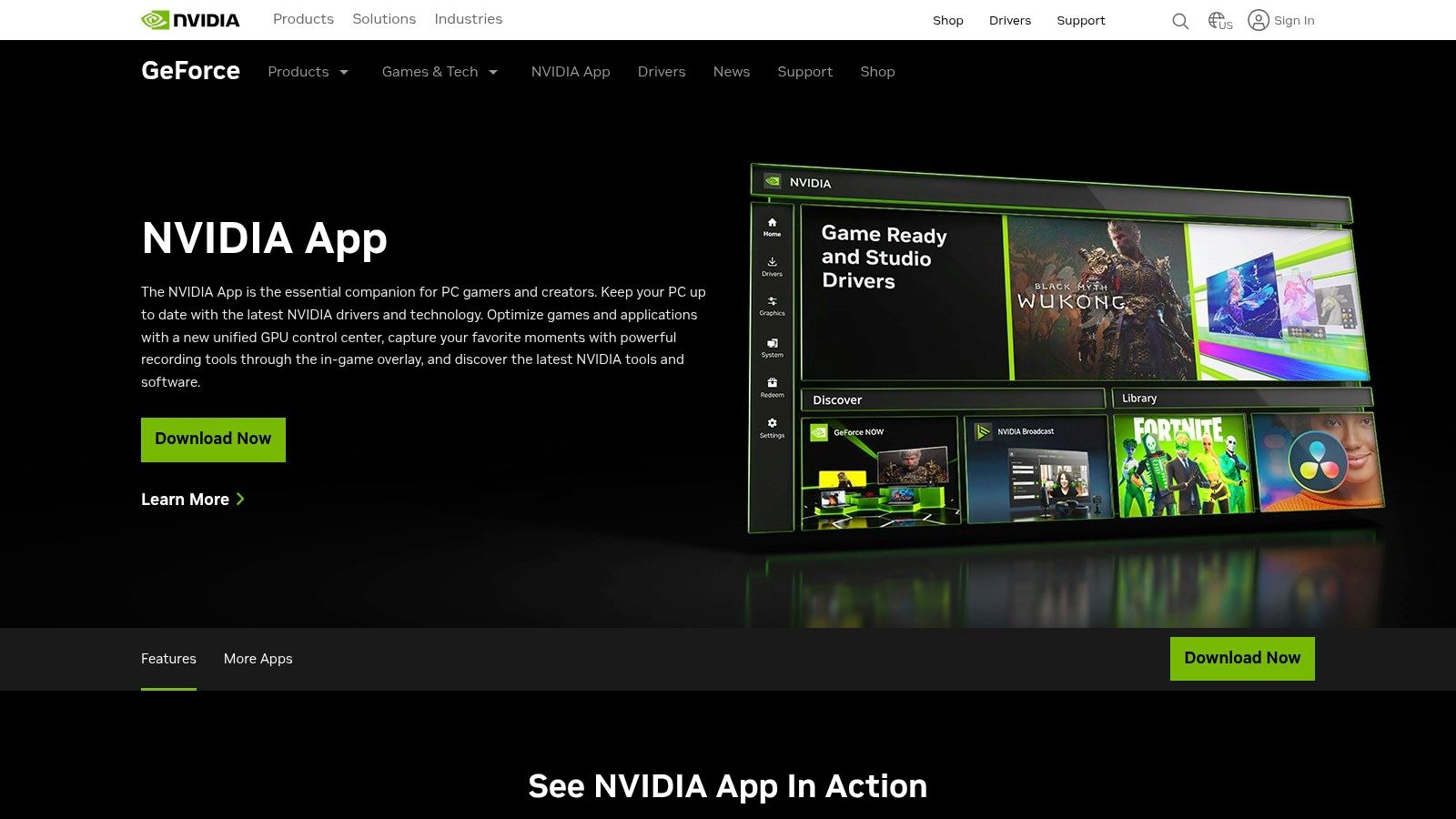
The standout feature is its “Instant Replay” functionality, which continuously records your screen in the background. If something noteworthy happens, a simple hotkey saves the last several minutes of footage, ensuring you never miss an unplanned moment. It also supports manual recording at extremely high resolutions and bitrates, reaching up to 8K HDR on supported RTX cards, and provides a convenient in-game overlay for quick access to controls.
Key Features and Use Cases
- Hardware-Accelerated Recording: Uses the GPU’s dedicated NVENC encoder for high-quality capture with very low performance overhead, ideal for recording resource-intensive applications.
- Instant Replay: Passively records in the background, allowing you to save the last 1 to 20 minutes of action with a single keystroke. Perfect for capturing unexpected bugs or user-experience issues.
- High-Resolution and HDR Support: Capable of capturing footage in stunning quality, including 4K and even 8K HDR, making it suitable for high-end product showcases.
- Performance Overlay: Display real-time performance metrics like FPS and GPU temperatures directly in your recording, which is useful for technical benchmarking videos.
Our Take: If you have a compatible NVIDIA GPU, this is an unbeatable tool for high-performance screen recording that won’t slow your system down. Its “Instant Replay” is a game-changer for capturing spontaneous events.
| Feature | Rating |
|---|---|
| Ease of Use | ★★★★☆ |
| Recording Quality | ★★★★★ |
| Editing Features | ★☆☆☆☆ |
| Cost | Free |
Pros:
- Virtually no performance impact on modern systems.
- Completely free for NVIDIA hardware owners, with no watermarks.
- Instant Replay feature is perfect for capturing unscripted moments.
Cons:
- Requires a compatible NVIDIA GeForce GPU to function.
- Lacks any built-in video editing capabilities.
You can download it directly from the official website: https://www.nvidia.com/en-us/geforce/geforce-experience/shadowplay/
6. Greenshot
Greenshot is a legendary, lightweight screenshot tool beloved for its speed and efficiency, making it one of the best free screen capture software options for quick documentation. It’s an open-source project for Windows that excels at one primary job: capturing your screen and immediately letting you annotate or export it. This streamlined workflow is ideal for creating support guides, marking up designs, or quickly sharing visual information with colleagues.
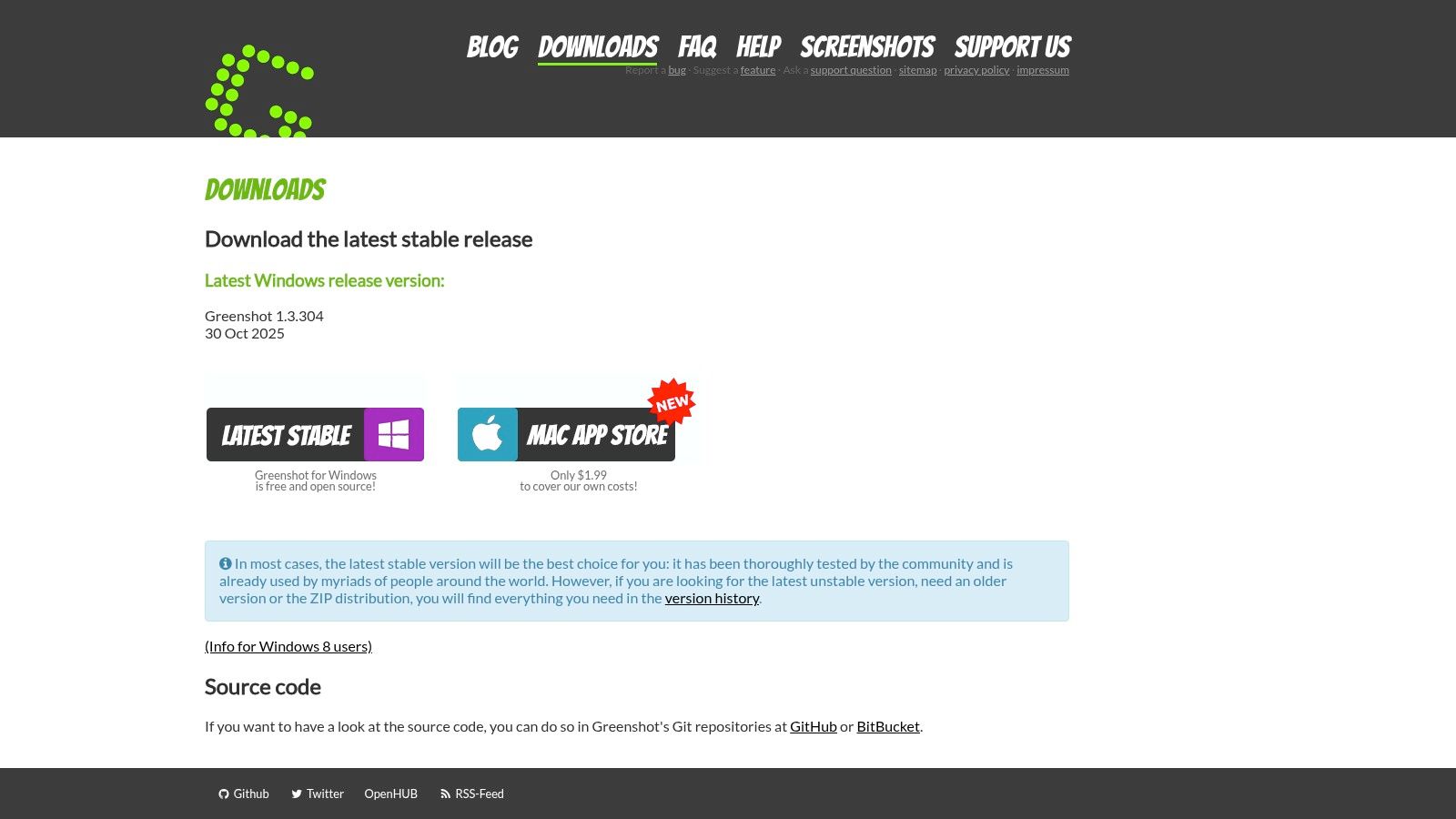
Unlike comprehensive video suites, Greenshot is built for speed. A simple hotkey press brings up crosshairs to capture a region, window, or your entire screen. Once captured, the image immediately opens in a simple but effective editor where you can add arrows, text, highlights, and obfuscation (blur) in seconds. From there, you can export the annotated image to a file, clipboard, printer, or even directly to other applications like Jira or Microsoft Office.
Key Features and Use Cases
- Instant Annotation: The built-in image editor is perfect for adding explanatory arrows, text, and highlights to screenshots for technical documentation or support tickets.
- Configurable Workflows: Customize what happens after you take a screenshot. Send it directly to your clipboard, open it in the editor, or save it automatically to a designated folder.
- Plugin Integrations: Export captures directly to third-party services like Jira, Confluence, Imgur, and Dropbox, streamlining bug reporting and collaboration.
- Lightweight and Fast: Greenshot runs quietly in the background, using minimal system resources, so it’s always ready when you need it without slowing you down.
Our Take: For users who primarily need to capture and annotate static images for reports, emails, or support guides, Greenshot is an unbeatable tool. Its speed and simplicity are its greatest strengths.
| Feature | Rating |
|---|---|
| Ease of Use | ★★★★★ |
| Recording Quality | ★★★☆☆ |
| Editing Features | ★★★☆☆ |
| Cost | Free |
Pros:
- Extremely fast and resource-friendly.
- Excellent, easy-to-use annotation tools for quick markups.
- Completely free and open-source for Windows users.
Cons:
- Strictly for screenshots; it does not offer video recording capabilities.
- The macOS version is a separate, paid application and not open-source.
You can download it directly from the official website: https://getgreenshot.org/downloads/
7. Lightshot
Lightshot is a popular, lightweight, and exceptionally fast screenshot tool designed for users who need to capture and share images instantly. As one of the best free screen capture software options for quick sharing, it excels at taking region-based screenshots and uploading them to the cloud with a single click. This makes it a perfect choice for customer support teams providing quick visual aids or for collaborators who need to share on-screen information without any friction.
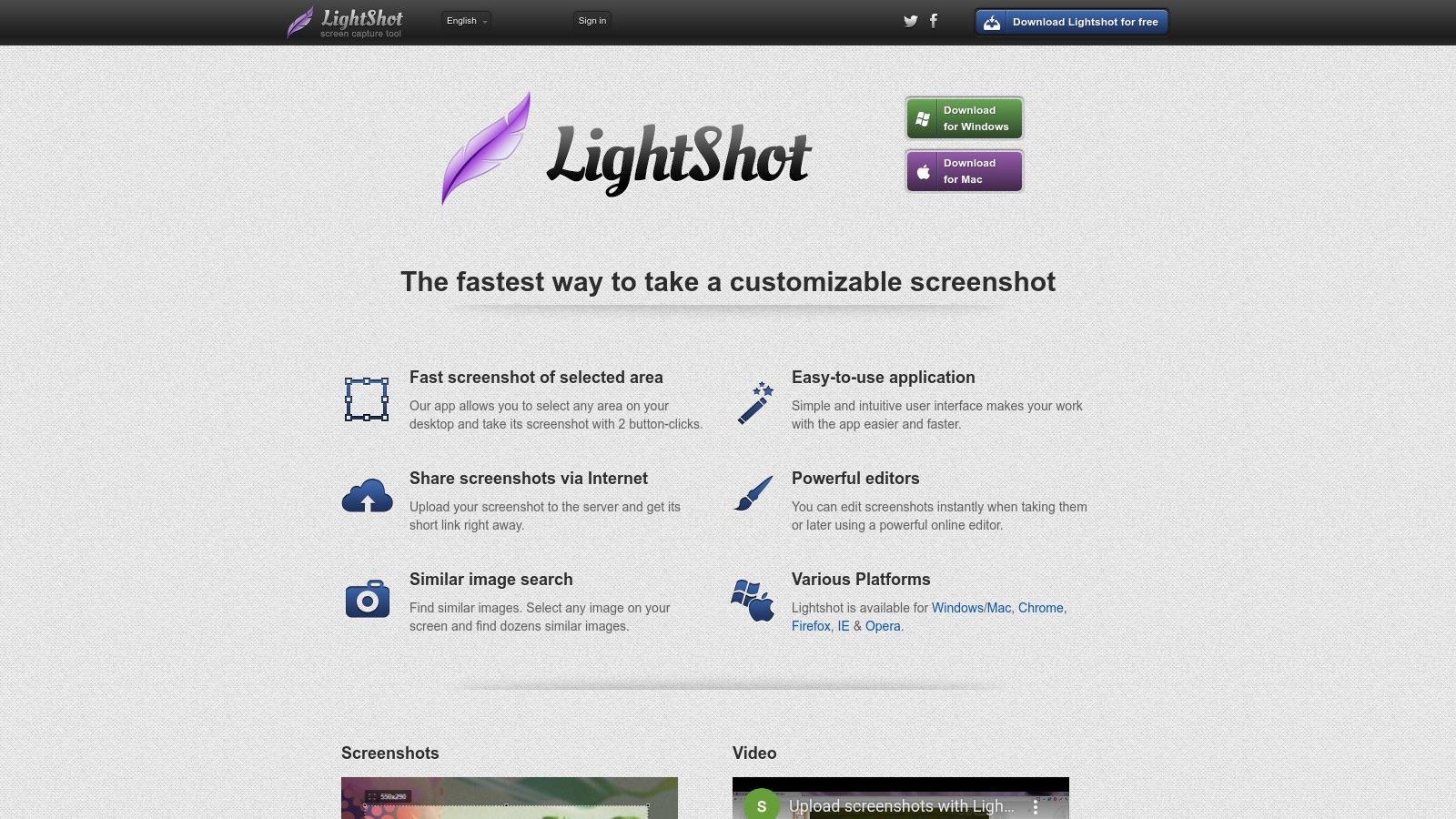
The workflow is incredibly simple: press the Print Screen key, select a region, and a small, unobtrusive editing toolbar appears directly beside your selection. From there, you can add annotations like arrows, text, or highlights and then immediately upload the image to get a shareable link. This streamlined process eliminates the need to save files locally, open an editor, and then manually upload, saving valuable time.
Key Features and Use Cases
- Fast Region Capture: Immediately select any part of your screen for a quick snapshot, making it ideal for grabbing specific error messages or UI elements.
- Instant Cloud Upload & Sharing: Generates a public, shareable link as soon as you hit the upload button, perfect for pasting into chat applications like Slack or support tickets.
- Simple On-the-Fly Editor: The built-in annotation tools allow you to mark up your screenshot with essential shapes and text before saving or sharing.
- Cross-Platform Availability: Lightshot offers dedicated apps for Windows and macOS, as well as browser extensions for Chrome, Firefox, and Opera for added convenience.
Our Take: Lightshot is unbeatable for pure speed and simplicity. If your primary need is to take a quick screenshot, mark it up, and share it via a link in seconds, this tool is an excellent choice.
| Feature | Rating |
|---|---|
| Ease of Use | ★★★★★ |
| Recording Quality | ★☆☆☆☆ |
| Editing Features | ★★☆☆☆ |
| Cost | Free |
Pros:
- Extremely simple and lightweight, with an intuitive user interface.
- Incredibly fast workflow for capturing, annotating, and sharing online.
- Cross-platform clients and browser extensions offer great flexibility.
Cons:
- Lacks video recording capabilities entirely.
- Publicly shared links are easily guessable, posing a privacy risk for sensitive information.
You can download it directly from the official website: https://app.prntscr.com/en/index.html
8. ScreenRec
ScreenRec is a lightweight and remarkably fast free screen capture software designed for users who need to share recordings and screenshots instantly. Its core philosophy revolves around efficiency, removing barriers to quick communication. This makes it a fantastic tool for remote teams, customer support agents, and anyone needing to create and share visual feedback or bug reports without the overhead of complex software.
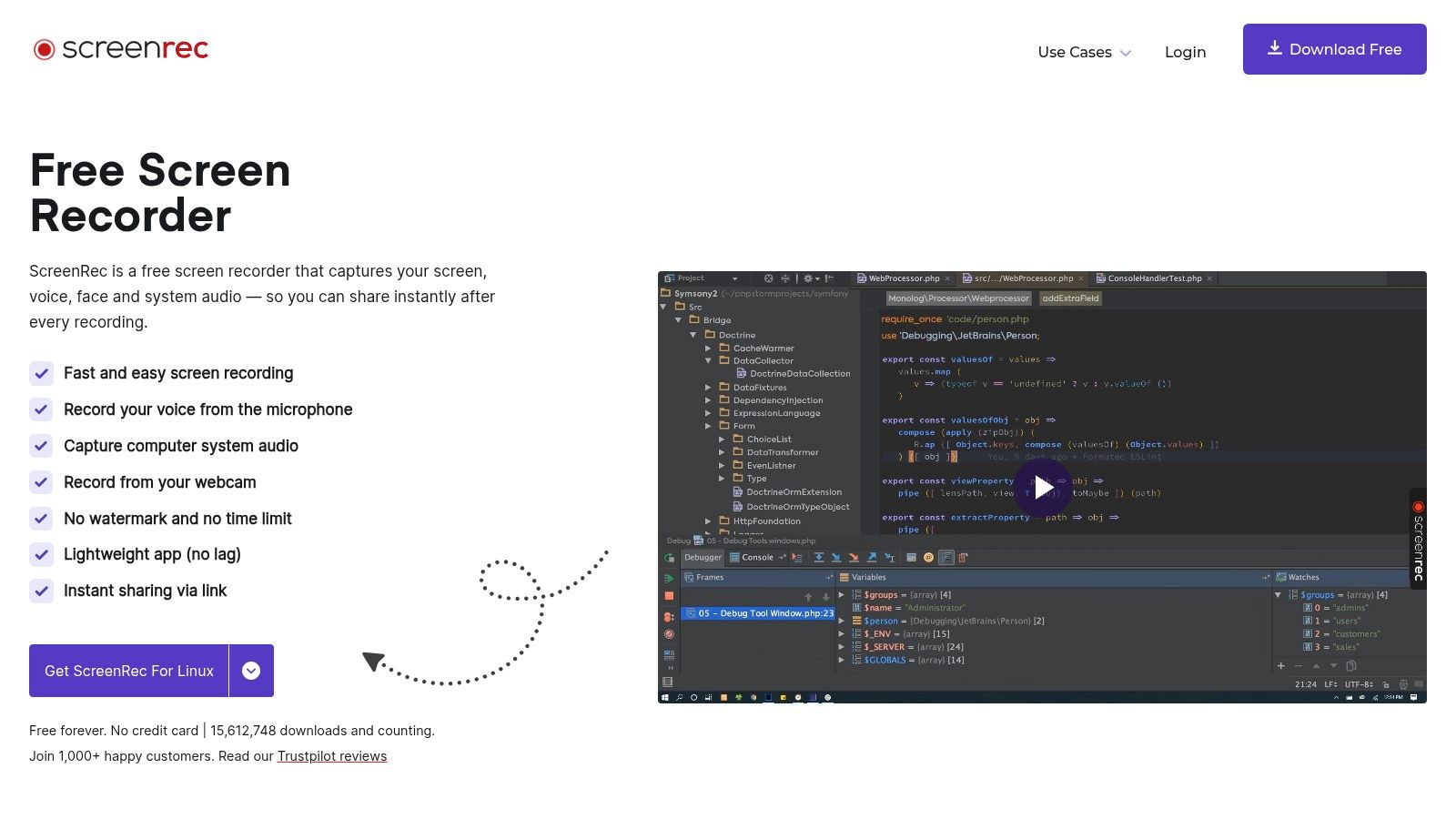
The standout feature of ScreenRec is its one-click recording and instant cloud-sharing capability. Once you finish a recording, a private, shareable link is automatically copied to your clipboard. This frictionless workflow is ideal for quickly demonstrating a process or explaining a complex issue to a colleague. You can capture a selected region or your full screen, along with system audio, your microphone, and a webcam overlay.
Key Features and Use Cases
- Instant Shareable Links: As soon as you stop recording, a secure link is ready to paste into an email, Slack message, or project management tool. This is perfect for agile development and support teams.
- No Watermarks or Time Limits: The free version is surprisingly generous, offering unlimited recording time without imposing any watermarks, which is rare for tools this easy to use.
- Lightweight Application: ScreenRec has a very small footprint, meaning it runs smoothly in the background without draining system resources, making it reliable even on older computers.
- Screenshot Annotation: The tool also includes basic annotation features for screenshots, allowing you to add text, arrows, and highlights to clarify your point.
Our Take: ScreenRec is the go-to choice for anyone who values speed and simplicity above all else. Its instant-sharing feature fundamentally changes the way teams can communicate visually.
| Feature | Rating |
|---|---|
| Ease of Use | ★★★★★ |
| Recording Quality | ★★★★☆ |
| Editing Features | ★★☆☆☆ |
| Cost | Free |
Pros:
- Completely free with no time limits or watermarks.
- Extremely simple one-click recording and instant link sharing.
- Records screen, webcam, mic, and system audio.
Cons:
- Limited post-production editing controls.
- The cloud-first workflow might not be suitable for highly sensitive information.
You can download it directly from the official website: https://screenrec.com/screen-recorder/
9. ScreenPal (formerly Screencast-O-Matic)
ScreenPal, widely known by its former name Screencast-O-Matic, is a veteran in the screen recording space and remains one of the best free screen capture software options for users seeking an all-in-one solution. It provides a straightforward platform for capturing your screen, webcam, or both simultaneously, making it great for quick explanations, asynchronous feedback, and simple training videos. Its integrated approach simplifies the workflow from capture to sharing.
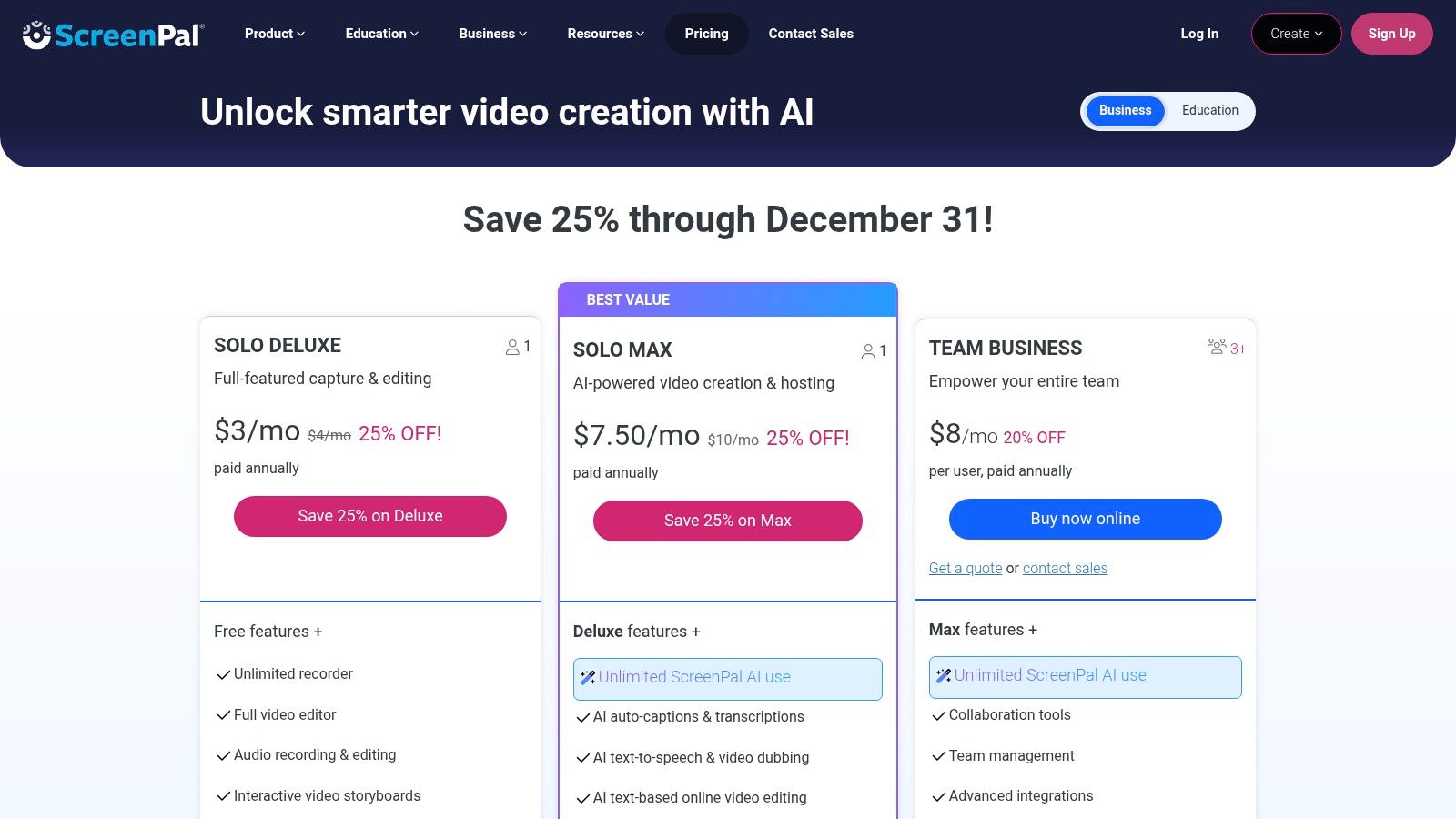
The platform is particularly user-friendly, offering a low barrier to entry for educators, support teams, and marketers who need to create content without a steep learning curve. The free version bundles recording, basic editing, and hosting, which is a rare combination in free tools. This makes it a highly efficient choice for creating and distributing short-form video content quickly.
Key Features and Use Cases
- Generous Free Tier: Record an unlimited number of videos for up to 15 minutes each, which is ample time for most software demos, support ticket responses, and internal announcements.
- Integrated Screenshot Tool: Beyond video, it includes a robust screenshot utility with features like scrolling capture for full-page web grabs and basic annotation tools.
- Basic Editing Included: The free plan allows for simple trims to your recordings, letting you clean up the start and end of your videos before sharing.
- Direct Sharing Options: Easily upload your finished videos directly to the ScreenPal hosting platform, YouTube, or Google Drive, streamlining your distribution process.
Our Take: ScreenPal is an excellent starting point for individuals and teams who need a simple, reliable tool for short video recordings and screenshots. Its integrated workflow from capture to share is a major time-saver.
| Feature | Rating |
|---|---|
| Ease of Use | ★★★★★ |
| Recording Quality | ★★★★☆ |
| Editing Features | ★★☆☆☆ |
| Cost | Free |
Pros:
- Very low learning curve; intuitive interface is great for beginners.
- Integrates capture, basic editing, and hosting in one platform.
- Paid tiers are affordable if you outgrow the free plan’s limitations.
Cons:
- Free recordings are watermarked and limited to 15 minutes.
- Advanced editing features require a paid subscription.
You can download it directly from the official website: https://screenpal.com/plans
10. Loom
Loom has revolutionized asynchronous communication by making it incredibly simple to record and share screen videos with a camera overlay. It’s less of a traditional screen capture tool and more of a video messaging platform, designed for speed and collaboration. This makes it an excellent choice for remote teams, customer support agents providing visual answers, and sales professionals sending personalized product walkthroughs.
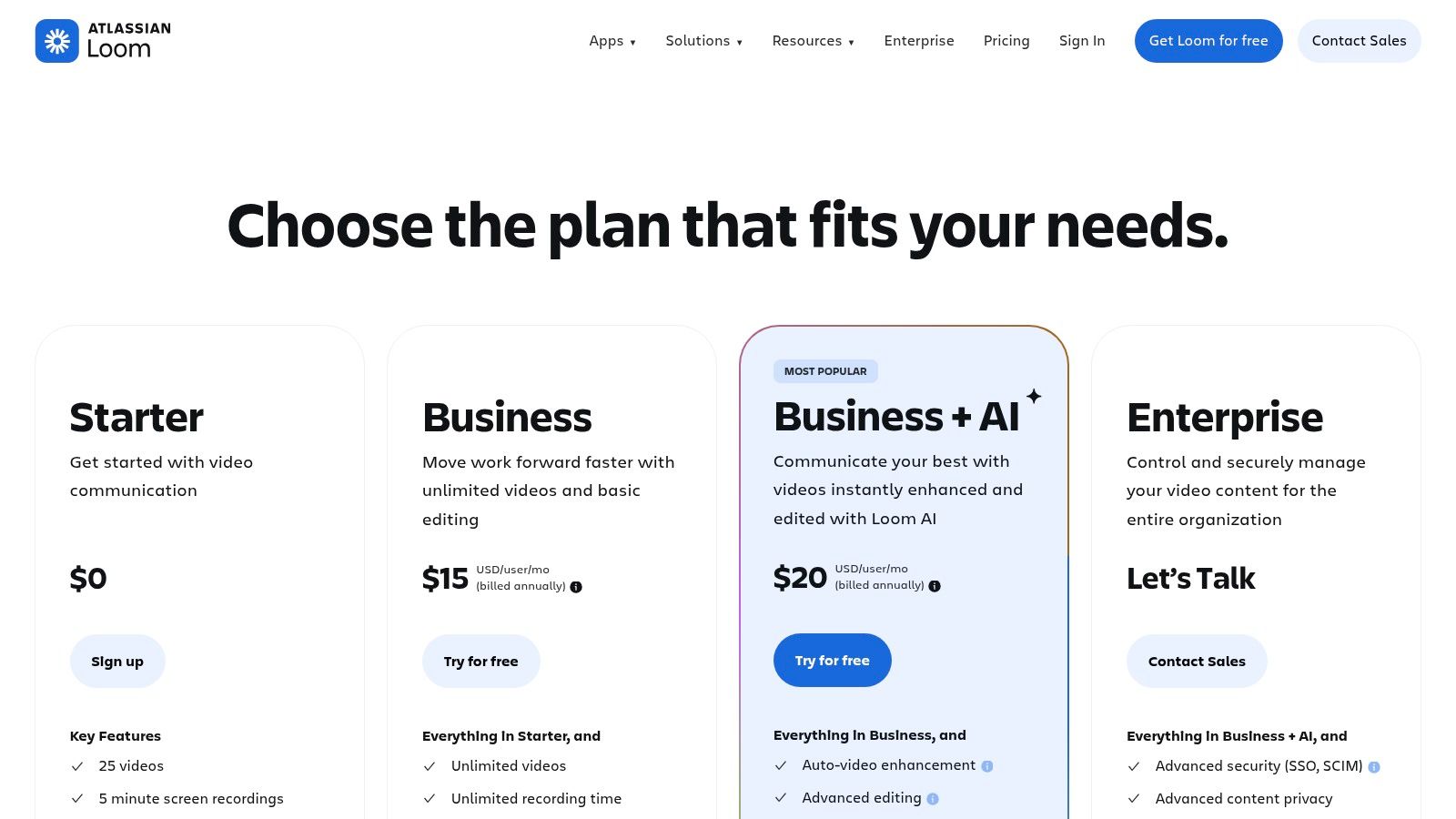
The core strength of Loom is its frictionless workflow. Once you finish recording, a shareable link is instantly copied to your clipboard. Viewers can watch the video in their browser without downloading anything and can leave time-stamped comments and emoji reactions, creating an interactive feedback loop. This immediacy makes it one of the best free screen capture software options for quick, collaborative tasks.
Key Features and Use Cases
- Instant Sharing & Hosting: Videos are automatically uploaded and hosted, eliminating the need to manage large files. Ideal for sending quick bug reports or providing feedback on a design.
- Interactive Viewer Experience: Features like comments, reactions, and calls-to-action make videos more engaging for the audience.
- Auto Captions and Transcripts: Loom automatically generates transcripts and captions for videos, improving accessibility. Understanding how to add captions to videos is crucial for creating inclusive content.
- Screenshot Capabilities: Beyond video, Loom also includes a simple tool for capturing and annotating static screenshots.
Our Take: Loom is the definitive tool for fast video messaging and team collaboration. While its free plan has notable limitations, the sheer ease of recording and sharing makes it an indispensable asset for modern communication.
| Feature | Rating |
|---|---|
| Ease of Use | ★★★★★ |
| Recording Quality | ★★★★☆ |
| Editing Features | ★★☆☆☆ |
| Cost | Free |
Pros:
- Extremely fast and intuitive record-and-share process.
- Strong collaboration features like comments and reactions.
- Cross-platform support with desktop apps and a Chrome extension.
Cons:
- The free plan limits recordings to 5 minutes and 25 videos per user.
- Primarily cloud-based, with limited offline functionality.
You can get started with the free plan on their website: https://www.loom.com/pricing
11. Apowersoft Free Online Screen Recorder
For users who need to capture their screen without installing any software, Apowersoft Free Online Screen Recorder is an excellent web-based solution. This tool runs directly in your browser, making it incredibly convenient for quick recordings on locked-down work computers or public devices where software installation is not an option. It provides a simple, accessible way to capture your screen, webcam, and audio for immediate use.
0
The platform works by launching a small, temporary launcher the first time you use it, after which you can start recording with just a few clicks. It allows you to capture your entire screen, a specific application window, or a custom region. You can also include your webcam in a picture-in-picture format, which is great for adding a personal touch to tutorials or presentations without needing complex software.
Key Features and Use Cases
- Browser-Based Operation: Its biggest advantage is the ability to run without a full installation, making it a go-to choice for users with administrative restrictions on their PCs.
- Flexible Recording Modes: Capture your full screen, a single window, or a specific area, and include system sounds, microphone audio, or both.
- Simple Export: Once your recording is finished, you can save the video file directly to your computer or upload it to various cloud platforms.
- Desktop App Available: For users who need more advanced features like annotations or detailed editing, Apowersoft offers a downloadable desktop version.
Our Take: Apowersoft’s online recorder is the perfect emergency tool for when you need a quick, no-frills screen capture and can’t install software. It’s simple, effective, and gets the job done for basic recording needs.
| Feature | Rating |
|---|---|
| Ease of Use | ★★★★☆ |
| Recording Quality | ★★★☆☆ |
| Editing Features | ★☆☆☆☆ |
| Cost | Free |
Pros:
- Completely web-based; ideal for use on restricted computers.
- Very easy to use with a straightforward, intuitive interface.
- No watermarks or strict time limits on recordings.
Cons:
- Requires an internet connection to launch the recorder.
- Fewer advanced controls and features compared to desktop applications.
- Browser limitations can sometimes affect audio or window capture performance.
You can use the tool directly from its official website: https://www.apowersoft.com/free-online-screen-recorder
12. G2 (Screen & Video Capture category)
While not a downloadable tool itself, G2’s Screen & Video Capture category is an indispensable resource for anyone researching the best free screen capture software. It serves as a massive B2B software directory, aggregating user reviews, ratings, and detailed product comparisons. Instead of downloading multiple tools to test them, you can use G2 to shortlist options based on real-world feedback from users in similar roles or industries.
G2 excels at helping you validate marketing claims and uncover potential limitations that vendors don’t advertise. You can filter software by company size, specific features, and user satisfaction scores, making it easy to see which tools are popular with small businesses versus enterprise teams. This research-first approach saves significant time by helping you identify the top two or three candidates that truly fit your needs before you commit to downloading and learning a new application.
Key Features and Use Cases
- Aggregated User Reviews: Read honest feedback from verified users to understand the practical pros and cons of different software before you try them.
- Side-by-Side Comparisons: Use the comparison feature to see how tools like Loom, Zight, and others stack up against each other on key features and pricing.
- Advanced Filtering: Narrow down the extensive list of tools by specifying features you need, such as “screen recording,” “annotation,” or “cloud sharing.”
- Trending Product Grids: Quickly identify market leaders and up-and-coming tools in the screen capture space with G2’s proprietary Grid® reports.
Our Take: G2 is the essential starting point for your software search. It provides the social proof and detailed data needed to make an informed decision, ensuring the tool you ultimately choose is a perfect match for your team’s workflow.
| Feature | Rating |
|---|---|
| Ease of Use | ★★☆☆☆ |
| Recording Quality | ★★★☆☆ |
| Editing Features | ★★★★☆ |
| Cost | Free |
Pros:
- Aggregates a vast amount of user feedback to validate vendor claims.
- Excellent for shortlisting and comparing alternatives to find the right fit.
- Powerful filters help you find tools with specific, must-have features.
Cons:
- Review quality can be inconsistent.
- Not a direct download site; it’s a research platform that links out to vendor pages.
You can browse the category directly on their website: https://www.g2.com/categories/screen-and-video-capture
Top 12 Free Screen Capture Tools — Feature & Performance Comparison
| Feature | Rating |
|---|---|
| Ease of Use | ★★☆☆☆ |
| Recording Quality | ★★★☆☆ |
| Editing Features | ★★★★☆ |
| Cost | Free |
Final Thoughts
Navigating the landscape of screen capture tools can feel overwhelming, but as we’ve explored, a powerful solution exists for nearly every specific need. From the high-fidelity, production-grade recordings of OBS Studio to the lightning-fast, simple annotations of Lightshot, the right tool is less about finding a single “best” option and more about aligning features with your intended workflow and audience. This guide was designed to cut through the noise, providing a clear roadmap to help you select the best free screen capture software for your unique requirements.
Our journey has shown that there is no one-size-fits-all answer. For instance, a sales enablement team creating quick, informal demos for prospects has vastly different needs than an L&D department producing a polished, evergreen library of training modules. The key is to move beyond a simple feature checklist and consider the entire lifecycle of your content.
Key Takeaways and Choosing Your Path
Reflecting on the dozen tools we’ve analyzed, several core themes emerge. Your decision-making process should pivot on these critical factors:
- Simplicity vs. Power: Are you looking for a tool that lets you grab a screenshot, add an arrow, and share it in seconds? Greenshot and ShareX excel here. Or do you need granular control over multiple audio sources, scene transitions, and recording quality for professional broadcasts? OBS Studio remains the undisputed champion for this level of control.
- Workflow Integration: How does the tool fit into your daily tasks? Windows Game Bar and the NVIDIA App offer incredible convenience for their respective user bases by being deeply integrated into the operating system and hardware. For those who live in the browser, a tool like Apowersoft’s online recorder removes the installation barrier entirely.
- The Post-Recording Bottleneck: Capturing your screen is often the easiest part. The real challenge, especially for video, is what comes next. Raw recordings from tools like Loom are fantastic for quick, casual communication but often contain filler words, long pauses, and mistakes that make them feel unpolished and unnecessarily long for permanent assets like knowledge base articles or formal training. This is where a critical gap in the market appears.
- Balancing Cost and Capability: While every tool on this list offers a free entry point, “free” can come with limitations like watermarks, recording time caps (like with ScreenPal), or a steep learning curve. The most significant hidden “cost” is often the time spent on manual video editing to turn a raw recording into a professional, on-brand asset.
Moving from Raw Capture to Polished Content
For many professionals, particularly in SaaS, the goal isn’t just to record a screen; it’s to create an effective tutorial. This is the crucial distinction. A raw screen recording is just footage. A great tutorial is a purpose-built learning asset that is clear, concise, and engaging.
This is where the traditional workflow breaks down. On one end, you have simple recorders. On the other, you have complex, time-consuming video editors like Camtasia or Adobe Premiere Pro that require specialized skills. This forces subject matter experts to choose between creating a long, unedited demo or handing off footage to a video editor, creating a slow and expensive production cycle.
This is precisely the problem Tutorial AI was built to solve. It bridges the gap between easy recording and professional editing. It empowers the subject matter expert, the person who actually knows the product, to speak freely and naturally during a recording. The AI then automatically transforms that raw capture into a polished, professional-grade tutorial, complete with zooms, callouts, and clean edits, as if an expert had spent hours refining it. This process allows teams to produce on-brand, high-quality video content with unparalleled efficiency, turning screen capture into a scalable content creation engine.
Ultimately, the best free screen capture software is the one that empowers you to communicate your message effectively and efficiently. Start by defining your primary use case, consider your audience, and then choose the tool that best removes friction from your creative process.
Ready to transform your raw screen recordings into professional, on-brand video tutorials in minutes, not hours? Tutorial AI leverages AI to automatically edit your captures into polished demos, onboarding flows, and support videos, eliminating the need for tedious manual editing. Experience the future of content creation by visiting Tutorial AI today.