Create polished video from anywhere, instantly. The days of being chained to a desktop for video editing are over. Whether you’re a content creator cutting daily vlogs, a product expert recording a quick demo for a help center, or a marketing manager shipping a feature release video on the fly, the right mobile app can get you to a professional result fast.
The challenge isn’t finding a mobile editor. It’s picking one that matches how you work. Social creators need speed, templates, and captions. Mobile journalists need tighter control over audio, trimming, and exports. Business teams often need something else entirely: polished screen recordings, multilingual narration, branded outputs, and a way to turn one recording into both a video and documentation.
That split matters more than ever. One market forecast values the global phone video editing app market at USD 1.37 billion in 2026 and projects it to reach USD 7.12 billion by 2035 at a 20.14% CAGR, pointing to a major shift from desktop editing to mobile-first creation on platforms like TikTok and Instagram (phone video editing app market forecast).
If you’re also looking for lightweight creator apps, this roundup of free video tools for social media content is a useful companion. Below are the 10 best options for those seeking the best video editor for mobile in 2026.
1. Tutorial AI
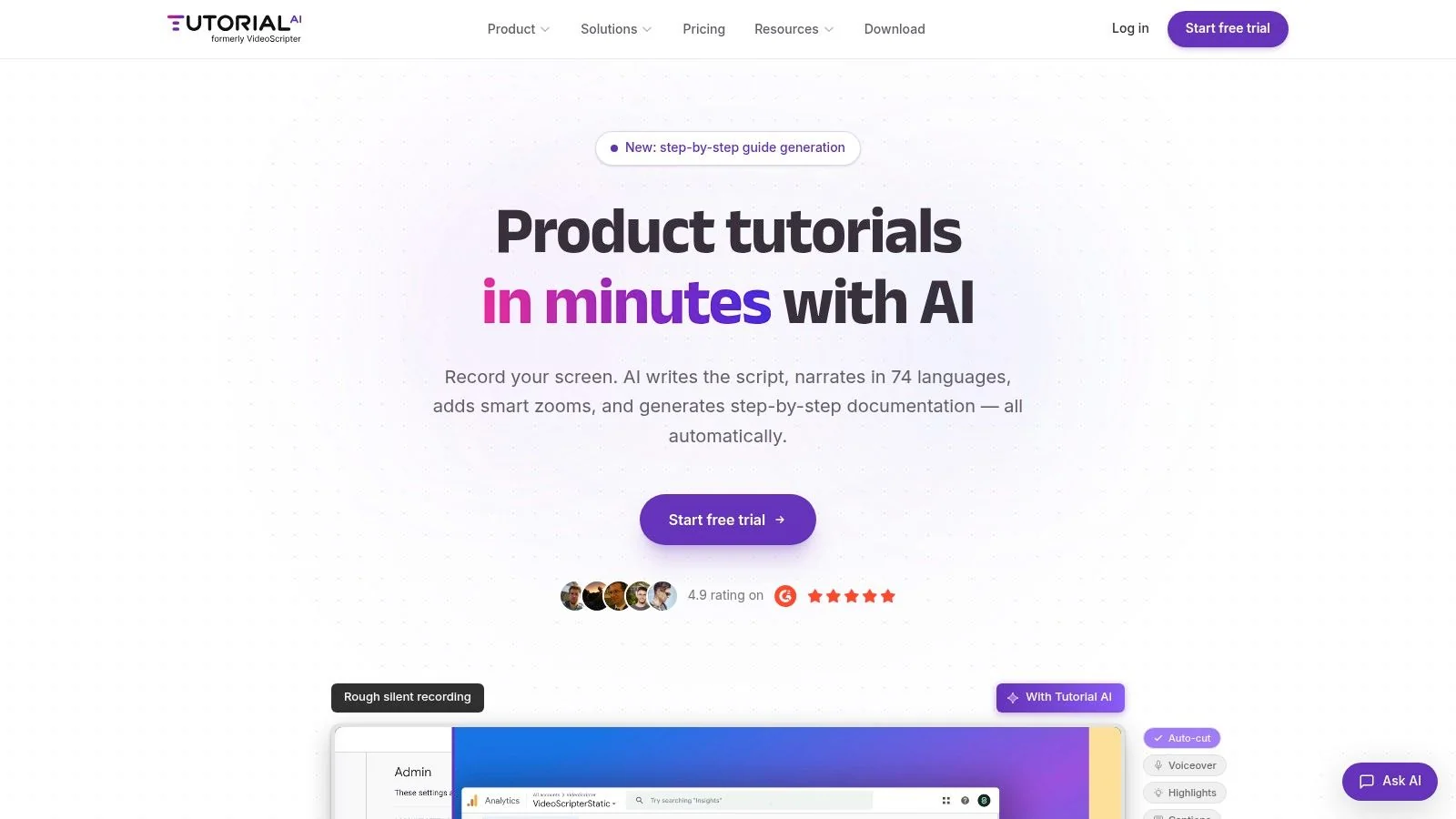
Tutorial AI is the strongest pick when your “mobile video editing” job is really a documentation job. That includes product demos, feature release videos, customer onboarding, help-center videos, support article videos, internal training, SOPs, and sales enablement walkthroughs. Instead of starting with a timeline, it starts with a screen recording and spoken narration, then turns that raw recording into a polished tutorial video that looks edited in Adobe Premiere Pro.
What separates it from casual screen recorders is the cleanup. Loom-style recordings often run long because people pause, ramble, retake sentences, or explain while thinking. Tutorial AI tightens that kind of recording automatically, then lets you edit by rewriting the script rather than dragging clips around a timeline.
Where it fits best
It records on macOS, Windows, iPhone, iPad, or directly in Chrome, then generates both a polished video and a matching written article from the same recording. That’s unusually useful for teams that need a video in the help center and a text article beside it.
A few capabilities matter a lot in real workflows:
- Script-first editing: Rewrite the text and Tutorial AI updates the voiceover, captions, timing, and cuts automatically.
- Multilingual publishing: It supports narration in 74 languages and uses AutoRetime to sync scenes, captions, and cuts to the new voiceover length.
- Post-recording polish: Cursor tracking, smart zooms, callouts, and blur tools help guide attention and hide sensitive data.
- Enterprise readiness: Brand Kits, SSO/SAML, SOC 2, GDPR, collaboration workspaces, and embeddable players make it viable for larger teams.
Practical rule: If viewers need to see the real product UI, pick a tool built around real screen capture and real voice. AI avatar tools like Synthesia, HeyGen, and Vyond solve a different problem.
This is also where Tutorial AI stands apart from mobile editor roundups. Reviews usually focus on reels and TikTok, but they rarely address tutorial-specific needs like silent narration, script-based editing, or voice regeneration. A PCMag-based analysis noted that AI tools are now standard in mobile editors, yet none of the top-ranked apps in that context offer the doc-like rewriting workflow or 74-language voice regeneration that Tutorial AI does (mobile editor gap for tutorials and documentation).
For teams comparing automation-heavy options, this list of top AI video editing tools for 2026 is worth skimming. If your job is closer to “publish tutorials accurately” than “cut cinematic footage,” Tutorial AI is the best video editor for mobile because it shortens the path from expert knowledge to finished output. You can see more of that workflow in this guide to AI video editing software for tutorials.
2. CapCut
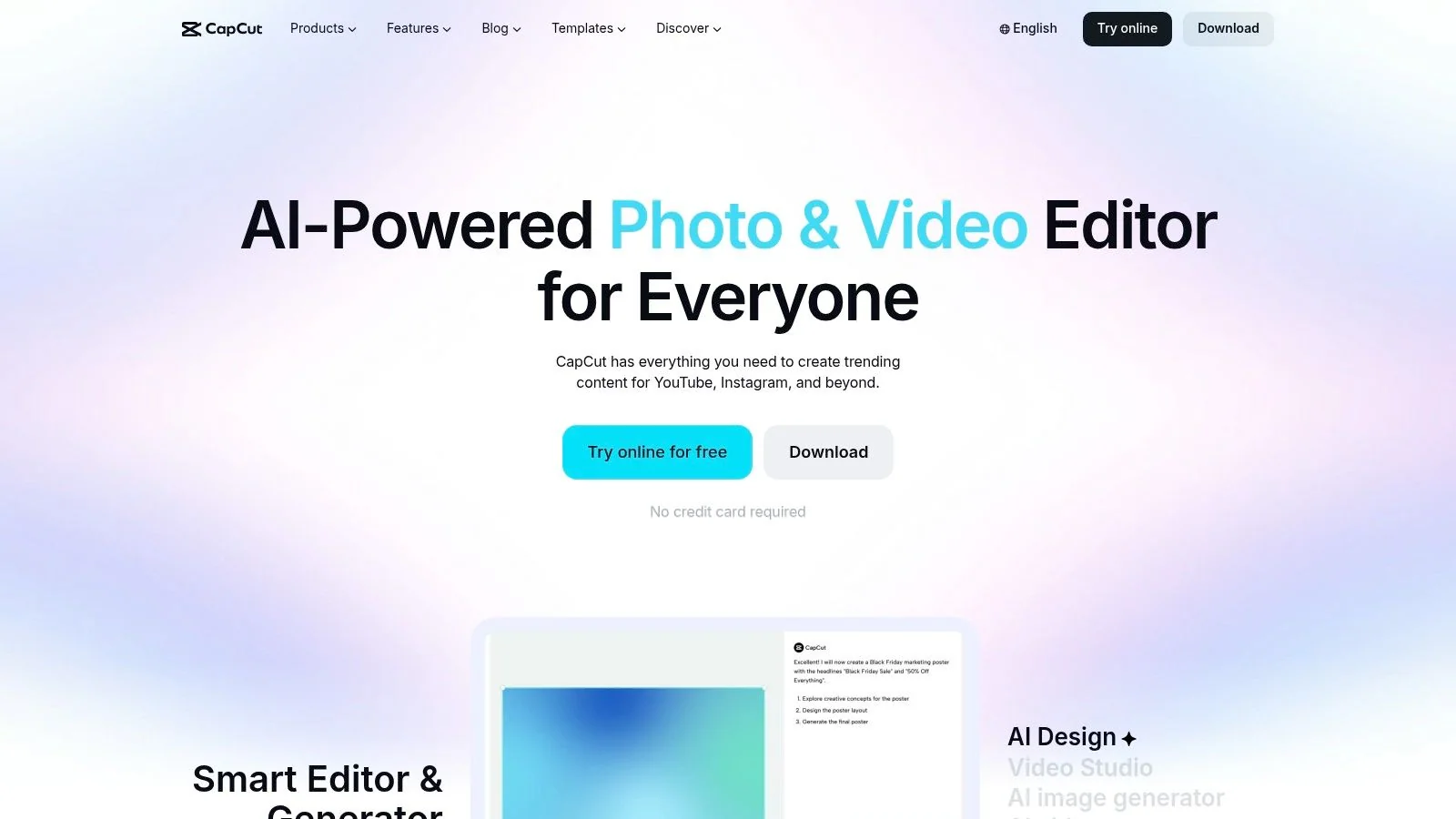
If your output lives on Shorts, Reels, or TikTok, CapCut is still the easiest recommendation. It has the fastest path from idea to publish for most social creators, especially if you rely on templates, auto-captions, text-to-speech, background removal, and quick trend-driven effects.
Its biggest strength isn’t one feature. It’s the whole ecosystem. The app, desktop version, web editor, and account sync make it easy to start on a phone and finish elsewhere without rebuilding the project.
Why social creators keep picking it
Independent 2026 field testing ranked CapCut as the best all-around tool for social creators because of its AI automation and rendering speed (2026 mobile editor field testing). That lines up with how it performs in practice. It’s quick to learn, quick to export, and packed with template-driven workflows that reduce decision fatigue.
CapCut works best when you care about momentum more than precision.
- Best for short-form volume: Great when you need to post often and don’t want to build every edit from scratch.
- Best feature set for beginners: Community templates and guided effects remove a lot of friction.
- Main limitation: Some premium tools are gated behind credits or a Pro tier, and pricing can vary by platform or region.
The trade-off is simple. CapCut is excellent when the platform trend matters more than editorial nuance.
It isn’t my first pick for structured tutorial videos, especially for business teams. If you’re making social clips from product footage, though, it’s hard to beat for speed. Teams producing short promotional cuts can also compare it with this guide on an AI video editor for reels and this walkthrough on using CapCut for your tracks.
3. InShot
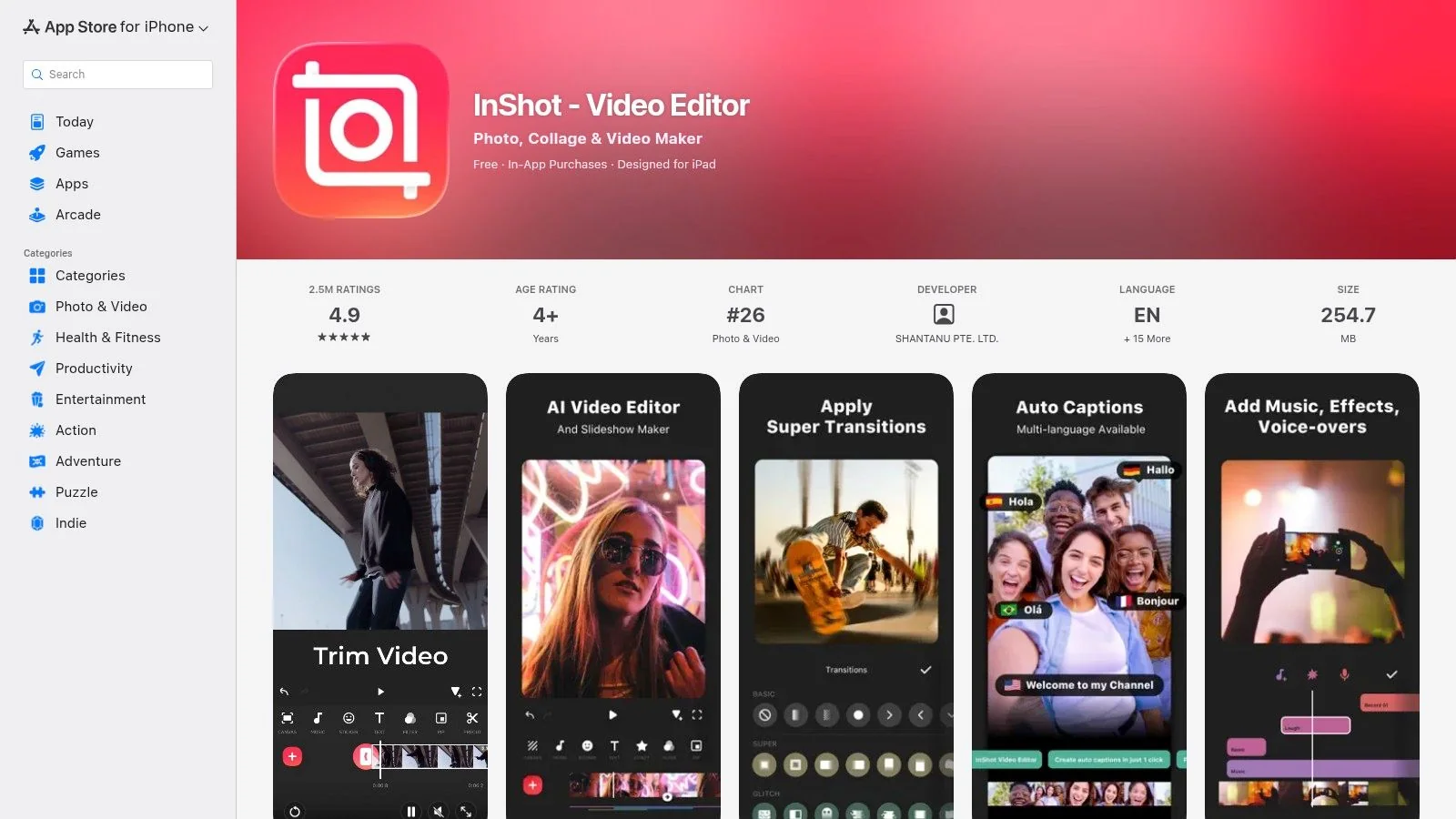
InShot is for people who don’t want to think like editors. Open app, trim clip, add text, resize for platform, publish. That’s the appeal.
For simple social posts, InShot feels lighter than CapCut and less intimidating than tools with deeper timelines. The one-tap canvas presets are useful if you’re constantly moving between TikTok, Instagram Reels, YouTube Shorts, and feed posts.
Best for fast, low-friction edits
Its multi-track timeline is enough for basic overlays, music, text, and quick visual cleanup. You also get filters, stickers, speed controls, and straightforward text tools without a lot of menu digging.
That makes InShot a strong fit for:
- Solo creators: Fast publishing with minimal setup.
- Small businesses: Quick promo edits, story clips, and simple announcements.
- Beginners: Easy to learn if you’re making your first recurring content series.
The limits show up once your edits get layered. Advanced effects and assets live behind the Pro version, and cross-platform purchase transfer can be annoying if your team uses both iOS and Android devices. If you want a beginner-friendly editing path before stepping into more specialized apps, this roundup of the best video editing software for beginners is useful.
4. VN Video Editor
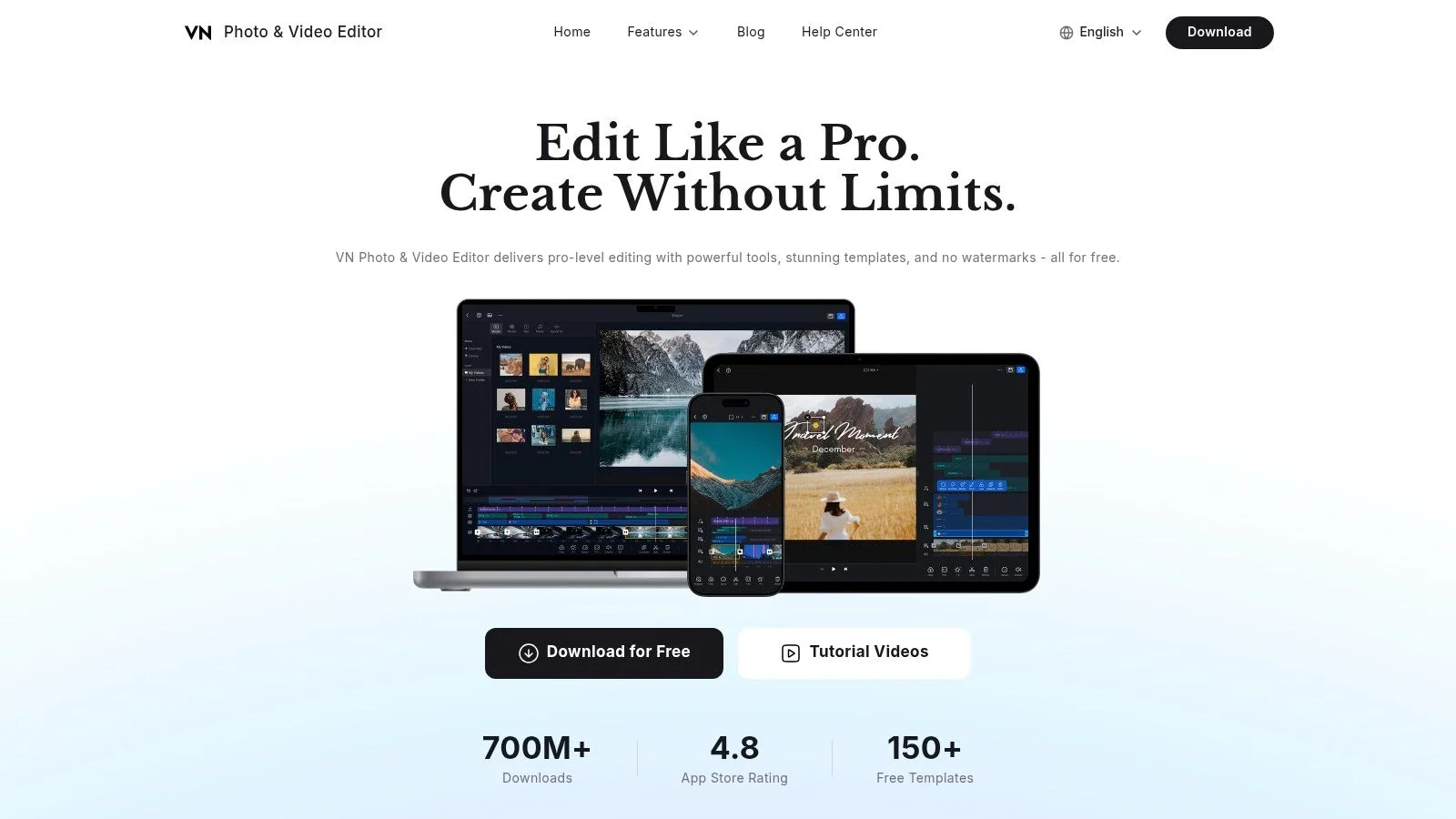
VN is the value pick. If you want a mobile editor that feels surprisingly capable without immediately forcing an upgrade, VN earns its place.
The free version is strong enough for many creators, students, and side projects. You get a real multi-layer timeline, keyframes, speed ramping, reverse and freeze effects, LUT support, auto-captions, and text-to-speech. That’s more editing headroom than many casual users expect.
Where VN beats pricier rivals
VN does two things well. It gives you room to grow, and it doesn’t punish you for starting free. That makes it one of the better answers for anyone who wants to learn mobile editing fundamentals without getting trapped in a template-only workflow.
A few trade-offs are worth knowing:
- Best value: Plenty of control without a watermark-heavy free experience.
- Best use case: Students, creators, and anyone who wants more manual control than InShot.
- Main weakness: Its asset library and template ecosystem aren’t as extensive as larger commercial rivals.
If you want to learn timing, layering, and keyframes on a phone, VN is one of the least frustrating places to start.
I wouldn’t pick VN over CapCut for trend-native content, and I wouldn’t pick it over LumaFusion for serious editorial work. But if your goal is “real editor, fair free version,” VN stays near the top.
5. LumaFusion
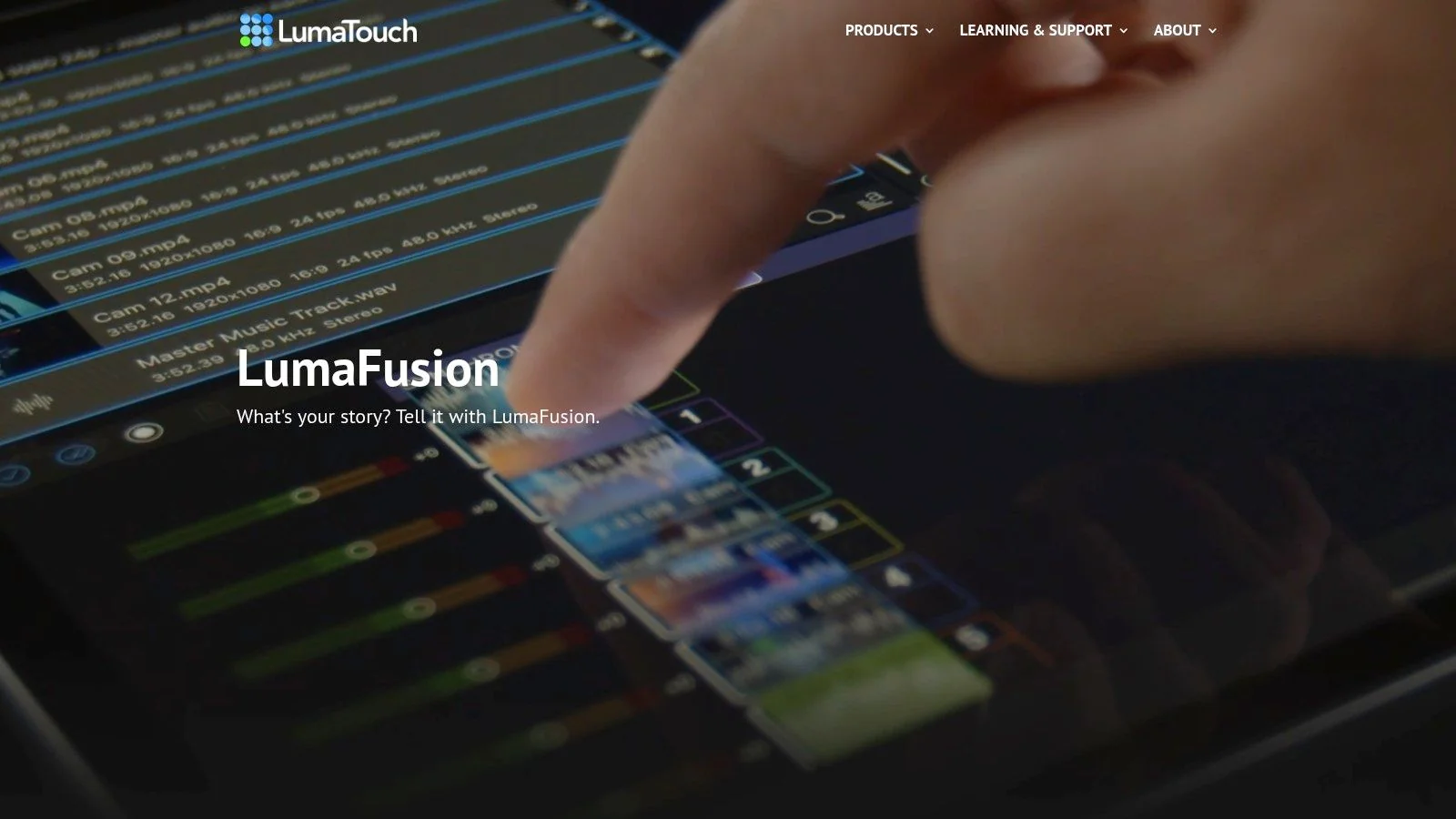
LumaFusion is what I recommend when someone says, “I want desktop-grade editing on an iPad or iPhone.” That’s not marketing fluff. It’s the mobile app that most consistently feels like a serious editor rather than a social content tool with extra knobs.
Independent 2026 field testing identified LumaFusion as the only mobile app delivering desktop-grade professional editing capabilities, including multi-track audio, advanced color grading, and proxy editing for 4K workflows. That same testing is why it stands out for journalists, YouTubers, and field teams who need precision away from a laptop. I already cited that testing earlier, and LumaFusion is the clearest proof point from it.
Best for mobile journalists and precision editors
The app gives you multi-track control, precise trimming, keyframing, strong color tools, audio ducking, and optional multicam workflows. Final Cut Pro export support also matters if your mobile edit is only the first step in a larger production process.
Here’s the trade-off. LumaFusion is powerful because it asks more from you.
- Choose LumaFusion if: You want editorial control, not automated shortcuts.
- Skip it if: You need instant template-led output or your team has no patience for a denser interface.
- Watch for add-ons: Some advanced features require extra purchase or a Creator Pass subscription.
For mobile journalism, event recaps, interview-driven content, and on-location YouTube production, it’s one of the strongest choices available.
6. Adobe Premiere on iPhone
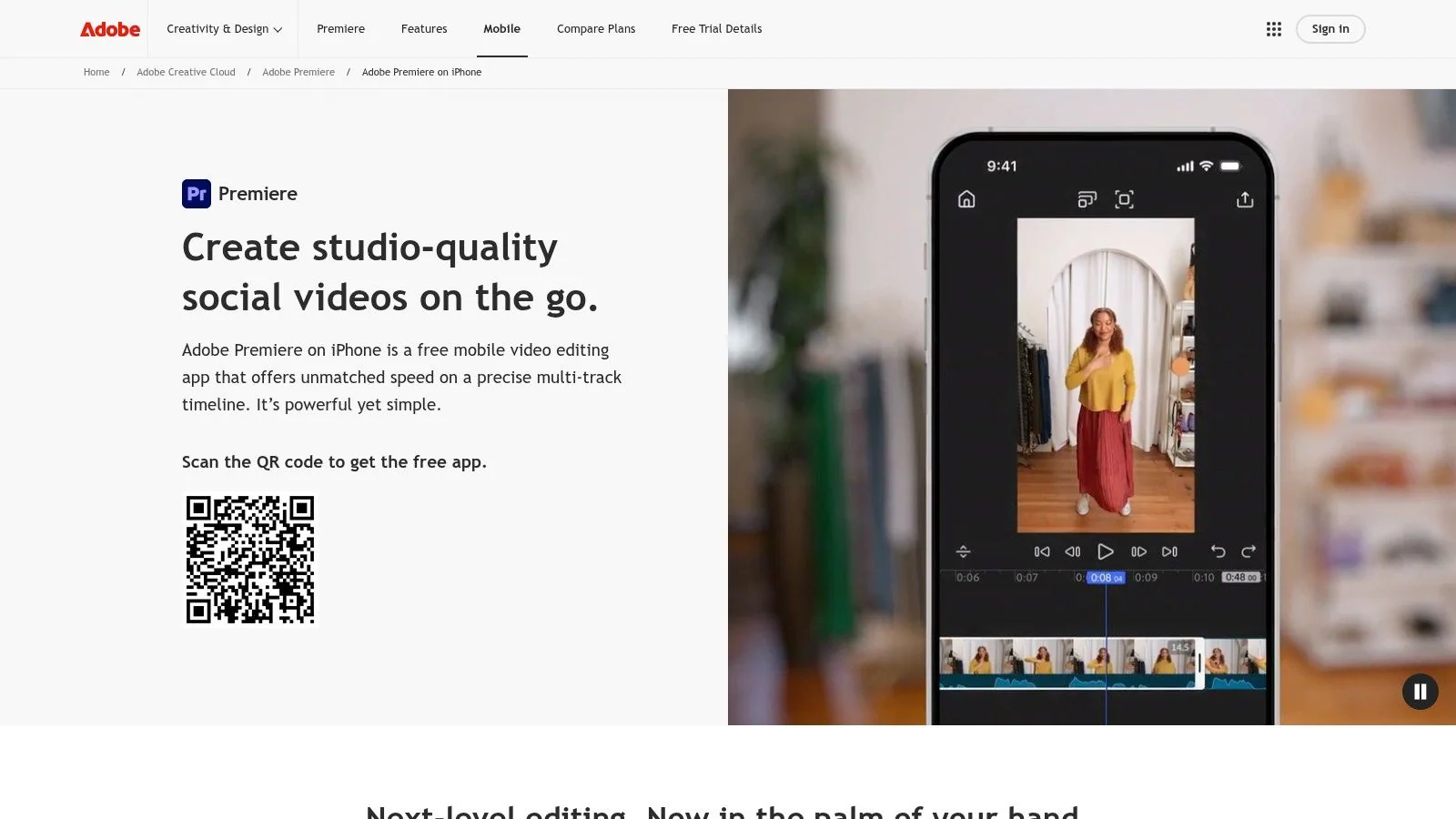
Adobe Premiere on iPhone makes the most sense for people already working in Adobe’s ecosystem. If your assets live in Creative Cloud and your projects may move to desktop later, the integration is the main reason to care.
The app gives you a pro-style multi-track timeline, keyframes, speed controls, cloud workflows, and watermark-free exports. It feels less toy-like than many social editors, which is a good thing if you want more control and a less template-dependent workflow.
A strong fit with one big limitation
Adobe’s mobile direction matters because the app is positioned as a serious iPhone editing environment rather than a stripped-down companion. It’s also part of a wider shift toward mobile-first editing. A separate market forecast values the global phone video editing app market at USD 1.46 billion in 2026 and projects it to reach USD 1.75 billion by 2035, with mobile-first and AI-assisted platforms accounting for 72% of adoption in the United States as of 2025 (mobile-first and AI-assisted adoption data).
The practical drawback is availability. It’s currently iPhone-only, so mixed-device teams don’t get a universal mobile workflow.
- Best for Adobe users: Smoothest path into broader Creative Cloud workflows.
- Best editing style: More manual and precise than template-led social apps.
- Main drawback: No Android version at the time of writing.
If your team already thinks in Adobe projects, Premiere on iPhone is easy to justify. If not, there are simpler places to start.
Visit Adobe Premiere on iPhone
7. KineMaster
KineMaster has been around long enough to feel mature, and that matters. The app knows what a layered mobile edit looks like. Chroma key, keyframes, reverse, speed ramping, precision trimming, and a large asset store make it a practical option for explainers, mixed-media social edits, and educational videos that need more than captions and stock transitions.
Its best feature isn’t the timeline. It’s the asset ecosystem. When teams need stickers, fonts, sound effects, transitions, and reusable templates without sourcing everything manually, KineMaster saves time.
Best for layered explainers and branded reels
KineMaster sits between casual creators and more serious mobile editors. It’s more flexible than lightweight social apps, but it doesn’t feel as demanding as LumaFusion or Resolve.
That makes it useful for:
- Explainer content: Motion-heavy social edits, mini-lessons, and educational clips.
- Brand teams: Curated assets help maintain consistency without starting from zero.
- Teams with mixed skill levels: Advanced enough for editors, approachable enough for marketers.
The main catch is the free plan. The watermark is prominent enough that a Premium subscription often becomes necessary. If you’re only editing occasionally, that can make alternatives look more appealing.
8. PowerDirector
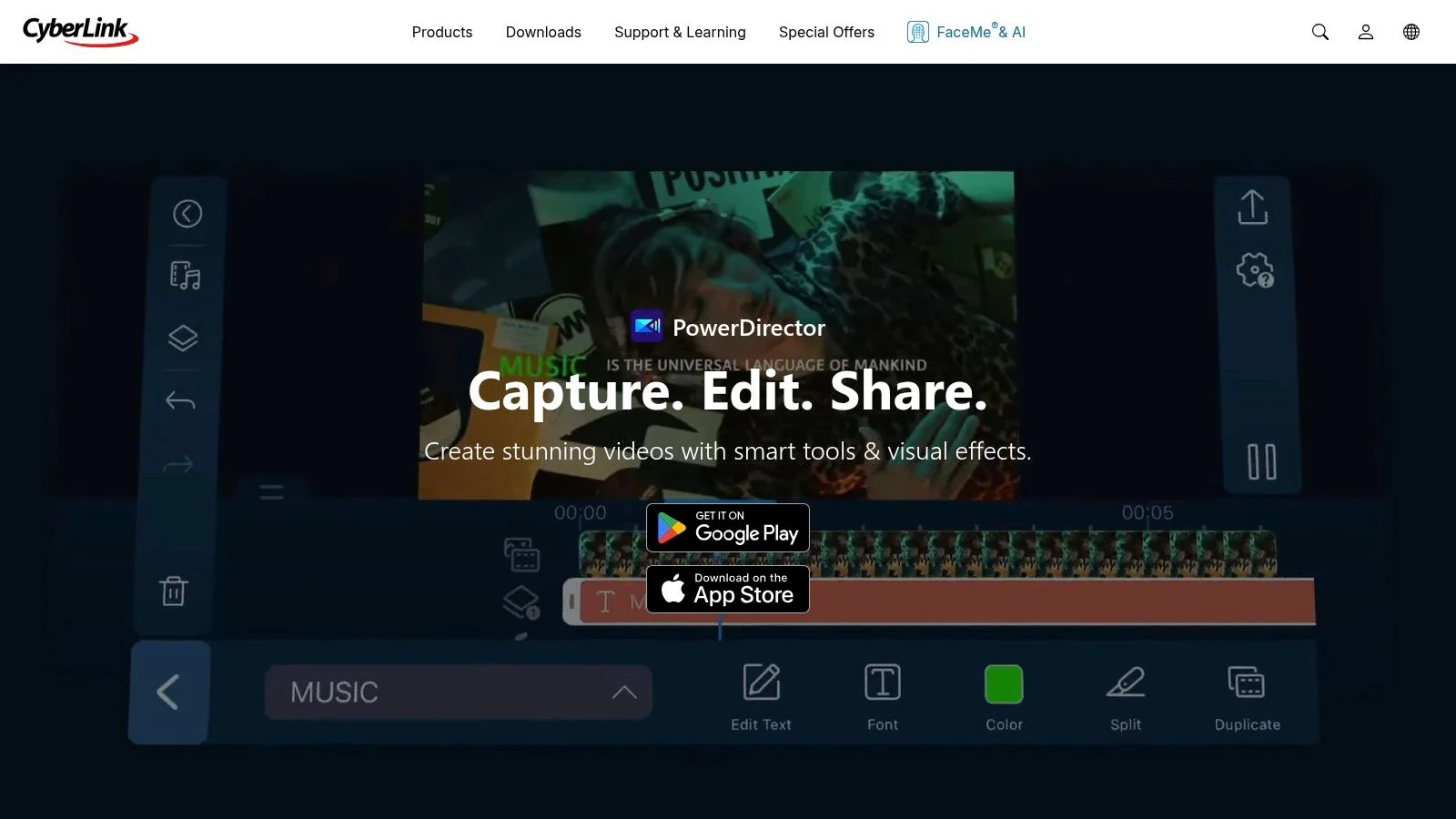
PowerDirector is a good fit for creators who want push-button enhancement without giving up manual controls. It covers a lot of middle ground: AI background removal, upscaling, denoise, motion tracking, captions, stabilization, color filters, and a large library of templates and music.
That breadth is the appeal, but it’s also the risk. The interface can feel busier than CapCut or VN, especially when you only need a quick edit. People who love it usually want one app that can handle both automatic cleanup and more involved adjustments.
When PowerDirector makes sense
I like PowerDirector most for creators who shoot under inconsistent conditions. If your footage often needs cleanup before it needs style, its enhancement tools are useful.
Better enhancement tools don’t automatically make a better editor. They matter most when your raw footage is noisy, shaky, or poorly lit.
A few practical notes:
- Best for hybrid workflows: Strong if you move between mobile and desktop CyberLink tools.
- Best use case: Content that needs restoration, motion tracking, or cleanup before polish.
- Main drawback: The best features and asset libraries sit behind a subscription.
It isn’t the cleanest app for beginners, but it covers a lot of ground for creators who want editing and repair in the same place.
9. DaVinci Resolve for iPad
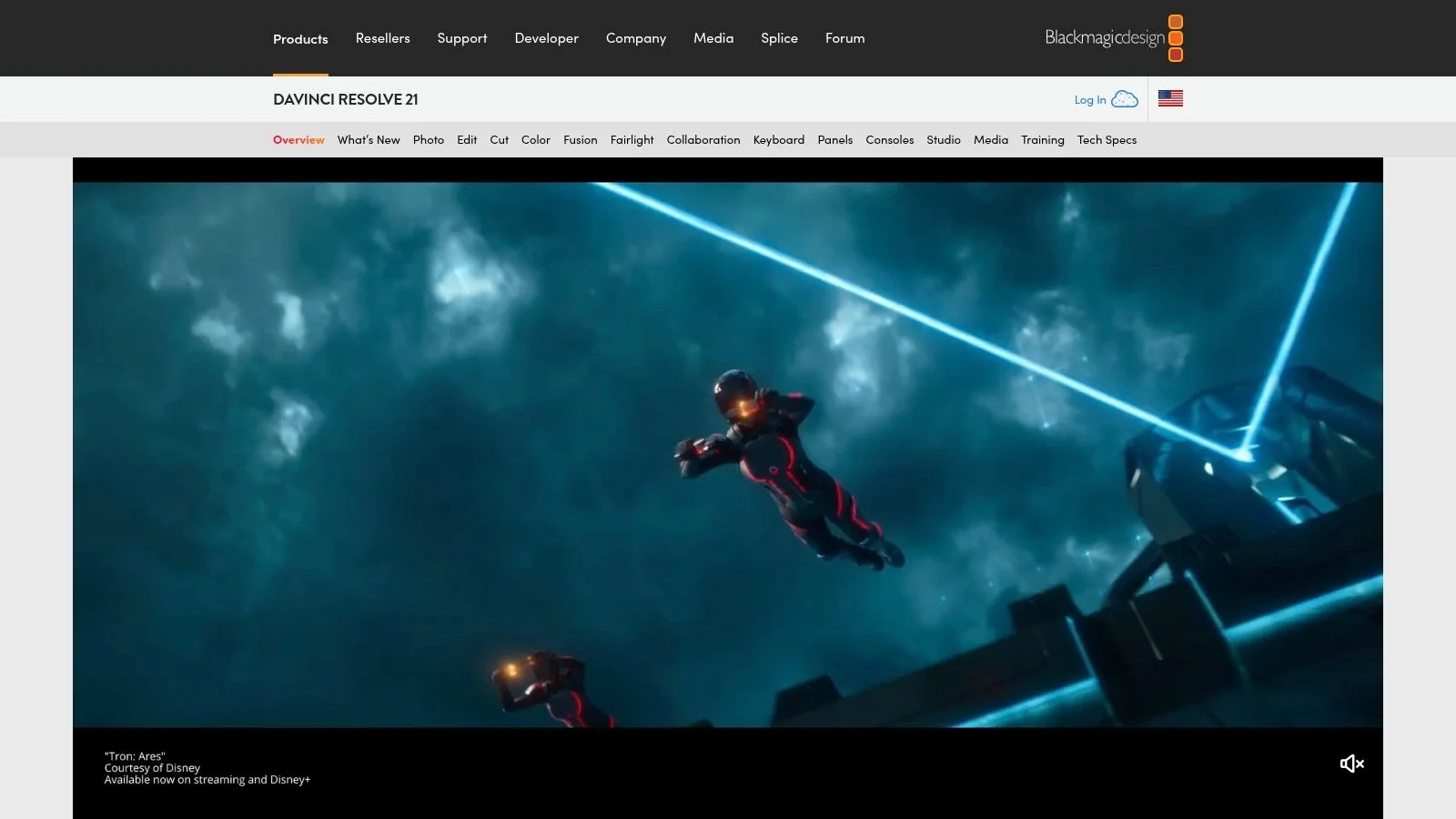
DaVinci Resolve for iPad isn’t trying to be friendly. It’s trying to be serious. If color accuracy, media control, and project continuity with desktop Resolve matter more than speed, this is the iPad app to look at.
The Cut page is excellent for assembly, and the color tools are the main reason many editors tolerate the heavier workflow. Blackmagic Cloud collaboration and external media support also make it practical for hybrid productions where the iPad is one station in a larger pipeline.
Best for finishing and Resolve-based teams
This isn’t a universally recommended video editor for mobile. It is one of the best for a very specific user: someone who already understands Resolve or wants a tablet-based extension of that environment.
Keep these trade-offs in mind:
- Best for color work: Strongest option on a tablet when finishing quality matters.
- Best for hybrid editing: Easy handoff between iPad and desktop Resolve workflows.
- Main drawback: iPad-only, with best performance on newer M-series hardware.
If you want a fast mobile editor, skip it. If you want the closest thing to a desktop post-production tool on a tablet, Resolve is the right kind of demanding.
Visit DaVinci Resolve for iPad
10. GoPro Quik
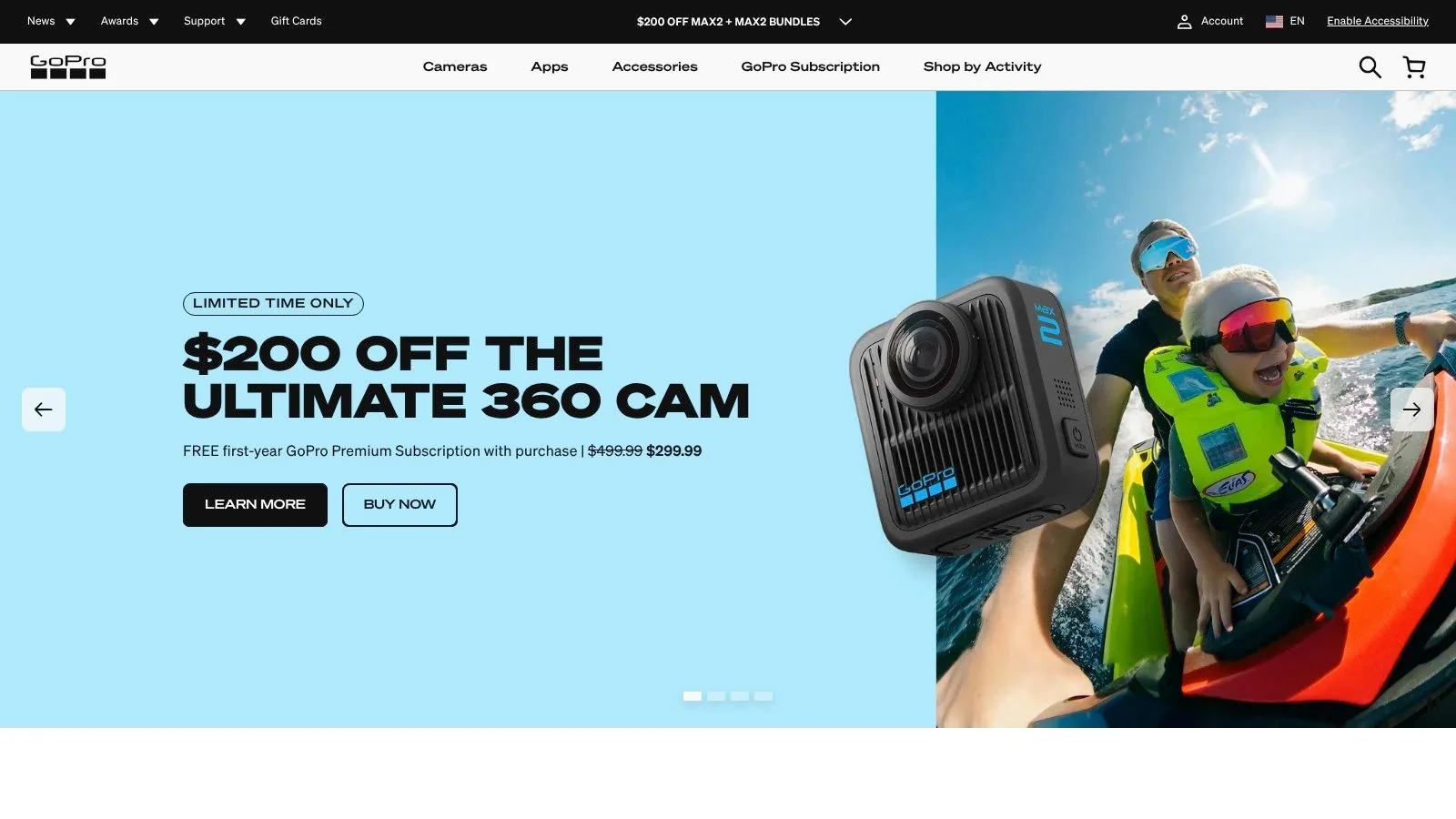
GoPro Quik is the speed pick for action footage and casual highlight edits. If your goal is to get from raw clips to something shareable with minimal intervention, Quik does that well.
Auto-highlight edits, music sync, quick reframing, templates, and cloud backup make it useful for travel clips, biking footage, event recaps, and phone footage that doesn’t need a lot of editorial nuance. It won’t replace a full mobile NLE, but it often doesn’t need to.
Best for fast highlights, not deep editing
Quik works best when the footage already has energy. Action-cam clips, travel shots, and fast-moving moments respond well to automatic assembly. The app’s job is to shorten the distance between capture and share.
The limits are obvious:
- Best for speed: Fastest route to a clean highlight reel.
- Best for GoPro users: Subscription and cloud perks make more sense inside the GoPro ecosystem.
- Main drawback: Fewer manual controls than full editors like LumaFusion or Resolve.
For creators who’d rather publish a decent cut now than spend time tuning a timeline, Quik is still a smart option.
Top 10 Mobile Video Editors Comparison
| Product | Core features | UX / Quality | Unique selling points | Ideal for | Price / Value |
|---|---|---|---|---|---|
| 🏆 Tutorial AI | Screen + voice capture, auto‑transcribe, “edit like a doc”, AutoRetime™ multilingual outputs | Studio-quality, fast workflow ★★★★★ | ✨ Edit-by-text, cursor tracking, AutoRetime™, docs from video | 👥 Documentation teams, L&D, customer education | 💰 Free → Enterprise (advanced voices & cloning) |
| CapCut | AI auto-captions, TTS, background removal, large template library | Social-first, very fast ★★★★☆ | ✨ Massive template/community ecosystem | 👥 Social creators, marketers | 💰 Strong free tier; Pro/credits for premium features |
| InShot | One-tap canvas sizes, stickers, filters, speed controls | Very approachable, quick publish ★★★★ | ✨ Fast mobile-first publishing | 👥 Beginners & casual social users | 💰 Low monthly Pro (removes watermark) |
| VN Video Editor | Multi-layer timeline, keyframes, LUTs, auto-captions | Professional tools without watermark ★★★★☆ | ✨ No‑watermark free tier, 4K export | 👥 Budget creators, students | 💰 Generous free; paid assets/plugins |
| LumaFusion | Up to 12 tracks, precision trimming, keyframing, FCPXML | Desktop-like mobile NLE, precise ★★★★★ | ✨ Pro-level control on iPad, one-time purchase option | 👥 Mobile journalists, pro videographers | 💰 One-time app purchase + optional add-ons |
| Adobe Premiere (iPhone) | Frame-accurate multi-track, Firefly AI, CC cloud sync | Pro workflows, Adobe integration ★★★★☆ | ✨ Firefly & Creative Cloud assets | 👥 Adobe Creative Cloud professionals | 💰 Free download; CC subscription for full features |
| KineMaster | Multi-track, chroma key, keyframes, asset store | Mature feature set, layered edits ★★★★ | ✨ Large curated asset store & KineCloud | 👥 Experienced creators, educators | 💰 Free w/ watermark; Premium subscription removes it |
| PowerDirector | AI upscaling, denoise, motion tracking, speech-to-text | Powerful AI assist but busier UI ★★★★ | ✨ Broad AI enhancement toolkit | 👥 Users wanting AI-driven enhancements | 💰 Subscription for full assets & 4K exports |
| DaVinci Resolve (iPad) | Professional color tools, Cut page, ProRes/BRAW support | Tablet-grade finishing, color-accurate ★★★★★ | ✨ Desktop-grade color & Blackmagic Cloud | 👥 Colorists, filmmakers, Resolve users | 💰 Free with optional Studio upgrade (Neural AI) |
| GoPro Quik | Auto-highlight edits, music sync, quick templates | Fastest path to shareable edits ★★★★ | ✨ Auto “highlight” edits for action footage | 👥 GoPro users, travel/action creators | 💰 Affordable Quik-only plan; premium features via GoPro subscription |
Beyond Editing the Workflow
Traditional mobile editors are getting better fast, but they’re still mostly built for hands-on editing. That’s ideal when you’re cutting vlogs, reels, interviews, or travel footage. It isn’t always ideal when your primary task is shipping clear product knowledge.
That difference is why choosing the best video editor for mobile starts with the content type, not the feature list. Social creators usually benefit from apps like CapCut, InShot, or VN because speed, templates, and captions drive the outcome. Mobile journalists and more technical editors usually need LumaFusion or Resolve because trimming precision, audio control, and project flexibility matter more than trend-native effects.
Business teams sit in a different category. Product demos, onboarding videos, help-center articles, internal SOPs, and sales enablement walkthroughs aren’t just “videos.” They’re operational assets. They need to be accurate, branded, easy to update, and often available in more than one language.
That’s also where most mobile editor roundups fall short. Existing coverage tends to prioritize watermark-free hobbyist apps and overlooks the recurring enterprise question: which tool supports secure, branded, multilingual tutorial exports with collaboration and publishing controls? One reviewed dataset notes that 90% of top-reviewed mobile editors lack native 4K export with share-link publishing, guest collaboration, versioning, or embeddable players with language selectors, which are the kinds of features knowledge teams often need (mobile editor feature gap for enterprise tutorial workflows).
For that reason, the future isn’t only about better editing. It’s about less manual work between recording and publishing. Tutorial AI is the strongest example in this list because it automates the heavy parts that slow subject-matter experts down: tightening pacing, regenerating narration, syncing multilingual versions, and turning one recording into both a polished video and a written article.
That matters when your experts aren’t video producers. They’re product marketers, support leads, sales engineers, trainers, and technical writers. They know the product. They don’t want to become timeline editors just to explain it clearly.
Tutorial AI also fits how modern teams publish. Record on Mac, Windows, iPhone, iPad, or Chrome. Capture the UI. Update the script after recording. Regenerate voice and captions. Publish a multilingual player. Keep branding consistent with Brand Kits. Manage access with SSO/SAML, and meet enterprise requirements with SOC 2 and GDPR support. Teams including Microsoft, Bosch, Deutsche Bahn, Intesa Sanpaolo, and UNICEF are exactly the kind of organizations that benefit from that workflow.
If you’re making cinematic stories, use a cinematic editor. If you’re making software tutorials, training, and documentation, pick the tool that shortens production without lowering quality.
If your team needs to turn screen recordings into polished demos, onboarding videos, and help-center articles without learning a complex timeline editor, Tutorial AI is the tool to try. It captures the product experience, tightens pacing automatically, supports narration in 74 languages, and generates both video and written documentation from the same recording, which makes it especially useful for support, training, product marketing, and sales enablement teams.