A product update is live, support tickets are arriving, and the person who knows the workflow best is already busy helping customers. Someone still needs to record the walkthrough, write the steps, add screenshots, create captions, translate the material, and update every version when the interface changes. An AI training video workflow can reduce that repeated work by starting with one accurate screen recording and turning it into both a narrated tutorial and structured documentation.
The practical idea is simple. Demonstrate the software as you normally would, explain the important decisions, review the generated content, and publish the video and written guide together. This approach suits customer education, software onboarding, internal training, SOPs, help centers, and feature announcements because the demonstrator’s real knowledge remains the source material.
What Makes AI Training Video Different
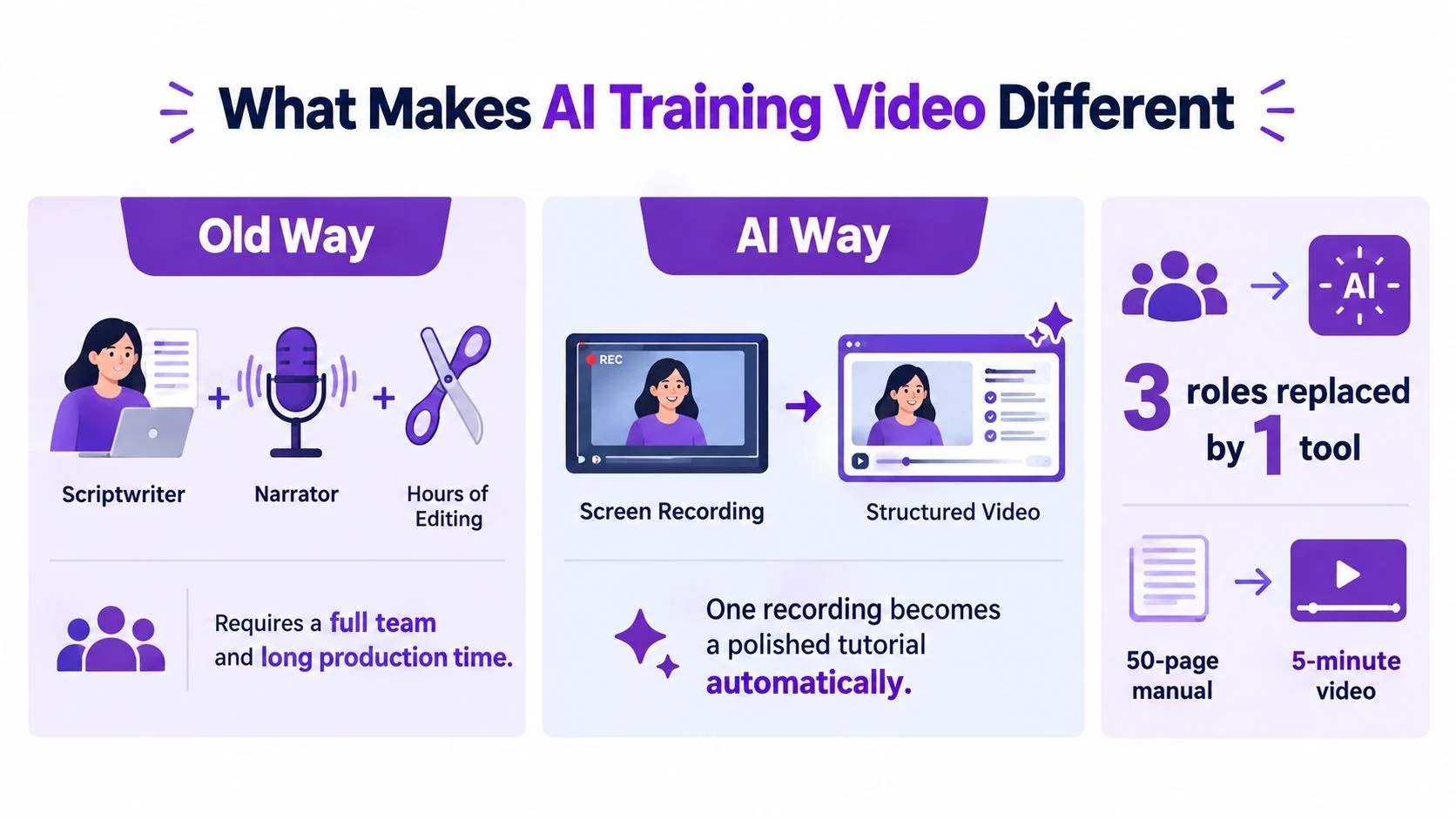
Traditional software documentation separates knowledge from production. A subject-matter expert explains the process, a writer turns that explanation into steps, a narrator records audio, and an editor assembles the result. Each handoff creates opportunities for delay, inconsistent terminology, missing screenshots, and outdated instructions.
An AI training video workflow starts with the person who already knows the process. They record the actual interface while completing one task, with or without narration. AI can then help transcribe the explanation, identify actions, draft a script, create captions, and organize screenshots. A reviewer still checks the result, but the team no longer has to build the same explanation separately for video and text.
This distinction matters because real software screens are the instructional material. The workflow isn’t an avatar pretending to use an application, a general-purpose video editor, or a system that somehow knows a company’s private software. It captures what the demonstrator does and says, then helps convert that evidence into reusable learning content. For a knowledge base team, that makes the recording a practical source of truth.
Why video became the starting point
Enterprise demand for video-based learning was already established before the current AI wave. A 2019 enterprise video survey found that 91% of respondents used at least some video for training or learning and development, while 90% had used video to learn a specific skill. The survey also found that 69% preferred learning a new skill from video rather than a written document, and 82% said interactive videos held their attention better than traditional videos.
Those findings don’t prove that AI-generated material teaches better. They show why production and maintenance are the pressing problems. Teams already want video, but they need a way to create it from expert knowledge, update it when software changes, and keep the written version aligned.
A useful overview of the broader category is what AI video means for tutorial production. The key takeaway is operational: one demonstration can become several coordinated assets, provided a knowledgeable person reviews the output before publication.
The Modern Workflow for Software Tutorials
A product manager has released a new reporting feature in a SaaS application. She knows the exact path from dashboard to export, including a permission setting that first-time users often miss. Instead of writing a long manual from memory, she opens the updated product, records the process, and narrates the decisions as she makes them.
The recording should focus on one outcome, such as creating and exporting a report. The demonstrator should move at a deliberate pace, pause before important choices, and say the names of menus and fields aloud. Spoken explanation is useful, but silent recordings can still provide visual evidence for step extraction and screenshot selection.
Five stages from demonstration to publication
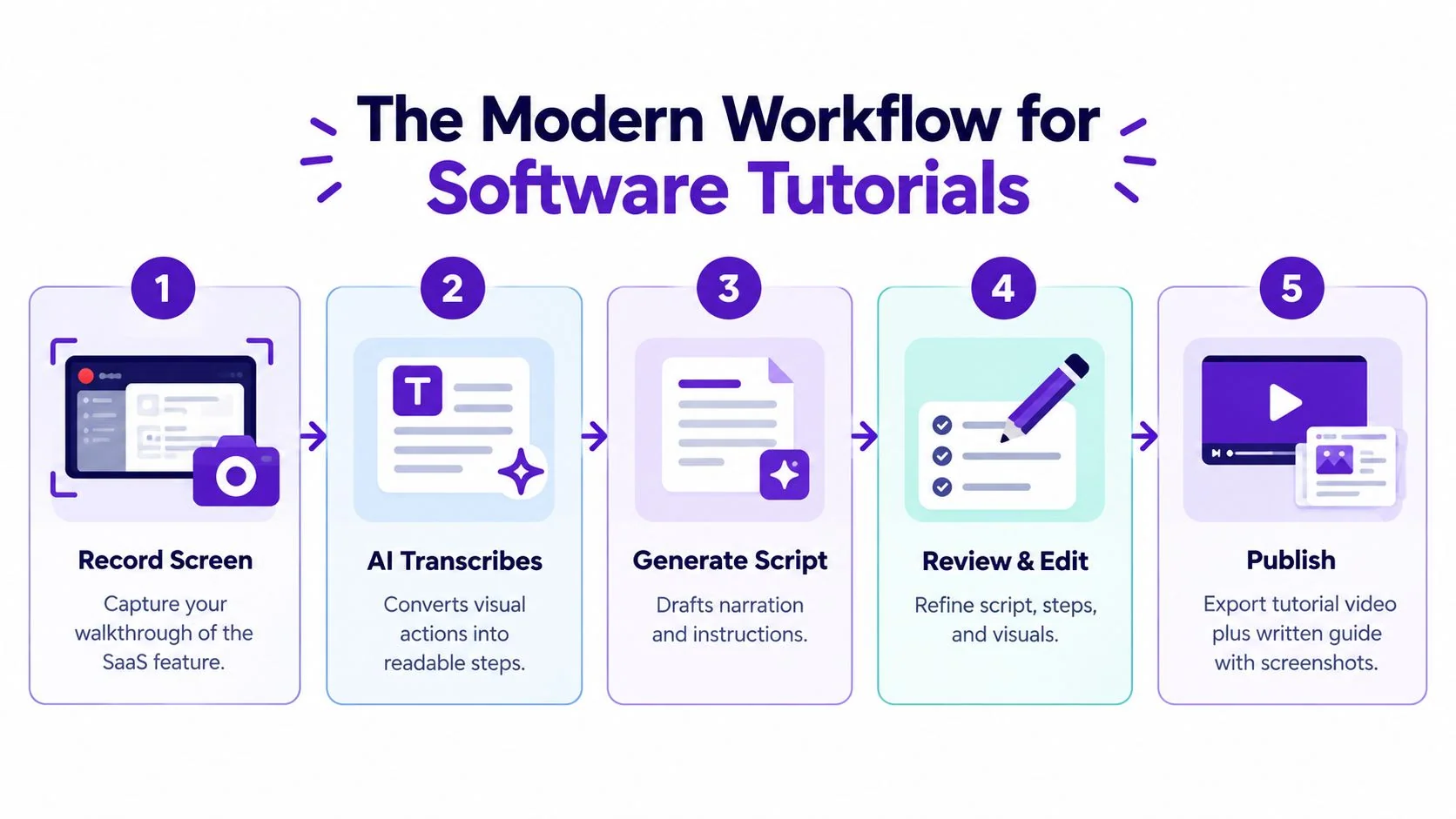
- Record the screen. Complete the task in the actual application. Remove unrelated tabs, notifications, and personal information before recording.
- Process the recording. Speech can be transcribed, while visible actions provide context for the steps. The system works from the captured demonstration rather than guessing how the software behaves.
- Generate the draft. The narration can become a script, and the visible workflow can become numbered instructions with matching screenshots.
- Review and edit. Correct product names, permissions, exceptions, captions, and any action that the draft misunderstood. Check that each screenshot supports the sentence beside it.
- Publish both formats. Share the narrated video for quick orientation and the written guide for search, reference, accessibility, and support replies.
The product manager might send the video to customer success and place the guide in the help center. If the feature changes, she can record the affected path again and revise the source content instead of rebuilding an unrelated video and article from scratch. The workflow creates a repeatable relationship between the visual explanation and the documentation.
A separate editing resource, Klap’s video editing tool, may help teams that need additional editing capabilities for video work outside this recording-to-documentation process.
The important control point is the review stage. Automation can remove transcription and formatting effort, but the product owner or technical writer remains responsible for accuracy, scope, and release readiness.
How Screen Recordings Become Structured Content
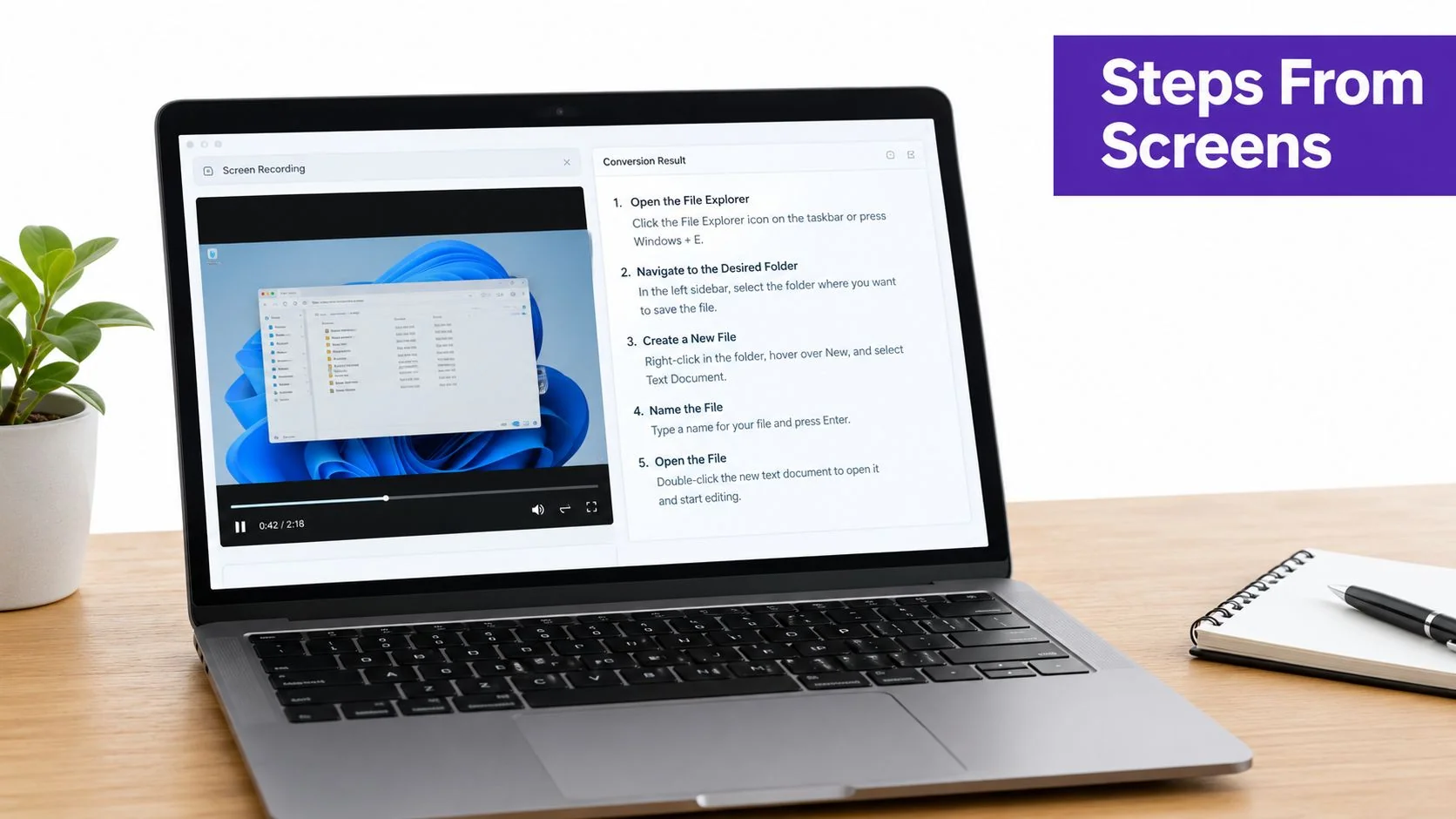
A screen recording contains more than a sequence of images. It may include cursor movement, clicks, menu changes, typed values, spoken reasoning, and visual states that only make sense in order. A useful documentation workflow connects those signals rather than treating the file as footage that needs manual cutting.
The conversion process
The first stream is speech. If the demonstrator narrates the task, transcription turns the audio into editable text. The second stream is screen activity. Computer vision can identify visible changes and interactions, such as opening a menu, selecting a control, or moving to a new screen. A content system can then align the words with the actions.
The result should be treated as a draft, not an unquestionable record. Transcription may misread a product term, while visual analysis may interpret a preparatory click as a meaningful instruction. The reviewer decides which actions belong in the final guide and which should remain invisible background activity.
The third part is step extraction. A system can group related actions, assign a sequence, and select screenshots that show the relevant interface state. This is the mechanism described by Document360’s video-to-documentation workflow, which includes transcription, key-step extraction, screenshots from on-screen actions, and a structured article draft. Similar workflows, such as Glitter’s training documentation process, describe capturing screenshots at clicks and converting narration into plain instructions.
What the technical writer should verify
Before publication, compare the generated guide with the recording and the current application.
- Action order: Confirm that every numbered step follows the actual dependency between screens.
- Visible state: Check that screenshots show the correct account, workspace, permissions, and selected options.
- Language: Replace vague phrases with exact interface labels, and explain unfamiliar terms on first use.
- Exceptions: Add what happens when a user lacks access, enters an invalid value, or starts from a different screen.
- Accessibility: Review captions, headings, alternative text, and whether the written guide can stand alone without audio.
This approach creates two connected assets, not one repurposed file. The video supports demonstration and orientation, while the article supports searching, scanning, copying steps, and answering a support question with a precise link. Trupeer’s procedural text generator describes a comparable mechanism using computer vision and natural language processing to identify steps, capture screenshots, and structure procedural documents.
For a team designing the capture stage, an AI screen recorder for software walkthroughs is relevant when the goal is to preserve both the demonstrator’s actions and the explanation behind them.
Scaling Training with Multilingual Support
Localization becomes difficult when the source video changes after translations are complete. A new button label, revised policy, or altered workflow can make several regional versions inaccurate at once. Re-recording every language creates a production queue, while replacing audio alone can leave captions, annotations, and written instructions out of sync.
A better model treats the original recording as the controlled source and each language as a maintained version. Start by reviewing the source script and terminology. Then translate the narration, captions, on-screen annotations, and written guide as connected content. When the source changes, identify the affected steps, regenerate the dependent language versions, and send them through human review.
One product-category source describes conversion of a recording into narrated tutorials and written guides in 74 languages, including translation of narration, the guide, and on-screen annotations from the original recording. It also describes outputs for help centers, regional onboarding flows, and language-specific exports in Clevera’s multilingual documentation workflow. The number is useful as a verified capability of that cited workflow, not a universal standard for every AI training video tool.
A maintenance loop for global teams
Use a version record that connects each localized asset to the same source workflow.
- Name the source version. Record the product release, policy revision, or feature state represented in the demonstration.
- Mark changed steps. When the source is updated, identify whether the change affects narration, screenshots, captions, or the written instructions.
- Regenerate dependent content. Produce revised language versions from the approved source rather than editing each translation independently.
- Review meaning and timing. Native or fluent reviewers should check terminology, instructions, captions, and whether the spoken version fits the visual action.
- Retire stale assets. Remove old embeds and links so support agents and customers don’t find conflicting instructions.
A multilingual content creation workflow is most useful when translation is treated as part of content operations, not as a final export button. Human review remains important for regulated language, culturally specific examples, product terminology, and any instruction where a small translation error could change the user’s action.
Tool Capabilities and Selection Criteria
An avatar platform, a full video editor, and an AI tutorial maker may all produce video, but they solve different problems. For software training, the key question is whether the tool preserves the actual interface and the demonstrator’s expertise, then makes the resulting content easy to correct.
Start with the source material. If your team needs a presenter for broad instructional topics, an avatar tool may be appropriate. If your editors already work in detailed timelines, a conventional video editor may offer more control. If your main problem is turning a real workflow into a video and a guide, prioritize screen capture, action-aware documentation, editable scripts, screenshots, captions, and maintenance.
| Feature | Best For | Key Benefit |
|---|---|---|
| Screen recording with narration | Software trainers and subject-matter experts | Captures the real interface and the explanation together |
| Transcription and script editing | Technical writers and support teams | Turns spoken knowledge into editable instructional copy |
| Step and screenshot extraction | Knowledge base teams | Creates a structured guide from visible actions |
| Cursor effects, zooms, and highlights | Customer education and product marketing | Directs attention to the control being discussed |
| Multilingual narration and captions | Global onboarding teams | Supports localized versions from one approved source |
| Version review and collaboration | Product and documentation teams | Keeps subject-matter review in the publishing workflow |
| Help center or documentation publishing | Support operations | Places the guide where users already search for answers |
Tutorial AI is one option for teams that want to record a software workflow, generate a narrated tutorial and written guide, edit the script, and preserve screenshots from the same recording. Its product information describes screen recording across desktop, mobile, and Chrome capture, AI-assisted narration and captions, documentation generation, cursor effects, multilingual output, and collaboration features. Verify current availability, integrations, exports, pricing, and plan limits on the product site before selecting it for a production workflow.
For teams whose priority is repurposing existing material into social posts rather than documenting software, a resource covering best AI tools for LinkedIn threads addresses a different use case. That distinction prevents a common purchasing mistake, choosing a tool for its video polish when the actual requirement is searchable, maintainable product documentation.
Selection rule: Choose the system that makes your source workflow easier to verify and update, not merely the one that produces the most animated first draft.
Ask vendors to demonstrate a complete path using your own type of software task. Test whether a reviewer can correct terminology, replace a screenshot, update narration, and publish the written guide without rebuilding the entire asset.
Practical Best Practices for Implementation
The fastest recording isn’t always the most useful one. A strong AI training video gives the system clean evidence: one task, one intended outcome, a stable interface, and commentary that explains decisions rather than reading every cursor movement aloud.
Record for the person who will learn
Keep each recording narrow. “Create a customer segment and save it” is a workable topic. “Everything the analytics module can do” is too broad for a single tutorial and makes both the video and the written guide harder to manage.
Before pressing record, prepare the account and remove sensitive information. Decide where the learner should start, what successful completion looks like, and which mistakes deserve explanation. If you use narration, record your microphone audio clearly and distinguish it from system audio, which is the sound produced by the computer, such as application alerts or a video playing in the browser. For most software walkthroughs, microphone narration is the essential track; system audio should be captured only when it carries instructional meaning.
Use direct language during the demonstration:
- Name the control: Say “select Workspace settings,” not “click this.”
- Explain the reason: Tell learners why a permission or filter matters.
- Pause at transitions: Give the recording a clear boundary before a new screen or outcome.
- Show the result: Leave the completed state visible long enough for learners to recognize it.
Treat generated content as editorial material
A 2026 benchmark covering more than 5,000 questions across more than 700 instructional videos found that the strongest evaluated model, GPT-4o, reached 53.42% accuracy on instructional video understanding, according to the Instructional Video Understanding benchmark. The result is a warning for documentation teams: ordered actions, state changes, and dependencies remain difficult for AI systems to interpret reliably.
Longer tutorials create another problem. LongVideoBench contains 3,763 web-collected videos, 6,678 human-annotated multiple-choice questions, and videos lasting up to one hour; its dataset documentation reports that performance improved when models processed more frames, as described in the LongVideoBench dataset. A focused recording reduces the amount of ambiguous material the reviewer must inspect.
Evidence also doesn’t support assuming that AI-made video automatically improves learning. A 2025 rapid review of education studies found no difference in learning performance between AI-made and human-made videos, while students preferred human-made videos. Use AI for production throughput, editing, localization, and documentation structure, but keep human expertise responsible for accuracy, tone, examples, and instructional judgment.
Practical rule: Publish the draft only after someone who understands the software completes the task from the final guide and reports where the instructions become unclear.
Tutorial AI can turn a screen recording into an editable narrated tutorial and a structured guide with screenshots, which fits teams replacing duplicate manual production with a reviewable source workflow. Visit Tutorial AI to try the recording-to-tutorial process and evaluate whether it matches your documentation, onboarding, or internal training needs.