You need a tutorial video by Friday.
What starts as a simple screen recording often turns into script cleanup, retakes, awkward pauses, cursor mistakes, audio fixes, captions, cropping, and a final export that still looks rough. If you’re the person who knows the product, that work is especially frustrating because editing isn’t your job. Explaining the workflow is.
That’s why AI explainer videos matter right now. Not because video suddenly became trendy, but because the tools finally fit the way support teams, trainers, and product specialists work. You already know the feature, the process, or the SOP. The useful shift is that you can record once, clean it up quickly, and publish something polished without learning timeline editing.
The End of Complicated Video Editing
Most subject-matter experts don’t struggle with what to say. They struggle with everything that happens after the recording.
You open a screen recorder to make a short product demo. Then you notice the intro dragged. You restarted a sentence twice. The cursor wandered. A notification popped up. The pacing feels off. By the time you move the clips around, trim silence, fix captions, and try to make it presentable, a simple tutorial has become a small post-production project.
That mismatch is why AI explainer videos have taken off. The economics changed fast. The average cost per minute for explainer video creation dropped from about $4,200 to $400, a 91% reduction, and the production time for a standard 60-second marketing video fell from 13 days to 27 minutes according to Ngram’s AI video marketing analysis.
What changed in practice
The important shift isn’t that teams stopped recording real content. It’s that the painful parts now get automated.
Instead of manually trimming every pause, newer tools can tighten pacing for you. Instead of rebuilding narration from scratch after one wording change, you can edit from text. Instead of treating video and documentation as separate projects, some tools now turn the same recording into both a finished tutorial and a written article.
Practical rule: If the viewer needs to learn an actual product workflow, spend your effort on the clarity of the walkthrough, not on mastering an editor.
That matters for product demos, feature release videos, customer onboarding, help-center videos, support article videos, internal training, SOPs, and sales enablement walkthroughs. In all of those cases, the bottleneck usually isn’t ideation. It’s cleanup.
Where teams still get stuck
The wrong workflow still creates the same old problems:
- Over-recording: Casual recorders often leave you with footage that’s far longer than needed because pauses, retakes, and verbal detours stay in the final cut.
- Over-editing: Adobe Premiere Pro, Final Cut, and Camtasia are powerful, but they assume someone on the team can edit at a professional level.
- Over-scripting: Avatar tools can sound polished, but they don’t solve the core need when viewers must see the actual UI.
The useful version of AI explainer videos is simpler than the hype. Record the actual thing. Keep the actual voice if it helps credibility. Let the software handle the tedious editing work that used to eat the afternoon.
Understanding Different Types of AI Video
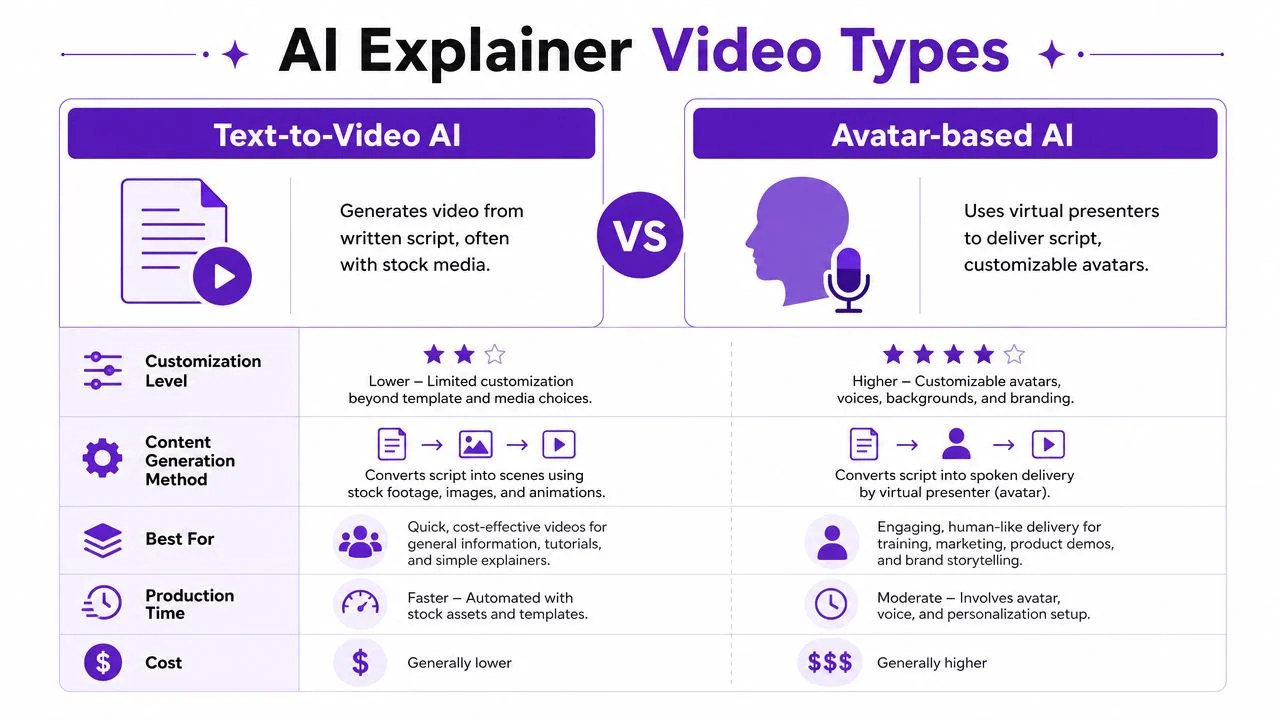
“AI video” gets used as if it means one thing. It doesn’t. For training and product education, the distinction matters.
Some tools generate a video from text. Some generate a presenter reading a script. A different category starts with a real screen recording and improves it. If your job is to teach someone how a product works, those are not interchangeable.
Synthetic media tools
The first category includes tools like Synthesia, HeyGen, Vyond, and other avatar or synthetic presentation platforms.
They work well when the format is presenter-led. Think policy updates, internal announcements, simple top-level overviews, or scripted training where a virtual presenter is enough. You write the script, choose an avatar, and generate the output.
The limitation shows up fast in software education. A virtual talking head can explain a concept, but it can’t replace a clear recording of the actual product interface when the viewer needs to follow clicks, settings, states, and flows.
For a broader breakdown of categories, this guide on what AI video is is useful background before you choose a workflow.
AI-assisted screen recording tools
This is the category that matters most for authentic tutorials.
Instead of generating the content from scratch, these tools capture your real screen and real narration, then automate the cleanup. That means removing dead air, tightening pacing, improving focus with zooms or cursor emphasis, cleaning captions, and turning a rough take into something that looks edited by someone who knows Adobe Premiere Pro.
That distinction sounds small until you make a help-center video. When a customer needs to see the actual settings panel, menu path, or onboarding flow, synthetic scenes don’t help much. They want proof that the UI exists and they want to see how it behaves.
Which type fits which job
A simple way to sort the options:
| Tool type | Best fit | Weak spot |
|---|---|---|
| Text-to-video | High-level explainers, marketing concepts, stock-footage summaries | Weak for precise UI walkthroughs |
| Avatar-based AI | Presenter-led training, internal communication, faceless narration | Doesn’t show real software use naturally |
| AI-assisted screen recording | Product demos, onboarding, support, SOPs, internal process training | Still requires a clear recording and domain knowledge |
When the product itself is the lesson, generated presenters are usually the wrong center of gravity. The interface should be the main character.
This is also why direct-screen tools land better for customer-facing education. They preserve the parts viewers trust: the authentic UI, the authentic workflow, and often the authentic voice of the person who knows the process.
Key Benefits for Your Support Sales and Training Teams
The strongest use case for AI explainer videos isn’t cinematic marketing. It’s operational content that has to be correct, clear, and repeatable.
Support teams need answers people can follow. Sales teams need customized walkthroughs without a long editing cycle. Training teams need consistent instruction across regions, roles, and systems. In all three cases, video works because it shows the action instead of describing it abstractly.
According to SundaySky’s 2025 video marketing statistics, viewers retain 95% of a message when watching it in video format compared with 10% when reading text, and websites with explainer videos can see conversions increase by up to 80%.
Support and knowledge-base teams
Support content breaks when it becomes too expensive to keep current.
A common pattern is that teams publish a written article first, then postpone the matching video because creating both doubles the work. That delay matters. The article may be accurate, but many users still prefer to watch the task happen on screen.
A better workflow starts from one recording and produces two outputs: the tutorial video and the written help article. That setup is especially useful for:
- Help-center updates: Record the fix once, then publish a support article video and matching documentation from the same source.
- Knowledge-base coverage: Build a deeper library without turning every article into a separate editing task.
- Ticket deflection: Show the exact clicks and fields users need, which often resolves issues faster than a paragraph of text.
Sales and presales teams
Sales walkthroughs live in a different rhythm. Reps need to answer a specific prospect question now, not next week.
That doesn’t mean the video can look improvised. A rough screen recording can undermine the message, especially when the buyer is evaluating product maturity. The useful middle ground is a workflow where someone records a custom demo quickly, then tightens the result without opening a professional editor.
What works well here:
- Short targeted demos for one feature or one objection.
- Reusable enablement walkthroughs for common scenarios.
- Post-call recap videos that show the exact workflow discussed in the meeting.
A polished custom demo often does more than a polished generic pitch because the buyer can see their use case reflected back to them.
L&D and internal training teams
Internal training has a scale problem. The process must be taught the same way every time, but the content also needs updates, localization, and consistency across teams.
That’s where AI-assisted workflows are practical. Some platforms support narration in 74 languages, a multilingual player, and automated retiming so translated narration still matches the visuals. For L&D leaders, that means one source recording can support broader rollout without manual scene rebuilding in every language.
SSO/SAML, SOC 2, and GDPR support also matter here because training content often sits inside enterprise systems and may include internal workflows, not just public-facing material.
The practical upside
The key benefit isn’t that video replaces docs. It doesn’t. The better model is that one recording supports both.
That approach gives support, sales, and training teams something they rarely get from older tools: a workflow aligned to the way experts already explain software.
A Modern Workflow for AI Explainer Videos
The easiest way to make better AI explainer videos is to stop thinking like an editor and start thinking like a trainer.
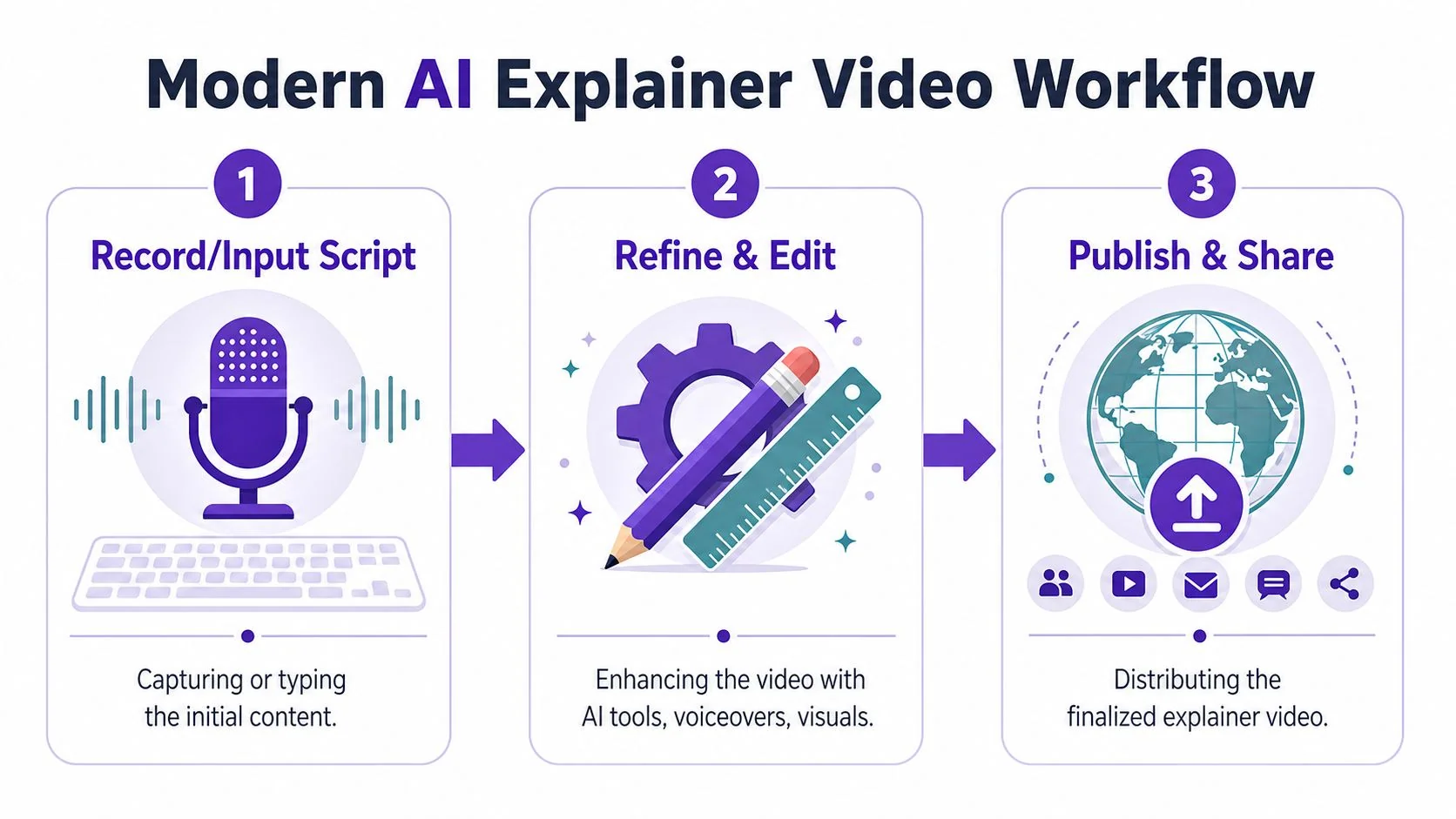
The workflow that works best for UI-heavy content is simple: record the process naturally, refine from text, then publish in the formats your audience needs. You don’t need to cut on a timeline if the tool lets you edit the script and have the video follow.
Record first, polish second
Start with the actual screen and a straightforward spoken walkthrough. Don’t try to deliver a flawless one-take performance.
If you miss a line, pause and say it again. If you click the wrong menu, recover and keep going unless the mistake changes the explanation. Modern tools can auto-tighten pauses and remove the drag that makes recordings feel amateur.
For a hands-on example of that process in a training context, this guide on creating training videos with AI shows the workflow in more detail.
Edit through the transcript
In this regard, AI-assisted tools separate themselves from casual recorders.
Once your narration becomes editable text, you can clean the video by cleaning the script. Delete a rambling sentence and the cut happens automatically. Rewrite an explanation and regenerate the narration so the captions, timing, and voiceover stay aligned. That’s much closer to how subject-matter experts think than dragging clips around a timeline.
A practical walkthrough helps:
Match pacing to comprehension
Speed is where many tutorial videos fail.
For technical UI content, the recommended narration pace is 130 to 150 words per minute, because faster pacing reduces comprehension and retention when viewers are trying to map spoken instructions to cursor movement and interface elements, as noted in Imagine Art’s guide to AI explainer videos.
That pacing advice is more important than it looks. Many teams narrate software tutorials like marketing videos. The result feels brisk, but the viewer can’t follow the product steps.
Use these checks before publishing:
- Cursor sync: Make sure the spoken instruction lands when the cursor reaches the element.
- Step spacing: Leave enough visual breathing room after each action so the viewer can process state changes.
- Caption readability: Keep on-screen text short and timed to the relevant action.
- Brand consistency: Apply a Brand Kit late in the process so colors, fonts, and player presentation stay consistent without slowing down recording.
Slow enough to follow beats smooth enough to impress. Training videos aren’t voiceover demos.
The best modern workflow also handles output beyond the video itself. If the same recording can generate a written article, screenshots, and a shareable multilingual player, you’ve reduced the production burden without reducing clarity.
Practical Use Cases and Real Examples
The easiest way to judge AI explainer videos is to look at where they save work without reducing usefulness. That usually means content people need repeatedly, not one-off promotional edits.
Microsoft, Bosch, Deutsche Bahn, Intesa Sanpaolo, and UNICEF are all names associated with modern tutorial and training workflows in this category. That doesn’t mean every team needs enterprise complexity. It does show that real-screen instructional video isn’t a niche format. Large organizations rely on it because software education happens everywhere: customer onboarding, internal systems training, support, and sales enablement.
Product and customer education
A product demo works best when it answers one concrete question.
For a feature release video, that might be: where is the new capability, what changed in the interface, and how do I use it right now? A real screen recording handles that better than a synthetic presenter because viewers can see the exact UI state they should expect.
Common formats in this category include:
- Product demos: Short walkthroughs for a new feature, workflow, or integration.
- Customer onboarding: A series that moves from first login to first successful action.
- Help-center videos: Embedded explainers attached to support articles and knowledge-base entries.
- Support article videos: One task per video, usually tightly scoped and easy to update.
If you want a broader creative framework for structuring those videos, Seedance has a useful guide on how to produce explainer videos.
Internal operations and enablement
Internal training benefits from the same format, but the goal shifts from adoption to consistency.
A finance team may need an SOP video for a monthly approval process. An IT operations team may need a walkthrough for provisioning access. A sales enablement lead may need a repeatable demo story that shows how to position one workflow to a specific segment.
These use cases tend to succeed when the video is:
| Use case | What viewers need to see | Why real screen matters |
|---|---|---|
| Internal training | Actual system steps and expected states | Employees need to mirror the process exactly |
| SOPs | Sequence, dependencies, and handoff points | Accuracy matters more than presentation flair |
| Sales enablement walkthroughs | Product flow tied to a buyer scenario | Reps need believable, current product footage |
What good examples have in common
The best examples are usually less ambitious than teams expect.
They don’t try to explain the whole platform in one pass. They stay narrow, show the actual product, and remove friction from the update cycle. That’s why this format works so well for help centers and training libraries. You can keep publishing because the process is sustainable.
How to Choose the Right AI Explainer Tool
Choosing the right tool gets easier when you ignore feature overload and focus on one question: what does the viewer need to trust?
If the answer is “they need to see the actual software and follow the process,” then many popular video tools fall away quickly. They’re not bad products. They just solve a different problem.
Start with the content type
A casual screen recorder is fine for a quick internal message. It isn’t ideal for a polished tutorial library.
A professional editor can produce excellent output. But if your process depends on Adobe Premiere Pro or Camtasia every time someone in support updates a settings flow, the workflow won’t scale. You need the expert to explain the process, not to become the editor.
There’s another practical issue many teams miss. According to Video Learning AI’s explainer video analysis, 80% of social video views occur with sound off, which makes strong visual storytelling and clear on-screen text essential. For training and support teams, that translates into a wider rule: the video should still make sense visually even before the narration kicks in.
Compare the categories honestly
Here is the comparison that usually matters most.
| Tool Category | Best For | Key Advantage | Key Limitation |
|---|---|---|---|
| Casual screen recorders | Fast internal updates, quick async messages | Easy to record and share | Recordings often run longer than needed and need cleanup |
| Professional video editors | High-control production work | Deep editing power | Requires skill, time, and someone comfortable editing regularly |
| AI avatar generators | Presenter-led scripts and faceless training | Consistent scripted delivery | Poor fit when viewers must see the real UI |
| AI-assisted screen recorders | Product demos, onboarding, support, SOPs, enablement | Real screen plus automated polish | Still depends on a clear source recording |
For a deeper category view, this roundup of AI video creation tools can help you evaluate the market with the right lens.
What to look for in real use
The useful checklist is shorter than most buyers expect:
- Editable script: You should be able to fix the video by fixing the words.
- Auto-tightening: Pauses, retakes, and pacing drift should be easy to clean up.
- Real UI capture: If you’re teaching software, this is mandatory.
- Documentation output: A video-to-article workflow saves support and training teams real effort.
- Brand controls: Brand Kits matter when multiple people publish content.
- Language support: A multilingual player and broad narration support help global teams.
- Security and access: SSO/SAML, SOC 2, and GDPR support become important fast in enterprise environments.
If the tool is great at generating a presenter but weak at showing your product, it’s not the right explainer tool for product education.
For most SMEs creating training content, the decision comes down to this: casual recorders are too rough, pro editors are too heavy, avatar tools are too indirect, and AI-assisted screen recording is the most practical middle ground.
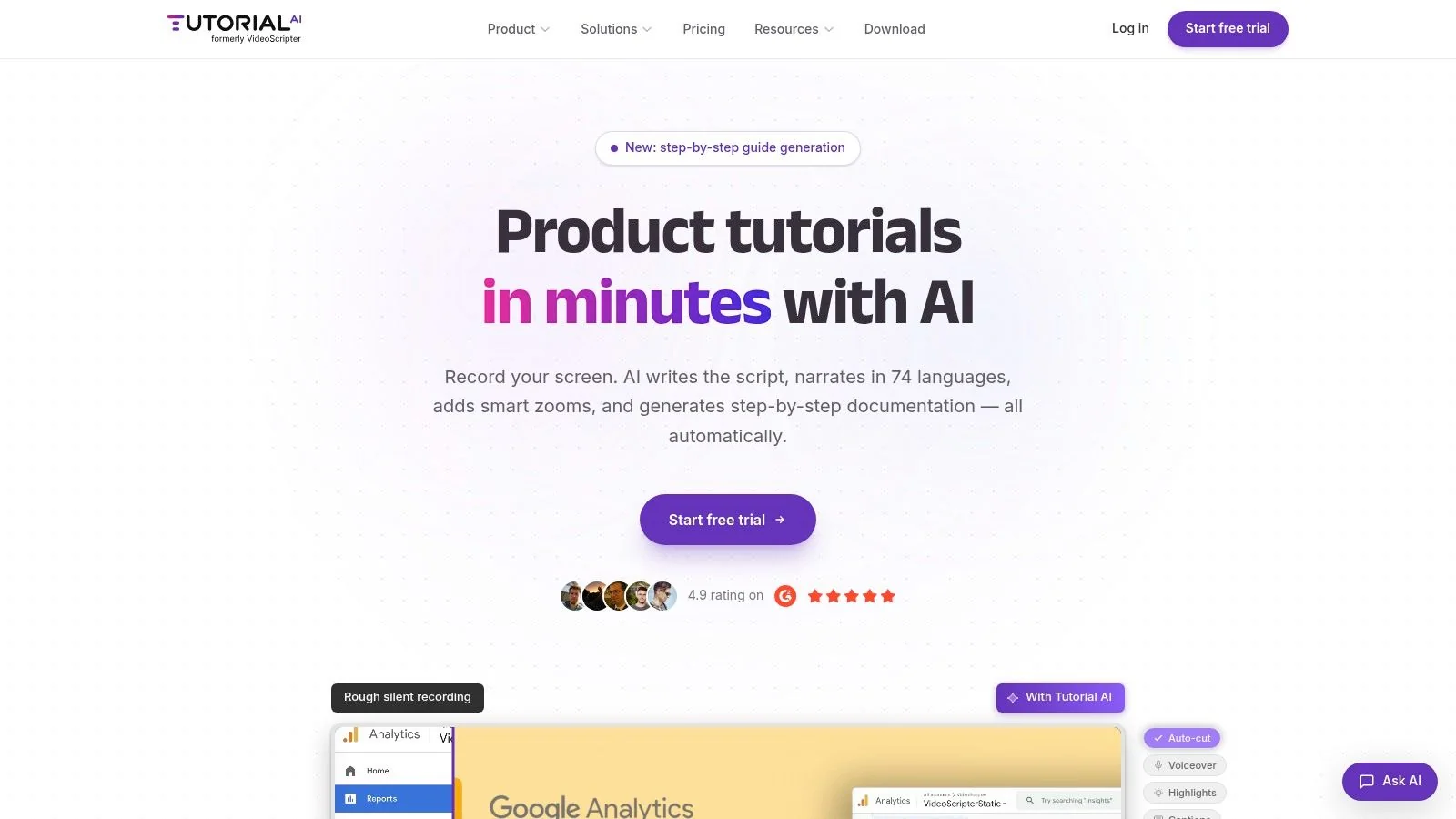
If your team needs polished tutorials from real screen recordings, Tutorial AI is built for that workflow. It turns a single recording into an edited tutorial video and a matching written article, supports narration in 74 languages, includes Brand Kits and a Multilingual Player, and fits teams that need training, support, and enablement content without relying on expert video editors.