You’ve exported a help article, a product walkthrough, or a training module for translation. The translator sends back an .xlf file. Your CMS accepts it, your authoring tool claims it supports it, and your TMS definitely recognizes it. But if you’re new to localization, the file still feels opaque.
That’s normal. The XLIFF file format sits in the middle of many localization workflows, but localization professionals often only notice it when something goes wrong. Tags break. Variables disappear. Re-import fails. A subtitle line comes back fine, but the button label next to it is missing.
The practical value of XLIFF is simple. It gives teams a structured way to extract translatable text from an app, document, course, or video workflow, send it through translation, and bring it back without forcing translators to edit the original source files. Once you understand that purpose, the XML stops looking academic and starts looking operational.
What Is the XLIFF File Format
A good way to think about XLIFF is as a shipping container for translatable content.
When a team localizes software strings, help center content, subtitles, or training material, the source usually lives in formats that translators shouldn’t touch directly. That might be HTML, a proprietary document type, a course authoring format, or a product UI file. XLIFF standardizes translation exchange by separating translatable text from presentation and file-format specifics, which is why it became a common intermediary format in localization workflows, as described in the OASIS XLIFF core specification.
Microsoft describes XLIFF as a format for translating source files regardless of proprietary source format, and OASIS describes it as a way for software providers and localization providers to work with a single interchange file. In day-to-day terms, that means your writers, developers, translators, and systems don’t all need to use the same tool. They just need to agree on the exchange format.
What XLIFF actually carries
An XLIFF file is XML-based and usually uses the .xlf or .xliff extension. It typically contains:
- Source text that came from the original system
- Target text where the translation goes
- Metadata such as identifiers, notes, and workflow details
- Inline codes that preserve formatting or placeholders
That combination is what makes the format useful. It doesn’t just move words. It moves words plus enough structure to put them back in the right place.
Practical rule: If a file can’t round-trip cleanly, it isn’t helping your localization workflow, no matter how “standard” it looks.
Why teams keep using it
The XLIFF file format became common because it solves a coordination problem. Translators can work in CAT tools instead of inside product code or authoring systems. Developers and content owners can preserve structure. Localization managers can move files between systems with less manual cleanup.
For technical writers, the key point is this. XLIFF isn’t the content itself. It’s the transport layer for localization.
Core Concepts XLIFF Versions and Structure
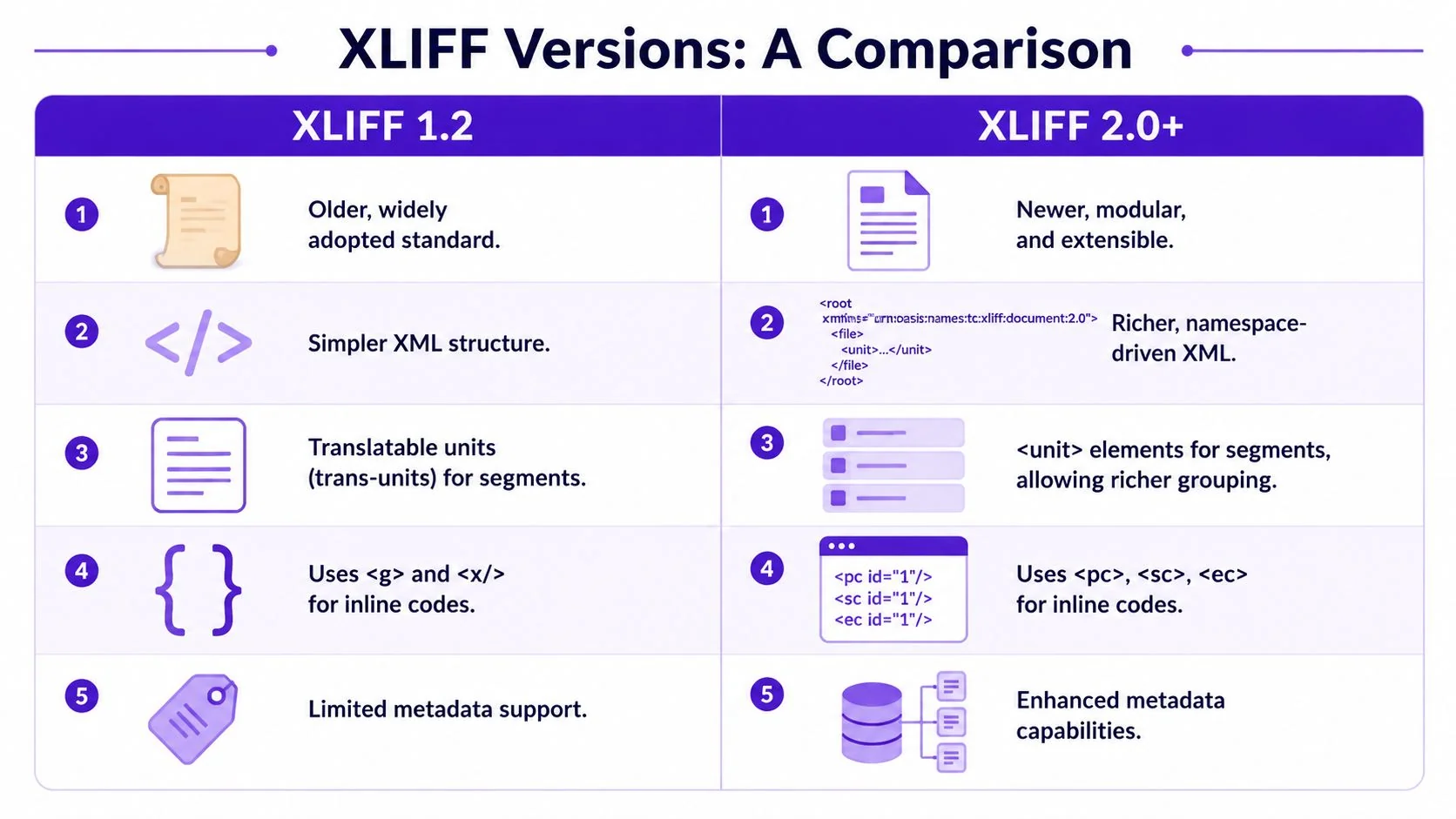
A team can have a clean translation brief, approved terminology, and a good CAT tool, then still lose hours because one system exports XLIFF 1.2, another expects 2.x, and the import step strips tags or rejects the file outright. That version mismatch is one of the most common sources of friction in localization programs.
Why version numbers matter in real workflows
XLIFF has been around long enough that multiple generations of tooling were built around different assumptions. XLIFF 1.2 became firmly embedded in CMS connectors, CAT tools, and custom export scripts. XLIFF 2.0 introduced a cleaner and more consistent model, and later 2.x updates refined it further. On paper, that sounds like a straightforward upgrade path. In production, it rarely is.
The practical question is not which spec is newer. It is which version every system in your chain can export, validate, edit, and re-import without changing structure, dropping metadata, or breaking segmentation.
That is why XLIFF 1.2 still shows up everywhere.
Why XLIFF 1.2 still dominates
Many localization teams would prefer the cleaner design of XLIFF 2.x. Many cannot adopt it end to end. A typical stack includes an authoring platform, a connector, a TMS, one or more CAT tools, QA scripts, and an import routine on the destination side. If even one of those components only handles 1.2 well, the safest decision is often to stay on 1.2.
This is the trade-off teams deal with every day:
| Version | What works well | What often causes trouble |
|---|---|---|
| XLIFF 1.2 | Wide support across legacy CAT, TMS, and connector ecosystems | Inconsistent implementations, looser structure, more cleanup during handoff |
| XLIFF 2.0+ | Clearer data model, better modular design, improved consistency | Limited support in older pipelines, migration costs, failed round-trips in mixed environments |
A clean spec does not help if the file comes back damaged.
I usually advise teams to change versions only when they can test the whole loop. Export, translate, QA, and re-import. If one step fails, the theoretical benefit of 2.x disappears fast.
The structural logic behind XLIFF
XLIFF works because it separates translatable text from the source format while still preserving enough structure to put everything back where it belongs. That is the part new technical writers need to understand early. The file is not just a text dump. It is a structured bilingual package.
In XLIFF 1.2, many files are organized around elements such as <file>, <body>, and <trans-unit>. Each unit usually contains a <source> element and may contain a <target> element once translation exists. In XLIFF 2.x, the structure is more normalized. You are more likely to see elements such as <file>, <unit>, and <segment>. The naming changed, but the operational goal stayed the same: keep content, metadata, and inline codes aligned so the target system can reconstruct the original asset correctly.
That distinction matters in reviews. A writer or translator who assumes every .xlf file uses <trans-unit> will misread many 2.x files. A developer who assumes all inline tags behave the same across versions will eventually ship broken placeholders.
The elements you’ll see most often
A technical writer does not need the full schema memorized. You do need to recognize the parts that affect content integrity:
<file>defines a document-level container and often carries language and origin metadata<trans-unit>is the common translation container in many XLIFF 1.2 files<unit>and<segment>appear in XLIFF 2.x and separate the container from the segment more explicitly<source>holds the source text<target>holds the translated text when available<note>often carries instructions or context for the translator- Inline tags preserve formatting, variables, speaker labels, timing references, or placeholders that must survive the round-trip intact
Inline codes deserve extra attention. They are often the first thing to break when XLIFF is used outside standard UI string workflows. In video and tutorial localization, for example, those codes may represent subtitle timing, on-screen formatting, markup tied to hotspots, or variables pulled from the product UI. If a translator edits them casually, or if a tool flattens them during conversion, the result is not just a bad translation. It can be a subtitle that no longer syncs, a tutorial step that points to the wrong UI element, or a re-import that fails completely.
The mistake to avoid is treating XLIFF as a single interchangeable format. The file extension tells you very little. The version matters. The exporter matters. The content type matters too, especially once you move beyond standard software strings into training content, subtitles, and interactive tutorials.
An Annotated XLIFF File Example
A writer exports a help article, a translator updates the strings, and the import fails because one placeholder changed shape. That is usually the moment XLIFF stops looking like harmless XML and starts looking like production infrastructure.

Here’s a simple XLIFF 1.2 style example:
<?xml version="1.0" encoding="UTF-8"?><xliff version="1.2"><file source-language="en" target-language="de" datatype="plaintext" original="help-article"><body><trans-unit id="1"><source>Click Save to publish your changes.</source><target>Klicken Sie auf Speichern, um Ihre Änderungen zu veröffentlichen.</target><note>This appears on the final confirmation screen.</note></trans-unit><trans-unit id="2"><source>Your trial ends on {date}.</source><target>Ihre Testversion endet am {date}.</target><note>Do not translate the variable in braces.</note></trans-unit></body></file></xliff>How to read it line by line
<xliff version="1.2"> tells you more than the syntax. It tells you what kind of workflow you are likely dealing with. In many teams, 1.2 still dominates because older CMS connectors, TMS integrations, and review pipelines were built around it years ago and still work well enough that nobody wants to risk changing them.
The practical trade-off is familiar. XLIFF 2.x is cleaner and more explicit in how it models units and segments, but many real production environments still export 1.2. If you work with vendors, docs platforms, subtitle tools, and custom import scripts, compatibility usually wins over elegance.
The <file> element carries the metadata the receiving system needs to recognize the job. In this sample, that includes source language, target language, content type, and the original asset name. In a live workflow, this layer often contains the clues that let a platform map the translated file back to the correct article, screen, or lesson.
<body> contains the content sent for translation. Nothing fancy there. The risk starts one level lower.
What matters most inside a translation unit
Each <trans-unit> is a translation record. The id is not just a label for human readers. Importers, QA scripts, and translation memory alignment often depend on it staying stable across exports.
Inside each unit:
<source>contains the source string<target>contains the translated string<note>gives the translator context that should have been obvious in the source but usually is not
That structure looks simple because the example is simple. Real files often add status attributes, inline codes, segmentation details, and tool-specific metadata. The lesson still holds. If the structure is predictable, the round-trip is manageable. If an exporter injects unstable IDs or inconsistent metadata, the file becomes expensive to review and risky to re-import.
Translators can fix rough wording. They should not have to guess where a string appears, what a variable does, or whether changing a tag will break the import.
Why notes and placeholders deserve attention
The second unit includes {date}. That placeholder must survive unchanged. If a translator edits it, if a CAT tool exposes it as plain text, or if a conversion script rewrites it inconsistently, the final product may show the wrong value or fail to render the string at all.
This gets harder outside standard UI text. In subtitle, tutorial, and training workflows, placeholders can represent timestamps, hotspot IDs, speaker markers, or product variables. Teams handling video translation services for tutorials and product walkthroughs run into this constantly because the translated text has to stay linguistically correct and structurally valid at the same time.
The <note> in this example does a small but important job. It tells the translator exactly what not to touch. Good notes reduce review cycles, prevent broken imports, and protect content integrity in a way glossaries alone cannot.
Common XLIFF Workflows and Tooling
A common failure looks like this. The export succeeds, translation finishes on time, and the import still breaks because segment IDs changed, inline tags shifted, or the source system expected XLIFF 1.2 while the vendor returned 2.0.
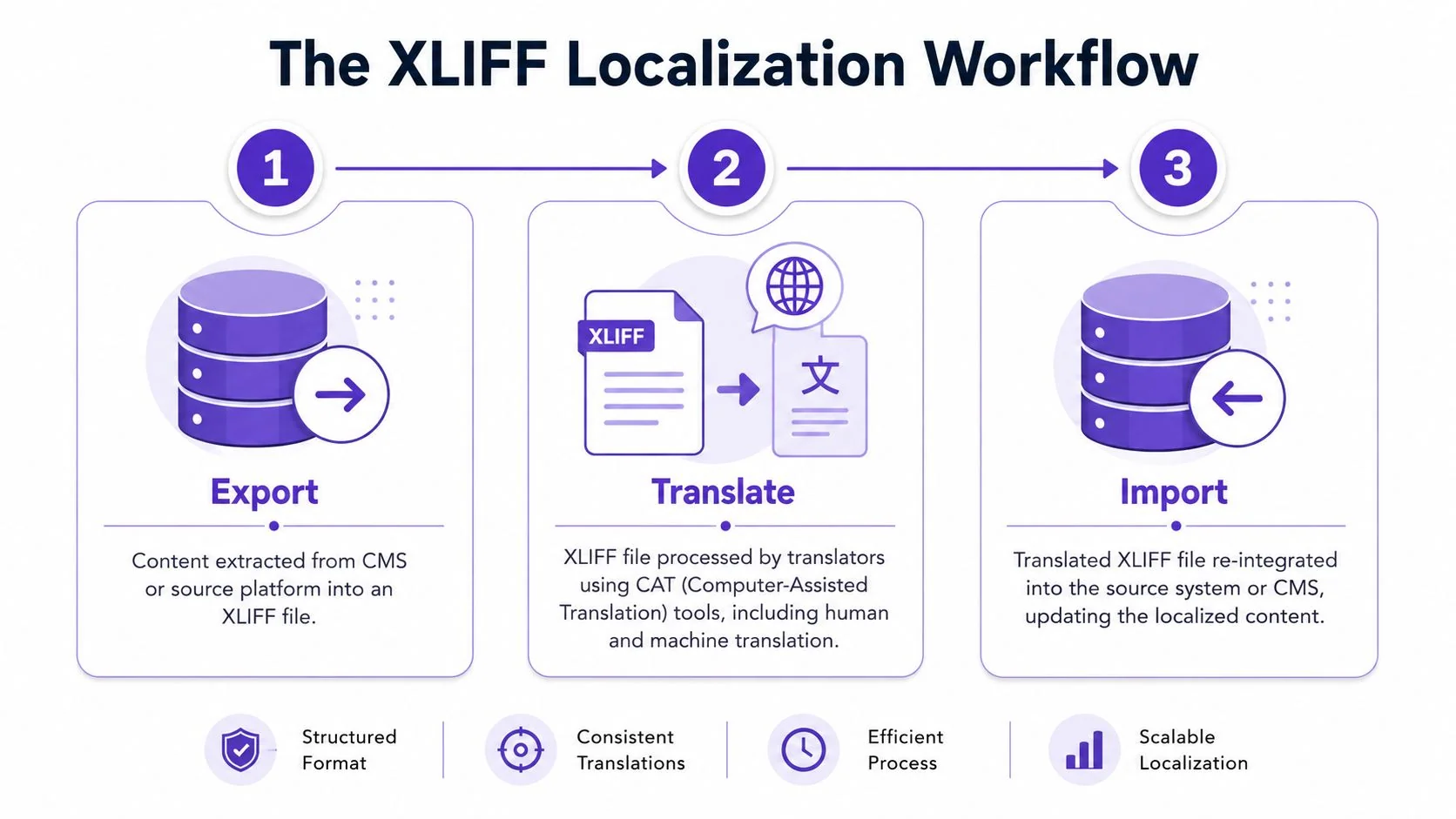
That is the primary workflow question with XLIFF. The XML syntax matters, but the bigger issue is round-trip reliability across tools that were not designed by the same team and often do not agree on the same flavor of the standard.
Export from the source system
XLIFF usually starts in an authoring environment, not in a translation tool. A technical writer updates product docs, a release manager prepares UI copy, or a training team exports subtitles and on-screen text from a tutorial platform. The source system then packages localizable content into XLIFF for handoff.
In practice, the exporter determines a lot of the downstream quality. Good exporters preserve stable IDs, keep segmentation predictable, and expose enough metadata for a translator to work safely. Weak exporters produce files that are technically valid XML but hard to translate and risky to re-import.
Version support is part of that trade-off. XLIFF 2.0 is cleaner and more consistent, but many teams still run on 1.2 because their CMS connector, TMS, or CAT tool was built around it years ago. That is not elegant, but it is common. If your stack imports 1.2 reliably and your vendors already have QA rules around it, switching versions can create more operational risk than benefit.
Translate inside CAT or TMS software
Once exported, the file moves into a CAT tool or TMS. Translators work on segments, notes, and inline codes without needing access to the source platform. Reviewers check terminology, tag placement, and any instructions that affect import behavior.
The standard workflow is straightforward:
- Export content: The source system produces an XLIFF package.
- Assign translation: The file moves into a CAT or TMS environment.
- Review structure and context: Linguists verify tags, placeholders, notes, and segmentation before editing heavily.
- Return the translated file: The completed XLIFF goes back to the content owner or localization team.
- Import into the source platform: The system maps translations back to the original content.
The workflow gets harder with multimedia. In software strings, a broken placeholder might affect one button label. In guided product tours, subtitles, and training videos, the same kind of mistake can break timing, hotspot references, speaker labels, or text overlays. Teams building video translation workflows for training and product content run into this often because the translated file has to stay linguistically accurate and structurally exact at the same time.
Later in the process, seeing an actual end-to-end workflow helps. This walkthrough is a good visual example:
Import and reconcile
Import is the point where tool choices get exposed.
If the source system recognizes the file, IDs match, tags are intact, and segmentation still aligns, the import is routine. If any of those assumptions fail, the file may pass XML validation and still fail in production. That usually sends a localization manager or developer into troubleshooting mode, checking whether the issue came from the exporter, the CAT tool, a conversion script, or a manual tag edit during translation.
The tool categories are familiar, but their responsibilities differ:
- CAT tools handle segment editing, terminology, and tag QA
- TMS platforms manage routing, assignments, status, and file exchange
- Authoring systems control export logic and import mapping
- Validation tools catch XML, schema, and tag issues before re-import
The practical lesson is simple. Choose tooling based on round-trip behavior, not feature lists alone. A flashy editor does not help if it rewrites inline codes, and a modern XLIFF 2.0 pipeline is not an improvement if one required system in the chain still only imports 1.2 cleanly.
Best Practices for Teams and Translators
Most XLIFF problems start upstream. The translation file only exposes them.
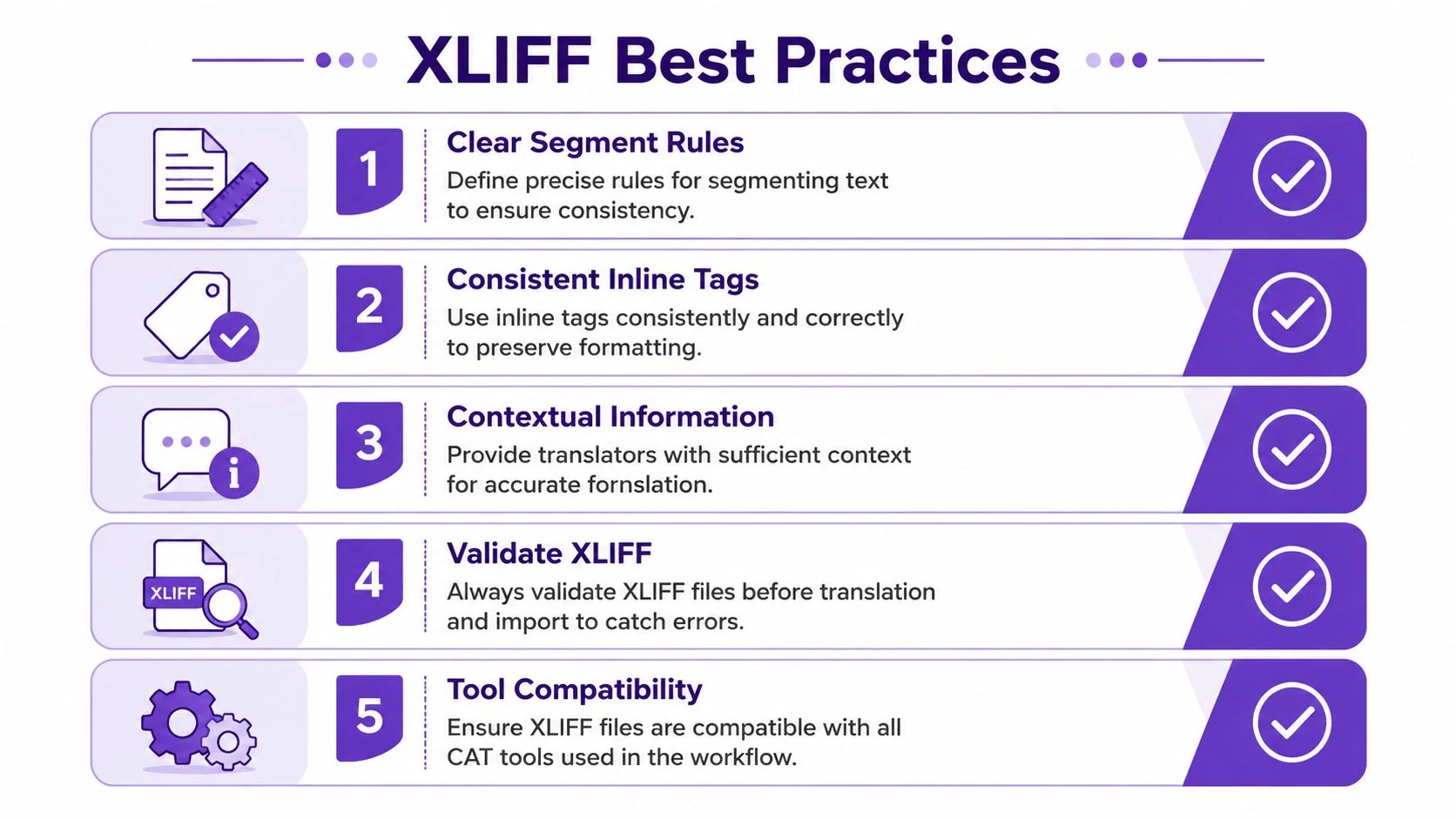
The technical choices baked into file preparation affect quality directly. Coherent segment boundaries, minimal and correctly placed inline tags, and proper XML entity encoding reduce tag mismatches, preserve formatting, and prevent rendering failures, as explained in Capstan’s guidance on better XLIFF preparation.
What content teams should do before export
If you own the source, your job isn’t just to produce text. Your job is to produce text that can survive translation and re-import.
Use these habits consistently:
- Segment for meaning: Keep one idea per segment when possible. Don’t split a sentence across arbitrary UI fragments unless the application requires it.
- Protect variables clearly: Placeholders, product tokens, and markup should be easy to identify and hard to damage.
- Add context where ambiguity exists: If “Save” is a verb in one place and a noun elsewhere, the translator needs that information.
- Reduce inline clutter: Excessive tag wrapping makes CAT tool handling harder and increases the chance of broken formatting.
- Validate before handoff: Check the XML and test a round-trip import before sending large batches.
One of the simplest ways to reduce translation questions is to write cleaner source strings in the first place. That applies just as much to subtitle text and narrated walkthrough scripts as it does to software UI. If your team works on video-heavy help content, this practical guide on how to add captions to videos is relevant because caption structure affects downstream localization quality.
What translators should watch for
Translators inherit whatever structure the exporter created. Good translators still need rules for when the file is messy.
A useful review checklist looks like this:
| Check | Why it matters |
|---|---|
| Inline tags are intact | Broken tags can break rendering or import |
| Placeholders remain unchanged | Variables often control dates, names, or UI behavior |
| Segment meaning is preserved | Literal translation of chopped segments often reads badly |
| Notes are reviewed before editing | Context can change terminology choices completely |
Don’t “clean up” tags by hand unless you understand what the target system expects. A visually harmless change can create a failed import.
What doesn’t work
These patterns create avoidable cleanup:
- Over-segmented exports that break grammar in target languages
- Inline formatting everywhere when plain text would do
- No translator notes for short labels, menu items, and CTA text
- Testing only the XML, not the re-import
- Assuming a valid file is a usable file
A valid XLIFF file can still be operationally poor. The actual standard is whether translators can work safely and whether the target system can accept the result without collateral damage.
Integrating XLIFF in Video Localization
A tutorial team ships an updated product walkthrough on Friday. By Monday, the translated captions are back, but half the on-screen variables no longer match the UI, two callouts broke on import, and the dubbed audio now runs longer than the original screen recording. That is where XLIFF stops being an abstract file standard and becomes an operational constraint.
Video localization uses many of the same text assets as software and help localization. Subtitle strings, narration scripts, lower thirds, chapter titles, quiz text, and on-screen UI labels all have to move through translation without losing timing, formatting, or context. XLIFF works well for that exchange, especially when the video is tied to a product interface or a tutorial flow that changes state step by step.
The catch is that video exposes weak XLIFF implementations faster than other formats do. A mistranslated app string may stay unnoticed until QA. A broken subtitle segment or damaged placeholder shows up immediately on screen. Teams localizing tutorials and training content hit this often because the translated text has to stay synchronized with captions, screen events, and any related article or course content generated from the same source. If your team is comparing workflow options, Klap’s video translation is a useful reference for how video-focused tools package that process.
Version support adds another practical constraint. XLIFF 2.0 cleaned up a lot of structural issues, but many video, e-learning, and authoring platforms still export 1.2 because that is what their translation vendors and CAT tool integrations already accept. In practice, teams rarely choose the better version on paper. They choose the version their exporter, TMS, and re-import process can survive consistently.
Re-import is usually where projects slip. SimulTrans’ discussion of XLIFF in learning content points to recurring problems with variable integrity and formatting after translated XLIFF files are brought back into course and tutorial tools. That matches what localization teams see in production. The XML may validate, yet the rendered lesson, caption track, or interactive step can still fail because inline codes were altered or segment boundaries no longer match the source timing.
Audio adds a second layer of risk. Translated speech expands and contracts by language, so a clean XLIFF handoff does not guarantee that dubbed narration will fit the original edit. Teams that localize video well treat text exchange and timing control as two linked workflows. For a practical complement to the XLIFF side, this guide to AI video dubbing approaches for multilingual content is worth reviewing before you lock the production process.
Frequently Asked Questions About XLIFF
Can I open an XLIFF file in a text editor
Yes. XLIFF is XML, so any plain text editor can open it.
Use that for inspection, quick checks, or comparing two files. Do not use it as your main translation workspace unless you also want to inspect every tag, attribute, and escaping rule by hand. One accidental change to an inline code, placeholder, or tool-specific attribute can turn a file that looks fine into one the source system rejects.
For production work, use a CAT tool or the platform that exported the file.
What’s the difference between source and target
<source> holds the original extracted text. <target> holds the translation.
That sounds simple, but teams still get tripped up by partial files. In many workflows, <target> is empty until translation starts, and some exports leave it out until the first save. That is normal. The important part is consistent mapping between source segments and the translated content the importer expects to receive.
How do I stop certain content from being translated
Handle it during export, not after the translator sees it. In practice that means placeholders, inline codes, locked segments, or protected elements, depending on the authoring system and the XLIFF profile it generates.
Common examples include product names, variables, UI tokens, markup fragments, file paths, and dynamic strings. If those items are only documented in a style guide, mistakes still happen. If they are protected in the file structure, the risk drops sharply.
Why does a valid XLIFF file still fail on import
Because XML validity only proves the file is structurally legal XML. It does not prove the receiving system can use it.
Import failures usually come from changed IDs, missing metadata, broken inline tags, unsupported namespace usage, or a schema variant the importer does not accept. Another common case is tool-generated XLIFF that is technically valid but no longer matches the exact segmentation or code order expected by the source platform. The actual test is whether the translated XLIFF returns to the source system without manual repair.
That distinction matters even more in video, tutorial, and e-learning localization. A file can pass XML checks and still break caption timing, interactive steps, or on-screen text placement after re-import.
Should I move from XLIFF 1.2 to 2.0 now
Only if the entire chain supports it reliably.
XLIFF 2.0 is cleaner and more consistent, and I would choose it in a greenfield workflow. Many real production environments still run on 1.2 because authoring tools, TMS connectors, vendor processes, and import scripts were built around it years ago. If one handoff point still depends on 1.2, forcing 2.0 usually creates extra conversion work and more QA, not less.
In practical terms, this is an operational decision, not a standards debate. Use the version that survives export, translation, QA, and re-import with the fewest exceptions.
If your team creates product demos, help-center walkthroughs, onboarding videos, or internal training, Tutorial AI helps you turn one screen recording into both a polished tutorial video and a matching written article. That’s useful when you need content that’s easier to localize across scripts, captions, narration, and documentation, without building separate production workflows for each format.