Speech recognition software converts spoken language into text or executable commands. Early systems recognized isolated digits, while modern systems can process conversational speech, with Microsoft researchers reporting a 5.1% word error rate on the Switchboard benchmark in 2017.
A trainer might record a software walkthrough while explaining each click, menu, and decision. Instead of asking a documentation writer to replay the audio and type everything manually, speech recognition creates a working transcript that can become captions, narration, a help article, or an SOP. The important question for a real team isn’t only whether the software can transcribe speech. It’s whether the result stays reliable across accents, languages, microphones, noisy rooms, and the wider tutorial workflow.
Understanding Speech Recognition Software
Suppose a customer education specialist is demonstrating a new reporting feature. They record the screen, explain why a filter matters, and describe what a customer should do when a result looks incomplete. The recording contains valuable product knowledge, but the audio remains difficult to search, edit, translate, or reuse until software converts it into structured text.
Speech recognition software performs that conversion. Also called automatic speech recognition, or ASR, it analyzes an audio signal, identifies likely speech sounds, and outputs written language. Some systems also interpret the recognized words as commands, such as opening an application, setting a reminder, or controlling a device. The Computer History Museum’s account of speech recognition describes this movement from template matching and rule-based systems toward probabilistic methods, deep neural networks, and cloud processing.
The basic workflow looks like this:
- Capture audio: A microphone records the speaker’s voice as an audio signal. In a screen recording, this is separate from the system audio produced by the computer, such as application sounds or a video playing in the demonstration.
- Recognize speech: The ASR system analyzes the signal and predicts the words being spoken.
- Create editable output: The predicted words become a transcript that a person or another language-processing system can revise.
- Reuse the transcript: Teams can turn the text into captions, a script, searchable notes, or procedural documentation.
Practical rule: Treat the transcript as a draft of the speaker’s knowledge, not as a finished document.
That distinction matters for documentation teams. A transcript preserves the order and wording of an explanation, but it may still contain filler words, unclear references, product names that need capitalization, or instructions that make sense verbally but need tightening in writing. A good workflow separates capture, recognition, and editorial review.
For example, a technical writer can use AI transcription for tutorials to establish a first script from spoken narration, then check every action against the recorded screen. The value comes from reducing the distance between a subject-matter expert’s explanation and a usable tutorial. The system doesn’t need to replace the expert. It needs to preserve the expert’s process in a form the team can refine.
How Automatic Speech Recognition Works
ASR turns a continuous sound stream into probable words through several connected stages. You don’t need to build each stage yourself to use the technology well, but understanding the pipeline helps you diagnose errors and choose suitable recordings.
From sound waves to speech units
A microphone captures changes in air pressure and stores them as digital audio. The ASR system examines that signal in small time segments, looking for patterns associated with speech sounds. Pronunciation, pauses, volume, pitch, and background noise all affect what the system can detect.
An acoustic model can be understood as a map between sound patterns and likely speech units. It does not look up a whole sentence in a dictionary. Instead, it evaluates fragments of the audio and estimates which sounds, syllables, or phonetic sequences are present.
The model then passes those possibilities into a language model. A language model works somewhat like predictive text. If the audio could represent “export the report” or “explore the report,” the surrounding words and the software context can influence the final choice.
From candidate words to usable text
Modern systems compare multiple interpretations rather than committing to the first sound match. This is why natural phrasing and surrounding context matter. A clear sentence gives the model more information than an isolated product name spoken over background noise.
The system may also identify punctuation, pauses, and changes between speakers. In a meeting or interview, speaker diarization can separate stretches of speech by speaker, although the quality of that separation depends on the recording and the number of overlapping voices.
The historical path explains why current systems feel more flexible than early dictation tools. Bell Labs built Audrey in 1952 to recognize spoken digits from one speaker, limited to the numbers 0 through 9. IBM’s Shoebox in 1962 understood 16 spoken words and was demonstrated at the Seattle World’s Fair. By 1976, Carnegie Mellon’s Harpy system had expanded vocabulary to about 1,100 words, and Sphinx-I in 1987 demonstrated speaker-independent recognition. These milestones are documented in the Association for Computing Machinery’s history of speech recognition.
The mid-1980s also brought wider use of hidden Markov models, which represented both the changing speech signal and its underlying structure, as explained in this historical overview of ASR methods. Later systems moved toward statistical learning and neural networks. In 2017, Microsoft researchers reported human parity on the Switchboard conversational speech task at a 5.1% WER, following an earlier 5.9% claim in 2016. Google reported 4.9% and IBM 5.5% on the same benchmark, according to this history of speech recognition.
For a broader view of how language technology has developed from textbooks to AI, it helps to distinguish recognition from interpretation. ASR produces the transcript. Other systems can then summarize, translate, classify, or rewrite it.
Evaluating Accuracy and Real-World Performance
A transcript can look fluent and still contain errors that matter. If a speaker says a feature name, command, customer name, or configuration value incorrectly, the mistake can spread into captions, narration, and written instructions. Documentation teams need a measurement that makes recognition quality comparable, while remembering that a benchmark isn’t the same as a production review.
What WER measures
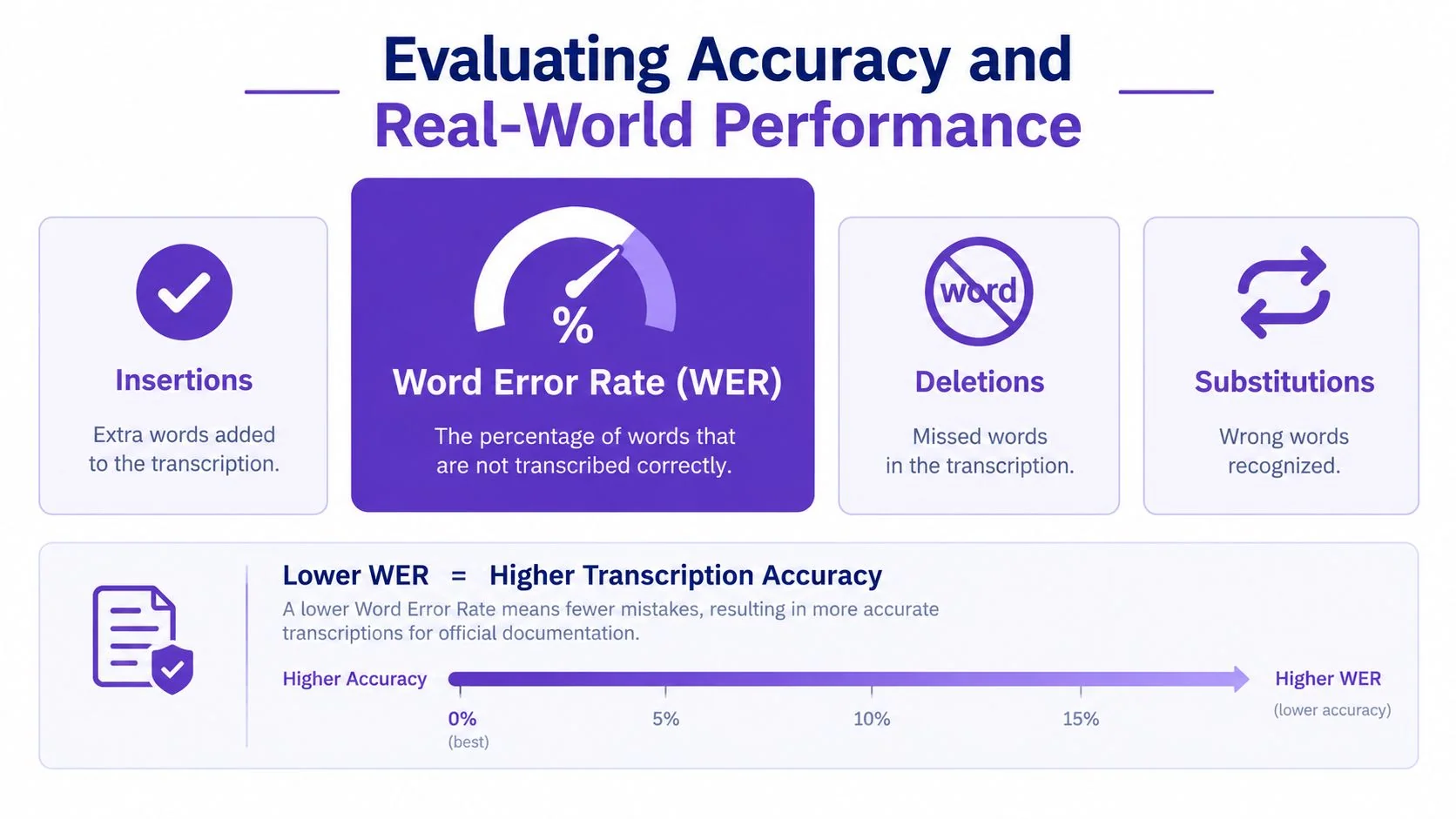
Word error rate, or WER, compares an ASR transcript with a reference transcript. It is calculated from three error types:
- Substitutions: The system recognizes the wrong word.
- Insertions: The system adds a word that wasn’t spoken.
- Deletions: The system misses a spoken word.
The calculation divides the combined number of substitutions, insertions, and deletions by the number of words in the reference transcript. A lower WER indicates fewer transcription errors, but the impact of each error depends on the content. A missing filler word may be harmless. A wrong command or product term may change the procedure entirely. Deepgram’s explanation of WER describes this calculation and its three error categories.
Evaluation is also moving beyond accuracy alone. Recent benchmark work pairs WER with inverse real-time factor, or RTFx, so teams can consider how quickly a system processes audio as well as how many words it gets wrong. That distinction matters when a support team needs live captions or when a tutorial workflow must produce a transcript without creating a long processing delay. This ASR benchmarking research discusses the relationship between WER and efficiency metrics.
Why accents change the result
A benchmark recorded in controlled conditions may not represent a global SaaS team. Pronunciation, accent, pitch, volume, microphone quality, background noise, and overlapping speakers can all increase WER. Recent research found absolute accuracy gaps of 2% to 12% and relative differences of 16% to 49% between American English and other English accents, with underrepresented groups such as tonal-language speakers and non-native speakers facing substantially higher error rates in some systems. The findings are discussed in research on accent and linguistic-group differences in ASR.
A practical test should therefore use the audio your team produces. Record a short walkthrough with the speakers, terminology, microphones, and room conditions you expect in production. Review not only the overall transcript, but also proper nouns, interface labels, numbers, commands, and sentences that will become official instructions.
For captions, a missed word may affect accessibility. For regenerated narration, a substitution may make the voiceover teach the wrong action. For a help center article, one incorrect product term can make the page harder to find and less trustworthy.
A team creating captions can also use an automatic caption generator as part of a review process, provided someone checks the output against the recording before publication. The right standard isn’t “the transcript sounds natural.” It’s “the transcript accurately supports the action the learner must take.”
Choosing Between Cloud and On-Device Processing
A trainer records a confidential product demonstration on a laptop without internet access. Another team captures multilingual customer guidance and needs the transcript in a shared documentation system. Both teams need speech recognition, but their processing choices differ. Cloud and on-device systems affect privacy, connectivity, response time, language coverage, and integration options.
Cloud processing
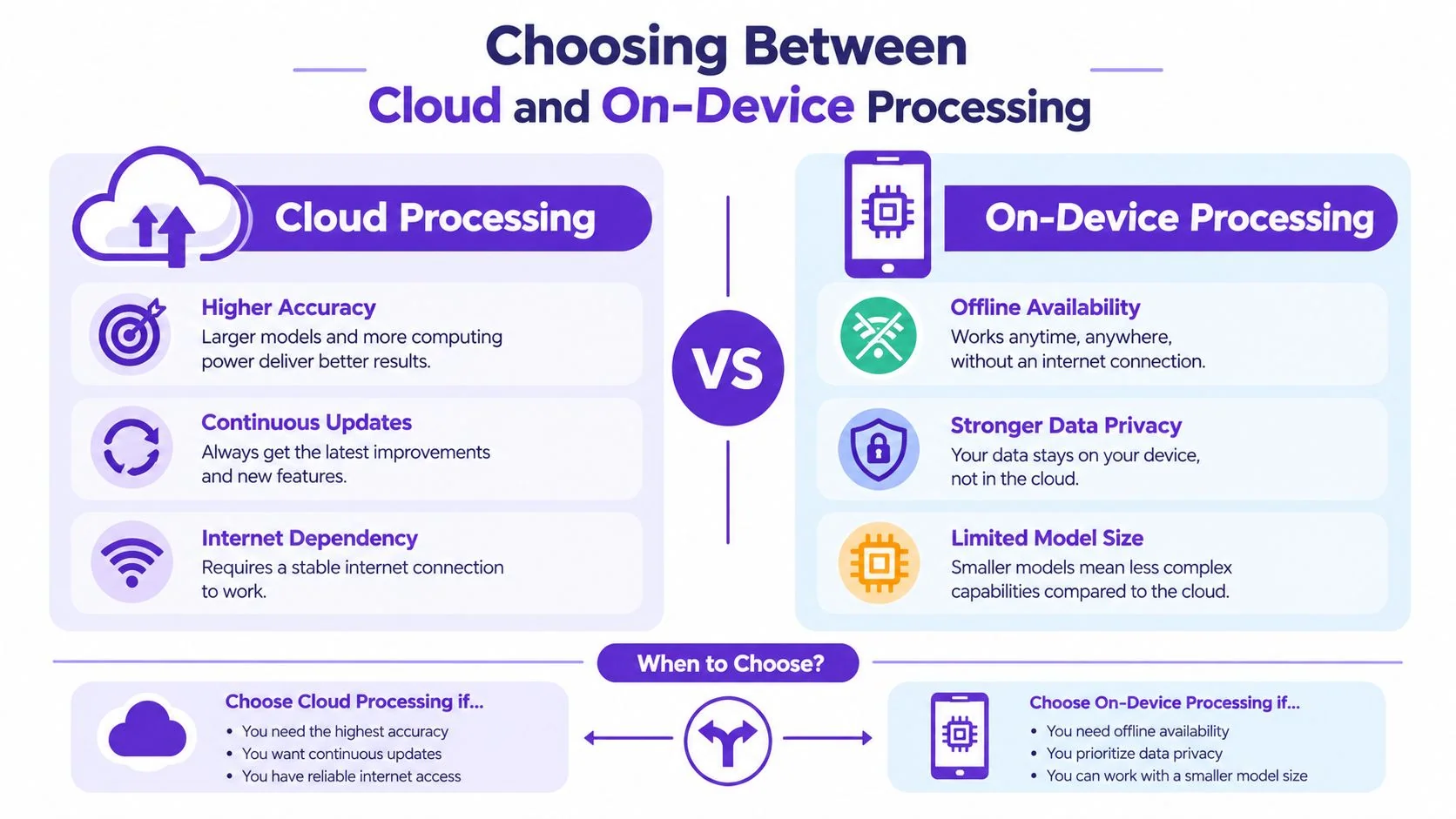
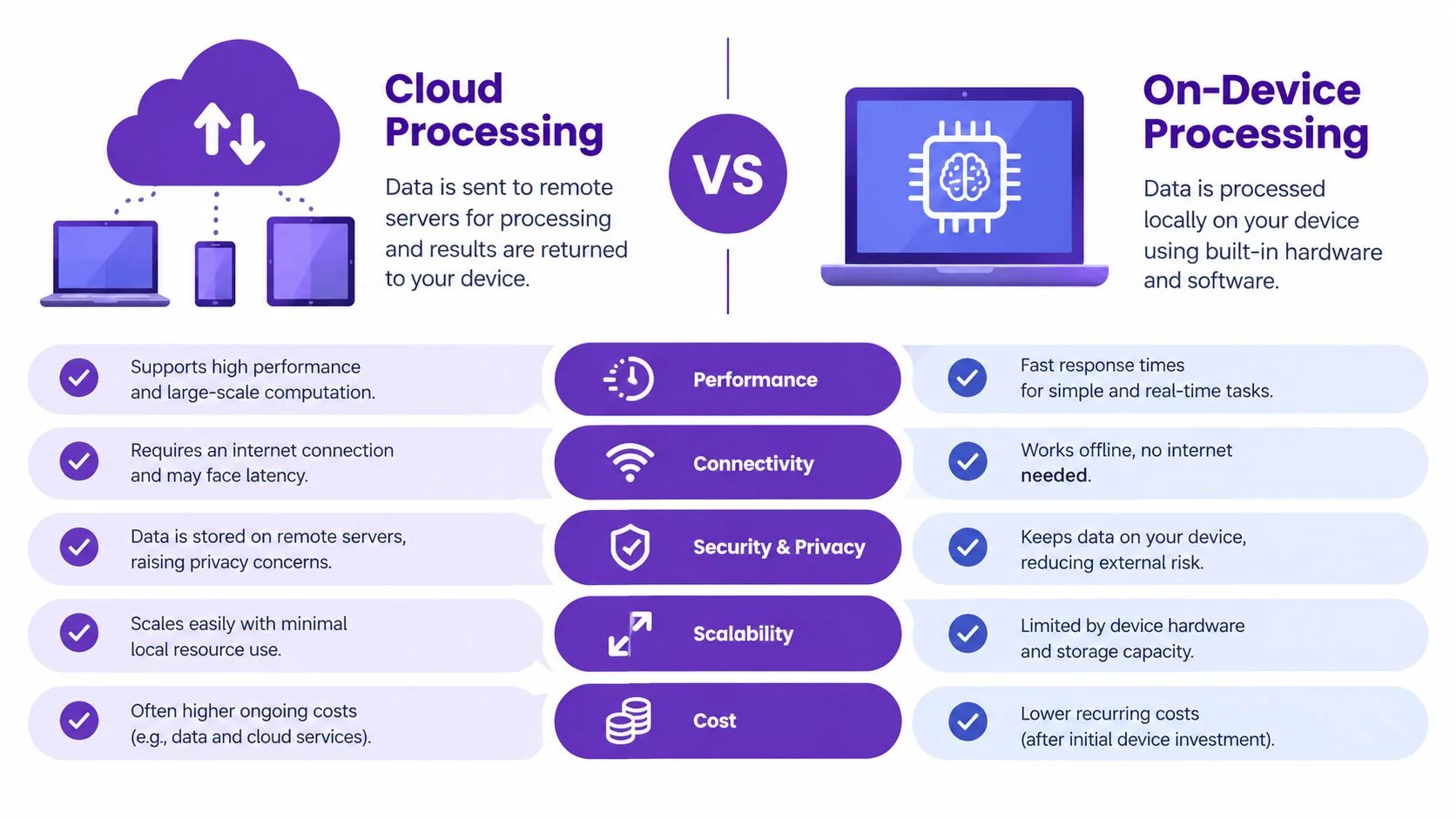
Cloud recognition sends audio to remote servers. Providers can offer larger models, centralized updates, broader language coverage, and APIs that connect transcripts with help centers, content systems, or internal applications. A shared cloud service can support multilingual education teams working across devices and locations.
The trade-off is operational dependence. Recording requires a network connection, and the team must review how the provider stores, processes, secures, and retains audio and transcripts. That review matters for confidential demonstrations, customer calls, and internal procedures. Contract terms and workspace permissions should match the sensitivity of the material.
On-device processing
On-device recognition runs on a computer, phone, or other local hardware. It can support offline recording and keep sensitive audio near its source. This arrangement suits recordings that include proprietary code, unreleased features, or customer information that should remain inside the organization’s controlled environment.
Local processing has limits. A device may not support the same model size as a cloud service, language coverage may vary, and updates may require separate deployment. Test accents, multilingual speech, technical vocabulary, microphone quality, and room noise before choosing it for documentation or tutorial production. Offline operation protects the connection boundary, but it does not guarantee a reliable transcript.
Industry coverage describes speech-to-text processing returning to devices while also discussing multilingual systems, cloud APIs, context-aware voice processing, and models trained for specific domains. This overview of voice-first device workflows provides that context.
Use the workflow requirement as the starting point:
| Requirement | More suitable starting point |
|---|---|
| Offline recording and local data handling | On-device processing |
| Centralized integrations and broad model access | Cloud processing |
| Sensitive internal audio | Local processing, or a cloud provider with appropriate controls |
| Live workflows requiring consistent service across devices | Cloud or hybrid processing |
| Mixed environments | A tested hybrid approach |
Latency becomes important when text must appear during a live demonstration or feed captions. Some systems target end-to-end response under one second, and independent benchmarks report sub-300 millisecond median finalization for certain streaming models. Those results apply to specific systems and test conditions, so teams should measure the experience with their own speakers, devices, accents, and audio. IBM’s overview of speech recognition performance factors examines latency, audio conditions, and evaluation environments.
Practical Use Cases for Software and Training Teams
A software trainer may know the process perfectly but still struggle to produce the script, voiceover, captions, screenshots, and written guide. Speech recognition helps by capturing the explanation while the expert demonstrates the work.

A product walkthrough
A product marketer records a new feature release and narrates the workflow:
- Open the workspace.
- Select the new reporting view.
- Apply a date filter.
- Export the result.
- Explain what to check if the report is empty.
ASR turns that narration into a draft script. The marketing team can edit the spoken explanation into concise captions, while a technical writer reshapes the same material into a step-by-step article. The recording remains the source of truth for checking whether the written instructions match the interface.
An internal process guide
An operations specialist can record an employee walkthrough of an approval process. The narration captures exceptions that might never appear in a formal brief, such as which field needs a particular value or when a request should be escalated.
The learning and development team can use the transcript to structure training content. A reviewer should still verify permissions, sensitive information, and changing interface labels before publication. Recognition accelerates capture, but subject-matter review protects accuracy.
Customer support content
Support teams can use recorded troubleshooting explanations as raw material for knowledge base entries. A support agent might describe how to identify a configuration issue, where to find the relevant log, and what the customer should send if the first fix fails.
The resulting transcript can become a searchable draft, while selected sections can support captions or narration in a customer-facing video. Workflows involving voice interfaces in specialized settings, such as voicebot transformation for Australian clinics, also show why teams must consider terminology, privacy, and the consequences of recognition errors.
A multilingual tutorial pipeline
A global enablement team can start with one narrated walkthrough, review the transcript, and prepare translated versions. The source transcript needs careful editing before translation because errors in product names or instructions can propagate into every language.
For Tutorial AI’s audience, the practical pattern is to record a software task with or without narration, use the resulting transcript as editable tutorial content, and then produce a video and written guide from the same demonstration. This is useful when a team needs to document a feature after release or convert an experienced employee’s walkthrough into repeatable training material.
Navigating Limitations and Privacy Considerations
A transcript can fail even when the speaker is clear. A distant microphone, keyboard noise, room echo, overlapping voices, unfamiliar pronunciation, and specialized terminology may make the audio ambiguous. Accents, pitch, volume, and background noise also affect recognition quality, so teams should treat the transcript as a working draft rather than an unquestioned record. IBM’s discussion of speech recognition describes these factors and their relationship to recognition errors.
Build review into the workflow
Human review matters when a transcript becomes an official procedure. Reviewers should check:
- Product language: Confirm feature names, menu labels, and technical terms.
- Actions: Replay each step and verify that the transcript matches the visible action.
- Numbers and identifiers: Check values, dates, version labels, and command-like phrases.
- Speaker boundaries: Confirm that speaker changes are assigned correctly.
- Sensitive content: Remove credentials, private customer details, and unreleased information.
A clean recording reduces errors, but it cannot account for every accent or language pattern. Test speakers who represent the documentation audience, including multilingual team members, before approving a recognition workflow. A single fluent speaker’s accurate result does not establish reliable performance for everyone.
Protect the audio and transcript
Audio may contain personal information, customer details, product plans, or internal procedures. Before sending it to a cloud service, review the provider’s retention, access, deletion, encryption, and model-training policies. For higher-risk material, local processing or an enterprise agreement with suitable controls may fit the workflow better.
Security checkpoint: Decide where audio may travel before choosing a transcription tool.
Privacy also applies to the tutorial itself. A screen recording can reveal customer records or internal URLs even if the narration contains nothing sensitive. Blur or remove exposed screen content before sharing, and apply the same access controls to the transcript that protect the recording.
Integrating Speech Recognition into Documentation Workflows
The most useful implementation treats ASR as one layer in a content pipeline, not as the final deliverable. A reliable process connects the recording, transcript, screen actions, editorial review, and publishing format.
A recording-to-document workflow
Start with a real demonstration. The expert performs the task on screen and explains the decisions that a learner needs to understand. If the recording has no narration, the team can add a script later, but spoken explanation usually captures context that clicks alone don’t provide.
Next, generate a transcript and edit it as a document. Remove repetition, clarify references such as “this button,” and replace conversational shortcuts with explicit instructions. Then compare each sentence with the screen recording. The transcript is the bridge between the person’s explanation and the finished tutorial, so errors at this stage can affect every downstream format.
The workflow can produce several outputs:
- Video narration: A revised script can guide a voiceover.
- Captions: The transcript can provide timed text, subject to accuracy review.
- Written instructions: Steps, explanations, and screenshots can form a help article or SOP.
- Updates: When the interface changes, editing the text can help the team revise the narration and captions without rebuilding the entire explanation manually.
An AI tutorial maker differs from a standalone dictation app in this regard. A dictation app focuses on producing text. A tutorial workflow connects that text to the recorded cursor movement, interface state, screenshots, narration, and documentation structure.
For teams comparing approaches, a screen recorder with transcription can provide the starting point for this combined process. Tutorial AI is designed to turn a screen demonstration into an editable tutorial video and written guide, while the documentation team remains responsible for factual review, product terminology, and publishing decisions.
A practical pilot should use one real feature walkthrough. Measure qualitative fit across transcript accuracy, review effort, screen-to-step alignment, caption quality, and the time required to create the final training asset. If the process produces a trustworthy draft without separating recording, scripting, and documentation into disconnected tasks, it has earned a place in the team’s workflow.
Tutorial AI turns a screen recording and spoken explanation into an editable tutorial video and written guide, giving training and documentation teams one source for narration, captions, steps, and screenshots. Visit Tutorial AI to see how the recording-to-tutorial workflow can support software training, customer onboarding, and internal process documentation.