You’ve probably been handed this job before. A product manager ships a new workflow, support keeps answering the same question, or a new hire can’t find the right SOP. Someone says, “Can you turn this into a training video?” What they usually mean is: make it clear, make it fast, make it look polished, and please don’t pull in a full video team.
That’s where the non-editor often gets stuck. The person who knows the process is rarely a trained editor. They know the product, the CRM, the admin panel, the onboarding flow. They don’t want to spend their week inside Camtasia or Adobe Premiere Pro, trimming dead air frame by frame.
The good news is that video training for employees no longer has to follow the old production model. Subject-matter experts can record their screen, explain the task in plain language, and use modern automation to tighten the result into something employees will finish. That matters because individuals retain 95% of audio-visual content, whereas they remember only 10% of textual content, according to LMS Portals’ write-up on video learning retention.
Why Most Employee Training Videos Fail
The failure usually starts before anyone hits record.
An operations lead opens Loom, records a fifteen-minute walkthrough, apologizes twice, clicks the wrong tab once, restarts a sentence three times, and shares the link in Slack. The intent is good. The result is not training. It’s a raw brain dump with a play button.
Employees feel that immediately. They don’t need a narrated screen share of you figuring things out live. They need a clean path from “I don’t know this process” to “I can do this on my own.” Casual screen recorders are useful for speed, but they often produce recordings that run 50 to 100% longer than needed because the speaker rambles, pauses, or retakes sections without tightening the script afterward.
The old workflow punishes the expert
The traditional alternative isn’t much better. You can open Camtasia, Final Cut, or Adobe Premiere Pro and build a polished tutorial. But now the bottleneck shifts from recording to editing. Someone has to cut pauses, remove filler words, add captions, zoom into the right UI element, and export a version that doesn’t feel homemade.
That’s a bad fit for most internal training teams.
Practical rule: If the person who knows the workflow also has to become a part-time editor, training output slows down and quality becomes inconsistent.
I’ve seen this happen with product demos, help-center videos, internal SOPs, sales enablement walkthroughs, and customer onboarding. Teams start with good intentions and end up with one of two bad outcomes:
- The video is too casual: It feels like a Slack explanation, not a reusable asset.
- The video is overproduced: It takes so long to finish that the product changes before the training ships.
- The content is too broad: One recording tries to cover setup, permissions, edge cases, troubleshooting, and reporting in one sitting.
- The owner avoids updating it: Because revising the video feels like restarting the whole project.
There’s also a format mismatch that many teams miss. AI avatar tools like Synthesia, HeyGen, and Vyond can help with talking-head style presentation content. But for software training, employees need to see the actual UI and hear a real explanation tied to real clicks. Synthetic presenters aren’t the main event when the job is showing exactly where to go in the product.
What works instead
The better model is simpler. Let the subject-matter expert record one focused screen walkthrough with spoken narration. Then use a workflow that tightens pacing, cleans the transcript, and turns the same source recording into both a tutorial video and a written article.
That’s especially effective when your broader enablement strategy includes reinforcement methods like implementing gamified learning solutions. Video gives employees a clear visual model. Quizzes, challenges, and follow-up activities help lock the behavior in.
The training videos that work aren’t the fanciest. They’re the ones that are short, specific, updated, and easy for the expert to produce again next month.
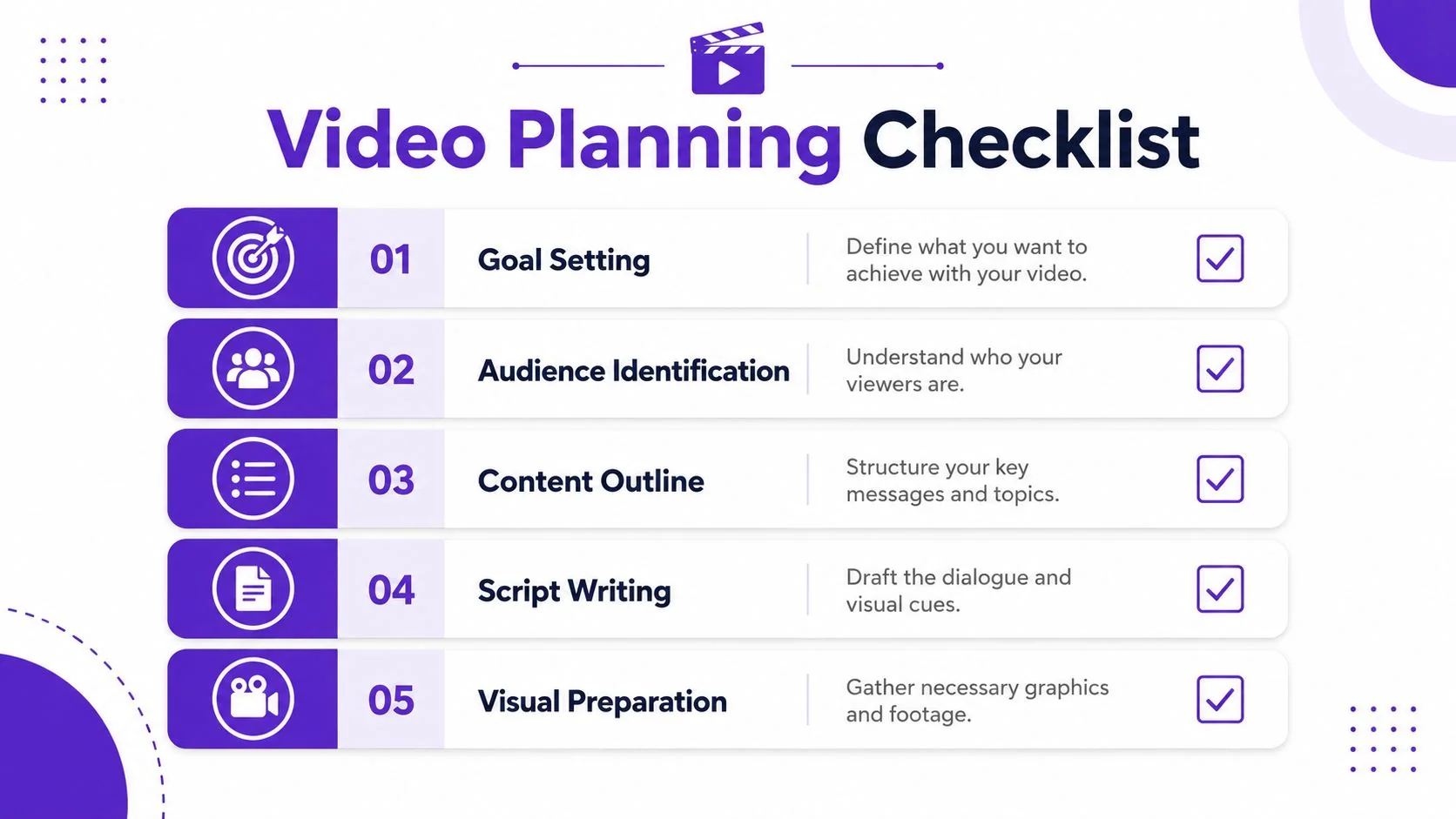
Plan and Script Your Video for Maximum Impact
Most bad training videos are planning failures disguised as recording problems.
If you can’t describe what the employee should be able to do after watching, the script will wander. The recording will wander too. That’s when a simple feature release update turns into a ten-minute tour of every tab in the product.
Start with one observable outcome
Define the result in plain language. Not “understand user management.” Write what the viewer should do.
Good examples:
- Add a new user in the admin panel
- Assign the correct permission set
- Resolve a failed sync using the settings page
- Complete the first-day onboarding checklist
- Log a support issue with the required fields
That single choice changes the whole structure. It decides what to include and, even more so, what to leave out.
Research-backed microlearning guidance says training videos should be kept to 3 to 6 minutes because learner engagement drops significantly after the 6-minute mark, according to TOPYX on video learning effectiveness. If your process can’t fit cleanly into that window, don’t force it. Break it into modules.
Use a script that sounds spoken, not written
A lot of SMEs make the same mistake. They either record with no script at all, or they write like they’re drafting policy documentation. Neither works well on screen.
A spoken script should be short, direct, and matched to what appears in the UI. If you’ve ever written podcast intros or host-read segments, the discipline is similar. Flexwork Studios’ podcasting advice is useful here because it pushes you to write for the ear, not for the page.
Here’s a practical template for a 3-minute feature explanation video:
A copyable script template
| Segment | What to say | What to show |
|---|---|---|
| Opening | State the task and who it’s for | Final outcome on screen |
| Why it matters | One sentence on when to use this workflow | Relevant page or use case |
| Step 1 | Name the first action clearly | Cursor click and field entry |
| Step 2 | Explain the decision point | Settings, options, or menu |
| Step 3 | Complete the action | Save, confirm, or publish |
| Common mistake | Show one thing to avoid | Error state or wrong field |
| Close | Repeat the expected result | Finished state |
A sample opening sounds like this:
“In this video, you’ll learn how to add a new user and assign the correct access level in our admin console. By the end, you’ll be able to complete the setup without needing a handoff from IT.”
That’s enough. No long preamble. No company history. No “today I’m going to walk you through a quick little demo.”
Build from the script, not from the recording
If you treat the script as the source of truth, your production gets cleaner fast.
- Write the clicks into the script: Don’t just say “go here.” Say “open Settings, then select Team Members.”
- Flag any visual dependencies: If a dropdown should already be open, note it before recording.
- Mark update-sensitive lines: Product names, labels, and menu paths change. Keep those phrases easy to swap later.
- Prepare a matching article outline: If you want a help-center article from the same walkthrough, the script should already follow a step-by-step structure.
If you need a starting point, this video script template for walkthroughs is a useful model because it forces a beginning, middle, and end instead of one long narration.
A tight plan won’t make the video stiff. It does the opposite. It lets you sound calm because you already know the route.
Record Your Screen and Voice with Confidence
Recording gets much easier when you stop treating it like a performance.
You’re not trying to deliver a flawless keynote. You’re capturing a process clearly enough that someone else can repeat it. That mindset takes most of the pressure off.
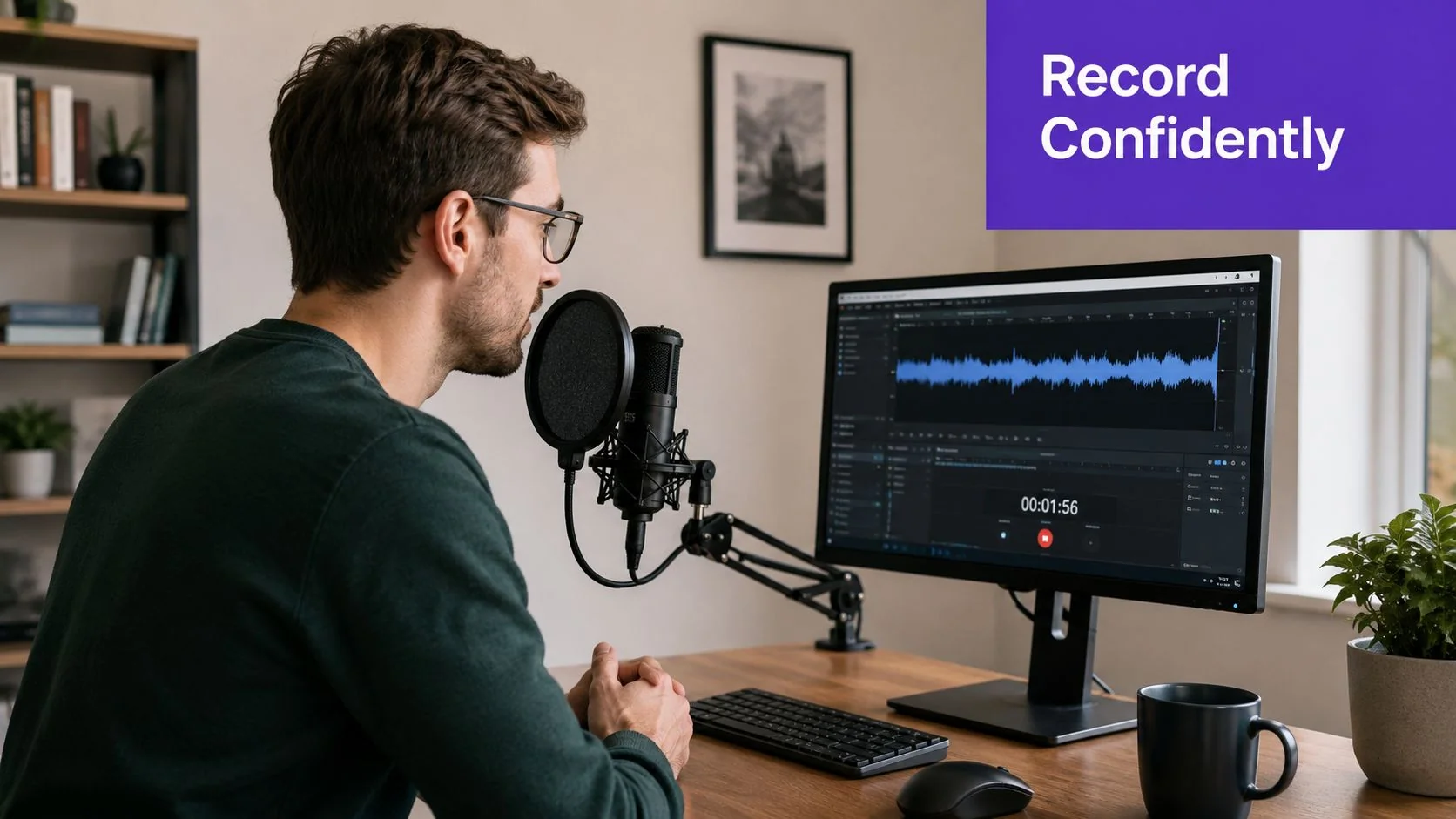
Set up the recording so the task is obvious
Before you open your recorder, clean the environment employees will see.
- Close unrelated tabs: A cluttered browser makes the lesson look harder than it is.
- Remove distractions: Notifications, personal bookmarks, and chat popups break trust fast.
- Zoom the interface if needed: Small UI text ruins otherwise solid training.
- Use a decent USB microphone: Clear audio matters more than fancy visuals for most software walkthroughs.
For screen capture settings, keep it practical. For software walkthroughs, 30 frames per second is the optimal frame rate because it keeps motion smooth without creating unnecessary file size, as explained in this guide to screen recording for training. You don’t need 60 FPS unless you’re recording extremely fast motion.
Record in short segments
Professional editors almost never record a full tutorial start to finish in one take. They capture shorter segments, pause, reset, and record the next piece. That segmented workflow gives you natural cut points and reduces the damage from small mistakes.
This is the best recording habit a non-editor can adopt.
Record one section, stop, breathe, then record the next section cleanly. Don’t try to “save” a messy middle by talking your way through it.
A typical training recording might break down like this:
- Intro and expected outcome
- Setup or prerequisites
- Main workflow
- Common mistake or exception
- Recap
That approach works for product demos, support article videos, internal training, and sales enablement walkthroughs. It also makes updates easier later because you can swap one chunk instead of rebuilding the entire video.
Keep your delivery plain and useful
Good narration sounds like a patient teammate, not a webinar host.
Here’s what usually helps:
- Speak slightly slower than normal conversation: Fast speech plus screen motion creates cognitive overload.
- Say what the viewer should click before you click it: That gives the eye a target.
- Avoid filler transitions: You don’t need “kind of,” “basically,” or “real quick.”
- Name the result after each step: “Now the user appears in the active list.”
If you want a clean starting point for capture, this screen recording workflow for training videos is a solid reference because it treats recording as structured content capture, not as a one-shot performance.
Most SMEs already know enough to record a strong lesson. They just need permission to stop chasing a perfect take.
Use AI to Edit Your Video Like a Document
Editing is where old video workflows usually fall apart.
The recording itself might take ten minutes. The cleanup takes the rest of the afternoon. Someone opens Camtasia, or Adobe Premiere Pro, or Final Cut, and starts dragging clips around a timeline. They trim pauses. They regenerate captions. They listen for “um,” “uh,” and repeated phrases. Then they do it again because the export still feels slow.
That’s the old bottleneck.
Timeline editing versus document editing
The biggest practical shift in modern production is that you don’t have to edit a training video as if you’re cutting a commercial.
Modern screen recording tools can transcribe the narration, remove technical cleanup work, and let you revise the tutorial by changing text. That’s a better fit for subject-matter experts because they already know how to edit sentences. They don’t want to learn ripple trims and keyframes.
According to TechSmith’s overview of AI tools for screen recording, this kind of software can handle manual tasks such as captioning, noise removal, and filler word deletion, cutting production time by hours per video and enabling non-editors to produce clean, tight content without touching a traditional timeline.
That changes the economics of internal training.
Here’s the practical contrast:
| Old workflow | Modern workflow |
|---|---|
| Record a rough take | Record a structured walkthrough |
| Import into timeline editor | Upload or process the recording |
| Manually trim pauses and mistakes | Edit the transcript like a doc |
| Add captions by hand | Generate captions automatically |
| Rebuild pacing scene by scene | Auto-tighten pace with retiming |
| Write a separate help article later | Generate a matching article from the same source |
What to automate and what to control
Automation helps most in the boring parts. It doesn’t replace judgment.
The features that save the most time in training production are usually these:
- AutoRetime or automatic pacing: Tightens dead air and awkward gaps so the lesson moves with intent.
- Transcript-based editing: Delete a sentence in the script and the video updates to match.
- Caption generation: Essential for accessibility and quieter viewing environments.
- Noise cleanup: Removes low-level distractions that make videos feel amateur.
- Text-to-article conversion: Turns the same walkthrough into a written support article or help-center draft.
That last one matters more than teams expect. If you’re publishing help-center videos, support article videos, or customer onboarding content, the main win isn’t just the video. It’s getting the article, screenshots, and instructional sequence from the same recording session.
Field note: The fastest documentation teams don’t create video and text as separate projects. They create one source recording and publish both formats from it.
This is also where the distinction between tools becomes useful. Loom and other casual screen recorders are great for fast capture, but their raw recordings often need heavy tightening. Camtasia and Adobe Premiere Pro can produce polished results, but they assume editing skill. AI avatar tools create synthetic presenters, which is a different job entirely. For training on a real product interface, the screen itself is the lesson.
A better workflow gives the SME an editable script, a polished result, and a help article without a specialist editor in the middle.
A quick product example makes this clear. Say a support lead records a feature release video showing a new permissions model. With a modern workflow, that single session can produce a clean internal training clip, a knowledge-base video, and a support article for customers. The content owner reviews wording, updates one or two transcript lines, and republishes.
This kind of workflow is easier to understand in motion:
That’s the practical standard teams should aim for in 2026. Not “Hollywood quality.” Clean pacing, accurate steps, readable captions, and output that scales beyond a single video file.
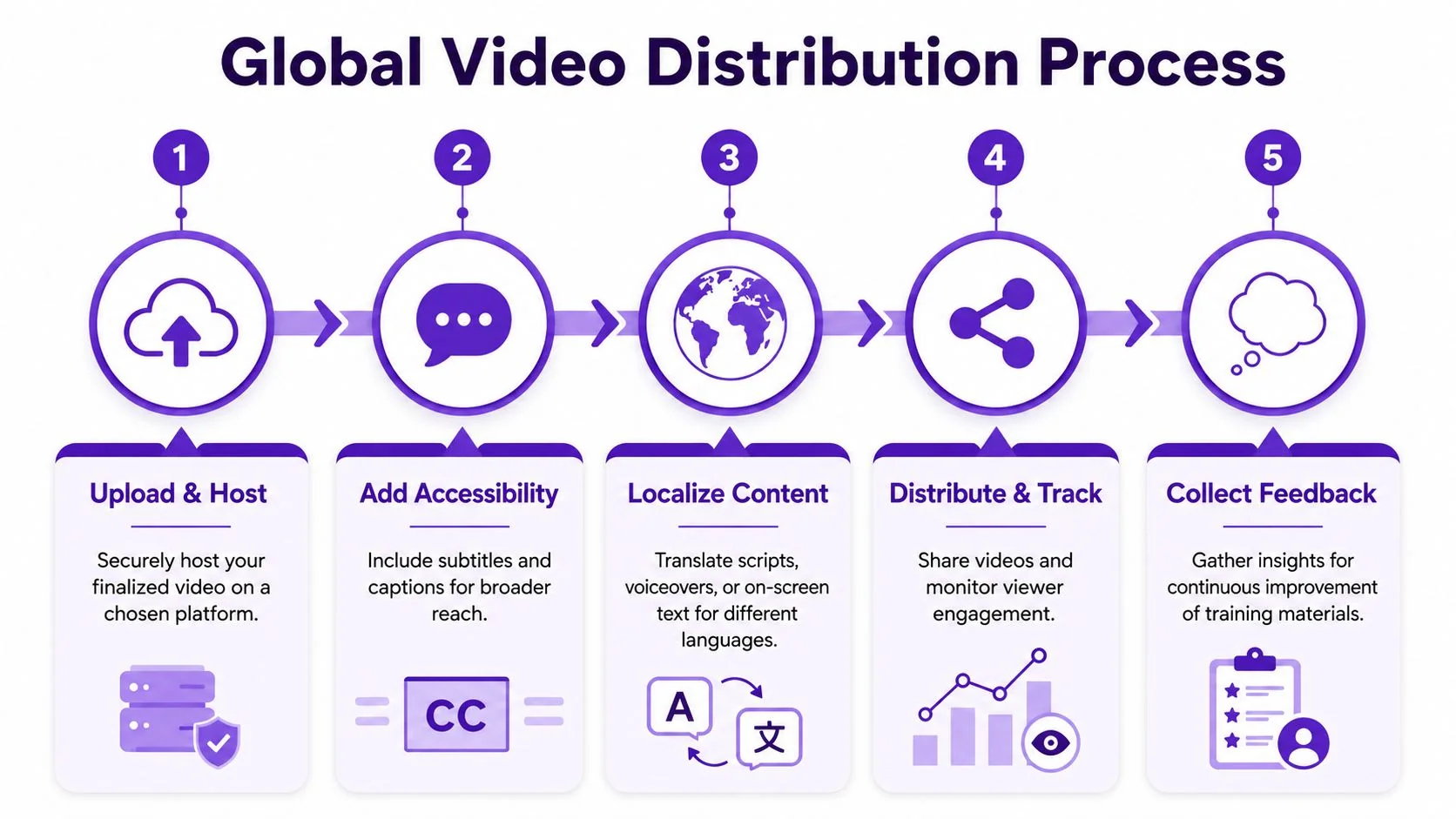
Distribute and Localize Training for Global Teams
A polished tutorial doesn’t do much if employees can’t find it, access it, or understand it.
Distribution is where training either becomes part of the workflow or disappears into another folder. That’s especially true for global teams handling customer onboarding, internal SOPs, feature release videos, and sales enablement across regions.
Put the video where the work happens
Many teams don’t need a complicated publishing stack. They need consistency.
For internal use, the strongest options are usually:
- LMS placement: Good for structured compliance and role-based learning paths.
- Knowledge base embedding: Best for searchable, task-level support.
- Help-center integration: Useful when employees and customers need overlapping guidance.
- CRM or enablement hub placement: Effective for sales walkthroughs and presales demos.
The broad business case is already established. Driven by post-COVID remote work, 88% of large companies are employing video-based technologies for training, and every dollar invested in online training can return roughly $30 in productivity, according to Umami Learning’s summary of video-based training statistics.
Localization used to be the hard part
Global rollout is where older video production methods get painful. You create the English version, then someone asks for German, Italian, French, Spanish, and Japanese. Now you’re managing separate voiceovers, subtitle timing, re-exports, and mismatched scene lengths.
Modern tools reduce that operational mess.
If your platform supports narration in 74 languages, a Multilingual Player, and AutoRetime, you can adapt the same source tutorial for regional teams without manually rebuilding every cut when the translated voiceover runs longer or shorter. That’s the difference between localization as a quarterly project and localization as a repeatable publishing step.
This matters for enterprise teams that need governance too. Features like Brand Kits keep training assets visually consistent across departments. SSO/SAML helps with controlled employee access. SOC 2 + GDPR matter when the training platform touches internal systems, customer workflows, or sensitive operational procedures.
Organizations such as Bosch, Deutsche Bahn, Intesa Sanpaolo, Microsoft, and UNICEF care about those operational details because training at scale isn’t just a content problem. It’s a distribution, access, and trust problem.
Don’t localize everything the same way
Not every video needs full voiceover replacement.
A practical approach looks like this:
- Core onboarding and SOPs: Localize fully. These are high-frequency, high-stakes assets.
- Feature release updates: Start with captions and translated articles if the shelf life is short.
- Sales enablement content: Localize based on region and buyer-facing use cases.
- Internal process updates: Use the fastest acceptable format, especially if the workflow changes often.
A global training library gets easier to maintain when you decide upfront which assets deserve full localization and which ones only need translated text.
If you’re building remote-first onboarding, it also helps to pair video with broader people-process design. This guide on onboarding remote staff effectively is worth reviewing because video works best when it supports a clear sequence of expectations, resources, and manager follow-through.
The right distribution setup makes video training for employees feel native to the job instead of one more thing employees have to hunt down.
Measure Training Impact and Prove Your Value
A lot of training teams still report the wrong metrics.
Views are easy to collect, so they become the headline. But a play count doesn’t prove that someone learned the workflow, applied it correctly, or stopped asking for help on the same issue. If you want credibility with managers, support leaders, or revenue teams, tie your measurement to operational outcomes.
Track behavior, not just consumption
Start with the metrics closest to the job:
- Course completion: Useful, but only as a baseline signal.
- Knowledge checks: Short quizzes or task confirmation right after viewing.
- Time-to-competency: How quickly a new hire can perform the task unassisted.
- Support ticket volume: Especially for recurring “how do I” questions after rollout.
- Error rate in the workflow: Good for SOP and system process training.
For L&D teams, this guide to learning and development metrics is a practical framework because it helps separate vanity metrics from evidence of operational improvement.
Use re-watch behavior as a diagnostic tool
One of the most useful signals in video analytics isn’t completion. It’s confusion.
According to Swarmify’s guidance on training video success metrics, teams should track re-watch patterns. If employees keep replaying the same 30-second segment, that usually signals an unclear explanation and the need for a dedicated follow-up resource.
That’s a much stronger insight than “the video had decent engagement.”
Here’s how to use it:
| Signal | Likely meaning | Action |
|---|---|---|
| High drop-off early | Intro is too slow or irrelevant | Rewrite the opening |
| Repeated replay on one step | Step is confusing | Add a focused micro-video or article |
| Full completion but low task success | Video is watchable, not actionable | Add post-view quiz or clearer examples |
| Frequent support questions after launch | Asset isn’t discoverable or specific enough | Re-title, re-place, or split the content |
Build a simple reporting rhythm
You don’t need a giant ROI deck for every tutorial. You do need a repeatable review habit.
A solid monthly review usually includes:
- Which videos employees finished
- Which steps they replayed
- Which workflows still generated tickets or manager escalations
- Which assets need revision because the product changed
Good training teams don’t defend old content. They replace weak content quickly.
That’s how you prove value. Not by saying video is engaging, but by showing that onboarding got smoother, recurring questions declined, and employees reached independence faster.
If you want a faster way to produce polished video training for employees without living in Adobe Premiere Pro, Tutorial AI is built for exactly that workflow. It turns a single screen recording and spoken narration into a tightened tutorial video, then generates a matching written article from the same source. That gives SMEs, support teams, and L&D managers one practical production path for demos, onboarding, SOPs, and help-center content.