You record a process once, then spend the next week turning it into three different assets. A PDF for customers, a help article for support, and a slide deck or video for training. By the time all three are reviewed, the product UI has already changed.
That is the problem a user manual maker should solve. Good documentation software reduces rewrite work, gives subject-matter experts a faster way to capture what they know, and makes updates less painful when steps, labels, or screens change. If you also care about documentation quality, AIDictation’s documentation insights are worth reading alongside any tooling decision.
The tools in this list are not interchangeable. Some are best for rapid click capture. Some are built for a knowledge base with approvals and version control. Others fit technical documentation teams that need topic-based authoring, reuse, translation workflows, or multi-channel publishing. The right choice depends less on feature volume and more on the job your team needs the tool to do every week.
One shift matters more now than it did a few years ago. Teams increasingly need video and written manuals from the same source, especially for software onboarding, internal SOPs, and support content where static screenshots miss timing, motion, and context. That use case changes the evaluation criteria. Instead of asking only whether a tool can publish a manual, it makes more sense to ask whether it can capture a process once, turn it into the right format for each audience, and keep those outputs aligned over time.
That is how this list is organized. By primary use case, and by the trade-offs that come with each category.
1. Tutorial AI
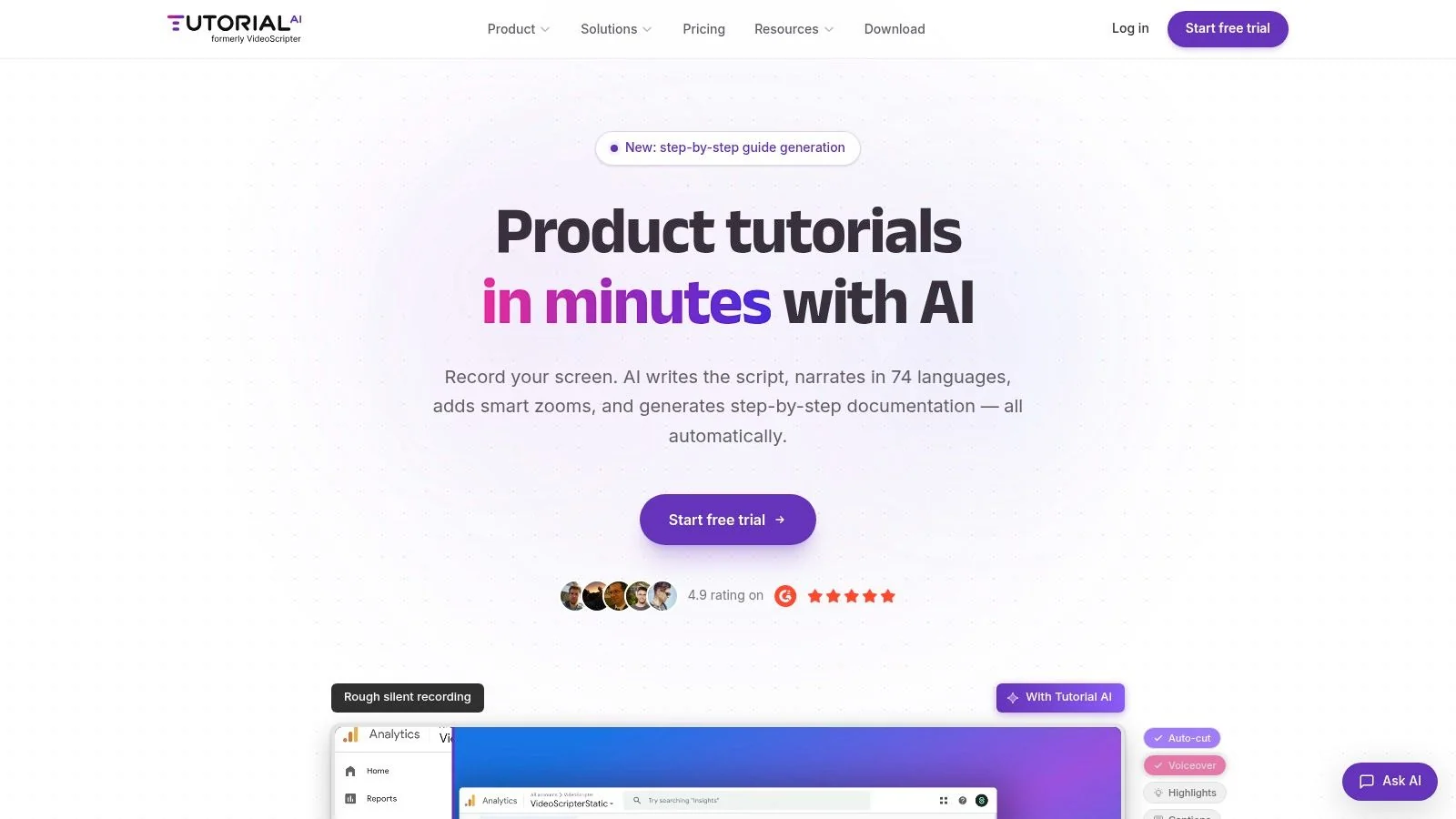
If your subject-matter experts know the product but don’t know Adobe Premiere Pro, Tutorial AI is the most practical user manual maker in this list. It turns a single screen recording and spoken narration into a polished tutorial video, then generates a matching written article from that same recording. For teams making product demos, feature release videos, customer onboarding, help-center videos, support article videos, internal training, SOPs, and sales enablement walkthroughs, that dual output changes the workload.
This is the tool I’d pick when UI fidelity matters and you need both documentation formats to stay aligned. That’s the gap a lot of teams still feel. ProProfs notes that 70% of professionals prefer video tutorials over text-based manuals for learning new software, and 65% report faster issue resolution with video. Most user manual maker tools still separate those jobs into different workflows.
Why it stands out
Tutorial AI’s biggest advantage is that editing happens at the script level. You revise the transcribed text, reorder steps, or tighten wording, and the platform updates voiceover, timing, captions, and cuts without the usual timeline work. That matters because task completion time is a core productivity metric for generative AI systems, as explained in Nebius’s overview of AI model performance metrics. In practice, that means less time cleaning up rambling recordings and more time reviewing technical accuracy.
It also handles the common problem with casual screen recorders like Loom. Raw recordings often run 50 to 100% longer than needed because of pauses, restarts, and filler narration. Tutorial AI auto-tightens them, so the final output looks edited rather than merely captured.
Practical rule: Use Tutorial AI when the person recording is the expert, not a video producer. It automates the polishing, but the expert still needs to review terminology, sequence, and product-specific phrasing.
Where it fits best
Compared with Camtasia, Adobe Premiere Pro, or Final Cut, Tutorial AI gives you much of the visual polish without requiring editor-level skill. Smart zooms, cursor effects, blur, shadows, and AutoRetime all help keep attention on the right UI element. For multilingual teams, narration in 74 languages and the Multilingual Player are unusually useful because localization usually breaks timing. AutoRetime addresses that by re-timing scenes, captions, and cuts to the new voiceover.
That kind of reliability matters in practice. Galileo’s discussion of AI agent metrics argues that dependable systems are best validated through thorough evaluation coverage paired with sustained development time investment. Tutorial AI’s AutoRetime feature reflects that kind of engineering priority better than the usual “translate captions and hope for the best” approach.
A few practical notes:
- Best fit: Real screen tutorials where viewers need to see the actual interface and hear a real voice.
- Strong team controls: Brand Kits, versioning, shared workspaces, SSO/SAML, SOC 2, and GDPR make it workable for larger organizations.
- Named customers: Bosch, Deutsche Bahn, Intesa Sanpaolo, Microsoft, and UNICEF show that it’s being used in serious operating environments.
- Trade-off: It automates editing, but you still have to record clearly and review the generated script for domain language.
For teams trying to ship a polished video and matching help article in one workflow, Tutorial AI is the strongest option here.
2. Scribe
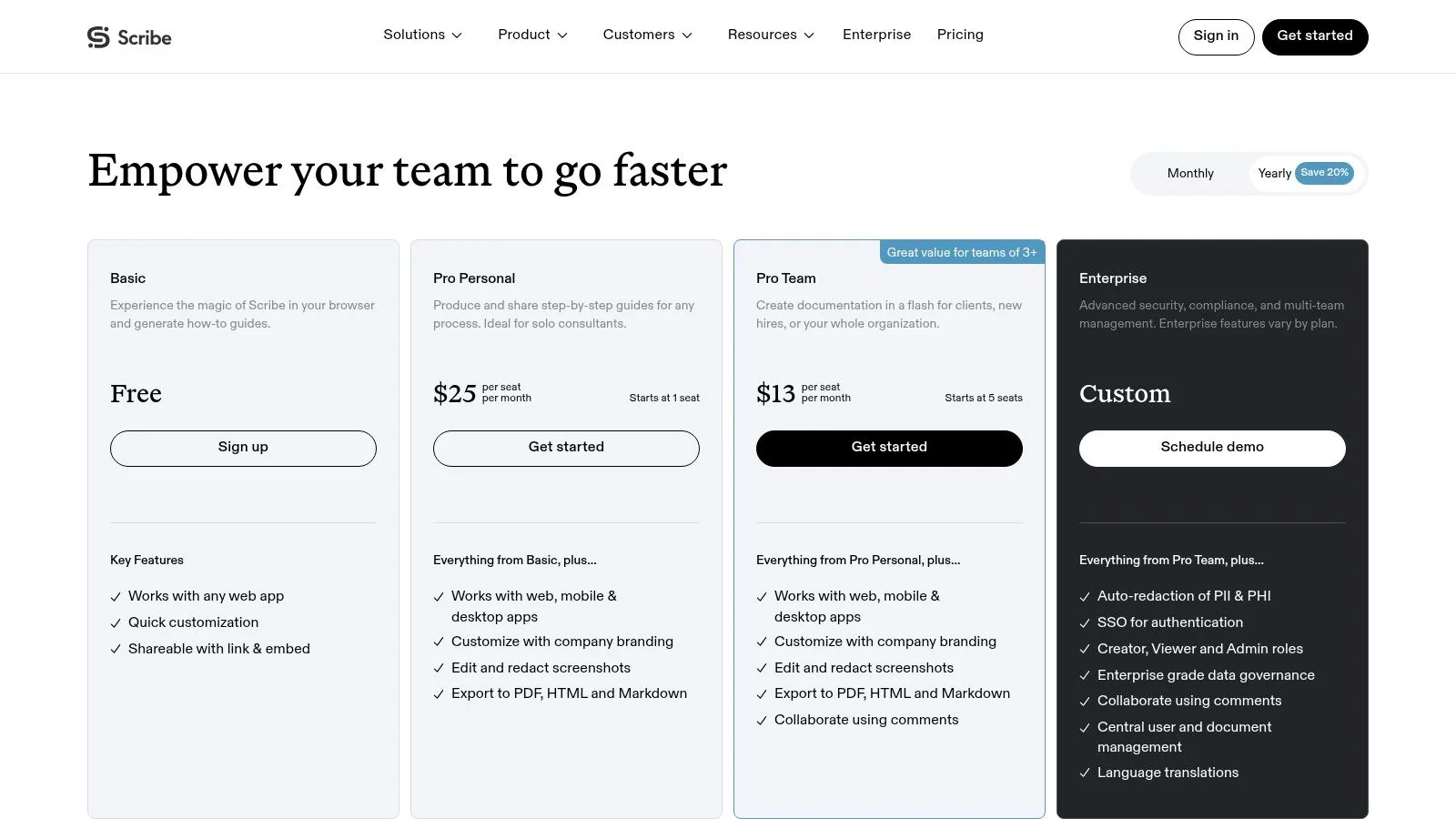
Scribe is what I’d use when speed matters more than media richness. It watches a workflow, captures clicks, takes screenshots, and assembles a step-by-step guide with annotations. For operations teams, support leads, and anyone documenting repeatable browser or desktop actions, it’s one of the quickest ways to go from “show me” to “here’s the manual.”
It’s especially useful when your biggest problem is blank-page friction. A lot of SMEs can explain a process live but struggle to author one from scratch. Scribe removes that first hurdle.
Best use case
Scribe works best for procedural documentation. Think account setup, internal tool workflows, customer onboarding tasks, and simple SOPs where screenshots and numbered steps are enough. It can export to PDF, HTML, and Markdown, which makes it easy to plug into a broader documentation stack or an LMS.
I wouldn’t position it as a full knowledge-base platform. It captures the guide well, but you’ll still need a home for taxonomy, search, permissions, and long-form supporting content. If you’re defining that broader system, these software documentation best practices are useful to pair with a capture-first tool.
Scribe is strongest when the process is stable, visible on screen, and mostly linear.
Trade-offs in real work
What works well is the low-friction authoring model. One person can create decent process documentation without booking a writer or editor. Redaction and branding options also make it usable in customer-facing material, not just internal docs.
Where it starts to strain is with anything that needs narration, pacing, or nuanced explanation. If users need to understand not only what to click but why the workflow matters, pure screenshot guides can feel thin. It also doesn’t replace a video workflow, so teams that support both article and video formats will still be managing multiple assets.
If your priority is rapid capture and clean step lists, Scribe is a smart choice. If your priority is synchronized video and text from one source, it’s not built for that.
3. Tango
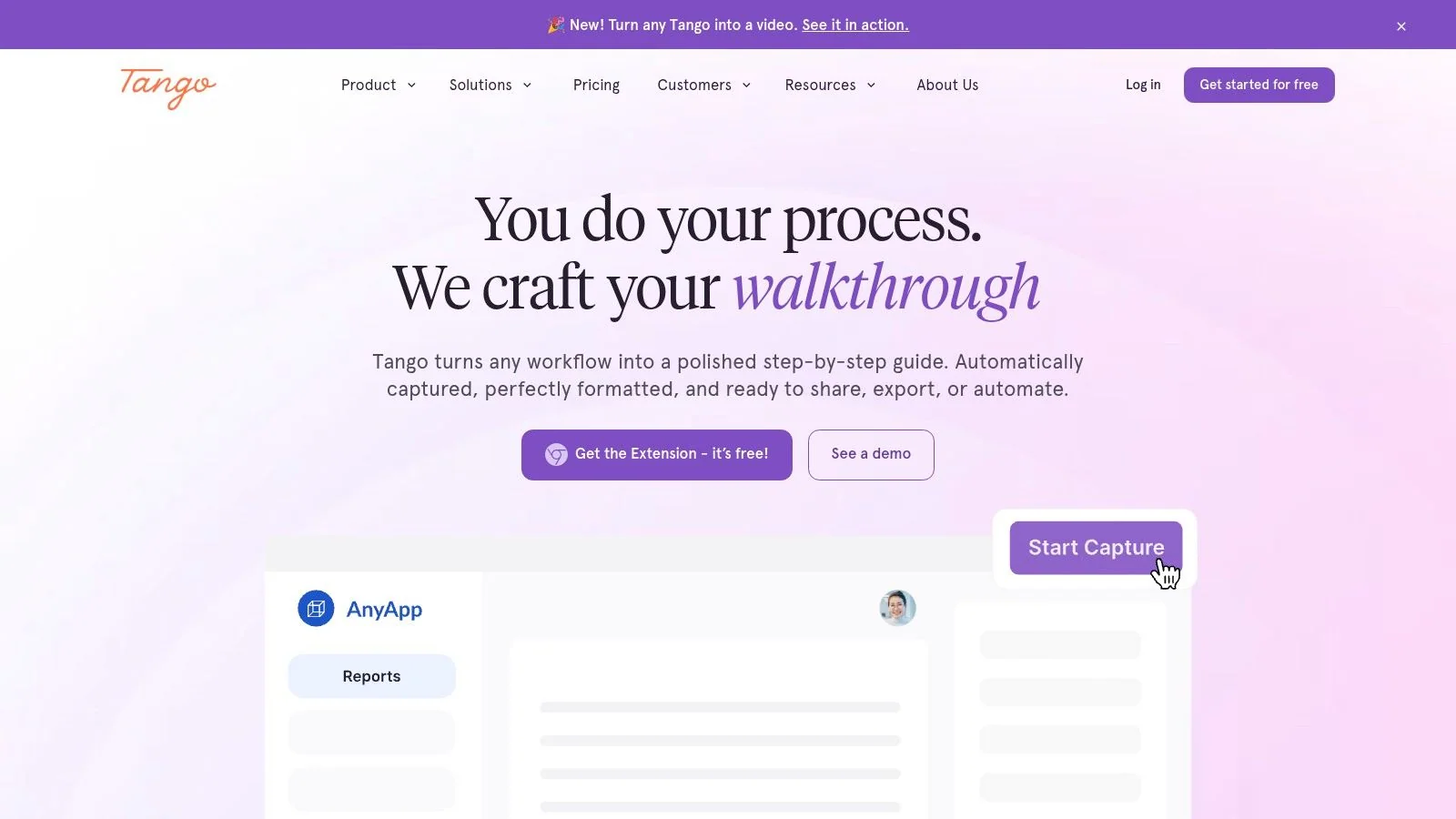
Tango is a browser-centric user manual maker built for speed and in-context guidance. You perform a workflow once, and it turns those actions into a shareable guide with screenshots, highlights, and explanatory text. Where it separates itself from other capture tools is delivery. You can embed guides, pin them in-app, and use “Guide Me” style playback to help users follow the process where they’re already working.
That makes Tango attractive for sales enablement, support teams, and revenue operations groups documenting web-based tools. It’s less about publishing polished manuals and more about reducing the distance between documentation and action.
Where Tango earns its place
Tango is good when your team needs process adoption, not just documentation output. The in-app pins and contextual playback help when users won’t go looking for a PDF or help article on their own. It also offers analytics, which can help teams see whether guides are being used.
Adoption itself matters more than is commonly recognized. In SaaS, feature adoption is usually measured by whether users integrate a capability into their workflow, often using metrics like activation rate and stickiness. An NBER working paper reports that 23% of employed respondents in the US used generative AI for work at least weekly, with 9% using it daily. That’s relevant because tools only deliver value when people fold them into routine work, and Tango is designed around that behavioral reality.
Limits to watch
Tango is best when the workflow is click-based and browser visible. Once the process spans complex desktop software, deeper product explanation, or mixed media training, you’ll usually need a second tool. Its structure is also lighter than what a formal knowledge base needs, so content governance can get messy as libraries grow.
A useful comparison point is the growing category of tools that go beyond click capture. If you’re evaluating that shift, this guide to apps like Tango helps frame where simple capture ends and richer tutorial production begins.
Use Tango when contextual guidance and rapid browser workflow capture matter most. Don’t use it as your only system if your manuals need deep structure, long shelf life, or synchronized video.
4. Document360
Document360 fits a different stage of the documentation workflow. Use it when the hard part is no longer capturing steps, but organizing manuals, SOPs, release notes, and help content so people can find the right version later. It gives teams a structured knowledge base for public docs and private internal content, with WYSIWYG and Markdown editing, localization, separate projects, and role-based permissions.
That matters once documentation starts spreading across products, regions, and teams.
Strong fit for governed manuals
Document360 works well for teams that publish more than one kind of manual and need clear boundaries between them. Customer help content, internal process docs, and admin-only procedures can live in the same system without turning into one messy wiki. Version history, approval workflows, branding controls, and project-level organization all help when documentation has operational or legal consequences.
It also suits teams that are already thinking in content types rather than single documents. If your group maintains setup guides, troubleshooting articles, API references, and policy-driven instructions, a structured repository is easier to manage than a folder full of disconnected files. This breakdown of essential documentation types for growing teams is a useful way to plan that structure before the library gets hard to maintain.
Where it falls short
Document360 does not solve capture on its own. It is a publishing and governance system first. Teams still need a way to create source material, especially for process-heavy manuals where screenshots, step capture, or recorded walkthroughs matter.
That trade-off is why Document360 often works best as the home for finished documentation, not the tool that creates the first draft. A practical setup is to capture a workflow in Tutorial AI, Scribe, or Tango, then move the cleaned-up article into Document360 for review, permissioning, search, and long-term maintenance. If your priority is synchronized video and written instructions from one recording, start with the capture tool and use Document360 as the repository.
I recommend Document360 when information architecture, approvals, search quality, and access control matter more than authoring speed. Choose something lighter if your team mostly needs quick walkthroughs and does not have enough documentation volume to justify a governed system.
5. Paligo
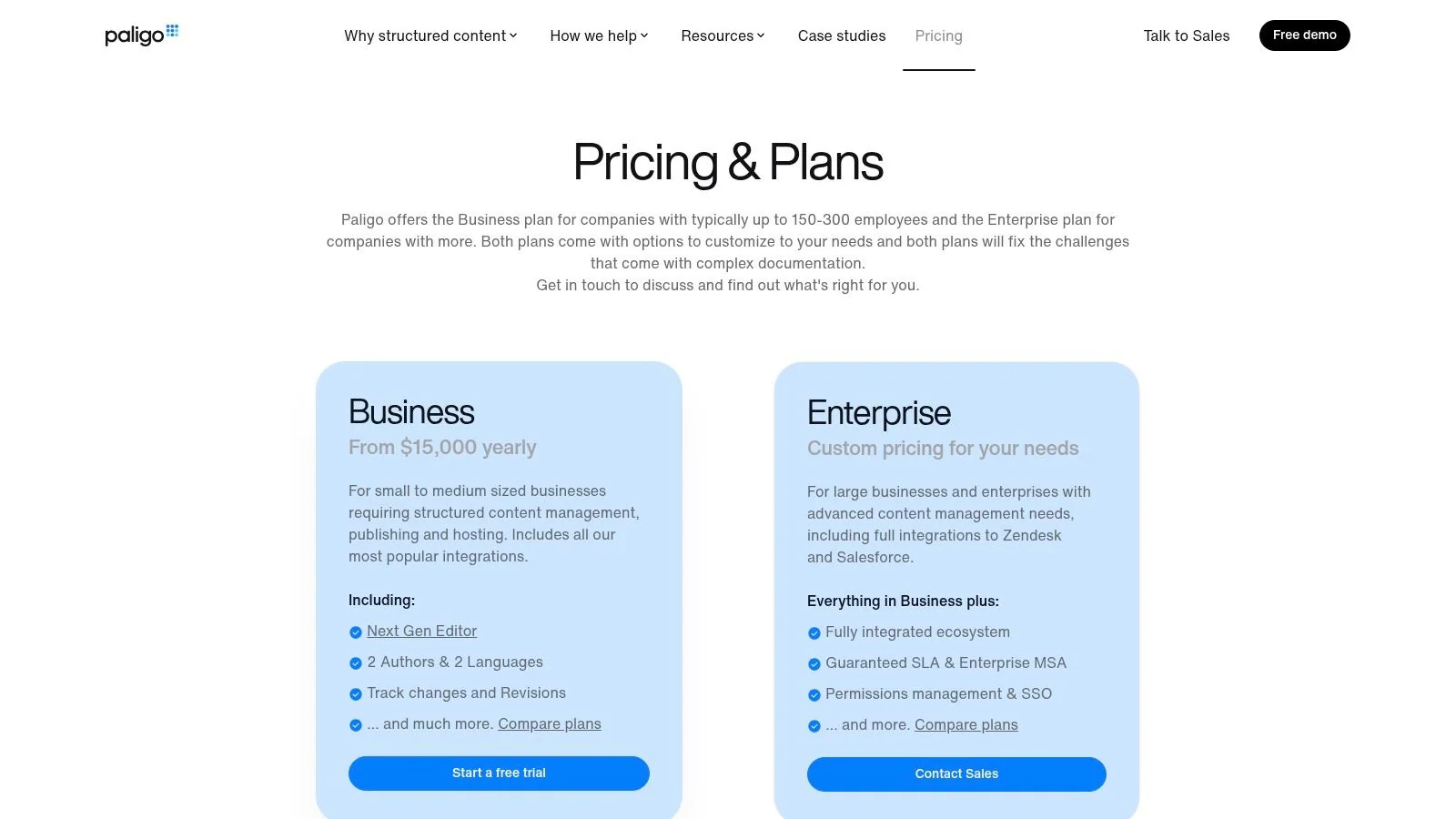
Paligo sits firmly in the technical documentation world. It’s a cloud CCMS built for topic-based authoring, content reuse, translation workflows, and multichannel publishing. If your team manages product variants, regulated content, or large documentation sets that share repeated modules, Paligo makes sense in a way simpler user manual maker tools don’t.
This is not the easiest tool here. It’s one of the most disciplined.
Who should use it
Paligo works for teams that already think in components. Instead of writing one long manual per product, you build reusable topics, warnings, procedural steps, and fragments that can appear across outputs. That reduces duplication and helps when multiple manuals share large portions of content.
It’s also strong when translation and localization are part of the documentation plan, not an afterthought. A modular source structure is easier to maintain than dozens of separate files with tiny differences.
Where teams struggle
The trade-off is upfront complexity. SMEs and product managers who are comfortable in docs and wikis may find structured authoring restrictive at first. That isn’t a flaw in the tool. It’s the cost of consistency and reuse.
Paligo also works best when a documentation team owns the system. If your content comes from many casual contributors who just need to capture a process once and move on, this won’t feel lightweight.
Paligo is the right pick when documentation is a managed content operation with product variants, governance needs, and long maintenance cycles. It’s the wrong pick when your main need is quick visual process capture.
6. MadCap Flare
MadCap Flare remains one of the standard choices for advanced help systems, technical manuals, and multichannel publishing. It’s built for single-sourcing, conditional content, variables, and product-family complexity. If your organization has been publishing web help, PDFs, Word outputs, and other deliverables from the same source set for years, Flare probably already looks familiar.
It’s a serious authoring environment. That’s both the appeal and the burden.
Why technical writers still choose it
Flare is strong when manuals need heavy reuse logic. Conditional content lets one source support different customer tiers, product editions, hardware variants, or regional requirements. The integrated ecosystem, including MadCap Capture and Flare Online, also helps teams maintain established workflows.
For regulated industries and mature documentation teams, that level of control still matters. You can build advanced publishing pipelines that lighter SaaS tools don’t attempt.
Why newer teams hesitate
The learning curve is real. SMEs don’t usually open Flare and feel productive on day one. It rewards trained authors, not casual contributors. Licensing and deployment can also feel less flexible than newer web-based platforms.
The practical question with Flare isn’t “Is it powerful?” It is. The question is whether your team will actually use that power or end up routing everything through one specialist.
Choose MadCap Flare when you need depth, publishing control, and mature technical documentation workflows. Don’t choose it if your team needs low-friction capture by non-writers.
7. ClickHelp
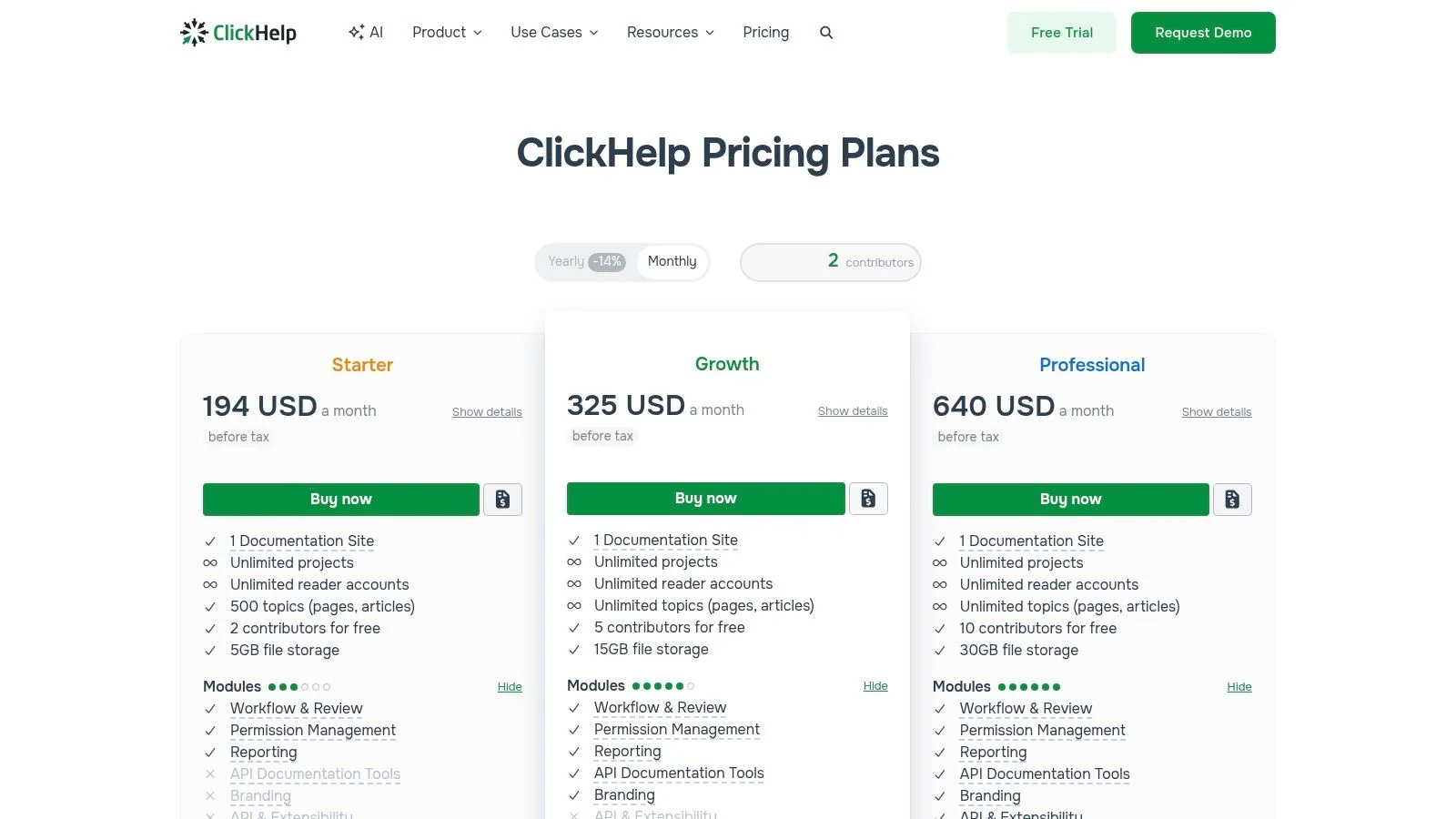
ClickHelp is an all-in-one hosted documentation environment aimed at teams that want authoring, portal delivery, permissions, and reader support in one place. It handles user guides, web help, branded portals, review workflows, and migration from older formats such as Word, HTML, and CHM.
That migration support matters more than it sounds. A lot of documentation stacks aren’t greenfield projects. They’re cleanup projects.
Practical strengths
ClickHelp’s main appeal is consolidation. Authors can work in one platform, publish to a branded portal, and support readers with built-in answering features. For teams moving off scattered legacy files, that’s cleaner than juggling separate authoring and hosting systems.
It also helps that the platform supports reporting and review workflows, which are useful once content ownership expands beyond one writer.
Where to be careful
Its AI Suite is a separate metered add-on, so teams need to think about usage before assuming a simple cost model. The broader platform is also more portal-oriented than capture-oriented, so it’s not the best first purchase if your team still lacks a fast way to create visual step content.
There’s also a timing question with AI investments generally. Sendbird’s guide to AI metrics notes that AI minimum viable products typically deliver measurable ROI within three to six months. For ClickHelp, that means teams should decide early whether they’re buying it for portal management alone or for a wider AI-assisted documentation workflow.
ClickHelp is a sensible choice for hosted documentation portals, especially when migration and reader-facing support matter. It’s less compelling as a pure capture tool.
8. Help+Manual (EC Software)
Help+Manual is one of the more traditional tools on this list, and that’s exactly why some teams still prefer it. It’s a Windows-based help authoring suite built around single-source publishing for outputs such as WebHelp, PDF, and HTML Help. If your team prefers local desktop authoring and perpetual licensing over cloud collaboration, it’s a legitimate option.
This isn’t the most modern interface here. It is one of the more established ones.
Where it still works well
Help+Manual fits organizations that want stable desktop software, offline capability, and control over classic output formats. Some industries still depend on those deliverables, and not every documentation team wants another browser-based subscription product.
Translation support, version control integrations, and optional add-ons also make it more capable than its older visual style might suggest.
Where it feels dated
The downside is collaboration. Modern teams often expect browser-based review, shared workspaces, easy permissions, and lightweight contribution from SMEs. Help+Manual can support serious documentation work, but it doesn’t feel native to that kind of cloud-first operation.
If your documentation team is small, centralized, and Windows-based, Help+Manual can still be efficient. If your process depends on many distributed contributors, it will feel less flexible than newer platforms.
9. Archbee
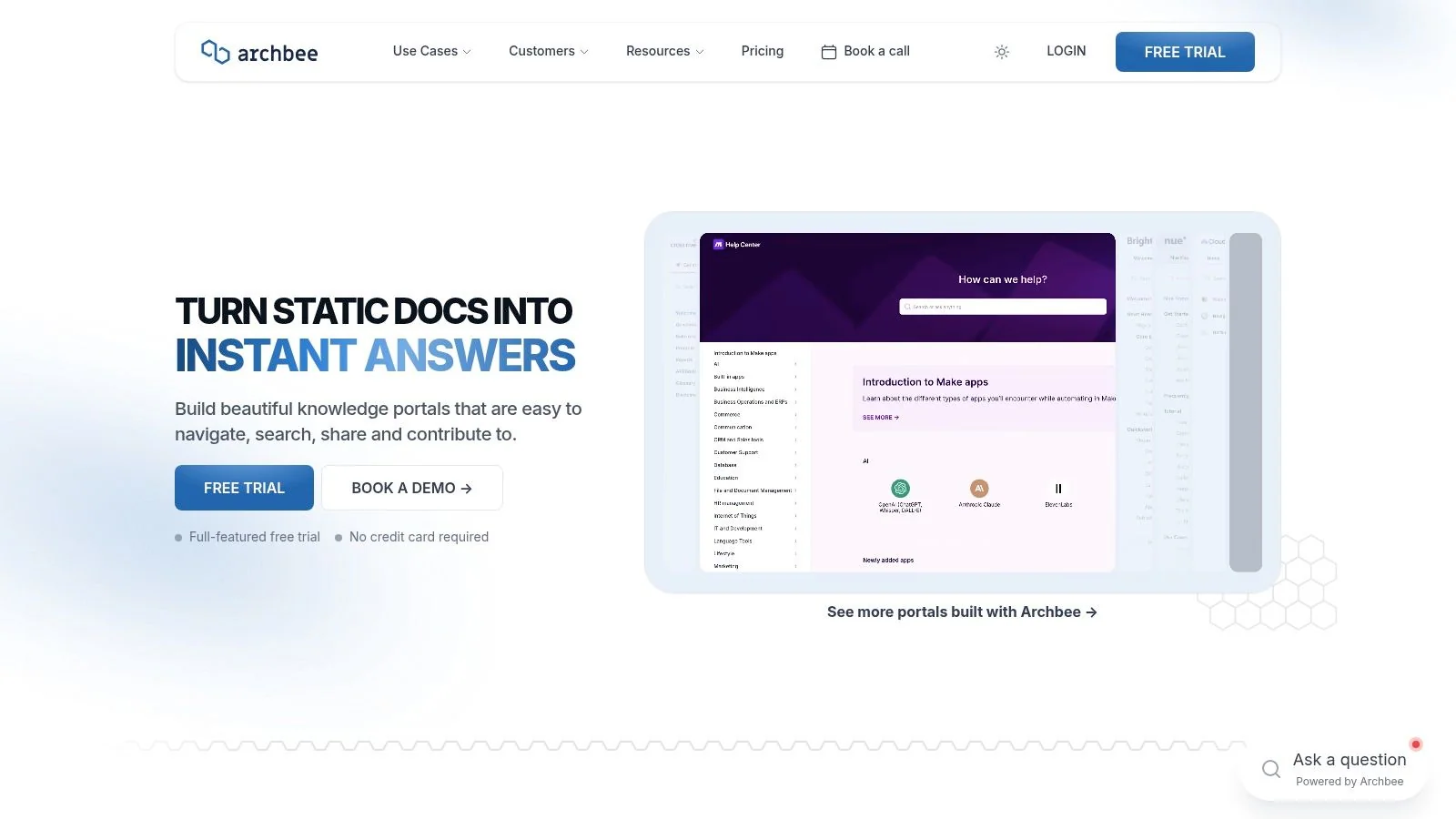
Archbee is a modern documentation platform that sits comfortably between a product manual system and a developer docs hub. It supports product docs, API references, SDK documentation, collaboration, reusable content blocks, and an embeddable in-app widget. For SaaS companies that need customer education and technical docs in one platform, that combination is appealing.
It’s not as rigid as a CCMS, and that’s often the point.
Good fit for software companies
Archbee works well when product, support, and developer relations all touch the documentation stack. You can organize multiple doc types in one system and surface content inside the product through the widget. That’s useful when users need help without leaving the application.
Its balance is its strength. It’s more structured than a simple wiki, but not so formal that every article requires technical writer discipline.
The main compromise
The looser structure can become a liability if your manual set grows into a highly governed technical publishing operation. Large product families, formal reuse models, and rigorous taxonomy controls are better served by something like Paligo or Flare.
Still, for many SaaS teams, Archbee is the practical middle ground. It supports modern product documentation well, especially when internal and external audiences overlap.
10. HelpDocs
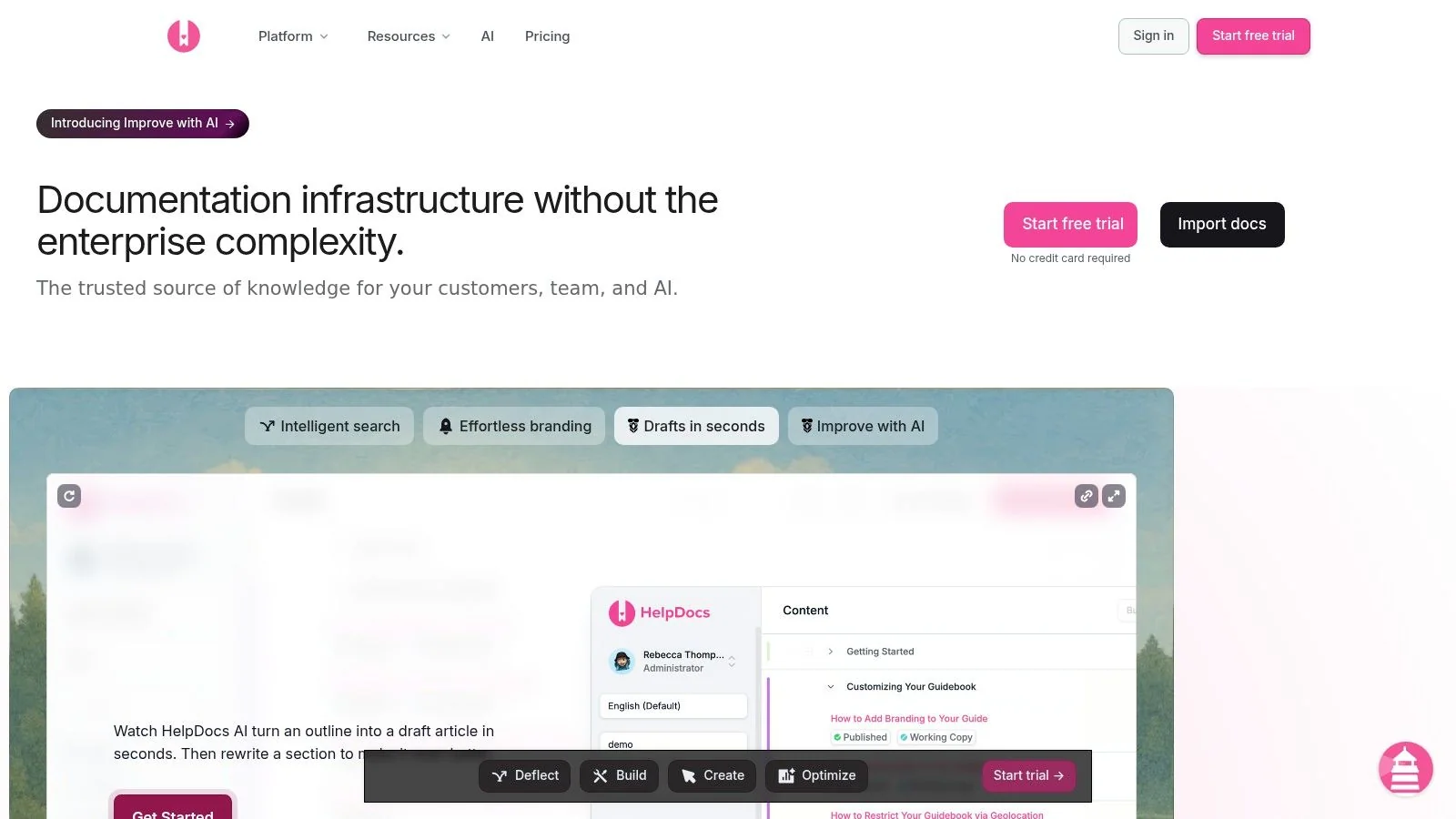
HelpDocs is a straightforward knowledge base platform for public-facing manuals, FAQs, and support content. If your goal is to launch a clean, searchable documentation site quickly, it’s one of the simpler options to get live. Custom domains, branding, access controls, imports, and a staging environment make it practical for small to midsize support teams.
This is less about authoring sophistication and more about publishability.
Best use case
HelpDocs is a good fit for customer-facing knowledge bases where speed and clarity matter more than deep structured authoring. The staging workflow is especially helpful for teams that want to adjust themes and templates without risking the live site.
Imports from PDF, Word, video, and text can also reduce migration pain when older documentation exists in mixed formats.
What it doesn’t solve
HelpDocs isn’t a capture tool. It needs content from somewhere else, whether that’s a writer, a recorder, or another process documentation product. It’s also more externally oriented than internally focused, so teams with heavy SOP and internal training requirements may want a platform with stronger private workspace patterns.
For clean public manuals and support centers, HelpDocs is easy to recommend. For dynamic process capture or highly structured technical content, it’s usually one part of the stack rather than the whole stack.
Top 10 User Manual Makers: Feature Comparison
| Product | Core features | UX / Quality | Price / Value | Target audience | Unique selling points |
|---|---|---|---|---|---|
| Tutorial AI 🏆 | Screen & mic capture, AI transcription, “edit like a doc”, AutoRetime™, 74 languages, 4K export | 4.8★, studio-quality, automated polish | Free → Enterprise, premium AI voices 💰 | 👥 Training, KBs, customer education, sales enablement | ✨ Instant script→video updates, AutoRetime localization, smart cursor & zoom |
| Scribe | Automated click capture → screenshots, annotations, PDF/HTML/MD export | 4.2★, extremely fast capture-to-manual | Solo → Team tiers, cost-effective 💰 | 👥 Ops, support, documentation authors | ✨ Rapid click-to-guide workflow, low friction exports |
| Tango | One-click browser capture, embeds, in-app pins, analytics | 4.3★, quick browser workflows, in-app guidance | Free → Team plans, scalable 💰 | 👥 Support, product teams, sales enablement | ✨ “Guide Me” playback, contextual in-app tips & analytics |
| Document360 | WYSIWYG/Markdown KB, roles/permissions, localization, versioning | 4.4★, robust KB UX and search | Tiered SaaS; enterprise options (quote) 💰 | 👥 KB managers, CS teams, internal docs | ✨ Strong governance, multi-project support, SOC 2 |
| Paligo | Topic-based CCMS, component reuse, translation workflows, multichannel output | 4.5★, excellent for large-scale structured docs | Quote-based, enterprise-focused 💰 | 👥 Technical writers, global product docs | ✨ XML topic reuse, single-sourcing, translation integration |
| MadCap Flare | Advanced single-sourcing, conditional content, multi-output (HTML/PDF/EPUB) | 4.5★, mature toolset for complex manuals | Per-seat/licensing; enterprise options 💰 | 👥 Regulated industries, enterprise doc teams | ✨ Deep conditional publishing & extensive training ecosystem |
| ClickHelp | Hosted portal, theming, review workflows, AI Suite + chatbot, migration tools | 4.3★, all-in-one portal experience | Quote-based; AI metered add-ons 💰 | 👥 Companies needing hosted help portals | ✨ AI Suite for authors + AnswerGenius chatbot for readers |
| Help+Manual (EC) | Single-source multi-format publishing, translation tools, desktop XML backbone | 4.0★, fast local authoring, traditional HAT | Perpetual license + maintenance (budget-friendly) 💰 | 👥 Desktop authors, teams preferring offline/perpetual | ✨ Perpetual licensing, strong offline publishing options |
| Archbee | Spaces for product & API docs, content reuse, embeddable widget, AI search | 4.2★, developer-friendly, easy embedding | SaaS tiers; developer-focused pricing 💰 | 👥 SaaS & developer teams, API docs | ✨ Embeddable in-app widget + AI-assisted search |
| HelpDocs | Clean KB, AI-powered search/answers, staging, import tools | 4.2★, quick to launch public-facing guides | SaaS tiers; fast setup 💰 | 👥 Customer-facing support teams | ✨ AI assistant over your docs, safe theming/staging workflow |
Choosing the Right User Manual Maker for Your Team
The best user manual maker depends on the job you need it to do. That sounds obvious, but teams still get tripped up by buying a strong platform in the wrong category. A capture-first tool won’t give you the governance of a knowledge base. A CCMS won’t feel lightweight for fast process capture. A help authoring suite may be excellent for technical writers and still be a poor fit for sales enablement or onboarding teams.
The first decision is format. If your users need quick procedural guidance and the workflow is mostly visible on screen, Scribe or Tango can work well. If your team publishes structured manuals with permissions, versioning, and layered information architecture, Document360, ClickHelp, or HelpDocs make more sense. If you’re managing large technical content sets across product variants and outputs, Paligo or MadCap Flare are built for that level of complexity.
The second decision is who creates the content. Often, this aspect causes many projects to stall. Subject-matter experts usually know the product, but they don’t want to spend hours editing timelines, rebuilding screenshots, or formatting articles by hand. Meanwhile, documentation teams can’t be in every product release, onboarding call, or support escalation. The more your process depends on specialist production skills, the more bottlenecks you create.
That’s why the modern workflow is shifting away from static text-only manuals. As of Q1 2026, over 78% of organizations globally use generative AI in at least one business function, and knowledge management is a top 19% use case, according to Vention’s roundup of AI adoption statistics. That doesn’t mean every documentation team should chase novelty. It does mean there’s now broad organizational readiness for tools that help SMEs turn raw knowledge into publishable assets faster.
A practical workflow now looks like this:
- Record once: Capture the product flow with spoken explanation.
- Generate both formats: Produce a polished tutorial video and a matching written article from the same source.
- Review for accuracy: Let the SME verify terms, sequence, warnings, and edge cases.
- Publish where users look: Push the output into your help center, LMS, CMS, or internal portal.
- Update from the source, not from scratch: When the UI changes, revise the recording-derived source asset instead of manually rebuilding separate docs.
That’s exactly where Tutorial AI stands out. It automates the editing work that usually sits between “we recorded it” and “we can publish it,” while still keeping the SME in control of the underlying explanation. For teams that need the visual clarity of a real screen and the permanence of a written help article, that one-workflow model is hard to beat.
The final choice should come down to audience, complexity, and maintenance burden. If your manuals are short-lived and procedural, choose simplicity. If they’re regulated, multilingual, or highly structured, choose control. If your team needs synchronized video and written documentation from a single recording, choose a tool built specifically for that workflow and test it with a real use case before you standardize.
If your team is tired of recording a demo, editing it in a separate tool, then rewriting the same steps for the help center, try Tutorial AI. It’s a practical way to turn one screen recording into a polished tutorial video and a matching written article, with Brand Kits, AutoRetime, multilingual narration in 74 languages, and enterprise features such as SSO/SAML, SOC 2, and GDPR support.