A useful software tutorial shows someone completing a task. A new user needs to see the starting screen, the decisions to make, and the result that confirms the task worked.
The eight hypothetical examples below use a screen recording of a software workflow as their starting point. Each includes prerequisites, actions, a visible success check, and a recovery note. Adapt the sample labels and scripts to the actual interface before publishing.
1. Software Feature Release Documentation
A feature-release tutorial should show what changed in a specific task, not repeat a release note. Suppose a reporting tool adds customer-segment filters. A product manager or support specialist can record the workflow in a safe account.
Prerequisite: A report with sample records and an account with reporting access.
- Open the report and select a date range.
- Choose a customer segment and apply the filters.
- Compare the displayed records with the selected criteria.
Visible success check: The report shows the active date and segment filters, and the displayed records match them.
Recovery note: If the filter is missing, check reporting access and whether the feature is available in the account before recording a different path.

Script: “Open the report, select a date range, and choose a customer segment. Apply the filters and confirm that the active filters and displayed records match your choices. If the segment option is missing, check your reporting access.”
Use the recording to draft a video and written instructions, then check the labels, permissions, and screenshots against the current interface. The software-training workflow supports recording with or without voice and reviewing the generated script, narration, and steps before sharing.
2. Customer Onboarding and First-Time User Workflows
An onboarding tutorial should get a new user to one useful result. In a hypothetical analytics platform, that could mean creating a first report rather than touring every menu.
Prerequisite: A new account with permission to create a workspace and access to a sample data source.
- Sign in and create a workspace.
- Connect the sample data source.
- Create a report from that source and save it.
Visible success check: The saved report appears in the workspace and displays sample records.
Recovery note: If the connection fails, check the selected source and permissions; use the sample workspace if that is the documented alternative.
Script: “Create the workspace where your reports will live. Connect the sample data source, then build and save your first report. Open the saved report to confirm that it displays records.”

Record from the same starting state a new user will see. If setup steps can be completed in different orders, make separate short lessons instead of implying a required sequence. The customer onboarding video guide can help frame the recording.
3. Internal Process Documentation and Standard Operating Procedures
An internal tutorial needs to show the point where an employee checks a result and decides what to do next. Imagine a finance team recording the monthly reconciliation workflow with approved sample records.
Prerequisite: Access to a training workspace, sample statement, and current process instructions.
- Open the reconciliation queue and select the sample period.
- Compare the displayed ledger balance with the sample statement.
- If the values match, attach the statement and route the record for review.
Visible success check: The record displays the attachment and the review status.
Recovery note: If the balances differ, record the variance and follow the team’s documented review route instead of marking the record ready.
Script: “Open the reconciliation queue and select the sample period. Compare the two balances. If they match, attach the statement and route the record for review. If they do not, record the variance and stop at the documented handoff.”
Capture the actual screen labels and decision branch. The written guide should identify who owns the handoff and which version of the workflow it describes.
4. Help Center and Self-Service Support Content
A support tutorial should begin with the screen and problem the user recognizes. Suppose a teammate can open a project but cannot edit it.
Prerequisite: A safe sample project and permission to view its member settings.
- Open Project Settings, then Members.
- Find the teammate and inspect the displayed role.
- If authorized, change the role to Editor and save.
- Ask the teammate to refresh the project and try editing.
Visible success check: The teammate’s role reads Editor and the editing control becomes available.
Recovery note: If editing remains blocked, check the project’s approval or lock settings and follow the documented escalation route.
Script: “Open Project Settings and check the teammate’s role under Members. If you are authorized to change it, select Editor and save. Have the teammate refresh the project and confirm that editing is available.”
Place screenshots beside the steps they illustrate. Microsoft’s instructions for inserting screenshots and screen clippings are a practical formatting reference.
5. Product Walkthrough and Demo Content for Sales
A demo tutorial should teach a prospect how to complete a relevant task using clearly labeled sample data. In a hypothetical CRM, show how a sales manager finds accounts to review before renewal conversations.
Prerequisite: A sample CRM workspace with usage and renewal-date fields already populated.
- Open the accounts view and select the sample customer segment.
- Add a usage threshold and renewal-date filter.
- Open the filtered account list and inspect one record.
Visible success check: The list displays the active filters and matching sample accounts.
Recovery note: If a field is unavailable, confirm the sample workspace configuration; do not imply that every account includes that field.
Script: “Start with the customer segment, add the usage and renewal-date filters, and open the resulting account list. Check the active filters before reviewing a sample account.”
Record separate versions only when the buyer’s task or available data changes. Keep claims about what the product can do tied to what the screen actually shows.
6. Training Content for Customer Education Programs
A course lesson should demonstrate a complete task and leave a small variation for independent practice. In a hypothetical marketing platform, the lesson might teach users to build a segment for an automation.
Prerequisite: A training workspace with sample contacts and permission to create segments and automations.
- Create a segment using a sample contact condition.
- Save the segment and select it in a draft automation.
- Change the condition in a practice copy and inspect the audience count.
Visible success check: The draft automation shows the selected segment, and the practice copy displays its updated condition and audience count.
Recovery note: If the audience count is empty, inspect the condition and sample records before changing the automation.
Script: “Build a segment from the sample contacts and select it in a draft automation. Then change the condition in a practice copy and check the audience count. Do not activate the automation in this lesson.”
A recording can provide the guided walkthrough and screenshots for a written exercise.
7. Employee Compliance and Safety Training Documentation
Keep this example focused on recording an approved software task, not interpreting policy. A hypothetical security team might demonstrate how to report a suspicious message in a training mail client using a harmless sample email.
Prerequisite: An approved reporting procedure, a training mailbox, and a fictional sample message.
- Open the sample message without following its links.
- Select the mail client’s reporting control.
- Confirm the report in the training mailbox’s status view.
Visible success check: The interface shows that the sample message was submitted through the approved reporting route.
Recovery note: If the reporting control is unavailable, stop and follow the organization’s documented alternate route; do not invent an address or workaround.
Script: “Open the sample message in the training mailbox. Use the approved reporting control, then check the status view for confirmation. If the control is missing, use the alternate route in your organization’s instructions.”
Have the workflow owner approve the screen sequence and remove real messages or identifiers before sharing.
8. Technical Documentation and API Integration Guides
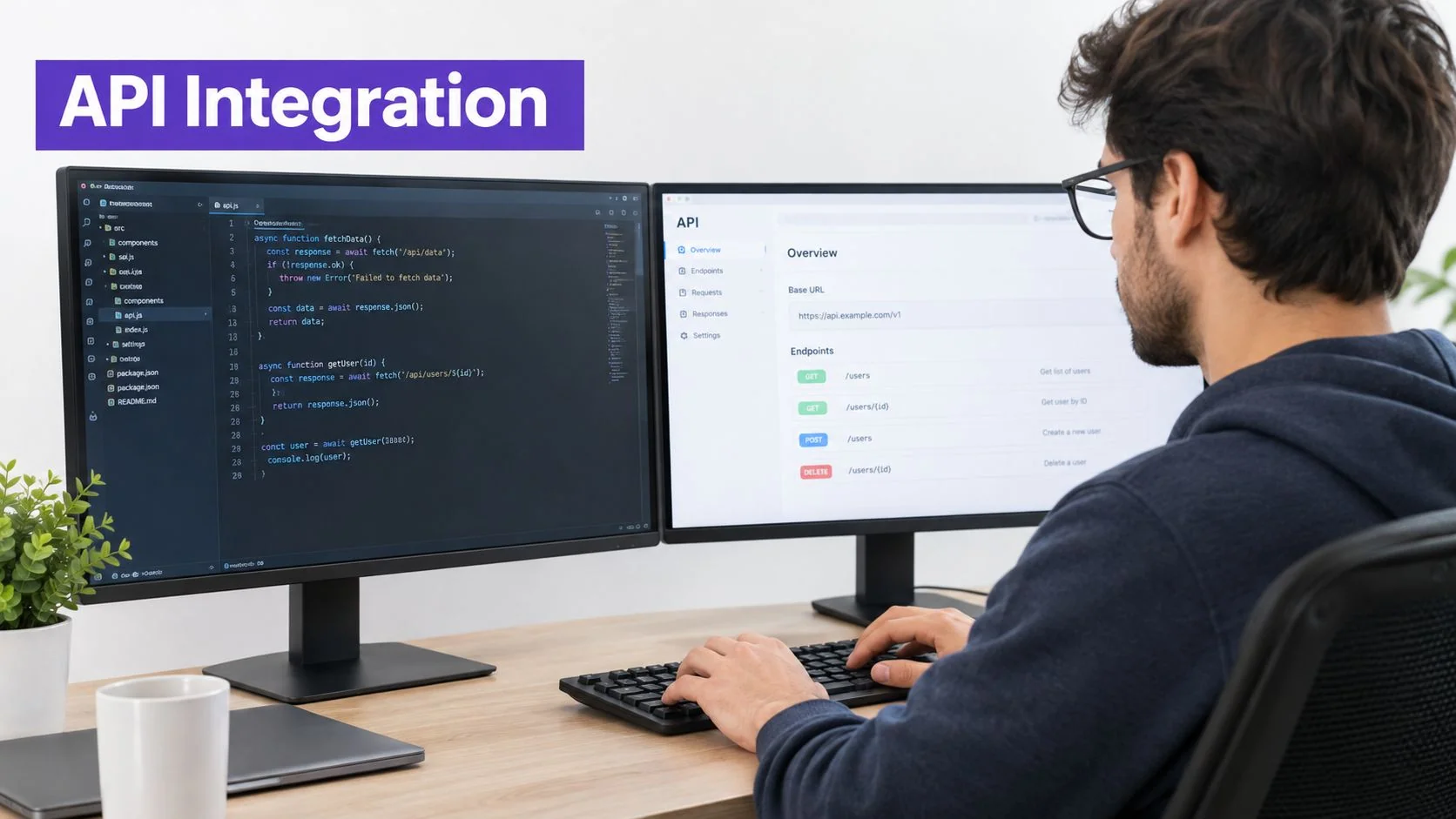
An API tutorial should record one repeatable software workflow in a test environment with approved sample values. In a hypothetical developer console, show how to send a test request and inspect the response.
Prerequisite: A staging account, a shareable sample key with the needed scope, and a documented API version. Never record a live secret.
- Open the staging request tool and select the documented API version.
- Enter the sample endpoint, headers, and payload.
- Send the request and inspect the response status and sample output.
Visible success check: The response shows the documented success status and expected sample field.
Recovery note: If the request returns an authorization error, check the sample key scope and header format before changing the payload.
Script: “In staging, select the documented API version and enter the approved sample request. Send it and check the response status and expected field. For an authorization error, verify key scope and header format first.”
Show the request and response without exposing credentials or customer data. Label the version and keep advanced options out of a first-request tutorial unless they are necessary for that task.
Eight Tutorial Examples at a Glance
| Example | Reader task | What to record | Visible success check |
|---|---|---|---|
| Feature release | Filter a report | Filter selection and applied results | Active filters and matching records |
| Customer onboarding | Create a first report | Workspace, sample source, and save action | Saved report displays records |
| Internal process | Route a sample reconciliation | Balance check, attachment, and handoff | Attachment and review status appear |
| Help center | Restore project editing | Member role and authorized role change | Editor role and editing control appear |
| Sales demo | Find sample accounts | Segment, filters, and account list | Active filters and matching accounts |
| Customer education | Build a practice segment | Segment creation and draft automation | Selected segment and audience count appear |
| Employee training | Report a sample message | Approved control and status view | Submission confirmation appears |
| API guide | Send a staging request | Sample request and response | Expected status and response field appear |
Turn One Recording Into Your First Tutorial
Choose one task that readers need to complete. Record from its actual starting screen with safe sample data, explain the decision points, and show a result the viewer can verify. Review the script, narration, screenshots, permissions, and recovery note before sharing the video or written guide.For this article’s templates, the practical distinction is simple: use video to show screen movement and a written guide to make steps easy to revisit.
Tutorial AI can turn a recording made with or without voice into a narrated video and written guide with screenshots. The generated script, narration, and steps can be reviewed and edited before sharing. Choose one of the eight tasks above, verify its safe starting state and success check, then Start free trial to record it.
For related material, a workflow documentation guide offers another way to organize the written steps.