You’re probably dealing with the same problem most knowledge-base and training teams face, sensitive information shows up in the middle of normal work. A product demo draft includes a customer name, a support walkthrough captures an internal URL, or a training recording briefly shows a live dashboard. The risk isn’t just malicious access, it’s the everyday habit of recording, copying, sharing, and documenting faster than anyone reviews what’s inside the files.
Protecting sensitive information works best when you treat it as a workflow problem, not just a security setting. That means knowing where the data lives, limiting who can reach it, making it unreadable when necessary, and having a recovery plan when something slips through. It also means building habits into the way your team creates videos, articles, and SOPs, because instructional content often carries more exposure than people expect.
Start with a Data Map not a Padlock
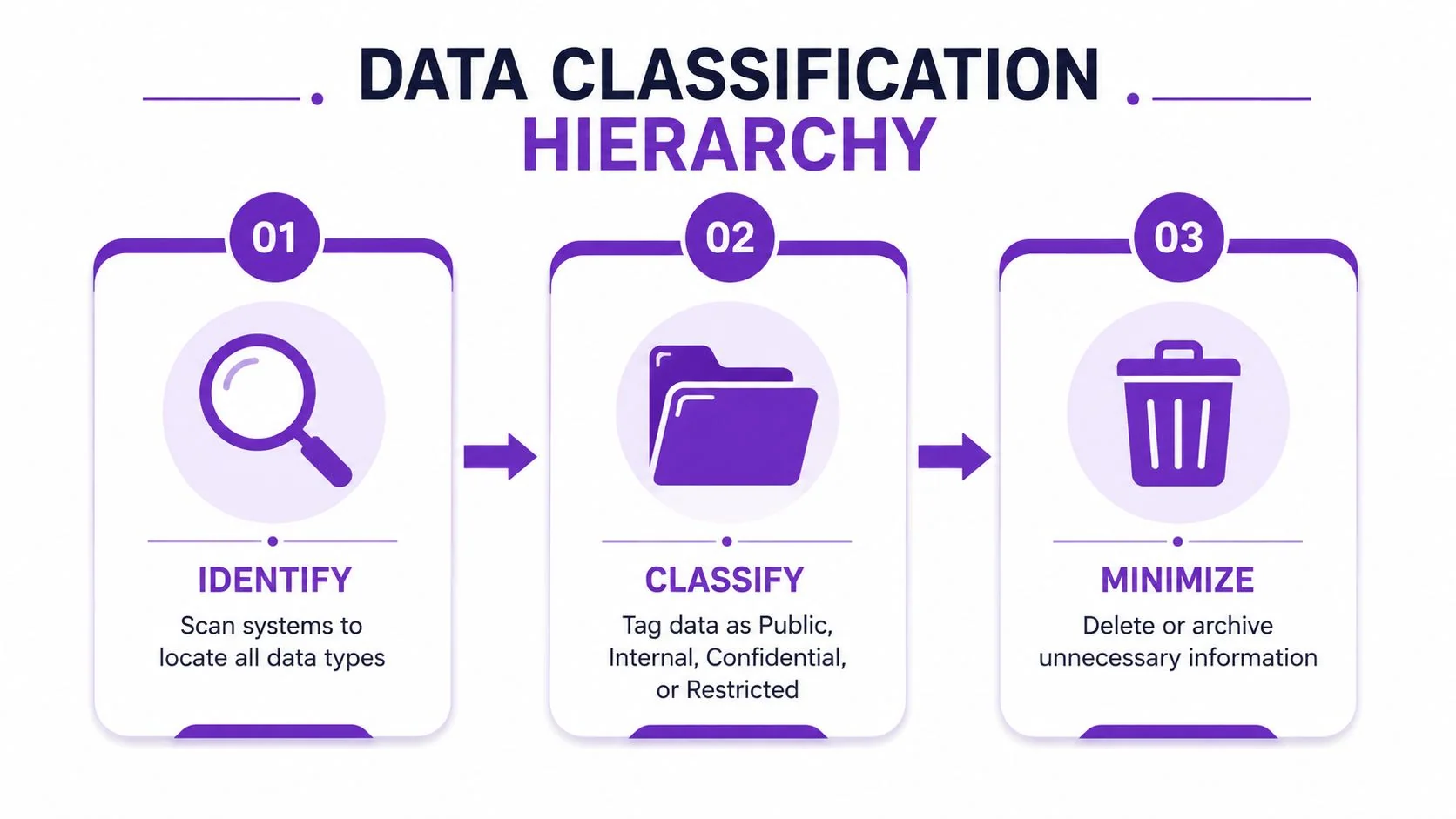
You can’t protect what you haven’t found. In practice, the first move is a data inventory of the places where sensitive information lives, then a simple classification pass so you know what needs stronger controls and what doesn’t. That’s especially important in knowledge-base work, where the same customer export, screenshot folder, or draft article can be copied into several systems before anyone notices.
Start where leakage actually happens
A practical sensitive-information control is data classification. Organizations should first identify and categorize data by sensitivity, then apply different protections based on that level, and security guidance also recommends role-based access controls so only authorized personnel can reach sensitive data, plus encryption at rest and in transit to reduce unauthorized access risk. Bitsight’s sensitive data guidance is useful here because it keeps the focus on classification before control selection.
For a knowledge-base team lead, that means looking beyond polished docs and into the messy places where information accumulates, shared folders, screen captures, raw recordings, exported spreadsheets, and old article drafts. One practical way to prioritize is to assign a simple 1 to 5 severity scale, where 1 is “insignificant” and 5 is “catastrophic,” then put the highest-rated material under stricter review first. Scotiabank’s business security guidance explicitly recommends identifying where the data is stored and who can access it before choosing controls.
Practical rule: if you can’t answer where the file came from, who can open it, and whether it belongs in a tutorial at all, treat it as sensitive until proven otherwise.
A small classification scheme is enough to start. Many teams use labels like Public, Internal, Confidential, and Restricted for working decisions, then pair that with data minimization, if a recording or article doesn’t need the data, don’t keep it in the first place. That’s the most reliable way to reduce the amount of content you need to guard later.
For teams documenting business processes, it helps to standardize the way the workflow is captured so sensitive fields don’t get rediscovered in every draft. A clean process map also makes review faster, which is why a practical companion to this step is documenting business processes in a repeatable way.
Use the map to drive action
Once you’ve mapped the data, the next question is simple, what deserves stronger handling right now? Unstructured files and legacy or shared repositories are usually the first places to check because they’re easy to forget and easy to over-share. Congruity360 specifically recommends starting with shared drives, legacy file servers, and cloud shares, then reviewing access periodically, with quarterly cited as a common baseline, and removing stale permissions quickly. Congruity360’s sensitive data guidance makes the operational reality clear, inventory first, policy second, cleanup always.
That’s the right mindset for tutorial production too. If a screen recording, transcript, or article draft contains live credentials, client names, or internal links, those assets shouldn’t live in a general-purpose folder with broad access. Treat the data map as the control plane, and the rest of your safeguards become much easier to apply.
Implement Layered Access and Encryption Controls
A training team can do everything else correctly and still expose sensitive material if one shared folder, one exported transcript, or one review link is left too open. Passwords and MFA control the front door, least privilege limits who can reach each room, and encryption keeps the contents unreadable if the wrong person gets in.
Make access narrow by default
Start with the classification map, then give people access only to the material they need for their current role. That is the practical meaning of least privilege, and it matters most in shared repositories where a single broad permission can expose a large set of drafts, recordings, and supporting files.
Congruity360’s guidance points to the controls that usually matter first, least privilege, MFA, encryption at rest and in transit, and DLP closest to the source. It also calls out the common failure points that teams overlook, especially unstructured files and legacy or shared repositories. Congruity360’s data protection guidance is useful when you are reviewing folder structures and permission groups because it keeps the focus on inventory first, policy second, cleanup always.
For tutorial production, the access model should match the way content is built. Editors may need the raw recording, subject matter experts may need the transcript, and reviewers may need only the draft article. If every person can open every asset, access control is just a hope that nobody makes a mistake.
Practical rule: if an intern, contractor, or temporary collaborator does not need a folder to finish today’s work, remove it from their path.
Treat MFA as baseline, not optional hardening
The FTC advises strong passwords and MFA, plus encrypting sensitive information sent over public networks and stored on devices, and limiting laptops and internet-connected storage to situations where they are needed. That guidance fits ordinary handling in documentation workflows, where access is often lightweight and ad hoc. FTC data security guidance helps frame MFA as part of everyday control, not a special case for security teams.
That matters because so much access in knowledge-base work happens through browser logins, cloud folders, and vendor links. A content reviewer, a designer, or a support lead can all create a small access decision that exposes a lot of instructional content if MFA is not always on. One stolen password should not become a fast path into recordings, transcripts, and draft help articles.
Encrypt data in motion and at rest
Encryption solves a different problem. At rest protects stored files, such as drafts on a drive or recordings in cloud storage. In transit protects data as it moves across a network, such as when someone uploads a video or sends a sensitive link.
Use the strongest standard your stack already supports, then verify that it is enabled for the systems handling recordings, transcripts, and article exports. In practice, encryption works best when it sits beside access control, because unreadable data is still safer data if a shared drive or laptop goes missing.
For teams that collaborate heavily, the question is not whether encryption exists somewhere in the environment. It is whether the files used to build tutorials, help articles, and internal SOPs are protected in the places where people touch them.
Govern How Your Team Shares Information
Most exposure inside a knowledge-base operation doesn’t come from a dramatic breach. It comes from a normal workflow, a draft gets emailed to the wrong person, a folder link stays open after the project ends, or an external contractor keeps access far longer than planned. Shared content is useful only when the sharing rules are deliberate.
Choose convenience only where the risk is low
Email is fast, but it’s a poor place for long-lived sensitive files because copies spread easily and permissions are hard to unwind. Shared cloud folders are better when they’re managed tightly, yet they still become risky when teams treat them like permanent drop zones. Slack and similar tools are useful for coordination, but they shouldn’t become the default home for sensitive assets that need retention control, review history, and revocation discipline.
A safer pattern is to use secure links with time-limited access for temporary collaboration, then remove access when the task is done. That fits the reality of modern workflows, where the goal isn’t to freeze data in place forever, but to let people use it under governance. DualityTech’s overview highlights that current thinking now extends beyond basic protection to governance, retention, vendor controls, and secure computation when data crosses organizational boundaries. DualityTech’s sensitive data overview reflects that shift well.
Put guardrails around external collaboration
If a vendor, freelancer, or partner needs to review a tutorial asset, make the access path narrow and visible. Use named accounts, not shared logins, and re-check permissions when the project changes. Keep an evidence-ready audit trail so you can see what was accessed and when, because that context matters when something looks off.
The best sharing policy is the one your team can actually follow under deadline pressure.
That means your rules should fit real work. A support lead should know when it’s acceptable to share a draft walkthrough with a customer, when a screenshot needs redaction first, and when the safest answer is to use a sanitized version of the file instead. If the policy is too broad, people ignore it. If it’s too narrow, they route around it.
Make review part of the sharing habit
The strongest governance is boring in the best way. Review access regularly, remove stale vendor permissions, and keep sensitive files out of general-purpose spaces where they can be copied forward without oversight. If a process relies on everyone remembering a warning label, it won’t hold up.
For documentation teams, the practical standard is this, any content that contains live data should move through a controlled path, not a casual one. That’s the difference between a working collaboration system and a pile of convenient exposure points.
Master Redaction in Demos and Training Videos
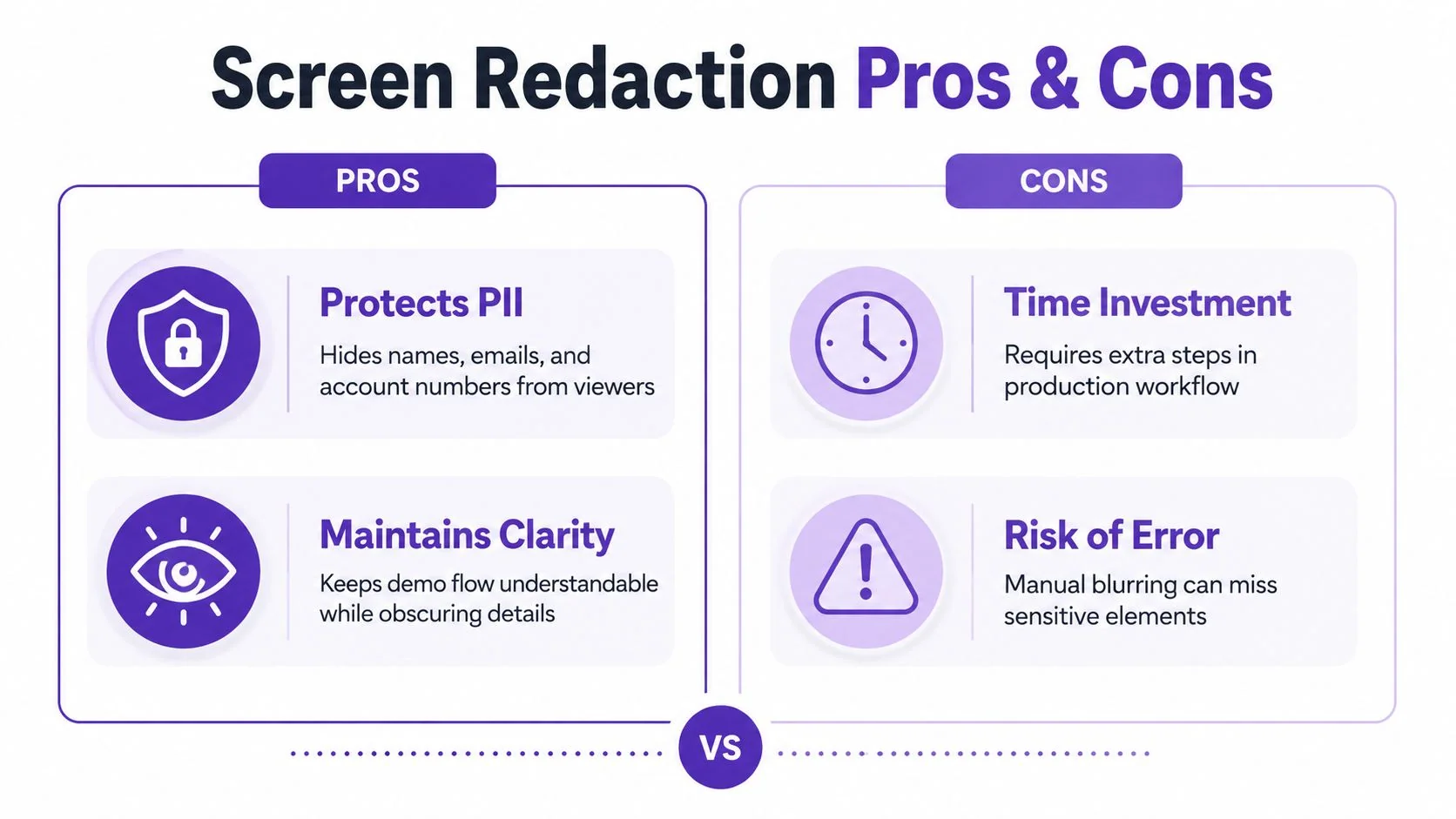
A screen recording is only as safe as the most exposed frame in it. Product demos, onboarding walkthroughs, support videos, and SOP recordings often capture more than the narrator realizes, account names, customer records, browser tabs, internal admin pages, and a flash of an API key are all common mistakes in otherwise solid content. The fix is to make redaction part of production, not a cleanup step you hope someone remembers later.
Record as if the demo will be reused
A good demo starts before recording. Use a test environment, log in with a sanitized account, close unrelated tabs, and preload the pages you’ll show. That simple discipline reduces the amount of cleanup later and makes the final article easier to generate from the same source material.
The decision is how much to obscure. Blurring is often enough for a name, email, or ID that’s present but not central to the lesson. Masking works when you need to hide a section of the screen while keeping surrounding context visible. Complete redaction is the right move for an API key, credential, token, or anything that shouldn’t be partially visible at all.
A useful editorial rule is to preserve the teaching value, not the raw screen. If the viewer only needs to understand a workflow, then the exact customer name is usually unnecessary. If the viewer needs to see the actual UI, then replacing the interface with a talking-head avatar isn’t the answer, because the point is to show the product, not a synthetic presenter.
Redaction has to track the frame
Manual blur work is where teams slip. A field may move after a zoom, a dropdown can reveal hidden text, or a cursor hover exposes information that wasn’t visible in the static frame. That’s why persistent redaction that follows the element matters more than a single blurred patch painted onto one moment in time.
When a tutorial workflow supports smart zooms, cursor tracking, and moving blur areas, the result is much more reliable than hand-editing every frame. That kind of automation is especially useful for knowledge-base teams, because the same recording often needs to become both a video and a written article. If the source contains sensitive data, the cleanup work has to protect both formats.
The same logic applies to compliance-sensitive material. If your organization handles regulated customer or employee data, the redaction pass becomes part of your SOC 2 and GDPR discipline, not just a visual polish step. The goal is to prevent accidental disclosure while keeping the tutorial understandable enough to be useful.
For a practical reference on the mechanics of hiding fields in a recording, see this redaction walkthrough for sensitive data in video.
Practical rule: if a field would create a problem in a screenshot, it’s safer to hide it in the source recording than to promise you’ll fix it later.
Prepare Your Incident Response Plan
A tutorial library can expose sensitive information in a few minutes. A shared draft link goes too wide, a recording shows a live field, or a browser tab captures a password reset screen. The response plan is what keeps that mistake from turning into a longer outage, and it works best when the team has already walked through it.
Treat backups as recovery, not storage
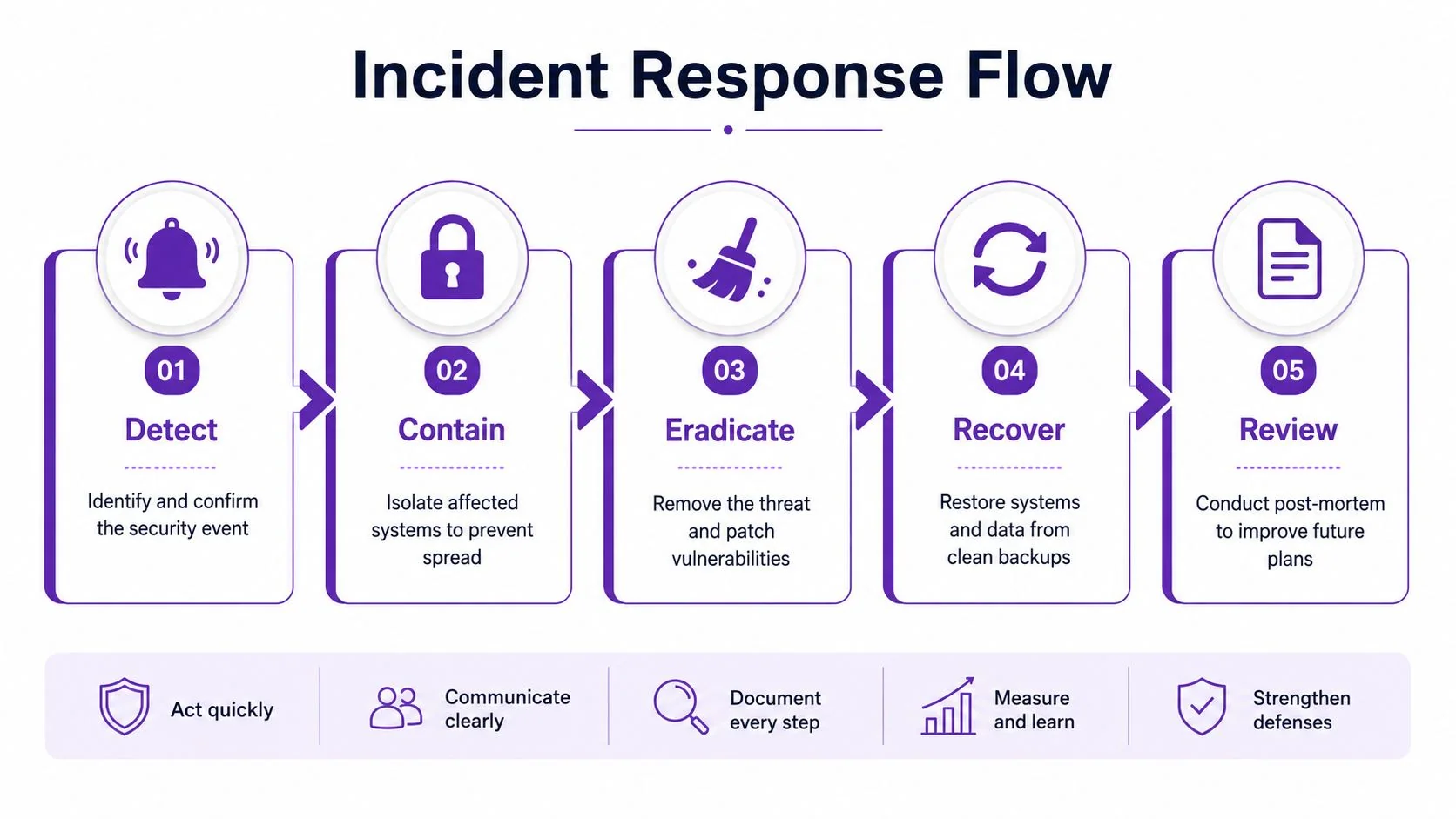
For resilience against exfiltration and ransomware, the most useful control is tested backups plus a documented incident-response workflow. The UK National Cyber Security Centre says organizations should test backups regularly and verify they can restore files before an actual incident, and it treats restore testing as part of effective recovery. NCSC data security guidance makes that point clearly, because a backup that has never been restore-tested can fail at the worst moment.
That matters to content teams because the backup is not only for source code or finance records. It also protects tutorial source files, draft documentation, transcript archives, and the rough assets that support help articles. If a recording library is encrypted or a shared folder is corrupted, the team needs a recovery path that brings back working materials cleanly and with enough context to keep publishing.
Pre-stage the response, don’t improvise it
A usable plan names the actions in order. Disable affected accounts, rotate keys, restrict shares, preserve evidence, and confirm what data was accessed, by whom, and from where. Those steps belong in writing before anything goes wrong, because under pressure people fall back on the sequence they already know.
Recovery speed depends on whether the team knows the first three moves before the alert arrives.
The gap is usually coordination, not tools. IT wants containment. Legal wants a record. Communications wants a clear statement. The plan should assign one owner for the decision, one person for evidence collection, and one path for updating collaborators so the response does not split into three separate conversations.
Practice the hard case
Tabletop exercises expose weak assumptions fast. Run one scenario for a sensitive tutorial draft that leaked externally, and another for a ransomware event that locked the content library. Congruity360’s incident readiness guidance helps here, since it recommends practicing tabletop exercises for ransomware and sensitive-data exposure while staging containment steps ahead of time.
If the team also shares training clips with outside reviewers, the workflow should include password-protected video sharing guidance so the incident plan matches the way content moves. The point is to make the handoff harder to misuse without slowing every normal review.
If you only document the response, you have paper. If you practice it, you have a plan.
Build a Security-Aware Training Culture
Technology helps, but teams protect sensitive information through habits. The people who create demos, write walkthroughs, and publish help articles make dozens of small decisions every week, and each one either lowers or raises exposure. A security-aware culture turns those decisions into routine behavior instead of last-minute judgment calls.
Train for the moments that actually happen
The best training doesn’t lecture, it reflects what the team already does. Show people how to spot a live credential in a browser, when to stop a recording, how to use a clean sample account, and why a shared draft folder is not a safe archive. Keep the lessons small enough to remember and tied to the exact tools your team uses.
A practical checklist is enough to anchor the behavior:
- Phishing awareness: teach people to slow down when a link, attachment, or urgent request looks unusual.
- Password hygiene: reinforce unique passwords and MFA for every system that can touch sensitive content.
- Recording discipline: remind creators to sanitize desktops, tabs, and test data before they record.
- Sharing discipline: make approval and expiration part of every external handoff.
- Recovery readiness: make restore testing and incident drills part of the normal calendar.
Make training part of production, not a separate event
Support teams usually don’t have time for sprawling security workshops. They do have time for short, repeatable refreshers, especially when those lessons are embedded in the same workflow that produces tutorials and docs. A five-minute micro-training video is often more useful than a long policy PDF because it shows the exact click path and the exact mistake to avoid.
That’s where good documentation habits and security habits overlap. If your team already records process videos and help articles, use that same motion to reinforce safe behavior. Teams at large organizations, including Microsoft and UNICEF, have made security awareness part of broader operational discipline, which is the right model for any team that handles recurring sensitive content.
Security culture sticks when the right behavior is easier than the risky shortcut.
The durable answer to how to protect sensitive information is not a single tool, it’s a repeatable system. Classify the data, restrict the access, redact the screen, test the recovery path, and train the people who touch the content every day.
If you’re ready to turn those practices into repeatable tutorials and help articles, visit Tutorial AI and see how a single recording can become a polished video plus a matching article. It’s a practical way to build safer documentation workflows, because the same source can be cleaned, shared, and published without sending your team back through the edit bay for every update.