A support lead records a 90-second fix for a billing screen. The recording solves the immediate problem, but customers also need a narrated video, a written guide, and a Spanish version by Friday. Choosing good video capture software means looking past the record button to the work that comes next: editing, explaining, documenting, and keeping the result current.
This list groups ten tools by their role in tutorial production, from quick asynchronous clips to detailed editing, screen capture, and remote presentations. The key question isn’t which product has the longest feature list. It’s whether the recording can become the format your learners need, and how much manual work stands between capture and publication.
For software training, real actions on screen matter. A peer-reviewed study of software-training videos recorded a 93% play-through rate, but also found that task performance changed between training and the post-test, a reminder that watching alone isn’t the same as practicing a workflow (the University of Twente study of instructional-video reviews). A useful tutorial should show the process clearly and give learners another way to follow it, such as written steps or screenshots. Teams comparing capture methods can also consult LesFM’s guide to recording a screen with VLC.
1. Tutorial AI
Tutorial AI is built for turning a software demonstration into teaching material. A user records a task, with or without spoken narration, and can generate both a tutorial video and a written guide with screenshots. The script, narration, steps, and visuals can be reviewed and edited before the result is shared.
That combination suits support and customer education teams, technical writers, trainers, and SaaS product teams that already know how a process works but don’t have time to create a video and document the same task separately. For example, after a billing-screen update, a support specialist can demonstrate the new process, generate a video and screenshot-based guide, then check both against the live interface before publishing.
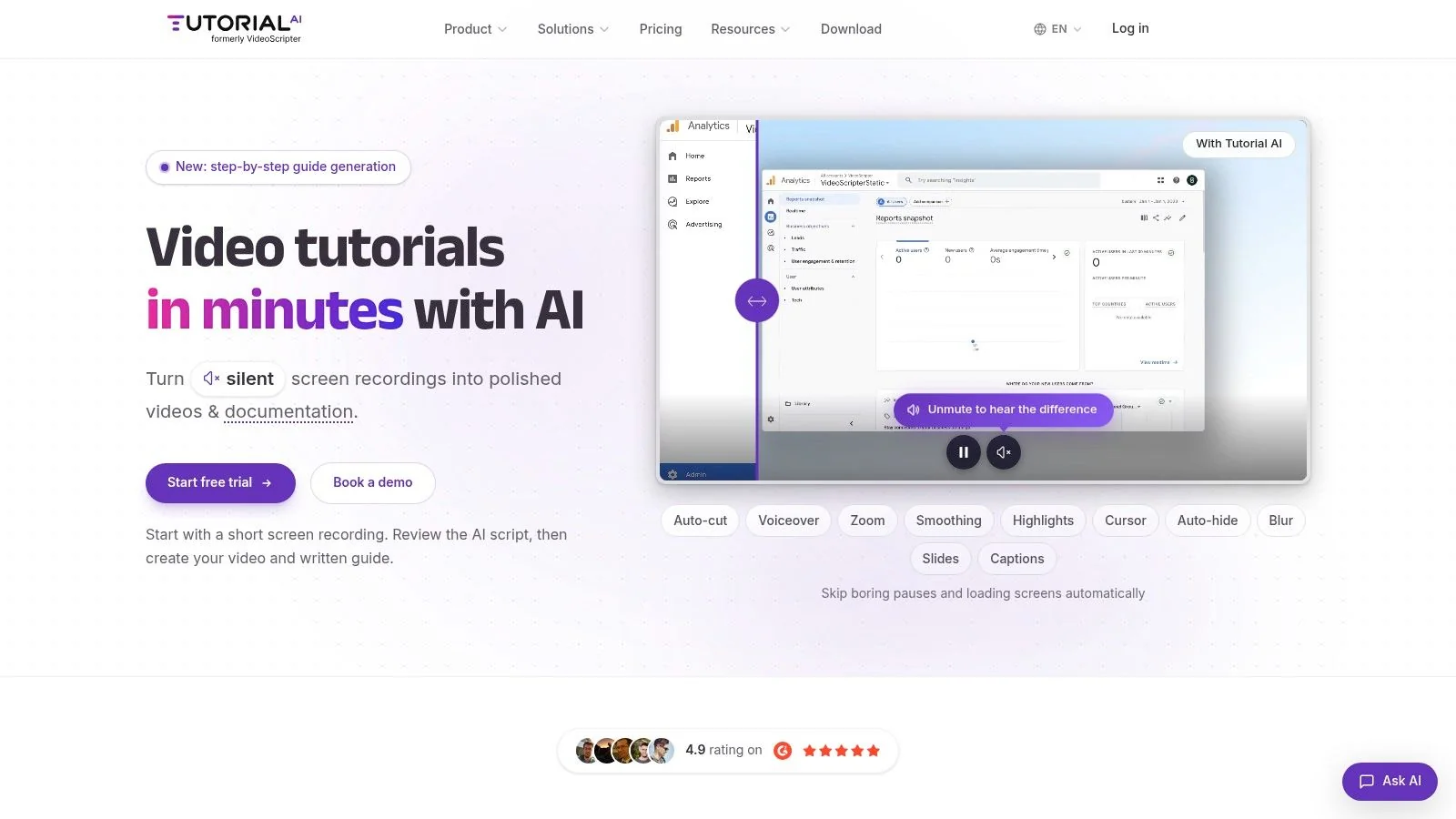
The review step is essential. A generated script can mislabel a button, a narration may need a terminology fix, and screenshots can expose customer information. Tutorial AI can blur sensitive data in videos, but the person who knows the workflow still needs to confirm that the instructions are correct and safe to share.
Best fit: Teams that need a reusable tutorial and a written job aid from the same software walkthrough.
Tutorial AI is not a general-purpose video editor or a learning management system. It’s most relevant when the source is a real software screen and the end product needs to explain a task. Teams can explore Tutorial AI’s Camtasia alternatives comparison when deciding whether a recording-to-guide workflow better matches their production needs.
2. Camtasia
A trainer records a five-minute billing workflow, then opens Camtasia to trim pauses, add a callout around the changed menu, and check that captions match the finished video. That editing pass is the point of the tool. Camtasia records a screen and gives a desktop editor room to shape cursor movement, pacing, and polish before anyone shares the clip.
The control has a cost. Someone still has to make every editorial decision: cut an unclear explanation, emphasize the right field, correct a caption, and confirm the finished video matches the live interface. Camtasia supports that deliberate process. It does not turn the recording into a verified written procedure.
A G2-based evaluation lists Camtasia’s video-capture and recording capabilities at 96% (G2’s screen and video capture software evaluation). That figure speaks to satisfaction with core capture functions. It says nothing about how a specific team’s editing workflow will hold up.
Camtasia makes sense for software trainers who expect to spend time in an editor and want polished walkthroughs. It is a poor fit when the priority is to record once and generate both a video and a structured guide from the same pass. For teams weighing that trade-off, this comparison of Camtasia alternatives frames the choice around the output a tutorial needs.
3. OBS Studio
OBS Studio is the open-source choice for people who want control over how a recording is assembled. It can combine screen capture, a webcam, audio, and other sources into customizable scenes, making it useful for instructors who need a particular layout or want to reuse a recording setup.
The flexibility asks for setup time. A first-time user needs to understand sources, scenes, audio levels, and output settings before recording a clean tutorial. That’s not a problem for a technical trainer who wants to configure a repeatable setup. It can be friction for a support specialist who only needs to explain one setting and send the answer.
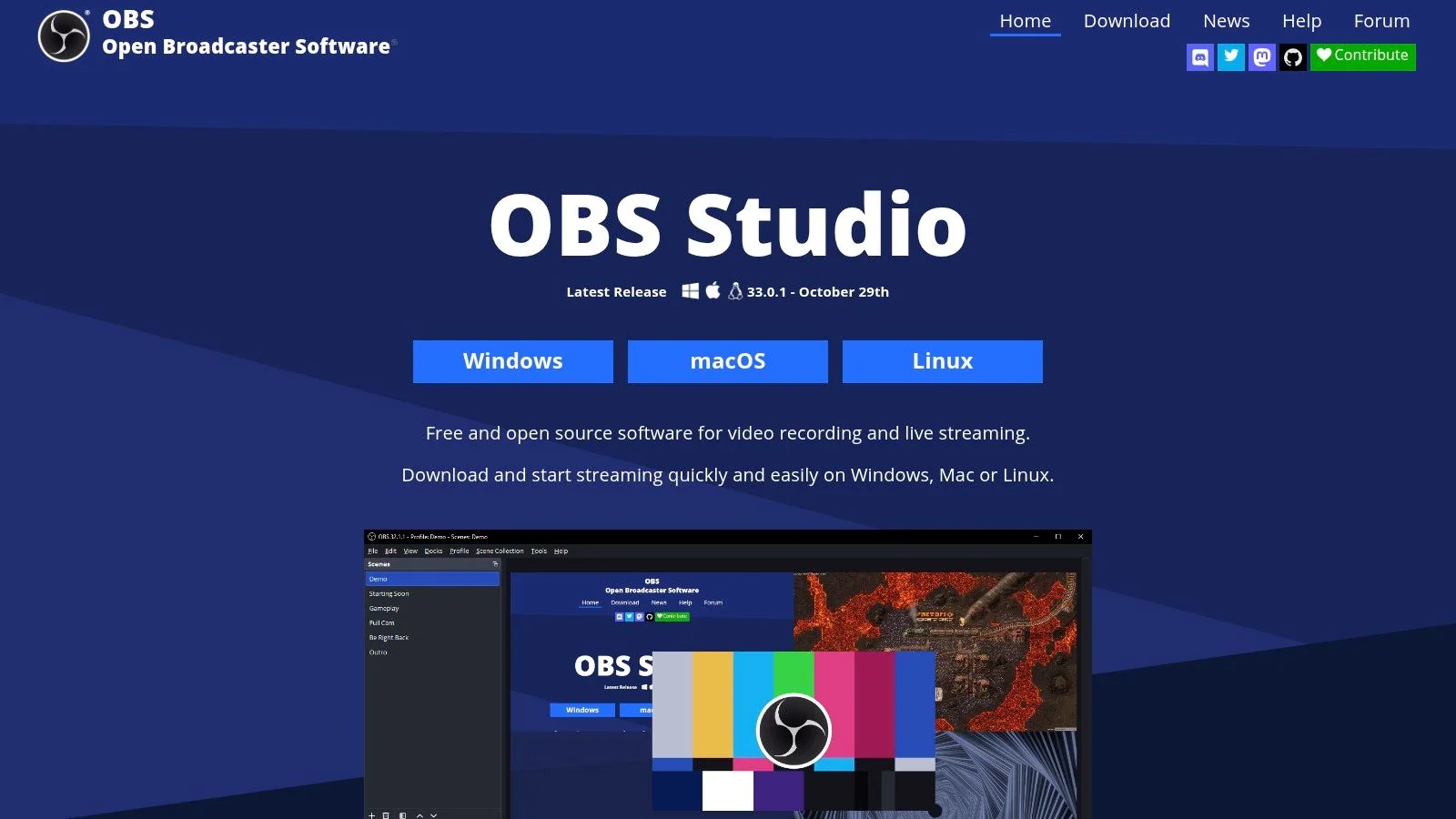
OBS is also primarily a capture and streaming tool, not a complete tutorial-production workflow. Teams that need edited narration, polished captions, or written steps should plan for a separate editing or documentation tool. A recording that looks right in the preview can still have muddy microphone audio or distracting system sounds, so make a short test capture and listen back before recording a full lesson.
Practical rule: Configure one scene for the tutorial, then keep the layout consistent across related recordings.
OBS makes sense when configurable capture matters more than an all-in-one editing experience. It’s a poor fit for teams that want guided, low-setup recording and a ready-to-publish knowledge-base article from the same take. A guide to creating OBS tutorials can help teams think through how to turn a capture setup into an instructional walkthrough.
4. Loom
Loom is designed for a fast explanation: record the screen, add a camera view if useful, and share the result with a link. That makes it practical for customer support, internal questions, and quick product updates where the viewer needs an answer more than a formally edited lesson.
A support agent can use it to show where a setting lives, narrate the steps, and send a colleague or customer the recording. The format lowers the effort of responding asynchronously, but a quick explanation isn’t automatically a durable help-center resource. If the interface changes, the team must keep the shared material accurate, and a recording alone may not give readers a scannable step-by-step reference.
Loom’s strength is communication and sharing, not deep tutorial production. Teams that need a carefully structured lesson, an accompanying written procedure, or a consistent localization workflow may need additional tools. Before adopting it as a documentation standard, decide who owns updates and where the final version lives.
It’s a sensible choice when the task is “answer this question clearly without scheduling a meeting.” It’s less compelling when the task is “produce a maintained training package with multiple formats.” Record the workflow with the relevant menu visible, narrate the action rather than assuming the viewer can infer it, and review the share before sending it externally.
5. ScreenPal
ScreenPal combines screen recording with editing and hosting, which can suit instructors and support teams that want to capture, refine, and share a video without building a workflow from separate products. Its education-oriented features also make it relevant for lessons that need more than a raw screen capture.
The trade-off is that plan differences matter. A team should confirm which recording, hosting, narration, and interactive options are included in the tier it intends to use. Don’t choose based on a feature name alone: test whether the actual output can be embedded where learners work and whether the editing tools are comfortable for the people who will maintain the videos.
For a support library, ScreenPal can help produce short clips that demonstrate a single task. For structured training, the team should also decide whether learners need a quiz, a transcript, or a written job aid. These needs affect the production workflow, not just the recording settings.
A strong use case is a small team making lessons and publishing them from one environment. A weaker one is a group that needs tightly controlled instructional updates but hasn’t assigned anyone to review old recordings. No screen recorder can make stale instructions accurate on its own. Keep videos focused on one process, and replace or revise them when the software changes.
6. Descript
Descript is useful when the narration is central to the tutorial and editing spoken content is a major part of the job. Its transcript-based approach lets an editor work with the words as well as the footage, which can make it easier to tighten an explanation, remove a verbal stumble, or reshape a spoken walkthrough.
That’s a different advantage from automated documentation. Editing a transcript can improve the video’s narration, but it doesn’t by itself produce a verified step-by-step guide for someone following the process at their own pace. The team still needs to check that edits haven’t made the spoken instructions diverge from what appears on screen.
Descript may suit product marketers creating narrated explainers or trainers who regularly refine scripts. It can be more tool than necessary for a support agent who wants to record a simple answer and share it. Likewise, teams should check current plan limits before relying on features such as transcription, AI assistance, or higher-quality exports, since availability can vary.
A practical test is to record a task with a few deliberate pauses, then edit the transcript and watch the full result. Confirm that each screen action still lines up with the narration. If a tutorial requires extensive visual rearrangement or a separate written procedure, assess whether another editor or documentation workflow is needed too.
7. Zight
Zight brings together screen and camera recording with screenshots, GIFs, annotations, and link sharing. That range helps support teams choose the right explanation format for the question: a still image for a location, a short clip for a sequence, or a GIF for a small repeated motion.
Its video-request links can also help teams collect recordings from customers or coworkers. That can be useful when a written bug report doesn’t show what happened on screen. But collecting a recording is only the start. Before sharing it more widely, check for customer details, credentials, or other information that shouldn’t leave the original conversation.
Zight is primarily a capture-and-share tool, so teams that need deep editing or an enduring training package should assess what must happen after the recording. Its mix of visual formats makes it a practical communication tool, but it isn’t a replacement for a maintained knowledge base or a formal learning platform.
For short support responses, keep the capture focused: show the relevant screen, make the action visible, and explain the outcome. For reusable tutorials, add a clear title and an owner responsible for reviewing the clip when the workflow changes. That distinction prevents a useful one-off answer from becoming outdated official guidance.
8. Snagit
Snagit is a strong option when screenshots and concise visual explanations matter as much as video. A technical writer can capture a screen, mark the relevant control, and pair an annotated image with a short recording. That combination often works better than forcing every instruction into a narrated video.
Its limits follow from that focus. Snagit isn’t a deep multitrack video-editing suite, so teams producing longer lessons with layered footage and extensive post-production may want a fuller editor. It’s best treated as a capture and explanation tool, especially for quick job aids, bug reports, and step-by-step documentation.
The choice between Snagit and a video-first tool depends on how the learner will use the content. If the learner needs to see timing and motion, record a clip. If they need to locate a control while doing the task themselves, annotated screenshots may be easier to scan. Many software guides benefit from both formats, but only if someone keeps them aligned.
Snagit can also complement a more capable editor rather than replace one. A team might use screenshots for reference material and a separate product for polished training videos. Before standardizing on it, identify whether the main deliverable is a visual job aid or a produced lesson, then test the workflow against that real need.
9. VEED
VEED offers an in-browser route from screen recording into an online editing workflow. That can appeal to teams that prefer not to install desktop recording software for a simple demo or presentation. The ability to record a screen, camera, or both is useful when the speaker’s face helps establish context.
Browser-based capture is convenient, but it isn’t automatically the right environment for every session. A complex, lengthy recording may be better handled in a dedicated desktop application, and a web editor still requires someone to review the finished video. Teams should test the browser, permissions, audio setup, and export process on the device they’ll use.
VEED makes sense for quick demos that need light editing and a web-based workflow. It’s less specialized for converting a software walkthrough into a maintained written procedure. If customers need to follow a precise sequence, add a guide or transcript that names each action instead of expecting the video alone to do every job.
A good trial task is a short product walkthrough with one clear goal. Show the viewer where to start, narrate the important actions, and finish by demonstrating the expected result. Then inspect the recording for missing audio, unreadable interface text, and any information that shouldn’t appear in a shared video.
10. Riverside
Riverside is primarily suited to remote audio and video production, with screen sharing available for presentations and demonstrations. It makes sense when a software walkthrough includes remote speakers, interviews, or a webinar format where both the presenter and the screen matter.
Separate tracks can help an editor adjust speaker footage and audio independently. That flexibility is valuable for multi-person recordings, but it adds production work. A trainer who needs to record a software task may not benefit from a remote studio workflow and could find a simpler screen recorder easier to operate.
Riverside is not as focused on tutorial-specific editing as tools built around software demonstrations. Teams may need another step to add instructional emphasis, produce screenshots, or create written procedures. It’s a better fit when the session itself is the content, such as a product briefing with a specialist explaining the interface, than when the goal is a concise, repeatable how-to.
Choose it when presenter quality and remote participation matter alongside screen sharing. For an individual support tutorial, compare it with a simpler capture tool and check how much editing each workflow requires before the clip is ready to publish.
How the Ten Tools Compare on Free Options, Starting Prices, and Best Use Cases
A starting price hides the true unit of cost. One tool charges by seat, another by recording limit, and another by generated video minute. For tutorial work, compare the path from raw capture to narrated video and written guide before comparing the monthly number.
| Tool | Free option | Pricing model | Best for |
|---|---|---|---|
| Tutorial AI | Free plan; trial exports carry a watermark | Paid plans remove the watermark; annual Growth includes 6 hours of generated video | AI tutorials, translated narration, and documentation |
| Camtasia | Limited free version; exports may have a watermark | Paid desktop editor | Polished tutorials with timeline editing |
| OBS Studio | Free and open source | Free | Configurable recording and live streaming |
| Loom | Starter plan with recording limits | Paid plans | Quick workplace videos shared by link |
| ScreenPal | Free plan with recording and hosting limits | Paid plans | Recording, editing, and sharing educational videos |
| Descript | Free plan with usage and export limits | Paid plans | Transcript-based video editing |
| Zight | Free plan with recording limits | Paid plans | Screen captures, annotations, and video sharing |
| Snagit | No free tier | Paid license | Annotated screenshots and short how-to clips |
| VEED | Free online recorder | Paid plans | Browser-based recording and quick edits |
| Riverside | Free browser-based screen recorder | Paid plans | Remote interviews, webinars, and multi-speaker recordings |
OBS Studio has no paid tier, but it asks for setup and editing elsewhere. Loom and ScreenPal cap recording or hosting on free plans. Descript caps usage and exports. Tutorial AI’s allowance works differently: only generated video consumes minutes, so recording, editing, downloading, and publishing do not. Regenerating a video after a script edit does.
Pick the Tool That Matches Your Next Tutorial
Choose the tool that produces the output the learner needs, not the one with the longest feature list. Loom suits quick asynchronous explanations, OBS Studio offers configurable capture, Camtasia supports hands-on editing, and Riverside fits remote presentations. ScreenPal, Descript, Zight, Snagit, and VEED each serve narrower recording, editing, or visual-communication workflows.
For software training and documentation, the deciding question is what happens after capture. A screen recording shows the process in motion; a written guide with screenshots gives learners a way to scan steps and refer back while they work. A peer-reviewed study of Word-formatting tutorials found that participants’ task performance increased from 29% before training to 84% during training, then measured 71% on the post-test (the ERIC record for the software-training study). The results are a useful reminder to pair demonstration with review or practice rather than treating a video as the entire lesson.
Test two or three candidates on one real task that colleagues already explain regularly. Record the same workflow in each, then assess whether the viewer can see the important controls, hear the narration clearly, and confirm the successful outcome. Count the edits needed to make each version shareable, and check whether the team can maintain the result after the interface changes.
If the team needs one recording to become both a tutorial video and a screenshot-based written guide, Tutorial AI is designed for that workflow. A user can record a short process or upload an existing screen recording, generate the video and guide, review both for accuracy, make final edits, and then share or export the result. That’s especially relevant for customer onboarding, help-center content, SOPs, internal process documentation, and explaining a feature after release.
Before starting a free trial, confirm the current terms on the Tutorial AI pricing page. Trial video exports include a small Tutorial AI watermark. Keep the first test practical: choose a task with a clear success state, record the current interface, and have the person responsible for the process verify the final video and guide before sharing them.
Tutorial AI turns a software screen recording into a tutorial video and a written guide with screenshots, so teams can explain a workflow in formats customers and colleagues can revisit. To try that recording-to-tutorial process on a real support or training task, visit Tutorial AI.