Press F11 first, then try Esc. On desktop systems, those are the two most universal ways to exit full screen, and browsers also preserve other escape paths so a page can’t trap you there.
If you’re reading this while a browser, video player, remote desktop window, or presentation has taken over your screen, start with the fastest fixes before you do anything drastic. Most “stuck in full screen” moments fall into one of three buckets: the app is still responding and just hiding its controls, the app is using its own shortcut instead of the browser’s, or the window has become flaky enough that you need the operating system to rescue you. The trick is knowing which bucket you’re in quickly.
Why You Get Stuck in Full Screen Mode
You open a video, presentation, remote desktop session, or browser tab, and suddenly the screen fills up, the usual controls vanish, and nothing you click seems to bring them back. At that point, “full screen” is not one thing. It is several different modes that happen to look similar when you are trying to get out fast.
That difference is why the usual advice works inconsistently. Browser fullscreen hides tabs and the address bar. A video player may only expand the video area. Games, design apps, virtual machines, and remote desktop tools can switch into their own display mode that sits above the normal window controls. From the user’s seat, all of those feel identical. No taskbar, no menu bar, no obvious Exit button.
The common failure pattern
I see the same pattern often in support calls. Someone double-clicks a video, hits a shortcut by accident during a meeting, or taps the green window control on a Mac. They try one key, get no response, move the mouse to a corner, still see no controls, and conclude the system has locked up. Often, the app is still fine. It is just waiting for a different exit command than the one the user expects.
Practical rule: If the pointer still moves, audio still plays, or the app reacts when you click, treat it as a fullscreen problem first, not a crash.
There is also a layer problem. The browser may be in normal mode while the video inside it is fullscreen. Or the browser itself may be fullscreen while the operating system is still working normally underneath. In remote desktop and virtual machine sessions, you can even get fullscreen inside fullscreen. That is where generic advice starts to fail, because the right fix depends on which layer currently has control.
What usually determines the fix
When the first exit attempt does nothing, check these details before trying random keys:
- Which layer took over: A browser window, an in-app video player, a game, and a remote session often exit differently.
- How it entered fullscreen: Double-click, a function key, a menu command, and a title-bar button can each point to a different way out.
- What device you are using: Laptop keyboards may require Fn, and some compact keyboards do not expose function keys the usual way.
- Whether the app is local or remote: Remote desktop tools and virtual machines often capture keyboard input before your main system sees it.
That is why “just press F11” helps sometimes and wastes time other times. The reliable approach is to identify the layer first, then use the exit method that matches it.
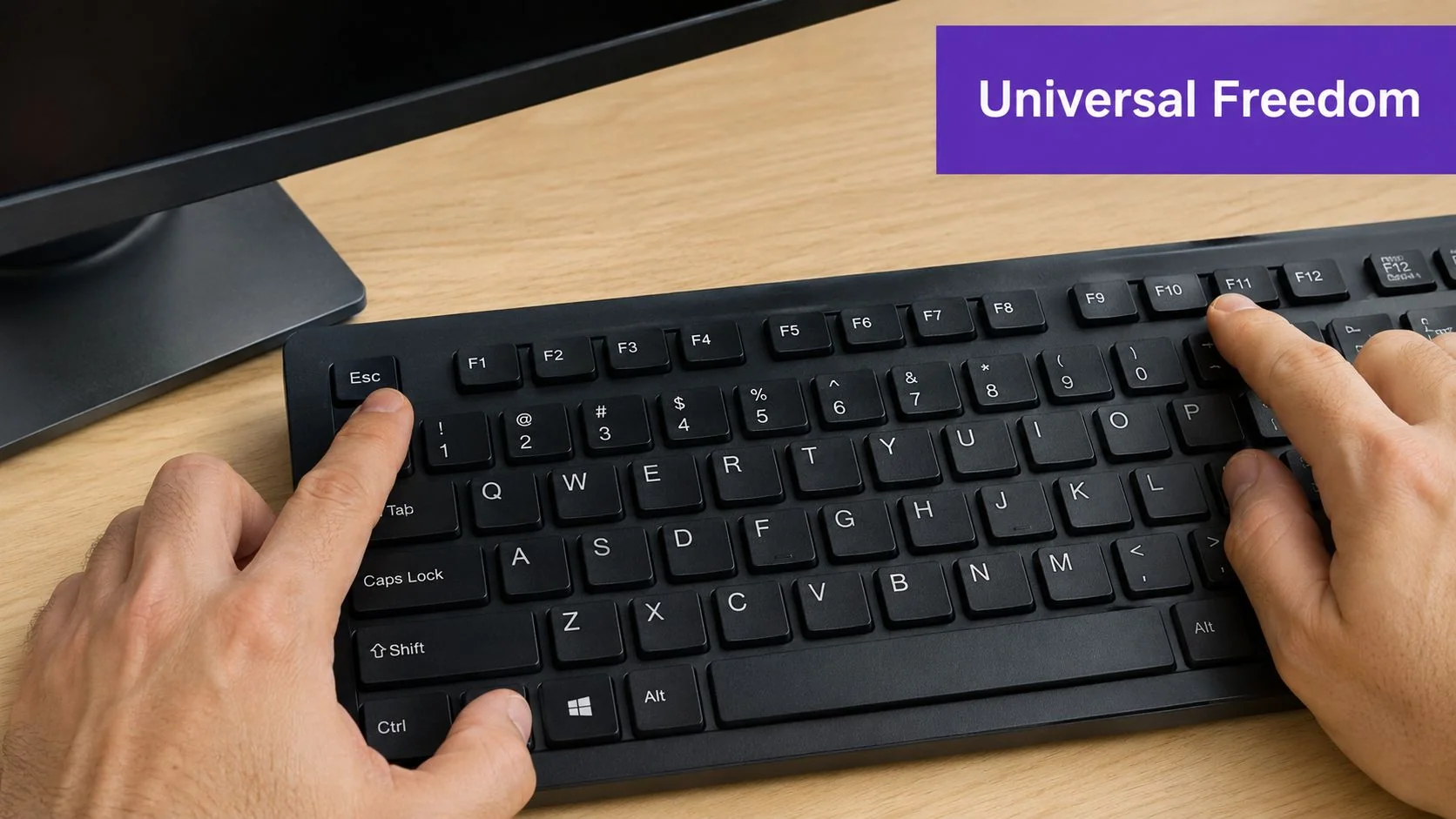
The Universal Keys to Freedom F11 and Esc
A screen goes full screen at exactly the wrong moment. You lose the tabs, the address bar, and sometimes even the visible close button. Start with the two fastest exits, but use them in the right order for the layer you are dealing with.
When to use F11
Use F11 when the whole browser or app window has taken over the display. Typical signs are simple: the tab strip is gone, the address bar is gone, and the window borders disappeared.
On Windows keyboards, F11 is the standard full screen toggle in many browsers. On laptops, the key may be tied to brightness or volume first, so try Fn + F11 if nothing happens. On compact keyboards, you may need to hold an Fn Lock key or use the keyboard software to send the function key.
A quick test helps. If you were watching a video and the browser chrome is still visible, F11 is probably the wrong first move because the video player, not the browser, has control.
Use F11 first when:
- the entire browser window fills the screen
- a web app expanded and removed normal window controls
- you entered full screen with a browser shortcut or menu command
When to use Esc
Use Esc for the topmost full screen layer. In practice, that usually means a video player, presentation, image viewer, overlay, or in-app mode sitting inside a normal window.
If a YouTube, Vimeo, or embedded training video is full screen but the browser itself is not, Esc is usually faster than F11. The same rule applies to slide decks, PDF viewers, and web apps with their own presentation mode.
If only the content is full screen, press Esc first. If the whole window is full screen, press F11 first.
Press once. Wait a second. Then try the other key. Repeating the same key five times is how users end up toggling back into the mode they were trying to leave.
Quick checks when both keys seem dead
Before assuming the app is frozen, check the easy failure points.
- Click once inside the full screen area. Some apps ignore keyboard input until they have focus.
- Move the pointer to the top edge or bottom edge. Many players hide the exit button until hover.
- Try the app-specific key. Video players often use F for full screen, and some games use Alt + Enter.
- Test the keyboard itself. If function keys are remapped for media controls, the app may never receive F11.
This also matters when you are recording your screen. If your capture starts before you fix the display mode, you can end up recording the wrong layer or missing menus entirely. It helps to review a Windows 10 screen recording workflow before repeating the steps.
The goal here is speed, not guesswork. Esc exits the inner layer. F11 exits the outer window in many desktop browsers. When those two do not match the layer that has control, switch methods instead of hammering the same shortcut again.
OS-Level Tricks for Windows macOS and Linux
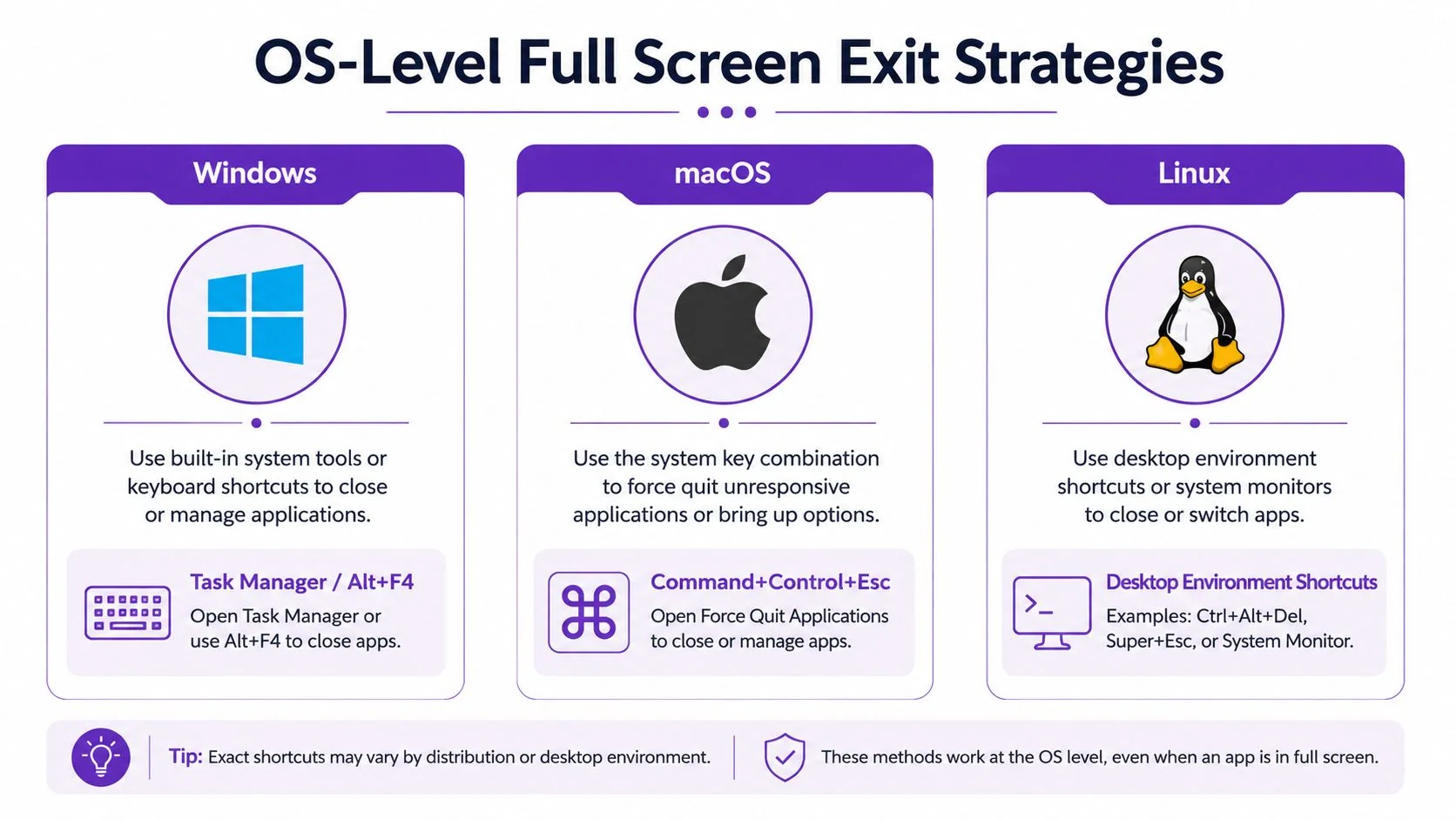
When an app ignores the obvious shortcuts, stop fighting the app and use the operating system around it.
Windows options that override the app
Windows gives you a ladder of exits, from gentle to forceful.
- Alt+Tab lets you switch away from the app. On the web, tab or app switching can break fullscreen state because the browser doesn’t maintain fullscreen when focus changes.
- Alt+F4 closes the current app window entirely. Use this when you don’t care about staying in the app and just need out.
- Windows+M minimizes windows and can help when the fullscreen app is partly responsive.
- Task Manager is the last resort for a stuck program.
Real-world reports matter here because shortcuts don’t behave consistently across apps. In an Adobe forum thread, users report cases where Esc or expected shortcuts fail, and some only get Alt+Enter to work after clicking into the screen first. That same discussion also points to monitor and display quirks as part of the problem. The details are in this Adobe community discussion on exiting full screen.
If you record support steps for Windows users, it helps to show the exact sequence visually. This is especially true for shortcuts like Alt+Tab that are easier to follow in motion than in text. For that workflow, this guide to recording on Windows 10 is useful.
macOS approaches
Mac users usually have a clearer visual cue. Many apps enter fullscreen using the green window control, and exiting often means moving the pointer to the top of the screen until the window controls reappear.
Try these in order:
- Move the pointer to the top edge and click the green control if it returns.
- Esc if the app is a player or presentation tool.
- Control+Command+F in apps that use the standard macOS fullscreen toggle.
- Command+Tab to switch apps if the current one is stuck.
- Force Quit if the app is unresponsive.
Linux is less uniform
Linux depends heavily on the desktop environment and the app itself, so there isn’t one universal answer beyond the obvious first keys.
A workable approach is:
- Try F11 and Esc.
- Use the desktop’s app switcher to leave the window.
- Open the window menu or system overview if your environment supports it.
- If needed, close the app from the system interface rather than from inside the app.
On Linux, don’t assume a browser shortcut and a desktop shortcut are the same thing. The browser may be following one convention while GNOME, KDE, or your window manager follows another.
How to Exit Full Screen in Apps and Browsers
App-specific fullscreen is where people lose time. The keyboard still matters, but the visual exit point often matters more.
Browsers and web apps
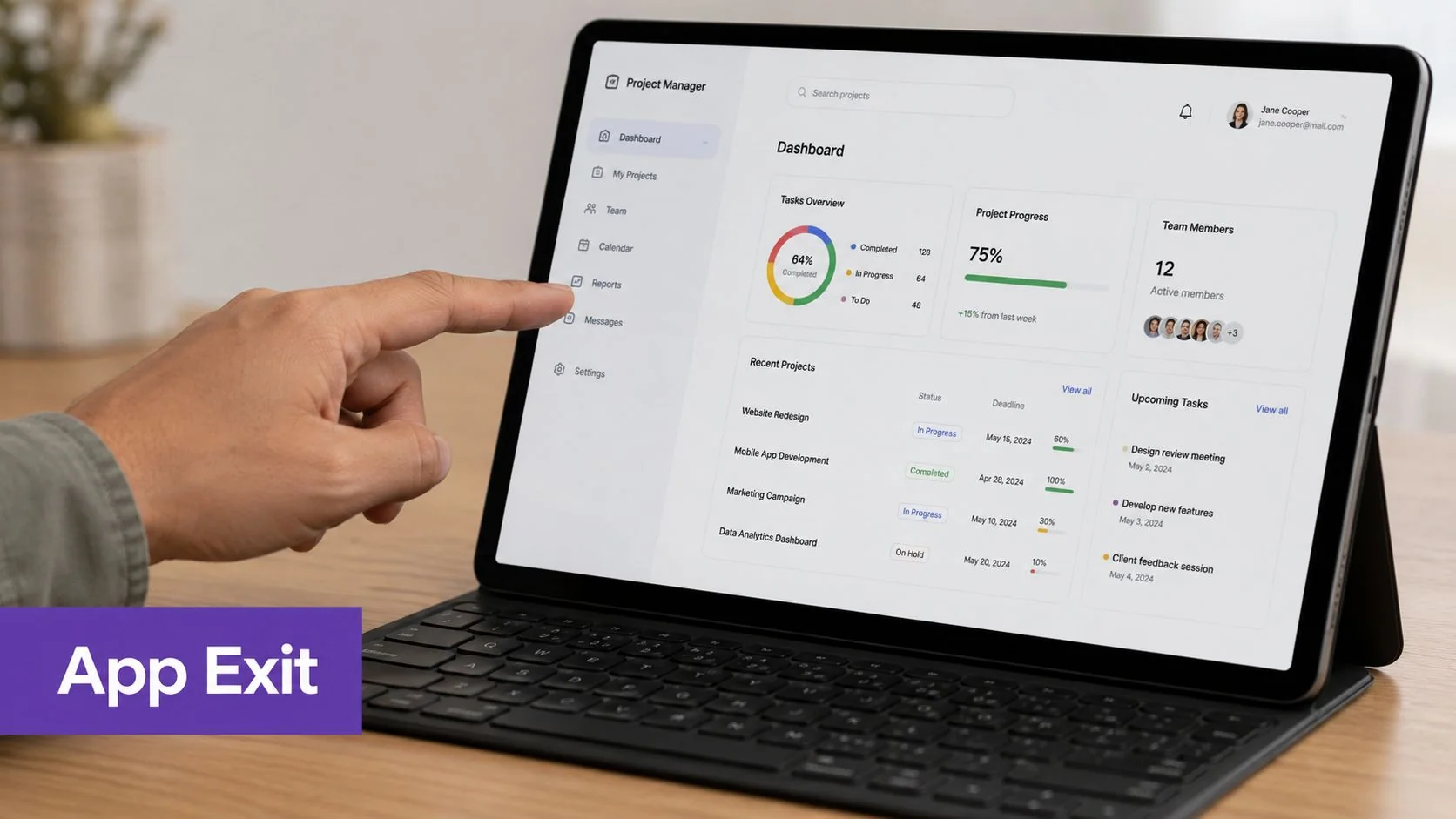
In Chrome, Firefox, and similar browsers, move your cursor to the top of the screen first. If the browser itself is fullscreen, that often reveals a message or control to restore the normal window. If only the content inside the page is fullscreen, the page’s own controls may appear instead.
Modern browsers handle this with the standard Document.exitFullscreen() method. MDN’s documentation explains that it reverses requestFullscreen(), and the same page notes that pressing Esc has a near-99% success rate in HTML5 players, which is why it works so much better in modern sites than it did in older plugin-based media. See MDN’s Document.exitFullscreen() reference.
If you need to demonstrate this in a browser tutorial or support article, a browser capture is cleaner than a desktop-wide recording because viewers can focus on the exact UI state. This screen recording guide for Chrome shows the setup.
Video players and media sites
Use the player’s own shortcut before you blame the browser.
- YouTube: press F to toggle the player’s fullscreen state.
- Most HTML5 players: press Esc.
- Double-click behavior: many players enter and exit fullscreen on double-click, but not all of them.
- Hover controls: if the close or restore icon is hidden, move the mouse and wait.
Legacy habits can still trip people up. Older Flash-based players had bugs where a “Press ESC to exit” message could get stuck onscreen. That’s one reason modern HTML5 fullscreen behavior feels more predictable than older media players.
A short walkthrough helps more than a paragraph when someone is already irritated, so here’s a visual example:
Apps with their own fullscreen logic
Creative tools, remote desktop clients, and presentations often use app-defined shortcuts rather than browser conventions.
Look for these clues:
- A menu item named View or Window: that’s often where the app’s own fullscreen toggle lives.
- A borderless mode: common in games and media apps. It may not respond to browser shortcuts at all.
- A click-to-focus requirement: some apps won’t register the shortcut until the window has focus.
If a shortcut works for other people but not for you, click once inside the app first. Focus problems are one of the most common reasons a valid shortcut appears dead.
Escaping Full Screen on iPhone iPad and Android
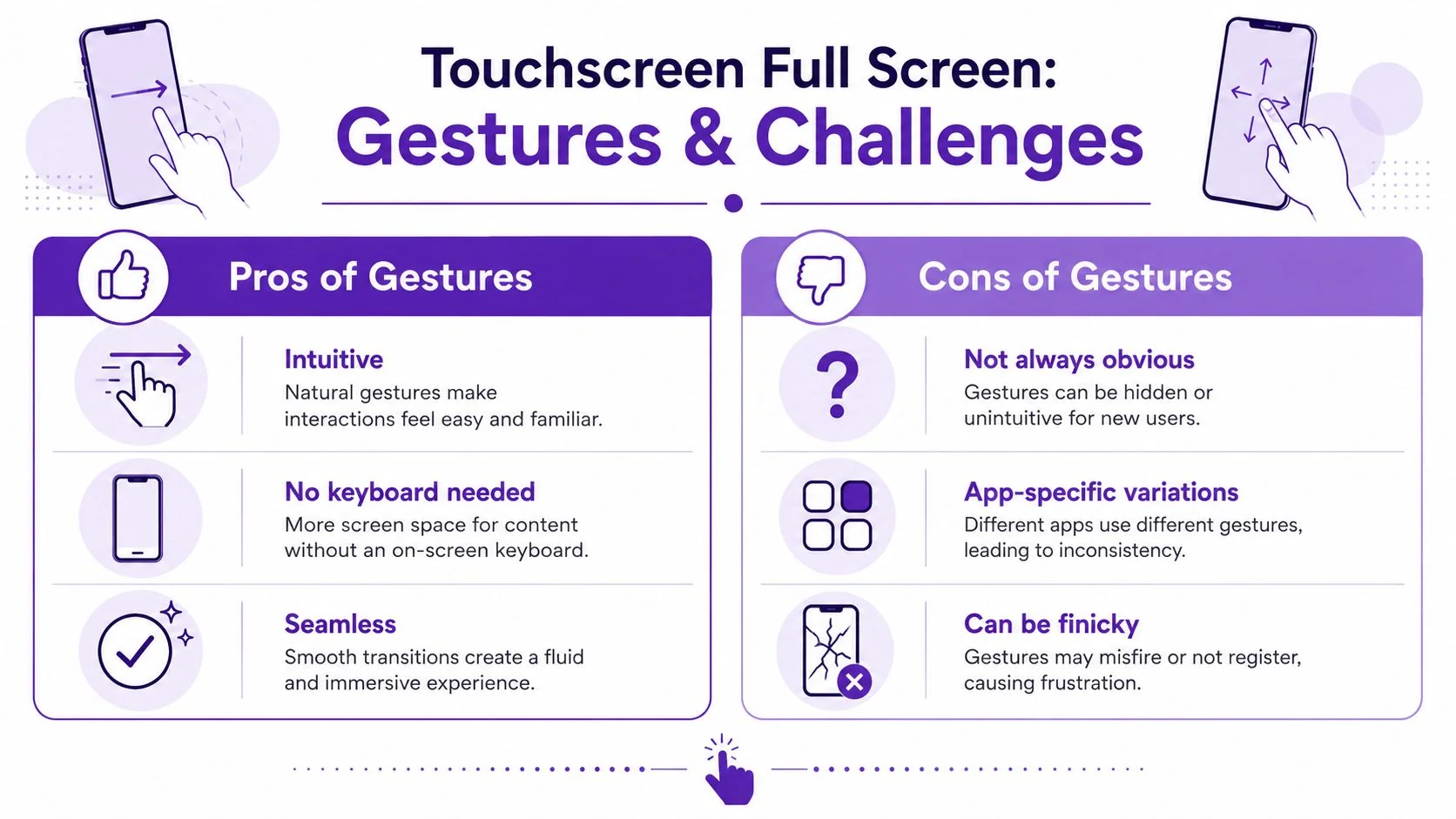
Phones and tablets don’t care about F11, and most generic articles still act like everyone has a keyboard. On touch devices, the exit path is often hidden until you interact with the screen.
iPhone and iPad
On iPhone and iPad, start by tapping the video or fullscreen content once. That usually reveals the controls. If an app supports pinch gestures, pinching inward can also shrink fullscreen media back into the page or app layout.
For Safari and app-based players, look for a visible fullscreen icon that changes shape when active. If the interface is hidden, don’t keep tapping random corners. Tap once, wait for controls, then choose the visible exit button.
Android phones and tablets
On Android, the Back button or back gesture is often the primary way out of fullscreen content. If that exits too far, reopen the content and use the in-player control instead.
Tap-to-reveal controls are also common on Android video and browser apps. The exact gesture can vary, which is one reason touch-based fullscreen feels less predictable than desktop fullscreen.
Specialized touch systems complicate things further. Some kiosks and embedded displays use explicit exit processes instead of casual fullscreen toggles. Documentation for those systems may point to a hidden control, such as an exit button in the corner, rather than a keyboard shortcut. That’s described in this touchscreen and embedded fullscreen help reference.
If you create support content for mobile devices, a phone recording is worth far more than static text because taps and gestures are hard to describe cleanly. This mobile recording documentation covers that workflow.
Troubleshooting When Standard Exits Fail
When F11, Esc, app controls, and normal switching all fail, treat it as an application problem, not a “how do I exit full screen” problem.
Last-resort recovery steps
Use the least destructive option that gets you back in control:
- Close the app gracefully: On Windows, Alt+F4 can close the current app even when fullscreen controls are missing.
- Use Task Manager: If the app is frozen, Task Manager is the escalation path that ends the process.
- Check display setup: If you use multiple monitors, odd scaling, or a docked laptop, move the pointer across screen edges and try bringing the window focus back before forcing anything.
- Re-enter, then exit properly: Some buggy apps recover if you trigger fullscreen once more and then use the correct exit path.
Malwarebytes documents this hierarchy on Windows clearly. It notes that beyond F11 and Esc, users can use Alt+F4 or Task Manager when a program is stuck. That’s a useful reminder that there’s a difference between leaving fullscreen and terminating the app. See Malwarebytes’ breakdown of Windows exit methods.
When the real problem is unclear instructions
A lot of fullscreen frustration comes from software teams assuming users will “just know” the shortcut. They won’t. If your product enters fullscreen for demos, onboarding, training, or support flows, show the exit path explicitly inside the tutorial.
Good help content doesn’t just show how to enter a mode. It shows how to get out of it before the user needs to panic.
If your team creates help-center videos, onboarding walkthroughs, or internal SOPs, Tutorial AI can turn one screen recording into both a polished tutorial video and a matching written article. That’s useful for exactly this kind of issue: you can visibly show the escape shortcut, the hidden button, or the app-specific menu once, then publish the same guidance in video and documentation without building both from scratch.