Your team probably isn’t struggling because people can’t edit video. It’s struggling because four people are trying to manage one tutorial through chat, exports, drive folders, and comments that no longer match the current cut.
That’s where collaborative video editing usually breaks. Not at the first draft. It breaks when support needs a product fix video by Friday, training needs the same workflow for onboarding, product marketing wants a cleaner version for launch, and someone localizes the whole thing after approval. Suddenly the problem isn’t editing. It’s permissions, review order, version history, and whether anyone knows which file is the source of truth.
Research backs up why this matters. Collaborative video editing has been developing for decades, from early systems like Video Mosaic in 1994 through later tools such as Coview, ClipWorks, and web-based platforms like Videostrates, with a 2022 ACM review describing real-time collaboration around video as an active research frontier rather than a solved problem (ACM review of collaborative video editing). At the market level, one independent report values real-time collaboration for video editing at $1.34 billion in 2025 and projects $4.43 billion by 2034, with 14.2% CAGR, while another report puts the market at $2.3 billion in 2025 and $2.71 billion in 2026 with 17.7% CAGR (market report summary).
The hard part now isn’t whether teams can collaborate on video. It’s whether they can do it without losing control of reviews, multilingual variants, and publishing rights across LMS, CMS, CRM, and help centers.
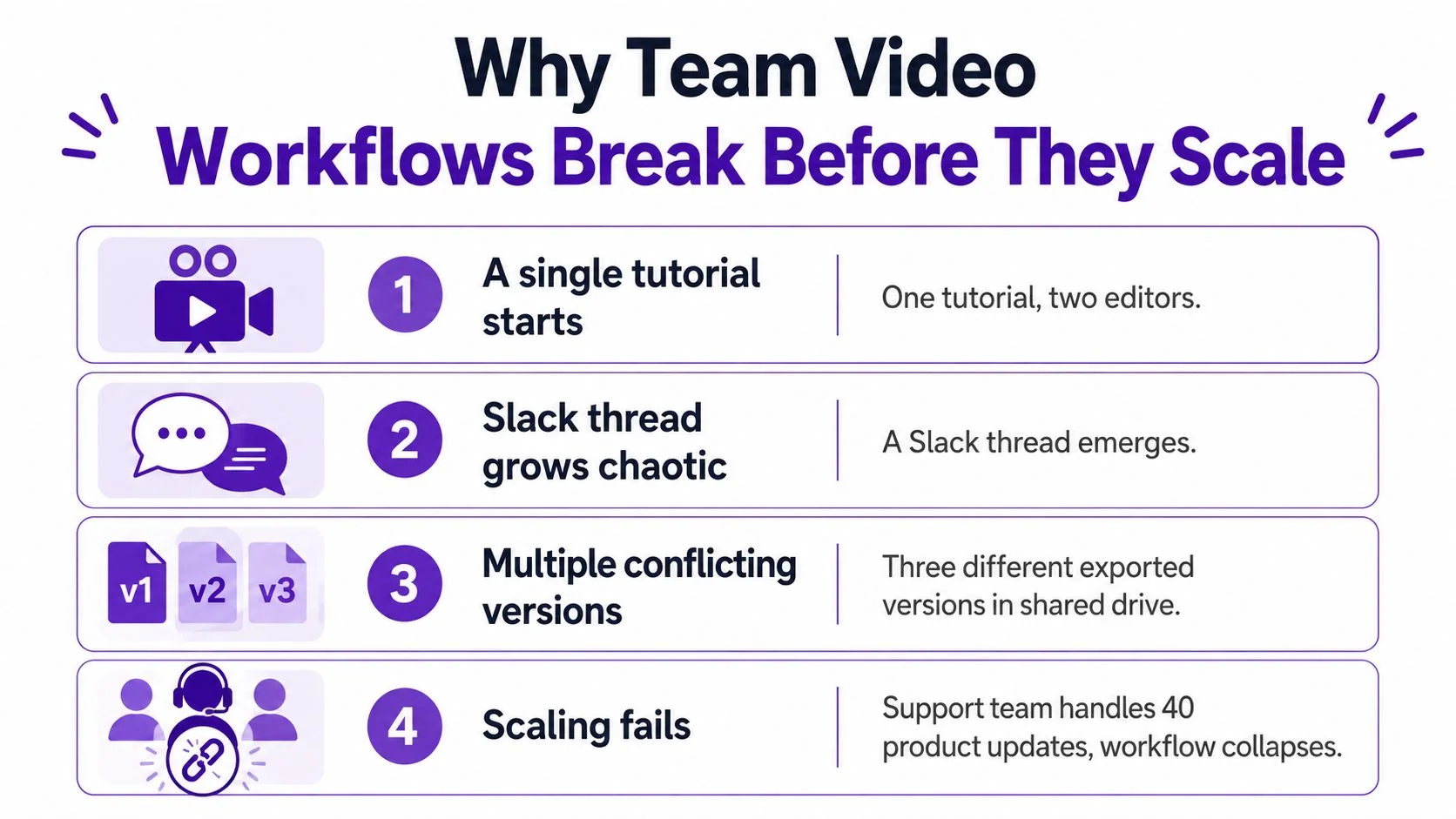
Why Team Video Workflows Break Before They Scale
It usually starts small. A support manager records a fix walkthrough. Another teammate trims it. A product marketer asks for one wording change. Legal wants a disclaimer screen. Someone drops notes in Slack. Someone else exports a revised MP4 to a shared drive. By the end of the day, nobody is sure which version should go live.
That pattern repeats across support, training, and product teams. The visible symptoms are always the same. Duplicate exports. Review notes on stale cuts. Last-minute overwrites. A transcript that no longer matches the video. Captions that belong to yesterday’s edit.
The root problem isn’t effort
Many groups blame the wrong thing first. They blame the editor, the reviewer, the storage setup, or the meeting load. Usually the deeper issue is that there is no shared editing surface with rules. People are collaborating around the video, not inside the workflow.
Independent post-production research points to a practical fix. Teams work better when they use shared storage and strict file-locking practices to prevent simultaneous edits on the same project file, and one case study describes teams moving files to shared storage specifically to avoid two people working on the same file at once (post-production collaboration case study).
Practical rule: If two people can change the same cut without a lock, you don’t have a collaboration workflow. You have a race condition.
The early warning signs
You don’t need a giant media operation to hit this wall. Watch for these signals:
- Version names get absurd: Files start ending in FINAL, final2, approved-final, or publish-this-one.
- Review happens in chat: Notes live in Slack, email, and meetings instead of on the timeline.
- Publishing is personal: The source recording sits in one person’s drive, not a team workspace.
- Collection is sloppy: Teams gather clips, screenshots, and source files ad hoc instead of following a consistent intake process. A simple step-by-step media collection guide is useful here because bad collection habits create downstream review problems.
Once those signs show up, more people won’t fix the workflow. More people usually make it worse.
Setting Up the Shared Workspace the Right Way
A stable collaborative video editing process starts before anyone trims a frame. If the workspace is wrong, every review cycle after that gets expensive.
Separate workspaces by content stream
Don’t dump support tutorials, internal training, launch videos, and partner enablement into one shared area. Split them by content stream. That keeps permissions clean and prevents one team’s reviewers from wandering into another team’s drafts.
A simple structure works well:
- Support tutorials for help-center and support article videos
- Training modules for onboarding, SOPs, and software training
- Product launches for release videos, demos, and sales walkthroughs
This isn’t just neatness. It reduces accidental publishing, cuts confusion during review, and makes retention rules easier to manage later.
Assign roles, not shared logins
Shared accounts are where audit trails go to die. Every person should have a named role tied to what they do.
Use a role model like this:
- Owner: Controls publishing, archive decisions, and permission changes
- Editor: Can cut, replace media, update captions, and prepare review versions
- Reviewer: Can comment and approve, but can’t alter the edit
- Viewer: Can watch the approved result only
Platforms built for collaborative editing often support separate editing, commenting, and viewing permissions, and they keep comments attached to the exact timeline moment or transcript line being discussed (video collaboration permissions overview).
Lock identity and naming early
Turn on identity controls as soon as the workspace exists. For teams that rotate contractors, regional trainers, and guest reviewers, SSO/SAML matters because onboarding and offboarding shouldn’t depend on someone remembering who still has access.
Then fix naming. Don’t name projects by vague titles like “new onboarding video” or “billing update.” Tie them to a ticket ID, course ID, or release ID. That gives you a durable reference even when titles change.
Keep the identifier stable and let the title change. Teams argue about titles. They don’t argue about the release ticket.
Put the first recording in the team system
Teams sabotage themselves. They record the first draft locally, send it around, and only move into a shared workspace once people ask for edits.
Start inside the shared environment from day one. Record there. Store the source there. Keep transcripts, captions, and review history there. If you’re using Tutorial AI as one option in this kind of workflow, the practical path is straightforward: record the workflow, let AutoRetime tighten pacing, edit the script if needed, generate the tutorial video, and produce matching written documentation from the same recording. That setup is useful when the subject-matter expert knows the product but doesn’t want to manage a manual timeline in Adobe Premiere Pro, Camtasia, or Final Cut Pro.
Real-Time Versus Async Editing and When Each Earns Its Keep
Teams often ask which mode is better. That’s the wrong question. The useful question is which decisions need live alignment, and which edits need calm review.
A 2022 Coretta Research study found that 90% of video professionals had adopted cloud production and remote editing workflows, with collaborative working and client review and approval as the top use cases. The same study reported that 65% still moved original high-resolution media files over the internet, and 27% used a cloud-native browser-based production platform (Coretta Research summary in TV Technology). That split says a lot. Adoption is high, but workflow maturity still varies.
Where real-time editing helps
Real-time collaborative video editing earns its keep when the decision itself is the bottleneck.
Use it for cases like:
- Feature walkthrough signoff: Product, support, and the editor decide together what the customer should see first.
- Launch-day fixes: A release video needs a fast correction and the stakeholders are all online.
- Complex visual judgment: Cursor movement, zoom placement, and sequence order need immediate agreement.
The upside is speed. The downside is that live sessions create weak records unless someone captures decisions properly.
Where async editing is better
Async review wins most of the week. A subject-matter expert in another time zone can watch a draft, leave timestamped notes, and explain why a step is wrong without forcing a meeting.
Cloud review tools commonly support threaded or time-stamped comments, timeline markup, approvals, and versioning, which makes feedback more precise than a message thread that says “change the part around the middle” (overview of common review features).
Here’s the practical comparison:
| Dimension | Real-Time Editing | Async Editing |
|---|---|---|
| Decision speed | Fast when everyone is present | Slower, but steadier |
| Best use | First-pass structure, live approvals, launch fixes | Caption fixes, SME review, legal review, regional review |
| Documentation quality | Often weaker unless someone logs decisions | Usually stronger because comments are written |
| Time zone fit | Poor across distributed teams | Strong |
| Risk | Talk moves faster than the audit trail | Reviews can stall without deadlines |
| Bandwidth demands | Higher | Lower |
Use real-time for alignment. Use async for accuracy.
A mixed model usually holds up best. Teams decide structure live, then move routine edits, approvals, and corrections into async review.
Review Cycles, Comment Threads, and Version Control
Most video teams don’t need more comments. They need fewer places where comments can live.
Keep every note on the timeline
If a reviewer says “the CTA screen is too early” in Slack, that note is already half-broken. Someone has to interpret it, find the right moment, and hope the cut hasn’t changed since the message was sent.
Put every frame-level comment on the video timeline itself. Adobe’s workflow for Premiere and After Effects imports reviewer comments as timeline markers, and each marker includes the reviewer’s name, timestamp, and comment. With Frame.io, each review cycle creates a new version while earlier versions remain accessible (Adobe collaboration workflow).
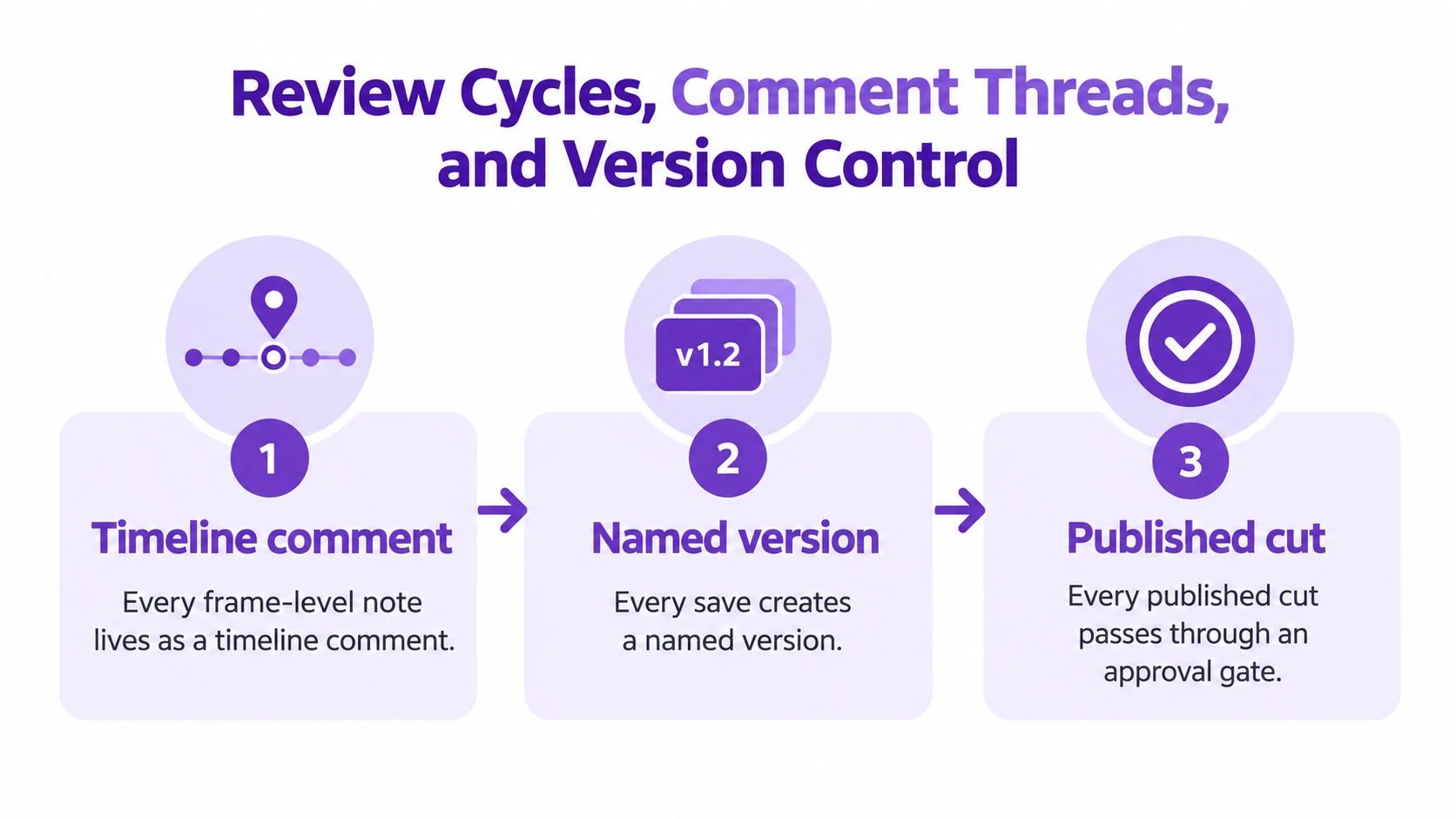
For teams that need a lightweight review reference, Tutorial AI’s video comments workflow is the kind of model to aim for. Feedback stays attached to the point in the video where it matters instead of drifting into email and chat.
Use a named version ladder
A version history should answer two questions fast. What changed, and who approved it?
Keep labels simple:
- Draft for active editing
- In Review when the cut is frozen for feedback
- Approved when signoff is complete
- Published when the distributed version is live
That gives everyone one clear status language. It also makes rollback possible when a localization branch or compliance edit goes sideways.
Add an approval gate
Don’t let people keep editing while approval is happening. Lock the timeline during the approval window. If someone finds a material issue, reopen the cut deliberately and create a new review version.
A clean loop looks like this:
- Editor creates review cut
- Reviewers leave timeline comments with @mentions
- Editor resolves notes and saves a named version
- Owner moves the cut to Approved
- Only the Approved master feeds captions, transcodes, embeds, and locale branches
Approval should freeze the master, not start another round of “small changes.”
That one rule prevents the most common failure in collaborative video editing. Reviewers sign off on one version, then someone publishes another.
Localizing One Master Recording Across Languages
Localization gets expensive when teams treat every language as a new edit. That’s where work multiplies for no good reason.
Branch from the approved master
Start with one Approved source video. Don’t duplicate the whole project and rebuild the cut for every locale unless the market needs a different sequence or product flow.
The cleaner model is to branch language variants from the approved master and regenerate the parts that change:
| Locale | Source | Regenerated Asset | Owner |
|---|---|---|---|
| English | Approved master | Base captions and transcript | Core content team |
| German | Approved master | German narration and subtitle track | Localization lead |
| Spanish | Approved master | Spanish narration and subtitle track | Regional reviewer |
| French | Approved master | French narration and subtitle track | Regional reviewer |
That keeps the visual cut stable. It also means a source fix can be carried into each locale branch without re-editing the entire tutorial.
Retiming matters more than teams expect
Translated narration and captions rarely match the original pacing. Some languages run longer. Some subtitle lines need different breaks. If you ignore timing, you end up with captions that outrun the screen action or dubs that finish after the click already happened.
That’s where AutoRetime is useful in practice. Instead of manually re-cutting the timeline, it can stretch or compress pacing so translated captions and voiceover stay aligned to the same workflow recording. Pair that with a multilingual player and separate caption tracks, and you can ship multiple language versions from one base video without rebuilding every cut.
For a broader operations view, this piece on real strategies for language barriers is useful because the issue isn’t just translation quality. It’s how teams review meaning, timing, and cultural clarity across regions.
Keep localization inside the same review system
Don’t export subtitle files, email them around, and hope they come back attached to the right video. Route translators and regional reviewers through the same workspace and same approval logic.
Tutorial AI’s localization best practices are aligned with that approach: preserve one master, regenerate language assets from the same source, and review locale variants without losing the original structure.
The trade-offs are real:
- Human translation vs first-pass machine draft: Human review is slower but catches product nuance.
- Voice fidelity vs turnaround: Market-specific narration can sound more natural but adds review overhead.
- Subtitle density vs pacing: Some markets tolerate denser subtitle timing than others.
If you don’t decide those trade-offs upfront, localization becomes hidden re-editing.
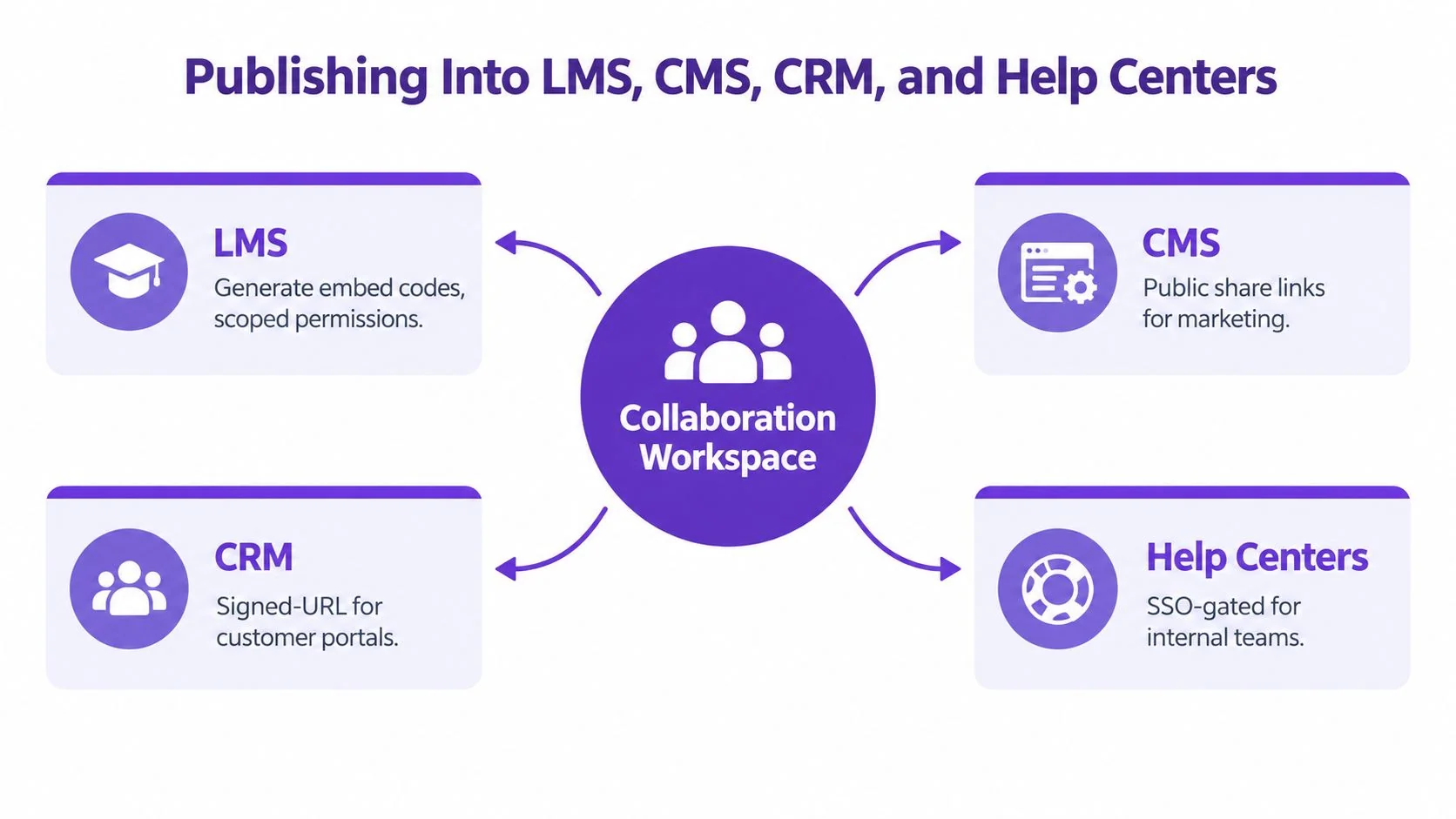
Publishing Into LMS, CMS, CRM, and Help Centers
A video isn’t done when it’s approved. It’s done when the right audience can use it without seeing the wrong draft.
Match the publish method to the destination
Different systems need different access rules. Treat publishing as an extension of collaborative video editing, not a separate handoff.
A practical mapping looks like this:
- LMS: Internal or customer training usually needs controlled access, identity checks, and completion tracking.
- CMS: Marketing pages and documentation hubs need stable embeds and public-ready presentation.
- CRM: Sales and success teams need quick access to trusted clips inside account workflows.
- Help centers: Support content needs version freshness and clean replacement rules.
Set permission tiers before you embed
Governance starts to matter. One market report emphasizes that the category’s growth is pushing teams toward global, multi-stakeholder workflows, making questions about guest reviewer permissions, approved versions, localization alignment, and audit trails more urgent as the market scales (governance and localization angle in market analysis).
Use clear permission patterns:
- Public links for marketing or open documentation
- Signed or restricted links for customer portals and account-specific content
- SSO-gated access for LMS delivery and internal training libraries
- Guest review links for agencies, contractors, or external SMEs
The key is to separate review access from published access. Review links should expire or stay scoped. Published embeds should point only to approved assets.
Plan for replacement and revocation
Teams often publish version one into five systems, then panic when the workflow changes. Good publishing hygiene means you can replace the active asset without breaking the page, course shell, or CRM reference that depends on it.
A few practical rules help:
- Embed from the approved source only
- Keep a stable player location when possible
- Revoke outdated review links when the final cut goes live
- Archive superseded tutorials instead of deleting them blindly
- Track where each embed lives before you replace the asset
For teams building a broader distribution setup, Tutorial AI’s distribution strategies guide is relevant because the publishing problem isn’t just “how do I host a video.” It’s how one approved tutorial moves safely into learning systems, docs, and customer-facing workflows.
The moment a video is embedded in an LMS, CMS, or CRM, it stops being a file and becomes operational content.
That’s why permission control belongs in the same conversation as editing and review.
Habits and Metrics That Keep the Workflow Honest
The difference between a workflow that survives and one that slowly falls apart usually comes down to habits. Not software alone. Not editor talent. Habits.
Seven habits that prevent drift
Here are the habits that hold collaborative video editing together once more teams get involved:
- Run a weekly source-of-truth check: One short meeting where owners confirm which versions are Draft, In Review, Approved, or Published.
- Keep version names standardized: Don’t let each editor invent status labels.
- Maintain a role matrix: Everyone should know who can edit, review, approve, publish, and revoke.
- Use one intake template: Every request should capture audience, destination, owner, due date, and whether localization is needed.
- Split review windows into two buckets: Live sessions for alignment. Async review for corrections and signoff.
- Freeze the master before localization: No language branch should begin from an unstable source.
- Log publish actions with attribution: Someone should be able to see who published what, where, and when.
None of this is glamorous. It’s what keeps a support library, training catalog, and sales content set from drifting apart.
Track metrics that expose workflow weakness
You don’t need a huge dashboard. You need a handful of signals that tell you where collaboration is failing.
| Habit | Metric to Track | Healthy Baseline |
|---|---|---|
| Weekly source-of-truth check | Share of active projects with a clearly labeled current status | Most active projects should have an unambiguous status |
| Standard version naming | Assets with consistent status labels | Naming stays uniform across teams |
| Role matrix | Access exceptions and permission cleanups | Few ad hoc permission changes |
| Single intake template | Requests received with complete context | Most requests arrive with audience and destination defined |
| Two-bucket review windows | Ratio of comments resolved inside planned review windows | Most review notes are resolved in the intended review mode |
| Frozen-master rule | Assets localized only after master approval | Localization starts from approved masters |
| Publish logging | Ability to trace active embeds to a named owner | Every published asset has an accountable owner |
Don’t fake precision where you don’t have it
A lot of teams jump too quickly into vanity reporting. They try to produce exact operational benchmarks before they’ve even stabilized the process. In practice, the first useful baselines are simple and directional.
For mixed teams of 4 to 12 editors, three baseline checks are usually enough to reveal whether the workflow is holding:
- Raw recording to first publish
If that cycle keeps stretching, the bottleneck is usually review discipline, not editing skill. - Comment resolution quality
If comments stay open across versions, reviewers are probably working on stale cuts or outside the timeline. - Locked-master rate before translation
If language work starts before approval, teams will rework captions, narration, and timing more than once.
Once those baselines start slipping, the workflow usually breaks in predictable ways. Editors spend more time reconciling comments. Reviewers lose trust in links. Localized branches drift away from the source. Help-center videos become stale because nobody wants to touch the approval chain again.
What works in practice
The teams that stay sane don’t try to perfect everything at once. They pick one project and force it through one repeatable path.
A support tutorial is a good test case. Record the workflow. Keep comments on the timeline. Save named versions. Freeze an approved master. Branch one translated variant. Publish to the help center and the LMS. Then compare that process to how the last tutorial moved through your team.
If people still need to ask “which version is real,” the workflow isn’t working yet.
Run the same pipeline twice. The first pass exposes the gaps. The second pass tells you whether the rules are durable or only worked because everyone was paying extra attention.
If your team needs to turn product walkthroughs, training recordings, or support demos into reviewable videos and matching documentation from one workflow, Tutorial AI is built for that job. It helps subject-matter experts record the process, tighten pacing with AutoRetime, manage multilingual versions, and publish the same approved source across knowledge bases, training systems, and customer-facing content.