In today’s remote-first environment, the gap between a high-performing distributed team and a disconnected one often comes down to the technology stack. The right collaboration tools for remote teams do more than just connect people; they build digital headquarters, simplify complex workflows, and foster a culture of clarity and efficiency. However, with a crowded market, choosing the correct combination of platforms for communication, project management, and knowledge sharing can feel overwhelming.
This guide cuts through the noise. We will provide a detailed analysis of 12 essential tools that empower modern teams to do their best work, no matter their location. From real-time messaging hubs like Slack to asynchronous project managers like Asana, we explore not just what these tools do, but how to use them strategically. You’ll find specific use cases, honest limitations, and practical setup tips for each platform, complete with screenshots and direct links to help you make an informed decision. To truly power a modern workplace, understanding the full spectrum of options is crucial, and you can explore this detailed and comprehensive ultimate guide to collaboration tools for remote teams for proven strategies.
We will also cover how AI-powered video creation with tools like Tutorial AI can fundamentally change how your teams create training materials and share knowledge. For instance, a subject matter expert can record a demo or tutorial by speaking freely, and the software automatically produces a professional, on-brand video without requiring expert editing skills. This approach solves the common problem of unedited screen recordings being too long while avoiding the complexity of professional software. This resource is built to help you solve real-world collaboration challenges and build a truly connected, productive remote workforce.
1. Tutorial AI
Tutorial AI stands out as a premier choice among collaboration tools for remote teams that rely on video for training, support, and sales. It directly solves the common dilemma between quick, unpolished screen recordings and time-consuming, professionally edited videos. While easy-to-use recording via Loom is often 50-100% longer than necessary, professional video editing software such as Camtasia or Adobe Premiere Pro requires expert video editing knowledge. Tutorial AI’s tools let you speak freely without any practice, and still your video will look professional as if it was edited in Adobe Premiere Pro. It allows the subject matter expert to create on-brand videos extremely efficiently.
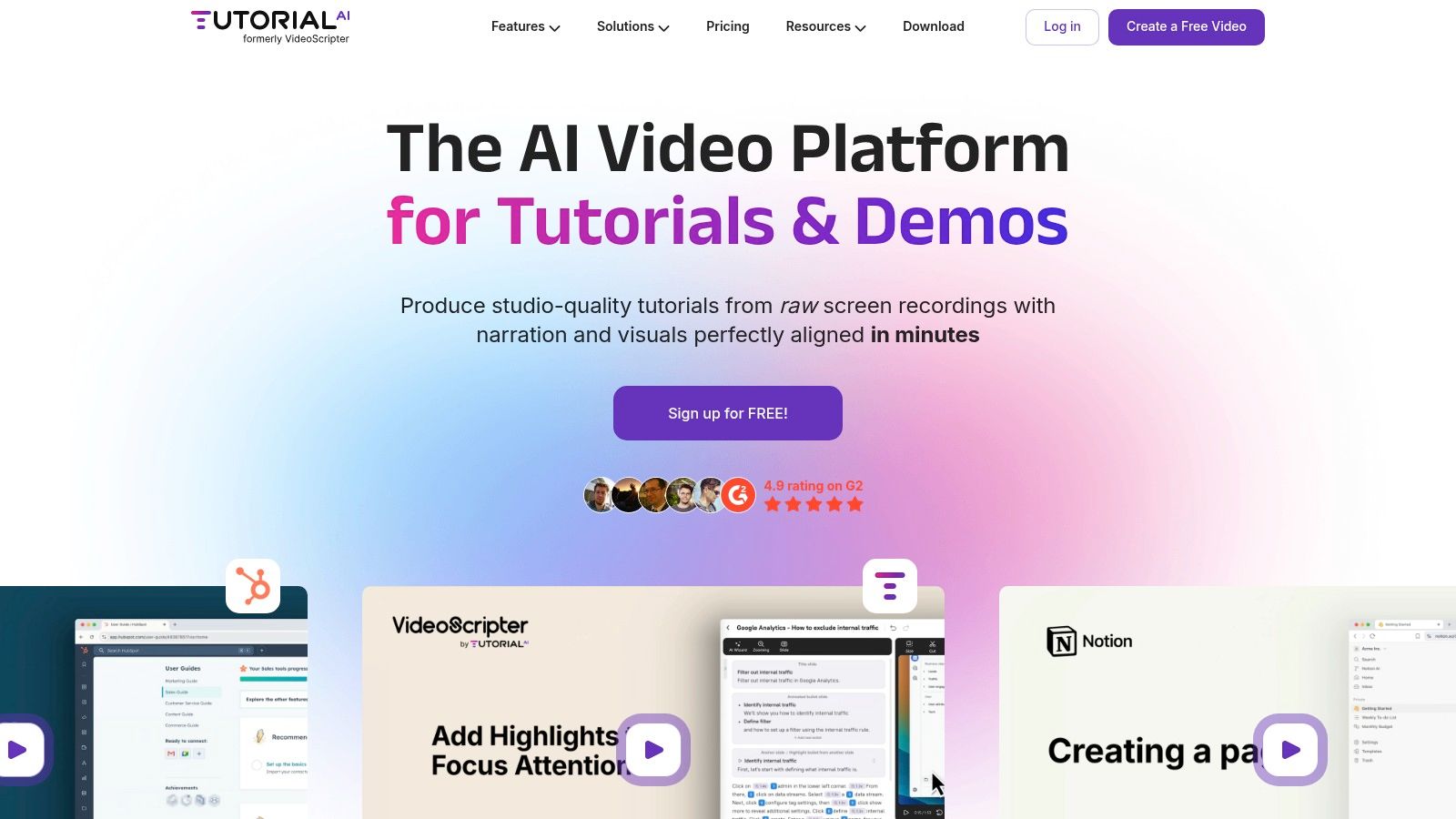
The platform’s core strength is its AI-driven “edit like a doc” workflow. After recording your screen, you can speak freely without worrying about mistakes. Tutorial AI automatically transcribes your audio, allowing you to edit the video by simply editing the text script. Deleting a sentence removes the corresponding video and audio segment, while rephrasing a line instantly regenerates a perfectly timed, lifelike AI voiceover. This process eliminates the need for timeline wrestling and multiple re-takes.
Its unique cursor tracking captures mouse movements separately, letting you add highlights, smooth out motion, or adjust cursor size after recording. This is a game-changer for creating clear, focused tutorials and protecting sensitive on-screen data with smart zooms and blurs.
Key Takeaway: Tutorial AI empowers teams to produce polished video content, such as demos, onboarding videos, explainer videos, feature release videos, knowledge base videos, and support article videos, without needing specialized video editing expertise. It focuses on turning raw recordings into professional assets quickly. For global teams, the AutoRetime™ feature is a standout. When you translate a script into one of the 30+ supported languages, it automatically adjusts all scene timing, captions, and on-screen callouts to match the new voiceover, making localization fast and accurate. Collaboration is built-in with shared team workspaces, version history, and commenting features that centralize feedback.
Key Details & Pricing
| Feature | Details |
|---|---|
| Ideal Use Cases | Creating demos, onboarding videos, explainer videos, feature release videos, knowledge base videos, and support article videos based on screen recordings. |
| Team Size | Excellent for individuals and teams of any size, from solo creators to enterprise L&D, sales, and support departments. |
| Pricing | Free: 1 seat, 3 projects, 1080p export. Solo: ~$18/seat/mo (annual) for more projects and more generated-video minutes. Growth: ~$64/seat/mo (annual) for more generated-video minutes and advanced features. Enterprise: Custom pricing for unlimited workspaces and voice cloning. |
| Pros & Cons | Pros: AI-driven text-based editing, post-production cursor effects, rapid localization, strong team collaboration features. Cons: Caps on generated video minutes on paid tiers can be restrictive for high-volume producers; some advanced features are gated to higher plans. |
| Getting Started Tip | Record a short, unscripted tutorial of a common workflow. Use the text editor to trim filler words and mistakes, then apply a smart zoom to highlight a key step. This will quickly demonstrate the platform's core efficiency gains. |
Website: https://www.tutorial.ai
2. Slack
Slack has become the default digital headquarters for countless organizations, solidifying its spot among the essential collaboration tools for remote teams. It moves communication out of cluttered email inboxes and into organized, topic-specific channels. This channel-based structure allows for focused discussions on projects, teams, or even social topics, making information easy to find and follow. Teams can hold quick, impromptu voice calls with screen sharing using Huddles, replacing the need for formal calendar invites for every small chat.
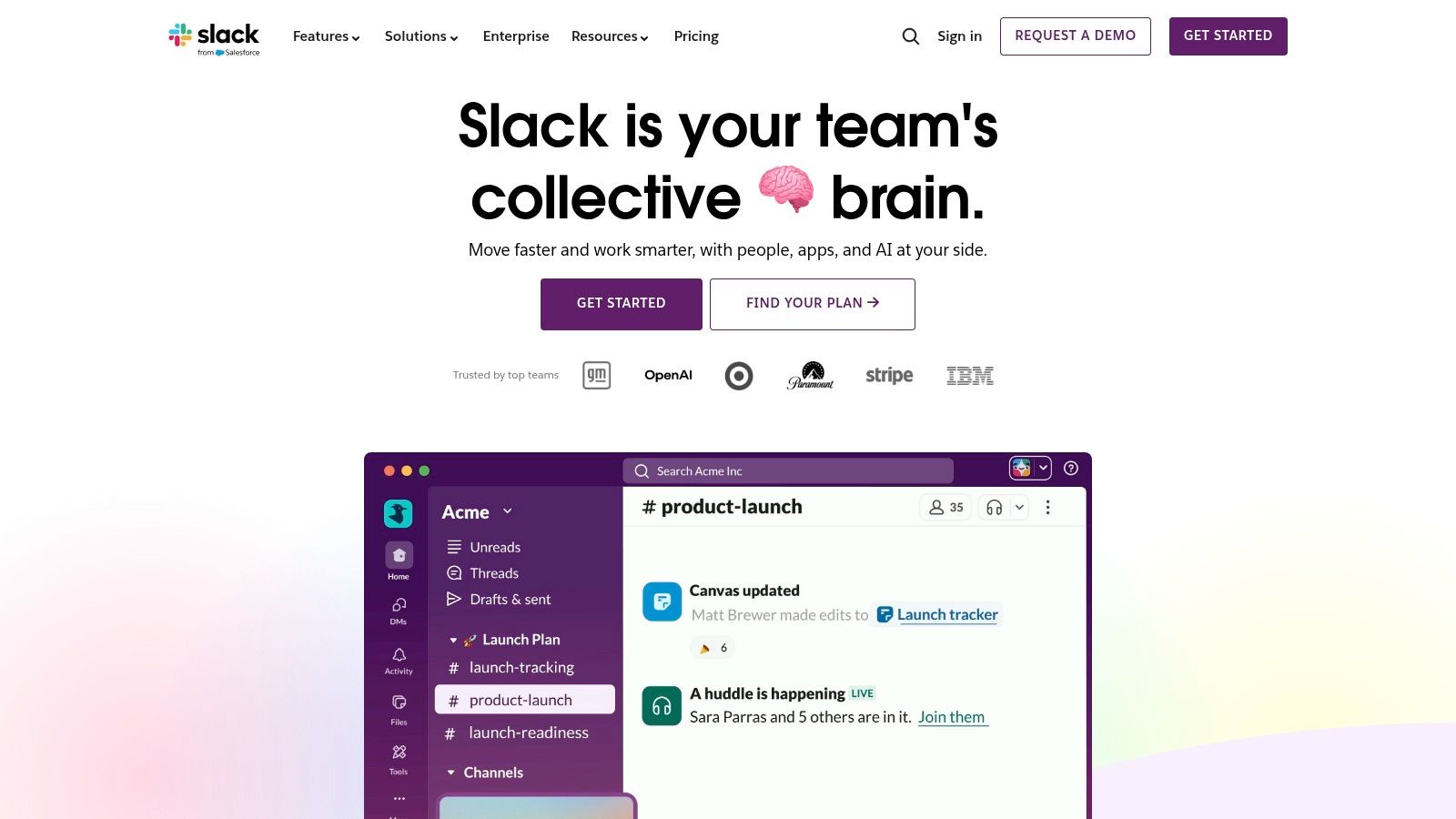
The platform’s power is magnified by its massive integration directory, featuring over 2,600 apps. You can pull in updates from Salesforce, manage tasks from Jira, and access files from Google Drive without leaving the app. Its primary weakness is the potential for notification overload, which requires disciplined channel management and clear communication rules. Mastering these techniques is a key part of effective digital teamwork; you can review internal communication best practices to establish strong guidelines for your team.
How Tutorial AI Complements Slack
Tutorial AI bridges the gap between quick screen recordings and polished training videos. When a new feature rolls out, a support agent can record their screen explaining the update, speaking naturally without a script. Instead of sharing a long, raw recording in a Slack channel, they can process it through Tutorial AI. The tool automatically removes mistakes, tightens pacing, and adds branded overlays, creating a professional-quality video ready for your knowledge base or customer announcements, all without needing an expert video editor.
Key Details
- Ideal Use Case: Centralizing daily asynchronous communication, quick decision-making, and integrating workflows for fast-moving teams.
- Team Size: Scales from 2-person startups to 500,000+ employee enterprises.
- Pricing: Offers a free plan with limited message history. Paid plans include Pro ($8.75/user/mo), Business+ ($15/user/mo), and custom Enterprise Grid pricing.
- Website: https://slack.com
3. Microsoft Teams
For organizations deeply integrated into the Microsoft 365 ecosystem, Microsoft Teams serves as a powerful, all-in-one collaboration hub. It combines persistent chat, video meetings, file storage, and application integration into a single workspace, making it a strong contender among collaboration tools for remote teams. Its core strength lies in its native connection to apps like SharePoint, OneDrive, and Outlook, allowing for seamless file co-authoring and calendar management directly within the Teams interface. This tight integration simplifies workflows for businesses already reliant on Microsoft’s software suite.
The platform is structured around teams and channels, similar to competitors, but it extends this with tabs that can pin specific files, apps, and services for easy access. Its enterprise-grade security, governance, and compliance features are a significant draw for larger or regulated industries. A potential downside is that its numerous features and deep integrations can feel heavy compared to more focused chat tools, and navigating the various Microsoft 365 licensing bundles to get the right version of Teams can be confusing.
How Tutorial AI Complements Microsoft Teams
Tutorial AI adds a critical layer of efficiency for creating training content within the Microsoft ecosystem. Imagine a support specialist needs to create an onboarding video for a new feature in a company’s proprietary software. They can record their screen and voice, speaking freely without a script. Instead of sharing a long, raw recording that is 50-100% longer than necessary, they can use Tutorial AI. The tool automatically edits the video, removing pauses and mistakes, resulting in a professional demo that looks like it was produced in Adobe Premiere Pro. This allows subject matter experts to create on-brand, polished tutorials for a Teams knowledge base channel or for external support articles with incredible speed.
Key Details
- Ideal Use Case: Centralizing communication, meetings, and file collaboration for organizations already invested in the Microsoft 365 suite.
- Team Size: Suitable for small teams but built to scale for large enterprises with complex compliance needs.
- Pricing: A free version is available. Included with most Microsoft 365 Business and Enterprise plans, with standalone options like Teams Essentials starting at $4/user/mo.
- Website: https://www.microsoft.com/microsoft-teams
4. Zoom (Zoom Workplace)
Zoom became the face of remote work by delivering what teams needed most: reliable, high-quality video meetings that just work. While best known for its video conferencing, the platform has grown into Zoom Workplace, an integrated solution that bundles meetings, persistent chat, a collaborative whiteboard, and cloud phone services. Its core strength remains its frictionless meeting experience, especially for external guests who can join with a single click without needing to create an account, making it one of the most accessible collaboration tools for remote teams.
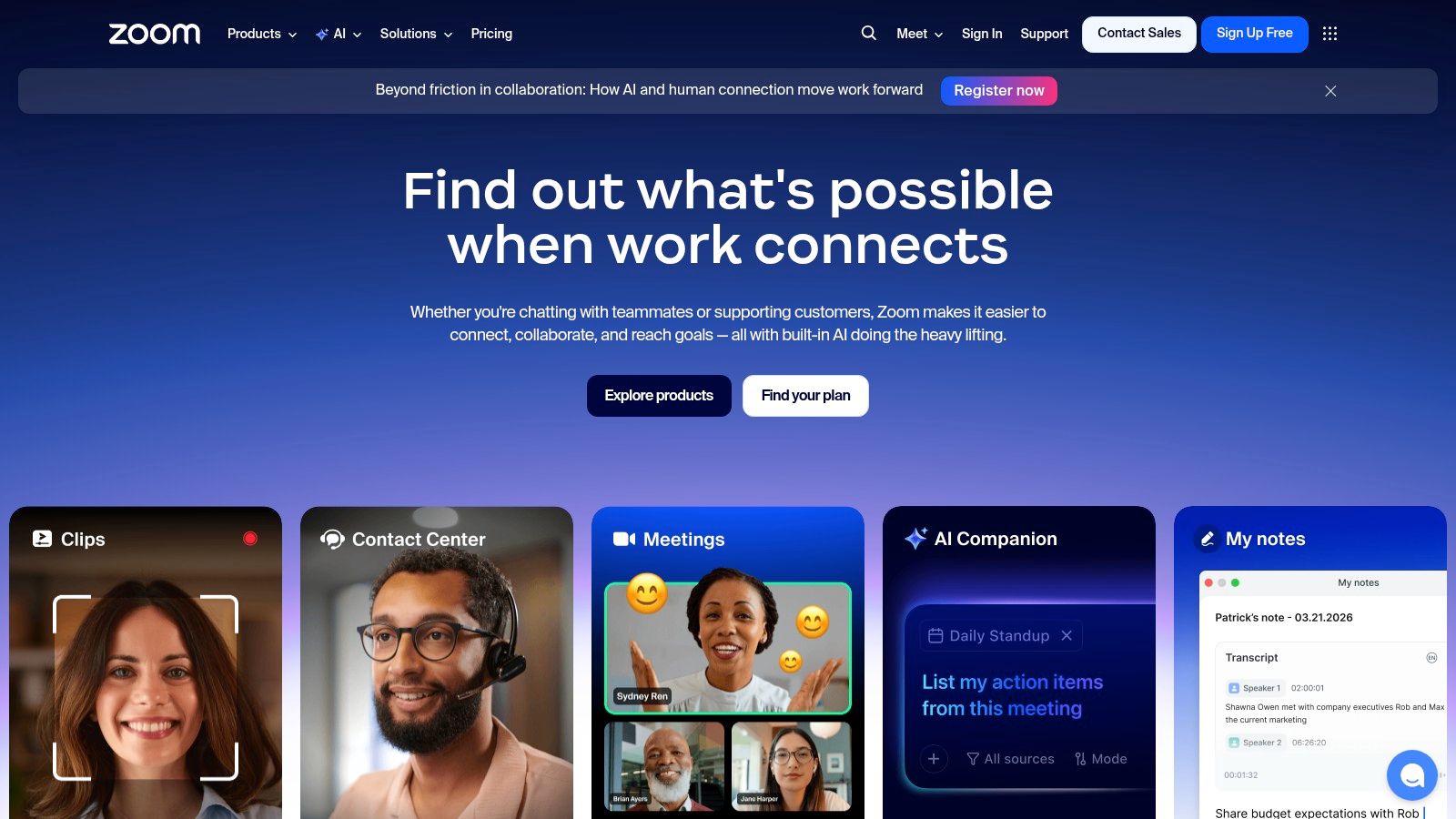
Beyond standard meetings, Zoom excels with features like breakout rooms for smaller group discussions and mature webinar capabilities for large-scale virtual events. The main drawback is that its most powerful features, like Zoom Phone or large meeting capacity, are often paid add-ons, which can significantly increase the total cost. While Team Chat is improving, it still lags behind dedicated platforms like Slack in terms of integrations and advanced workflow automation.
How Tutorial AI Complements Zoom
After a customer training session or a sales demo on Zoom, you’re left with a long recording. Instead of sharing a raw file that’s often 50-100% longer than necessary, you can use Tutorial AI to transform it into a polished asset. A subject matter expert can record their screen and speak freely, knowing Tutorial AI will automatically remove mistakes, awkward pauses, and filler words. The tool adds professional transitions and branded overlays, producing a studio-quality tutorial that looks as if it were edited in Adobe Premiere Pro but without requiring any video editing expertise.
Key Details
- Ideal Use Case: High-quality synchronous video meetings, client-facing calls, webinars, and all-hands events.
- Team Size: Suitable for freelancers, small teams, and large enterprises.
- Pricing: Offers a free plan for 40-minute meetings. Paid plans include Pro ($15.99/user/mo), Business ($19.99/user/mo), and custom Enterprise pricing.
- Website: https://zoom.us
5. Google Workspace
Google Workspace is the connective tissue for countless cloud-native organizations, offering a deeply integrated suite of tools for real-time work. It bundles business-grade Gmail, shared Calendars, Google Drive, and Google Meet for a complete communication and productivity foundation. Its standout feature is the unparalleled real-time co-editing in Docs, Sheets, and Slides, where multiple team members can simultaneously write, comment, and edit documents, making it one of the most fluid collaboration tools for remote teams.
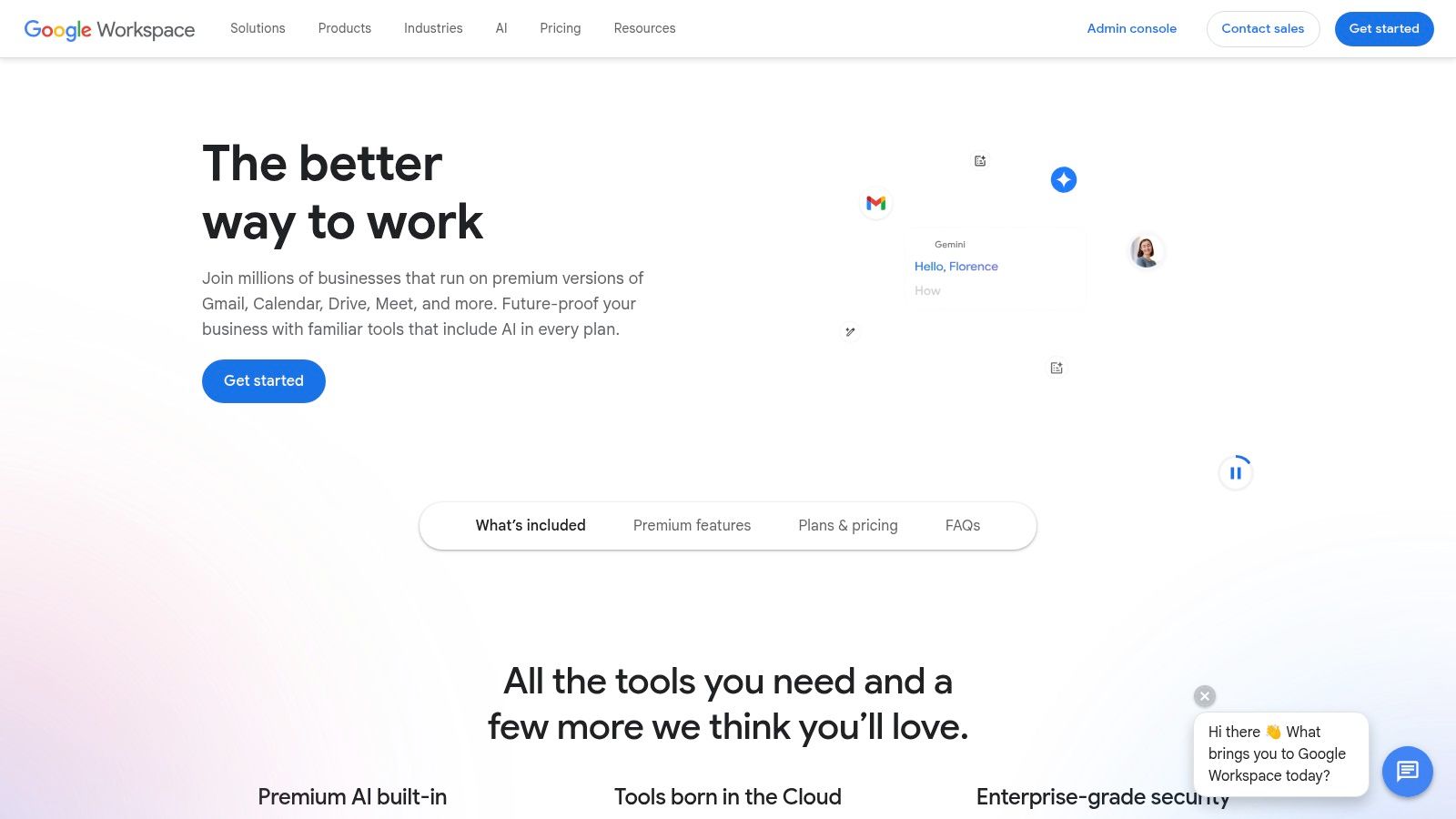
The platform centralizes everything in the browser, from file storage in Drive to team conversations in Chat and Spaces. This simplicity is a major strength, allowing for straightforward user management and security controls. However, organizations heavily invested in Microsoft Office may face friction when migrating file formats, and unlocking advanced governance or data loss prevention tools often requires upgrading to higher-priced tiers. Its browser-first approach is ideal for teams that prioritize accessibility and real-time co-creation over complex desktop software.
How Tutorial AI Complements Google Workspace
Tutorial AI helps teams turn simple screen recordings into professional training assets. A subject matter expert can record a walkthrough of a new workflow in Google Sheets or demonstrate a process in a custom internal app. Instead of sharing a long, unedited recording that is 50-100% longer than necessary, they use Tutorial AI. The tool automatically removes mistakes and awkward pauses, tightens pacing, and adds on-brand graphics. This transforms a casual recording into a polished tutorial video, as if edited in Adobe Premiere Pro, ready to be embedded in a Google Site or shared in a Google Chat Space, without requiring expert video editing skills.
Key Details
- Ideal Use Case: Real-time document collaboration, centralized cloud file management, and integrated communication for browser-first teams.
- Team Size: Works for solo freelancers up to large enterprises with thousands of employees.
- Pricing: Business Starter is $6/user/mo, Business Standard is $12/user/mo, and Business Plus is $18/user/mo, with custom Enterprise plans available.
- Website: https://workspace.google.com
6. Notion
Notion serves as a unified workspace where documents, wikis, and project management converge, making it one of the most flexible collaboration tools for remote teams. Its core strength lies in its highly customizable pages, which can function as simple text docs or evolve into complex relational databases. This adaptability allows teams to build everything from company-wide knowledge bases and standard operating procedures (SOPs) to lightweight project trackers, all within a single, interconnected environment.
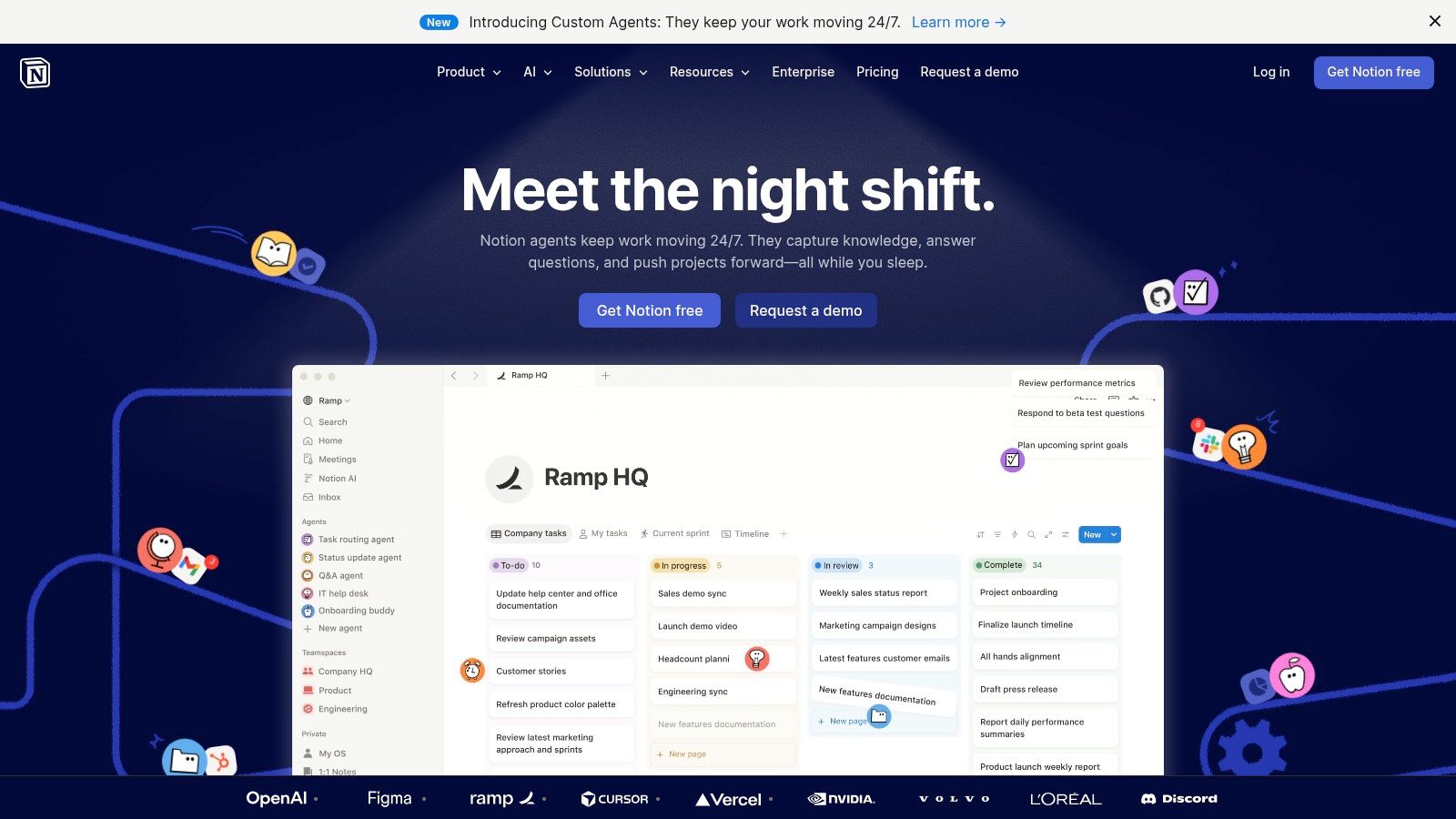
The platform’s power comes from its blend of unstructured text and structured data, supported by Teamspaces for organizing content and granular permissions for security. However, this freedom can lead to disorganized sprawl without proper governance. Its integrated AI features and credits-based custom agents introduce new efficiencies but require careful cost management. For teams committed to centralized documentation, you can get started by learning how to build a knowledge base with a structured approach.
How Tutorial AI Complements Notion
Tutorial AI is the perfect partner for enriching a Notion knowledge base with video content. A subject matter expert can record a quick, unscripted demo of a new workflow or feature. Instead of embedding a long, raw screen recording into a Notion page, they can process it through Tutorial AI. The tool automatically edits out mistakes and awkward pauses, tightens the pacing, and adds professional, on-brand overlays. The result is a polished tutorial video, created without needing expert editors, that can be embedded directly into SOPs and guides to improve clarity and engagement.
Key Details
- Ideal Use Case: Creating a central source of truth for company knowledge, SOPs, and cross-functional project documentation.
- Team Size: Scales from individuals to entire organizations.
- Pricing: Free personal plan. Paid plans start at Plus ($10/user/mo), Business ($18/user/mo), and custom Enterprise pricing. Notion AI is an add-on.
- Website: https://www.notion.so
7. Asana
Asana provides a structured framework for work management that excels at bringing clarity to complex projects and cross-functional initiatives. It moves beyond simple task lists to offer a complete system for planning, executing, and monitoring work through its hierarchy of Tasks, Projects, Portfolios, and Goals. This makes it one of the most effective collaboration tools for remote teams that need strong operational cadence and clear visibility for stakeholders, from individual contributors to executive leadership. Features like Timeline and Workload help managers balance resources and foresee bottlenecks before they happen.
The platform’s strength lies in its ability to connect day-to-day tasks with high-level company objectives, creating a single source of truth for progress. However, this structured approach can feel rigid for teams accustomed to more freeform brainstorming tools, and unlocking its most powerful features, like custom rules and advanced reporting, requires upgrading to higher-priced tiers. Its mature template library offers a significant head start for setting up common workflows like marketing campaigns or product launches.
How Tutorial AI Complements Asana
Tutorial AI is perfect for creating training materials to support Asana workflow adoption. A project manager can record a quick walkthrough of a new project template, speaking freely without a script to explain custom fields and automation rules. That raw screen recording, often much longer than needed, can be processed by Tutorial AI. The tool automatically trims pauses and mistakes, adds professional on-brand graphics, and produces a polished tutorial video. This allows subject matter experts to create high-quality onboarding content for new team members efficiently, without needing any video editing skills.
Key Details
- Ideal Use Case: Managing multi-layered projects, establishing operational cadence, and providing leadership with clear program visibility.
- Team Size: Suitable for small teams but shines with teams of 15+ up to large enterprises.
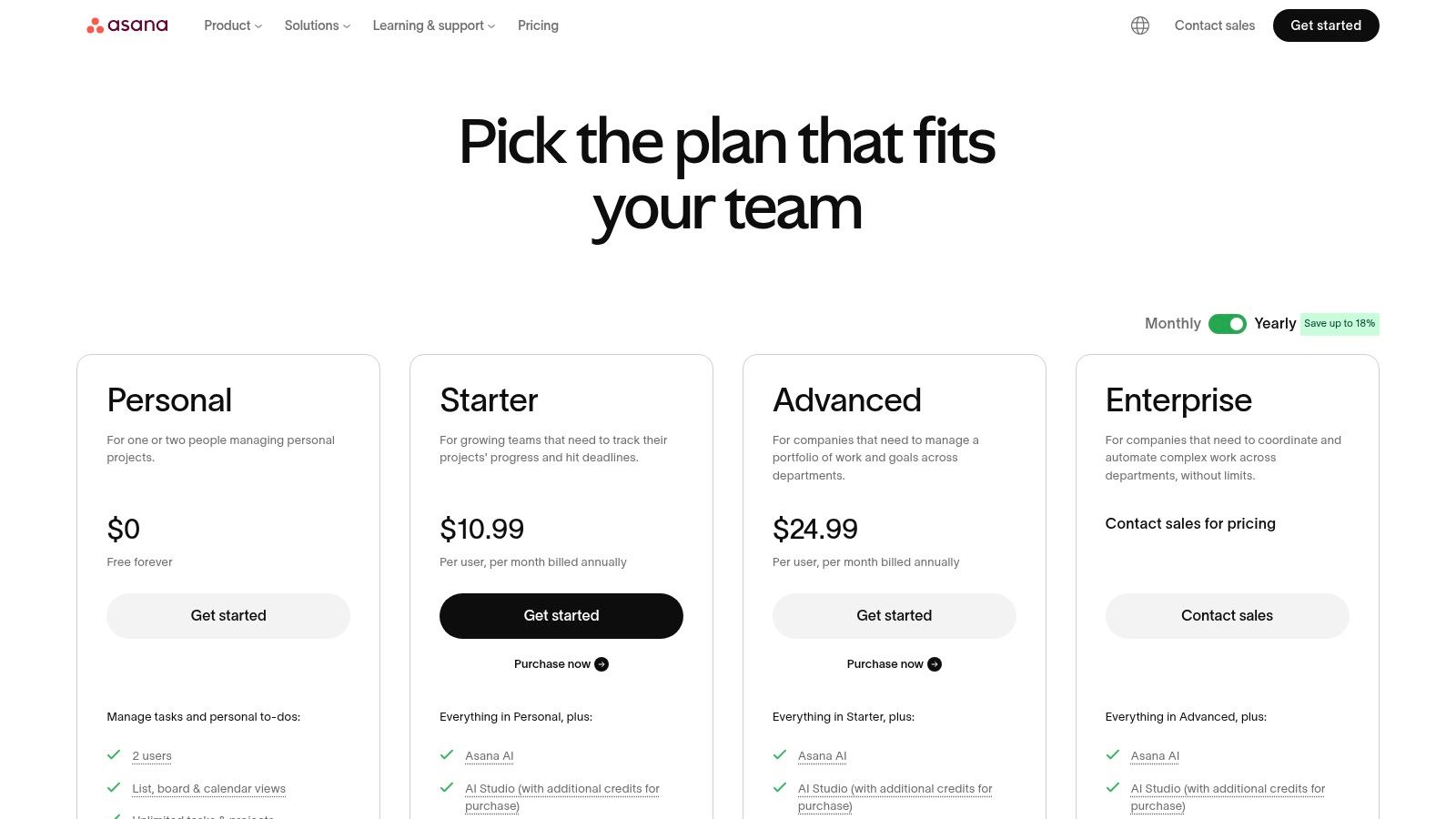
- Pricing: A free Basic plan is available for up to 10 users. Paid tiers include Starter ($13.49/user/mo), Advanced ($30.49/user/mo), and custom Enterprise plans.
- Website: https://asana.com/pricing
8. Miro
Miro translates the creative energy of a physical whiteboard into an infinite digital canvas, making it one of the most dynamic collaboration tools for remote teams. It excels at visual tasks that are often difficult to replicate remotely, such as brainstorming sessions, sprint planning, and workshop facilitation. Teams can work together in real-time with multiple cursors zipping across the board, or contribute asynchronously by adding sticky notes, comments, and diagrams at their own pace. The platform is built for visual thinking, moving beyond simple text to map out complex ideas.
Its strength lies in its extensive template library and facilitation tools like timers and voting, which help structure meetings and keep them engaging. However, a potential drawback is that some advanced facilitation and security controls are reserved for higher-priced plans. Additionally, heavy boards with many high-resolution assets or intensive Miro AI usage can sometimes affect performance and increase costs through credit consumption.
How Tutorial AI Complements Miro
Tutorial AI is the perfect next step after a collaborative Miro session. Imagine your team has just mapped out a new user onboarding flow on a Miro board. Instead of just sharing a static image of the board, a team member can record a quick screen walkthrough explaining the new process. This raw recording, which might be too long and contain mistakes, can be processed by Tutorial AI. The tool automatically removes errors, tightens the pacing, and adds professional branding to generate a polished video tutorial. This allows the subject matter expert to create a clear, on-brand explainer video for your knowledge base or new user welcome series without needing expert video editing skills.
Key Details
- Ideal Use Case: Real-time and asynchronous visual collaboration, including remote workshops, brainstorming, mind mapping, and Agile workflows.
- Team Size: Suitable for small teams on the free plan up to large enterprises requiring advanced security and governance.
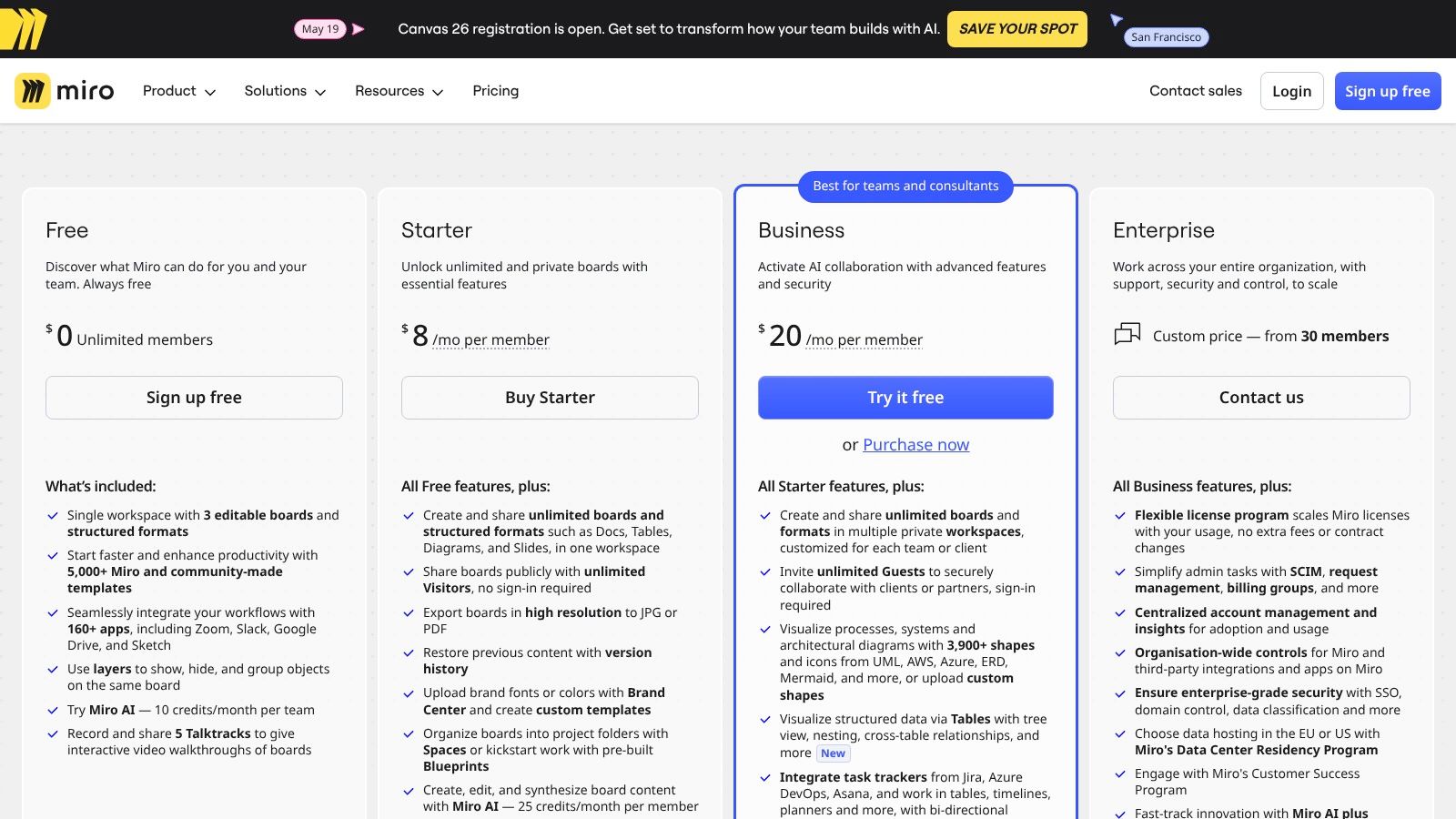
- Pricing: Free plan for core features. Paid plans include Starter ($10/user/mo), Business ($20/user/mo), and custom Enterprise pricing.
- Website: https://miro.com/pricing
9. Atlassian Confluence
For organizations that need a structured, governed approach to knowledge management, Atlassian Confluence is a cornerstone among collaboration tools for remote teams. It acts as a central source of truth, moving critical documentation out of scattered files and into organized “spaces” and “pages.” This structured format is ideal for creating standard operating procedures (SOPs), project plans, and meeting notes, complete with templates to ensure consistency across the organization.
Confluence’s main strength lies in its deep integration with the Atlassian ecosystem, particularly Jira. You can embed Jira issues directly into a Confluence page, providing context for project documentation and status reports. Features like inline comments, page history, and granular permissions make it a powerful tool for enterprise-level governance. Its primary limitation is that it can feel less flexible than tools like Notion for dynamic, database-style content, and its full potential is best realized when used alongside other Atlassian products.
How Tutorial AI Complements Atlassian Confluence
Tutorial AI enhances your Confluence knowledge base by making it easy to embed professional-quality video guides within your documentation. A subject matter expert can record a process on their screen, speaking freely without a script. Instead of posting a raw, lengthy recording that requires expert editing with tools like Adobe Premiere Pro, they use Tutorial AI. The tool automatically trims dead air, cuts out mistakes, and applies brand elements. The final, polished video can be added directly to a Confluence page, turning static text-based SOPs into dynamic, easy-to-follow visual tutorials.
Key Details
- Ideal Use Case: Creating a centralized, structured knowledge base, formal documentation, and technical runbooks for engineering and IT teams.
- Team Size: Suitable for small teams up to large enterprises requiring robust governance.
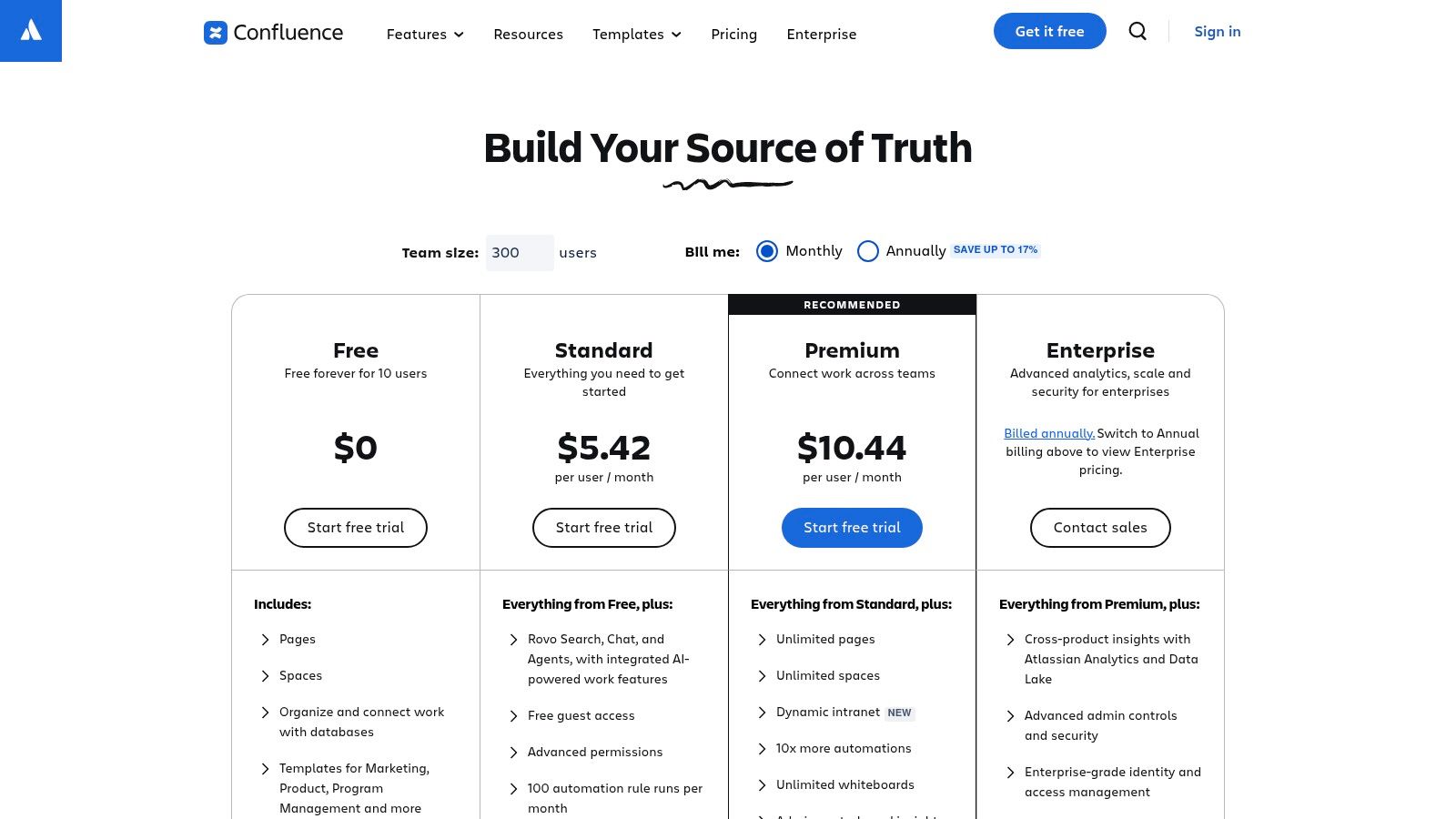
- Pricing: Free for up to 10 users. Standard plan is $6.05/user/mo, and Premium is $11.55/user/mo. Custom Enterprise pricing is also available.
- Website: https://www.atlassian.com/software/confluence/pricing
10. Box
Box positions itself as a secure content cloud, making it a cornerstone among collaboration tools for remote teams, especially those in regulated industries. It goes beyond simple file storage by providing a platform for managing the entire content lifecycle with enterprise-grade security and compliance. Features like granular user permissions, secure shared links with password protection and expiry dates, and document watermarking give organizations precise control over their sensitive information.
The platform integrates deeply with tools like Microsoft 365 and Google Workspace, allowing teams to create and edit documents directly within Box’s secure environment. Its primary strength lies in its governance capabilities, including data loss prevention (DLP), legal holds, and retention policies. While its best features are concentrated in higher-tier plans, which can increase the total cost, Box provides a powerful and compliant foundation for remote collaboration where security cannot be compromised.
How Tutorial AI Complements Box
Tutorial AI is the perfect tool for creating secure, internal training content hosted on Box. Imagine a subject matter expert needing to create a demo on a new internal process. They can simply record their screen, speaking freely without a script. The raw recording, which might be 50-100% longer than needed, can then be processed by Tutorial AI. The tool automatically removes mistakes, tightens the pacing, and adds company branding. The final, professional-quality video can be uploaded directly to Box, where access can be strictly controlled, ensuring that only the right employees view the sensitive training material.
Key Details
- Ideal Use Case: Securely managing, sharing, and governing content for enterprises in regulated sectors like finance, healthcare, and legal.
- Team Size: Best suited for mid-sized businesses to large enterprises needing advanced security and compliance.
- Pricing: Starts with a free individual plan. Business plans begin at $15/user/mo, with custom pricing for Business Plus, Enterprise, and Enterprise Plus tiers.
- Website: https://www.box.com/pricing
11. Dropbox (Dropbox Business)
Dropbox has long been a leader in file synchronization, and its business-focused plans make it one of the most reliable collaboration tools for remote teams, especially those working with large files and external partners. Its strength lies in its rock-solid desktop client that seamlessly syncs files across devices with optimizations like LAN and Delta sync for speed. This core function is supported by robust team folders, granular permissions, and a comprehensive admin console for managing access and security. It excels in environments where easy, cross-vendor collaboration is paramount.
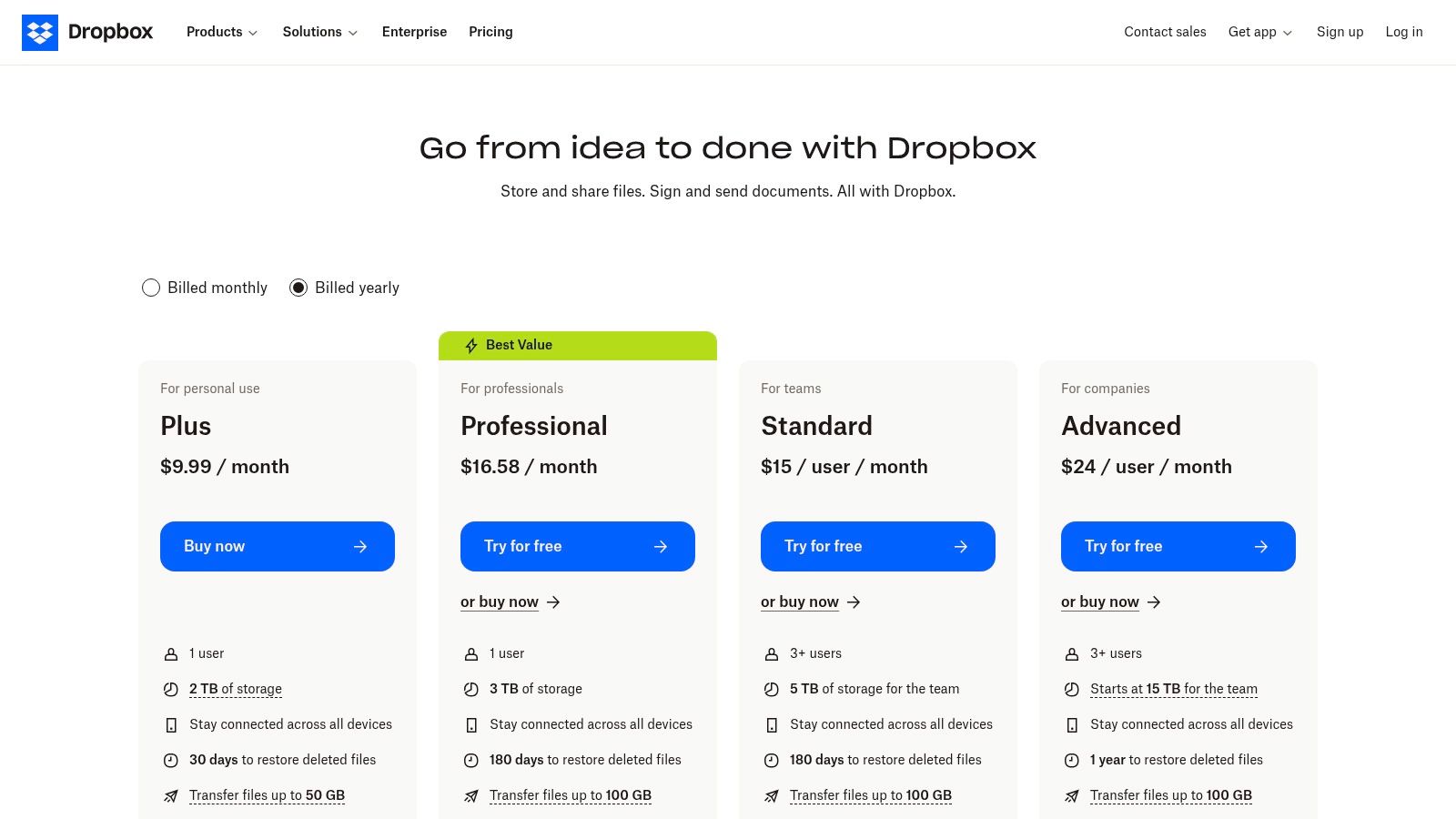
Beyond simple file storage, Dropbox offers powerful add-ons for creative and business workflows. Features like Replay provide a dedicated space for video review and feedback, while DocSend offers secure document sharing and analytics. The main drawback is that advanced security and governance controls are often reserved for higher-priced tiers, and business plans come with minimum seat requirements. However, for teams needing dependable file management and creative review tools, Dropbox is a top-tier choice.
How Tutorial AI Complements Dropbox
Tutorial AI is the perfect partner for assets stored in Dropbox, transforming raw screen recordings into polished training materials. A subject matter expert can record a quick demo or feature explanation, speaking freely without a script, and save the raw file to a shared Dropbox folder. Instead of sharing a long, unedited video that is often 50-100% longer than necessary, they can process it with Tutorial AI. The tool automatically removes mistakes, tightens the pacing, and adds on-brand elements. This creates a professional-quality tutorial, ready for a knowledge base or customer onboarding, without needing expert skills in Adobe Premiere Pro.
Key Details
- Ideal Use Case: Centralizing file management for creative teams, secure external file sharing, and video project reviews.
- Team Size: Best for teams of 3 up to large enterprises, with specific plans for different scales.
- Pricing: Business plans start with Standard at $15/user/mo (3+ users) and Advanced at $24/user/mo (3+ users). Custom Enterprise pricing is available.
- Website: https://www.dropbox.com/plans
12. Loom
Loom has fundamentally changed asynchronous communication by making video messaging as quick and easy as sending an email. It excels as one of the top collaboration tools for remote teams by replacing unnecessary meetings with shareable screen and camera recordings. This is perfect for code reviews, design feedback, bug reports, and team updates, allowing colleagues across different time zones to convey complex ideas with the nuance of voice and visual context, on their own schedule. The one-click recording and instant cloud sharing remove all technical friction from video creation.
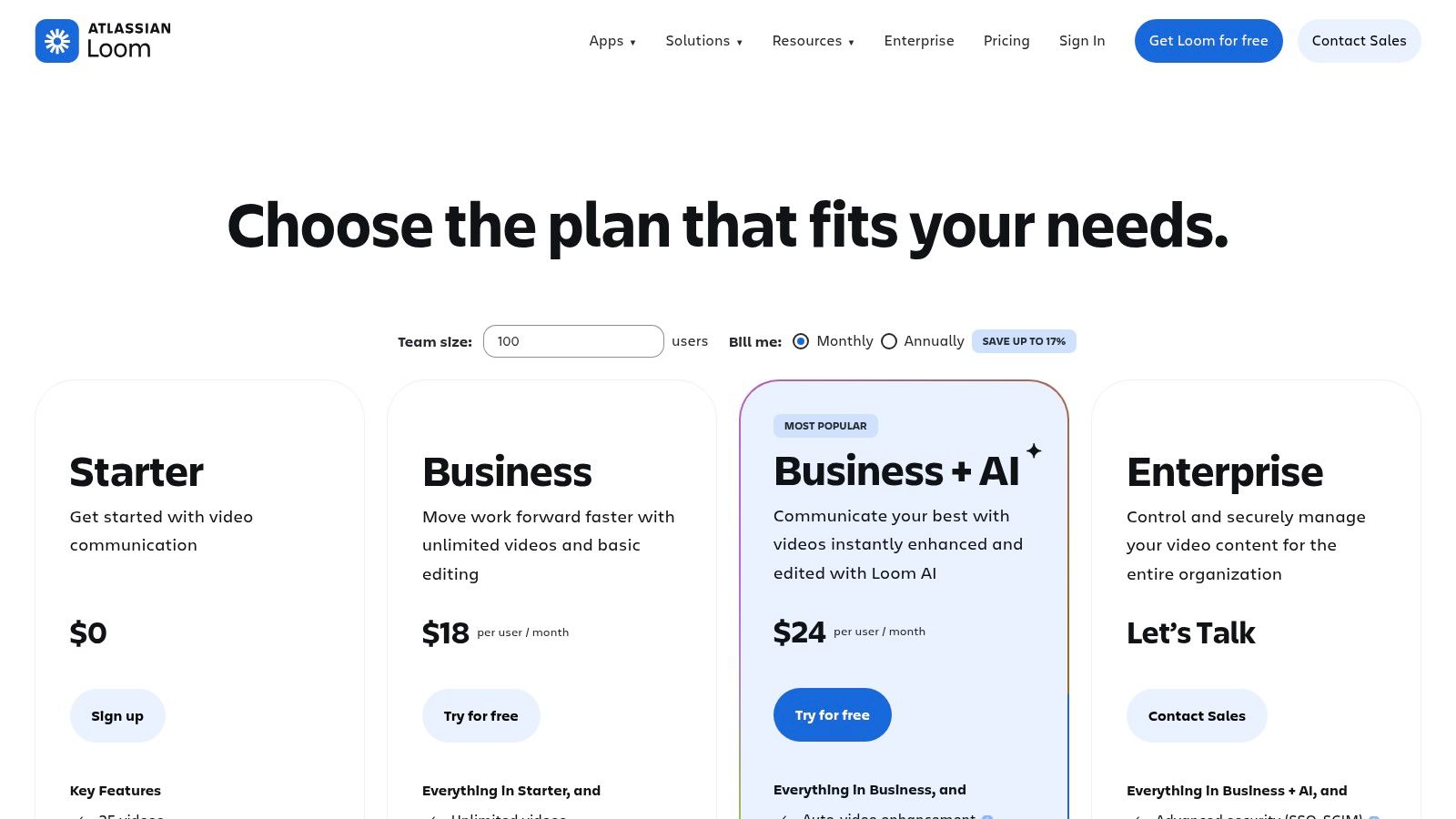
The platform provides valuable viewer analytics, comments, and in-video calls-to-action that turn a simple recording into an interactive conversation. While its built-in editing tools are great for quick trims and noise reduction, creating polished, professional training content often requires a more powerful solution. For more advanced techniques, you can explore best practices for using screen recording for training to maximize your impact. Its main weakness is that the most useful administrative features and single sign-on (SSO) are reserved for higher-tier plans.
How Tutorial AI Complements Loom
Tutorial AI elevates quick Loom recordings into professional, on-brand training assets. A subject matter expert can freely record a demo or explainer video in Loom without worrying about a script or small mistakes. While these raw recordings are often 50-100% longer than needed, Tutorial AI processes the video, automatically cutting out pauses and errors, tightening the pace, and adding branded overlays. The result is a polished tutorial that looks like it was edited in Adobe Premiere Pro, allowing experts to produce high-quality knowledge base or onboarding videos with extreme efficiency.
Key Details
- Ideal Use Case: Asynchronous video updates, quick walkthroughs, design feedback, and onboarding that reduces meeting load.
- Team Size: Suitable for individuals, small teams, and entire organizations.
- Pricing: A free Starter plan is available. The Business plan costs $15/user/mo, with custom pricing for Enterprise.
- Website: https://www.loom.com/pricing
12 Remote Collaboration Tools — Feature Snapshot
| Product | Core features | UX / Quality (★) | Pricing & Value (💰) | Target audience (👥) | Key differentiator (✨) |
|---|---|---|---|---|---|
| 🏆 Tutorial AI | AI screen recorder & editor, doc-style script edit, cursor tracking, AutoRetime, 30+ AI voices | ★4.9 — studio-quality, fast localization | 💰 Free tier; Solo ≈ $18/mo (annual); Growth ≈ $64/mo (annual); Enterprise demo | 👥 Support, enablement, L&D, product & marketing teams | ✨ Cursor-tracking, instant voice re-timing, AutoRetime translations |
| Slack | Channels, DMs, huddles, 2,600+ integrations | ★4.5 — fast async comms | 💰 Free & per-seat plans; add-ons increase cost | 👥 Cross-functional teams, fast-moving orgs | ✨ Massive app ecosystem & workflow automations |
| Microsoft Teams | Chat, meetings, calling, SharePoint/OneDrive integration | ★4.3 — integrated MS365 experience | 💰 Included in Microsoft 365 bundles; seat-based | 👥 Microsoft 365 organizations, enterprises | ✨ Native MS365 apps & enterprise compliance |
| Zoom (Workplace) | Video meetings, webinars, chat, whiteboard, phone add-ons | ★4.4 — reliable meeting UX & guest access | 💰 Free & paid hosts; add-ons (Phone/Webinar) raise costs | 👥 Remote meetings, events, guest-heavy teams | ✨ Best meeting UX & mature webinar tools |
| Google Workspace | Gmail, Drive, Docs/Sheets/Slides, Meet, Chat/Spaces | ★4.4 — best-in-class real-time co-editing | 💰 Tiered per-user plans; cloud-first value | 👥 Browser-first teams, SMBs to enterprise | ✨ Seamless real-time collaboration across apps |
| Notion | Docs, wikis, relational DBs, teamspaces, AI agents | ★4.6 — flexible knowledge management | 💰 Free & team plans; AI agents use credits | 👥 Knowledge bases, product docs, creators | ✨ Highly customizable pages + databases |
| Asana | Tasks, projects, portfolios, timelines, automations | ★4.4 — structured work management | 💰 Free & paid tiers; advanced features in higher plans | 👥 PMs, ops, program delivery teams | ✨ Portfolio reporting, templates for scale |
| Miro | Infinite whiteboards, templates, multi-cursor, facilitation tools | ★4.5 — excellent for workshops & ideation | 💰 Free & paid; AI credits and enterprise add-ons | 👥 Product, design, workshop facilitators | ✨ Visual facilitation, templates & multi-cursor |
| Atlassian Confluence | Team wiki, page hierarchies, templates, Jira integration | ★4.2 — governed documentation | 💰 Tiered per-user; best value with Atlassian suite | 👥 Engineering, ops, enterprise knowledge teams | ✨ Deep Jira/toolchain integration & governance |
| Box | Secure file sharing, DLP, Relay automations, e-sign | ★4.1 — enterprise-grade security | 💰 Business/Enterprise tiers; governance add-ons | 👥 Regulated industries, legal/compliance teams | ✨ Strong compliance, DLP & content governance |
| Dropbox (Business) | File sync, smart sync, team folders, Replay video review | ★4.2 — reliable desktop sync & sharing | 💰 Team/business plans; seat minimums apply | 👥 Mixed-vendor collaboration, creatives | ✨ Best desktop sync performance & external sharing |
| Loom | One-click screen & cam capture, instant hosting, analytics | ★4.5 — very fast async video creation | 💰 Free & paid; seat-based admin features | 👥 Async communicators, onboarding, sales | ✨ Fast to record/share short explainers with viewer insights |
Building Your Ultimate Remote Collaboration Stack
Navigating the extensive market of collaboration tools for remote teams can feel overwhelming. As we’ve explored with tools like Slack, Asana, Google Workspace, and Miro, the goal isn’t to find a single, all-in-one solution. Instead, the most effective approach is to thoughtfully construct a technology stack, an integrated ecosystem where each tool serves a specific, vital purpose for your unique workflows. This is about creating a digital headquarters that is more than just functional; it’s a space that fosters genuine connection, clarity, and productivity.
The tools detailed in this article, from the real-time communication hubs of Microsoft Teams to the structured project management of Asana, represent the core building blocks of a high-performing remote environment. A well-designed stack ensures that information flows smoothly, projects stay on track, and team members remain aligned, no matter their physical location. It’s the difference between simply working remotely and thriving as a distributed team.
From Defining Work to Explaining It
A critical, often overlooked, aspect of remote collaboration is the creation and distribution of knowledge. While a tool like Asana or Notion can define what needs to be done, a significant gap often remains in explaining how to do it. This is where the true power of a modern collaboration stack becomes apparent, particularly with the inclusion of specialized content creation tools.
Think about the daily flow of information: onboarding new hires, demonstrating a new software feature, or creating a support video for a customer. These tasks require clear, concise, and professional explanations. This is precisely where a tool like Tutorial AI acts as a force multiplier. It bridges the gap between subject matter expertise and polished, distributable content. Your experts can record their screen and speak freely, without needing a script or multiple takes. Tutorial AI then edits the recording, removing awkward pauses and mistakes, resulting in a professional-grade video that looks as if it were edited by an expert using Adobe Premiere Pro. This allows your team to create on-brand demos, tutorials, and knowledge base videos with incredible efficiency.
Actionable Steps to Build Your Stack
Choosing the right combination of tools requires a strategic approach. It’s not about adopting the most popular apps, but the most suitable ones for your team’s specific context.
- Audit Your Current Workflows: Before adding any new tool, map out your existing processes. Where are the communication breakdowns? Where do projects stall? Identify the specific pain points you need to solve, whether it’s disorganized file sharing (addressed by Box or Dropbox) or inefficient knowledge transfer (solved by Confluence and Tutorial AI).
- Prioritize Integration Capabilities: The magic of a tool stack lies in how well its components work together. Ensure your chosen project management tool integrates with your communication platform, and that your knowledge base can easily embed content created with tools like Loom or Tutorial AI. These connections prevent information silos and reduce context-switching.
- Start Small and Scale: You don’t need to implement a dozen new tools at once. Begin with a foundational tool, like a communication hub or a project manager. Once your team is comfortable, introduce complementary tools one at a time, gathering feedback and iterating as you go. When curating your ideal setup, delve deeper into the offerings of various tools by exploring a comprehensive list of the top remote team collaboration tools to compare features and find the perfect fit.
The ultimate set of collaboration tools for remote teams empowers your organization to move beyond simple task completion. It creates a digital environment that supports deep work, spontaneous creativity, and a strong sense of shared purpose. By thoughtfully selecting and integrating these powerful applications, you’re not just equipping your team with software; you’re building a resilient, innovative, and successful remote culture.
Ready to supercharge your team’s ability to create and share knowledge? Tutorial AI transforms raw screen recordings into polished, professional-grade video tutorials in minutes, empowering your experts to create on-brand training and support content effortlessly. See how Tutorial AI can become the content creation engine of your collaboration stack by visiting Tutorial AI today.