You’re staring at a half-finished screen recording, and the question isn’t which editor has the most buttons. It’s which best video editor for Mac will get your product demo, training clip, or help video out the door without eating your week. If your team needs polished output, the right tool depends on whether you’re shaping a cinematic launch video, cleaning up a screen walkthrough, or building repeatable knowledge-base content. For a fast way to turn a recording into text first, you can also transcribe video faster with Voice Control Pro.
Mac video editing changed fast after Final Cut Pro X landed in 2011 and reset expectations with a magnetic-timeline workflow that made speed and Apple hardware optimization central to the category. By 2026, Mac buying guides still treat the market as crowded, with at least 9 apps in direct comparison across review roundups and software marketplaces, so the decision is workflow fit, not chasing a single universal winner. That’s why this list focuses on what each editor does well, what it makes harder, and which kind of team gets the most value from it.
1. Tutorial AI
If your work starts with a screen recording, Tutorial AI is the most practical option on this list. It’s built for teams that need to turn one capture into a polished tutorial, a support article, and a reusable knowledge asset without living inside a timeline.
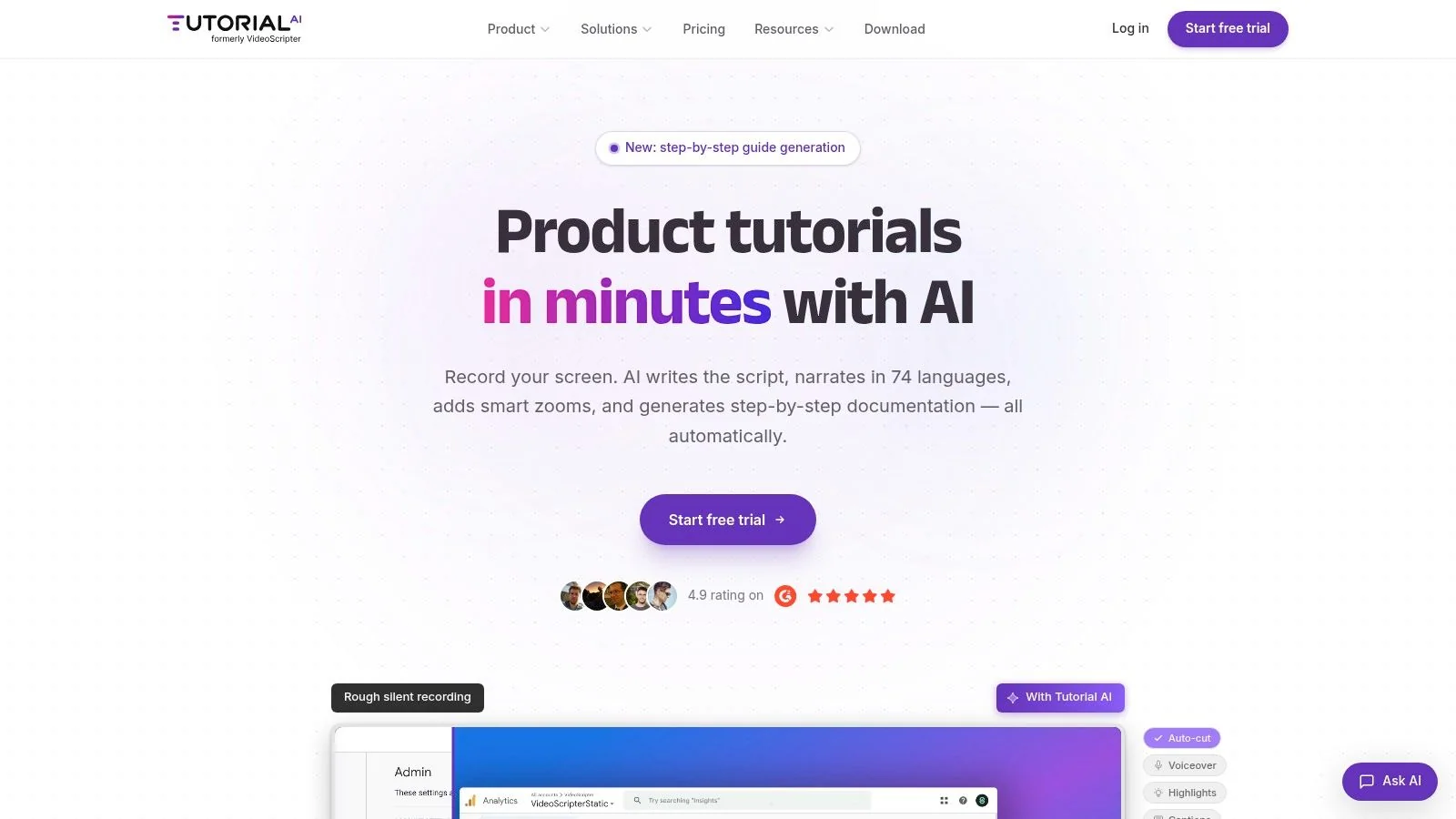
Record on Mac, Windows, iPhone, iPad, or directly in Chrome, then let the platform transcribe speech, rewrite the script, and regenerate narration in 74 languages. The editing model is doc-like, so if you change wording or reorder steps, the voiceover, captions, timing, and cuts update together instead of forcing you back into a timeline. That matters for product demos, feature release videos, customer onboarding, help-center videos, support articles, internal training, SOPs, and sales enablement walkthroughs.
Where it beats classic editors
Tutorial AI adds cursor tracking, auto zooms, highlights, blurs, smoothing, and AutoRetime for localized pacing, so one recording can become multiple language versions without a manual rebuild. It also generates step-by-step help articles, screenshots, and structured documentation from the same source recording, which is a strong fit for L&D and support teams that need both video and written assets. Brand Kits, animated slides, SCORM export, embeddable players with a built-in language selector, shared workspaces, versioning, comments, and guest sharing make it easier to publish across LMS, CMS, and help centers.
Practical rule: if the viewer needs to see the real UI, a screen-based editor is the right category. Synthetic avatar tools can’t replace an actual product walkthrough.
For governance, the platform is backed by SOC 2 Type II and ISO 27001, and the publisher says it’s trusted by 800+ teams who’ve created 20,000+ tutorials with a 4.9 average rating. Plans range from free to Enterprise, with advanced voices, custom voice cloning, and priority support in paid tiers. For teams shipping recurring tutorials, that’s less about “editing” and more about removing rework from the whole content pipeline.
Website: Tutorial AI
Backlink: Beyond Comments guide to YouTube AI tools
2. Apple Final Cut Pro
Final Cut Pro still feels like the Mac-native answer when the priority is speed, stability, and a clean finish on Apple hardware. It’s especially strong for product explainers, launch videos, and demo reels where the cut matters more than heavy motion-graphics work.
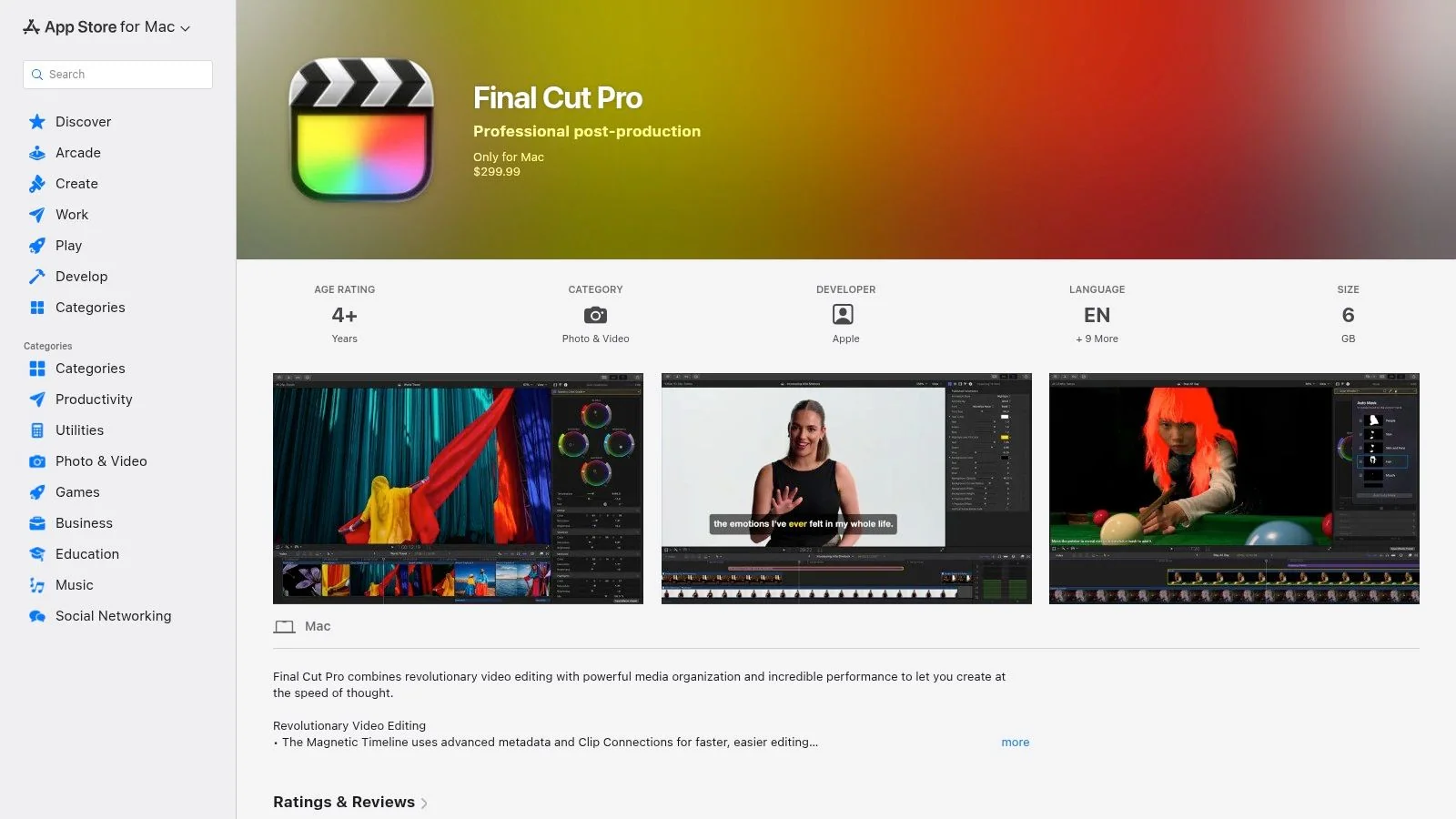
Apple positions it as software for creating “polished, pro-quality videos” across Mac and iPad, and that’s exactly where it fits in a modern Mac stack. The Magnetic Timeline is still the signature advantage for editors who want fewer track-management headaches, while Apple’s current positioning emphasizes Apple Silicon optimization and a pro workflow built around macOS rather than cross-platform compromise. A 2026 comparison lists Final Cut Pro 11 at $299 one-time with a 30-day trial, and says it’s built for Apple Silicon, which keeps the cost model simple for teams that prefer ownership over subscription.
What it does well, and what it doesn’t
Final Cut Pro is a strong match for teams already inside the Apple ecosystem, especially when Motion and Compressor round out the workflow. It’s also a sensible choice if you want to keep your tutorials and launch content in one native environment without bouncing between tools.
Use it when you need:
- Fast assembly work for launch videos and explainers.
- Tight Apple integration with Motion, Compressor, and iPhone ProRes workflows.
- Professional output without a subscription.
Skip it when:
- Cross-platform collaboration is central to your process.
- You need the most forgiving learning curve for non-editors.
- Your team relies on a lot of third-party round-trips.
For teams building polished internal or customer-facing content, Final Cut Pro is still one of the strongest Mac editors available, especially when the people editing already think in Apple workflows. If you’re comparing it against screen-recording-first automation, this transition guide for Final Cut is a useful place to sanity-check your workflow.
Website: Apple Final Cut Pro
3. Adobe Premiere Pro
When a team needs a cross-platform, pro-level timeline, Adobe Premiere Pro is still the default conversation starter. It’s built for collaboration-heavy work, especially when motion graphics, review loops, and handoffs between creative roles matter.
Adobe’s own plan structure bundles the desktop and iPhone apps with Adobe Express Premium on the single-app plan, adds built-in Frame.io review and approval, and includes Firefly credits for generative features. That makes Premiere Pro a strong fit for product marketing teams that hand footage to motion designers, or for organizations already standardizing on Creative Cloud. A 2026 Mac editing guide also identifies it, along with DaVinci Resolve, as one of the top choices for Mac users in 2025, which reinforces its role as a serious pro tool rather than a lightweight editor.
Where Premiere Pro wins
Premiere Pro is the better choice when the work doesn’t stay inside one person’s hands. If your editor, designer, and reviewer all need to touch the same asset stream, Adobe’s ecosystem reduces friction. The same goes for teams that depend on After Effects handoffs or already have a large template and plugin ecosystem built around Creative Cloud.
The trade-off is simple, subscription software solves collaboration well, but it asks for ongoing budget and a team that’s willing to learn the interface deeply.
That’s why Premiere Pro is often the right answer for broadcast-style marketing, internal comms teams with design support, and agencies that jump between clients. It’s less attractive if you want a simple, one-time purchase or if you’re trying to keep a screen-recording workflow lightweight. On older Macs, the heavier footprint can also feel less forgiving than a Mac-native workflow tool.
Website: Adobe Premiere Pro Plans
Backlink: Tutorial AI video editing software comparison
4. Blackmagic Design DaVinci Resolve
DaVinci Resolve is the best choice when color, audio, and finishing quality matter more than speed of onboarding. It’s the editor you pick when the Mac user on your team wants a full post-production suite instead of a simplified clip assembler.
The free version is the reason many Mac teams start here, and the premium Studio tier adds AI tools and professional codecs. A 2026 Mac comparison lists DaVinci Resolve 19 at $0, says it’s native on Apple Silicon, and notes Neural Engine support for AI features. In the broader 2026 market, independent roundups still put Resolve at the front of the free-editor category, while Final Cut Pro remains the premium benchmark and CapCut stays strong for social-first work.
Why teams choose Resolve
Resolve makes sense for product videos, launch assets, and any piece where grading or audio cleanup can’t be an afterthought. Its split across Edit, Color, Fusion, and Fairlight means a trained operator can stay in one suite all the way through delivery, which is valuable when you need polish that looks more like a finishing house than a content tool.
It’s also one of the better long-term bets for an editor who wants room to grow. The free tier covers a lot of ground, but the learning curve is real, and you’ll feel it if your team mostly needs screen-based explainers or repeatable training clips.
Choose Resolve when:
- Color and audio quality are business-critical.
- You want a free professional-grade starting point.
- Collaboration and finishing are more important than ease of use.
Don’t choose it when:
- Your team needs quick, repeatable tutorial production.
- Editors are non-specialists who need a doc-like workflow.
- You want the simplest possible screen-recording path.
Website: Blackmagic Design DaVinci Resolve
5. TechSmith Camtasia
Camtasia is built for teams that teach software, not cinema. If your job is customer education, onboarding, L&D, or support content, it’s one of the most direct ways to make screen recordings feel intentional and organized.
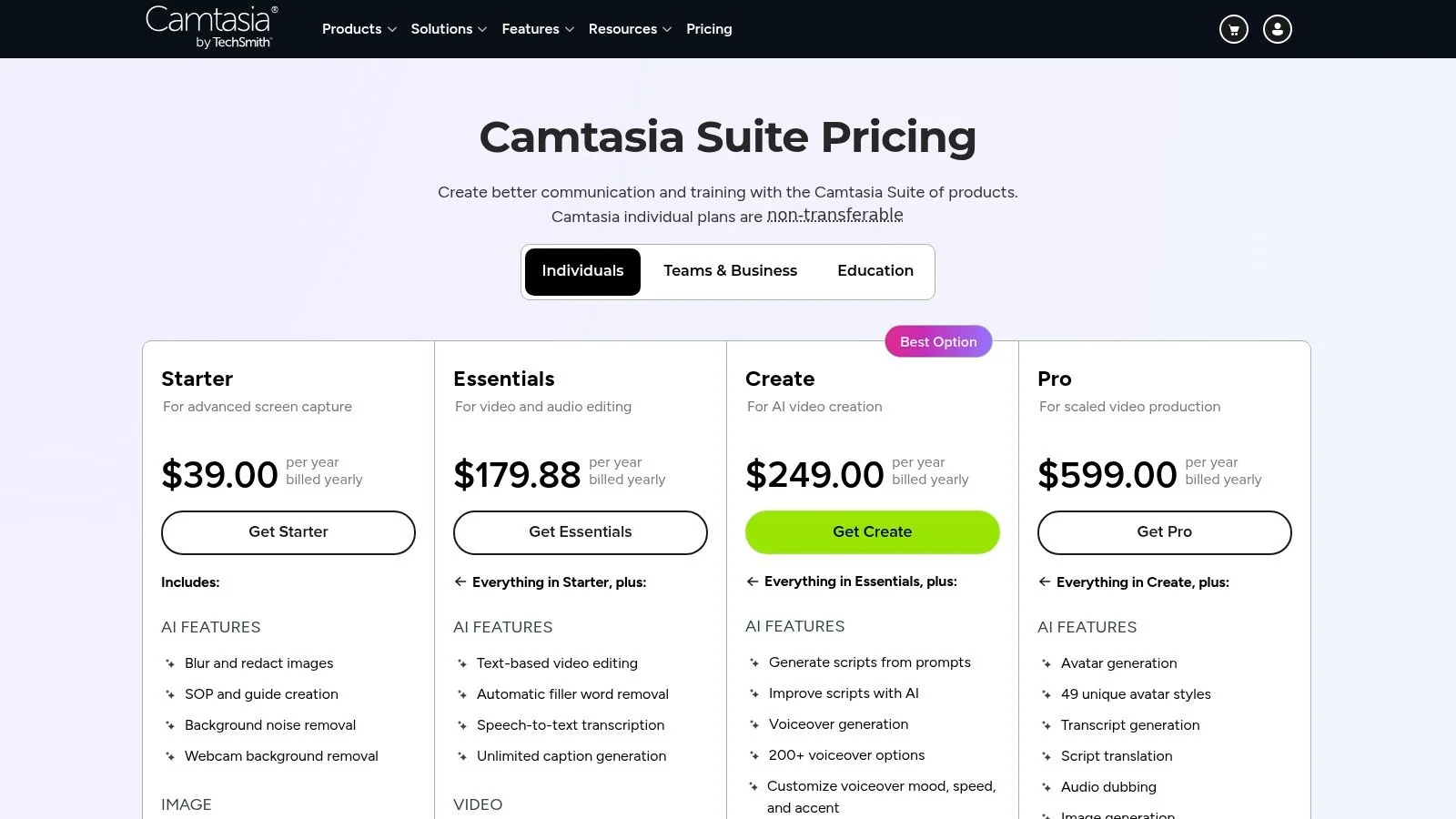
The key difference is workflow shape. Camtasia combines screen capture, cursor editing, quizzes, SCORM export, templates, and built-in tutorials, so a non-video specialist can stay inside one app and still ship something structured. That makes it a dependable fit for onboarding sequences, internal SOPs, help-center videos, and compliance-style training where the output needs to be useful before it needs to be cinematic.
Where it fits best
Camtasia is strongest when the video is part of a larger learning system. If the final deliverable needs quiz tracking or LMS reporting, the built-in eLearning pieces matter more than flashy transitions. It also reduces tool switching for teams that don’t have a separate video department, which is often the bottleneck in training content production.
It does give up ground to Final Cut Pro and Resolve on cinematic control, and it’s not trying to compete there. The trade-off is specialization, which is often the right call for support and enablement teams.
Use Camtasia when you need:
- Screen recordings with training structure.
- SCORM and quiz support for LMS workflows.
- A tool that non-editors can learn without a production background.
Avoid it when your goal is:
- High-end motion graphics or broadcast finishing.
- General-purpose editing across many content types.
- A lightweight, doc-style workflow that updates from script changes.
Website: TechSmith Camtasia
6. Telestream ScreenFlow
ScreenFlow sits in a useful middle ground for Mac users who want cleaner screencasts without adopting a large, complex editor. It’s the kind of tool you reach for when you need crisp SaaS demos, annotated support clips, or internal walkthroughs and you don’t want a steep learning curve.
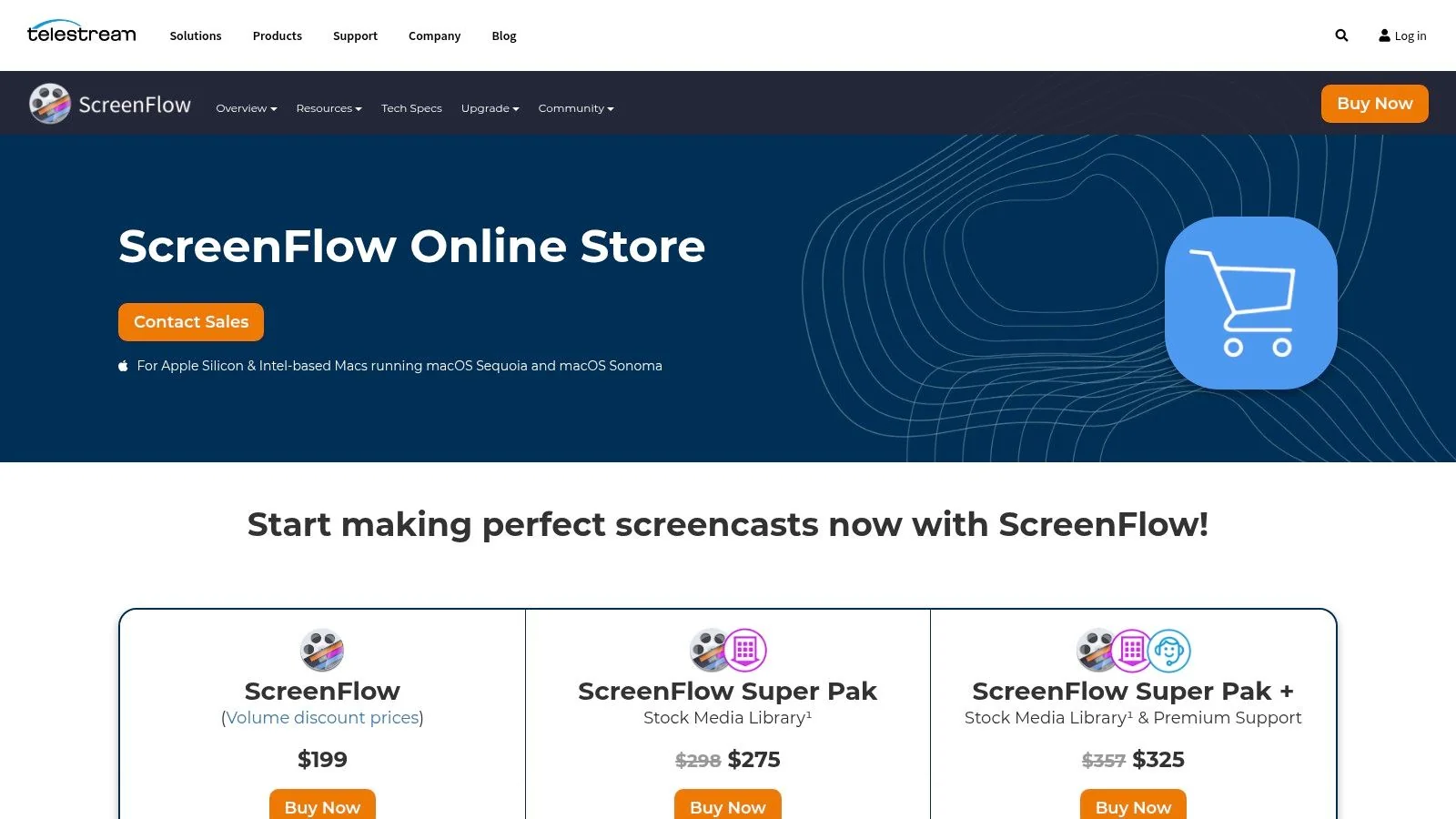
The appeal is Mac-first simplicity. It offers high-quality screen capture, easy timeline editing, callouts, animations, and cursor effects, plus support for Apple Silicon and recent macOS versions. That makes it a practical option for product managers, support leads, or technical writers who want polished output without training a whole team on a pro NLE.
Why it stays relevant
ScreenFlow is especially appealing when the message is the product UI itself. You can annotate, point, and tighten the pacing without dragging the project into a much larger editing ecosystem. It’s lighter than a full post-production suite, which means less overhead for the people who only edit occasionally.
There’s a cost to that simplicity, though. It’s Mac-only, and it has fewer advanced audio tools than Camtasia or Resolve, so it’s not the strongest choice if your videos need deep sound cleanup or broader production features. For straightforward software demos and support videos, though, that trade-off usually works in your favor.
Website: Telestream ScreenFlow
7. Descript
Descript is for script-led editing, especially when the fastest path from rough capture to publishable video is text. If your team already thinks in transcripts, captions, or interview snippets, it can save a lot of friction.
The core value is simple. You edit the words, not the waveform, and the video follows. That makes Descript useful for quick tutorial refreshes, narrated explainers, customer interviews, and multilingual captioning. Higher tiers add collaboration and brand controls, and its export options support watermark-free output and up to 4K.
Best-fit use cases
Descript is a strong option when the rough cut is mostly about removing filler, tightening language, and keeping a human voice intact. It’s also helpful for distributed teams because comments and templates reduce back-and-forth on short scripted projects.
If your editing notes usually say “cut this section,” “trim this pause,” or “tighten the intro,” a text-based editor will feel natural fast.
Where it falls short is traditional timeline depth and heavy VFX work. If the project is cinematic or needs detailed visual layering, you’ll outgrow it quickly. For content teams that live in narration, captions, and repeated updates, though, it’s one of the most efficient ways to move.
Website: Descript
Backlink: Tutorial AI AI video editing software guide
8. Wondershare Filmora
Filmora is the friendly option for people who want polished output without learning a pro editor. It’s a good fit for marketing clips, how-to videos, and social variants where templates and built-in effects matter more than a deep timeline.
The reason teams reach for Filmora is speed. A large library of effects, templates, and titles gives non-editors a head start, and features like AI Portrait and AR stickers make lightweight creative work feel more accessible. It also offers flexible licensing, so buyers can choose between subscription and perpetual purchase depending on how they budget software.
Where it works, and where it doesn’t
Filmora is useful when a small team needs repeated content with consistent branding but doesn’t have the appetite for Adobe or Blackmagic complexity. It’s easy to learn, and that matters when someone in marketing or ops is editing between other responsibilities.
The ceiling is lower than the professional suites. You’re not buying Filmora for serious color grading, deep collaboration, or advanced VFX, and that’s fine if your deliverables are internal explainers, quick promos, or social variants. The tool does its best work when expectations stay aligned with that middle ground.
Website: Wondershare Filmora
Backlink: Cinematic AI editing guide
9. CapCut for Mac
CapCut for Mac is the clear social-first choice. If your team is making short demos, teaser clips, or vertical edits for social channels, it gives you the quickest route from raw footage to something current and publishable.
A 2026 Mac round-up describes CapCut as the preferred option for social-first creators, which matches what many teams feel in practice. It brings multi-track editing, auto-captions, text-to-speech in multiple languages, and a large template and sticker library built for vertical formats. The free tier is enough for basic work, while Pro features stay behind in-app purchases.
What it’s good for
CapCut is one of the fastest ways to turn a screen recording or a quick product clip into something that looks native to TikTok, Reels, or Shorts. It also helps teams that want parity across Mac, iPhone, and Windows, so projects can move between devices without much friction.
The downside is that it’s not built for long-form broadcast or deep professional workflows. If you’re building customer education content that needs structured reuse, you’ll usually outgrow it. For social promotion and short-form repackaging, though, it’s hard to argue with the speed.
Website: CapCut for Mac
10. Apple iMovie
If you need to cut together a quick internal update, a first-pass product video, or a short training clip in under 15 minutes, iMovie is often the fastest path on a Mac. It is free, easy to learn, and good enough for straightforward work where the goal is to get a clean draft out the door without setting up a full post-production workflow.
Apple positions iMovie for beginners, and that simplicity is its main value. It runs across Mac, iPhone, and iPad, so a rough cut started on one device can be opened on another without much friction. The tool covers basic templates, titles, transitions, color correction, and speed controls, and it supports 4K export for teams that need a polished file for internal sharing or lightweight publishing. For small teams that just need a dependable way to assemble footage, the limited feature set keeps decisions simple and the timeline easy to manage.
Why it still belongs on the list
iMovie makes sense when the budget is zero and the editing task is simple. It is also a practical starting point for people who expect to move to Final Cut Pro later, because they can learn Apple’s editing basics without paying for a more advanced tool first.
The trade-off shows up fast once the workflow gets more demanding. Audio control is limited, the color tools stay basic, and there is no built-in SCORM or quiz support for formal eLearning delivery. That makes it a poor fit for teams building repeatable tutorials, structured training libraries, or any content program that depends on deeper revision cycles and more precise output control.
Website: Apple iMovie
Top 10 Mac Video Editors Comparison
| Product | Core features | UX & Quality | Unique selling points | Target audience | Price / Value |
|---|---|---|---|---|---|
| Tutorial AI 🏆 | AI transcription, doc‑style edits, cursor FX, AutoRetime™, 74‑lang voices | ★★★★★ (4.9 avg) | ✨ AutoRetime™ localization; instant voice/captions updates; video→docs | 👥 KBs, customer education, sales enablement, L&D, product teams | Free → Enterprise; advanced voices & cloning on paid tiers 💰 |
| Final Cut Pro | Magnetic Timeline, ProRes/RAW, AI assists, Motion/Compressor | ★★★★☆, optimized on macOS | ✨ Deep Apple ecosystem & ProRes workflows | 👥 Mac editors, in‑house video teams | One‑time purchase (macOS only) 💰 |
| Adobe Premiere Pro | Cross‑platform NLE, Frame.io, After Effects handoff, AI features | ★★★★☆, industry standard | ✨ Seamless Creative Cloud & review workflows | 👥 Agencies, creative teams, enterprises | Subscription (single‑app or CC bundle) 💰 |
| Blackmagic DaVinci Resolve | Edit, Color, Fusion VFX, Fairlight audio; Free + Studio | ★★★★☆, best color & audio | ✨ Industry‑leading grading; powerful free tier | 👥 Colorists, post‑production teams, pros | Free → Studio paid license 💰 |
| TechSmith Camtasia | Multitrack screen/cam/audio, quizzes, SCORM export | ★★★★☆, eLearning optimized | ✨ Built‑in LMS/quiz workflows & templates | 👥 L&D, support, customer education teams | Paid license / business pricing 💰 |
| Telestream ScreenFlow | Mac screen capture, timeline editing, callouts & cursor FX | ★★★★☆, lightweight & polished | ✨ Simple callouts & polished cursor animations | 👥 SaaS demo creators, Mac users | One‑time + add‑ons 💰 |
| Descript | Text‑based editing, overdub, Studio Sound, dynamic captions | ★★★★☆, super fast for script edits | ✨ Overdub voices & doc‑style video editing | 👥 Podcasters, tutorial authors, teams | Free → Pro; media quotas on some plans 💰 |
| Wondershare Filmora | Templates, effects, AI Portrait, titles & transitions | ★★★☆☆, easy for beginners | ✨ Large asset library & low learning curve | 👥 Marketers, non‑editors, small businesses | Subscription or perpetual license 💰 |
| CapCut for Mac | Multi‑track, auto‑captions, TTS, motion tracking, social templates | ★★★★☆, fast for social formats | ✨ Trending templates, vertical workflows, free tier | 👥 Short‑form creators, social teams | Free + in‑app purchases / Pro features 💰 |
| Apple iMovie | Templates, basic edits, cross‑device sharing, speed controls | ★★★☆☆, simple & reliable | ✨ Free, preinstalled & tightly integrated with Apple | 👥 Beginners, quick internal clips | Free 💰 |
Which Mac Video Editor Should You Choose?
The best video editor for your Mac depends on the job in front of you, not the size of the feature list. If you’re cutting cinematic marketing videos or need deep timeline control, Final Cut Pro and Adobe Premiere Pro are still the most credible pro choices, and DaVinci Resolve is the strongest free path when color and audio matter. If your work is screen-recording heavy, product education, onboarding, or knowledge-base content, a purpose-built workflow like Tutorial AI is usually the better fit because it turns one recording into a polished video and a written article from the same source.
That distinction matters for product managers and L&D teams. A traditional NLE gives you control, but it also asks for editing skill, timeline discipline, and more hand work than most training content really needs. A screen-recording-first platform reduces friction by letting you tighten narration, update steps, localize output, and publish documentation without rebuilding the project each time.
For smaller teams, the decision often comes down to who is editing. If a video producer is doing the work, Premiere Pro, Final Cut Pro, or Resolve can be the right investment. If the subject-matter expert is the one recording, and they need to ship clear tutorials, help articles, and onboarding assets fast, Tutorial AI usually wins on throughput and consistency.
The practical test is simple. Choose the tool that matches your content type, your team’s editing skill, and the number of times you expect to reuse the same recording. That’s how you avoid buying software that looks impressive in a demo but slows down the work that matters.
If your team is producing tutorials, onboarding videos, or support content on a Mac, Tutorial AI is built for that workflow from the start. It turns one screen recording into a polished video and a matching article, which is exactly what most product, support, and L&D teams need. Visit Tutorial AI to see how it can fit into your Mac video workflow.