

Voice Tags
Voice tags can make an AI tutorial voice sound less flat and more like a real presenter. Instead of delivering every sentence with the same pace and emotion, you add small performance cues — a pause, a sigh, a curious lift — that shape how each line feels to the listener.
Use tags with intention: a well-placed cue adds personality, while too many cues distract from the message.
Placing the cursor
Section titled “Placing the cursor”Position your cursor in the script where you want to alter the tone of the narration. A purple + button appears to the left of the sentence.
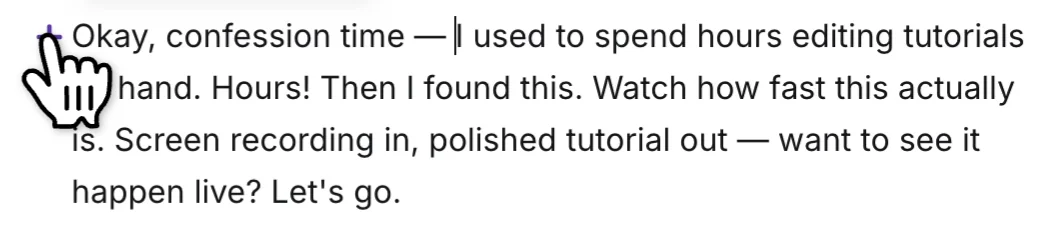
Opening the tag menu
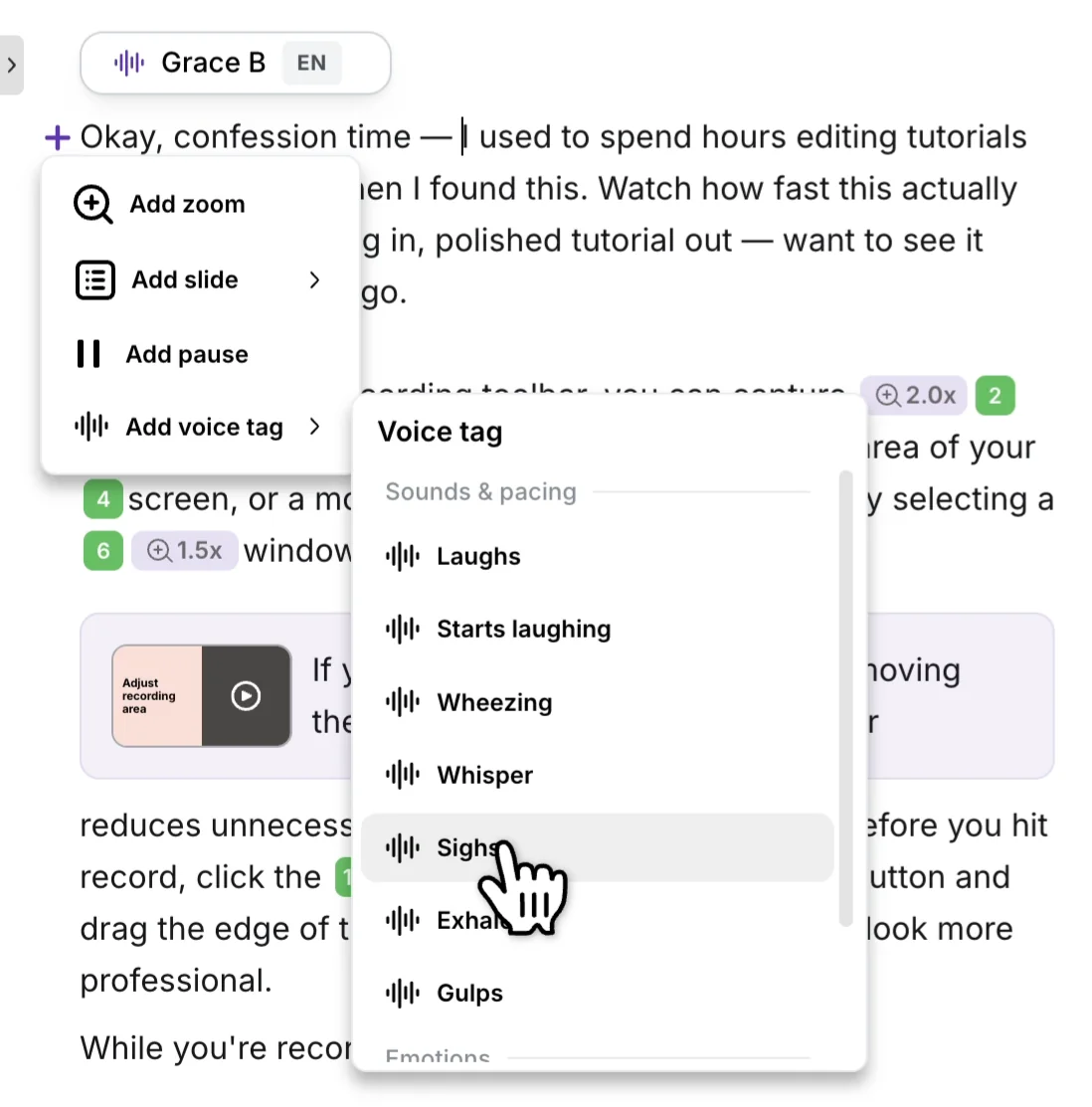
Section titled “Opening the tag menu”Click the + to open the context menu, then pick Add voice tag for a sound or emotion, or Add pause for a silence. The Voice tag menu is grouped into Sounds & pacing and Emotions.
Adjusting a pause
Section titled “Adjusting a pause”Pause tags open a duration slider — drag it to set the length. Pauses step in 0.25-second increments. Click Remove pause in the popover to delete the tag.
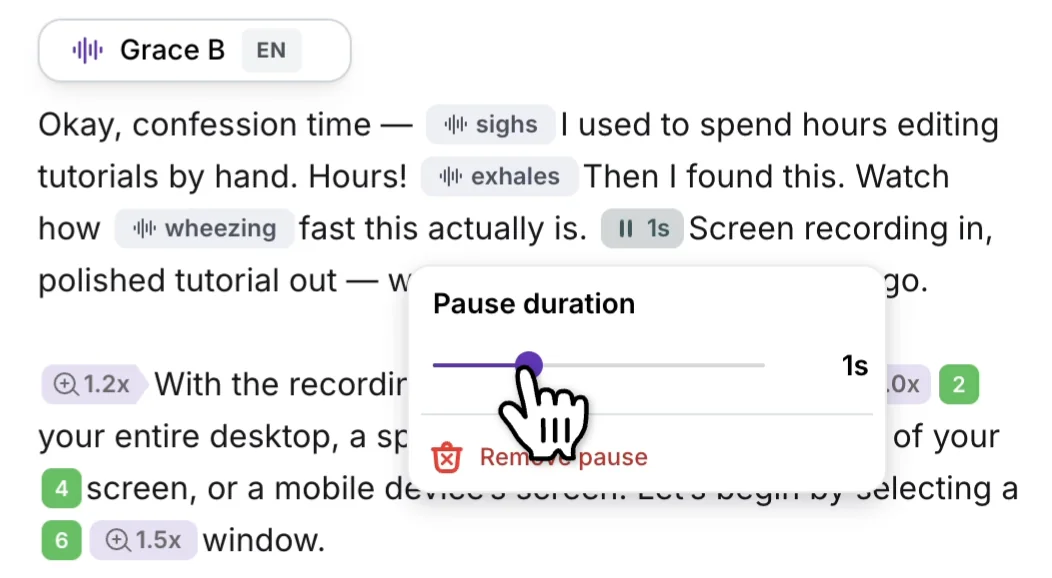
Click any existing tag in the script to edit or remove it.
The available tags
Section titled “The available tags”Insert silence for a specific duration anywhere within or between sentences. Useful for giving a viewer a beat to absorb a key point, breaking up dense narration, or pacing a punchline.
Voice tag — Sounds & pacing
Section titled “Voice tag — Sounds & pacing”Drop in a short non-verbal sound where you place the tag. The voice plays it inline:
- Laughs — a single, brief laugh
- Starts laughing — a laugh that builds into the next sentence
- Wheezing — a held, breathless laugh
- Whisper — a hushed delivery for the next sentence
- Sighs — an audible exhale
- Exhales — a breath out
- Gulps — a swallow sound
Voice tag — Emotions
Section titled “Voice tag — Emotions”Apply an emotional register to a sentence:
- Curious — slight upward inflection, engaged delivery
- Excited — energetic, higher pitch and pace
Using voice tags well
Section titled “Using voice tags well”Tags work best as performance direction. Reach for the ones that match what each line is doing — and leave lines alone that don’t need a cue.
Create a more human opening
Section titled “Create a more human opening”The opening of a tutorial sets expectations for the rest of the narration. Natural-sounding openings often include slight imperfections or reactions a real presenter might make before speaking — cues that make the delivery feel candid rather than overly polished.
- Add a sigh when the script benefits from a thoughtful, relieved, or conversational moment.
- Use an exhale to soften the start of a sentence or suggest the speaker is gathering their thoughts.
- Apply wheezing sparingly when it supports a playful, breathy, or exaggerated character choice.
- Listen to the full sentence after adding a sound cue — it should support the meaning, not interrupt it.
Control the pace with pauses
Section titled “Control the pace with pauses”Pauses give listeners time to process an important point, recognize a change in topic, or anticipate what comes next. They also prevent narration from sounding rushed when a sentence contains several ideas.
- Place a pause after an important claim, instruction, question, or transition.
- Start with a short pause when you only need a brief moment of emphasis.
- Increase the length when introducing a new idea or letting a key takeaway land.
- Avoid pausing after every sentence — frequent breaks make narration feel fragmented.
- Preview surrounding lines together, not in isolation, to make sure the rhythm stays natural.
Set the emotional tone
Section titled “Set the emotional tone”Emotion tags help the voice follow the meaning of each line instead of simply reading the words. They’re especially useful in tutorials — they can make instructions feel welcoming, discoveries feel interesting, and closing remarks feel warm.
- Use Curious when introducing a question, possibility, unexpected result, or detail you want the audience to notice.
- Use Excited for high-energy moments — a big reveal, a launch, a “here it is” line.
- Match the emotional cue to the audience and subject matter — a playful cue may not suit a serious instruction.
- Use one dominant emotional idea per line so the intended delivery stays clear.
Refine the complete narration
Section titled “Refine the complete narration”After adding tags, review the narration end-to-end. The goal isn’t to make every line expressive; it’s to make the overall delivery feel intentional and easy to follow.
- Read the script aloud without tags first to spot where natural breaths, pauses, and reactions belong.
- Add tags only at moments where they improve clarity, tone, or character.
- Keep important instructions direct, especially when the audience needs to follow an action.
- Listen for consistency so the voice remains believable across the whole tutorial.
- Make small adjustments to pause length and emotional cues until each line matches its purpose.
Next steps
Section titled “Next steps”- Script Editing — edit the narration script the tags live inside
- AI Voices — choose the voice that delivers the tagged script
- Pronunciations — fine-tune how specific words are spoken