

Uploading Videos
Tutorial AI handles two distinct kinds of video upload:
- Screen recordings — the main footage a project is built around. Uploaded when you already have a recording file (from an OS-native recorder, a phone, or another tool) and want Tutorial AI to analyze it and build a project.
- Decorative videos — short animations, intro clips, or B-roll placed onto slides. Uploaded into the Asset Library so they’re reusable across projects.
Uploading a screen recording
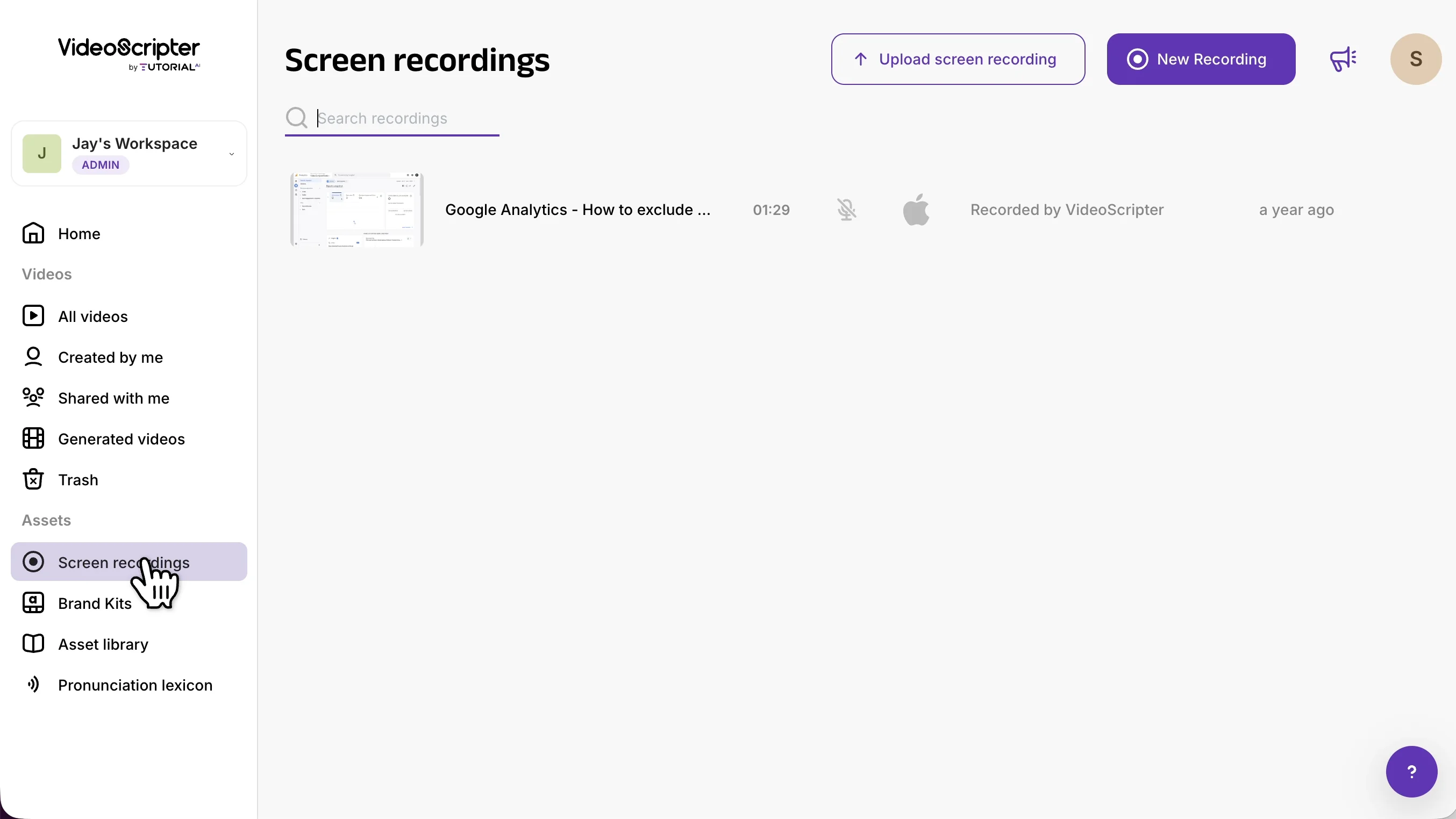
Section titled “Uploading a screen recording”Open the Screen Recordings section from the sidebar, then click the Upload screen recording button in the top-right of the header.
A modal opens with two file-type options: Desktop Recording (computer screen capture) or Mobile Recording (iOS or Android device).
Desktop recordings
Section titled “Desktop recordings”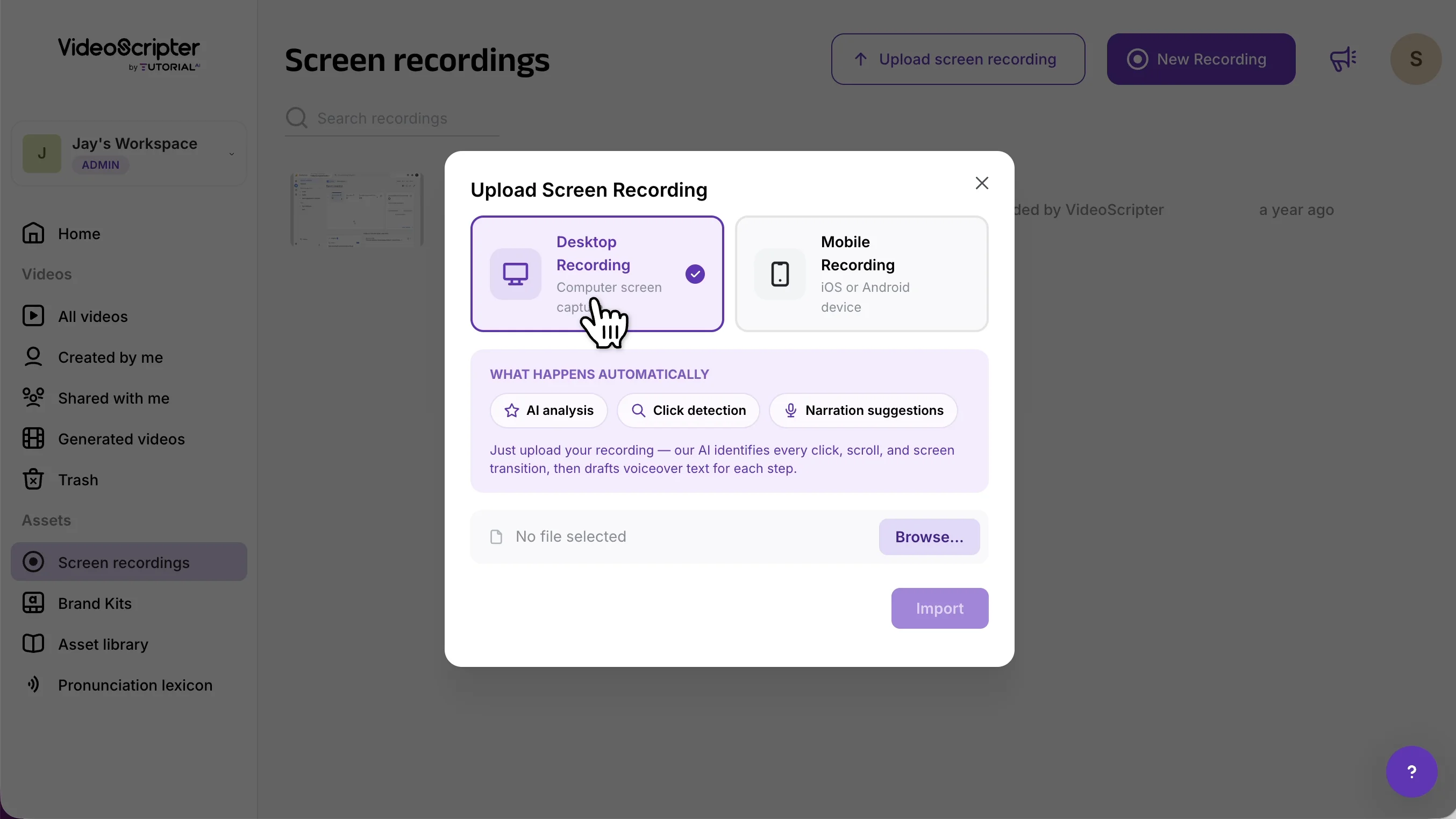
When you import a desktop recording, Tutorial AI runs three automatic passes on the file:
- AI analysis — every click, scroll, and screen transition is detected and turned into a Sync Marker
- Click detection — interaction spots are identified so post-recording effects (zooms, cursor emphasis) have targets to lock onto
- Narration suggestions — if the recording has narration audio, the script is transcribed from it; if it’s silent, the script is drafted from the visual content
Processing can take a few minutes for longer videos. You can leave the tab open or close it — Tutorial AI emails you when the project is ready.
Mobile recordings
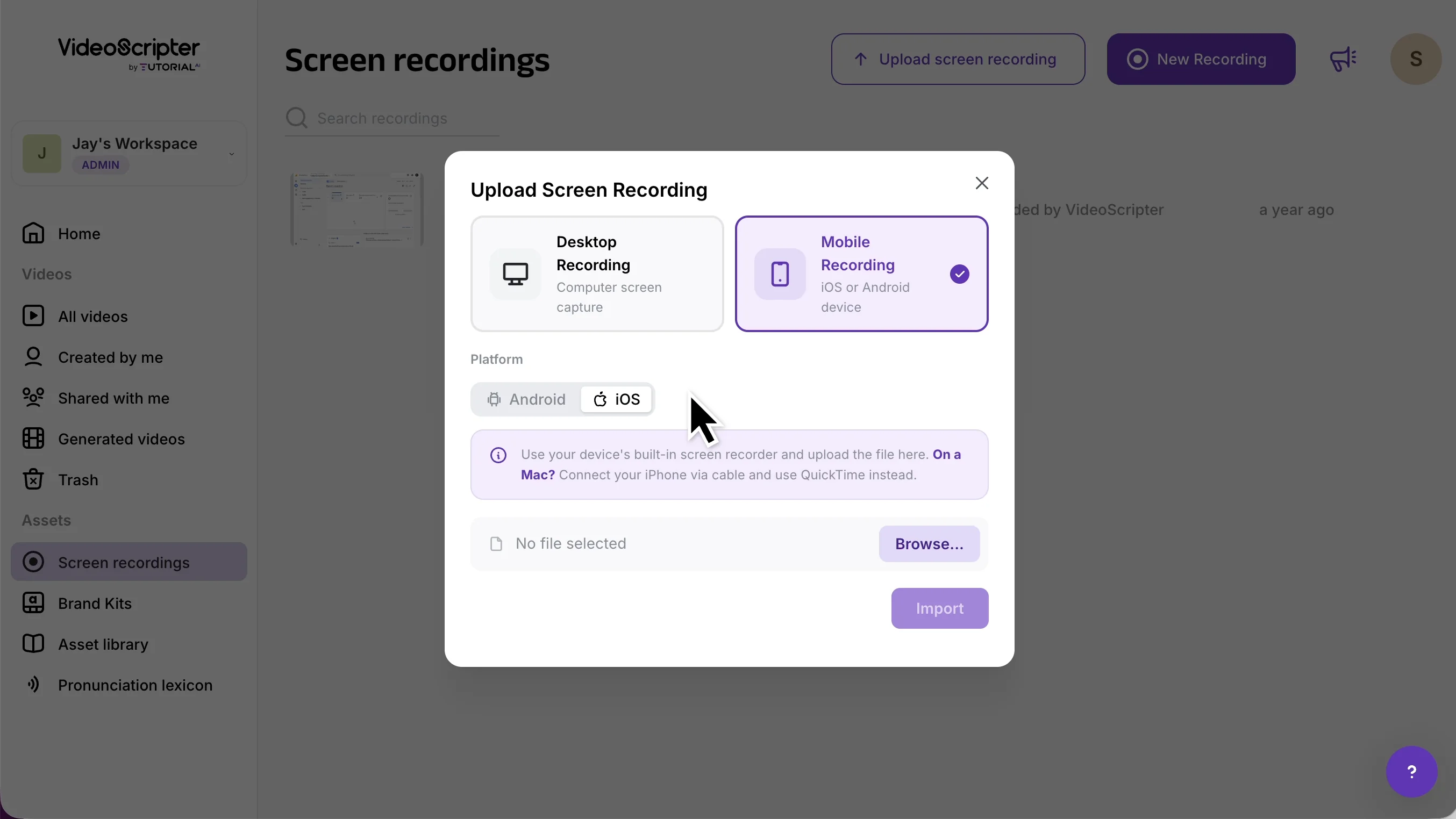
Section titled “Mobile recordings”Select Mobile Recording, then pick the platform — Android or iOS. Any .mp4 or .mov captured with a device’s built-in screen recorder is accepted.
Uploading videos to the Asset Library
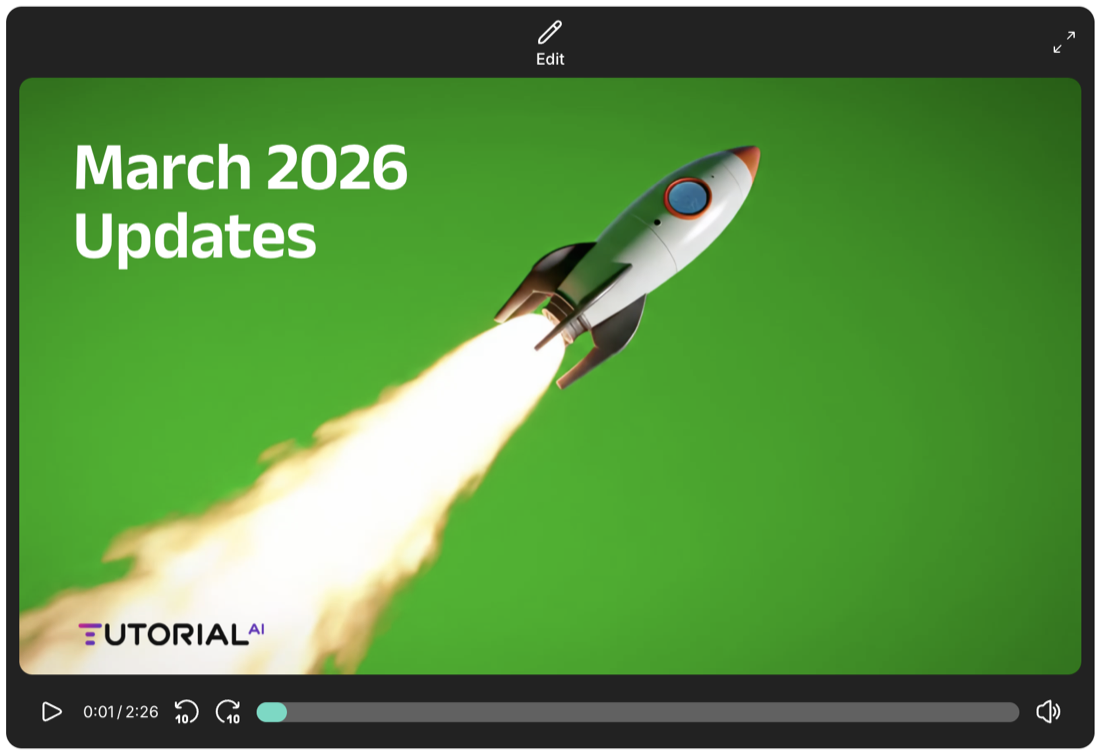
Section titled “Uploading videos to the Asset Library”Decorative videos don’t belong in the Screen Recordings tab — they live in the Asset Library and can be dropped onto any slide. Examples: an animated rocket background, a looped product shot, a personal intro clip recorded on a phone.
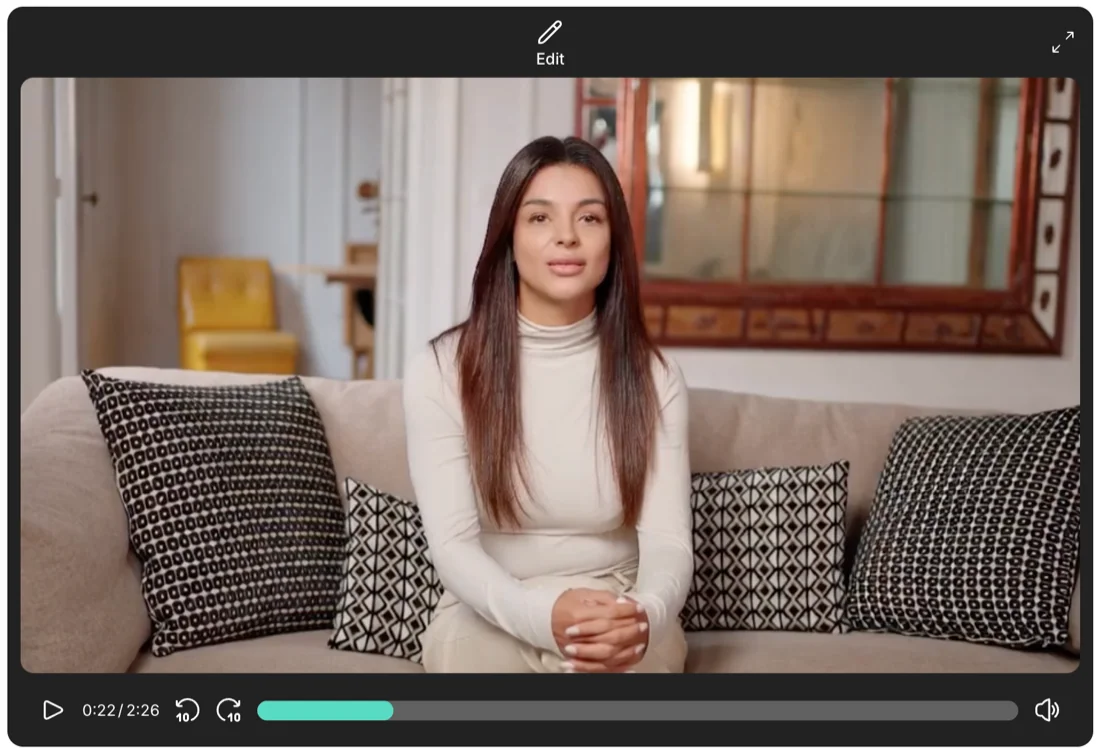
There are two ways to upload one:
- From the dashboard’s left navigation, open Asset Library → Upload media
- While editing a slide, click the video button in the top toolbar → Upload media
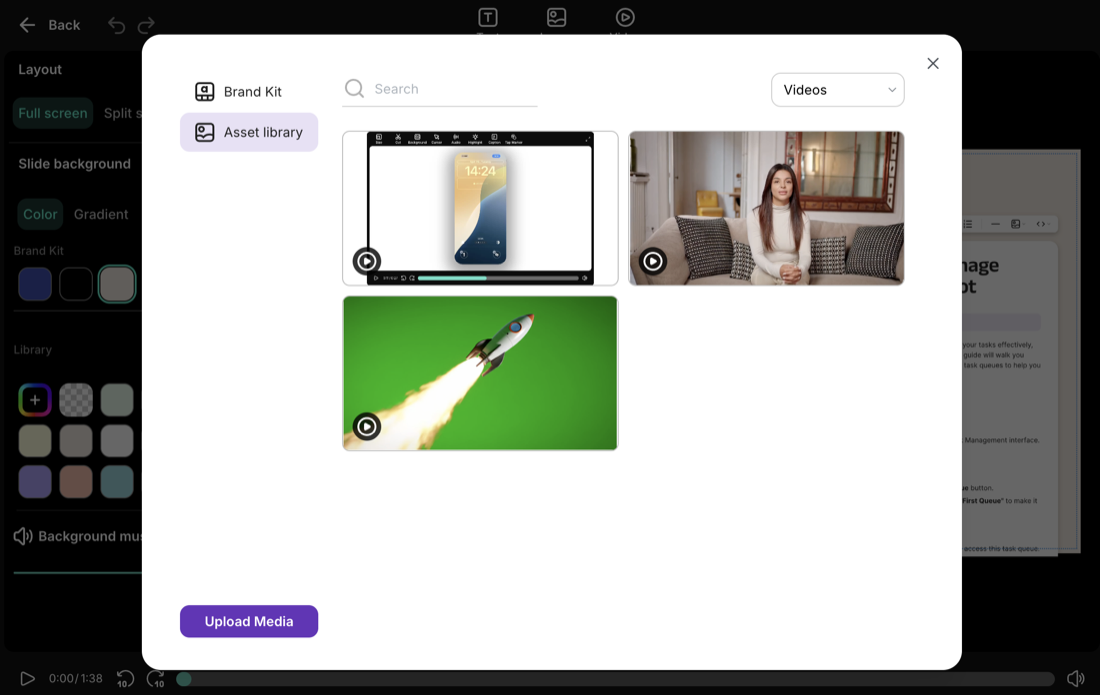
Uploaded videos become available across all your projects and can be placed onto any slide. See Slides for how to position video content on a slide.
Next steps
Section titled “Next steps”- Screen Recording — Record a new video from scratch
- Mobile Recording — Adding tap markers to mobile recordings
- Slides — Placing videos onto slides
- Editor Overview — The script-based editor