

Slide Animations
Tutorial AI applies built-in animations to auto-generated slides (Title, Agenda, Topic intro). On top of that, every text box and image on a slide can have its own custom animation — controlling how it appears, how it leaves, and how it moves while on screen.
Opening the Animations panel
Section titled “Opening the Animations panel”Select an image or text box on a slide, then switch to the Animations tab in the right-hand panel.
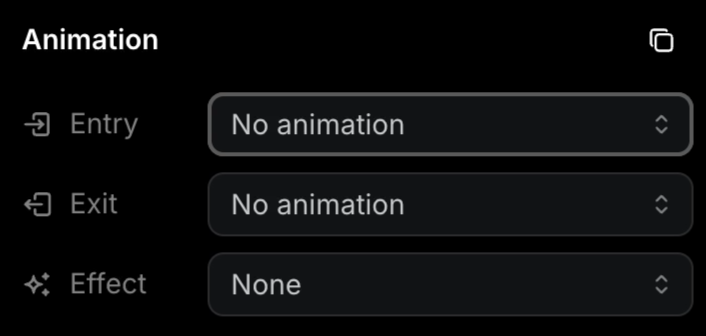
All four animation areas live here: Entrance, Timing, Exit, and Motion effects.
Entrance animations
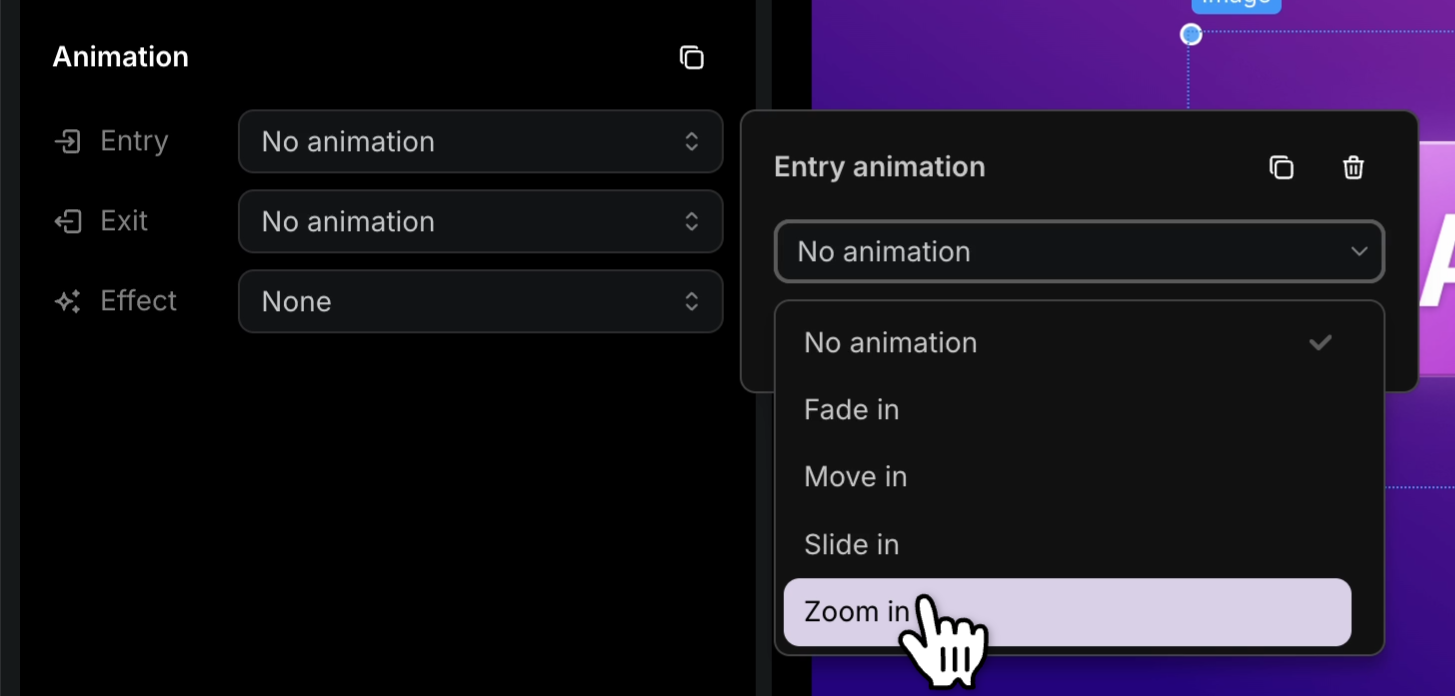
Section titled “Entrance animations”Pick from the Animation Type dropdown:
| Option | Effect |
|---|---|
| Fade in | Element softly appears from invisible |
| Move in | Element travels into position from off-element |
| Slide in | Element slides in from outside the slide edge |
| Zoom in | Element scales up from small to full size |
Timing
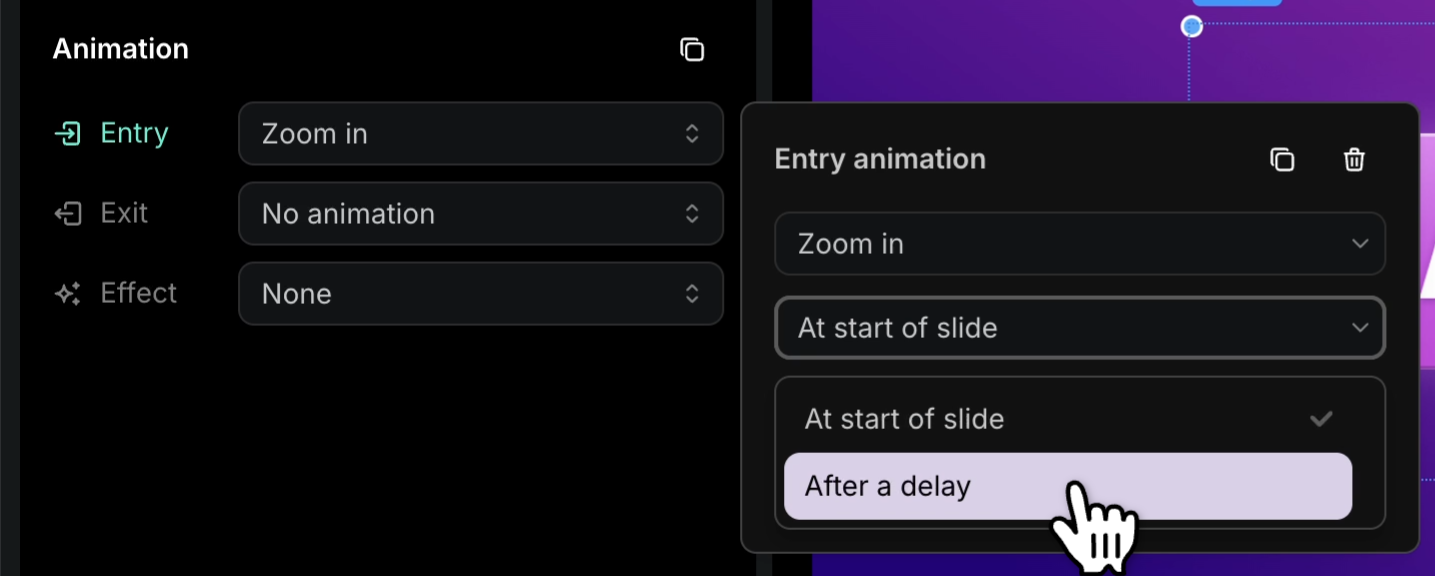
Section titled “Timing”By default, animations play at the start of the slide. Add a delay (in seconds) to stagger elements — useful for revealing bullets one by one or holding a title before introducing supporting visuals.
Exit animations
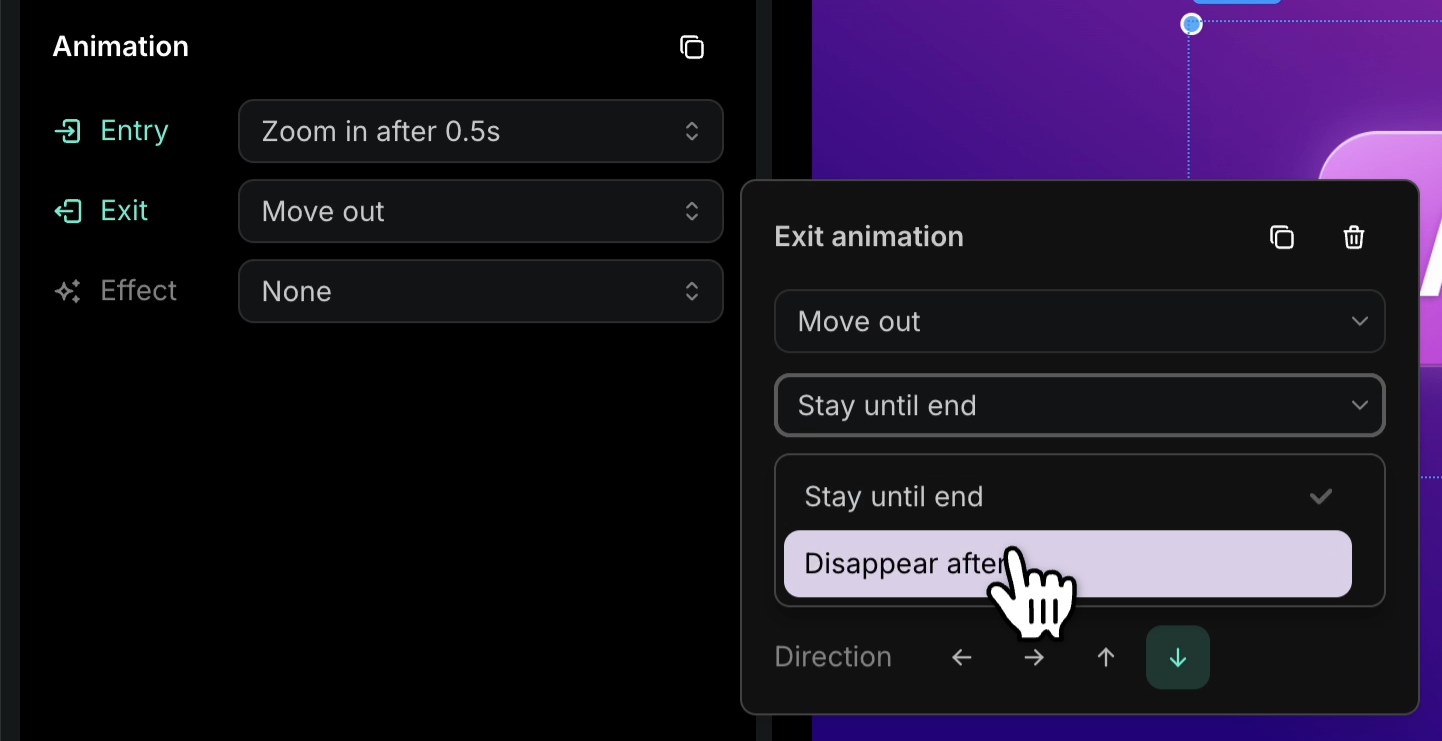
Section titled “Exit animations”By default, elements remain on screen until the slide transitions out. To exit earlier, set an exit animation in the Exit Animation section:
| Option | Effect |
|---|---|
| Fade out | Element softly fades to invisible |
| Move out | Element travels off its position |
| Slide out | Element slides off the slide edge |
| Zoom out | Element scales down to invisible |
Use Disappear after to specify when the exit triggers, independent of the slide’s own duration.
Motion effects
Section titled “Motion effects”Motion effects animate an element while it’s on screen — not just on entrance or exit. Currently one motion effect is available:
Pan — combines movement and zoom into a single continuous animation. Parameters:
- Distance — how far the element travels
- Direction — which way it moves
- Starting zoom — scale at the beginning
- Ending zoom — scale at the end
A common use: a product shot that slowly zooms in while drifting across the slide, keeping the visual feeling alive without distracting from the narration.
Copying animations between elements
Section titled “Copying animations between elements”Tune one element, then propagate the settings to others without re-picking each time.
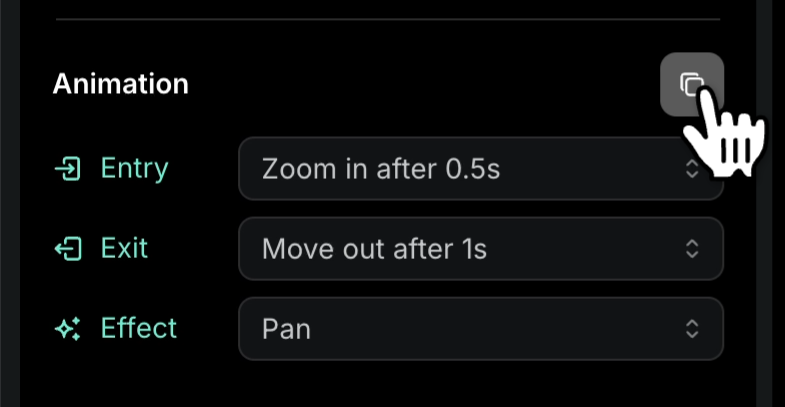
- On the source element, click the Copy button in the Animations tab.
- Select the target element.
- Press Cmd-V (Mac) or Ctrl-V (Windows).
The full animation configuration — type, timing, exit, motion — is pasted onto the target.
Next steps
Section titled “Next steps”- Slide Transitions — How slides themselves transition between each other
- Slides — Slide types and structure
- Zooming — Zoom effects on screen recordings
- Brand Kits — Apply consistent styling across slides