

Export SCORM Package
A SCORM package wraps a finished video in the standard format Learning Management Systems understand — drop it into your LMS and it reports completion back automatically. Tutorial AI packages your published video as either SCORM 1.2 or SCORM 2004, with a completion threshold you set, and hands you a .zip ready to upload.
Publishing the video first
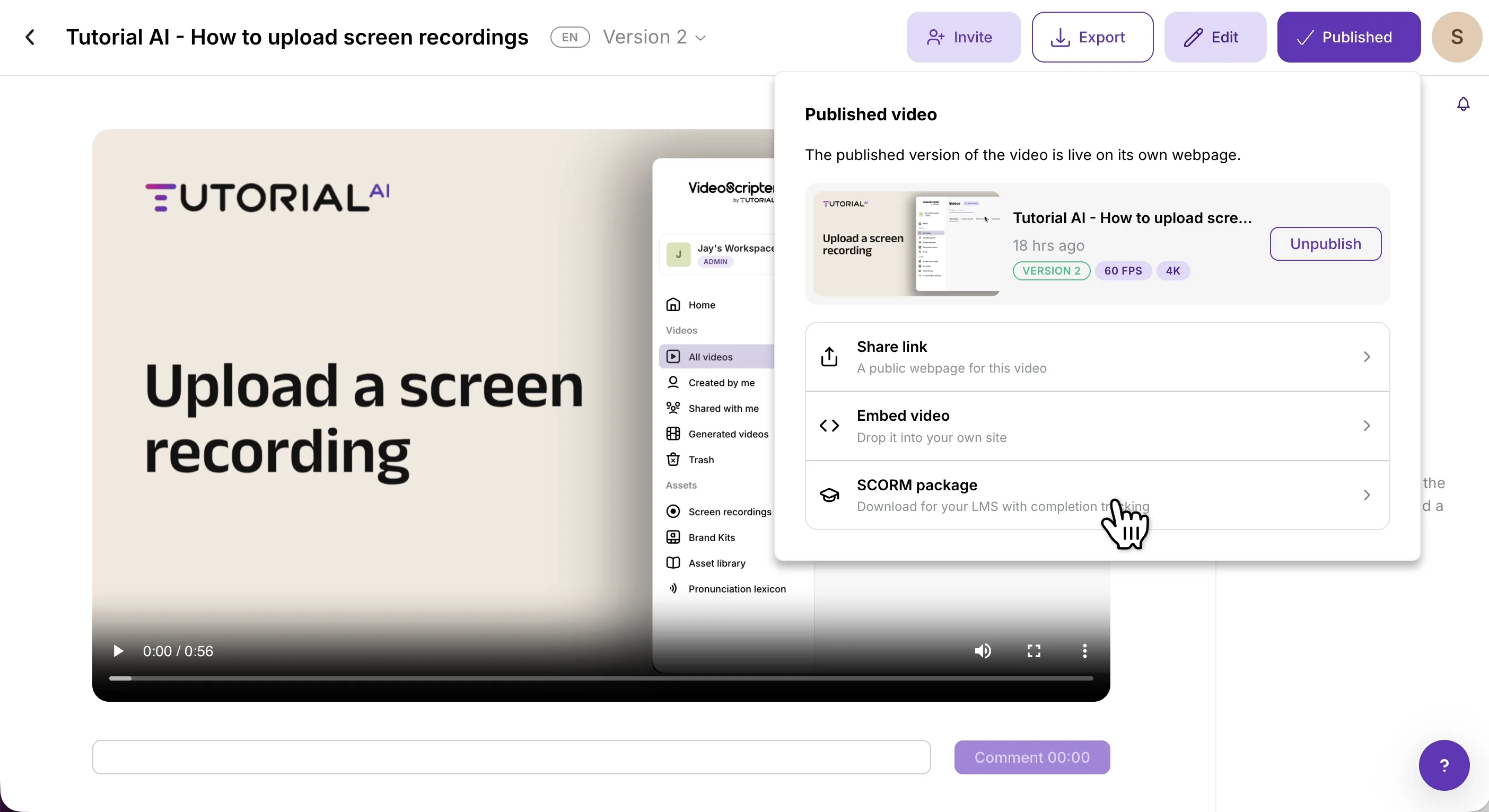
Section titled “Publishing the video first”Generate the video, then click Publish in the header to open the Published-video panel. SCORM packages the version that’s currently published — publish the exact version you want your learners to see before exporting.
Opening the SCORM panel
Section titled “Opening the SCORM panel”In the Published video panel — alongside Share link and Embed video — select SCORM package (Download for your LMS with completion tracking).
Choosing the SCORM version
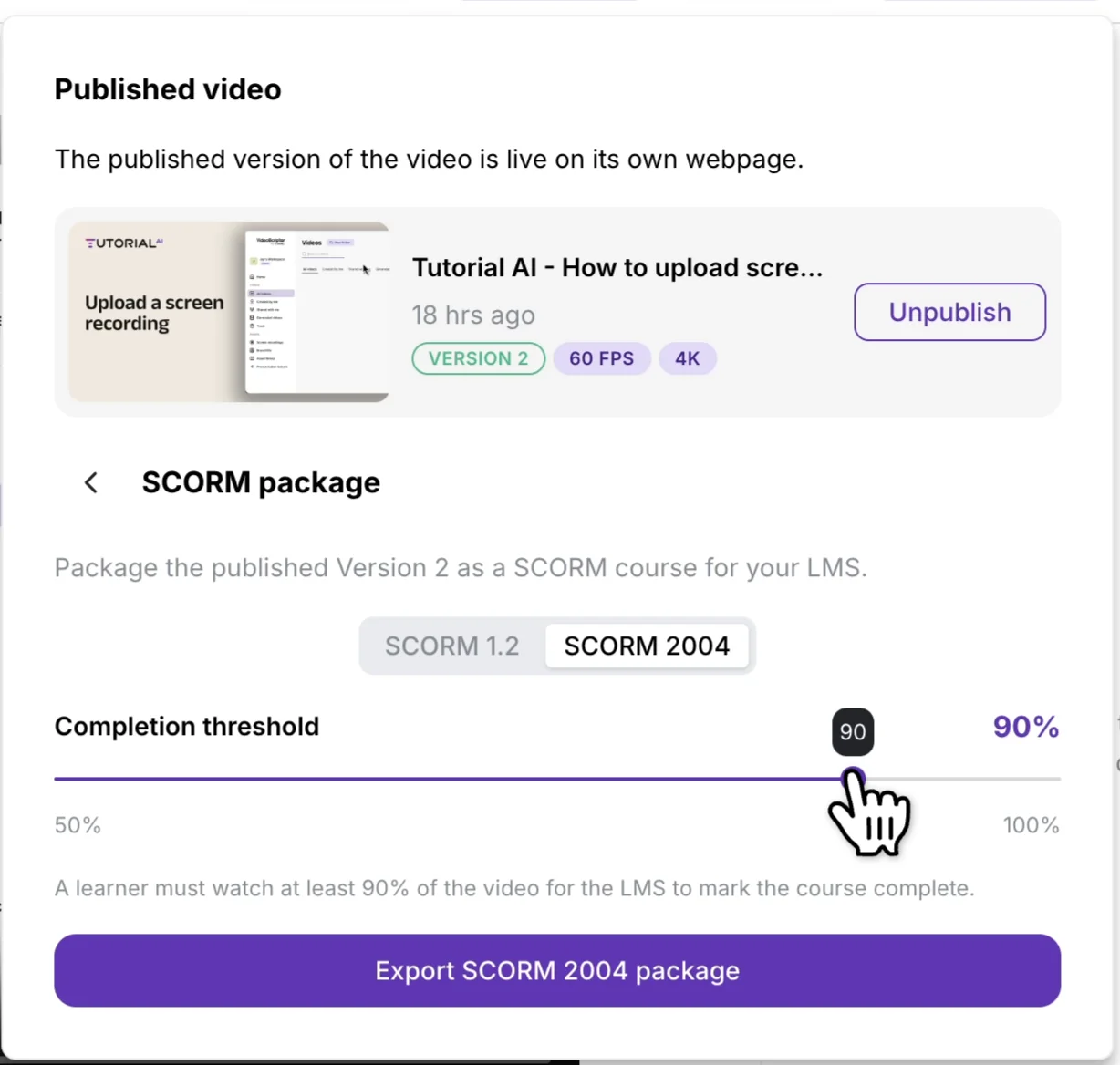
Section titled “Choosing the SCORM version”Use the toggle at the top of the SCORM panel to pick between the two standards:
- SCORM 1.2 — the most widely supported standard; choose it if you’re unsure or want maximum LMS compatibility.
- SCORM 2004 — a newer standard with more detailed tracking; choose it if your LMS specifically requires it.
Setting the completion threshold
Section titled “Setting the completion threshold”Drag the Completion threshold slider to set how much of the video a learner must watch — anywhere from 50% to 100% — for the LMS to mark the course complete.
Exporting the package
Section titled “Exporting the package”Click Export SCORM 1.2 package (or Export SCORM 2004 package) to generate the .zip. Upload the downloaded file to your LMS as a new SCORM course.
Next steps
Section titled “Next steps”- Export Video — Generate the video that gets packaged
- Publish & Share — Share links and embeds for non-LMS distribution
- Generate Documentation — Export the video’s step-by-step as a written article