

1-Click Translation
AutoRetime™ translates any video into 74 languages with a single click. The AI generates a localized narration script, voiceover, captions, and adapts video timing automatically — no re-recording, no manual timeline editing.
Translations land as drafts inside a Translation Folder. You review each language, generate the video, and publish — separately or all at once.
Two ways to start
Section titled “Two ways to start”Translation can be launched from inside the project editor or directly from the Videos dashboard. Both routes open the same language picker.
From the project editor — open the project menu and choose Translate.
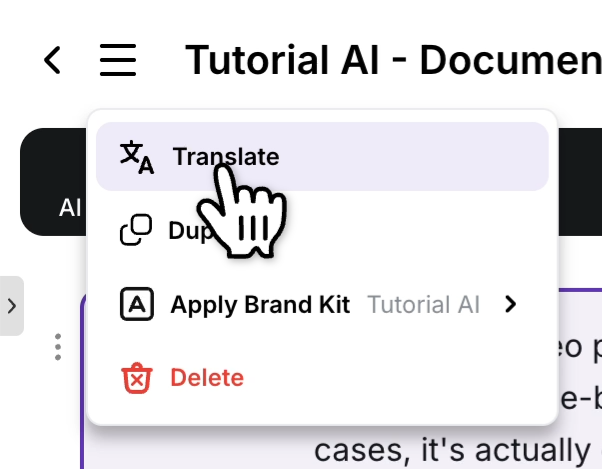
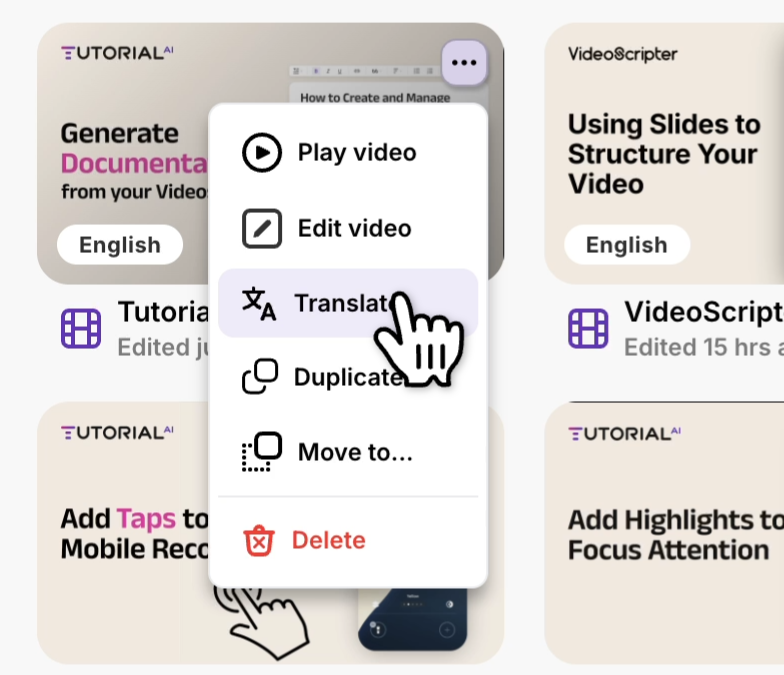
From the Videos dashboard — click the three-dot menu on a video tile and choose Translate.
Choosing languages
Section titled “Choosing languages”Tick the languages you want, then click Translate to kick off all of them in one pass.
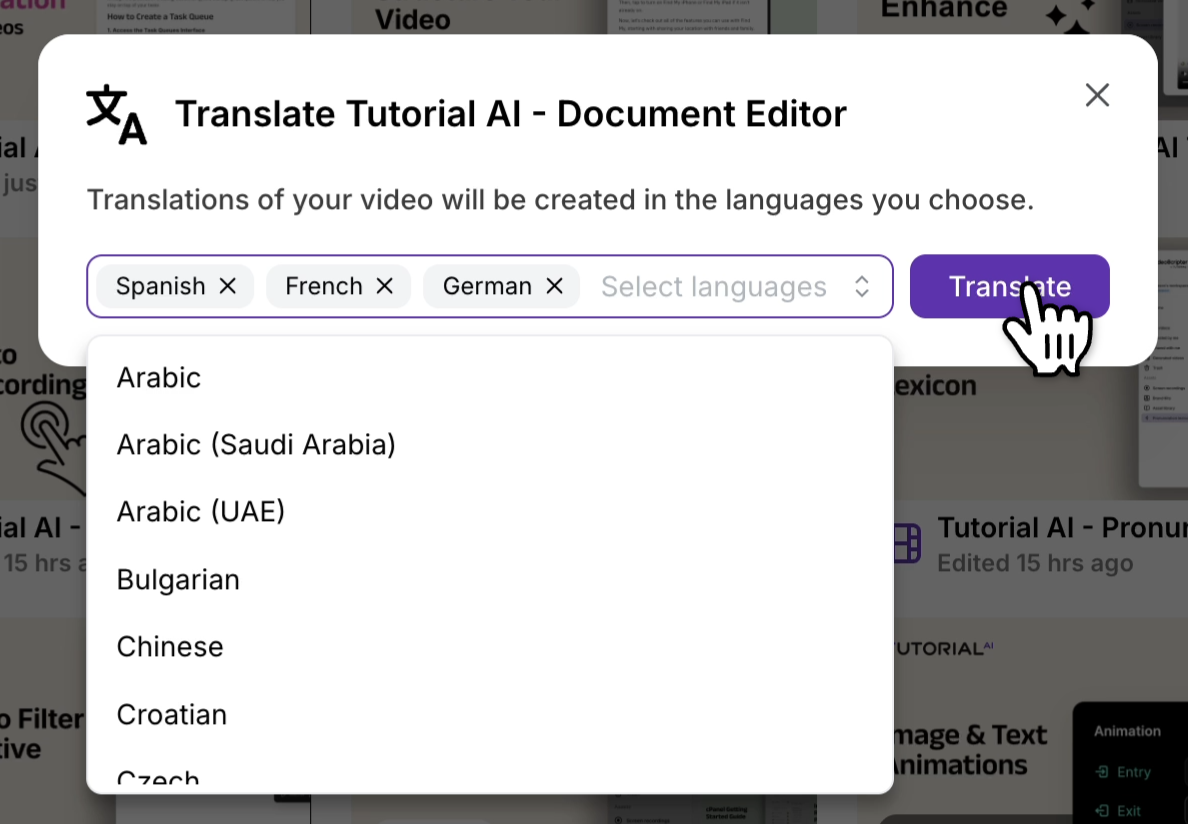
For each selected language, Tutorial AI:
- Translates the narration script
- Generates a new AI voiceover in the target language
- Adjusts video timing via AutoRetime™ to match the new voiceover length
- Updates captions to the translated text
- Keeps zoom effects, cursor highlights, and slides in sync
- Groups the source and every translated copy into an automatic Virtual Translation Folder
The Translation Folder
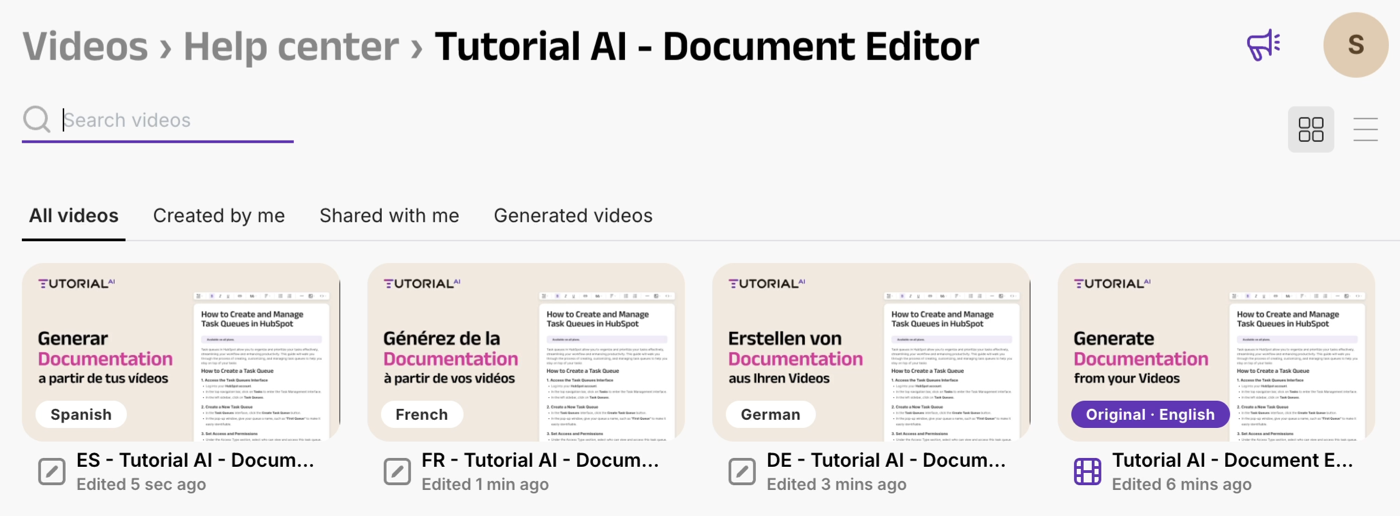
Section titled “The Translation Folder”Every language version is created as a separate draft project inside the Translation Folder. The folder inherits the source video’s name.
Review, generate, and publish
Section titled “Review, generate, and publish”For each language version:
- Open the translation from the Translation Folder.
- Review the translated script — fix any names, terms, or phrasing. For tricky pronunciations (brand names, acronyms), use the Pronunciation Lexicon.
- Open the Share menu and click Generate to render the video for this language.
- Wait for generation to complete.
- Publish — push the language version live. You can publish each language separately, or use Republish all to push every generated language at once.
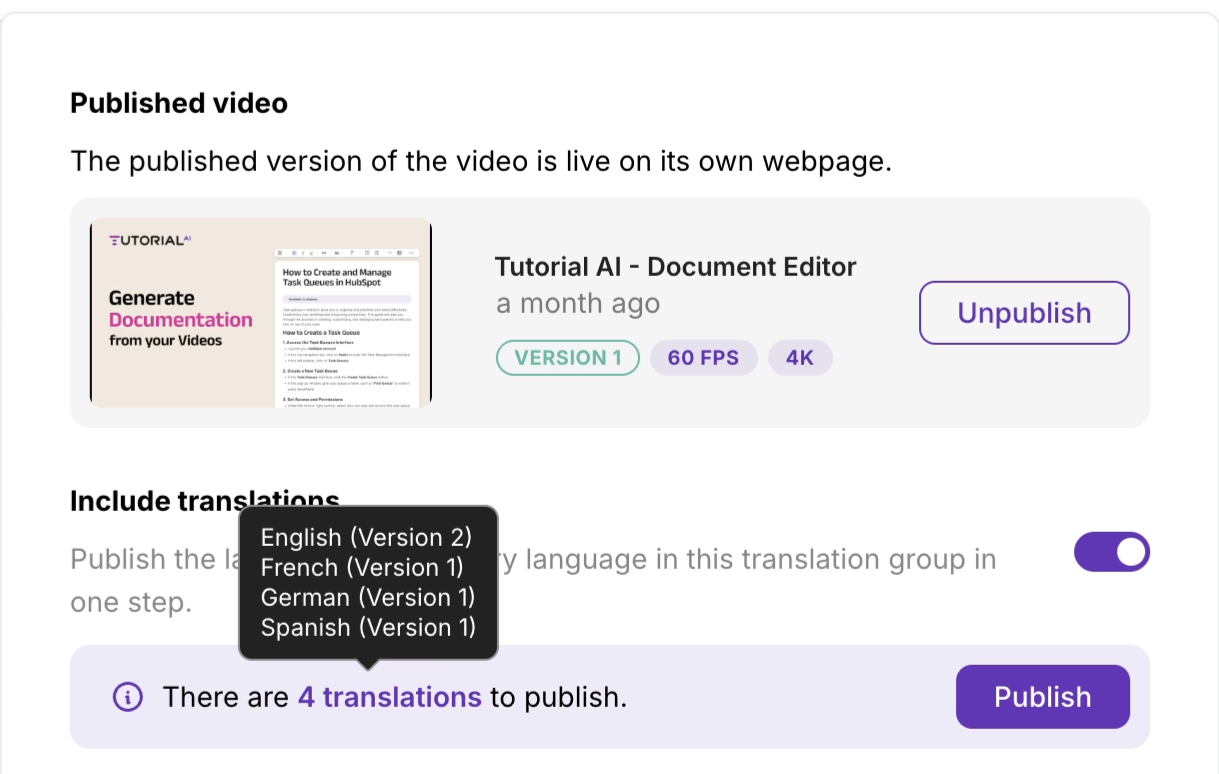
Once published, every language appears immediately in the in-player Language Selector — no embed-code change needed in your host pages.
Why AutoRetime™ matters
Section titled “Why AutoRetime™ matters”Different languages vary significantly in length — a sentence that takes 3 seconds in English might take 5 seconds in German or 2 seconds in Japanese. Without timing adaptation, translations would either:
- Cut off if the translation is longer than the original
- Have awkward pauses if the translation is shorter
AutoRetime™ adjusts video timing so captions, click events, zoom effects, and scene cuts stay perfectly synchronized with the translated voiceover.
What gets translated
Section titled “What gets translated”| Element | Translated? |
|---|---|
| Narration script | Yes — full translation |
| AI voiceover | Yes — regenerated in target language |
| Captions | Yes — if present |
| Slides text | Yes — title, body, and bullet text |
| Video timing | Yes — adjusted via AutoRetime™ |
| Zoom/cursor effects | Timing adapts, effects preserved |
| Screen recording content | No — the recording itself stays the same |
Translation quality
Section titled “Translation quality”- Translations are generated using state-of-the-art AI models.
- Each translation creates a separate project version — the original is never modified.
- The translated script is fully editable; regenerate the video after edits to roll them in.
Next steps
Section titled “Next steps”- Video Player — Embed one player with all languages, with URL params and fallback logic
- Organizing Videos — Translation Folders keep all languages of a video grouped automatically
- Publish & Share — Publishing artifacts produced by the Share menu
- Supported Languages — Full list of 74 languages
- Pronunciations — Fine-tune pronunciation in specific languages