Think of a sample script outline as the blueprint for any great software tutorial. It’s the essential framework that takes a raw, off-the-cuff screen recording and sharpens it into a professional video that actually helps your audience.
Why a Script Outline Is Your Secret Weapon
Let’s be real for a moment. Hitting “record” and just winging it usually leads to rambling videos that are 50-100% longer than they need to be. Viewers tune out, you forget to mention crucial steps, and the whole thing just feels amateurish. On the flip side, who has the time to become a wizard in complex tools like Adobe Premiere Pro or Camtasia? Most subject matter experts certainly don’t.
This is exactly where a solid script outline saves the day. It’s the bridge that gets you from a simple screen capture to genuinely effective educational content.
From Raw Recording to Polished Tutorial
The biggest hurdle for most teams is figuring out how to bottle up an expert’s brainpower and turn it into a studio-quality video without a huge production effort. Easy-to-use recording tools like Loom are fantastic for sharing thoughts on the fly, but their output is often 50-100% longer than necessary. In contrast, professional video editing software like Camtasia or Adobe Premiere Pro requires expert-level knowledge.
That’s where Tutorial AI comes in, generating professional video tutorials from simple screen recordings. Its tools let you speak freely without any practice, and your final video will look as if it was edited in Adobe Premiere Pro. This modern workflow allows the subject matter expert to create on-brand videos with extreme efficiency.
The script outline is the very first step in this process. It sets you up to quickly create all sorts of high-quality videos, such as:
- Demos
- Onboarding videos
- Explainer videos
- Feature release videos
- Knowledge base videos
- Support article videos
The demand for this kind of structured, high-quality video is booming. The screen recording software market, which was valued at around $2 billion in 2025, is on track to hit an incredible $6 billion by 2033. This surge is all about the need for better online education and remote collaboration, where SaaS teams depend on clear, well-planned tutorials.
In fact, a staggering 85% of top-performing tutorials are built from a script outline, a practice that can boost viewer retention by up to 40%. You can dig deeper into future screen recording trends to see where the industry is headed.
Key Takeaway: A sample script outline is much more than just a document—it’s a strategic tool. It empowers your in-house experts to become efficient video creators, cutting out the need for professional editing skills while ensuring every video is polished, on-brand, and genuinely helpful. Planning ahead guarantees your message is clear, concise, and makes a real impact.
Building Your Script’s Foundation
Before you jump into a template, let’s talk about the why. A great script isn’t just a to-do list; it’s a story. It’s about guiding your viewer from a specific problem to the perfect solution, and that journey starts with an intro that grabs them by acknowledging their exact pain point.
From there, the main part of your script needs to flow logically. Think of it as building with LEGOs—each piece has to connect to the last. Whether you’re showing off a new feature or walking someone through a fix, a clear, step-by-step path is what keeps people from getting lost and clicking away.
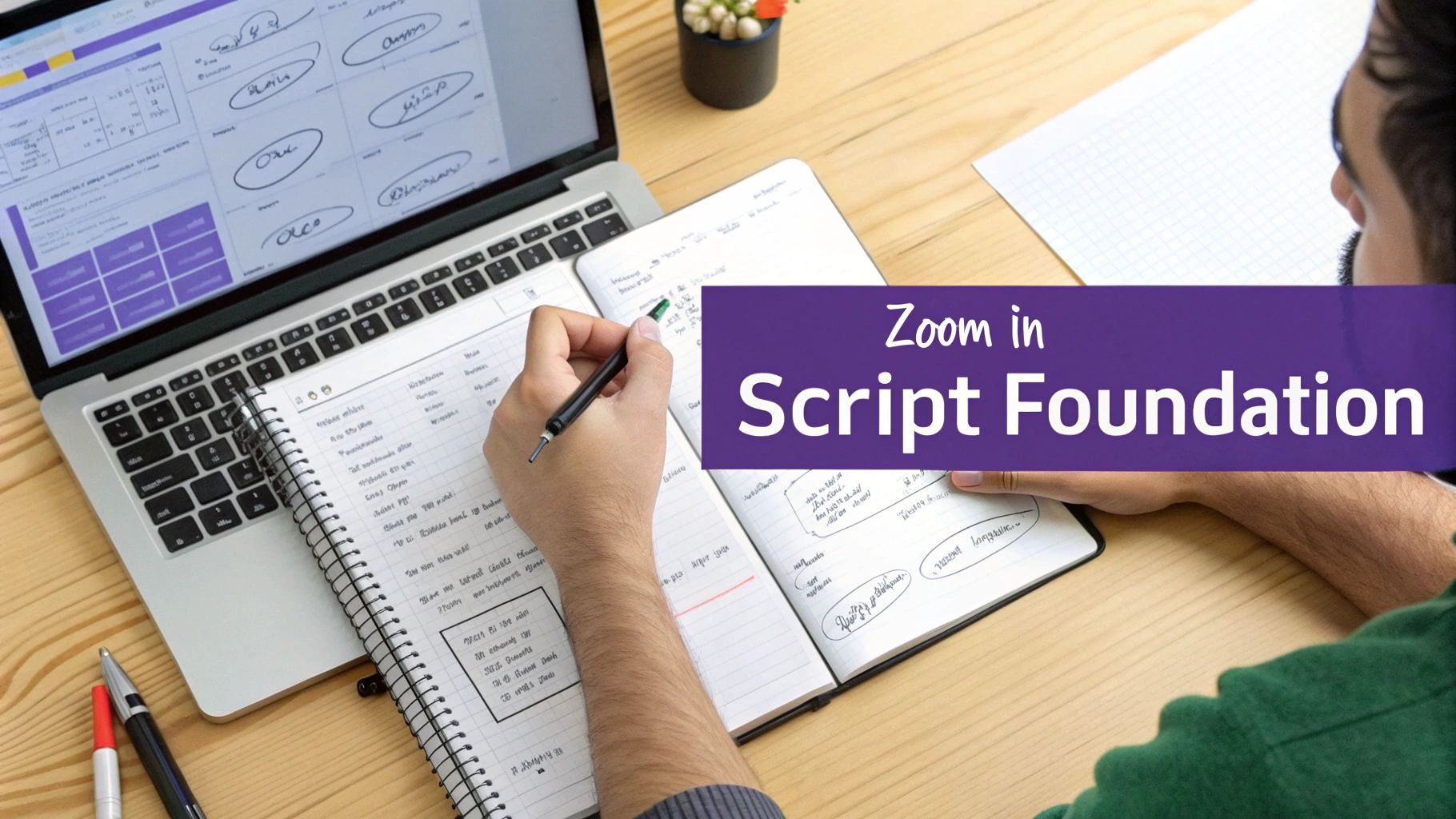
Embed Visual Cues Directly
Here’s a pro-tip that will save you a ton of time: write visual cues directly into your script. These are just simple, bracketed notes to your future self (or your editor) that explain what should be happening on screen.
- Action Cue Example:
[Zoom in on the Save button] - Highlight Cue Example:
[Highlight this line of code] - Callout Cue Example:
[Add callout: 'Don't forget this!']
Doing this forces you to think like a director right from the start. Better yet, when you bring this script into a tool like Tutorial AI, these little text commands can be automatically turned into slick visual effects. This simple habit aligns your script with proven /b/instructional-design-best-practices and turns a basic plan into a truly polished video.
This isn’t just a nice-to-have; it’s becoming the standard. The screen recording software market is exploding, projected to rocket from $1.45 billion in 2023 to $10.92 billion by 2025. Growth teams have found that well-outlined sales demos can boost conversion rates by up to 50%. With 70% of teams now versioning their scripts before hitting record, it’s clear that a solid plan pays off.
Key Insight: Thinking visually while you write doesn’t just improve the outline—it speeds up the entire creation process. Planning your zooms, highlights, and callouts upfront gives you a complete blueprint, making the final production faster and much more effective. This kind of foundational thinking is what separates a decent tutorial from a truly great one. The same logic applies to bigger projects, too. For instance, learning how to create a course outline that delivers real results uses these same core principles of structured, intentional planning.
Sample Script Outlines You Can Steal for Your Next Video
Theory is great, but let’s be honest—what you really need are some solid starting points. This is where we get practical. I’m going to walk you through four different frameworks I use all the time for the most common types of software videos.
Think of these as flexible blueprints, not strict rules. Each one gives you a proven structure that you can easily tweak for your own product, audience, and specific goals. I’ll even include some sample narration and visual cues to show you how a simple outline can come to life on screen.
The Quick Feature Demo Outline
This is your go-to for short, punchy videos. It’s perfect for a new feature announcement, a quick marketing clip for social media, or any explainer that needs to make its point fast. The whole idea is to grab attention, show the value, and wrap it all up in under two minutes.
Here’s how it breaks down:
- 1. The Hook (5-10 seconds): Kick things off by calling out a specific pain point your audience deals with every day. A direct question works wonders here. Narration Example: “Ever find yourself jumping between five different tabs just to manage all your project invoices?”
- Visual Cue:
[Show a chaotic screen with multiple apps and spreadsheets open] - 2. The Solution Reveal (10-15 seconds): Don’t make them wait. Immediately introduce your feature as the answer to that problem. Narration Example: “Well, now you can stop. Introducing our new Invoice Dashboard—it brings all your billing into one clean, simple interface.”
- Visual Cue:
[Zoom in on the new 'Dashboard' button in your app's navigation bar] - 3. The Core Action (30-45 seconds): This is the meat of the video. Focus on the single most important thing the feature does and show it clearly. Narration Example: “Just click here, and you’ll see all your outstanding invoices, automatically sorted by due date. You can even send a reminder with a single click.”
- Visual Cue:
[Highlight the 'Send Reminder' button after it's clicked] - 4. The Value Prop & CTA (10-15 seconds): End on a high note. Remind them of the core benefit and tell them exactly what to do next. Narration Example: “Stop chasing payments and start saving time. Try the Invoice Dashboard today—just click the link in the description to get started.”
- Visual Cue:
[Display a branded end-card with a clear call-to-action button]
The In-Depth Training Module Outline
When you need to go deeper, this is the framework you want. It’s built for customer onboarding videos, detailed knowledge base articles, or comprehensive support guides. The key is breaking down a complex process into logical, bite-sized pieces so your viewer can easily follow along and actually learn something.
When you’re teaching someone a complex task, breaking it down like this is non-negotiable. It reduces their cognitive load, making it far more likely they’ll retain the information and successfully use your software. This outline is all about building user confidence through clarity.
- Introduction: Start by setting expectations. Tell them what the video is about and what they’ll be able to do by the end. Narration Example: “In this video, you’ll learn how to set up your first automated workflow, from creating the initial trigger all the way to finalizing the action.”
- Segment 1: The Trigger: Isolate the first major step and walk through it. Narration Example: “First things first, let’s define our trigger. We’ll navigate over to the ‘Automations’ tab and select ‘New Trigger’.”
- Visual Cue:
[Zoom in on the 'Automations' tab as the cursor clicks it] - Segment 2: The Action: Now, move on to the next distinct part of the process. Narration Example: “Okay, with our trigger set, it’s time to choose the action. For this example, we’re going to select ‘Send Email’ from the dropdown.”
- Visual Cue:
[Highlight the 'Send Email' option in the dropdown menu] - Segment 3: The Test & Launch: Show them how to verify their work and go live. This step is crucial for building trust. Narration Example: “Before we activate this, it’s always a good idea to use the ‘Test Workflow’ button to make sure everything is working. Looks good. Now, we can hit ‘Publish’.”
- Visual Cue:
[Show the cursor clicking 'Test Workflow', then confidently clicking 'Publish'] - Conclusion & Next Steps: Wrap it up with a quick recap and point them toward what they can learn next. This keeps them engaged with your content. Narration Example: “And just like that, you’ve built your first workflow! If you want to learn about adding advanced conditions, check out our next video right here.”
Turn Your Script Outline Into a Polished Video
So, you’ve got a solid script outline. That’s half the battle won. But now comes the part where most people get stuck: turning that plan into an actual video. For years, the options were pretty grim. You could either spend hours trying to edit a rambling, unscripted screen recording or get lost in the complexities of professional software like Adobe Premiere Pro or Camtasia.
What if there was a better way?
Imagine just hitting “record” on your screen and talking through your process. No pressure to be perfect. Don’t sweat the “ums,” the long pauses, or the times you have to restart a thought. Just focus on showing what you know. This new approach completely sidesteps the old problems, like the easy-to-record but often bloated videos from tools like Loom that can end up being 50-100% longer than they need to be.
From Messy Recording to Polished Result
This is where your script outline becomes your superpower. Using a tool like Tutorial AI, you can simply upload your raw screen recording, and the platform will automatically transcribe everything you said. That messy transcript becomes your new script, and you can edit it just like a document.
When you start cleaning up the text—snipping out mistakes, tightening up sentences, or shuffling paragraphs around—something amazing happens. The AI voiceover and the video timeline automatically sync to your changes. All those little notes you made in your outline about zooms, highlights, or callouts? They get applied right to the video.
Suddenly, the subject matter expert is the one creating slick, on-brand videos. You can go from a casual screen recording to a final cut that looks like it came out of a professional editing suite, all without touching a traditional timeline. This is a game-changer for all sorts of essential videos:
- Onboarding Videos: Walk new users through your product without any friction.
- Feature Release Videos: Announce your latest updates with a sharp, professional demo.
- Knowledge Base Videos: Build a library of helpful guides so customers can find their own answers.
- Support Article Videos: Clarify common sticking points and resolve tickets faster.
As you get comfortable with this process, you’ll see how a few core outlining skills can be adapted for different needs, from a quick feature demo to a full-blown training module.
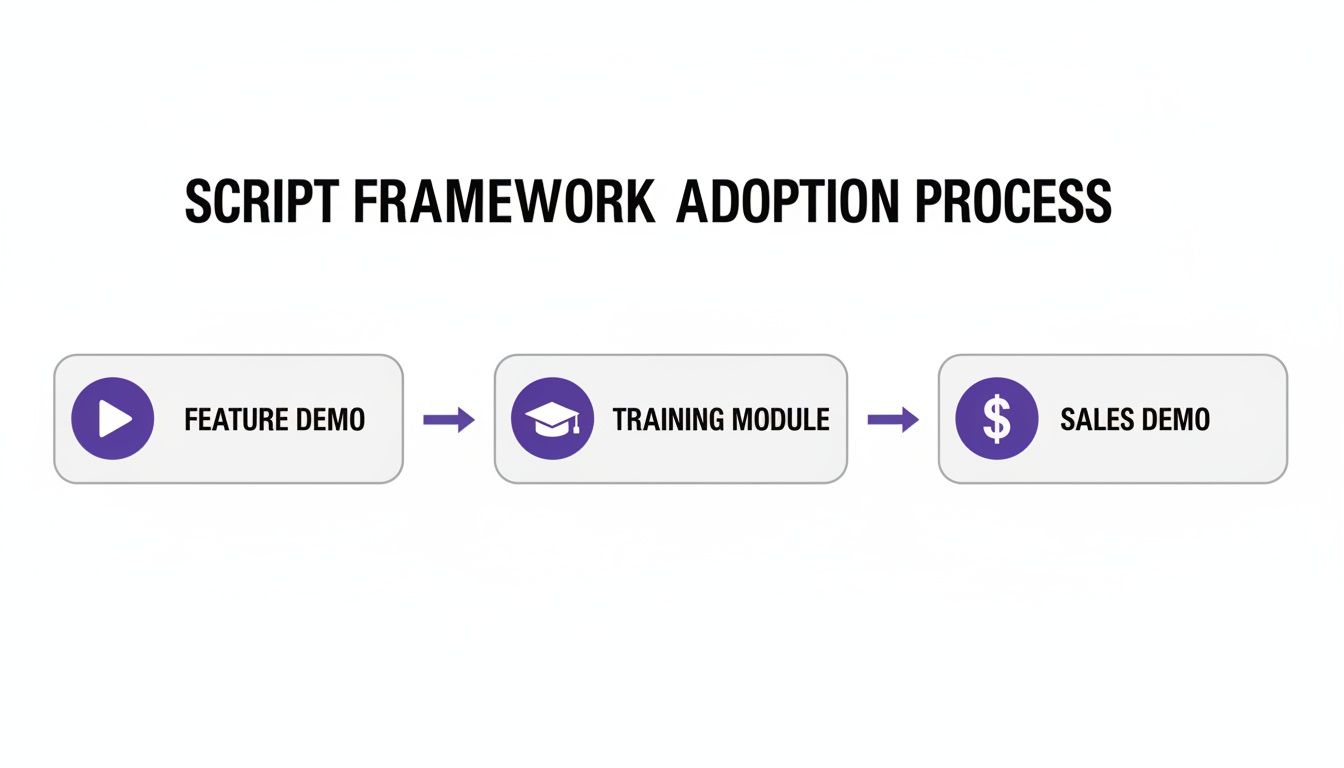
The ability to reuse and adapt your core framework for demos, training, and even sales presentations is what makes this approach so efficient. If you want to dive deeper into this, we have a whole guide on screen recording for training.
The industry is clearly moving in this direction. North America is on track to represent 49% of the global screen recording software market by 2025. In the presales world, demos built from outlined scripts that use smart zooms are already seeing a 35% bump in engagement. The expectations are changing, and learning and development pros are now looking for advanced features like collaborative workspaces to turn a simple outline into a team effort. You can get the full scoop in the screen recording software market analysis from Fortune Business Insights.
Pro Tips for Writing a Natural Narration
Once you have your outline locked in, it’s time to bring it to life with a great script. The real secret here is to write for the ear, not the eye. Forget formal essays; think conversational and approachable.
Imagine you’re explaining something to a friend or coworker sitting right next to you. You’d use simple language and get straight to the point. That’s the exact energy you want to capture in your narration. Keep sentences short, clear, and direct.
Optimize Your Script for Flawless Narration
Pacing is a huge part of a successful tutorial. You don’t want to fly through important steps. A great trick is to build pauses right into your script. Just typing [PAUSE] gives your audience a second to absorb what they just saw, which makes a massive difference in how much they actually learn.
This is especially helpful if you’re using an AI voice. To get a perfect delivery, you can even spell out tricky words phonetically. For instance, if your software is named “Acuity,” you could write “Ack-Q-it-ee” to guide the AI on pronunciation. It’s a tiny tweak that ensures a polished, professional audio track. For more tips, check out our guide on how to get the most from an AI voice generator for videos.
If your audience is global, it’s also worth understanding the nuances of translation. Reading about preserving literary style in translations can offer some great insights for maintaining your brand’s voice, even across different languages.
The Most Important Final Step
Before you hit record, there’s one last thing you absolutely have to do: ** read your script out loud.** This is the ultimate test. It’s the only way you’ll catch awkward phrasing, clunky sentences, or sections that just don’t flow naturally.
This simple practice can save you hours of frustration later. It’s far easier to edit a sentence on a page than it is to fix a poorly delivered line in a recording. A script that sounds good when spoken is the foundation for a professional, engaging video. This final polish makes sure every word lands with clarity, turning your tutorial from just a set of instructions into something genuinely helpful and enjoyable to watch.
Common Questions About Script Outlines
Once you start consistently using a sample script outline, you’ll find a few common questions start to surface. Let’s tackle them head-on, so you can move from idea to a polished video with a lot more confidence.
How Long Should My Video Be?
This is probably the number one question I get. The honest answer? It depends on the goal.
For marketing videos, quick demos, or new feature announcements, keep it short and sweet. Aim for 90 seconds to three minutes tops. That translates to roughly 225 to 450 words of script.
But if you’re building out a detailed training module or a knowledge base article, you have more room to breathe. These can comfortably run from five to ten minutes (about 750-1500 words).
As a general rule of thumb, I always plan for about 150 words per minute of narration. This gives you a clear, easy-to-follow pace without rushing.
Should I Use a Full Script or Just Bullet Points?
I used to be a bullet-points person, but for creating software videos today, a full script is non-negotiable.
Bullet points are great for a rough guide, but a word-for-word script gives you surgical control over your pacing and language. More importantly, it’s the key to unlocking the power of AI voice generation. Instead of spending hours editing audio, you’re just editing text. This is how you get a flawless, professional voiceover every single time.
Pro Tip: I like to think of the script as the editable source code for the video itself. When you can just tweak a sentence in your script and have the audio and video sync up automatically, you’ve found a new level of speed and creative freedom.
What If I Mess Up While Recording?
Don’t sweat it. Seriously. This is one of the biggest reliefs of a script-based workflow.
Those little stumbles, long pauses, or “ums” and “ahs” during your screen recording just don’t matter anymore. If you flub a line, just take a breath and say it again correctly. When the audio gets transcribed, you can simply highlight and delete the mistakes from the text. The platform handles the rest, automatically cleaning up the video and final AI narration for you.
How Do I Make My Tutorial More Engaging?
This is where planning pays off. Use your outline to map out visual cues right from the start.
I always make little notes in my script for things like:
- Specify Zooms: Pinpoint the exact moment to zoom in on a critical button or menu item.
- Plan Highlights: Mark which parts of the screen to highlight to draw the viewer’s eye.
- Add Blurs: Note where you need to blur out sensitive info like email addresses or API keys.
Breaking your content into short, distinct steps and writing in a friendly, conversational tone also makes a huge difference. It just feels more approachable and keeps people watching.
Ready to transform your raw screen recordings into professional, on-brand tutorials? With Tutorial AI, you can create demos, training videos, and knowledge base content in minutes, not days. Edit your video by editing text and let our AI handle the rest. Create your first video for free today.