Think of this guide as your go-to cheat sheet for Tutorial AI. It’s designed to give you exactly what you need, right when you need it, so you can master video creation for demos, onboarding, or support articles in no time.
Your Go-To Guide for Fast, Polished Videos
We’ve all been there. Training and support teams often get stuck between two less-than-ideal options for creating video tutorials. You could use an easy-to-use recording tool such as Loom, which is fast but often results in rambling videos that are 50-100% longer than necessary. Or, you could dive into professional video editing software like Camtasia or Adobe Premiere Pro, which requires expert video editing knowledge.
Tutorial AI was built to solve this exact problem by generating professional video tutorials based on screen recordings. This is perfect for creating demos, onboarding videos, explainer videos, feature release videos, knowledge base videos, and support article videos. Tutorial AI’s tools let you speak freely without any practice, and your video will still look professional, as if it was edited in Adobe Premiere Pro. It allows the subject matter expert to create on-brand videos extremely efficiently.
This guide is your quick-lookup resource for recording, editing, and sharing. It’s the fastest way to get comfortable with all the features Tutorial AI offers and make your workflow a whole lot smoother.
How to Record a Flawless First Take
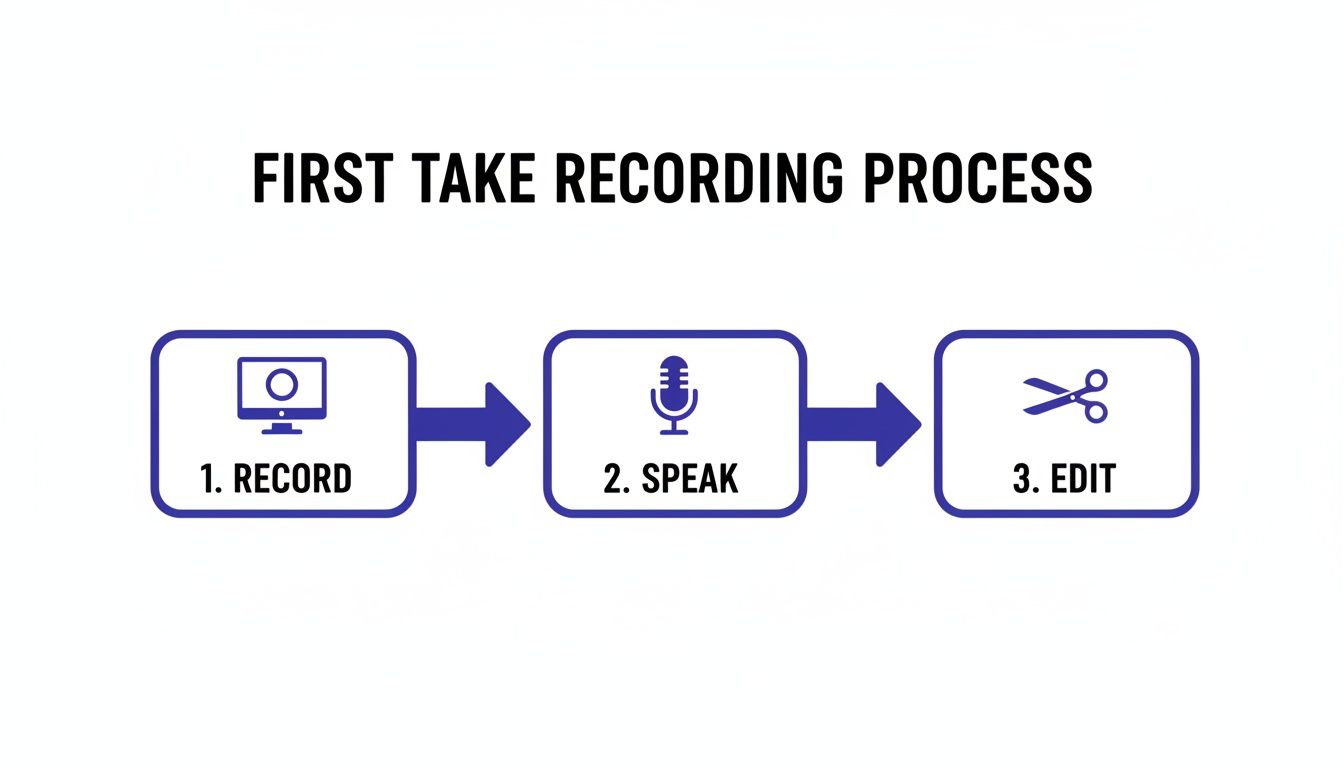
The first step to creating a great video in Tutorial AI is simply recording your screen. Don’t worry about writing a script or getting every word perfect on the first try. The key is to just talk through the process naturally, as if you were showing a coworker how to do something.
This is a totally different way of thinking compared to older recording methods. With tools like Loom, you often end up with recordings that are 50-100% longer than they need to be because you’re trying to be perfect. Tutorial AI is built to handle that raw, unscripted take, so you can just focus on capturing your workflow without any pressure.
If you want a deeper dive, check out our guide on how to screen record with sound for more tips.
The magic happens after you record. The AI takes that casual, conversational walkthrough and cleans it up into a polished, professional demo. This lets you quickly create on-brand knowledge base articles and feature updates without ever touching complex editing software like Adobe Premiere Pro.
Editing Your Video Just Like a Doc
Once you finish recording, Tutorial AI gets to work and automatically transcribes everything you said, creating a transcript that’s perfectly synced to your video. This is where the real magic happens. Forget about hunting through a timeline to find mistakes.
Instead, you can just edit the text. See a word you don’t like? Delete it, and the video and audio for that word disappear instantly. It’s an incredibly intuitive way to clean up your content, turning a process that used to take hours into just a few minutes. This text-based workflow is a cornerstone of Tutorial AI.
If you stumble over a sentence or just don’t like how it sounds, you don’t have to re-record. Simply highlight the text and have the AI regenerate the narration for you. This is perfect for fixing small mistakes or improving the overall flow, ensuring a polished, professional sound without any real editing experience.
This simple “record, speak, and edit” workflow makes it incredibly easy to turn your first take into a finished product.
This kind of efficiency reflects a larger trend. The use of digital quick reference guides (QRGs) has skyrocketed, growing from just 27% of training materials in 2015 to 74% by 2024. You can learn more about how our edit-like-a-doc feature works or dive deeper into market trends with the 2025 market outlook.
Adding Professional Visual Enhancements
Once you’ve tightened up the transcript, it’s time to add that layer of visual polish that guides your viewer’s eye. This is the step where a basic screen recording really transforms into a professional and clear explainer video. What’s great is that Tutorial AI handles effects that would normally require a deep dive into tools like Adobe Premiere Pro.
These visual cues are essential for building a focused narrative, especially for product demos, new-hire onboarding videos, and knowledge base articles.
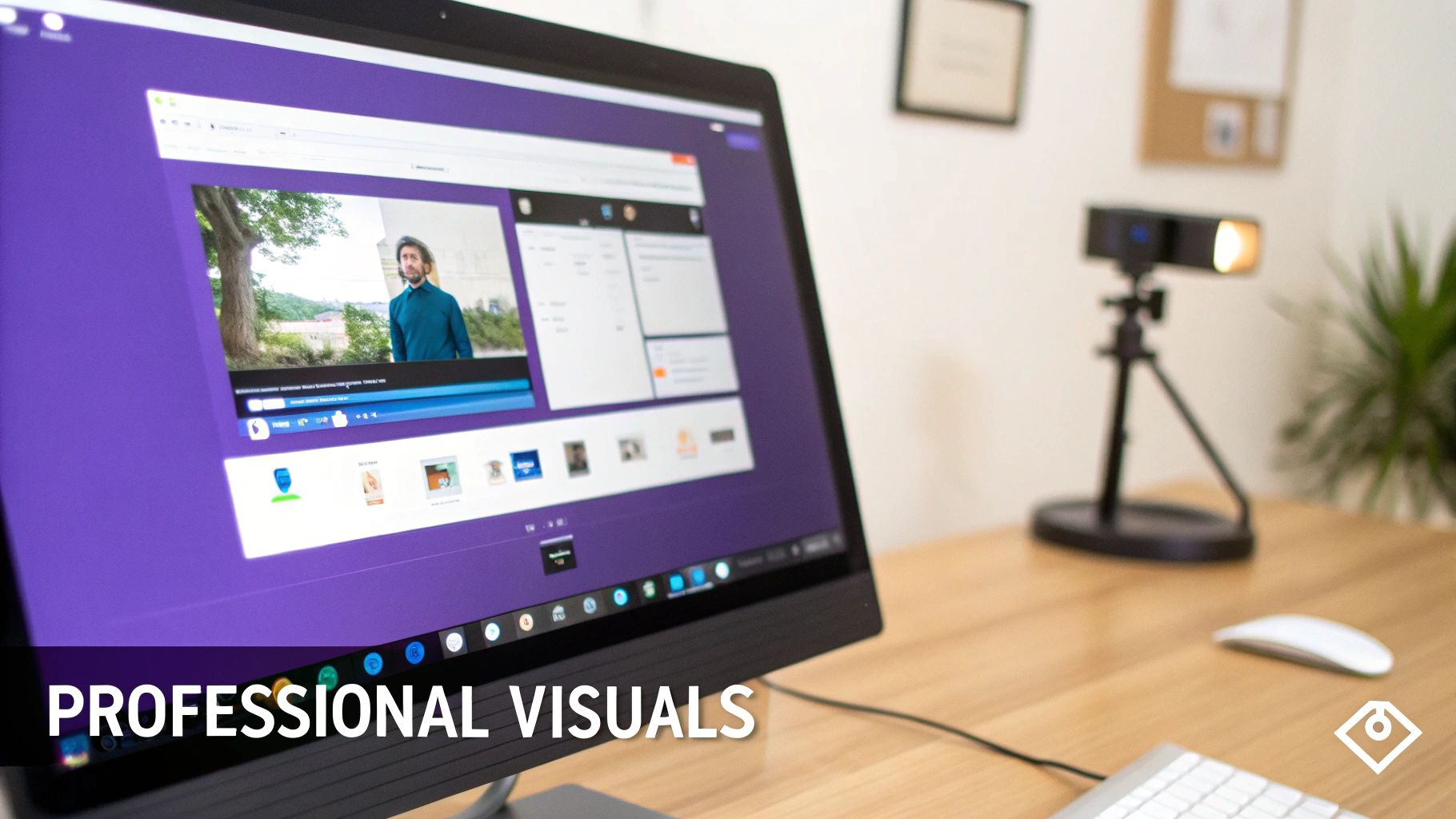
With just a single click, you can apply smart zooms that automatically focus on the most important parts of the screen, smooth out erratic cursor jumps, or highlight specific buttons and fields. This puts the power of video production directly into the hands of subject matter experts, letting them create polished, on-brand content without ever touching a complex video editor.
Common Visual Effects and When to Use Them
Knowing which effect to apply can make a huge difference in clarity. Here’s a quick rundown of the most common post-recording effects you’ll use in Tutorial AI and what they’re best for.
Here is a quick reference table to help you decide which visual effect best suits your needs.
| Tutorial AI Visual Effects Quick Reference | ||
|---|---|---|
| Effect Name | Description | Best Use Case |
| Intelligent Zoom | Automatically zooms in on active elements like buttons, fields, or menus being discussed. | Guiding viewers through a complex user interface or highlighting a specific action in a busy workflow. |
| Cursor Smoothing | Cleans up shaky or hesitant mouse movements, creating a single, fluid path between clicks. | Polishing recordings where the initial cursor movement was messy, making the final video feel more confident and direct. |
| Highlight Clicks | Adds a visual indicator (like a circle or flash) every time the mouse is clicked. | Ensuring viewers don't miss critical clicks, especially in fast-paced tutorials or when clicking on subtle UI elements. |
| Spotlight | Dims the rest of the screen to draw focus to a specific area, often around the cursor. | Isolating one part of a crowded screen to eliminate distractions, perfect for detailed data entry or form-filling demos. |
Choosing the right combination of these effects will make your tutorials far more effective and easier for your audience to follow along with.
Mastering Keyboard Shortcuts for Maximum Speed
If you really want to get fast with your editing, learning the keyboard shortcuts is non-negotiable. Think of this section as your personal cheat sheet, pulling together the most practical key combinations for navigating your timeline, making quick edits, and controlling playback.
Getting these shortcuts into your muscle memory means you can instantly play or pause, split a clip, or jump between different parts of the transcript without ever touching your mouse. That’s how you start shaving serious time off your workflow, a massive advantage for any knowledge base or support team that needs to get high-quality content out the door quickly.
This kind of quick reference guide has a proven track record. Companies that provide these tools see their self-service resolution rates climb by 18–35%. Many even report a customer support deflection of 22% within just 90 days. For more on this, check out the latest self-service support trends.
Sharing and Exporting Your Finished Videos
Once you’ve put the finishing touches on your recording, it’s time to get it in front of your audience. Tutorial AI gives you a few different ways to do this, whether you need a downloadable file or a quick link to share.
You can export your finished work as a high-quality video file, with options for various resolutions and formats. This is the perfect choice when you need to upload the video to an internal knowledge base, a public website, or a learning management system (LMS).
If you need a faster option, you can also generate a direct shareable link. This is great for instant viewing or for embedding your tutorial directly into other platforms like Confluence or a company wiki. You can even configure permissions to control who sees it and add your own branding to keep everything looking consistent. These tools give you total control over how your demos and guides are distributed.
Common Questions About Tutorial AI
Here are answers to some of the most common questions we get. This should help you get the most out of Tutorial AI and troubleshoot any issues you run into.
How Does Tutorial AI Handle Recordings with Mistakes?
Tutorial AI is designed for real, unscripted recordings. Don’t worry about pausing to think, saying “um,” or making a mistake. Just record naturally.
After you’re done, our ‘edit-like-a-doc’ feature lets you clean things up by simply deleting unwanted words or phrases from the transcript. The AI then automatically edits the video to match, stitching everything together seamlessly. Your final video will look like you nailed it on the first take.
Can I Add My Company Branding to Videos?
Absolutely. Keeping your videos on-brand is easy. You can upload your company logo to use as a watermark and set your brand colors for the video player.
Once you save these settings, they’ll automatically apply to all your future videos. This ensures every tutorial or support video you create looks professional and consistent with your company’s style.
This is a huge time-saver for subject matter experts. They can just focus on delivering great content, and the platform handles the branding, turning a raw recording into a polished, professional video.
How Is Tutorial AI Different from Tools Like Loom?
While a tool like Loom is fantastic for quick, informal videos, those recordings often end up being 50-100% longer than they need to be and can lack a professional touch.
Tutorial AI bridges the gap between simple screen recorders and complex video editors like Adobe Premiere Pro. It lets you take an easy, Loom-style recording and use AI to quickly edit it into a tight, polished, on-brand tutorial—no video editing skills required. If you’re curious about how AI can simplify other content workflows, this article on AI for social media content creation offers some great insights.
Ready to turn your raw recordings into professional tutorials? See how Tutorial AI makes it simple. Start creating for free today!