Creating effective tutorials often feels like a trade-off. You can quickly record your screen with a simple tool like Loom, but the final video is often 50-100% longer than necessary, filled with pauses, mistakes, and rambling. Or, you can aim for a polished, professional result using complex video editors like Adobe Premiere Pro, which requires specialized skills and countless hours of meticulous editing. This gap means subject matter experts either spend too much time creating content or produce tutorials that aren’t engaging enough for customers and employees. This inefficiency directly translates to wasted time and money, slowing down customer onboarding, internal training, and sales enablement.
This article provides a direct path to solving that problem. We will analyze the best tutorial creation software available today, moving beyond generic marketing claims to give you a clear, actionable comparison. You’ll find detailed breakdowns of tools ranging from traditional screen recorders and editors like Camtasia and ScreenFlow to modern AI-powered platforms like Tutorial AI, which automatically transforms unscripted screen recordings into concise, professionally edited videos. We also cover specialized tools for interactive guides, like Scribe and Guidde.
Each entry includes a summary of what makes it unique, its key features, pros and cons based on real-world use, and ideal use cases. You’ll see who each platform is truly built for, from L&D teams and product marketers to sales enablement specialists. With screenshots, direct links, and clear pricing information for each option, you will have everything needed to select the right software and reclaim the hours lost to outdated tutorial workflows.
1. Tutorial AI
Tutorial AI establishes itself as a premier, AI-first platform in the tutorial creation software space, specifically designed to generate professional video tutorials based on screen recordings. It directly addresses a common production bottleneck: easy-to-use recording tools like Loom often produce videos that are 50-100% longer than necessary, while professional video editing software such as Camtasia or Adobe Premier Pro requires expert video editing knowledge. Tutorial AI’s tools let you speak freely without any practice, and your video will still look professional, as if it was edited in Adobe Premiere Pro. It allows the subject matter expert to create on-brand videos extremely efficiently for demos, onboarding videos, explainer videos, feature release videos, knowledge base videos, and support article videos.
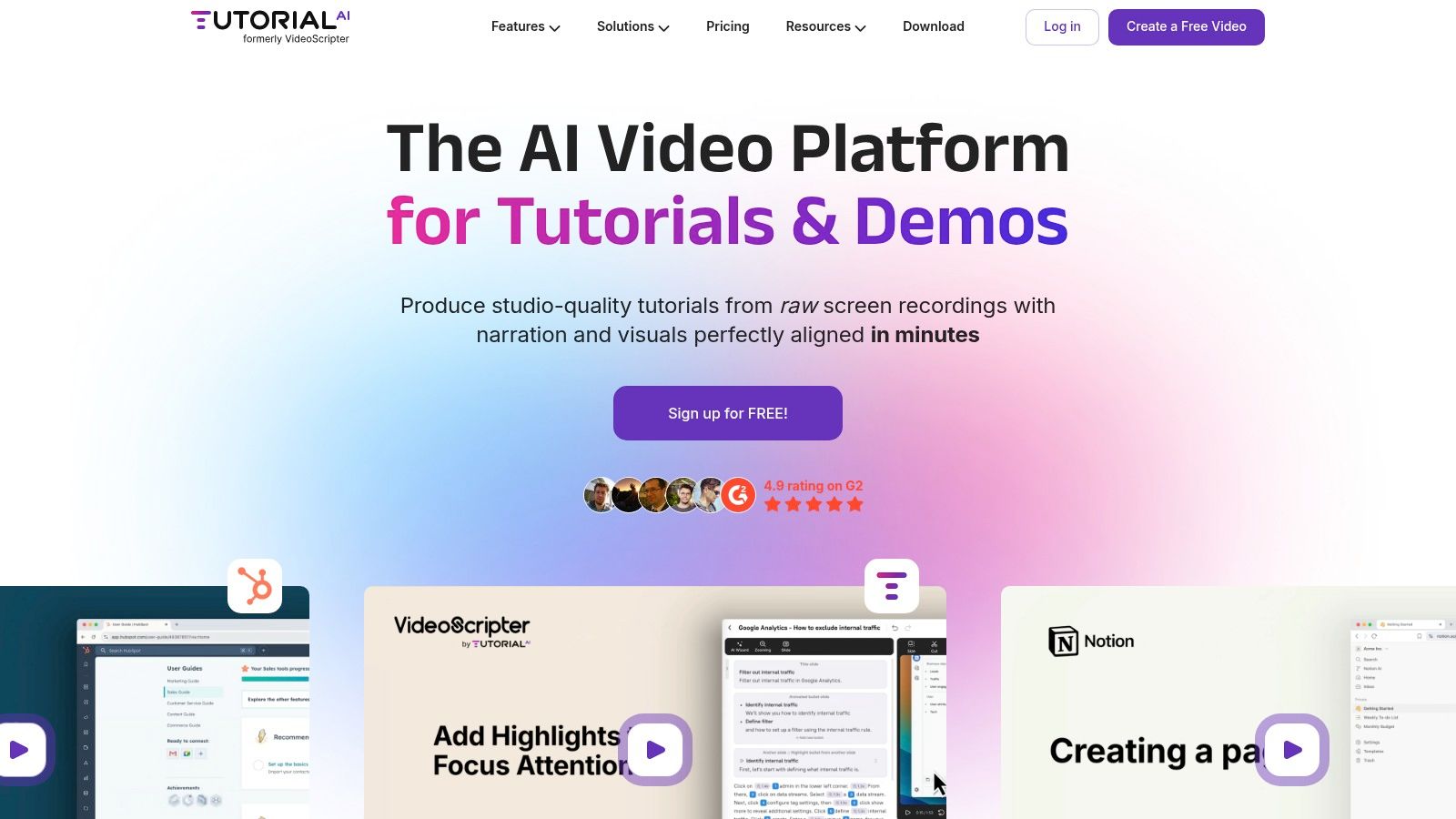
The platform’s core strength lies in its text-based editing workflow. After you capture your screen with its Mac, Windows, or Chrome recorder, Tutorial AI automatically transcribes your audio. You can then edit the video simply by editing the text transcript-deleting words removes the corresponding video and audio segments. Its AI can then polish the script and regenerate a flawless, studio-quality voiceover in one of over 30 languages, instantly syncing the video’s timing. This “record once, refine forever” model is perfect for creating and updating everything from knowledge base videos and customer onboarding flows to feature release announcements and sales demos.
Key Features & Benefits
Tutorial AI’s feature set is built for speed, quality, and brand consistency.
- AI Script & Voice Generation: Record your thoughts casually, let the AI generate a clean script, and then create a perfect voiceover. This completely removes the need for multiple takes or professional voice talent. The platform’s approach is a prime example of how developments in AI powered content creation are directly impacting video production workflows.
- Detached Cursor Editing: A standout capability is the ability to record only the screen pixels, detaching the cursor. Post-recording, you can reintroduce the cursor, smooth its motion, change its style, or add highlights, ensuring the viewer’s focus is always on the right element.
- AutoRetime™ for Localization: Translating tutorials is often a manual, frame-by-frame nightmare. AutoRetime™ automatically resynchronizes all visual elements-cuts, callouts, and zooms-to match the cadence of a newly generated voiceover in a different language.
- Brand Controls & Team Collaboration: With Brand Kits, shared workspaces, version history, and commenting, teams can maintain brand consistency across all video assets. The integrated hosting and embeddable player simplify distribution to any LMS, CMS, or CRM.
Our Take: Tutorial AI is a game-changer for teams that need to produce polished, localized software tutorials at scale but lack dedicated video editors. The ability to edit a video like a document and regenerate audio instantly makes it invaluable for agile product teams and support departments that must keep content constantly updated.
Ideal Use Cases
This tool is especially effective for:
- Knowledge Base Teams: Creating and maintaining a library of clear, concise support article videos.
- Sales Enablement: Producing tailored software demos and presales assets quickly.
- L&D and IT: Developing internal training materials and SOP videos that are easy to update.
- Product Marketing: Announcing new features with polished, on-brand explainer videos.
You can learn how to create exceptional software tutorials with their step-by-step guides.
Pricing & Limitations
Tutorial AI offers a flexible pricing structure.
- Free: A trial tier with limited projects and 1080p exports.
- Solo: Starts at $29/seat per month ($18/seat/mo billed annually) with 10 minutes of generated video per month (120 minutes/year on annual).
- Growth: Starts at $89/seat per month ($64/seat/mo billed annually) with 30 minutes of generated video per month (360 minutes/year on annual) and adds features like iPhone/iPad recording.
- Enterprise: Custom pricing for unlimited workspaces, custom voice cloning, and priority support.
The primary constraint is the generated-video minutes on Solo and Growth plans, which can be limiting for high-volume creators on a monthly billing cycle. Access to some advanced AI voices and voice cloning is also reserved for higher-tier plans, which may be a consideration for teams needing the full suite of capabilities.
2. TechSmith Camtasia
TechSmith Camtasia is a veteran desktop application that merges a powerful screen recorder with a full-featured video editor. It has become a standard in corporate training and instructional design because it provides an all-in-one workflow. Users can record their screen and webcam at high resolutions, then immediately move into an editing environment purpose-built for creating clear, professional software tutorials.
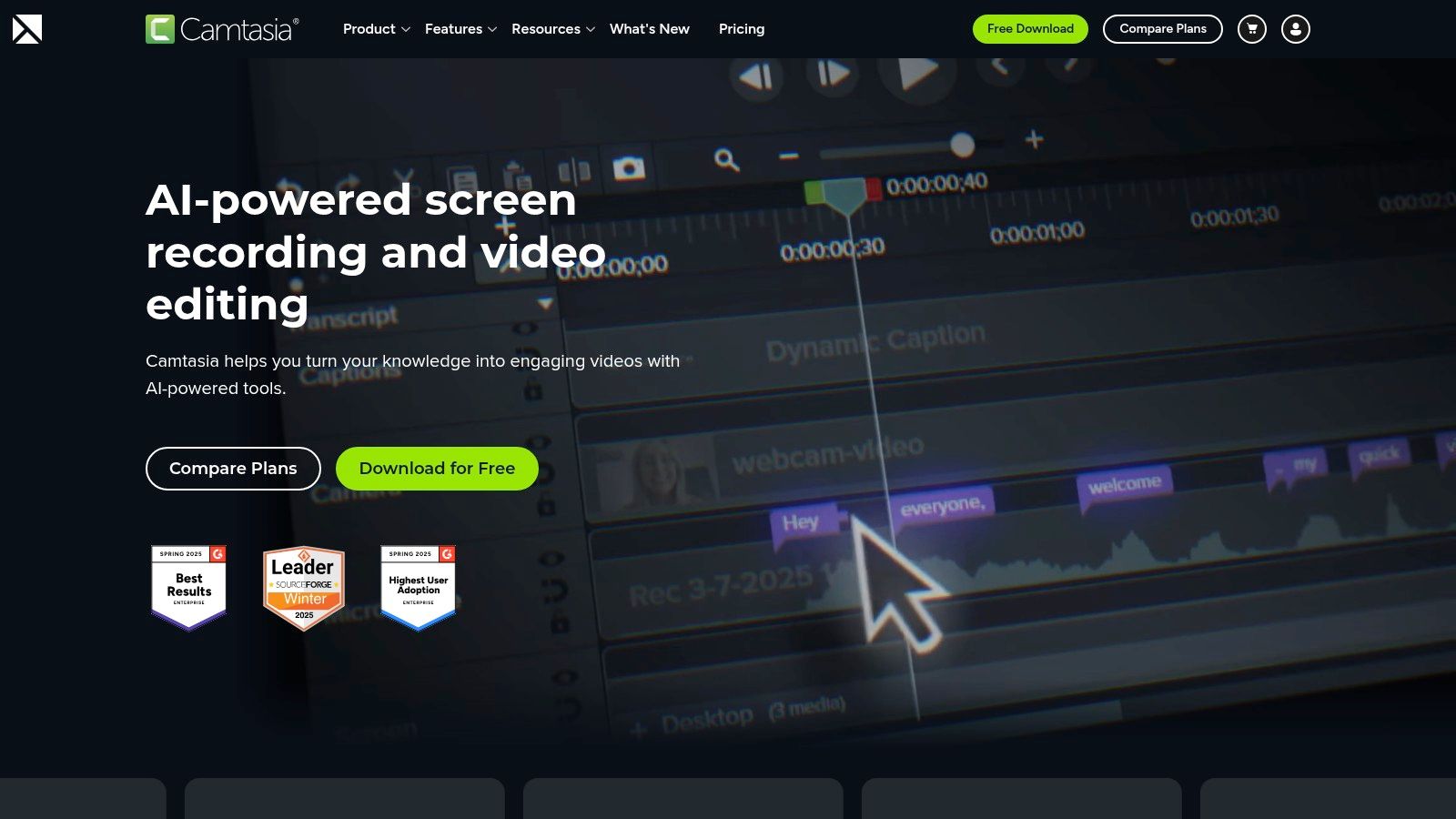
Unlike simple screen recorders that require a separate video editor, Camtasia’s strength is its integrated toolset. It offers specialized features like cursor path editing, automatic callouts, and zoom-and-pan effects that are crucial for directing audience attention. Its text-based editing feature can automatically generate a transcript, allowing you to edit the video by simply deleting words or sentences from the text. This makes it an excellent piece of tutorial creation software for detailed software demonstrations. For those just starting, learning the best practices for screen recording for tutorials can significantly improve the final output.
Key Features & Considerations
- Pros: End-to-end recording and editing reduces complexity; SCORM export for LMS integration; extensive asset library and strong community support.
- Cons: Primarily a desktop tool, making real-time collaboration difficult; the annual subscription can be costly for infrequent users.
- Pricing: Camtasia is available through an annual subscription starting at $299.99/user, which includes one year of maintenance.
- Best For: L&D teams, IT trainers, and educators who need a robust, self-contained system for creating and editing polished training videos.
3. Adobe Captivate
Adobe Captivate is a specialized eLearning authoring tool designed for creating interactive courses and complex software simulations. As part of the Adobe ecosystem, it offers a robust solution for instructional designers who need to build responsive, structured learning content. Captivate excels at converting static presentations into dynamic courses and creating detailed assessments, making it a powerful choice for formal corporate training programs.
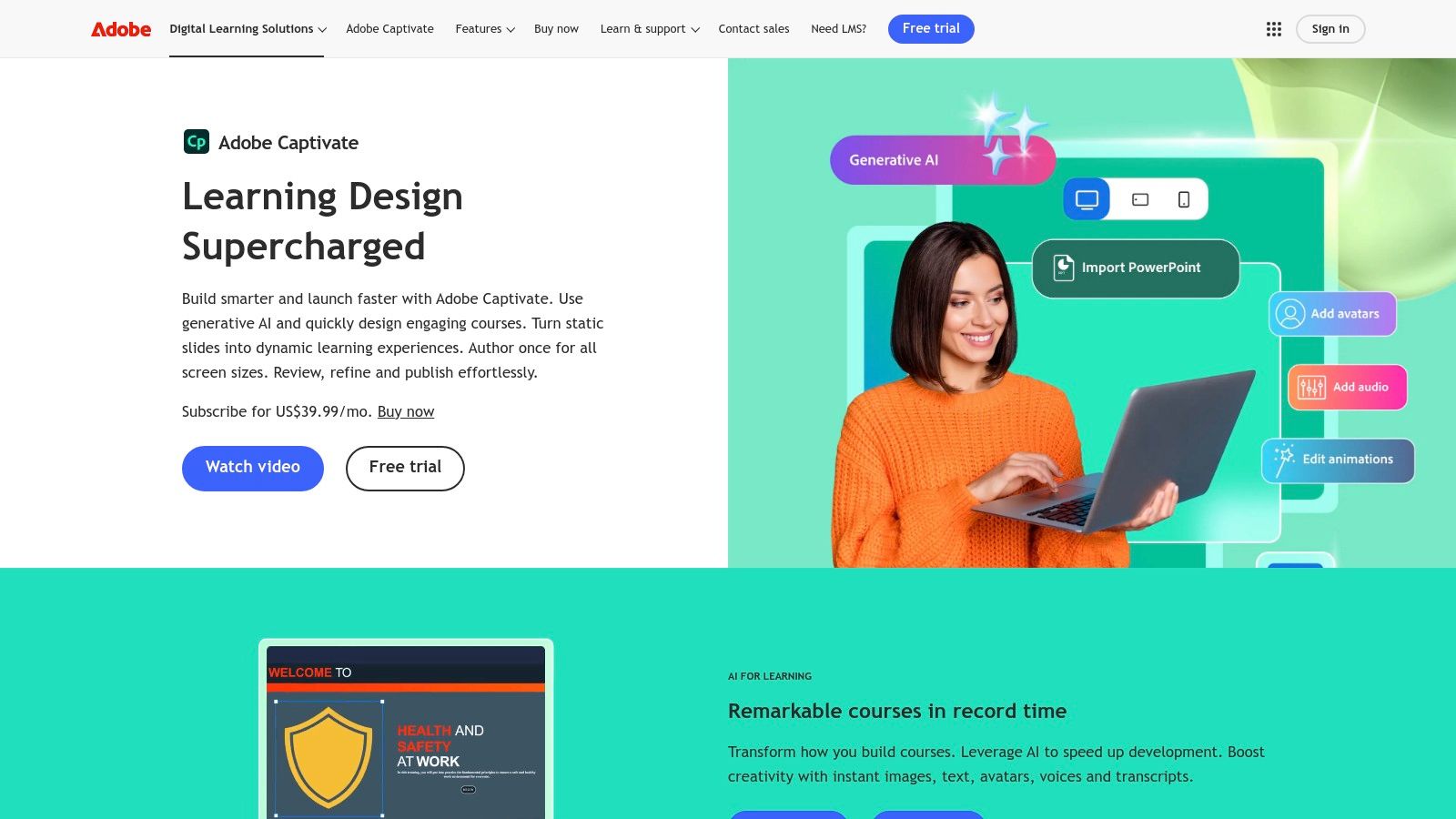
The platform stands out by providing access to two versions: a modern, streamlined new Captivate with generative AI features and Captivate Classic for users familiar with its traditional, more granular workflow. Its strength lies in software simulation, where it can automatically capture on-screen actions and turn them into interactive tutorials with steps, text captions, and click boxes. This focus makes it a superior piece of tutorial creation software for building comprehensive, SCORM-compliant courses rather than quick, informal video guides.
Key Features & Considerations
- Pros: Deep interactive authoring capabilities; strong integration with Adobe’s Creative Cloud; supports responsive design for multi-device delivery.
- Cons: Has a significant learning curve compared to simple screen recorders; can be overly complex for creating quick async video walkthroughs.
- Pricing: Adobe Captivate is available for a monthly subscription of $33.99/month, which includes both the new and classic versions.
- Best For: Corporate L&D departments, instructional designers, and educators who need to build structured, interactive eLearning courses and in-depth software simulations.
4. Articulate 360
Articulate 360 is an industry-standard suite of applications designed for comprehensive e-learning course authoring. It brings together several powerful tools, most notably Storyline 360 for complex, slide-based interactive content and Rise 360 for building beautiful, fully responsive courses rapidly. This combination makes it a go-to choice for corporate learning and development (L&D) departments that require robust, standards-compliant training materials.
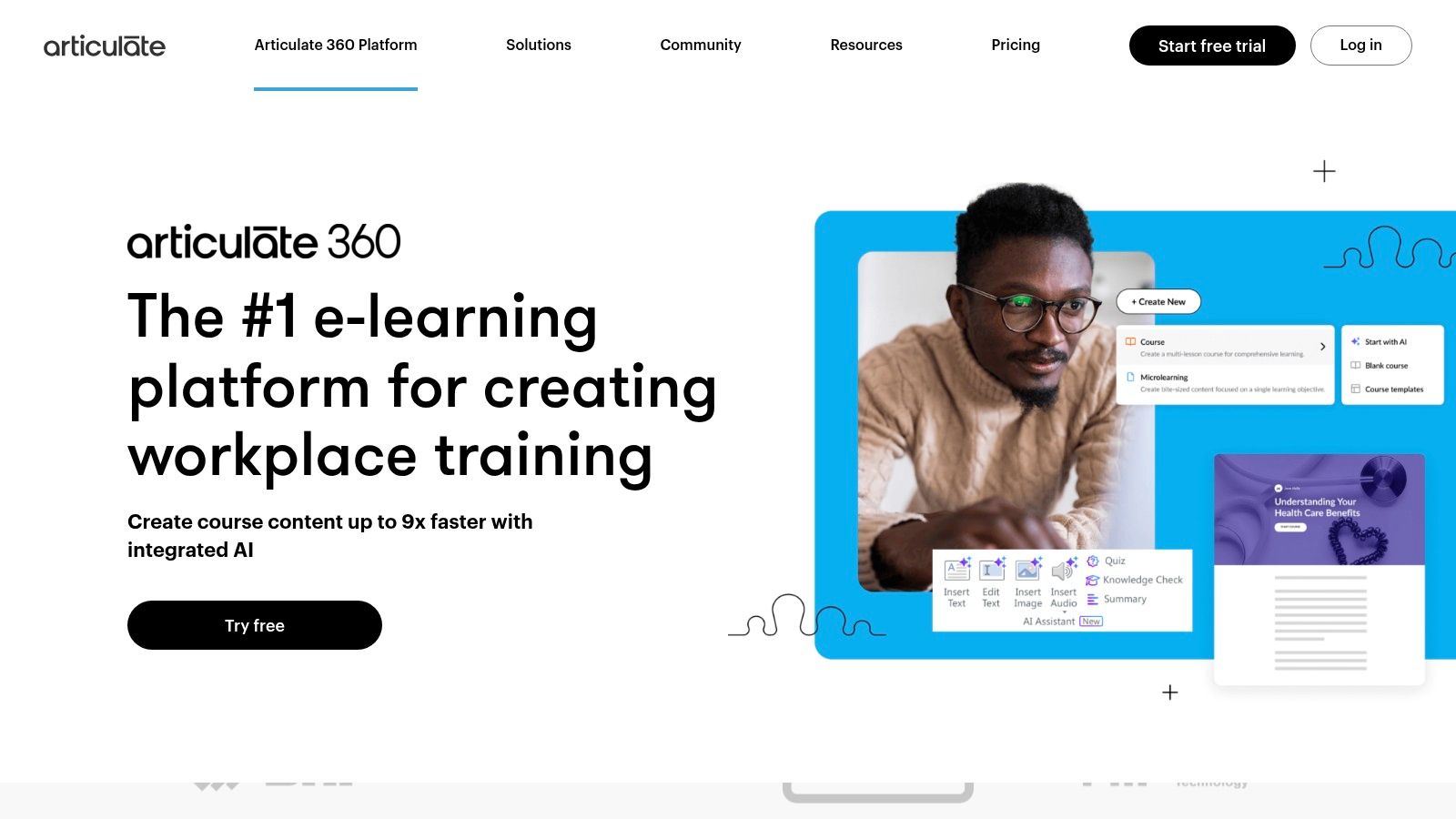
While not just a video tool, its screen recording and software simulation features within Storyline 360 are central to creating detailed, step-by-step tutorials. The suite’s strength is in its ecosystem, which includes a vast content library, collaborative review tools (Review 360), and the ability to publish courses to virtually any Learning Management System (LMS) using SCORM, xAPI, and cmi5 standards. This makes it an exceptional piece of tutorial creation software for organizations that need to create, distribute, and track formal training at scale. Its structured approach is ideal for building entire learning modules around a software tutorial, complete with quizzes and branching scenarios.
Key Features & Considerations
- Pros: Industry standard in corporate L&D with a strong community and ecosystem; broad standards support for LMS deployment and distribution; includes tools for both rapid and complex course development.
- Cons: Annual licensing only; cost scales with author seats and can be prohibitive for individuals or small teams; heavier than simple screen-record-and-share workflows.
- Pricing: Articulate 360 is offered via annual subscription, with team plans starting at $1,399 per user per year.
- Best For: Corporate L&D and training teams that need to build, deploy, and track formal e-learning courses with interactive software tutorials embedded within a larger curriculum.
5. iSpring Suite
For teams deeply integrated with Microsoft PowerPoint, iSpring Suite offers a familiar and direct path to creating interactive learning content. It operates as a powerful PowerPoint add-in, enhancing standard presentations with advanced authoring capabilities. This allows users to build quizzes, interactive dialogue simulations, and screen recordings directly within the PowerPoint environment, transforming static slides into engaging tutorials and full-fledged e-learning courses without a steep learning curve.
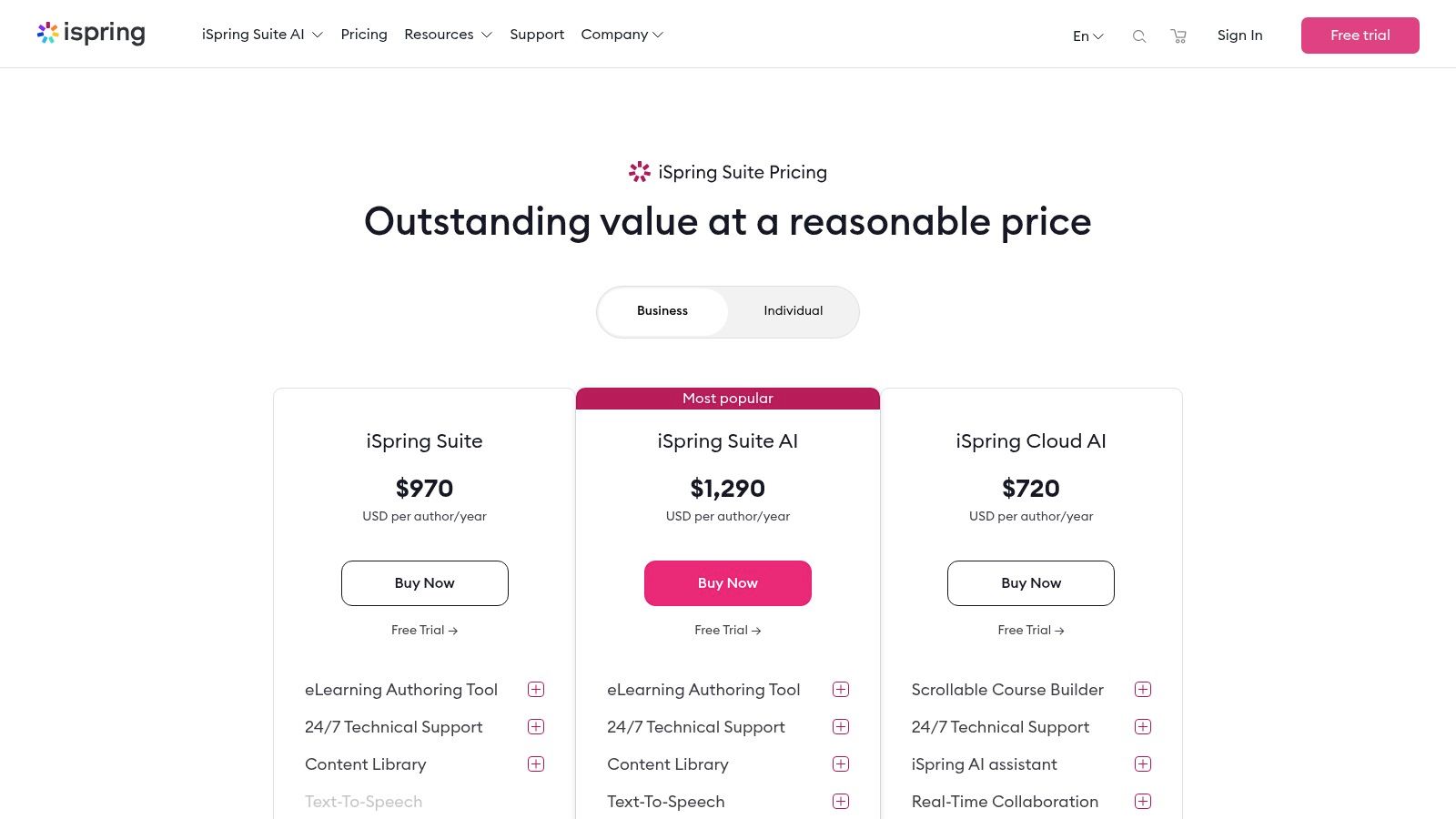
The key advantage of iSpring is its ability to lower the barrier to entry for course creation. Instead of learning a new standalone application, instructional designers and subject matter experts can work in a program they already know well. The suite includes a capable screen recorder and video editor for producing software demonstrations, which can then be embedded into the course. This makes it a strong piece of tutorial creation software for organizations that prioritize rapid content development and deployment through their existing Learning Management System (LMS).
Key Features & Considerations
- Pros: Extremely fast learning curve for PowerPoint users; strong support for SCORM/xAPI/cmi5 standards; includes tools for quizzes, role-plays, and interactions.
- Cons: Video editing features are not as deep as dedicated video editors; reliance on PowerPoint may feel restrictive for some creators; public pricing is moving toward a quote-based model.
- Pricing: iSpring Suite has plans starting at $770/user per year, with discounts available for academic and non-profit organizations.
- Best For: Corporate training departments, educators, and anyone standardized on PowerPoint who needs to quickly produce LMS-compliant e-learning content and software tutorials.
6. ScreenPal (formerly Screencast-O-Matic)
ScreenPal, formerly known as Screencast-O-Matic, offers an affordable and straightforward approach to screen recording and video editing. It stands out for its cross-platform availability and a workflow designed for speed, making it a favorite among educators and support teams. The platform bundles recording, editing, and built-in hosting, allowing users to move from capture to a shareable link quickly.
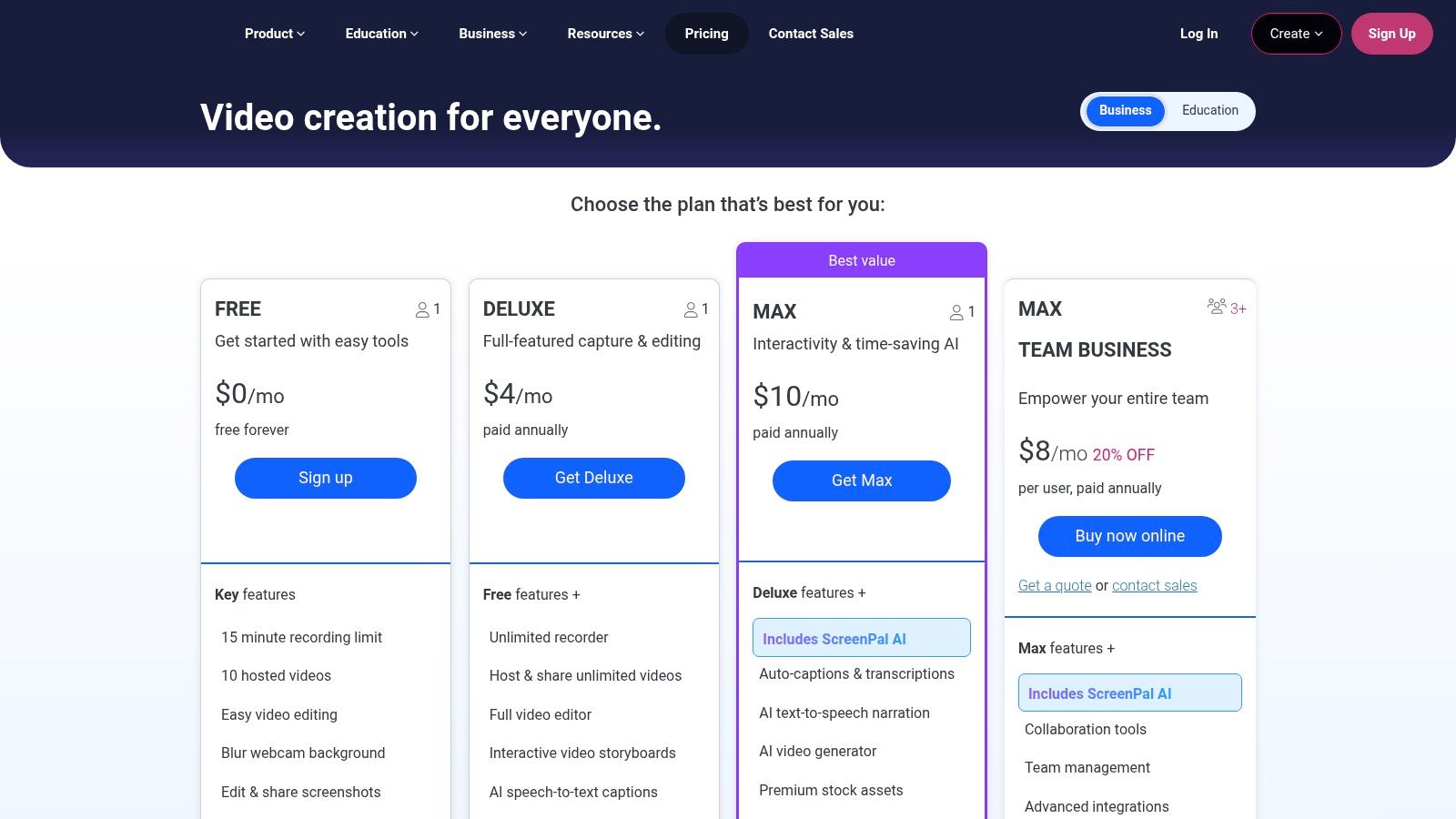
Unlike more complex systems, ScreenPal prioritizes ease of use and value. Its paid plans grant access to unlimited recording, essential editor overlays like callouts and blurs, and even interactive elements such as in-video quizzes and polls. The expanding feature set now includes AI-powered captioning, text-to-speech, and translations, which adds significant value for its low cost. This makes ScreenPal a very practical piece of tutorial creation software for teams that need to produce instructional content regularly without a steep learning curve or large budget.
Key Features & Considerations
- Pros: Very low cost of entry with education-friendly plans; simple and reliable for day-to-day tutorial capture; integrated hosting and interactivity tools.
- Cons: The editor is simpler than professional non-linear editors; advanced brand control and SSO are limited to higher-tier team plans.
- Pricing: Paid plans start as low as a few dollars per month, with various tiers for individuals, teams, and educational institutions available at https://screenpal.com/plans.
- Best For: Educators, small business support teams, and individuals who need a fast, budget-friendly tool for creating and sharing tutorials with basic interactivity.
7. Loom
Loom is an asynchronous video messaging tool that prioritizes speed and ease of use, making it a popular choice for creating quick video tutorials and explainers. It allows users to record their screen, camera, and microphone with a single click and instantly share the recording via a link. This frictionless workflow makes it ideal for support replies, internal training clips, and sales outreach where immediate communication is more important than polished production.
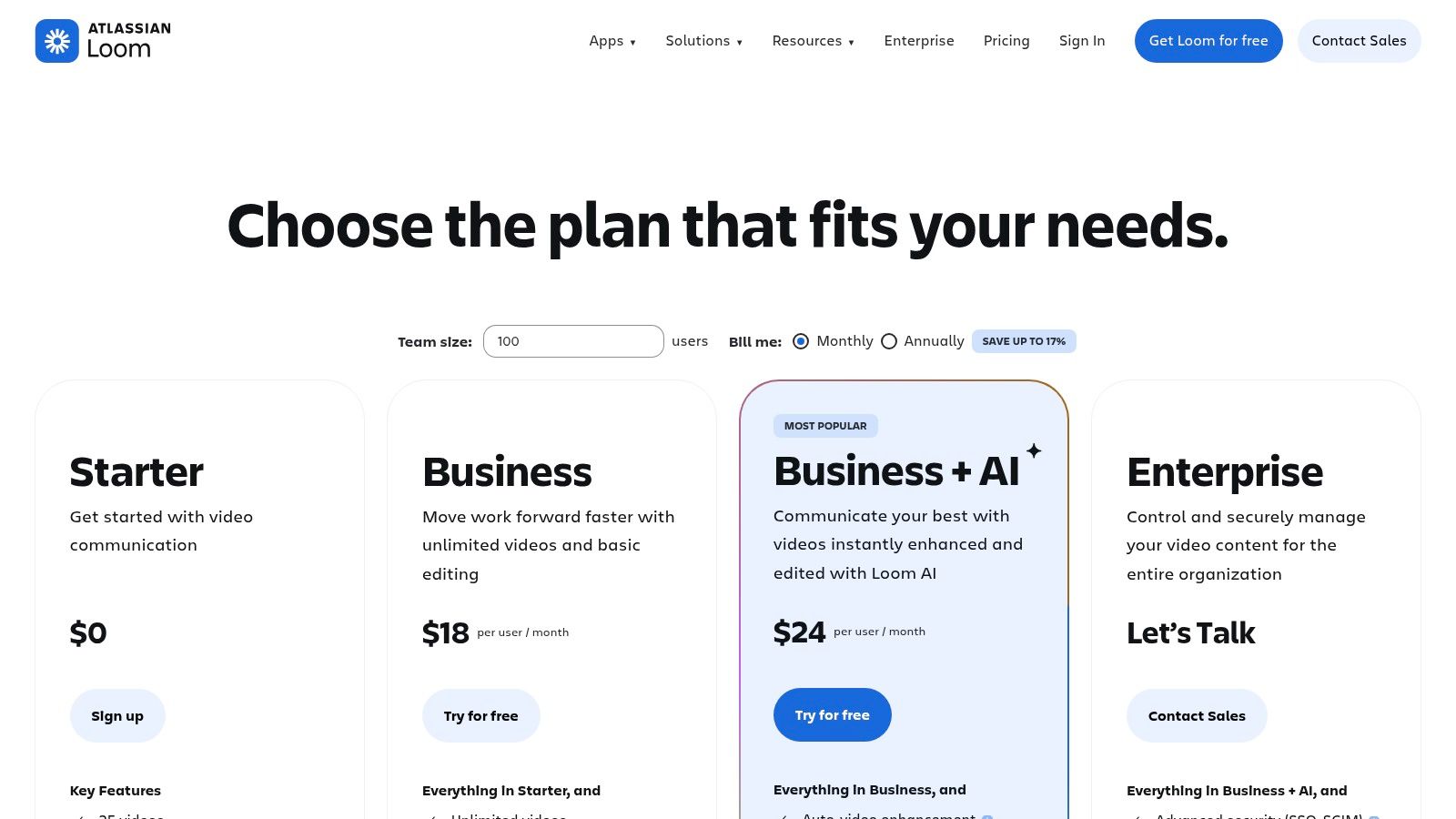
Where Loom truly stands out is in its efficiency for informal tutorials. Unlike professional editors such as Camtasia, which require significant editing knowledge, Loom lets subject matter experts record freely. The platform’s new AI features can automatically generate titles, summaries, and chapters, and even remove filler words and long pauses. This makes it a powerful piece of tutorial creation software for teams needing to create a high volume of short, instructional videos without a dedicated editor. The emphasis is on capturing and sharing knowledge quickly, not on cinematic post-production.
Key Features & Considerations
- Pros: Exceptionally fast for creating and sharing video clips; excellent for internal communications and customer support; AI features automate basic editing.
- Cons: Limited editing capabilities for complex, multi-track videos; advanced security and admin features are restricted to higher-priced plans.
- Pricing: Loom offers a free Starter plan for up to 25 videos. The Business plan is $12.50/user/month (billed annually), with custom pricing for Enterprise.
- Best For: Support teams, sales professionals, and internal communicators who need to create and share quick, informal instructional videos at scale.
8. Descript
Descript offers a radically different approach to video editing by treating your video like a text document. It combines a screen recorder, multi-track audio editor, and powerful AI features into a single platform where editing happens by modifying the auto-generated transcript. This text-first workflow removes the technical barriers of traditional timeline editing, making it exceptionally fast to fix mistakes, remove filler words, and rearrange content in software tutorials.
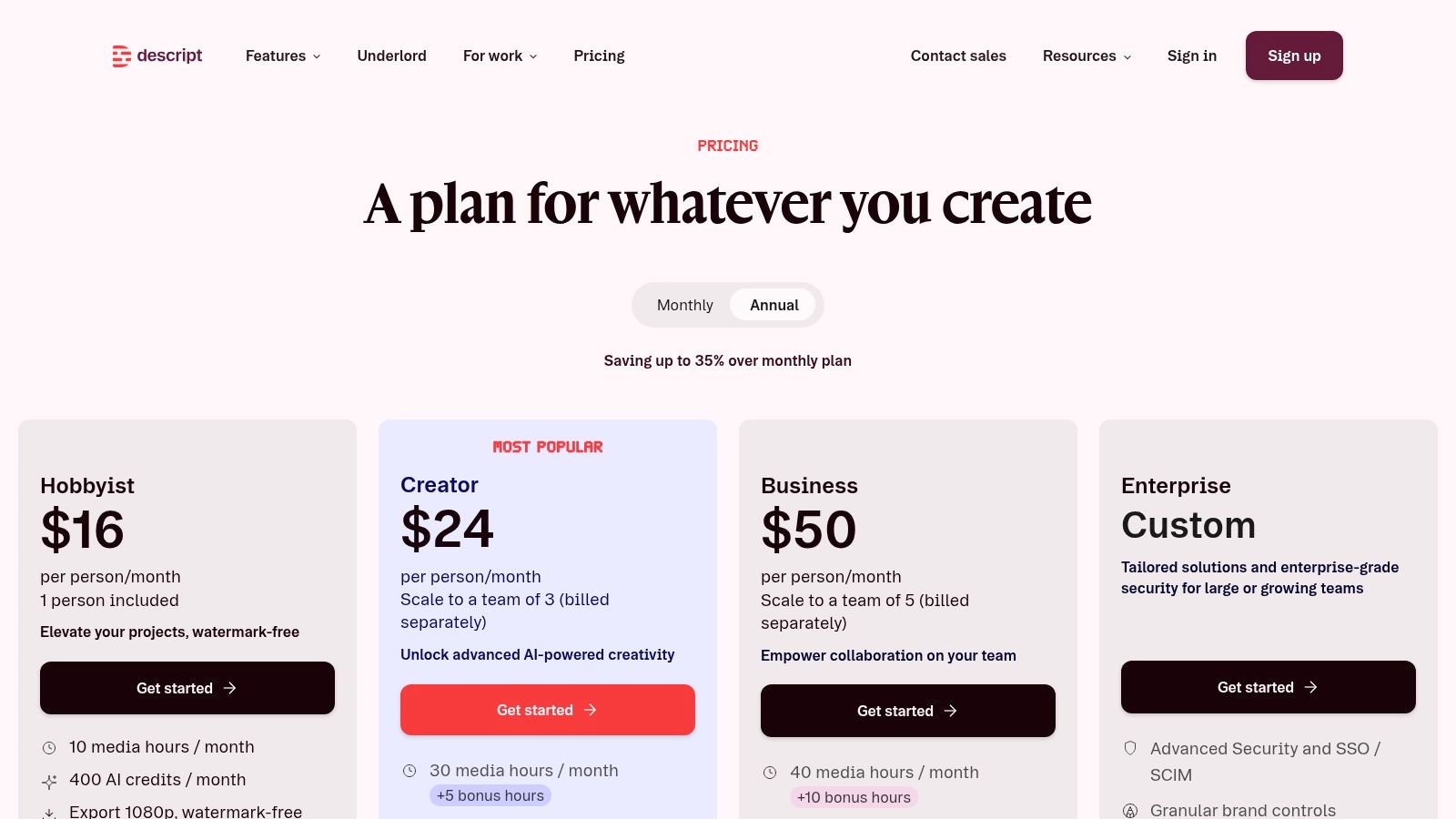
The platform’s strength lies in its ability to separate audio and video workflows. You can record your screen and voice, then use features like Studio Sound to remove background noise or Overdub to generate an AI clone of your voice to fix misspoken words without re-recording. This makes Descript an excellent piece of tutorial creation software for creators who prioritize speed and efficiency in post-production. The transcript-first method is just one of many ways to create training videos with AI, simplifying complex revisions into simple text edits.
Key Features & Considerations
- Pros: Text-based video editing is intuitive and massively speeds up revisions; powerful AI audio tools (Studio Sound, Overdub) for professional sound; all-in-one recording and editing environment.
- Cons: Metered media hours and AI feature usage can be restrictive on lower-tier plans; processing for heavy projects with long videos may feel slow.
- Pricing: A free plan is available with limited features. Paid plans start with the Creator tier at $12/user/month (billed annually) and the Pro tier at $24/user/month.
- Best For: Content creators and educators who produce dialogue-heavy tutorials and need to iterate quickly without deep video editing skills.
9. Telestream ScreenFlow
For Mac users, Telestream ScreenFlow has long been a go-to desktop application that combines high-fidelity screen recording with a capable, user-friendly video editor. It stands as a direct competitor to Camtasia but is built from the ground up for macOS, offering excellent performance and system integration. This makes it a popular choice for creators and educators in the Apple ecosystem who need to produce polished software tutorials without the steep learning curve of professional video editing suites.
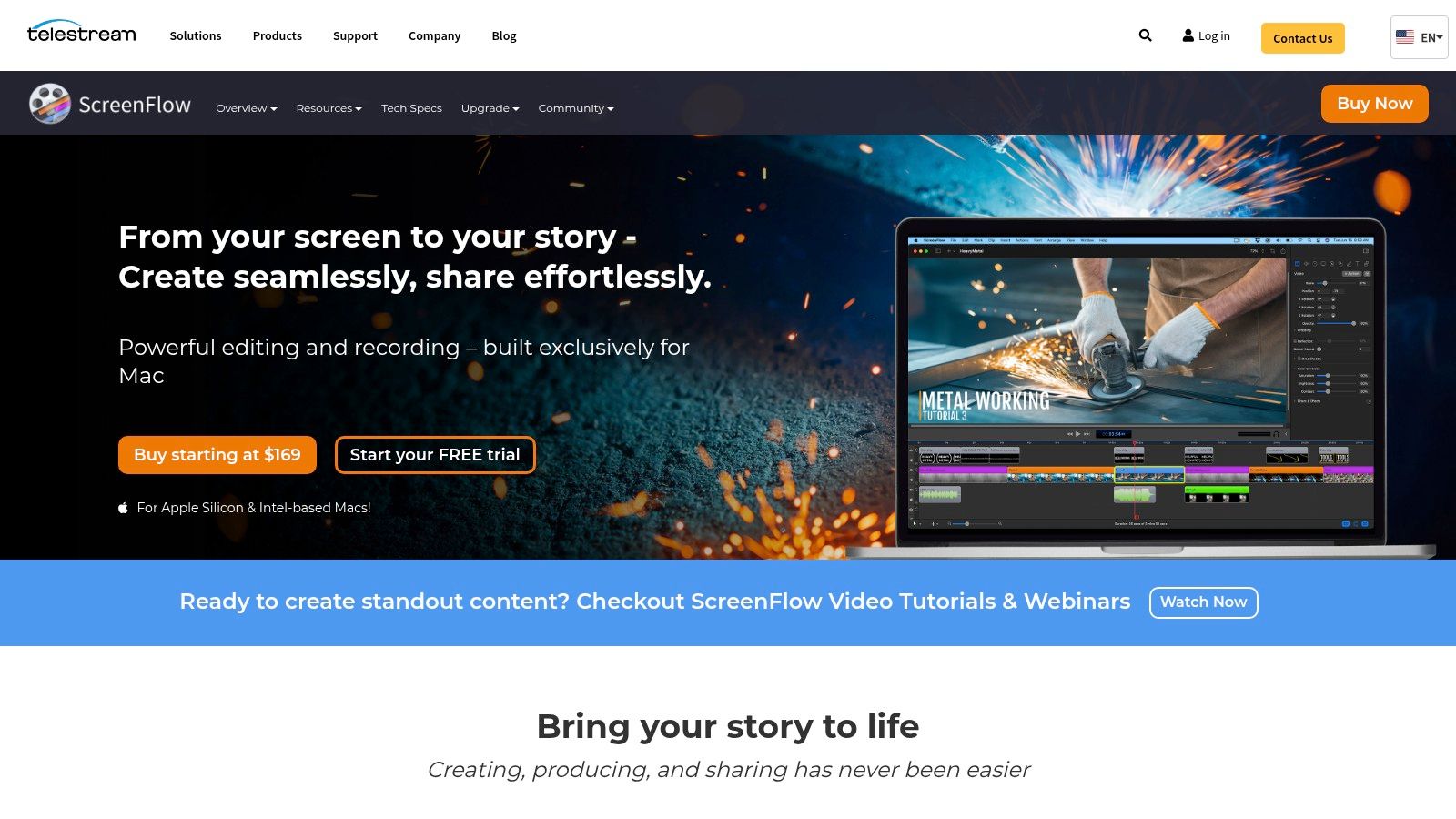
Where ScreenFlow shines is its balance between power and simplicity. It records multiple sources, including your screen, microphone, and system audio, at high quality. The editing timeline feels intuitive, providing direct access to annotations, callouts, and text animations that help clarify complex steps in a tutorial. Its robust export options allow creators to optimize videos for various platforms, from YouTube to internal learning management systems. For those committed to the Mac platform, ScreenFlow is a superb piece of tutorial creation software that delivers professional results.
Key Features & Considerations
- Pros: Native macOS performance ensures reliability and speed; the interface is clean and more approachable than full-fledged non-linear editors.
- Cons: Exclusively for macOS, which limits cross-platform team collaboration; lacks built-in hosting or cloud-based review features.
- Pricing: ScreenFlow is available for a one-time purchase of $169. Premium support and upgrade bundles are available at additional costs.
- Best For: Mac-based content creators, trainers, and small businesses needing a powerful, self-contained tool for recording and editing high-quality tutorials.
10. ActivePresenter (Atomi Systems)
ActivePresenter by Atomi Systems is a powerful authoring tool that excels at creating interactive eLearning content and software simulations. It combines a capable screen recorder with a multi-track editor, positioning itself as a robust solution for developers of formal training modules. Its strength lies in its ability to automatically generate interactive elements, such as text fields and click boxes, based on recorded actions, turning a simple screen capture into a full-fledged simulation.
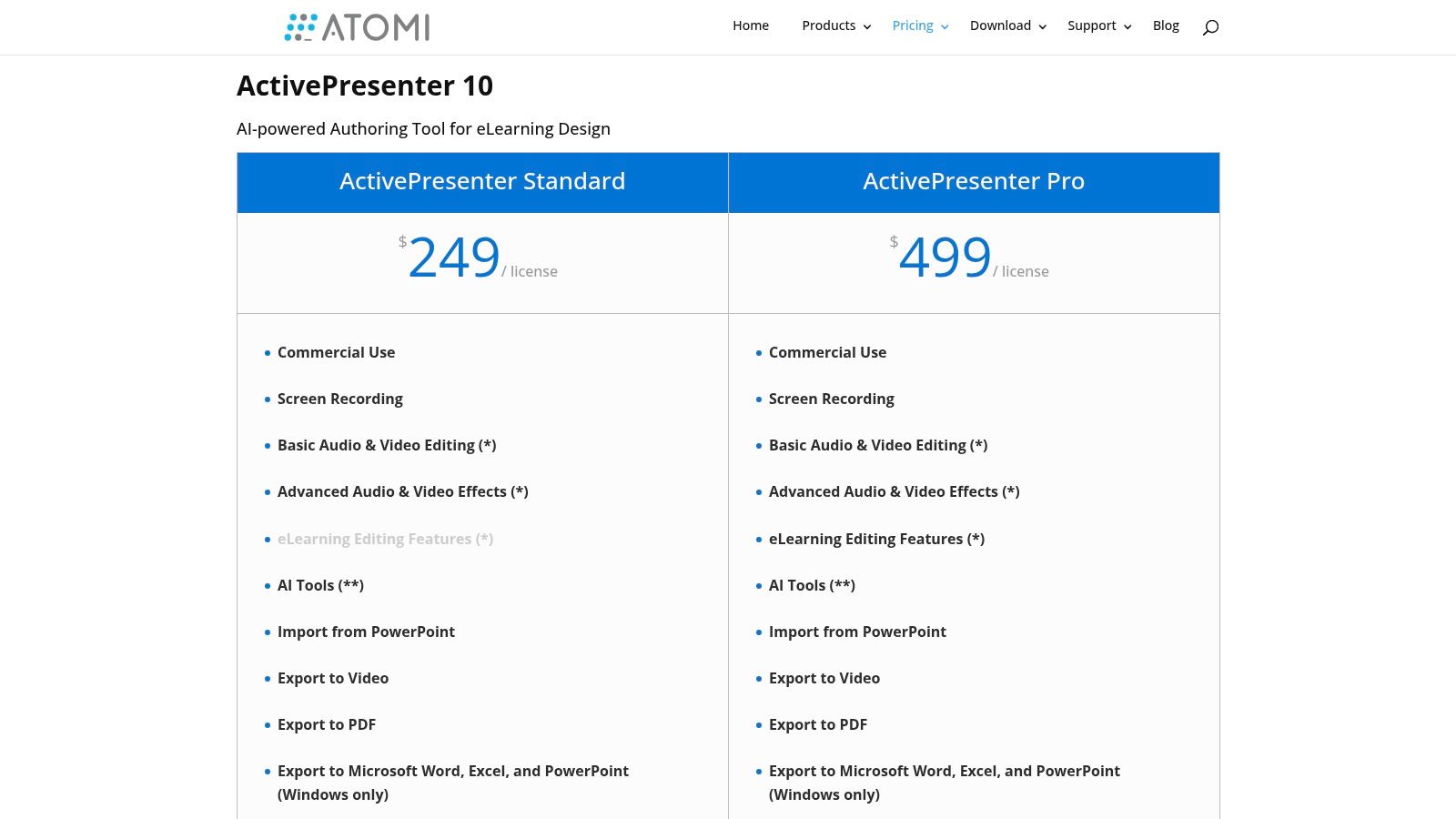
Unlike video-first editors, ActivePresenter feels more like a course-building environment, complete with quizzing, branching scenarios, and responsive design options. This makes it a great piece of tutorial creation software for building complex, interactive guides that require user input. Recent updates have introduced AI-assisted features like text-to-speech and automatic captioning, further simplifying the course development process. Its support for SCORM and xAPI means content integrates directly with most Learning Management Systems (LMS).
Key Features & Considerations
- Pros: Perpetual licensing offers a budget-friendly one-time purchase; a generous free edition covers basic recording and editing; strong capabilities for creating interactive software simulations.
- Cons: The UI and workflow are more geared toward course authoring than quick, shareable video tutorials; its asset libraries are not as extensive as some dedicated video editors.
- Pricing: ActivePresenter offers a free version with watermarks on some outputs. Paid perpetual licenses start at $199 for the Standard edition and $399 for the Pro edition.
- Best For: Instructional designers and corporate trainers who need to build detailed, interactive software simulations and SCORM-compliant courses for formal learning environments.
11. Scribe (Scribehow)
Scribe is a browser extension and desktop application designed to eliminate the manual labor of creating step-by-step guides. It works by recording your on-screen actions, such as clicks and keystrokes, and automatically transforms them into a polished how-to document complete with annotated screenshots and written instructions. This makes it an incredibly fast way to produce standard operating procedures (SOPs), knowledge base articles, and quick answers to “how do I do that?” questions without the overhead of full video production.
0
The primary distinction of Scribe is its focus on documentation over video. While tools like Camtasia are built for creating detailed video tutorials, Scribe excels at generating static, shareable guides that can be embedded directly into wikis, help centers, or project management tools. This approach makes it a powerful piece of tutorial creation software for teams that need to document processes at scale. The ability to automatically generate clear, visual instructions saves countless hours compared to manually taking screenshots, writing text, and formatting everything.
Key Features & Considerations
- Pros: Massively accelerates the process of creating how-to guides; easily embeds into other platforms and updates are simple to push.
- Cons: It is not a video editor and its output is primarily document-based; advanced security and administrative controls are gated behind higher-tier plans.
- Pricing: Scribe offers a free basic plan. Paid plans start at $23/seat/month for the Pro plan and offer custom enterprise pricing.
- Best For: Support teams, operations managers, and anyone who needs to quickly create and share process documentation without video editing.
12. Guidde
Guidde is an AI-assisted video documentation platform designed for speed and consistency, allowing teams to capture workflows and automatically produce branded how-to videos. It is aimed squarely at customer education and support teams who need to generate on-brand video documentation quickly for knowledge bases, saving significant time compared to traditional editing. The platform turns screen recordings into narrated, captioned, and polished guides almost instantly.
1
The platform’s standout feature, Magic Capture, converts screen interactions into step-by-step videos with automatic narration and callouts. This makes it an efficient piece of tutorial creation software for organizations needing to scale their video content without adding headcount. Guidde’s focus on branding, analytics, and collaboration makes it a strong choice for creating consistent, customer-facing content that can be tracked for engagement and effectiveness. You can find more details at https://www.guidde.com/pricing.
Key Features & Considerations
- Pros: Extremely fast creation of on-brand video documentation; includes useful admin and analytics capabilities for customer-facing content at scale; robust brand kit and collaboration features.
- Cons: Best for structured how-to videos rather than complex multi-track edits; some features like unlimited text-to-speech and desktop capture are gated by higher-tier plans.
- Pricing: Guidde offers a free plan for individuals. Paid plans start with the Pro plan at $16/creator/month, with Business and Enterprise plans available for teams needing advanced features.
- Best For: Customer support teams, sales enablement, and product marketers who need to produce a high volume of branded software guides and knowledge base videos with minimal editing effort.
Top 12 Tutorial Creation Tools: Feature Comparison
| Product | Core features ✨ | Quality & UX ★ | Price / Value 💰 | Best fit 👥 | Standout ✨ |
|---|---|---|---|---|---|
| Tutorial AI 🏆 | AI recorder+editor; 30+ lifelike TTS; AutoRetime; cursor tracking; Brand Kits | ★★★★★ — fast, polished studio results | 💰 Free tier; Solo $29/mo; Growth $89/mo; Enterprise | 👥 KB teams, sales enablement, L&D, product marketers | 🏆 Instant script→voice updates; unique post‑record cursor effects; strong localization |
| TechSmith Camtasia | Multitrack capture, callouts, cursor effects, quizzes, asset library | ★★★★ — mature desktop UX | 💰 Paid desktop license/subscription | 👥 Corporate trainers, L&D, product demo creators | Proven end‑to‑end recorder + editor with SCORM/quizzes |
| Adobe Captivate | Interactive eLearning, software sims, responsive outputs, AI assists | ★★★★ — enterprise-grade, steeper learning | 💰 Enterprise/annual pricing | 👥 Instructional designers, enterprise L&D | Deep interactive authoring + Adobe ecosystem integration |
| Articulate 360 | Storyline + Rise + Review; collaboration & LMS publishing | ★★★★ — polished course workflows | 💰 Annual, seat-based | 👥 L&D teams needing slide interactivity & review | Industry standard for rapid responsive courses & LMS support |
| iSpring Suite | PowerPoint add-in, quizzes, dialog sims, screen capture, SCORM | ★★★★ — familiar PPT workflow | 💰 Per-seat pricing; edu/nonprofit discounts | 👥 PPT-centric teams, educators | Fast ramp from PowerPoint to LMS‑ready courses |
| ScreenPal (Screencast-O-Matic) | Recorder/editor, hosting, quizzes, AI captions & TTS | ★★★ — simple, reliable | 💰 Very low-cost plans; education pricing | 👥 Educators, support teams, budget creators | Value-focused capture-to-share with hosting & interactivity |
| Loom | One-click screen+cam, share links, AI summaries/chapters | ★★★★ — extremely fast & frictionless | 💰 Free tier; Business/Enterprise for admin features | 👥 Internal comms, support, sales enablement | Speed and instant sharing with AI meeting-like features |
| Descript | Transcript-first editor, Overdub, Studio Sound, screen recorder | ★★★★ — intuitive text-based editing | 💰 Free + paid tiers; metered media hours | 👥 Spoken-tutorial creators, podcasters, editors | Edit by text; powerful overdub & audio polishing tools |
| Telestream ScreenFlow | Mac-native capture, timeline editing, annotations, exports | ★★★★ — smooth Mac performance | 💰 Paid (one-time/upgrade); Mac-only | 👥 Mac-first tutorial/video creators | Polished macOS native editor with pro export settings |
| ActivePresenter | Screen recording, cursor paths, quizzes, SCORM, PPT import | ★★★ — capable for simulations | 💰 Perpetual license; free edition | 👥 Course authors needing simulations on a budget | One-time purchase option + strong simulation features |
| Scribe (Scribehow) | Auto-captured step guides with screenshots & annotations | ★★★★ — super fast doc workflow | 💰 Free + paid plans | 👥 Docs/SOP authors, KB teams | Auto-generates editable step-by-step guides (not full video) |
| Guidde | Magic Capture → narrated branded videos, analytics, workspace | ★★★ — quick video docs | 💰 Team plans; feature gates | 👥 Customer education, support teams | Fast branded how‑to video creation with analytics and privacy controls |
Choosing the Future of Your Content Creation
Navigating the extensive market of tutorial creation software can feel overwhelming, but making an informed choice is the first step toward transforming your content strategy. We’ve explored a wide spectrum of tools, from dedicated screen recorders like Loom and ScreenPal to robust eLearning authoring suites such as Articulate 360 and Adobe Captivate. Each platform serves a distinct purpose, tailored to different teams, budgets, and technical abilities.
The key takeaway is that the “best” software is not a one-size-fits-all solution. Your ideal tool depends entirely on your specific goals. A customer support team needing to create quick, step-by-step guides might find Scribe or Guidde to be perfect fits. Conversely, a learning and development department building complex, interactive compliance courses would benefit from the deep feature sets found in iSpring Suite or Camtasia.
From Good Enough to Great: A Strategic Shift
The decision often comes down to balancing efficiency with quality. Many teams start with simple recording tools, but quickly discover their limitations. A casual Loom recording, for example, is often 50-100% longer than necessary, filled with pauses, mistakes, and unpolished narration. This creates a suboptimal viewing experience and reflects poorly on the brand.
On the other end of the spectrum, professional editing software like Adobe Premiere Pro or even the advanced features in Camtasia demand significant time and specialized video editing skills. This creates a bottleneck, preventing the subject matter experts themselves from producing finished, on-brand content. This is the critical gap where a new generation of AI-powered tools is making a significant impact.
Platforms like Tutorial AI address this exact pain point. They allow your experts to speak freely and record their screens without a script or practice. The AI then steps in to handle the heavy lifting, automatically editing the raw footage into a professional video that looks like it was meticulously crafted by a skilled editor. This approach empowers your most knowledgeable team members to create demos, onboarding videos, and support content with extreme efficiency, closing the gap between raw expertise and polished delivery.
Your Action Plan for Selecting the Right Software
To move forward, focus on a clear evaluation process. Don’t get distracted by endless feature lists. Instead, follow these practical steps:
- Define Your Core Use Case: What specific type of tutorial will you create most often? Is it for customer onboarding, internal training, or sales enablement? Your primary need should guide your search.
- Assess Your Team’s Skills: Be honest about your team’s technical capabilities. Choosing a complex tool that no one can use effectively is a waste of resources. Prioritize software that matches your team’s current skill set or willingness to learn.
- Run a Pilot Project: Before committing to an annual subscription, sign up for free trials for your top two or three contenders. Assign a small, real-world project to a team member and see which tool delivers the best results with the least friction.
- Evaluate the Entire Workflow: Consider the full content lifecycle, from recording and editing to publishing and maintenance. How easy is it to update a tutorial when your software’s UI changes? A tool that simplifies updates will save you immense effort down the line.
Ultimately, the right tutorial creation software will act as a force multiplier for your team, enabling you to share knowledge more effectively and at a greater scale. For those looking to broaden their toolkit even further, exploring a curated list of the best tools for content creators can provide additional resources to improve your entire content production process.
Ready to eliminate the friction between screen recording and producing professional, on-brand video tutorials? Tutorial AI uses AI to automatically edit your raw demos into polished videos, empowering your experts to create high-quality content in minutes, not hours. See how our unique approach to tutorial creation software can transform your workflow by visiting Tutorial AI today.