A marketing manager needs a clean campaign audience by noon. Finance wants an archive before quarter close. Support needs a pull of closed cases for a vendor review. Someone in RevOps clicks Export, waits, gets a ZIP, and assumes the hard part is done.
Usually, that’s where the trouble starts.
SFDC data export sounds simple until the export has the wrong fields, the files are too large, the relationships don’t map cleanly, or the team picked the wrong tool for the job. I’ve seen admins waste half a day using reports for work that needed Data Loader, and I’ve seen teams schedule full-org exports when what they needed was a narrow, repeatable delta process.
The right export approach depends on three things: ** why you’re exporting, how much data you need, and what you plan to do with it next**. Backup, analytics, migration, compliance, and training all look similar at the start. They are not the same once record counts, attachments, IDs, and timing enter the picture.
Why SFDC Data Export Is More Than Just a Backup
A lot of teams first think about exports when something feels urgent. Legal asks for a defensible archive. Marketing needs a segment outside Salesforce. Ops wants records moved into a warehouse. Leadership asks for historical data that no one put in a dashboard.
That’s why I don’t treat sfdc data export as a single admin task. I treat it as business infrastructure.
Real work starts after the CSV lands
A CSV file is only useful if the team can trust it and use it. That means the export has to match the purpose.
A campaign list needs clean filters and fields that are ready for downstream tools. A migration export needs stable IDs and object sequencing. A compliance archive needs retention discipline and secure handling. A reporting pull might only need a small slice of records, but it still has to be reproducible.
If your org relies on exported data for continuity, it helps to think beyond “did the file download?” and adopt a broader operational mindset like a modern backup rotation scheme. Salesforce exports can support governance, but governance only works when retention, validation, and ownership are clear.
Export discipline protects institutional knowledge
Exports also matter when knowledge leaves the app.
Teams often export records to build SOPs, audit trails, enablement materials, or historical references that outlive one admin or one manager. That’s part of the larger problem of preserving institutional knowledge. If nobody knows which export was used, which fields were included, or why a particular filter mattered, the organization loses context even when it keeps the files.
Practical rule: An export isn’t “done” when Salesforce generates it. It’s done when someone else can understand it, validate it, and use it safely. The teams that struggle with Salesforce exports usually aren’t careless. They’re moving fast, choosing the first available tool, and discovering too late that “available” and “appropriate” are different.
Choosing Your SFDC Data Export Method
A sales leader asks for “a quick export” at 4:30 PM. By 6:00 PM, the team has three CSVs, missing IDs, broken relationships, and no clear path to reuse the file next week. That usually happens because the export method was chosen for convenience instead of the actual job.
Pick the method based on three things: what the data will be used for, how much data you need, and who will run the export. Skill level matters more than teams admit. A tool that works for an admin with SOQL experience can waste hours for a business user who only needs a readable spreadsheet.
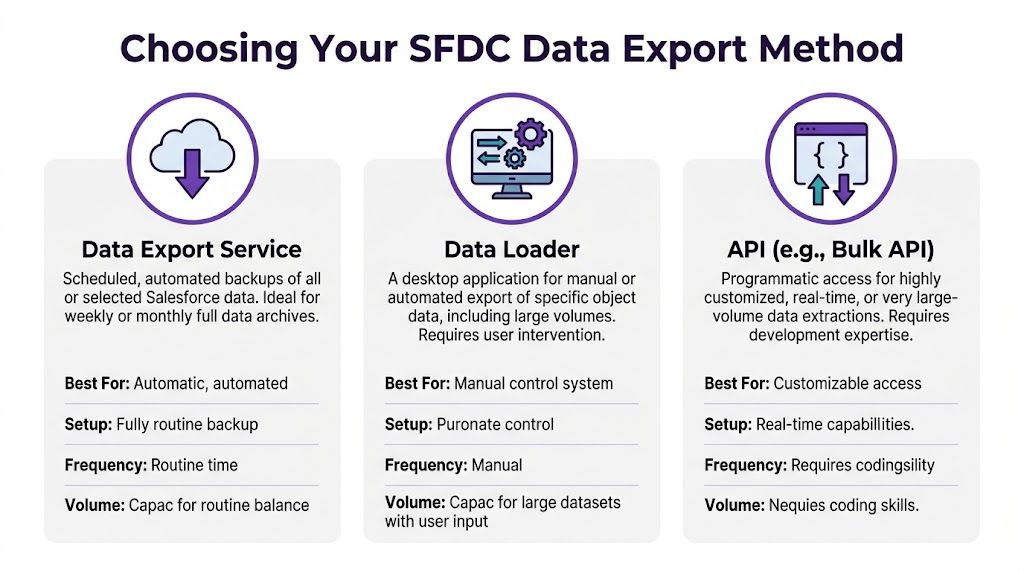
The quick way to choose
Use this filter first.
- Report Export fits ad hoc analysis and one-time business review.
- Data Export Service fits broad scheduled archive exports.
- Data Loader or Bulk API fits filtered extracts, large jobs, recurring operations, and migration prep.
- API-based pipelines fit engineered workflows, cross-system sync, and Data Cloud export patterns that need more control.
That last point matters more now. Standard CRM exports and Salesforce Data Cloud exports are not the same job, and treating them like they are leads to the wrong architecture fast.
Salesforce Data Export Method Comparison
| Method | Best For | Data Volume | Automation | Technical Skill |
|---|---|---|---|---|
| Data Export Service | Broad scheduled CSV archives across many objects | Large, but with platform limits and less precision than query-based methods | Weekly or monthly scheduling | Low to medium |
| Report Export | Ad hoc analysis and small business pulls | Small to moderate, best for human review rather than downstream processing | Minimal | Low |
| Data Loader | Object-level exports, filtered extracts, migrations | High, especially when paired with Bulk API workflows | Manual or scriptable | Medium |
| API | Custom integrations, engineered pipelines, and Data Cloud-adjacent workflows | Highest flexibility for large or recurring workloads | High | High |
Data Export Service works for coverage, not precision
Data Export Service is the built-in option many admins start with, and for broad archive use, that is usually the right call. It supports scheduled weekly or monthly runs and produces CSV files that are easy to store and review. As noted earlier from Revenue Grid’s export guide, it also comes with org-level concurrency and file-size constraints that shape how practical it is for larger jobs.
Use it for broad coverage:
- Scheduled archive exports
- Periodic compliance snapshots
- Low-maintenance admin routines
- Teams that need a standard CSV package without query work
Avoid it for selective recurring extracts. If the request depends on filters, exact field control, or a repeatable slice like “all opportunities updated since last Friday,” Data Export Service starts fighting you.
Report Export is for visibility, not operational data work
Report exports are useful because they are fast and familiar. That is also why they get overused.
A report export is fine when a manager wants a spreadsheet for review, a marketing user wants to inspect a segment before launch, or a sales ops analyst wants a quick sanity check. It is a weak choice for anything that needs stable IDs, complete field coverage, object relationships, or a clean re-import path.
Use report export when the output is meant to be read.
Do not use it when the output is meant to feed another system or become a recurring business dependency.
Data Loader is the practical default for admins
Data Loader is usually the right middle ground. It gives admins control over object selection, field selection, and SOQL filtering without forcing a full engineering project. For day-to-day Salesforce operations, this is the method I would choose first for anything more serious than a report and more targeted than a full archive.
It fits jobs like:
- Delta exports
- Migration prep
- Object-specific extracts
- Warehouse staging pulls
- Repeatable operational exports
The trade-off is operator quality. Data Loader is efficient in experienced hands and messy in casual hands. Bad queries, missed relationship fields, and inconsistent naming conventions are where time disappears.
A simple intake standard helps. If your team does not have one, document the request fields, filters, owners, and output rules in an export instruction guide template. That alone cuts down on the “quick export” requests that turn into rebuilds.
API is the right choice when exports become part of the system
Use the API when the export is no longer a file task and has become a data operation.
That includes recurring feeds into a warehouse, custom integrations, event-driven extracts, and cases where Salesforce Data Cloud data has to move into another platform with governance and orchestration behind it. At that point, the main question is not “Can we get a CSV?” It is “How should this data move reliably, repeatedly, and with the right controls?”
For lower-skill teams, API work is easy to underestimate. The method is powerful, but it pushes responsibility into query design, authentication, retry logic, monitoring, and downstream schema handling.
What actually saves time
The teams that run exports well separate archive jobs from operational jobs and stop pretending one tool can serve every case.
Use Report Export for reading. Use Data Export Service for broad scheduled coverage. Use Data Loader for controlled admin extracts. Use API patterns when the export feeds another process or system. That framework is simple, but it prevents the common mistakes that burn hours: reports used for migration, Data Export Service used for filtered recurring jobs, and one-off admin exports that gradually become weekly production tasks.
Handling Large-Scale and Automated Exports
A monthly export can turn into an all-night cleanup job fast. The usual pattern is familiar. Someone starts a full pull, the job runs into limits, the CSV lands with missing relationships or the wrong date slice, and the team spends more time validating the extract than using it.
That is the point where method choice matters more than speed. For large-scale and automated exports, Bulk API is usually the right engine, but only if the job is designed for scale instead of treated like a bigger spreadsheet export.

Design the export before you run it
Large exports fail for boring reasons. Filters are too broad. Parent and child objects come out in the wrong order. Jobs run during peak business hours. No one checks a sample before scheduling the full pull.
The fix is procedural.
Start by splitting the export into stable chunks. Date windows are the easiest option because they are easy to explain, rerun, and audit later. For very large objects, use a second boundary too, such as region, business unit, or fiscal period. That gives you smaller job files and cleaner retries when one slice fails.
Then set the extraction order. Pull parent objects first, then dependent records. Accounts before Contacts. Opportunities before OpportunityLineItems. That sounds basic, but it saves a lot of time when another team needs to join files or reload them elsewhere.
Run heavy jobs off-peak. Validate a sample first. Store the exact query used for each run.
Include fields you will need later, not just fields you need today
A lot of export rework starts with field selection.
Teams often grab the business columns they care about and leave out the 18-digit Salesforce ID, system timestamps, record ownership, or key lookup fields. That is fine for quick analysis. It is a bad habit for any export that might be validated, joined to another dataset, re-imported, archived, or handed to engineering.
Use a simple rule. If the file may be reused, include:
Id- key parent lookup IDs such as
AccountIdorOwnerId CreatedDateLastModifiedDate- any external ID used downstream
- status or lifecycle fields needed to explain record state
That extra discipline prevents the classic “why can’t we match these records back to Salesforce?” problem.
Recurring jobs should usually be incremental
Many scheduled exports are still set up as full pulls because that feels safer. In practice, full pulls create more risk. They take longer, consume more API capacity, and make it harder to spot what changed.
Incremental queries are the better default for operational feeds, warehouse syncs, and recurring compliance extracts. LastModifiedDate is the usual starting point, though some teams also track deletes separately so they do not miss records removed after the last run.
A practical query looks like this:
SELECT Id, Name, AccountIdFROM ContactWHERE LastModifiedDate > LAST_N_DAYS:7Use full exports for baseline snapshots, archival events, migrations, or one-time reconciliations. Use deltas for the jobs that run every day or every week.
Pick the automation level that matches the team
Skill level is of paramount importance.
A Salesforce admin can supervise a one-off large export in Data Loader or another admin-friendly tool and get a good result. A recurring export that feeds Snowflake, a finance system, or Data Cloud activation logic needs more than a button click. It needs query versioning, failure alerts, retry logic, and a clear owner.
A practical split looks like this:
- Data Loader UI for supervised one-time admin exports
- Bulk API with scripts or an integration platform for scheduled high-volume jobs
- Orchestrated API workflows when the export feeds another system and failures need monitoring, logging, and recovery steps
If the process runs on a schedule, document it like an operational procedure, not a personal shortcut. The distinction in a runbook versus playbook for recurring operations is useful here. The runbook should cover exact queries, schedule, file naming, destination, validation checks, and who gets paged when the job fails. The playbook should cover decision points such as whether to rerun, backfill, or pause downstream loads.
Later in the workflow, a visual walkthrough can help newer admins understand the setup sequence before they touch production.
What holds up in production
The export patterns that keep working are not glamorous. They are controlled.
I trust small validation runs, staggered job windows, delta logic, saved queries, explicit file names, and post-export checks for row counts and relationship coverage. I do not trust undocumented filters, giant one-pass dumps, or any process that depends on someone “fixing it in Excel” after the fact.
Navigating Advanced Scenarios and Modern Challenges
A standard export feels straightforward until the request includes ContentVersion, legacy Attachments, or a pull from Data Cloud. That is usually the point where a two-hour task turns into a full-day cleanup job.

Files require a different plan
Record data and file data behave differently in every practical sense. They export differently, validate differently, and fail differently.
The mistake I see most often is treating files as just another related object. They are not. Once binary content enters the job, file size, transfer time, storage limits, and downstream ingestion rules start driving the schedule more than row count does. A clean Account or Opportunity export can validate in minutes. A file-heavy export can look “complete” and still leave you with missing versions, broken links, or unusable archives.
Separate the work on purpose. Export the business records first. Confirm IDs, ownership fields, and relationship keys. Then handle files in their own pass with their own storage target and checksum or count validation. That approach makes root-cause analysis much faster if something breaks.
A small decision saves hours here. If the immediate need is reporting, migration prep, or record review, skip file binaries on the first pass.
Data Cloud changes the method selection rules
Data Cloud is not just core Salesforce with bigger tables. The export options, query patterns, and operating model are different.
For core CRM data, an admin can often get the job done with familiar tools. Data Cloud exports usually pull in engineering or data platform support because the question is no longer just “how do I export this object?” The fundamental question is “what is the destination, what shape should the data take, and do we need raw extraction, sharing, or activation?” As noted earlier in Salesforce Ben’s Data Cloud extraction guide, the available methods include Data Activations, Data Actions, Data 360-triggered flows, Data Shares, MuleSoft, and APIs such as Query API.
Method choice matters more in Data Cloud because the wrong one creates rework fast:
- Use Query API when the team needs large dataset extraction with query control.
- Use Data Shares when another platform should consume governed data directly.
- Use MuleSoft or another integration layer when the export is part of a managed cross-system process.
- Use activation-oriented methods when the goal is audience use or downstream action, not a flat file.
Skill level matters too. Admins comfortable with reports and Data Loader often hit a wall in Data Cloud because the job starts to look like data engineering work. That is normal. Pull in the right owner early instead of forcing a familiar tool into a job it was not built to handle.
Advanced exports fail on scope, not just tooling
The hard failures usually start before the export runs. Someone asks for “all customer data,” but nobody defines whether that includes deleted records, historical field values, file versions, consent objects, or Data Cloud entities tied to unified profiles.
That scope gap creates bad extracts and compliance risk. If personal data is involved, export design should line up with retention rules, approval paths, and access controls. Teams handling regulated data should treat A Practical Guide To Article 32 GDPR as a useful operational reference when deciding who can run the export, where files can land, and how the result is protected after download.
The practical rule is simple. Define the target system, data class, and business use before choosing the extraction method. That prevents the common mess of exporting the wrong dataset in the wrong format, then trying to repair it after the fact.
Best Practices for Security Compliance and Data Integrity
Exports create risk the moment the file leaves Salesforce. Inside the org, access, field history, and audit controls do a lot of the work for you. Outside the org, a CSV on a laptop or shared drive can bypass all of that if the process is loose.

Access should be narrow and deliberate
Export rights should sit with a small, named group. If a user can run large exports, someone should also know why they need that access, what data they are allowed to pull, and where the files are allowed to land.
That control matters more with customer data, HR data, financial records, and anything tied to consent or retention rules. If your team handles personal data and needs a practical security reference, A Practical Guide To Article 32 GDPR is useful because it connects security controls to day-to-day operational ownership.
In practice, the clean setup is simple:
- Assign named owners for recurring exports
- Require approval for one-off sensitive pulls
- Restrict destinations to approved storage locations
- Set retention rules for ZIPs, CSVs, and extracts
- Log validation steps so someone confirms the output is complete and expected
Data integrity starts with stable keys and documented scope
The export is only as useful as its ability to be matched, audited, or reloaded later. That is where teams lose time.
Include 18-digit Salesforce IDs whenever the file will feed another system, support reconciliation, or come back into Salesforce in any form. Leaving IDs out forces matching on names, emails, or external fields that may not be unique or current. I have seen that mistake turn a one-hour export into a full afternoon of duplicate cleanup.
Scope needs the same discipline. A file labeled “all accounts” is not enough. Document the object list, filters, date boundaries, deleted-record handling, and whether related objects or attachments were intentionally excluded. That record matters when someone questions the numbers two weeks later.
Smaller exports are usually easier to secure and verify
Full exports have a place, especially for backup, migration, and legal or compliance requests. They are not the default answer for recurring operational work.
For scheduled reporting feeds, warehouse syncs, exception handling, and many RevOps tasks, incremental exports are usually the better design. They reduce file exposure, shorten validation time, and make failures easier to isolate. This matters even more with Data Cloud, where extracts can involve larger modeled datasets and a wider group of stakeholders. If the business only needs the changed population or a defined audience segment, export that and nothing else.
The practical rule is straightforward. Pull the minimum data that serves the job.
Governance rule: Export the minimum data needed for the task, and record why that scope was approved.
A practical checklist before any export
- Confirm the business purposeBackup, analytics, migration, legal response, and downstream activation need different controls.
- Verify the requester and approverSensitive exports should never run on informal Slack approval or verbal requests.
- Include stable identifiersPreserve 18-digit IDs and any required external IDs for downstream joins or reloads.
- Check field sensitivityRemove fields that are not needed, especially personal, financial, or credential-related data.
- Use an approved destinationSave files only to sanctioned storage with the right access controls.
- Set a retention planKnow when the export will be deleted and who owns that cleanup.
- Validate row counts and spot-check recordsConfirm that the extract matches the intended scope before sharing it.
- Monitor the job to completionA finished job is not the same as a usable, complete, approved export.
A lot of Salesforce security issues start at handoff. The org may be locked down properly, but the export gets emailed, copied to a desktop, or dropped into a folder with broad access. Good export practice closes that gap.
Troubleshooting Common Errors and Final Export Checklist
A failed export usually shows up at the worst time. Finance is waiting on a file, a migration window is open, or someone has already told leadership the data is ready. In practice, the failure is rarely mysterious. The problem is usually a mismatch between the export method, the file format, and the actual job.
That matters even more with newer use cases. A quick report export might be fine for a small analysis pull. It is the wrong choice for a reload, a reconciled backup, or a Data Cloud audience extract that needs stable identifiers and clean downstream joins.
When the export completes but the file is unusable
The job says complete, but the CSV opens as a mess. Columns shift, line breaks split rows, or accented characters look corrupted.
That usually points to one of three issues:
- Encoding mismatch
- Line breaks inside text fields
- Opening the CSV in Excel or Sheets with the wrong regional settings
Use a simple triage order. First, inspect the raw CSV in a text editor, not a spreadsheet. Second, confirm the file encoding is UTF-8. Third, decide whether downstream users need raw field values preserved exactly, including carriage returns, or whether those should be normalized before handoff.
A lot of admins lose time blaming Salesforce when the file itself is fine and the spreadsheet tool is the problem.
When the dataset is incomplete
Missing records usually come from the wrong extraction method, not from Salesforce randomly dropping data.
A few patterns show up repeatedly:
- The wrong objects were exported
- A report export was used instead of Data Export, Data Loader, or API
- Filters excluded records that should have been included
- Large pulls were split badly, which created gaps or overlap
- A Data Cloud export was scoped to the wrong segment or activation population
The fix starts with one question: what exactly was this file supposed to do?
If the answer is backup, use a backup-oriented method. If the answer is analysis, a report or query may be enough. If the answer is migration, reconciliation, or reload, verify object coverage, filters, and IDs before rerunning anything. For Data Cloud, confirm whether the requirement is a full audience export, a calculated insight output, or a specific activated segment. Those are not interchangeable.
When jobs stall or fail midstream
Poor planning becomes visible at this point.
The common causes are familiar:
- API limits were already under pressure
- Several heavy jobs were scheduled in the same window
- A full export was attempted when an incremental pull would have done the job
- The export tool was not a good fit for the volume
Use the fix that matches the situation. Move large jobs to off-peak hours. Break high-volume exports into date or ID ranges that can be validated independently. If a recurring task still depends on someone remembering the right clicks in the UI, convert it into a documented Data Loader or API process. That is usually the point where manual exports start wasting more time than they save.
When re-import or downstream joins go wrong
This is the expensive kind of mistake. The export finished, but the file cannot support the next step.
Typical causes include:
- Salesforce IDs or external IDs were left out
- Parent and child objects were exported in the wrong order
- File naming was inconsistent, so the wrong version got used
- Field labels were mistaken for API names during mapping
- Data Cloud outputs did not include the identifiers needed to match records back to CRM or warehouse data
The fix is usually a rerun. Include 18-digit IDs. Export parent records before dependent records when relationships matter. Name files so another admin can tell exactly what they are looking at without opening them. For Data Cloud, verify the identity and join strategy before export, not after the file lands.
Final export checklist
Use this before every sfdc data export, especially when the file is important beyond one analyst’s spreadsheet.
- State the job clearlyBackup, analytics, migration, legal response, Data Cloud audience delivery, and system integration all need different export methods.
- Pick the method based on task, volume, and skill levelReport exports work for quick analysis. Data Export works for broad scheduled extracts. Data Loader and API methods fit larger, repeatable, or reload-sensitive jobs.
- Confirm scope before you run itVerify objects, filters, date ranges, business units, and segment logic.
- Keep stable identifiersInclude 18-digit Salesforce IDs and any external IDs needed for joins, dedupe, or re-import.
- Check relationship orderExport parent objects before child objects if the file will be loaded or reconciled later.
- Review sensitive fieldsRemove anything that does not need to leave Salesforce or Data Cloud for the stated purpose.
- Save to an approved destinationDo not leave regulated or customer data on a local desktop or in an ad hoc shared folder.
- Validate the output immediatelyCheck row counts, open the raw file, and spot-check a few records against the source.
- Watch the full job lifecycleCompleted is not the same as usable, accurate, and approved for handoff.
- Document what you ranRecord method, scope, owner, run date, filters, and any known limitations.
Teams that stay out of trouble are not always using the most advanced tool. They are choosing the right export method for the job, keeping the scope tight, and treating the output like production data instead of a temporary download.
If your team turns Salesforce workflows into demos, onboarding videos, explainer videos, feature release videos, knowledge base videos, or support article videos, Tutorial AI is worth a look. Simple screen recording with tools like Loom often produces videos that are 50-100% longer than necessary, while Camtasia and Adobe Premiere Pro usually demand real editing skill. Tutorial AI lets subject matter experts speak naturally with no rehearsed script, then turns those raw screen recordings into polished, on-brand videos that look professionally edited, without forcing the creator to become a video editor.