Great script writing for video is what separates a clear, concise tutorial from a rambling one that ends up on the cutting room floor. It’s your blueprint, the single most important thing you can do to avoid endless takes and agonizing editing sessions. A solid script turns a complex process into a simple, logical journey for your audience, making sure your message actually lands.
Why a Great Script Is Your Most Valuable Asset

Before you ever hit “record” or even launch your screen-capturing software, your video’s success is being decided by the script. This is the foundation that saves you from all the classic mistakes: awkward pauses, “ums” and “ahs,” and jumping all over the place. Think of it like an architect’s plan for a house; without one, you’re just nailing boards together and hoping it stands up.
This is doubly true for software tutorials and product demos. When you’re trying to teach someone, clarity is everything. A script makes sure every step is explained in the right order, every important feature gets its moment, and every call-to-action is delivered with intent.
The Problem with “Winging It”
Lots of teams use simple recording tools like Loom to quickly bang out demos, onboarding videos, or knowledge base content. It feels fast and easy in the moment. The problem? These unscripted recordings are often 50-100% longer than they need to be.
They capture every little hesitation, every repeated phrase, and every time the speaker gets sidetracked. What you end up with is a video that feels amateurish and, frankly, wastes your viewer’s time.
On the other hand, you have powerful video editors like Camtasia or Adobe Premiere Pro. These tools can absolutely fix those mistakes, but they demand a high level of skill. Cutting out stumbles, tightening up the pace, and adding smooth transitions is a real craft that takes time to learn.
This is the frustrating gap so many teams fall into: your subject matter experts have the knowledge, but they aren’t video editors. They’re stuck choosing between a long, rambling recording or a steep, time-consuming learning curve.
A Smarter Way to Create Polished Videos
This is exactly where a modern workflow makes all the difference. Tutorial AI specializes in generating video tutorials based on screen recordings. This is perfect for creating demos, onboarding videos, explainer videos, feature release videos, knowledge base videos, and support article videos.
Easy-to-use recording via tools like Loom is often 50-100% longer than necessary, while professional video editing software such as Camtasia or Adobe Premiere Pro requires expert video editing knowledge. Tutorial AI’s tools let you speak freely without any practice, and still, your video will look professional as if it was edited in Adobe Premiere Pro. It allows the subject matter expert to create on-brand videos extremely efficiently. This approach empowers your internal experts to produce studio-quality content in a fraction of the time. You can turn a raw screen recording into a polished final product in minutes. And for companies with a global audience, having that locked-in script makes translation and localization a breeze.
How to Structure Your Script for Impact

Great video scripts aren’t just written; they’re engineered. When you’re creating a software tutorial or product demo, every second counts, and a solid structure is what separates a clear, compelling video from one that just rambles on.
Think of your script as a blueprint. It guides your viewer on a specific journey, from a point of curiosity (or frustration) to a moment of clarity and action. Following a proven framework makes your script writing for video more efficient, but more importantly, it makes the final product far more effective.
The best scripts for tutorials and demos are built on a few core principles. Before we jump into a specific framework, let’s break down the essential components that every script needs to succeed.
The Four Pillars of an Effective Video Script
| Script Component | Core Purpose | Software Demo Example |
|---|---|---|
| The Hook | Grab attention and establish relevance in the first 10 seconds. | "Stop spending hours manually updating your project timelines. I'm going to show you how to do it in 30 seconds." |
| The Problem | Connect with the viewer's pain point and build empathy. | "You know the feeling—you finish a big task, but now you have to update the Trello board, the Asana project, and the shared spreadsheet." |
| The Solution | Present your software or feature as the clear, simple answer. | "With our new integration, completing a task here automatically updates it everywhere else. Let me show you how it works." |
| The Action | Tell the viewer exactly what to do next with a clear call-to-action. | "Activate the integration in your account settings today and get your first week free." |
This table lays out the fundamental building blocks. Now, let’s put them together into a narrative flow that works every time.
The ‘Hook, Problem, Solution, Action’ Framework
A powerful yet simple structure I always come back to is the ‘Hook, Problem, Solution, Action’ (HPSA) model. It’s a narrative workhorse that logically moves viewers through a journey, making your content more persuasive and memorable. Let’s break down each component.
- The Hook: You have less than 10 seconds to convince someone your video is worth their time. The hook’s only job is to grab attention. You can do this by asking a provocative question, stating a surprising fact, or quickly showing the impressive end result of the process you’re about to teach.
- The Problem: This is where you build a connection. Acknowledge a specific pain point your audience faces. For a software demo, this could be something like, “Tired of manually exporting sales data every single week?” This step shows you understand their struggle and primes them for your solution.
By clearly articulating the problem, you make the viewer feel seen and understood. This builds immediate trust and makes them much more receptive to what you’re about to offer.
From Problem to Clear Next Steps
Once you’ve hooked them and defined the problem, the next two stages are all about delivering value and guiding the user forward. This is where your product becomes the hero of the story.
The Solution is the core of your video. This is where you introduce your feature or workflow as the definitive answer to the problem you just laid out. Walk through the steps clearly, but always focus on the benefits and the “aha!” moments. Show, don’t just tell, how your product makes the viewer’s life easier.
Finally, the Action gives your viewer a compelling next step. Don’t just end the video and leave them hanging. What should they do now? This could be anything from “Try this feature in your own account” to “Sign up for a free trial.” A clear call-to-action turns passive viewing into active engagement.
You can explore more ways to implement this by checking out our sample script outline. This structured approach to script writing for video ensures your content not only educates but also drives results.
Writing a Voiceover That Truly Connects
The words on the page are just one part of the puzzle. How those words are delivered is what really builds a connection with your audience. When you’re writing a script for a video, you have to remember you’re writing for the ear, not the eye. This means using a natural, conversational tone—something that sounds like one person genuinely talking to another.
Stay away from stiff corporate-speak and convoluted sentences. If a viewer has to rewind, you’ve lost them.
One of the oldest tricks in the book is still the best: read your script out loud. You’ll immediately hear where the phrasing gets clunky or where the flow just doesn’t feel right. The aim is to sound helpful and real, not like you’re just reading off a screen. Pacing is everything, too. A well-placed pause can add weight to a key point or simply give the viewer a second to let a complex idea sink in.
For a practical look at how this all comes together, check out this well-structured voice-over script example.
Modern Tools for Perfect Narration
This is where things get really interesting for your workflow. The market for screen and script writing software is exploding, and it’s projected to hit USD 494.0 million by 2033. What’s driving this? The massive demand for high-quality digital content where clear, polished audio is no longer a “nice-to-have.”
For SaaS teams churning out tutorials, tools that simplify this process are a game-changer. You can discover more about these market trends.
Instead of spending hours in recording sessions and doing endless re-takes, AI-powered narration tools can completely change how you work. With a platform like Tutorial AI, you can generate a flawless, incredibly lifelike voiceover directly from your script in just a few minutes.
This method gives you professional audio quality for every single video you produce. It helps maintain a consistent brand voice without needing pricey recording gear or hiring voice actors. You get to focus on crafting the perfect message, confident that the delivery will be spot-on every time.
From Unscripted Recording to Polished Tutorial
But what if you start without a script? It’s common for subject matter experts to just hit record and talk through a process for demos or support videos. This is why tools like Loom are so popular, but the raw recording is almost always 50-100% longer than it needs to be, full of “ums,” long pauses, and mistakes.
Cleaning that up in a professional video editor like Adobe Premiere Pro or Camtasia is a job for an expert.
Tutorial AI is built to solve this exact problem. It lets your experts record in their natural, unscripted way, and still end up with a video that looks like it was professionally edited. The AI does the heavy lifting, turning a rough screen recording into a polished, on-brand tutorial without all the manual effort.
A Modern Workflow for Script-Free Video Creation
What if you could create a perfectly polished video tutorial without ever writing a formal script? I’ve seen teams struggle with this for years. This new approach completely changes the game, freeing up your subject matter experts to do what they do best—share their knowledge—without worrying about memorizing lines.
It solves a classic dilemma in video production.
On one hand, you’ve got your simple screen recorders like Loom. They’re fantastic for quick, off-the-cuff recordings. The problem is, these videos often end up being 50-100% longer than necessary, packed with “ums,” “ahs,” mistakes, and long pauses. You get the raw process, but it’s far from a professional-looking asset.
Then you have the heavy-hitters—powerful editing suites like Adobe Premiere Pro and Camtasia. These tools can absolutely turn a rough cut into a masterpiece, but they come with a steep learning curve and demand a serious time investment. Most subject matter experts just don’t have that kind of time or video editing expertise.
From Raw Recording to Polished Asset
The sweet spot is an AI-driven process that bridges this gap. It lets your team just hit record and talk freely, yet still end up with a video that looks like it was meticulously edited by a pro. This is how you empower your experts to create high-quality, on-brand videos with incredible efficiency.
The whole process is refreshingly simple:
- Just hit record. Your expert can just record their screen while talking through a process naturally. Whether it’s for a demo, an onboarding flow, a feature update, or a knowledge base article, they don’t have to sweat the small mistakes.
- Edit the words, not the timeline. An AI platform like Tutorial AI automatically spits out a word-for-word transcript.
- Trim the fat. Now for the magic. You just edit the text. When you delete filler words, fix a misstatement, or tighten up a sentence in the transcript, the AI automatically edits the video to match.
This diagram shows just how straightforward this flow is, moving from the initial idea to a refined final product.
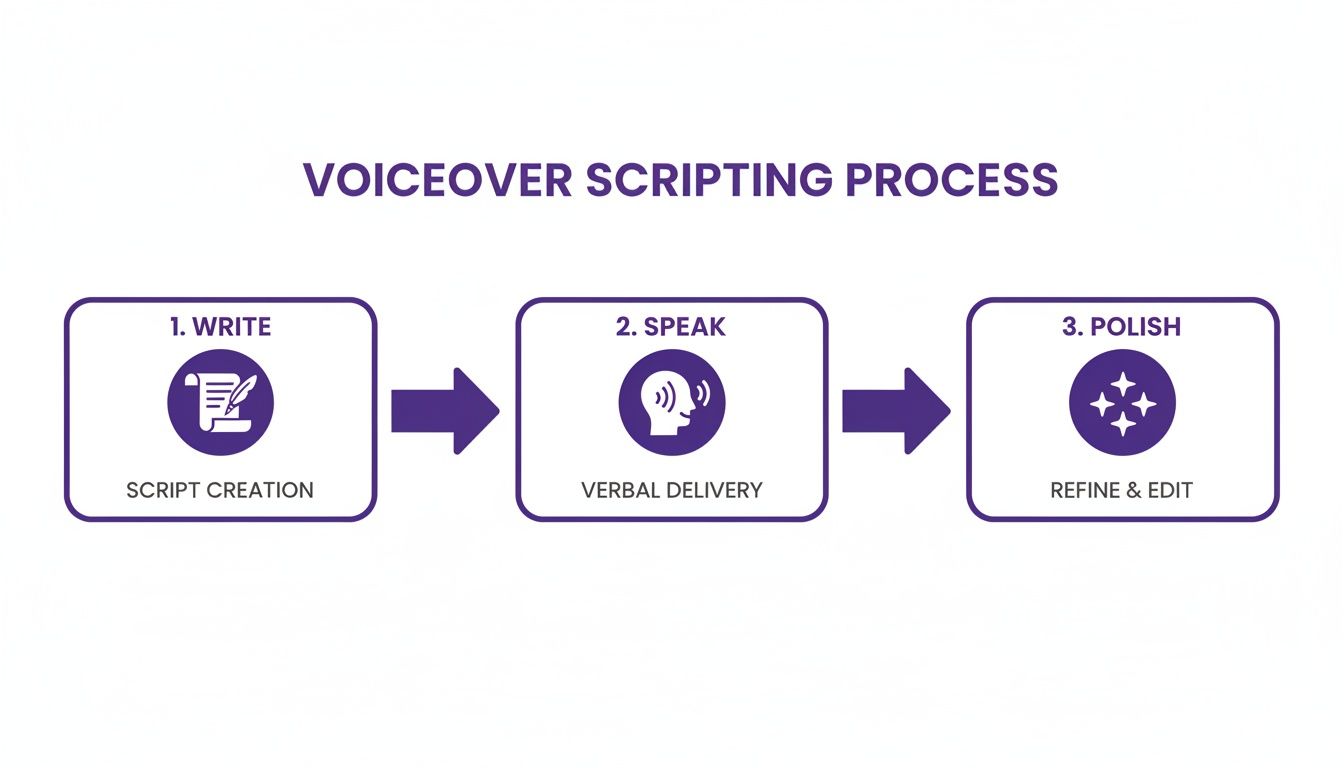
The big takeaway here is that great video production isn’t about a single, perfect take. It’s an iterative process of refinement.
Regenerate a Perfect Voiceover
Once you’ve cleaned up the transcript, the final step really elevates the audio quality. The AI can regenerate a perfectly paced, studio-quality voiceover directly from your edited script. This completely scrubs any background noise, uneven volume, or awkward hesitations from the original recording.
Your raw, unscripted recording is now a polished asset with crisp visuals and a flawless narration. If you want to see this workflow in action, you should check out our guide on how to create AI video. This is a perfect fit for any team needing to create high-quality instructional content at scale, from support teams building out a help center to sales teams crafting compelling demos.
The real power of this workflow is its efficiency. It removes the bottleneck of traditional video editing, allowing the person with the knowledge to also be the creator, without needing a separate set of technical skills. This modern approach to script writing for video—or really, the lack thereof—puts the focus back where it belongs: on the content. It ensures the final video is not only professional but also authentic, capturing the expert’s natural way of explaining things while stripping away all the clutter. It’s simply a faster, smarter way to create the videos your audience actually wants to watch.
Adapting Your Script for Different Video Formats
A script that works beautifully for a quick social media teaser is going to feel completely out of place in a detailed knowledge base tutorial. This is a trap I see people fall into all the time—they try to make one script fit all. The reality is, not all videos are created equal, and your script needs to reflect that. The platform, the format, and your audience should completely shape your script’s tone, pacing, and how deep you go into the details.
Just think about the difference between a punchy, 60-second video announcing a new feature and a thorough walkthrough for your support docs. The first one needs to be all energy and excitement, laser-focused on the “wow” factor. The second demands a much slower, more deliberate pace where clarity and precision are everything. Your script is the blueprint for creating that specific experience.
Tailoring Your Message for Different Goals
Different types of videos exist to achieve different business goals, whether it’s drumming up new leads or helping existing customers succeed. A sales video, for example, is all about grabbing a prospect’s attention and getting them interested in under a minute. The script needs to be packed with benefits, use energetic language, and end with a crystal-clear call-to-action that nudges them toward a demo or free trial.
On the other hand, an internal training video for your team can be much longer and more granular. Here, the script’s main job is to make sure your employees truly understand and remember the information. You can use industry-specific jargon and methodically walk through complex processes without worrying about a viewer dropping off—they’re a captive audience.
Once you’ve nailed the script, knowing how to get it seen on the right platforms is the next crucial step. For instance, this complete guide on how to post a video on LinkedIn is a great resource for making sure your content connects with a professional audience and gets the traction it deserves.
The Rise of Purpose-Built Scripting Tools
The growing demand for all this varied video content has really pushed the screen and script writing software market forward. It’s no surprise that business users have always been the biggest segment, with tons of adoption in corporate training and education—which is a perfect match for SaaS companies creating demos and building out their knowledge bases.
The market itself was valued at $80.83 million back in 2018 and is expected to hit $235.87 million by 2026. While personal use is catching on quickly, businesses are the main drivers because these tools are so adaptable for software tutorials, internal training, and sales pitches.
A one-size-fits-all approach to script writing rarely works. The most effective video content is born from a script that is intentionally crafted for a specific format, audience, and goal. Changing your script for a new format isn’t just about tweaking a few words. It’s about completely rethinking the structure and delivery to fit the new context. This strategic mindset ensures your message always lands perfectly, whether you’re trying to close a deal, explain a new feature, or get your team up to speed.
Common Script Writing Questions Answered
Even with a solid plan, a few questions always pop up once you start getting serious about writing scripts for your videos. It’s a craft, after all, blending creative storytelling with some pretty specific technical needs. Let’s dig into some of the most common hurdles people face.
So, how long should a script actually be? The honest answer is always “as long as it needs to be, and not a word longer.” But that’s not super helpful, right? For a marketing-focused explainer video, you’ll want to keep it snappy—aim for under 90 seconds, which works out to about 225 words. If you’re building out a detailed video for your knowledge base, it might stretch to 5 minutes or more, but every single sentence has to be there for a reason.
Then there’s the question of visuals. Do you really need to write them into the script? Yes, absolutely. A simple two-column format is your best friend here. Put your audio/narration on one side and the visual cues on the other. This little trick forces you to think about what the viewer is seeing while they’re listening, which is the secret to making sure your on-screen action and voiceover are perfectly in sync.
How Can Subject Matter Experts Create Videos Efficiently?
This is the big one for a lot of companies. Your subject matter expert (SME) knows the product inside and out, but they’re not a video producer. This skills gap creates a frustrating bottleneck where great knowledge gets trapped.
Tools like Loom are fantastic for quick, off-the-cuff recordings, but those raw videos often end up being 50-100% longer than necessary. They’re full of ums, ahs, and restarts that need a ton of editing to clean up. On the other hand, throwing an SME into professional software like Camtasia or Adobe Premiere Pro is a recipe for disaster; the learning curve is just too steep for someone who has another full-time job.
This is exactly where newer AI-powered tools are making a huge difference, especially for videos like:
- Demos and Onboarding: Capturing a core workflow without needing a perfect take.
- Explainers and Feature Releases: Getting the key value proposition across in a clear, concise way.
- Knowledge Base and Support Articles: Providing detailed, step-by-step guidance that users can easily follow.
This is the gap Tutorial AI was built to fill. It lets your expert hit record and just talk through their process naturally, without any practice. The final video looks polished and professional, like it was painstakingly edited in a high-end tool. It’s about empowering the person with the knowledge to create on-brand, high-quality videos themselves, minus the traditional headaches.
Navigating Legal and Platform-Specific Rules
Finally, let’s talk about something that’s easy to forget in the heat of creation: the legal stuff. It’s critical to get a handle on platform guidelines and copyright before you publish. To make sure all your hard work doesn’t go to waste, you need to understand things like how to avoid copyright strikes on YouTube.
This means using royalty-free music, understanding the nuances of fair use, and triple-checking that any stock footage you use is properly licensed. Cutting corners here can get your video taken down or your whole channel penalized, which is a painful way to see your scripting efforts vanish.
Ready to turn your raw screen recordings into polished, professional tutorials in minutes? Tutorial AI empowers your experts to create studio-quality videos without the learning curve. Edit your video by editing the text, and let our AI handle the rest. Start creating for free today at Tutorial.ai.