You’re probably staring at a GitHub repository right now, trying to add something simple like docs, images, or assets, and wondering why there isn’t a clean Create folder button.
That confusion is normal. GitHub’s web interface makes file edits easy, but folder creation feels oddly indirect the first time you do it. Most quick tutorials show the trick, few explain why it works, and that missing context is what causes the same mistake to repeat during onboarding.
If you’ve ever typed a folder name, hit save, and then wondered why nothing appeared, you ran into a Git behavior, not a random GitHub UI quirk. Once you understand that, how to create folder in github stops being annoying and starts becoming predictable.
The Surprisingly Tricky Task of Making a Folder
A new teammate usually hits the same moment. They open a repository, click Add file, and expect to see a folder option. Instead, GitHub offers file-oriented actions, and the repo still has no empty docs/ or screenshots/ directory after they try to improvise.
That feels backward until you remember what Git tracks. Git isn’t a filesystem manager first. It’s a content-tracking system. In practice, that means the folder only matters if there’s tracked content inside it.
The result is simple but unintuitive. An empty directory won’t stick around in a repository by itself. If you want a folder to exist in GitHub, you need to create it with at least one file in it.
Most beginner frustration comes from treating GitHub like cloud storage. It isn’t. It’s a Git interface, and Git cares about tracked content.
This matters even more for documentation-heavy repos. Support teams, technical writers, and product teams often want to scaffold a clean structure first, then add content later. They might create folders like docs/getting-started/, docs/admin/, or assets/product-shots/ before the actual files are ready.
That’s where the friction starts. The folder structure is meaningful to the team, but Git won’t preserve meaning unless some file gives that path substance.
Why this catches people off guard
Learning GitHub often starts through the browser first. That path is convenient, but it also hides some of Git’s underlying rules until they cause a problem.
A few common examples:
- You create
docs/only: Nothing persists because there’s no tracked file. - You try to scaffold a support center: The layout disappears unless every folder has content.
- You onboard non-developers: They assume folders behave like Dropbox or Google Drive.
The fix is easy once you know the rule. The important part is internalizing that this isn’t broken behavior. It’s expected behavior.
Creating Folders Directly in the GitHub UI
For one-off changes, the browser is still the fastest place to work. If you need a new folder and don’t want to clone the repo locally, use the file creation flow.
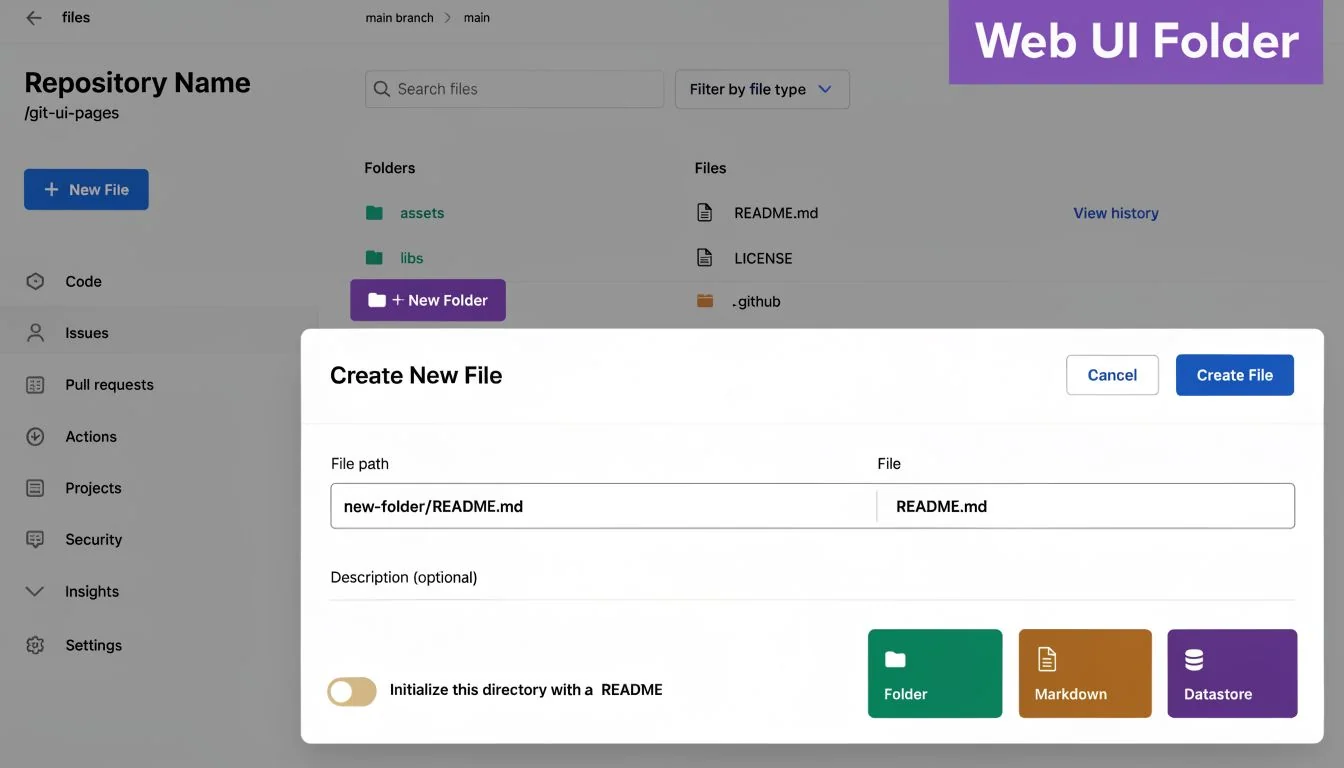
Git only tracks content, not empty directories. Its object model tracks blobs and trees, so an empty directory has nothing to hash and can’t be committed. That’s why creating a file such as project/.gitkeep is the standard workaround, as explained in Warp’s guide to creating a folder in GitHub.
The exact browser workflow
In GitHub’s web UI, you create a folder by creating a file inside it.
Use this pattern:
folder-name/file-name
That slash is the key. GitHub interprets the path before the slash as the folder and the text after it as the file that makes the folder real.
A reliable sequence looks like this:
- Open the repository.
- Click Add file.
- Choose Create new file.
- In the filename field, type a path like
docs/.gitkeeporimages/README.md. - Add content if needed.
- Commit the new file.
After the commit, the folder will appear because Git now has file content to track at that path.
Which placeholder file should you use
Teams get messy if they don’t choose a convention.
Use one of these:
.gitkeepif the folder is intentionally empty for now and you want a familiar convention.README.mdif the folder needs an explanation, ownership note, or content guidance.- A real starter file if the folder already has a concrete purpose, such as
index.md,faq.md, oroverview.md.
What doesn’t work well is random naming like temp.txt, blank.txt, or new file. Those files create noise and make future cleanup harder.
For people who prefer a visual walkthrough, this short demo is useful:
What usually goes wrong
The most common failure is typing only the folder name. The second most common is creating a placeholder file with no team convention, then leaving a repo full of inconsistent clutter.
Practical rule: If the folder exists only to reserve structure, use
.gitkeep. If the folder needs explanation, useREADME.md.
For simple repo edits, the UI method is fine. For anything larger than a handful of additions, it starts to get tedious fast.
Choosing Your Method A Quick Comparison
Different workflows suit different people. A support lead making a single documentation folder doesn’t need the same setup as a developer scaffolding a full project locally.
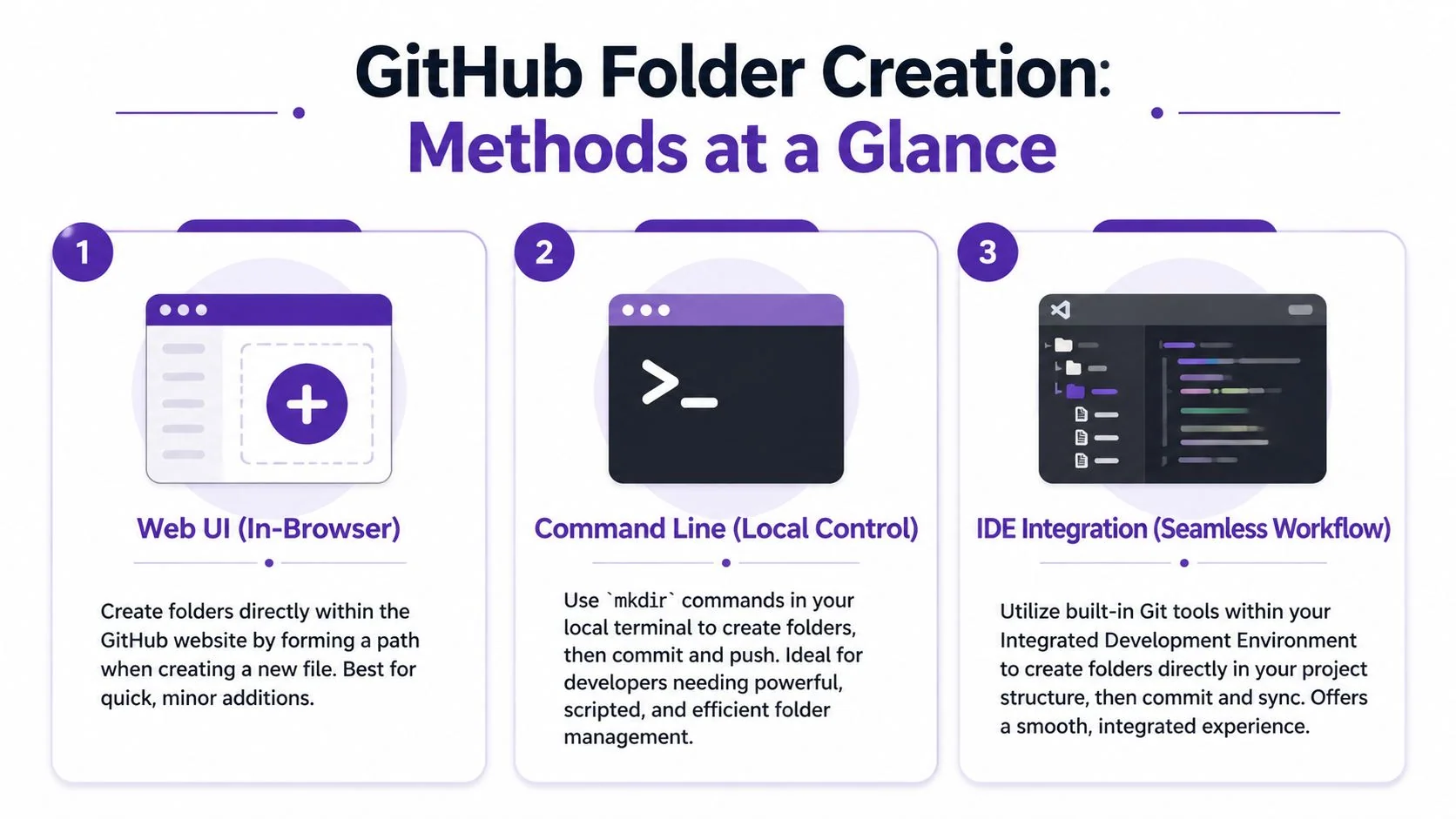
The mistake I see most often is using the browser for work that clearly belongs in a local development workflow. The GitHub UI is good for light edits. It’s not where you want to build structure at scale.
Which option fits your situation
| Method | Best for | What works well | Where it breaks |
|---|---|---|---|
| Web UI | Quick one-off folder creation | Fast for a single path like docs/.gitkeep | Clumsy for many folders or repeated structure |
| Git CLI | Developers and repo maintainers | Excellent for nested paths, repeatable setup, scripting | Requires comfort in terminal commands |
| GitHub Desktop | Users who want local Git without terminal-heavy work | Easier than CLI for many non-developers | Less efficient for complex scaffolding |
| IDE integration | People already working in VS Code or another editor | Smooth file tree management and commit flow | Still requires local repo setup |
My rule of thumb
Use the browser when all of these are true:
- Single change: You’re adding one folder or one small content area.
- Low complexity: The structure is shallow and won’t expand much right away.
- No local clone: You don’t want to pull the repository onto your machine.
Switch to local tools when any of these show up:
- Nested docs trees: You’re creating something like
docs/product/admin/billing/. - Repeated scaffolding: You need the same structure across multiple areas.
- Ongoing maintenance: The folder structure is part of a real content system, not a one-time fix.
One subtle advantage of local workflows is that they make you think in terms of repository structure, not just individual files. That tends to produce cleaner repos over time.
Advanced Folder Management with the Command Line and IDEs
If you’re building anything beyond a tiny repo edit, work locally. It’s faster, cleaner, and easier to review before you commit.

The GitHub web interface is convenient for simple edits, but it isn’t built for bulk creation, recursive renaming, or structures with multiple levels of nesting. Those limits become painful for large documentation sets and multi-language knowledge bases, which is why many teams move to Git CLI or a dedicated client for efficient folder management, as discussed in this GitHub Community thread on advanced GitHub UI limitations.
Command line workflow
The terminal gives you precise control. If I’m setting up a docs area, I’d usually create the structure locally first, add placeholder files only where needed, then commit once the tree makes sense.
A typical flow looks like this:
mkdir -p docs/getting-started docs/admin docs/apitouch docs/getting-started/.gitkeeptouch docs/admin/.gitkeeptouch docs/api/README.mdgit add .git commit -m "Add documentation structure"git pushA few practical notes:
mkdir -pcreates nested folders in one command.touchis the quick way to create placeholder or starter files.- One commit keeps the scaffold easy to review.
This is dramatically easier than repeating the browser flow for each path.
If you’re creating structure first and content second, local Git wins every time.
IDE workflow
If you live in Visual Studio Code, Cursor, or another IDE, use the file tree there instead of forcing everything through GitHub.com. Create the folders visually, add any needed placeholder files, then use the built-in Source Control panel to commit and sync.
That’s usually the best middle ground for teams that want a smoother experience than raw terminal commands but more flexibility than the browser.
This is also a better path if you need to add lots of files or folder-based content in one pass. For that kind of job, a local workflow or a process for uploading multiple files into GitHub efficiently is much more practical than trying to assemble structure one browser action at a time.
What local tools handle better
Here’s where local workflows clearly outperform the UI:
- Bulk scaffolding: Creating full content trees for docs, assets, scripts, or templates.
- Safer reorganization: Renaming and moving content with less click-heavy risk.
- Cleaner review: You can inspect the final structure before pushing.
- Better collaboration: Teammates can pull the same structure and extend it consistently.
The browser isn’t wrong. It’s just the wrong tool for structure-heavy work.
Best Practices for Repository and Folder Organization
Creating a folder is easy once you know the trick. Creating a repo that other people can explore without asking for help is harder.

Teams get into trouble when they treat folder structure as temporary. In practice, structure becomes documentation. It tells new contributors where things belong, what the project values, and how content should grow.
The confusion around empty directories is a common beginner barrier, and many tutorials skip the explanation behind the workaround. That’s why establishing a clear placeholder convention such as .gitkeep matters for documentation templates and scaffolding, as noted in the GitHub Community discussion about empty directory conventions and .gitkeep.
Pick a placeholder standard and stick to it
My recommendation is straightforward. If the folder exists only to preserve structure, use .gitkeep everywhere.
That gives the team a shared mental model:
.gitkeepmeans reserved spaceREADME.mdmeans explanation lives here- Real files mean active content has started
What I wouldn’t allow in a team repo is a mix of .keep, placeholder.txt, delete-me.md, and temp. That doesn’t signal intent. It signals drift.
Clean scaffolding isn’t clutter. Random scaffolding is clutter.
Use semantic top-level folders
Most healthy repositories benefit from obvious folder names. You want structure that a new teammate can understand in seconds.
A strong baseline often looks like this:
src/for application or package source codedocs/for written documentation and internal guidesassets/for images, media, and support filesscripts/for helper automation and maintenance taskstests/for automated test coverage
For documentation-focused repos, go further. Split by audience or function, not by whatever got created first. For example, docs/admin/, docs/user-guides/, and docs/troubleshooting/ are easier to maintain than a flat docs/misc/ dumping ground.
Teams writing support content should also define rules for folder purpose, ownership, and naming. A practical reference point is this guide to software documentation best practices, especially if your repo doubles as a publishing source.
Structure should help the next person
Good repos answer questions before anyone asks them. Where do screenshots go. Where do onboarding docs live. Where should a feature launch note be added.
That’s the core value of folder organization. It reduces hesitation and keeps contribution patterns consistent.
Conclusion From Folders to Flawless Tutorials
The answer to how to create folder in github is simple once you stop expecting GitHub to manage empty directories like a normal file browser. In the web UI, create a file path such as docs/.gitkeep. In local workflows, build the structure with your terminal or IDE, then commit it cleanly.
The bigger lesson is operational, not mechanical. Small repo edits work fine in the browser. Repeatable structure, nested docs trees, and large knowledge bases belong in local workflows where you can manage them deliberately.
That matters because teams don’t just need correct repositories. They need shared understanding. If one person knows the slash trick and everyone else keeps failing to create folders, the process is still broken from a team perspective.
When you document these workflows, be as explicit as your repo structure. Show the exact path format. Show when to use .gitkeep. Show when to stop using the browser and switch to local tools. A written standard helps, and a clear walkthrough helps even more. If you’re formalizing internal docs, this guide to technical documentation formats is a useful companion for turning ad hoc instructions into something durable.
If you need to turn GitHub workflows into polished training content, Tutorial AI is built for that job. Record a raw screen walkthrough, including demos, onboarding videos, explainer videos, feature release videos, knowledge base videos, or support article videos, and turn it into a professional result without heavyweight editing. Simple recorders such as Loom often produce videos that are 50-100% longer than necessary, while tools like Camtasia or Adobe Premiere Pro demand real editing skill. Tutorial AI lets subject matter experts speak naturally, skip the practice runs, and still produce on-brand tutorials that look professionally edited.