
Smart Auto-Cut
Automatically cut idle moments — pauses, loading screens, and stretches with no mouse or keyboard activity — for tighter videos.
AI narration is usually shorter than the time you spent recording. If the video keeps moments where nothing happens — an idle cursor, a page loading — viewers sit through awkward silences. Smart Auto-Cut finds those idle moments and cuts them for you.
When you create a project
When the AI Script Writer prepares your script, Smart Auto-Cut is on by default and removes long pauses from each recording.
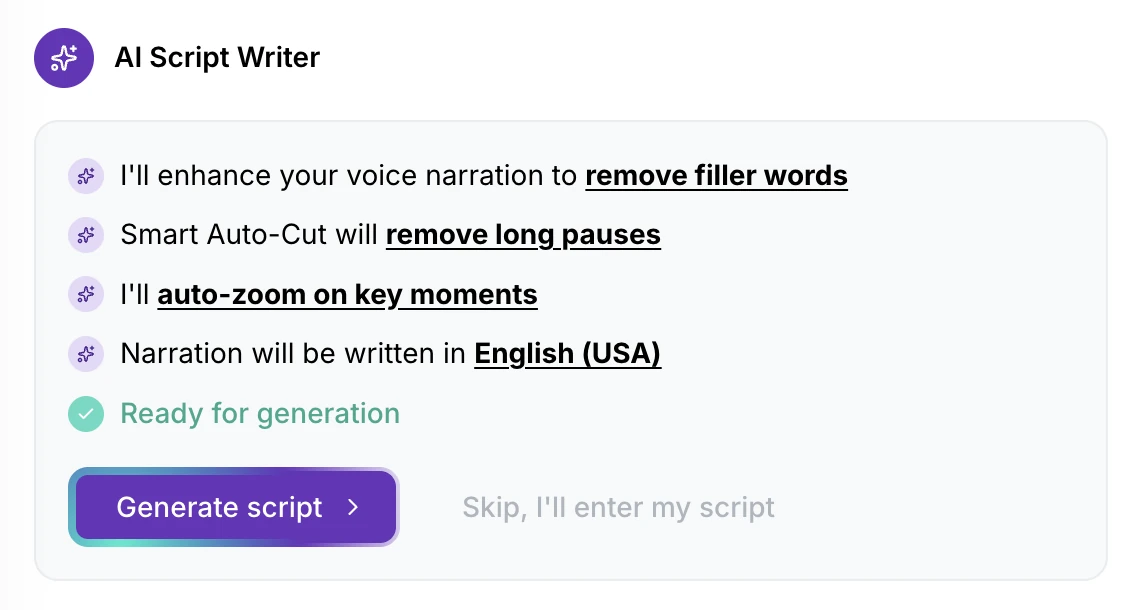
It runs on every clip the AI Script Writer generates, so a project built from several recordings is tightened throughout.
Running Auto-cut in Clips
To cut idle moments later — for example in a recording you added afterwards — open Clips and click Auto-cut in the toolbar. Hover over the button first to preview the spans it would cut; nothing changes until you click.
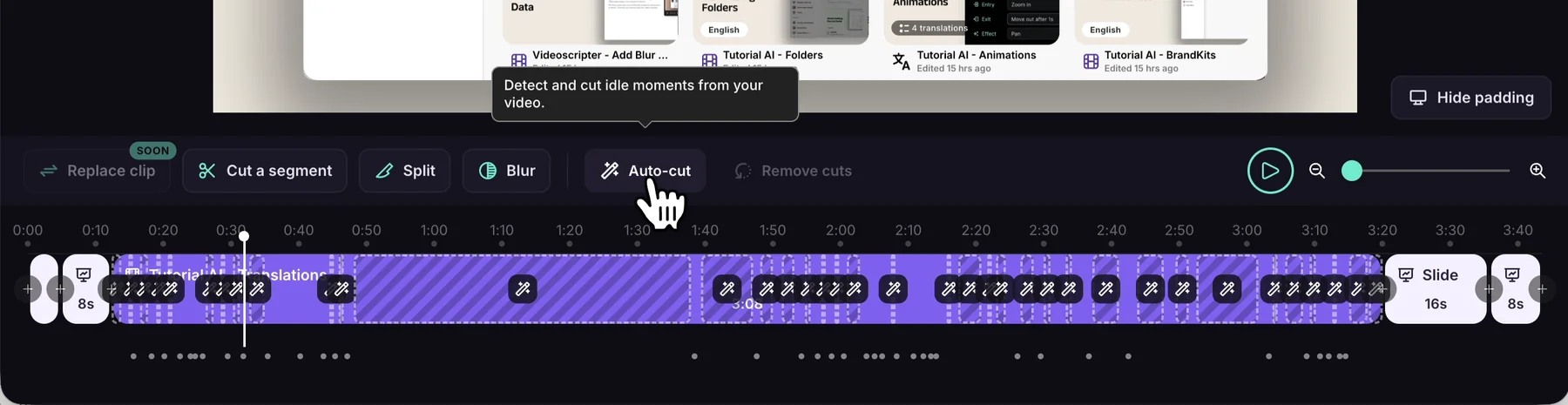
- It only affects the clip you’re on. Other clips — including other copies of the same recording — are unchanged.
- Your own cuts take priority. Auto-cut never overrides a cut you made yourself.
- Running it again gives the same result on a clip you haven’t changed.
Automatic cuts are suggestions. Drag a cut’s edges to adjust it, hover over it and click Undo cut to restore it, or click Remove cuts to restore everything — manual and automatic. See Cut & Trim Video Segments.
When Auto-cut is unavailable
The button tells you why when you hover over it:
- Select a recording to use Auto-Cut — the playhead is on a slide; move it onto a clip.
- Auto-Cut is currently not supported for mobile recordings.
- Auto-Cut is currently not supported for this video, we can’t detect idle parts — cut idle moments manually with Cut a segment instead.