
Cut & Trim Video Segments
Remove pauses, mistakes, and unwanted footage from your recording in Clips — without re-recording.
Mistakes happen when you record — a pause while a page loads, a wrong click, a false start. Instead of recording again, remove those parts in Clips. Cut footage stays in your project, greyed out on the timeline, so you can adjust or restore it at any time.
💡 Clips is available on all paid plans.
Opening Clips
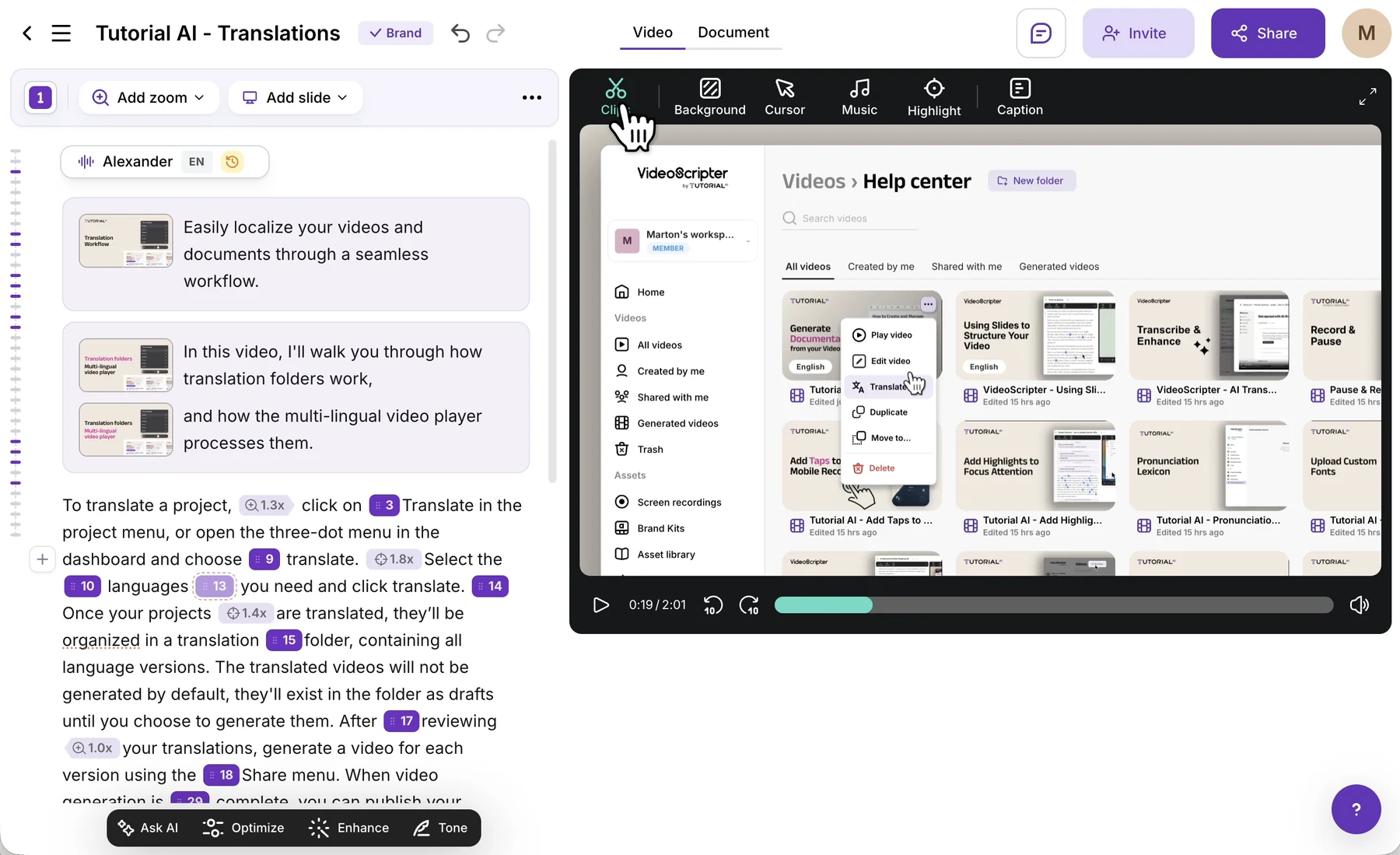
Click Clips in the toolbar above the video preview. Your recording opens on a timeline, where you can cut, trim, and review every edit. New to Clips? Start with the overview.
Removing idle moments with Auto-cut
Auto-cut detects idle moments — stretches with no mouse or keyboard activity, such as waiting for a page to load — and cuts them for you. Hover over Auto-cut to preview the spans it would remove; nothing changes until you click.
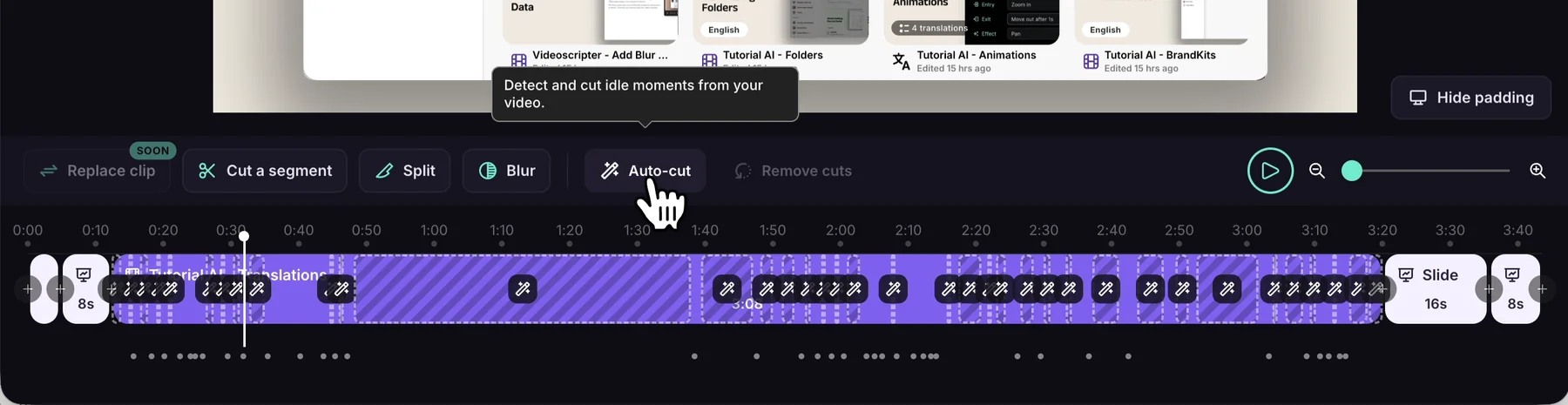
New projects usually open with auto-cuts already applied. Treat them as suggestions: keep the ones that tighten the pacing, and adjust or undo any that remove something viewers need to see.
- Auto-cut only affects the clip you’re on. Other clips are unchanged.
- Your own cuts take priority over automatic ones.
- Auto-cut isn’t available for mobile recordings.
Learn more in Smart Auto-Cut.
Zooming the timeline
Drag the zoom slider, or pinch on your trackpad, to zoom in for precise edits and back out to review the whole recording.

To see more of the picture while you cut, click Hide padding above the timeline. It only changes your view — the final video keeps its padding.
Cutting a segment
- Move the playhead to where the cut should start.
- Click Cut a segment in the toolbar. The playhead position becomes the start of the cut.

- The step bar reads Cut a segment · Click the end. Click the end point on the timeline — before or after the start both work.

The removed span turns greyed out. To stop without cutting, click Cancel or press Escape.
Shortcut: Shift + Click on the timeline to add a cut.
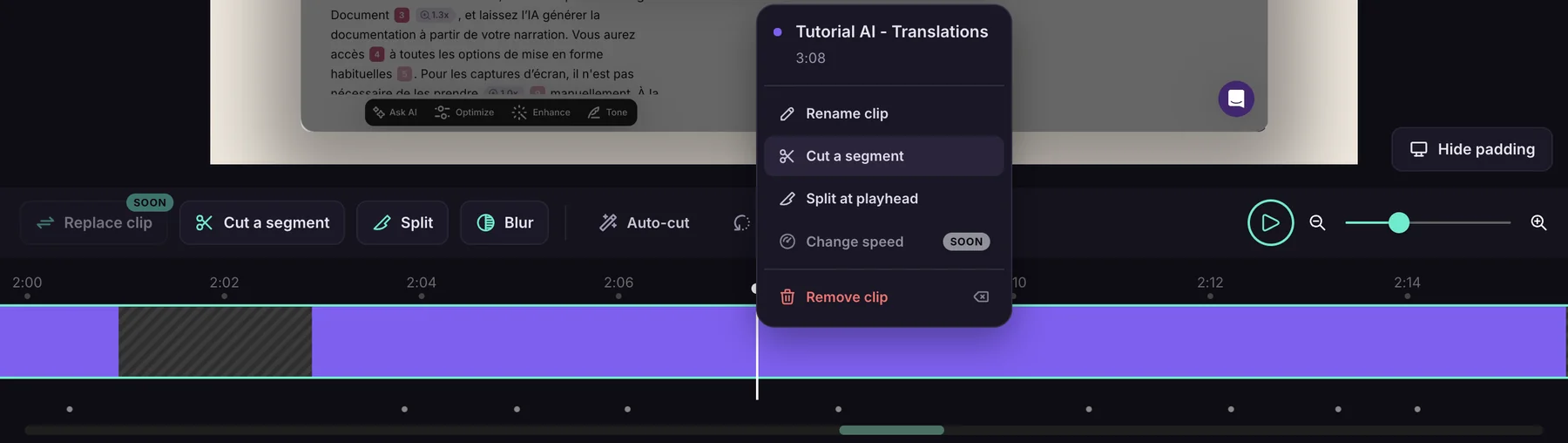
You can also right-click a clip on the timeline and choose Cut a segment. The same menu lets you split or remove a clip — see Split and remove clips.
Adjusting or undoing a cut
Drag a cut’s start or end edge to make it shorter or longer. To restore a cut completely, hover over it and click Undo cut.

To restore everything that was cut — manual and automatic — click Remove cuts in the toolbar.
Trimming the start or end
A trim is a cut that touches the start or end of a clip. Drag the handle at either edge of the clip inward to remove opening or closing footage, such as the moment before you started presenting.

A cut always stays inside one clip. If you click past the edge of a clip while cutting, the cut stops at the clip’s edge and becomes a trim.
Previewing your edits
Press Space or click play to watch the result. Cut footage is skipped, so you can check that every transition feels natural and nothing important was removed.
Notes
- Nearby cuts merge. Cuts in the same clip that overlap, touch, or sit very close together combine into one cut.
- Very short cuts aren’t allowed. If you see This cut would be too short, pick an end point further from the start.
- A cut can’t start inside another cut. Move the playhead outside the existing cut and try again.
- Cuts are saved automatically. Every cut is also a single undo step.