
Split and remove clips
Split a recording into separate clips, choose how they transition, and remove the parts you no longer need — without re-recording.
When part of a tutorial goes out of date — a screen changed, or you forgot to show a step — you don’t need to record everything again. In Clips, split the recording so the affected part becomes its own clip, then remove it or replace it. Your script stays intact.
💡 Clips is available on all paid plans.
Splitting a clip
Move the playhead to where you want the split, then right-click the clip on the timeline and choose Split at playhead. You can also click Split in the toolbar.
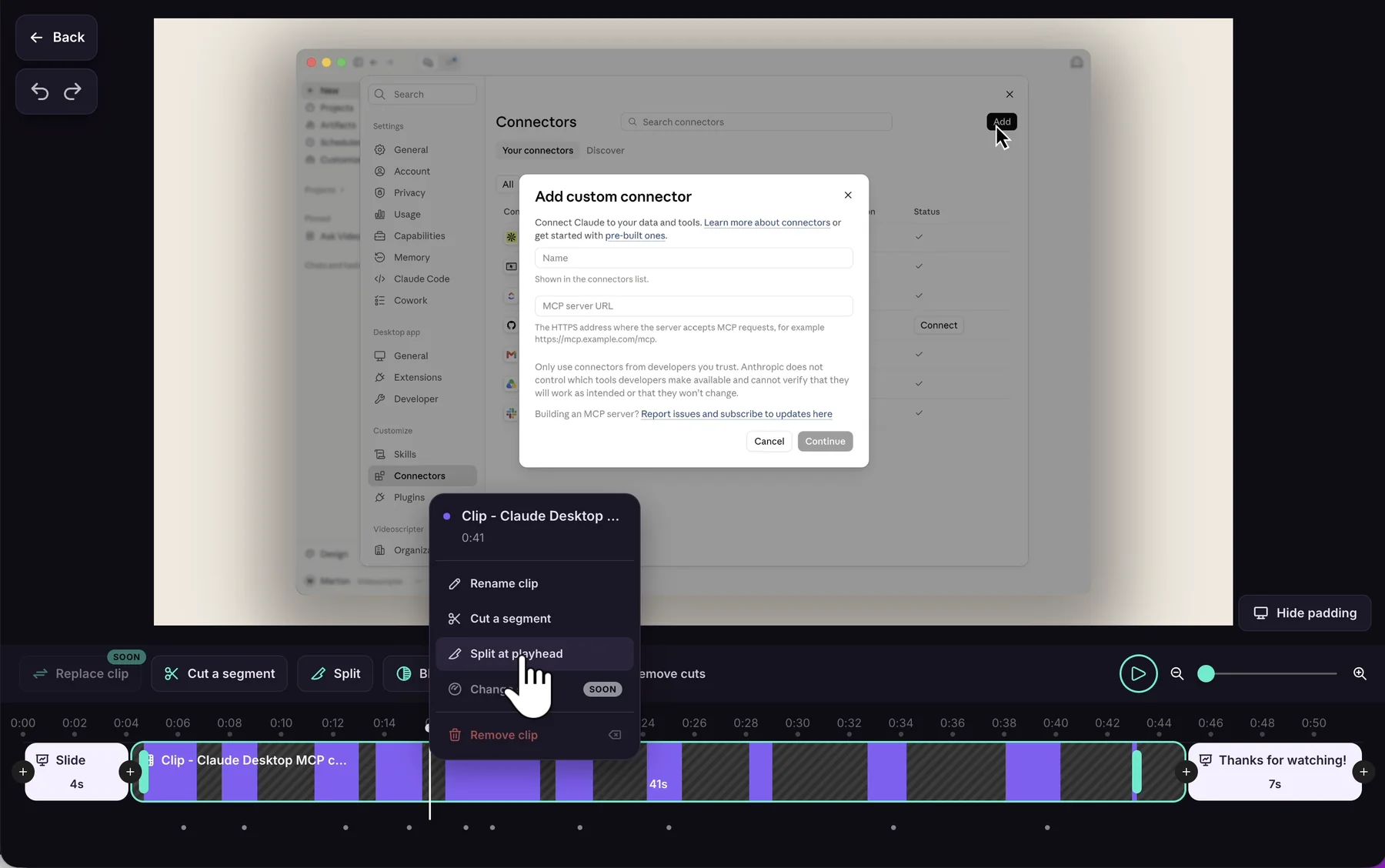
The recording splits at the exact playhead frame, and the narration splits at the nearest sentence boundary — never mid-word — so each new clip keeps its own part of the script.
- Cuts, blurs, and highlights stay with the footage they belong to.
- Slides are never split.
- A clip without narration can be split anywhere.
- The two new clips join with a 1-second fade.
Clip headings in the script
Each clip has a heading in the script showing its name. Click the pencil to rename the clip, or the scissors to open it in Clips. Clear names make it easy to find the right clip when you come back to update one section later.
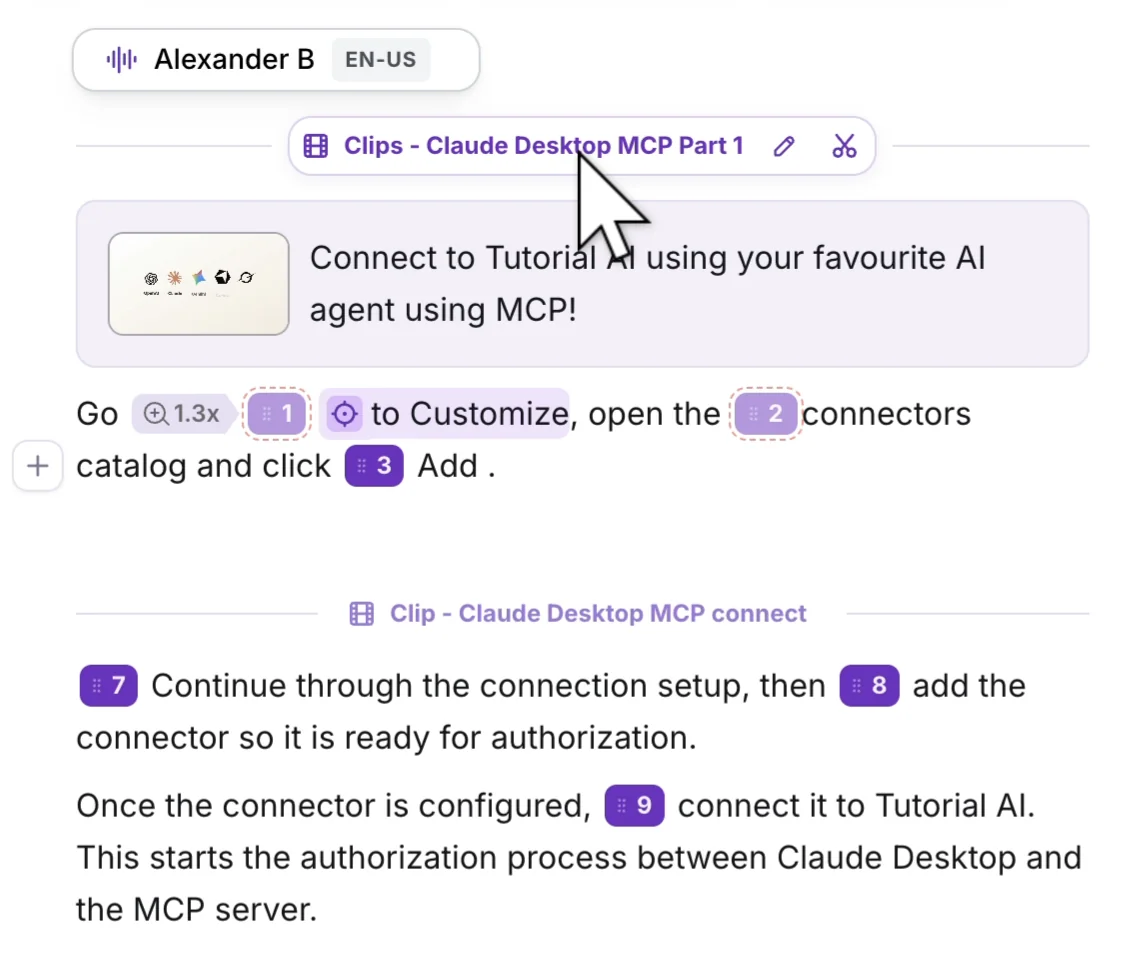
You can also rename a clip by right-clicking it on the timeline and choosing Rename clip. Press Enter to save or Escape to cancel.
Choosing a transition
Click the transition on a clip heading (it shows Fade by default) to open Clip transition, then pick one:
- Fade — a gentle visual separation. Works well when clips come from different apps, windows, or recording sessions. Drag Duration to change its length.
- Direct Cut — no visible transition. Use it when both clips show the same app at the same window size, so the edit feels like one continuous recording.
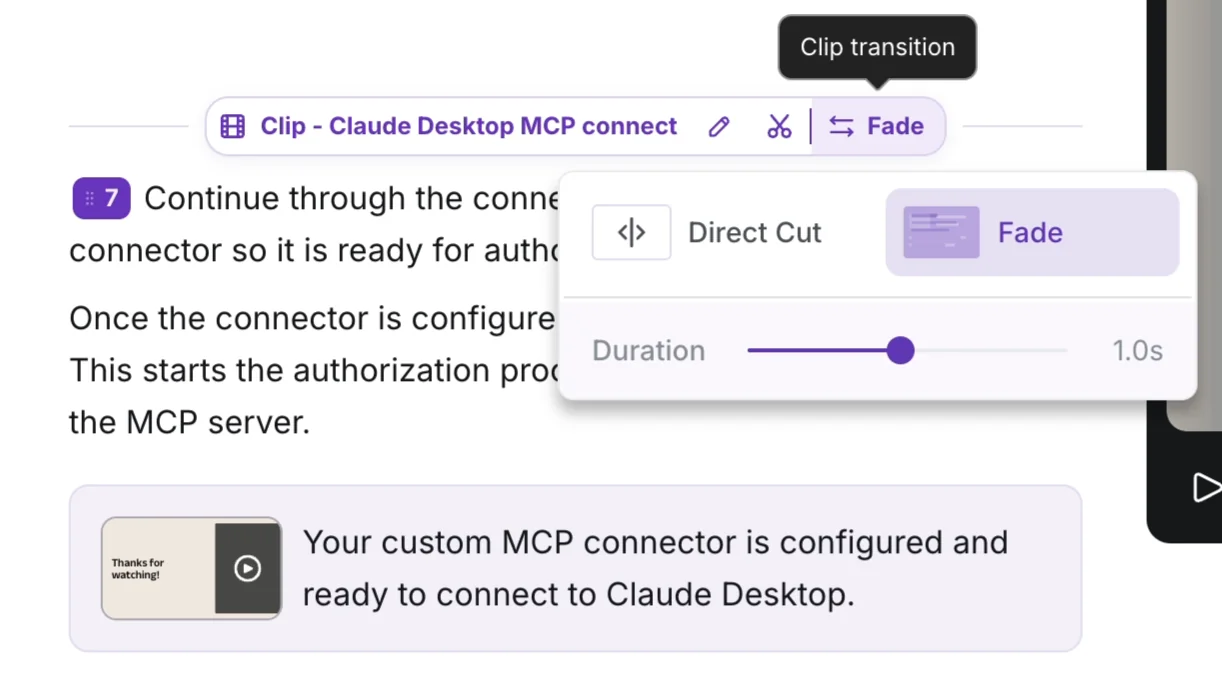
Preview the join before you publish — the cursor position and on-screen state on both sides decide whether a direct cut looks seamless.
Removing a clip
Right-click the clip on the timeline and choose Remove clip. You can also select a clip and press Backspace or Delete.
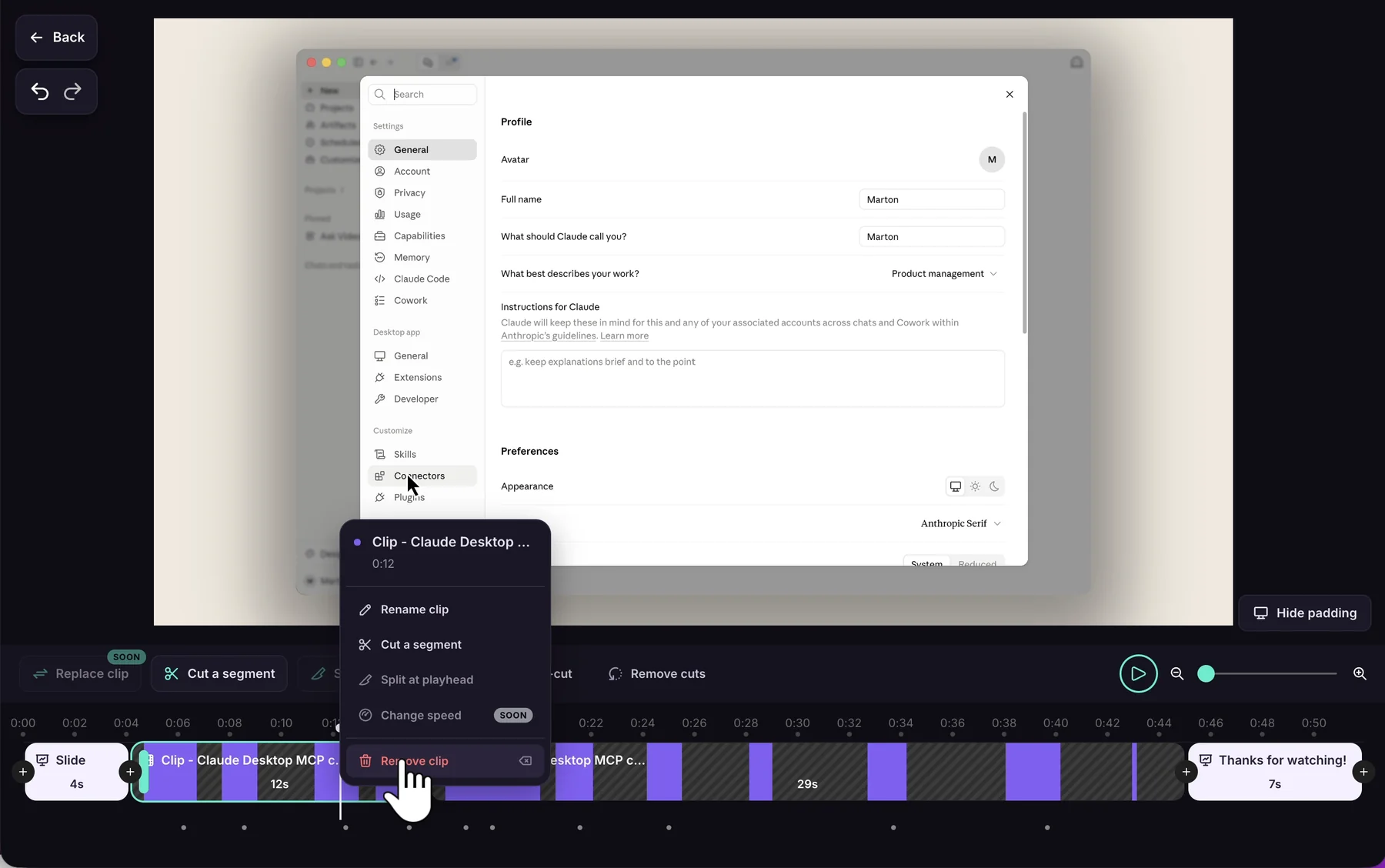
A confirmation always opens first, because the clip owns a section of your script:
- Delete clip and content — deletes the video, its narration and any slides in this section. Choose this when the footage and what you said about it are both out of date.
- Delete clip, keep narration — deletes the video only. The narration and slides stay in your script and join the previous clip (or the next one, if this is the first clip), so they play over that clip’s footage. If it’s the only clip, they stay without video. Choose this when you want to keep the wording — for example, to copy it into a new recording’s section. See Update or replace part of a recording.
- Cancel — nothing changes.
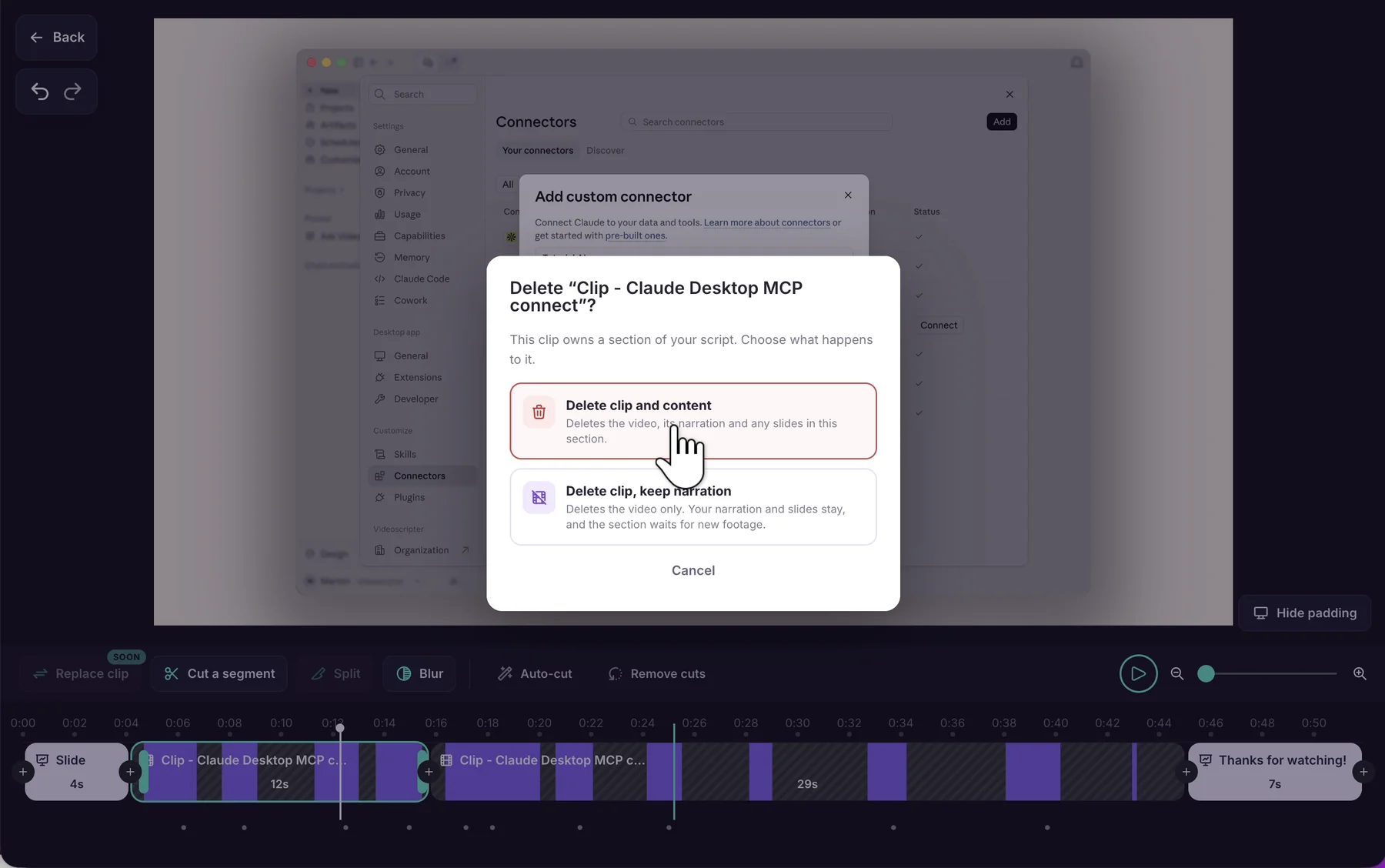
Removing a clip removes only that clip, together with its own cuts, blurs, and highlights. Other uses of the same recording stay as they are.
Notes
- Split is unavailable? The button explains why — for example Finish the current edit first, or Generate current narration timing before splitting this position after you’ve edited the narration.
- Undo works as usual. Each split and each removal is a single undo step.