You finish recording a product walkthrough for a new feature. The demo felt clear while you were speaking. Then you hit Export and your editor asks you to choose between MP4, MOV, AVI, H.264, and HEVC.
That’s the moment many smart, capable people feel like video has turned into a secret technical club.
If you create onboarding videos, support clips, feature release explainers, LMS lessons, or knowledge base content, you’ve probably run into this exact problem. You don’t need to become a post-production specialist. You do need a practical answer to what is video clip format, because the wrong choice can lead to upload issues, blurry interface text, or files that play well on one platform and fail on another.
The confusion gets worse because different teams publish to different places. A product marketer may need a web-friendly file for a landing page. An L&D manager may need something that works inside an LMS. A ministry team cutting sermon shorts for churches may care most about simple publishing and broad playback support. Same underlying question. Different delivery context.
This article treats video format the way working educators and content teams need it explained. Plain language. Clear examples. Practical trade-offs. No needlessly abstract jargon.
Introduction Decoding the Digital Video File
A video file looks simple from the outside. You see a filename and an extension like .mp4 or .mov. It’s easy to assume that extension tells you everything.
It doesn’t.
Two files can both end in .mp4 and behave very differently. One may upload smoothly to your CMS and stream cleanly. Another may look soft, stutter on older devices, or fail a platform’s ingestion rules. That’s why “video clip format” means more than just the letters at the end of the file name.
In practice, a video clip format usually includes several pieces working together: the container format, the video codec, plus settings like resolution, frame rate, and sometimes color space. The ASU Brand Guide treats this as a practical delivery combination by recommending .mp4 using the H.264 codec at 23.98 fps and 1080p for online video, while also showing 3840 × 2160 UHD as an acceptable higher-resolution option for premium assets in its video specifications guidance.
That definition matters most when you’re publishing tutorials. A screen recording isn’t just “a video.” It’s text, cursor movement, interface detail, narration, and timing. If the format compresses too aggressively, the viewer may struggle to read the UI. If the format is too heavy, your team may deal with slow uploads and support tickets about playback.
A useful way to think about format is this. It’s the rulebook for how your video is packaged, compressed, and expected to behave after you publish it.
People often ask for one best format. Usually they really mean one best format for the destination. That’s a more useful question, because platforms, documentation systems, and embedded players don’t all accept the same things in the same way.
Containers vs Codecs An Essential Analogy
The fastest way to understand video format is to separate two ideas that people constantly blend together. Container and codec are not the same thing.
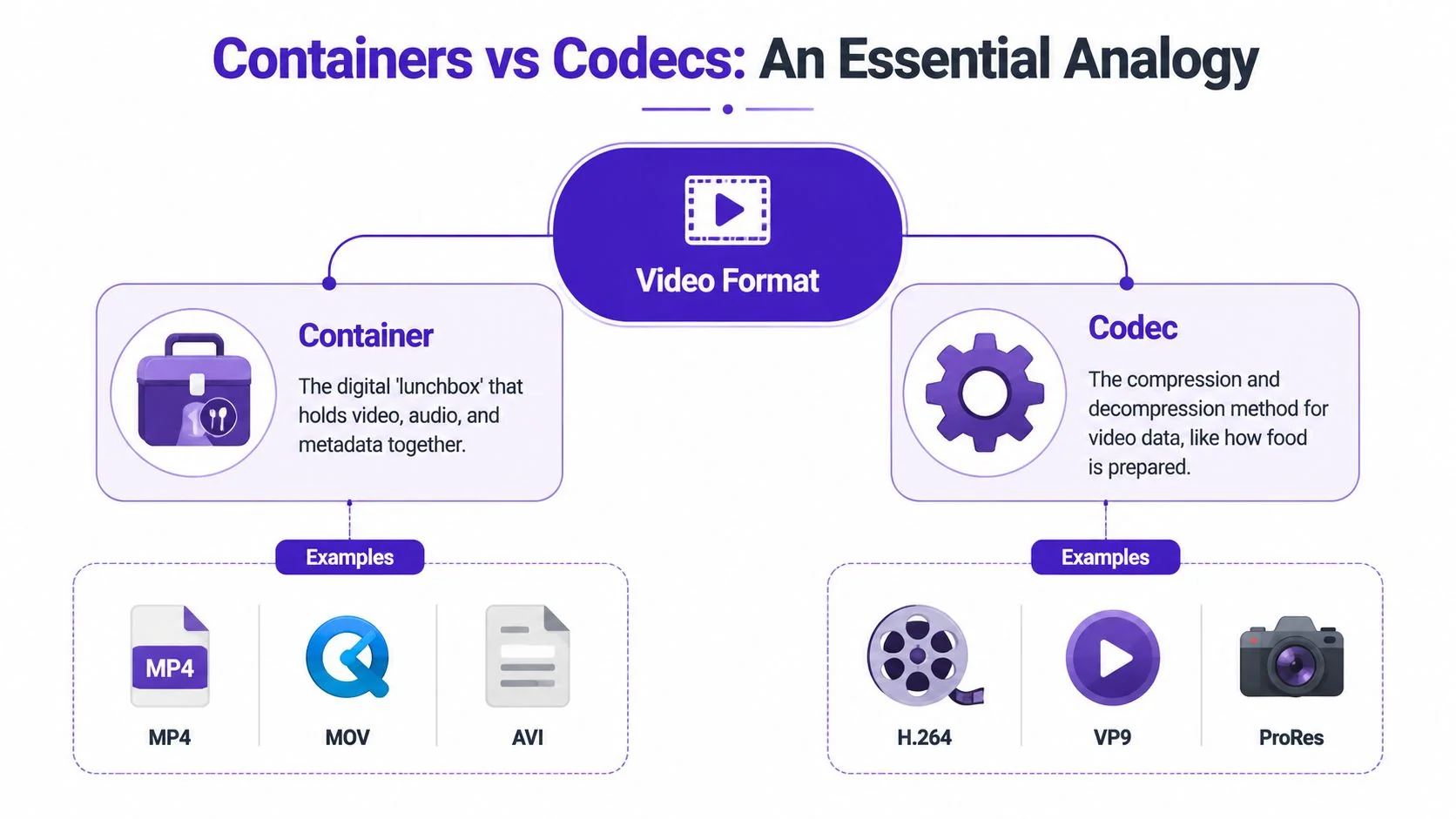
The lunchbox analogy
Think of a video file as a packed lunch.
The container is the lunchbox. It holds everything together. That includes the video track, audio track, captions, and metadata. Common containers include MP4, MOV, and AVI. The container usually determines the file extension you see.
The codec is how the food was prepared and packed. It’s the compression method used to shrink raw video into a manageable file and then decode it again for playback. Common codecs include H.264, HEVC (H.265), and VP9.
So when someone says “send me an MP4,” they may only be naming the lunchbox. They may not be telling you how the video inside was encoded.
Why this confuses people in real tools
Many apps don’t ask you to choose a container and codec separately. They show a bundled preset instead. Canon’s documentation points out that users often choose combinations such as “MP4 (HEVC)” or “MP4 (H.264)” rather than a single abstract format element in its explanation of how video formats are presented in camera menus.
That’s why beginners can do everything “right” and still get confused. The software hides the technical pieces until something breaks.
A few practical examples:
- Same container, different result: Two
.mp4files may look similar in Finder or Windows Explorer, but one may be encoded with H.264 and the other with HEVC. - Same video, different compatibility: An LMS may accept one export preset and reject another even though both say MP4.
- Same resolution, different playback behavior: A 1080p file can still perform poorly if the codec or compression settings aren’t a good fit.
Practical rule: When you ask “what is video clip format,” ask two follow-up questions. What container is it using, and what codec is inside it?
Why containers exist at all
This idea has roots in older video history. Sony introduced the U-matic system in September 1971 as the first commercial videocassette format, and that shift from reel-to-reel systems toward standardized cassettes helped lay conceptual groundwork for how modern media gets packaged in more consistent ways, as described in this history of video recording formats.
If you want a deeper explanation of the compression side, this guide on what a video codec is is a good companion read.
A Practical Guide to Common Video Formats
Most creators don’t need a museum tour of every format ever invented. They need to know which formats show up in day-to-day work and what each one is good at.
The most important practical truth is simple. MP4 with H.264 has become the default delivery choice for many teams. Major publishing environments treat it as a baseline standard. One concrete example is the ASU recommendation already noted earlier. That’s why so many editors and screen-recording tools default to that combination for web delivery.
Common Video Clip Format Comparison
| Format (Container) | Common Codecs | Pros | Cons | Best For |
|---|---|---|---|---|
| MP4 | H.264, HEVC | Broad compatibility, efficient delivery, easy upload to many platforms | Can be less ideal than edit-focused formats for heavy post-production | Tutorials, demos, LMS uploads, knowledge base videos |
| MOV | H.264, ProRes | Common in Apple-centered workflows, often used in editing environments | Larger files in some workflows, not always the simplest delivery choice | Editing masters, Apple-based production |
| AVI | Various legacy codecs | Older Windows compatibility | Feels dated in many modern publishing workflows | Legacy systems |
| MKV | Various codecs | Flexible container design | Less predictable for mainstream business publishing destinations | Archival or specialized workflows |
| WebM | VP8, VP9 | Designed for web-oriented use cases | Not always the safest default for broad enterprise upload compatibility | Certain web playback scenarios |
| MP4 with HEVC | HEVC (H.265) | Better compression efficiency than older codecs | Compatibility can be less universal than H.264 depending on workflow | Higher-efficiency delivery where supported |
| MOV with ProRes | ProRes | Strong for editing quality and post-production handling | Large files, heavier to store and share | Professional editing and high-quality masters |
MP4 is usually the safest delivery answer
For tutorial publishing, MP4 is often the least risky answer because it balances compatibility and manageable file size. It’s especially useful when your clip may end up in a knowledge base, LMS, CMS, help center, or embedded player.
That doesn’t mean MP4 is magic. It means many platforms are built to expect it.
MOV is common in editing environments
If your team works heavily on Macs or receives files from editors, you’ll see MOV often. It can hold delivery-friendly codecs like H.264, but it’s also common with production codecs such as ProRes.
For non-technical teams, the simplest way to think about MOV is this: it often shows up earlier in the production process, while MP4 often shows up later when it’s time to publish.
AVI is mostly a legacy concern
You may still encounter AVI in old archives or legacy internal systems. It matters because organizations often have old training libraries full of inherited media.
For new tutorial production, AVI is rarely the first choice.
MKV and WebM are more specialized
MKV is flexible. WebM is web-oriented. Both can be useful in the right context.
But for support teams, customer education managers, and product marketers, they usually introduce more decision-making than necessary unless a specific playback environment requires them.
If your goal is “make this tutorial play reliably in as many normal business contexts as possible,” MP4 with H.264 is the default starting point.
Why the destination matters more than the format menu
A platform’s upload rules often narrow your choices before you even start. Shutterstock’s contributor requirements, for example, accept QuickTime (.mov) or MP4, cap file size at 10 GB, require clips of 5 to 60 seconds, support resolutions including 3840 × 2160, 1920 × 1080, and 1080 × 1920, and support frame rates from 23.98 to 60 fps in its video technical requirements.
Even if you never upload to Shutterstock, the lesson is useful. Video formats live inside a world of destination-specific rules. Your LMS, CMS, stock platform, or journal publisher may all define “acceptable video” a bit differently.
A working mental model
When comparing formats, ask these questions:
- Where will this file live? A website, LMS, help center, social feed, or archive?
- Will anyone edit it again? If yes, an edit-friendly format may matter.
- Does playback matter more than editability? That usually points toward a delivery format.
- Is file size a practical constraint? Storage, upload speed, and viewer bandwidth still matter.
If you keep those four questions in mind, format choice stops feeling like trivia and starts feeling like workflow design.
How to Choose a Format A Decision Guide
Choosing a format gets easier when you stop thinking in file extensions and start thinking in use cases.

If you’re publishing
Publishing means the viewer comes first. They need the video to load, play, and look clean without installing anything unusual.
That usually points to MP4 with H.264. It’s widely accepted, familiar to most systems, and practical for browser-based playback. If you’re choosing an export preset for a support article, product demo, or customer education clip, this is the safest starting point in many cases.
For teams sorting through those trade-offs, this guide to the best video format for common publishing use cases gives a useful decision lens.
If you’re still editing
Editing has a different priority. You want a file that holds up during revisions and works smoothly in production software.
That’s why editors often keep a higher-quality working master, then create a separate delivery version later. You don’t need every stakeholder reviewing a giant production file, but your editor may need one.
If you’re archiving
An archive file serves your future team. It may need to be re-edited, re-exported, localized, or repurposed into a new lesson later.
In practice, many teams keep two versions:
- A publish-ready delivery file for immediate use.
- A higher-quality source or master file for future changes.
That split keeps daily operations simple without sacrificing flexibility.
The best export setting is often not “the highest quality.” It’s the one that matches what happens next.
Let the destination make the choice
Platform rules often decide for you. Some systems are forgiving. Others are strict. Shutterstock is one example of a platform with narrow technical requirements, and that same dynamic shows up in many enterprise publishing environments too. If a destination only accepts certain containers, resolutions, or frame rates, arguing about theoretical format quality doesn’t help.
A short explainer can make this easier to visualize:
A simple decision shortcut
Use this when you’re in a hurry:
- Need broad playback compatibility: Start with MP4 and H.264.
- Need a high-quality file for active editing: Keep an edit-friendly master.
- Need a long-term reference copy: Save a version intended for future reuse, not just immediate publishing.
That’s enough for stakeholders to make a confident call.
Recommended Settings for Screen Tutorials
Screen tutorials aren’t filmed like movies. Their job is clarity.
The viewer needs to read menu labels, recognize cursor movement, and follow a sequence without straining. That means the “best” settings for a software walkthrough aren’t the same as the best settings for cinematic footage.
Start with a practical baseline
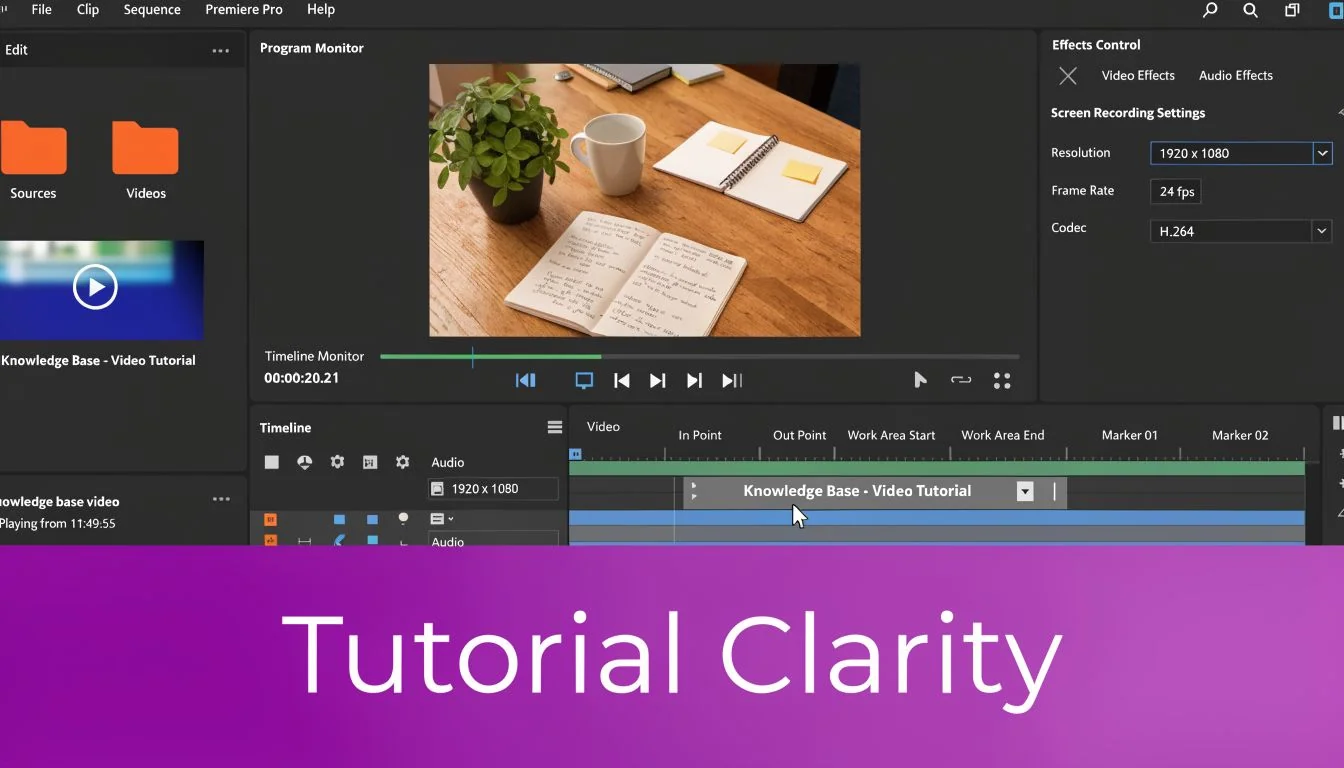
For most screen-recorded tutorials, a sensible final delivery baseline looks like this:
- Container and codec: MP4 with H.264
- Resolution: 1080p for general tutorial delivery
- Frame rate: around the normal web-video range used by common platforms
- Color handling: standard SDR workflows are usually the least troublesome for documentation and training video
That baseline keeps text readable and makes downstream publishing easier.
Why screen content needs special care
A talking-head video can get away with some compression softness. A software tutorial can’t. If your export is too compressed, text edges blur, UI elements shimmer, and thin lines in dashboards or design tools become harder to see.
That’s also why modern compression standards matter. The development of H.264/AVC in 2003 and H.265/HEVC in 2013 improved compression efficiency in ways that help creators produce high-quality tutorial video, including 4K tutorials, without the file burden older codecs would create, as outlined in this chronology of video format development.
What people often get wrong
Many teams don’t struggle with the recording. They struggle with the export.
A common pattern looks like this:
- Raw screen recorder output is too long: Quick recording tools are convenient, but the first take often includes pauses, retries, filler words, and extra clicks.
- Manual editors are powerful but demanding: Tools like Camtasia and Adobe Premiere Pro can produce polished results, but they ask the creator to think like an editor.
- Settings become a second layer of friction: Even after trimming the video, someone still has to choose format, resolution, and output behavior correctly.
For tutorial work, “professional” doesn’t mean complex. It means the viewer can follow the lesson without distraction.
If you publish to a video platform as part of a broader distribution plan, these video specs for YouTube can help as a reference point.
The practical goal
Your export settings should support these outcomes:
- Sharp text
- Smooth cursor movement
- Reliable playback
- Reasonable upload size
- Simple reuse in documentation systems
If a setting improves one of those while damaging the others, it’s probably not the right choice for a screen tutorial.
The Future Is Editing Less and Creating More
For years, video workflows assumed one thing. If you wanted a polished tutorial, you had to either record with extreme discipline or learn serious editing.
That assumption is starting to break.
The old trade-off
Simple screen recorders are easy to use because they let people talk through a process naturally. That’s useful, but it often creates a rough first draft. The recording includes hesitations, restarts, and side comments.
In practical team workflows, those kinds of raw recordings are often much longer than the final lesson needs to be. On the other side, full editing suites like Camtasia and Adobe Premiere Pro can shape that material into something polished, but they require real editing skill and time.
That gap is what frustrates subject matter experts. The person who knows the product best often isn’t a trained editor.
A more document-like workflow
A newer approach treats tutorial production less like video surgery and more like document editing.
Instead of trimming every pause on a timeline, the creator speaks freely, then refines the script and structure afterward. That model fits demos, onboarding videos, explainers, support clips, release notes, and knowledge base content especially well because the message matters more than live-performance perfection.
Canon’s note about people choosing bundled options like “MP4 (HEVC)” or “MP4 (H.264)” points to a broader truth. Format decisions are often abstracted away from users, and that’s not always bad. When tools handle complexity well, creators can focus on clarity rather than encoding jargon.
Good tutorial production is moving toward intent-first editing. Say what you know, then refine the message without wrestling every frame.
Why this matters for educators and teams
This shift changes who can make strong video.
A product marketer can create a feature announcement without becoming a post-production specialist. An L&D lead can turn a rough walkthrough into a cleaner training asset. A support expert can explain a fix in their own words and still publish something that looks branded and deliberate.
The important change isn’t just speed. It’s that the subject matter expert no longer has to perform like a polished presenter or edit like a professional video producer to create useful teaching content.
That’s a big step forward for teams that need consistency, accuracy, and repeatable output.
Conclusion From Confusion to Confidence
Video clip format sounds technical because the terminology is technical. The practical decision usually isn’t.
A format is the combination of packaging and compression choices that determine how your video behaves after export. The key distinction is simple. Containers hold the parts together. Codecs compress and decode the media inside. Once that clicks, the rest gets easier.
For most tutorial, onboarding, demo, and documentation use cases, the safest starting point is a delivery-friendly format that plays well across common platforms. When editing or archiving matters, you may keep a different kind of master file behind the scenes. That’s normal.
The bigger takeaway is this. Understanding what is video clip format helps you make fewer publishing mistakes, reduce rework, and choose tools more intelligently. You don’t need to memorize every format. You need a mental model that matches how real teams create and distribute learning content.
If your team wants to turn raw screen recordings into polished demos, onboarding videos, explainer videos, feature release videos, knowledge base videos, and support article videos without timeline-heavy editing, Tutorial AI is built for that workflow. You can speak freely, skip the awkward need to “perform perfectly,” and still produce professional-looking, on-brand tutorial content efficiently.