For most people creating videos today, the answer is simple: MP4 with the H.264 codec is the best video format. It strikes a nearly perfect balance between high quality, manageable file sizes, and universal compatibility. Whether you’re uploading to YouTube, posting on social media, or adding to an internal knowledge base, this combination just works.
Finding the Best Video Format: A Quick Comparison
Choosing a video format can feel overly technical, but it’s a decision that directly affects your video’s quality, its file size, and where people can actually watch it. Pick the wrong one, and you could end up with playback errors or massive files that are a pain to store and share. This is especially true for teams creating screen recordings for demos, onboarding, or support articles, where a smooth viewer experience is everything.
While simple tools like Loom are great for quick, informal recordings, the raw footage is often 50-100% longer than it needs to be and lacks a professional touch. On the other side of the spectrum, you have powerful editors like Adobe Premiere Pro or Camtasia that require deep editing expertise to get a polished result.
This is exactly the gap Tutorial AI bridges. You can just hit record and speak naturally, and our AI automatically edits your video to look like it was professionally produced. It empowers your subject matter experts to create polished, on-brand videos without the steep learning curve.
To help you decide which format is right for your project, let’s break down the most common options. For a more detailed breakdown, check out our guide on what is the best format for video.
Video Format At-A-Glance Comparison
Here’s a quick summary of the most common video formats and where they shine. Think of this as your cheat sheet for making the right call without getting lost in the technical weeds.
| Format | Primary Codecs | Typical Use Cases | Strengths | Limitations |
|---|---|---|---|---|
| MP4 | H.264, H.265 (HEVC) | Web streaming, social media, online courses, final delivery | Universal compatibility, good compression | Not ideal for professional editing |
| MOV | ProRes, H.264 | Video editing, mastering, archiving | High-quality, preserves image detail | Extremely large file sizes |
| WebM | VP9, AV1 | Web-embedded video, streaming on modern browsers | Excellent compression, open-source | Less support on older devices/software |
| AV1 | AOMedia Video 1 | High-resolution streaming (4K/8K) on major platforms | Superior compression efficiency | High processing demands, limited hardware support |
As you can see, the choice isn’t about which one is “best” overall, but which is best for the specific task at hand—from the editing bay to the end-user’s screen.
The Problem with How Most Videos Get Made
Picking the right format is important, but it doesn’t solve a bigger issue: the actual process of making a video is often a major headache for teams.
Tools like Loom are great for quick, informal recordings, but the videos they produce are often 50-100% longer than they need to be, full of “ums,” “ahs,” and mistakes. They just don’t have the professional feel you want for customer-facing content.
The alternative is professional software like Camtasia or Adobe Premiere Pro, which requires a steep learning curve. This puts your subject matter expert (SME)—the person who actually has the knowledge—in a tough spot. They either have to sink hours into learning complex tools or hand off their raw recording to a video editor, which introduces delays and risks miscommunication.
This is exactly where automation changes everything. Tutorial AI’s tools are built to bridge this gap. An SME can just record their screen and talk freely, without a script or any practice. Our AI then takes that raw footage and automatically edits it into a tight, professional tutorial. The final video looks like it was painstakingly edited by a pro, complete with smart zooms, clean pacing, and on-brand graphics. It lets the expert focus on what they do best, turning a tedious task into a simple one.
AV1 and the Next Wave of Video
Looking ahead, new codecs like AV1 (AOMedia Video 1) are starting to make waves. As an open-source, royalty-free codec, AV1 offers a compression jump that’s up to 30% more efficient than what we have now. This means it can deliver incredible 4K and even 8K video using far less bandwidth, making ultra-high-resolution streaming a reality for more people.
Big players like YouTube, Netflix, and Amazon are already starting to use AV1 for their content. But we’re not quite there yet for mass adoption. The biggest hurdle is hardware—many older devices just don’t have the muscle to decode AV1 video smoothly, which results in stuttering playback. To get a better handle on how this all works under the hood, check out our guide on what is a video codec.
For now, think of AV1 as the future. It’s coming, but for today’s business and training needs, MP4 (H.264) is still the most practical and reliable choice you can make.
How AI Fixes the Broken Video Creation Workflow
Picking the right video format gets you over the technical hurdles of distribution, but it doesn’t solve the biggest headache most teams face: actually creating polished, professional video content without pulling their hair out. The standard way of making a tutorial video is usually slow, painful, and forces you into a corner.
You’ve got two main options, and neither is great.
On one hand, you have dead-simple screen recorders like Loom. They’re fantastic for a quick, informal recording, but that raw footage is often 50-100% longer than it needs to be. The final video is usually a first-take ramble, full of awkward pauses and “ums,” and it just doesn’t have the clean, professional feel you want for customer-facing content.
On the other hand, you have heavy-duty professional editing software like Adobe Premiere Pro or Camtasia. These tools are amazing for creating beautiful, broadcast-quality videos, but they require serious video editing skills. This creates a huge bottleneck because the subject matter expert—the person who actually knows the material—is almost never a professional video editor.
The Real Bottleneck in Making Videos
This gap between easy recording and a professional final product creates a slow, clunky, multi-step process. An expert records their screen, then has to pass that raw file over to a dedicated video editor. Right away, you’ve introduced delays, the potential for miscommunication, and you’re tying up resources that could be doing more important things.
What’s the result? Critical content like product demos, onboarding videos, and support guides either takes forever to get done or, more often, never gets made at all. The expert can’t create on-brand videos on their own, and the video team gets buried under a mountain of tedious editing requests.
This traditional workflow is fundamentally broken. It separates the knowledge from the creation, making it slow and expensive to produce the exact content that helps customers succeed and teams get trained. This is precisely the friction Tutorial AI was built to eliminate. It gives experts the power to create studio-quality videos themselves, without ever touching complex editing software.
From Messy Recording to Polished Tutorial—Instantly
Tutorial AI’s tools let you generate video tutorials based on screen recordings for demos, onboarding videos, explainer videos, feature release videos, knowledge base videos, and support article videos. Easy-to-use recording via tools such as Loom is often 50-100% longer than necessary, whereas professional video editing software such as Camtasia or Adobe Premiere Pro requires expert video editing knowledge. Tutorial AI’s tools let you speak freely without any practice, and your video will still look professional, as if it was edited in Adobe Premiere Pro. It allows the subject matter expert to create on-brand videos extremely efficiently.
Beyond just knowing your video formats, getting familiar with the best AI video editing software can completely change how you create and polish your videos. These tools are built to handle the most time-consuming parts of the job for you.
Tutorial AI puts the creator back in the driver’s seat, letting the person with the knowledge turn their expertise into a polished, on-brand asset in minutes instead of days. This unleashes your team to build out a complete video library for sales, support, and training faster than ever. It’s not just about making editing easier; it’s about fundamentally changing how great video gets made.
Matching the Format to Your Use Case
Picking the right video format isn’t just a technical detail; it’s a strategic move that dictates how your audience sees and interacts with your content. The right choice makes your sales demo play flawlessly for a prospect, your support tutorial load instantly, and your marketing video look sharp on YouTube. Every scenario has different needs, so a one-size-fits-all approach just doesn’t work.
This is a huge deal for teams creating screen recordings. The traditional workflow usually traps you between two bad options. You can use a simple tool like Loom, which is fast but often makes videos that are 50-100% longer than necessary, or you can get bogged down in complex software like Adobe Premiere Pro that demands a high level of skill to get a clean result.
Tutorial AI was built to solve this exact problem. It lets a subject matter expert record their screen without a script and still get a video that looks professionally edited. The AI automatically trims the raw footage into a tight, on-brand tutorial, demo, or support video, making the whole process incredibly efficient.
This flowchart shows the two paths teams usually face when making video content.
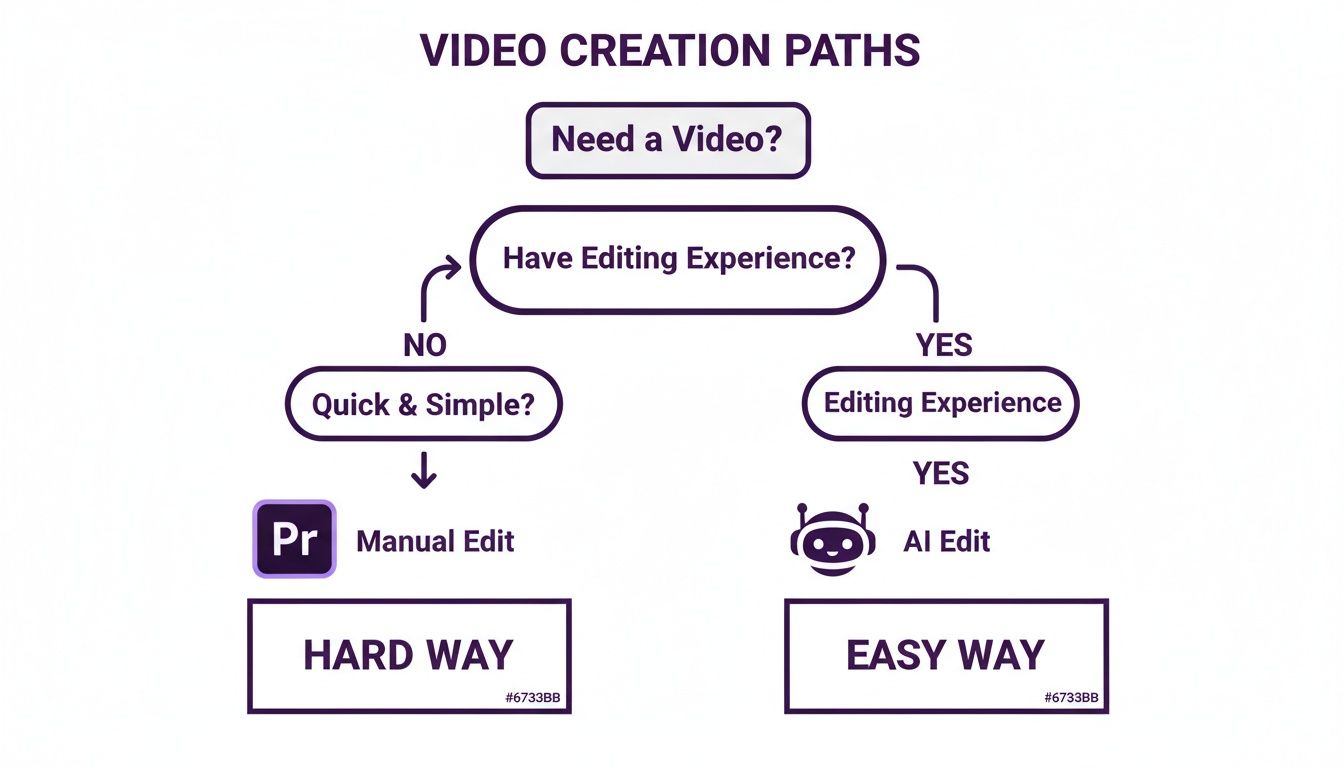
You can see the friction of manual editing on one side versus the smooth, AI-driven workflow on the other. It shows how technology can bridge that gap between recording something easily and ending up with a professional video.
Knowledge Base and Support Videos
For help docs and support articles, reliability is king. You need to give users a clear, instant answer to their problem without creating more headaches.
Best Format: MP4 (H.264)
This is the undisputed champion for embedding in help desk software like Zendesk, Intercom, or Help Scout. Its universal compatibility means videos play right inside the support article on any browser or device. Users don’t have to download a file or open a new tab, which is critical for solving issues fast and keeping support tickets down.
Sales Demos and Prospecting Videos
The last thing you want when you send a video to a lead is a playback error. Sales demos must be easy to watch and look professional—they’re a direct reflection of your product’s quality.
Best Format: MP4 (H.264)
MP4’s universal support guarantees your demo plays whether the prospect opens it on a Windows PC, a Mac, or their phone. Its solid compression keeps file sizes small enough to share easily through email or sales platforms. It’s all about creating a smooth, professional first impression.
For sales and support content, choosing MP4 is about removing friction. You’re making sure the video just works for anyone, anywhere, which is essential for clear communication and building trust.
Internal Training and LMS Content
Corporate training videos hosted on a Learning Management System (LMS) have to be consistent and accessible for all employees, no matter where they are or what device they’re using.
Best Format: MP4 (H.264)
Just about every LMS is built to handle MP4 files smoothly. Using this format ensures your onboarding videos, compliance training, and tutorials will stream without a hitch inside your company’s platform. This standardization makes life easier for L&D teams and provides a reliable learning experience for everyone else.
Marketing Videos for YouTube and Social Media
When it comes to marketing, visual quality and engagement are everything. Your videos need to grab attention and look great on platforms with high expectations. Short-form MP4 videos are especially powerful for engagement, with 71% of marketers reporting top performance from clips between 30 seconds and 2 minutes. In fact, 21% say these short videos deliver their highest ROI, which helps explain why 91% of businesses now use video in their marketing.
Best Format: High-Bitrate MP4 (H.264)
You’re still using MP4, but the key is to export at a higher bitrate. This preserves more visual detail in your source file. When you upload this high-quality version to YouTube or Vimeo, their compression algorithms have more data to work with, resulting in a cleaner, sharper video for your audience. For social media, it’s also critical to know how to optimize for reach, especially when optimizing videos for platforms like YouTube Shorts.
Archiving and Professional Editing Workflows
For professional editors or teams that need to store master copies of their video projects, the priority shifts from broad compatibility to preserving every last bit of data.
Best Format: MOV (ProRes)
A MOV file using a ProRes codec is the industry standard for archiving raw footage and final masters. It holds a massive amount of visual information, which is perfect if you ever need to re-edit, color grade, or repurpose the video down the line. The huge file sizes make it a poor choice for the web, but it’s the perfect high-fidelity “digital negative” for your most important video assets.
Recommended Settings for a Perfect Export
You don’t need a degree in video engineering to get consistent, professional-looking exports every time. By nailing down a few key settings, you can create a reliable baseline that ensures your content looks sharp and plays smoothly, whether it’s on your company’s LMS, YouTube, or an internal training hub.
For almost any screen recording you’ll create—product demos, support tutorials, onboarding modules—Full HD 1080p (1920x1080) is your best friend. It delivers a crisp, clear image without the monstrous file sizes and processing demands that come with 4K. It’s the perfect sweet spot for nearly all online content.
The 1080p MP4 has become the gold standard for a reason: it perfectly balances quality with manageable file sizes, making it the undisputed king of online video. While 4K is gaining ground, the demand for mobile-friendly content has caused 1080p vertical video adoption to jump by 51%. It’s a clear signal that quality and accessibility are paramount, a fact backed by research on how video streaming quality impacts consumer trust.
Core Settings for Reliable Exports
Beyond just the resolution, two other settings are critical for a polished final product: frame rate and bitrate. These two work hand-in-hand to control the smoothness of motion and the overall visual clarity. Getting them right is what separates an amateur video from a professional one.
For screen recordings, 30 frames per second (fps) is the industry standard. It’s more than enough to capture smooth cursor movements and on-screen animations without creating that “hyper-realistic” look you get with 60fps, which is really better suited for fast-paced gaming videos.
Bitrate is what directly impacts your video’s quality and, consequently, its file size. Think of it as the amount of data dedicated to each second of video. For a 1080p video at 30fps, a bitrate between 8-12 Mbps (megabits per second) is the sweet spot. This range keeps on-screen text and UI elements looking sharp without bloating your file. If you want to dive deeper into how all these settings affect your final output, our guide on how to reduce video file size is a great resource.
Your Go-To Export PresetIf you’re looking for a quick, “set it and forget it” solution that works pretty much everywhere, here it is:Format: MP4Codec: H.264 (AVC)Resolution: 1920x1080 (1080p)Frame Rate: 30fpsBitrate: 8-12 Mbps Stick with these settings, and you’ll have a rock-solid foundation for creating high-quality, universally compatible videos every single time.
Frequently Asked Questions About Video Formats
Choosing the right video format is a classic balancing act between quality, file size, and compatibility. Here are some quick answers to common questions we hear from creators, helping you make the right call for your projects.
Why Does YouTube Prefer MP4?
YouTube’s go-to recommendation is the MP4 container with an H.264 codec for one simple reason: it hits the sweet spot. This combination delivers sharp, high-quality video with really efficient compression.
The result is a video that looks great without being a massive file, which is crucial for smooth streaming to billions of different devices worldwide. Its universal compatibility means you can be confident that almost everyone, everywhere, will have a good playback experience.
Should I Bother Recording My Screen in 4K?
Honestly, for most screen recordings like software tutorials or product demos, 1080p is perfect. While 4K captures an incredible amount of detail, it also creates enormous files that are a headache to store and share.
Plus, when you’re just showing on-screen text and user interface elements, the extra detail from 4K is often completely lost on the viewer. Stick with 1080p—you’ll get crisp visuals and much more manageable file sizes.
How Can I Make Video Creation Less of a Grind?
Creating polished videos usually feels like you have to pick your poison. You can use simple screen recorders like Loom, but the raw footage is often 50-100% longer than it needs to be, filled with pauses and mistakes. On the other hand, you could use professional software like Adobe Premiere Pro or Camtasia, but that requires real video editing expertise to get a clean final cut.
This is exactly where AI tools come in. With Tutorial AI, an expert can just hit record and talk through their process naturally, without needing a script or multiple practice runs. The platform takes that raw footage and automatically edits it into a professional, on-brand video that looks like it was cut by a human editor. It’s a game-changer for teams creating everything from demos and onboarding videos to feature announcements and knowledge base articles.
Tutorial AI turns your raw screen recordings into polished, professional videos in minutes. Stop wrestling with complicated editing software and let AI handle the heavy lifting. Start creating better tutorials today.