We’ve all sat through training videos where a flat, robotic voice-over makes it impossible to pay attention. Creating a great training voice over is about so much more than just reading from a script—it’s about connecting with your audience and making complex information feel simple, whether you’re onboarding new employees or building customer tutorials.
This guide will walk you through a modern workflow for producing high-quality narration that genuinely engages your learners.
Why Great Training Voice Over Matters Now More Than Ever
Let’s be honest, producing good training content can be a real headache. Most teams I’ve seen are caught between two bad options.
First, you have the quick-and-dirty screen recordings. Think of those rambling videos made with tools like Loom. They’re easy to make, sure, but they often feel unedited and raw. In my experience, these videos are frequently 50-100% longer than necessary, loaded with mistakes, “ums,” and long pauses that make viewers tune out.
The other extreme involves diving into professional video editing software. Powerful tools like Camtasia or Adobe Premiere Pro can create beautiful, polished videos, but they require expert video editing knowledge and a ton of time. This setup often creates a huge bottleneck, where your subject matter experts (SMEs)—the people who actually know the material—have to wait on a small team of video editors to get anything done.
A More Efficient Way to Create Video
This is exactly the problem we set out to solve with Tutorial AI. Our tools generate professional video tutorials based on your screen recordings. The idea is simple: just record your screen and talk through your process naturally, without worrying about getting every word perfect.
Tutorial AI’s tools let you speak freely without any practice, and still your video will look professional, as if it was edited in Adobe Premiere Pro. It allows the subject matter expert to create on-brand videos extremely efficiently. This approach lets you turn your raw knowledge into a polished tutorial with surprisingly little effort. It’s perfect for creating all kinds of training materials that teams desperately need:
- Demos & Onboarding Videos: Help new hires and customers get comfortable and productive right away with clear, focused guides.
- Explainer & Feature Release Videos: Show off your latest product updates with dynamic visuals that get customers excited.
- Knowledge Base & Support Article Videos: Breathe new life into dry support articles by turning them into easy-to-follow video tutorials.
The need for this kind of content is exploding. The global voice-over market was valued at a staggering $4.4 billion in 2022 and is expected to nearly double to $8.5 billion by 2030, with e-learning being a massive driver of that growth. This just goes to show how critical an effective training voice over has become.
You can learn more about these voice-over industry trends and see how other teams are adapting. Now, let’s get into the workflow.
The Foundation: Why Your Script is Everything
A fantastic training voice over doesn’t happen by accident. It’s built on the foundation of a solid script—one that sounds like a real person talking, not a machine reading an instruction manual. The real secret is to write for the ear, not the eye.
Think about how you’d explain something to a coworker. You wouldn’t use stiff, formal language or overly complex sentences. You’d get straight to the point in a friendly, conversational way. That’s exactly the tone you want to capture in your script.
A great script also works in perfect harmony with what’s happening on screen. It should anticipate where the viewer is looking and guide them, step-by-step. When you can answer their questions before they even have to ask, you build trust and make the learning process feel effortless.
How to Write for a Natural Delivery
Getting that conversational rhythm right is what separates a good script from a great one. Here are a few things I’ve learned over the years that make a huge difference:
- Read It Aloud, Always: As you write, read every single sentence out loud. If you trip over a phrase or it just sounds awkward, that’s a red flag. Your listeners will feel it.
- Embrace Contractions: Use words like “it’s,” “you’ll,” and “that’s.” This is how people actually speak, and it instantly makes your narration feel more grounded and less like a formal lecture.
- One Idea Per Sentence: Don’t try to cram too much into one long, winding sentence. If you have a complex point to make, break it down into several shorter, punchier sentences. This gives your audience a moment to breathe and absorb the information.
Consistency is also huge. Decide on your brand’s voice—is it energetic and witty, or calm and reassuring?—and make sure that personality shines through from the first word to the last. To see these ideas in practice, take a look at this well-structured voice over script example.
Live Narration vs. Post-Recording
So, which comes first: the video or the voice? You have two main options here. You can either narrate live as you capture your screen, or you can record a silent video first and add the voice-over in post-production.
I’ve seen so many people fall into the trap of trying to nail a perfect live narration in one take. It almost never works. You end up with rambling, long-winded audio filled with “ums,” “ahs,” and restarts that create a ton of editing work. Recording your voice-over live can feel more spontaneous, but it’s incredibly difficult to do well. You’re trying to perform tasks on screen, remember your talking points, and speak clearly all at once. The mental load is high, and it often shows in the final product.
The much safer bet, and the method most pros use, is to record a silent screen capture first. This lets you focus completely on getting the visuals perfect. Once that’s done, you can write a tight, polished script that syncs flawlessly with the action on screen. This two-step process gives you far more control and almost always leads to a cleaner, more professional training video.
A Smarter Recording Workflow For Flawless Videos
Anyone who’s tried to create a clean training video knows the classic dilemma. It feels like you’re forced to choose between two equally frustrating paths.
On one hand, you can hit record on a simple tool like Loom and just start talking. It’s fast, but the end result is often a rambling, unedited video that’s 50-100% longer than it needs to be. Juggling your narration while performing on-screen actions in real-time is a recipe for filler words, long pauses, and mistakes.
The other route involves powerful, professional software like Adobe Premiere Pro or Camtasia. These tools give you incredible control, but they come with a steep learning curve and create a huge bottleneck. Your subject matter expert knows the product inside and out, but they aren’t a video editor. This forces a handoff that grinds the whole process to a halt for every new demo or support video.
Redefining Video Creation With AI
There’s a much better way. A modern, AI-powered workflow throws out that old dilemma. Imagine just recording your screen and talking through your process, speaking freely without worrying about getting it perfect on the first take.
Using a tool built for this, like Tutorial AI’s recorder, you capture your raw walkthrough, mistakes and all. That recording is just your starting point, not the final cut.
The AI then gets to work, transcribing your narration into a simple text document. This is where everything changes. Instead of fighting with a video timeline, you edit your voice-over by just editing the text.
With Tutorial AI’s tools, you speak freely without any practice, and your video will still look professional, as if it was edited in Adobe Premiere Pro. It allows the subject matter expert to create on-brand videos with extreme efficiency. When you delete a tangent, rephrase a sentence, or fix a slip-up in the script, the AI automatically regenerates the voice and intelligently re-times the video to sync perfectly with the new audio. I’ve seen teams take a meandering 10-minute recording and tighten it into a crisp, on-brand 5-minute tutorial in just a few minutes. That’s a game-changer.
This approach is particularly powerful for teams that need to move fast, like those creating knowledge base videos or tutorials for new feature releases. And the technology is only getting faster. Some AI can now generate a high-quality voice from less than three seconds of your own speech, which is incredible for production speed.
It’s this blend of speed and quality that explains why 20% of low-budget e-learning projects had already adopted AI voices in 2023, a trend that’s picking up steam fast in the SaaS and sales enablement worlds. You can dig deeper into the numbers in this report on voice actor industry statistics.
A Quick Comparison
The difference in workflows is stark. Where traditional methods create silos and require specialized skills, an AI-powered approach empowers the expert to own the entire process from start to finish.
Traditional Vs AI-Powered Voice Over Workflow
| Phase | Traditional Workflow (e.g., Premiere Pro) | AI-Powered Workflow (e.g., Tutorial AI) |
|---|---|---|
| Recording | High-pressure, requires multiple takes to get a "perfect" one. | Low-pressure, capture a single "good enough" take. |
| Editing | Manual, timeline-based editing. Requires video editing skills. | Text-based editing. Edit the transcript, and the video updates automatically. |
| Pacing | Manually cutting dead air, speeding up clips, and re-timing visuals. | AI automatically removes pauses and syncs video actions to the polished script. |
| Revisions | A complete re-record or complex audio-dubbing process. | Simple text edits in the script, with AI regenerating the audio instantly. |
| Time | Hours or days. | Minutes or a couple of hours. |
| Skills | Requires a dedicated video editor. | The subject matter expert can do it all. |
Ultimately, the AI-powered workflow removes the technical barriers, making professional-quality video accessible to the people who hold the actual knowledge.
Optimizing Your Raw Recording
Even with AI doing the heavy lifting, starting with a clean recording always helps. A little bit of prep goes a long way.
For instance, taking a moment for understanding microphone polar patterns—like the common cardioid pattern—can make a huge difference. This helps you position your mic to capture your voice clearly while rejecting unwanted background noise like keyboard and mouse clicks.
A good initial recording, combined with the magic of text-based editing, is the key to creating a truly flawless final video.
With your script polished and ready, it’s time to give your words a voice. This isn’t just about generating audio; it’s about finding a sound that truly represents your brand. The right voice can make your training materials feel authoritative and professional, or warm and welcoming—it all depends on the personality you want to project.
Thankfully, you’re not starting from scratch. Most modern AI platforms come with a huge library of incredibly realistic voices. For anyone creating content for a global team, this is a game-changer. A tool like Tutorial AI, for instance, offers a wide selection of voices in over 30 languages, which makes localizing your training videos surprisingly simple.
Here’s a look at how this straightforward AI workflow can completely change how you produce videos.
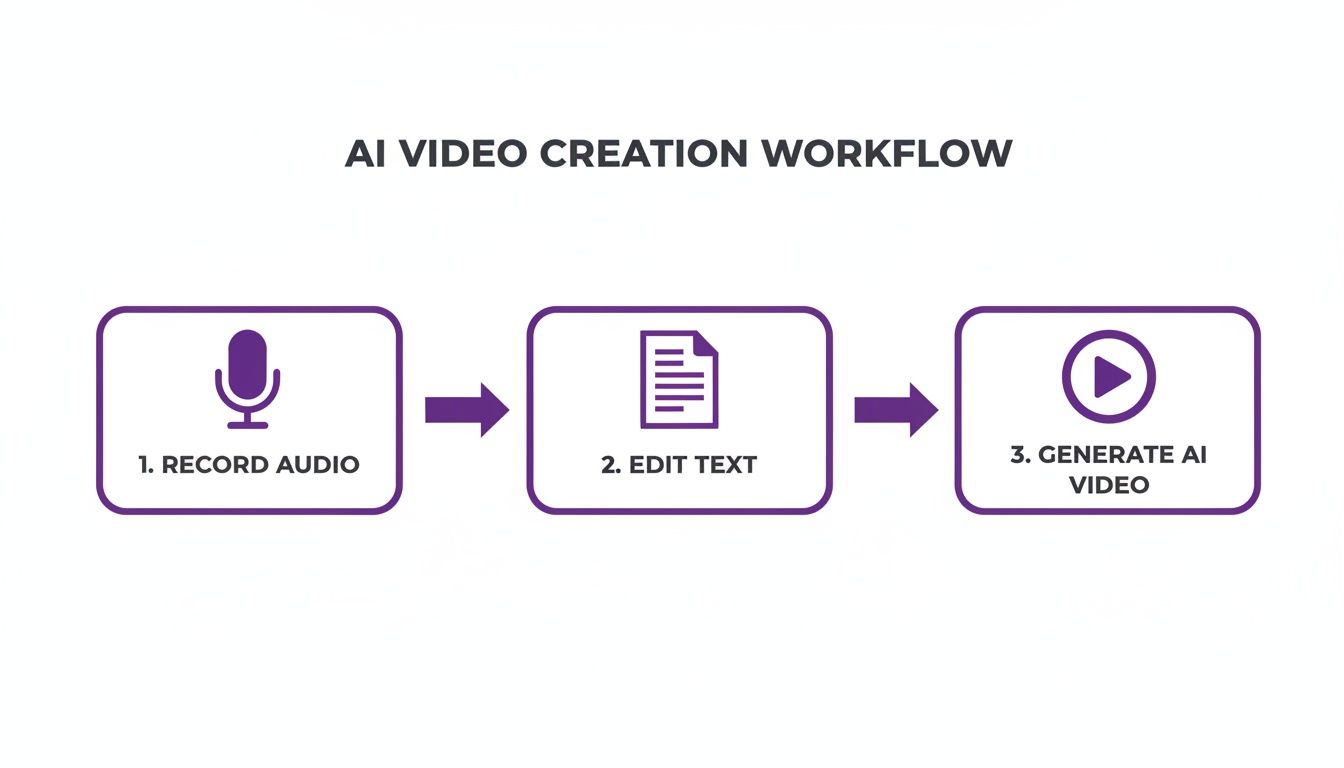
As you can see, the days of needing a professional studio or deep technical skills are over. This process puts the power to create polished, on-brand videos right into the hands of your subject matter experts.
Directing the AI Performance
One of the coolest things about working with AI is the ability to “direct” the performance by simply editing your text. There’s no need for frustrating re-records. You can tweak the pacing, add emphasis to certain words, and even fix mispronunciations—all from your script.
I’ve found a few simple tricks work wonders:
- To adjust the pace: Try adding a comma or an ellipsis (…) where you want a natural pause. This keeps the narration from feeling rushed and robotic.
- To control emphasis: Sometimes, just rephrasing a sentence is all it takes to shift the AI’s intonation and draw attention to your main point.
- To fix pronunciation: If the AI stumbles over a technical term or a name, you can usually correct it by typing a phonetic spelling directly into the script. It’s a quick fix that saves a ton of time.
These small text edits give you an incredible amount of control, ensuring your training voice over sounds natural and human. If you want to dive deeper into what’s possible, our guide on using an AI voice generator for videos has more great tips.
Creating a Custom Voice for Your Brand
For the ultimate in brand consistency, you can take things a step further and create a custom voice clone. Just imagine: every tutorial, every demo, and every onboarding video narrated by a single, unique voice that is your brand—no matter who on your team is creating the content.
You can really nail down your brand’s unique sound by learning how to create an AI voice. It’s an opportunity to build a proprietary asset that makes your content instantly recognizable. The process is surprisingly straightforward. It starts with recording a few minutes of a speaker’s voice. The AI then analyzes that sample and generates a complete digital replica. From that point on, your subject matter experts can simply type their script and have it narrated in your company’s signature voice.
This approach is perfect for keeping all your training materials consistent and professional. We use it for all kinds of content:
- Product Demos
- Onboarding and Explainer Videos
- Feature Release Announcements
- Knowledge Base and Support Article Videos
Whether you pick from a vast library of stock voices or create a custom one, AI gives you total control over how your brand sounds.
Getting Your Audio and Visuals in Perfect Sync
Even the best training voice over falls flat if it’s out of sync with your visuals. We’ve all been there, nudging audio clips frame-by-frame on a timeline, trying to make the narration match an on-screen action. It’s tedious, time-consuming work, and a single script change can force you to start all over again.
Fortunately, that whole manual process is becoming a thing of the past. Instead of spending hours in a traditional video editor, you can now lean on AI-driven platforms that handle the synchronization for you.
This is especially effective when you’re editing based on a text script. In a tool like Tutorial AI, for instance, when you tweak a sentence in your script, the platform doesn’t just generate a new voice-over. It automatically re-times all the corresponding video scenes and on-screen actions to align perfectly with the new narration. You never even have to look at a timeline.
Add Smart Visuals That Follow Your Voice
Beyond just getting the timing right, you can also add dynamic visual effects that are automatically keyed to your voice-over. This is a fantastic way to guide your viewer’s attention and make your tutorial much easier to follow.
Think of it as having an automated camera operator and editor who are listening to your every word.
- Automatic Zooms: As you describe a specific button or menu, the tool intelligently zooms in on that part of the screen. No more manual keyframes.
- Cursor Highlighting: Make your cursor impossible to miss. You can apply effects to make it larger, add a highlight, or smooth out its motion so every click is crystal clear.
- Data Blurring: Need to hide sensitive customer names or account numbers? You can apply a smart blur that automatically tracks and obscures confidential data on the screen.
These features can turn a simple screen recording into something that feels polished and professionally produced. Your subject matter expert can simply record their screen, speak naturally, and let the AI handle the visual polish. If you’re working with slides, you can apply similar principles—we have a whole guide on how to voice over a PowerPoint presentation.
A rambling, 10-minute Loom recording can often be trimmed down to a tight, focused 5-minute video with a polished voice over and perfectly synced visuals—all by just editing a text document. This makes subject matter experts incredibly efficient at creating on-brand videos.
Speed Up Localization and Global Rollouts
This automated syncing is a game-changer when you need to create content for a global audience. In the past, translating a video meant a complete re-edit for every single language, a process that could take days.
Now, with features like AutoRetime in Tutorial AI, the heavy lifting is done for you. When you translate your script from English to German, for example, the platform generates the new German voice-over and then automatically re-syncs all the scenes, captions, and visual callouts to match the timing of the new audio. You end up with a perfectly polished video in every language, without the manual rework.
Common Questions About Training Voice-Overs
Even with a solid workflow, a few questions always seem to come up when creating training voice-overs. Let’s walk through some of the most common ones I hear from teams trying to get this right.
How Can Tutorial AI Make My Videos Look More Professional?
Many teams feel stuck between two extremes: a quick-and-dirty screen recording that looks unprofessional, or a complex video editor that no one has time to master. A raw take from a simple tool like Loom can easily be 50-100% longer than it needs to be, full of “ums,” restarts, and dead air. On the other hand, getting a polished result from professional video editing software like Camtasia or Adobe Premiere Pro requires expert video editing knowledge.
This is exactly the gap a tool like Tutorial AI is built to fill. It lets the person with the knowledge record freely, without worrying about mistakes, and still produce a high-quality video that looks like it was edited in Adobe Premiere Pro. Our tools generate professional video tutorials based on screen recordings for demos, onboarding videos, explainer videos, feature release videos, knowledge base videos, and support article videos.
Here’s what that looks like in practice:
- You speak freely without any practice while recording your screen just like you normally would for a demo or walkthrough.
- The AI listens to your raw audio and generates a complete text script.
- From there, you just edit the text. Cutting a sentence from the script automatically cuts the corresponding audio and video.
- Once you’re happy with the script, the AI regenerates your voice and re-syncs the entire video to match the new, tighter narration.
The end result is a video that looks meticulously edited, turning a rambling first take into a crisp, on-brand tutorial. This allows the subject matter expert to create on-brand videos extremely efficiently.
What Is the Best Microphone for Recording Voice-Overs?
For most corporate training, you can’t go wrong with a quality USB condenser mic. Models like the Blue Yeti or Audio-Technica AT2020 deliver a fantastic balance of clarity and plug-and-play simplicity.
However, if your workflow involves regenerating the audio with AI, the microphone becomes much less of a factor. You can easily record a “scratch track” using a basic headset, knowing the AI will generate the final, studio-quality audio from your script. This makes the whole training voice-over process far more forgiving.
How Long Should a Training Video Voice-Over Be?
The golden rule? As short as possible, but as long as necessary.
For software tutorials, feature explainers, and knowledge base videos, the sweet spot is usually 2-5 minutes. Viewer engagement drops off a cliff after that, so every second counts.
The biggest trap I see people fall into is creating long, meandering demos that try to cover too much at once. This is where a script-based editor really shines. It’s always an eye-opener when you see how a messy 10-minute recording can be sculpted into a powerful 5-minute video just by trimming the script and cutting out the fluff.
Can I Legally Use AI Voices for Commercial Videos?
Yes, absolutely—as long as you’re working with a reputable platform that properly licenses its AI voices for commercial use.
Services like Tutorial AI are built on ethically sourced voice data and provide clear commercial licenses, so you are fully covered for any training or marketing content you create. Be very wary of free online voice generators, as they often use copyrighted voice data without permission. Sticking with a professional platform is the only way to ensure your company isn’t exposed to legal risk down the line.
Ready to stop wrestling with timelines and start creating professional tutorials in minutes? Tutorial AI turns your raw screen recordings into polished, on-brand videos with lifelike AI voices and automatic editing. Transform your training content and empower your experts by visiting / to start your free trial today.