Turning a static PowerPoint into something dynamic and genuinely engaging is easier than you might think. While the quickest route to voice over a PowerPoint is using the built-in ‘Record’ feature, you can get much more polished results by recording your audio separately or even using AI to generate a perfect voiceover from your script.
Why a Voice Over Is Your PowerPoint’s Secret Weapon
Adding narration is a strategic move, not just a technical tweak. It transforms a simple deck of slides into a self-contained asset that keeps working for you long after you’ve clicked “End Show.” You’re essentially creating a self-guided experience for your audience, which is perfect for everything from on-demand training and sales follow-ups to building out a rich knowledge base.

A well-narrated presentation doesn’t just read the text on the slides—that would be redundant. Instead, it adds a human touch, building a real connection with your audience even when you aren’t in the room. This has some incredibly practical applications in business.
- Sales Enablement: Imagine your sales team sending a prospect a narrated deck after a call. It’s a powerful way to reinforce your key value points and proactively answer questions they might be mulling over.
- Employee Onboarding: A manager can create a self-paced onboarding module that feels personal. This ensures every new hire gets the same high-quality, consistent training without needing a live presenter for every session.
- Customer Support: Think of a library of narrated tutorials. Your support team can provide crystal-clear, visual answers to common problems, saving time and reducing customer frustration.
Boosting Engagement and ROI
This shift from static slides to dynamic videos isn’t just a nice-to-have; it’s backed by some compelling data. In 2025, an incredible 93% of marketers reported a positive ROI from their video content. This makes narrated presentations a serious tool for business growth.
The numbers don’t lie. Companies that integrate video into their strategy grow their revenue 49% faster year-over-year than those that don’t. If you’re curious, you can dive deeper into the data on video marketing effectiveness to see just how big the impact can be.
Let’s break down how this works in a real-world context.
Impact of Narrated vs Static Presentations
This table gives a snapshot of the difference a voice can make.
| Metric | Static Slides (No Voice) | Narrated Presentation (With Voice) |
|---|---|---|
| Viewer Engagement | Low; often skimmed or abandoned | High; voice guides focus and maintains interest |
| Information Retention | Minimal; relies on viewer's interpretation | Significantly higher; audio reinforces visual cues |
| Accessibility | Limited; inaccessible to visually impaired users | Improved; audio provides an alternative way to consume content |
| Lead Generation | Passive; requires viewer to take initiative | Active; can include direct calls-to-action in the narration |
| Scalability | Poor; requires a live presenter for context | Excellent; can be shared widely for on-demand viewing |
Adding your voice provides context, emphasizes the most critical points, and actively guides the viewer’s attention.
By narrating your slides, you’re not just presenting information; you’re telling a story. This dramatically boosts how much people remember and clarifies complex data that would otherwise get lost in a sea of text. Ultimately, adding a voiceover is a way of respecting your audience’s time. It gives them the freedom to engage with your content whenever and wherever works for them, turning a single presentation into an evergreen resource that delivers value again and again.
Crafting a Script That Sounds Human, Not Robotic
A great voiceover doesn’t just happen when you press record—it begins with a solid script. The words you choose are the foundation, and they’ll either pull your audience in or push them away. The secret is to write for the ear, not the eye. That means letting go of the stiff corporate jargon and overly formal language.
Think about how you’d explain the concept to a colleague over coffee. You’d use simpler words, shorter sentences, and natural pauses. Your script should feel the same. Instead of trying to pack every last detail into one long, complex sentence, break your thoughts down into bite-sized pieces. This approach is much easier for your audience to follow, and frankly, it makes you sound a lot more human.
Write Like You Talk
One of the biggest traps people fall into is writing a script that reads like a formal report. It might look professional on paper, but it sounds incredibly stiff and impersonal when spoken aloud. A simple gut check can solve this: read your script out loud while you’re writing it.
Does it feel natural? Do you find yourself tripping over certain words or phrases? If a sentence is awkward to say, it’s going to be even more awkward for your audience to listen to.
- Don’t just read your bullet points. Turn them into a story. Instead of a flat “Increased Q3 engagement by 15%,” try something like, “In the third quarter, we saw a really encouraging 15% jump in engagement, which was a direct result of our new community initiatives.”
- Embrace contractions. Using words like “you’ll,” “it’s,” and “we’re” is a super easy way to make your script feel more immediate and friendly. It’s a small change with a big impact on your tone.
To really nail a compelling voiceover, understanding how to convert AI text to human text can be a game-changer. It helps you shift your mindset from just reciting facts to actually connecting with your listeners.
Align Your Words with Your Visuals
Your script and your slides need to be a team. They shouldn’t be fighting for attention. Your narration should add context and clarity to what’s on the screen, explaining the why behind the visuals. Try to time your key points to land just as a relevant chart or animation appears. The sync-up makes the whole experience feel seamless.
A great script anticipates what the audience is thinking. It answers their questions just as they begin to form, creating a satisfying learning experience that feels intuitive and helpful. And finally, always keep your audience in mind. You wouldn’t use the same language in a technical deep-dive for the IT team as you would in a high-level pitch to executives. Customizing your vocabulary and tone for your specific listeners is what separates a good voiceover from a truly great one.
Choosing Your Recording Method: Three Proven Paths
Deciding how you’re going to record your voiceover is one of the first and most important calls you’ll make. This choice sets the tone for your project’s quality and workflow. There’s no single “best” way—it all comes down to your goals, your comfort with technology, and how polished the final product needs to be.
Let’s break down three different ways to get the job done, from the simplest built-in option to a more advanced, AI-driven workflow.
The Quick and Dirty: PowerPoint’s Built-in Recorder
The most direct route is to use the recording feature already baked into PowerPoint. Think of this as the path of least resistance. You don’t need any extra software, and it’s perfect for when “done” is better than “perfect.”
I often recommend this for quick internal updates or informal briefings. The ability to record slide-by-slide is its biggest strength. If you stumble over a word on slide five, you only have to re-record that one slide, not the whole thing.
But let’s be realistic—that simplicity has its downsides. The audio quality can be a bit basic, and you have virtually no editing power beyond hitting “record” again. It gets the job done, but it might not be the right choice for a high-stakes client presentation.
The Traditional Pro: Using External Recording Tools
For a serious jump in audio quality, you’ll want to record your audio outside of PowerPoint. This is the classic approach for creating a more professional sound. You can use free software like Audacity, a dedicated audio interface and microphone, or even the voice memo app on your phone in a quiet room.
Recording separately gives you so much more control. You can snip out all the “ums” and “ahs,” cut long pauses, and clean up distracting background noise before the audio ever touches your presentation.
The trade-off is that it takes a bit more work. You’ll have to import that clean audio file into PowerPoint and then manually sync it with your slide timings. It’s an extra step, but the crisp, clean result is often well worth the effort.
This is especially true if you’re creating something like a software demo. In fact, if that’s your goal, our guide on how to screen record with sound is a great resource that walks through the finer points of capturing both your screen and voice cleanly.
No matter which recording method you pick, a solid script is non-negotiable. The process always comes back to these fundamentals:
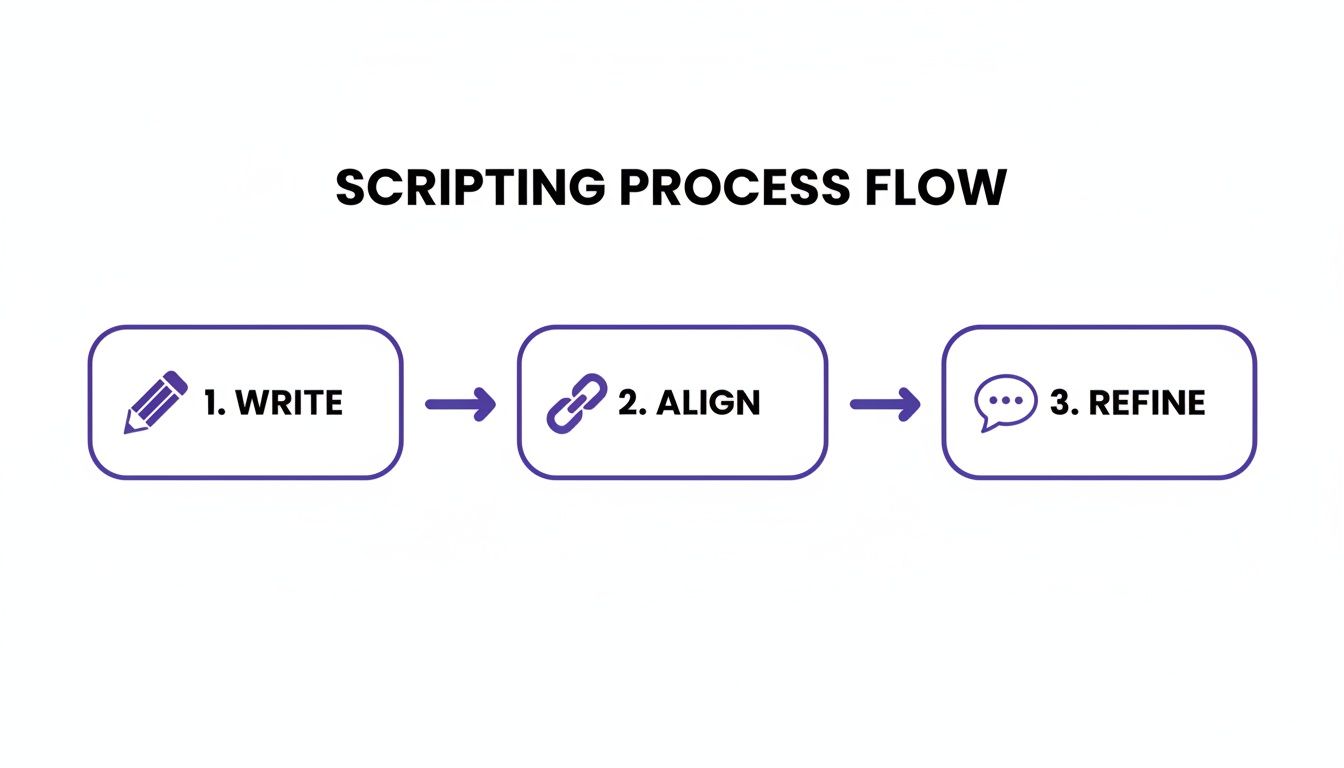
This simple workflow—Write, Align, Refine—is your key to making sure what you say perfectly matches what your audience sees.
The Modern Way: The AI-Powered Approach
The third path is to embrace a modern, AI-assisted platform. A tool like Tutorial AI, for instance, is built to generate video tutorials based on screen recordings. This is a game-changer for creating demos, onboarding videos, explainer videos, feature release videos, knowledge base videos, and support article videos.
Here’s a problem I see all the time: when people use easy-to-use recording tools like Loom, their unscripted recordings are often 50-100% longer than necessary, full of mistakes and detours. On the other end of the spectrum, professional video editing software such as Camtasia or Adobe Premier Pro requires expert video editing knowledge to produce a fantastic result.
Tutorial AI’s tools were designed to fill that gap. They let you speak freely without any practice, and your video will still look professional, as if it was edited in Adobe Premiere Pro. This allows a subject matter expert to create on-brand videos extremely efficiently. This kind of efficiency is crucial today. Presentations in 2025 are getting shorter, averaging just 5-10 minutes. With 60% of audiences preferring decks under 15 minutes, there’s no room for waffle. You have to be concise. According to insights on presentation effectiveness from Decktopus, you have to hook your audience in the first three slides—they’ll process a slide with 20-25 words in about six seconds. A clear, tight voiceover isn’t just a nice-to-have; it’s essential.
A Smarter Way to Edit Your Narration
Let’s be honest: audio editing is usually the part of the process that makes people want to give up. The mere thought of staring at a complex audio timeline in a professional editor is enough to kill a project before it even starts. But what if I told you there’s a completely different, and frankly better, way to do it now?
Modern AI-powered tools have flipped the script. They let you perfect your audio without ever touching a waveform or needing a degree in sound engineering.
This approach gets you out of that frustrating loop of re-recording an entire slide just to fix a single stumble. Instead, it turns your spoken words into text. From there, editing your audio becomes as simple as editing a Word document. It’s a game-changer that makes adding a voiceover to your PowerPoint feel as easy as writing an email.
The Old Way Is Broken
Subject matter experts often find themselves stuck between two bad options.
On one side, you have super-simple screen recorders like Loom. They’re great for quick, off-the-cuff videos, but there’s a catch. When you record without a script, the final video is often 50-100% longer than it needs to be, full of “ums,” restarts, and tangents that you then have to painstakingly trim out.
On the other side, you have professional video editors like Camtasia or Adobe Premiere Pro. These are incredibly powerful, but they come with a steep learning curve and demand a massive time commitment. This leaves a huge gap for professionals who just need to create polished, on-brand videos without becoming full-time editors.
Edit Your Voice by Editing Text
This is exactly where platforms like Tutorial AI come in. They’re built specifically for turning screen recordings into polished tutorials—perfect for product demos, onboarding flows, explainer videos, and knowledge base content. The magic is that you can just speak freely while you record, no script needed, and still end up with a video that looks like it was cut by a pro.
The whole process is surprisingly simple:
- Hit Record: Just capture your PowerPoint presentation and narrate your points as they come to you.
- Get Your Transcript: The platform instantly transcribes everything you said into a text script.
- Edit the Script: Now, just read through the text. Delete filler words like “um” and “ah,” rephrase a clunky sentence, or fix a mistake just by typing.
- Let AI Do the Rest: As you edit the text, the AI voice regenerates the audio in your own voice, seamlessly patching the changes into your original narration.
This script-based workflow lets an expert create on-brand videos incredibly fast, transforming a single, imperfect take into a flawless final product. For even more granular control, you can look into specialized tools like Parakeet AI to further polish your narration.
This method fundamentally changes how you work. You’re no longer editing audio files; you’re editing your ideas. Fixing a mistake becomes as easy as hitting the backspace key, which saves countless hours of re-recording and manual audio splicing.
More Than Just Fixing Mistakes
The benefits go way beyond just correcting errors. These platforms are designed to handle the entire video production workflow, making them perfect for creating the kind of sales enablement and internal training materials that companies are desperate for.
And the demand is absolutely surging. Here’s a wild statistic: 52% of voice buyers in 2025 plan to use voice talent for branding and marketing. The need for narrated content like PowerPoint explainers is exploding, especially for animation (45%), internet ads (35%), and TV spots. You can see more of these audio trends in the Voices.com 2025 Report.
AI platforms are built to meet this demand with some seriously powerful features:
- Multi-Language Narration: Instantly clone your voice and generate the narration in over 30 languages. Suddenly, your content is ready for a global audience. Our guide on the best AI voice generators for videos digs deeper into how this works.
- Smart Zooms: The tool can automatically add subtle zooms to highlight key areas of your slides, guiding your viewer’s attention exactly where you want it without you ever having to set a single keyframe.
- Brand Kits: Keep everything consistent. Apply your company’s logos, fonts, and color schemes to every video automatically.
With this kind of integrated toolkit, you can go from a rough screen recording to a polished, globally-ready video presentation in a tiny fraction of the time it used to take.
Getting Your Narrated Presentation Ready to Share
You’ve put in the work, polished your narration, and now your presentation is ready for its audience. The final step is to package it all up into a single, shareable video file. This is the moment your .pptx file transforms into a dynamic asset you can send anywhere.
The trick is to export a video that looks great and plays smoothly on any device—phone, tablet, or desktop. Getting these final settings right ensures your message is delivered with the clarity and professionalism it deserves, no matter where it’s viewed.
Choosing the Right Video Format and Resolution
PowerPoint gives you a few technical options when exporting, but don’t worry, they’re pretty straightforward. For just about every situation you’ll encounter, MP4 is the universal format to go with. It strikes the perfect balance between high quality and a manageable file size, and it plays nice with virtually every platform out there.
Next, you’ll need to pick a resolution, which is just a fancy way of saying how clear your video will look.
- 720p (HD): This is a solid baseline for internal communications or when you need to keep file sizes small. It’s plenty clear for most screens without taking up a ton of storage.
- 1080p (Full HD): Think of this as the modern standard. It delivers that crisp, professional quality you see on YouTube, in online courses, and in client presentations.
- 4K (Ultra HD): This is the top tier, perfect for showing off on large screens or when the tiny details in your visuals really matter. Go with this when you need to make the biggest impact.
For most projects, 1080p is the sweet spot. It gives you a polished, professional look without creating a massive file that takes forever to upload or download.
Best Practices for Different Sharing Platforms
Think about where your video will live. A training module for an internal team has different requirements than a marketing video for social media.
Here are a few common scenarios and my recommendations:
- Internal Training or Knowledge Base: Consistency and accessibility are the names of the game here. A 1080p export is perfect. To really make the content accessible, I always recommend adding captions. Our guide on how to add captions to videos is a great resource if you’re new to that.
- YouTube or Social Media: These platforms are all about high-quality visuals. Stick with 1080p or even jump to 4K to make sure your video stays sharp after the platform applies its own compression.
- Sales Enablement: When you’re sending a video to a prospect, you want the experience to be effortless for them. Sending a link is usually much better than attaching a large file that might get blocked by email servers.
This is where a platform like Tutorial AI can really make your life easier. Instead of juggling huge video files, you can publish directly to platforms like YouTube or use embeddable players. These players also unlock incredibly useful analytics, showing you who watched, how long they stuck around, and even which parts they re-watched—powerful feedback for any creator.
Common Questions About PowerPoint Narration
Even with the best tools in hand, a few questions always pop up when you’re first learning how to add a voiceover to PowerPoint. Let’s tackle some of the most common hurdles people run into.
Can I Edit My Voiceover After Recording in PowerPoint?
Technically, yes, but it’s a pain. PowerPoint’s native recording tools are pretty unforgiving. If you flub a single word on a slide you just spent two minutes narrating, you have to scrap the whole thing and start over from the top for that slide.
This is exactly where more advanced, AI-powered tools completely change the game. When your audio is automatically transcribed, editing becomes as simple as editing a text document. You can just delete a word or fix a sentence in the script, and the platform regenerates the audio for you, perfectly synced. It’s a massive time-saver that eliminates the frustration of endless re-takes.
What Kind of Microphone Do I Need for a Good Quality Voiceover?
Your laptop’s built-in microphone will work in a pinch, but for a noticeable step up in clarity, a dedicated USB microphone is your best bet. Models like the Blue Yeti or the Audio-Technica AT2020 are popular for a reason—they deliver crisp, professional-sounding audio without a huge investment.
That said, if you’re using an AI tool that can regenerate your voice, the quality of your initial recording becomes far less of a concern. The AI focuses on the content of your script to produce a clean, studio-quality track, effectively cleaning up any minor background noise or imperfections from your original recording.
The real power of this AI approach is efficiency. A subject matter expert can record a demo or tutorial once, speaking freely, and the technology transforms that unpracticed take into a polished, on-brand video that looks like it was edited in Adobe Premiere Pro.
How Do I Make My PowerPoint Narration Sound More Engaging?
Great engagement really boils down to two things: a conversational script and a dynamic delivery. The trick is to write like you’re talking to a single person, not lecturing a crowd. Keep your language simple, vary your tone to highlight important information, and use pauses to let key ideas land.
Of course, not everyone is a trained voice actor, and maintaining that energy can be tough. This is another area where AI voice tools shine. They provide a consistently professional and engaging tone from start to finish, ensuring your narration sounds polished and keeps your audience tuned in.
Ready to create professional, on-brand video tutorials from your presentations in minutes? With Tutorial AI, you can speak freely and let our AI-powered tools transform your raw screen recordings into studio-quality demos, complete with a perfectly edited voice over. Stop re-recording and start creating. Discover the smarter way to make videos with Tutorial AI.