You’ve probably done this already. You record a useful video, drag it into an email, hit send, and then something breaks. The file is too large. The message lands in spam. The recipient gets a strange download prompt. Or the video looks fine on your machine and awkward everywhere else.
That’s why sending videos via email still trips people up. Email feels simple, but video adds file size, playback, compatibility, privacy, and tracking problems all at once.
The good news is that the workflow is clear once you stop treating video like a normal attachment. Whether you’re sending a quick personal clip, a sales follow-up, a product demo, or a knowledge base tutorial, the best approach usually isn’t “attach and hope.” It’s choosing the right delivery method, preparing the file properly, and matching the send method to the stakes.
Why Sending Videos via Email Is So Complicated
A familiar scenario. You finish a clean product walkthrough, export it, attach it to an email, and realize the delivery method is now the weak point. The recording may be clear, but the recipient still has to receive it, open it, and play it without friction on whatever mail app and device they use.
Email and video were built for different jobs. Email handles lightweight messages well. Video introduces larger files, codec differences, preview limitations, privacy concerns, and inconsistent playback support across inboxes. That gap gets wider with professional content like software demos, onboarding tutorials, and customer training videos, where presentation quality affects credibility.
The problem is not just file size.
A short screen recording can still trigger attachment limits. A polished demo can be compressed by a mail service or cloud preview and lose readability in the UI. That matters a lot for tutorial content, where small text, cursor movement, and zoom timing carry the lesson. If the viewer cannot read the interface or click through smoothly, the video has failed even if the email technically arrived.
Support is uneven too. Gmail, Outlook, Apple Mail, and mobile clients all handle video differently. Some show a thumbnail. Some show a generic file attachment. Some strip or block embedded playback. That is why teams sending customer education videos need to plan the viewing experience, not just the send.
For higher-stakes sends, the workflow starts before the email draft. A useful setup usually includes:
- Export choices that preserve clarity: MP4 with H.264 is still the safest baseline for compatibility.
- A delivery method matched to the video’s job: attachments for tiny one-off files, hosted links for demos and tutorials, embedded playback only when the email client support is acceptable.
- A viewing page that looks intentional: a thumbnail, title, and short context line outperform a raw attachment icon.
- Access control: private demos, internal training, and customer-specific walkthroughs should not live behind a public link by default.
- A production process that holds up at scale: if you create tutorials often, an AI screen recorder and editor can reduce rework by tightening scripts, trimming filler, and helping produce cleaner walkthroughs faster.
This is also where professional tutorial teams separate from casual senders. A phone clip for a friend can survive a rough workflow. A software tutorial usually cannot. The sharper the video, the more obvious delivery flaws become. In practice, that means recording with email distribution in mind, exporting a readable file, hosting it somewhere reliable, and sometimes offering an alternate format such as a video embedded in a PDF guide when the recipient needs something portable for review or handoff.
Older advice about “just attach the file” does not hold up well once the video is part of a sales process, support flow, or training program. Modern teams use email as the delivery layer, not the playback environment. That shift is why sending video still feels more complicated than it should.
The Core Decision Attach Link or Embed
The right delivery method depends on what the video needs to do after the email is sent. A quick personal clip has very different requirements from a customer onboarding walkthrough or a polished product demo. For professional tutorial teams, the decision is less about convenience and more about playback reliability, access control, and how much context the viewer needs around the video.
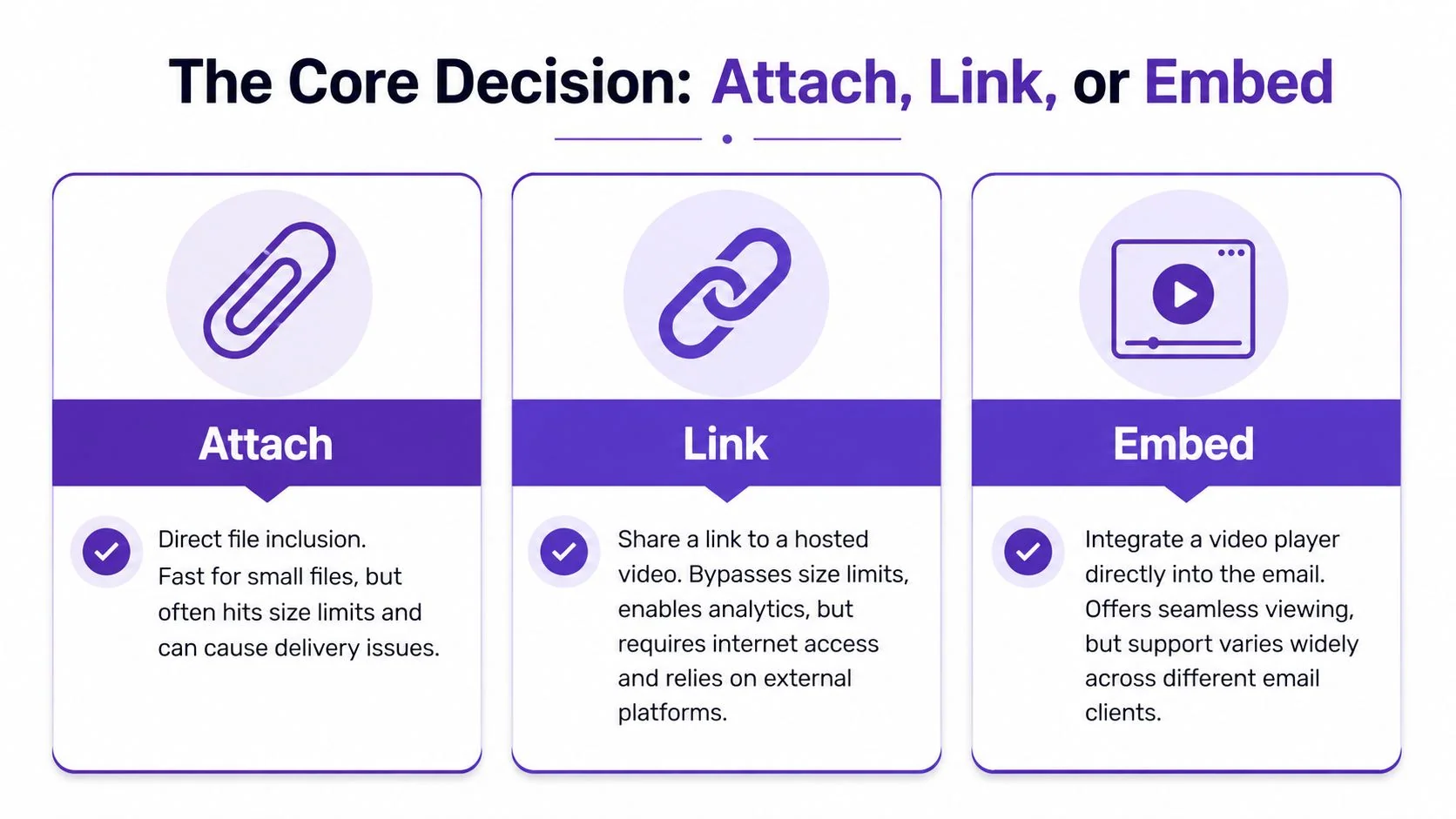
Attach works for small, low-risk sends
Attachments are still useful. They are fast, familiar, and fine for a short clip sent to someone who already expects to receive it.
The problem is that email systems treat large video files poorly. Attachments can trigger filtering, and Gmail and Outlook both impose tight size limits. Analysts at Dubb found that direct attachments face meaningful spam risk and that full HTML5 video support is inconsistent across major email clients. That makes raw attachments a weak choice for software demos, screen recordings, and customer-facing tutorials, where quality and dependable delivery matter.
Use an attachment only if these conditions are true:
- The file is small enough to send comfortably: short clips, compressed exports, or rough internal recordings
- The recipient is expecting a file: internal reviews and one-to-one exchanges are lower risk than outreach or customer communication
- You do not need post-send control: no view tracking, no permission updates, no easy way to swap in a corrected version
Linking is usually the better business choice
Hosted links are the safer default for demos, training clips, and software tutorials. Upload the video to Drive, OneDrive, Dropbox, Vimeo, YouTube, or a dedicated video platform, then send the recipient to that version.
This solves several problems at once. The email stays light. The video keeps its quality. You can update permissions, replace the file, add captions, and place the viewer on a page with a title, brief setup, and next steps.
That matters more with tutorial content than with casual video. If a team records software walkthroughs with an AI screen recorder and editor, the output is often sharper, cleaner, and more structured than a quick webcam clip. That higher production value raises viewer expectations. A controlled hosting page supports that standard better than an attachment buried behind a download prompt.
Some teams also package training material for review or handoff with a video embedded in a PDF guide, especially when stakeholders want both a watchable demo and a static reference document.
Embedding has narrow use cases
Inline playback inside the email can look polished when it works. Support is inconsistent enough that it should be treated as a specialized option, not the default.
A clickable thumbnail usually does the job better. It gives the message a strong visual element, preserves the intended first impression, and sends the viewer to a page you control. For sales demos, onboarding videos, and product education, that extra click is usually a fair trade for predictable playback.
Video sending methods compared
| Method | Pros | Cons | Best For |
|---|---|---|---|
| Attach | Fast, familiar, no separate hosting needed | File limits, filtering risk, no control after send | Tiny personal clips and internal one-offs |
| Link | Reliable delivery, better quality, easy to update | Adds one click, depends on the destination page | Business sends, tutorials, demos, support videos |
| Embed | Strong presentation when supported | Inconsistent client support, uneven rendering | Controlled environments and limited test cases |
Practical rule: If the video affects a sale, onboarding flow, or training outcome, send a hosted link with a strong thumbnail instead of the full file.
Step by Step Guide to Sending Videos in Major Email Apps
The safest workflow in major email apps is usually the same. Store the video in the service’s connected cloud platform, then send a link instead of the raw file.
Gmail
In Gmail, don’t reach for the paperclip first if your video is anything more than very small.
- Upload the video to Google Drive.
- Start your email in Gmail.
- Click the Google Drive icon instead of attaching the file directly.
- Select the video.
- Choose the option that inserts it as a Drive link.
- Confirm the sharing permissions before sending.
This method avoids attachment failures and keeps the message lighter. It also gives the recipient a cleaner click path than a file download.
Outlook
Outlook works best when you use OneDrive rather than a local attachment.
Try this workflow:
- Upload first: Put the video in OneDrive before composing the email.
- Use cloud attachment options: In Outlook, choose the file from web locations rather than attaching the local file copy.
- Check permissions: Make sure the recipient can view the file without requesting access.
- Rename the file clearly: “Q2-product-demo.mp4” is better than “final-v3-revised-2.mp4.”
If you’re sending externally, test the recipient experience from a non-company account. Internal permissions often hide problems until a customer hits them.
Apple Mail
Apple Mail has a simpler fallback for large files. When a video is too large to send as a normal attachment, Mail Drop uploads it to iCloud and sends a link-like delivery experience to the recipient.
That’s convenient for casual sends, but it’s still worth checking whether the clip is something that should live on a more deliberate hosting platform, especially if it’s customer-facing.
Cross-platform sends
If you don’t know what app the recipient uses, use the least surprising method. Upload the video to a widely accessible cloud or hosting platform, paste the share link into the body, and include a thumbnail or short explanation above it.
A plain but clear email often beats a clever one that breaks.
Advanced Sharing Hosting Privacy and Analytics
Once videos become part of sales, onboarding, support, or training, “can they open it?” stops being the main question. Key questions become: who can view it, what can they do with the link, and can your team verify engagement afterward?
Hosting choice changes the whole workflow
Public platforms like YouTube are convenient. Vimeo, cloud drives, and business video tools usually offer more control. The difference matters most when the video contains customer data, product roadmaps, internal training, or regulated information.
The usual privacy options look like this:
- Public: Anyone can discover and watch the video.
- Unlisted: Anyone with the link can watch it.
- Private or restricted: Access is limited to approved users or protected conditions.
For a low-risk marketing teaser, unlisted may be enough. For product demos, customer education, or support walkthroughs, that may not be enough at all.
The compliance gap most teams miss
A lot of guidance on sending videos via email stops at “upload it and share the link.” That’s incomplete. Standard platforms often don’t solve audit trails or access revocation, which creates a real issue for teams sharing sensitive training content or demos in regulated settings, as discussed in Mailstand’s review of secure video sharing gaps.
That gap shows up in ordinary situations:
- A contractor leaves: You need to revoke access quickly.
- A sales demo contains confidential material: You want limited viewing conditions.
- A support video includes customer-specific data: You need more than a broad share link.
- An internal training video changes: You need control over updates and viewing history.
If your organization already has written standards for handling user information, it helps to align video sharing practices with broader privacy expectations. A useful example of the kind of operational thinking to borrow is LunaBloom AI user data guidelines, which show how teams can frame access and data handling more deliberately.
Sensitive video should be treated like controlled documentation, not like a casual attachment.
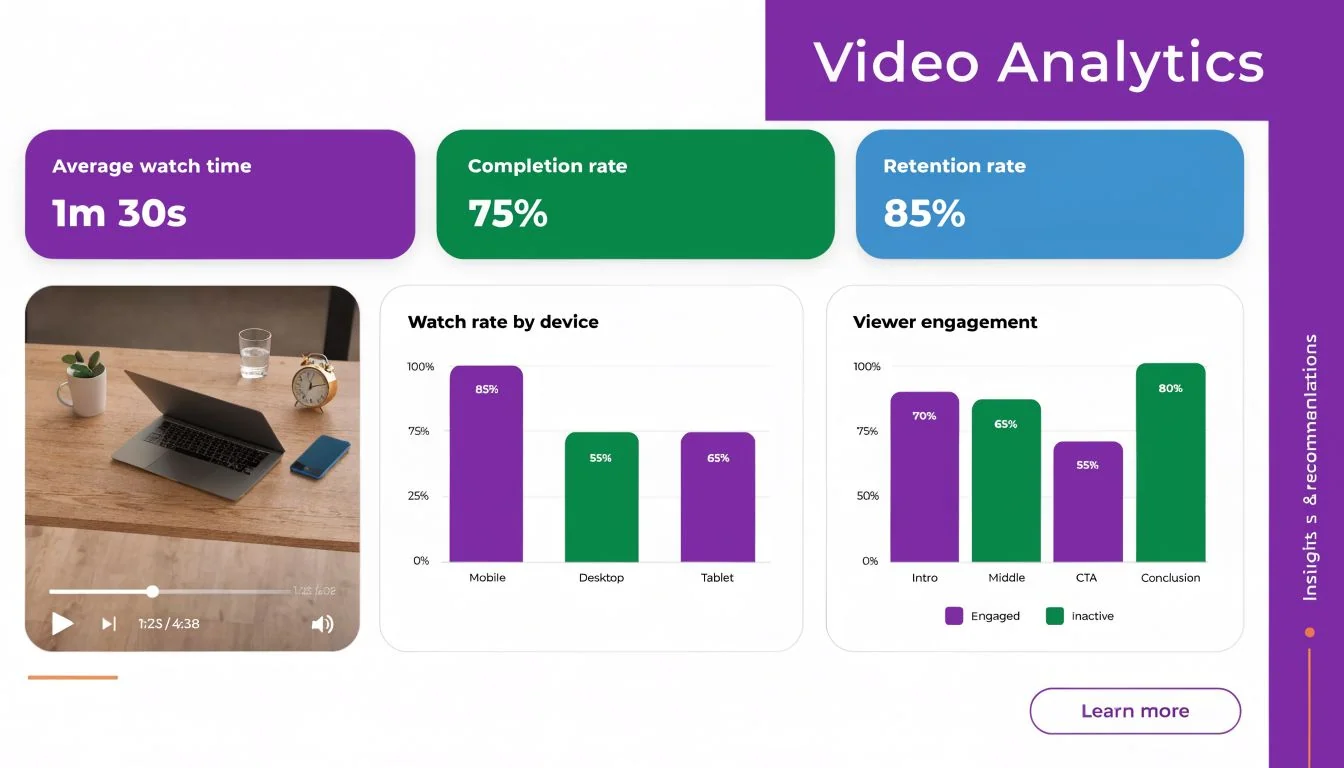
Analytics tell you whether the send actually worked
Hosting platforms also solve another problem attachments can’t solve well. Measurement. You need to know whether people clicked, watched, and dropped off early.
Useful analytics usually include:
- Play activity: Did recipients start the video?
- Watch duration: Did they stay long enough to get the main message?
- Completion trends: Where do viewers stop?
- Engagement by asset: Which demos or tutorials hold attention?
Those signals change how you build the next send. If people click but abandon quickly, the issue may be the opening. If they never click, the issue may be the email itself, the thumbnail, or the expectation you set.
Creating Professional Tutorials The Smart Way with AI
A customer success manager records a five minute walkthrough for a new account. The product explanation is solid, but the video includes two false starts, one detour through the wrong menu, and thirty seconds of dead time while a page loads. That version is technically sendable by email. It is not the version a team should put in front of customers.
Most business video sent by email sits in that gap between quick capture and polished delivery. Teams are not sending vacation clips. They are sending onboarding tutorials, software demos, release explainers, support answers, and training videos that represent the product and the company. The production standard is higher, but the people making the video are usually subject matter experts, not editors.
Why basic recording tools and pro editors both create friction
Quick recorders are useful for speed, especially for internal updates or one off answers. The trade-off shows up fast in customer-facing material. Screen recordings often run long because the speaker pauses, repeats steps, corrects themselves, or narrates while figuring things out in real time. Recipients feel that drag immediately.
Traditional editors solve the polish problem, but they create a staffing problem. Someone has to cut the timeline, clean the audio, add zooms, track the cursor, blur sensitive details, fix captions, and export the final file. I have seen support and enablement teams spend far more time editing a short tutorial than recording it.
That is why tutorial production often stalls after the first draft.
The workflow that actually scales for product education
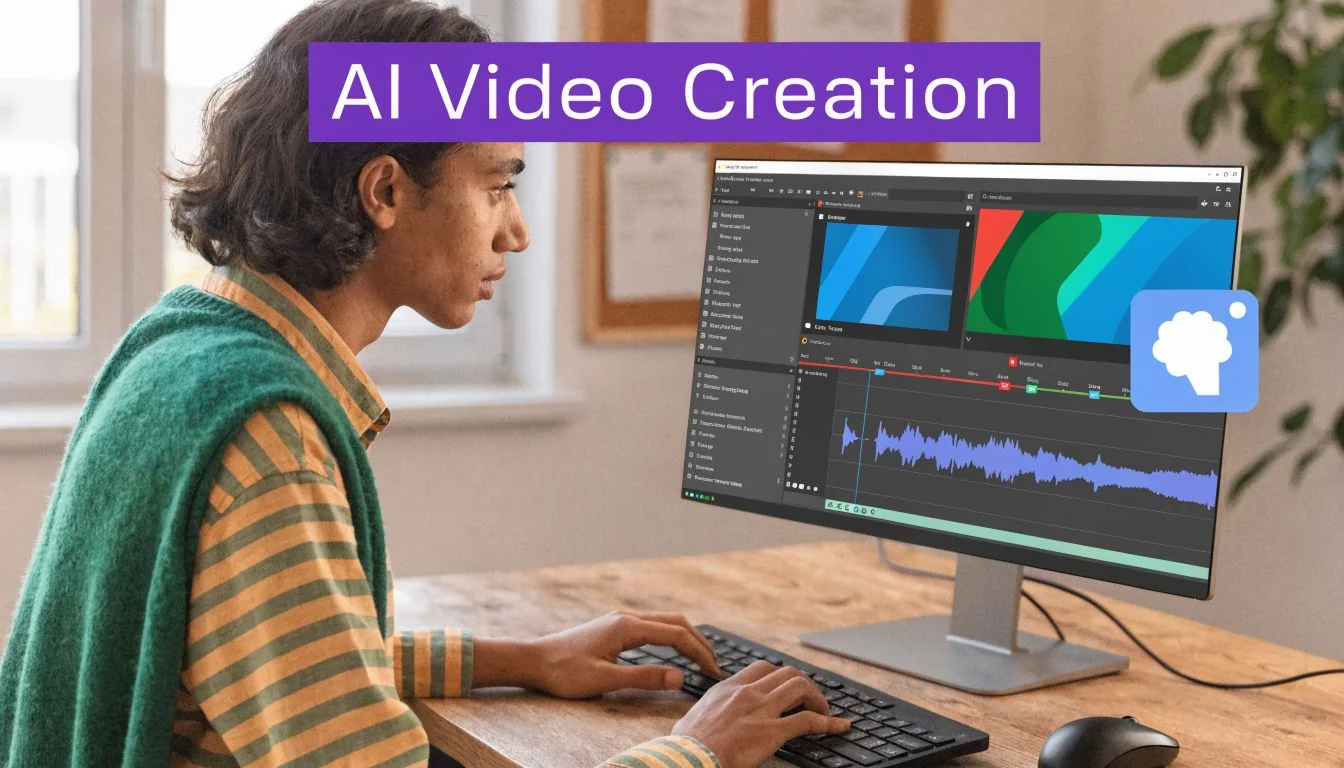
For software tutorials and demos, the better workflow uses an AI screen recorder with text-based editing. The expert records once, explains the product naturally, then edits the transcript instead of trimming every clip by hand. That cuts production time without lowering the standard.
A practical workflow looks like this:
- Record the process once while speaking as if you are guiding a real user through the task.
- Generate the transcript immediately so the spoken explanation becomes the edit surface.
- Cut by editing text to remove rambling, mistakes, and duplicate explanations without scrubbing through a long timeline.
- Add motion and clarity cues such as cursor tracking, zooms, highlights, blur, and branded backgrounds only where they improve understanding.
- Export for the channel so the same source video can support an email send, a help center article, a support macro, or an LMS lesson.
This approach works especially well for onboarding flows, feature announcements, support walkthroughs, sales demos, and knowledge base videos. Those formats need consistency more than cinematic editing.
A good example is a support team handling repeated “where do I find this setting?” tickets. Without an AI-assisted workflow, the team records a rough answer, sends it internally for cleanup, waits on edits, then uploads the finished file later. With transcript-based editing, the support lead can record the answer, delete the bad sentence from the transcript, blur account data, add one zoom to the relevant setting, and publish a customer-ready version in one sitting. That is the difference between video as an occasional extra and video as part of the actual workflow.
What good AI editing changes in practice
The gain is not novelty. The gain is faster production of tutorials that still look intentional.
That matters because software videos fail in predictable ways. The intro is too long. The cursor wanders. The speaker explains three paths instead of one clear path. Sensitive information appears on screen for a second too long. AI-assisted editing helps fix those common problems without requiring every product marketer, support lead, or trainer to learn a full post-production stack.
If you’re comparing options, review AI video creation tools for tutorials and demos based on the work they remove: transcript editing, cursor emphasis, automatic captions, branding controls, blur tools, and export quality. Recording is the easy part. The key question is how fast the tool gets you from raw capture to something safe and clear enough to send.
One more practical point. If the video email is part of a campaign, the surrounding copy still matters. Before sending, check subject lines and CTA text for spam trigger words so a strong tutorial does not get buried by avoidable deliverability issues.
A short example of the kind of workflow modern AI tools support is below.
Here’s a 1-minute look at the text-based editing workflow in Tutorial AI.
Troubleshooting Common Video Email Problems
Even a solid process can fail on the last mile. The fix is usually simpler than people think once you identify whether the problem is file size, playback, permissions, or spam filtering.
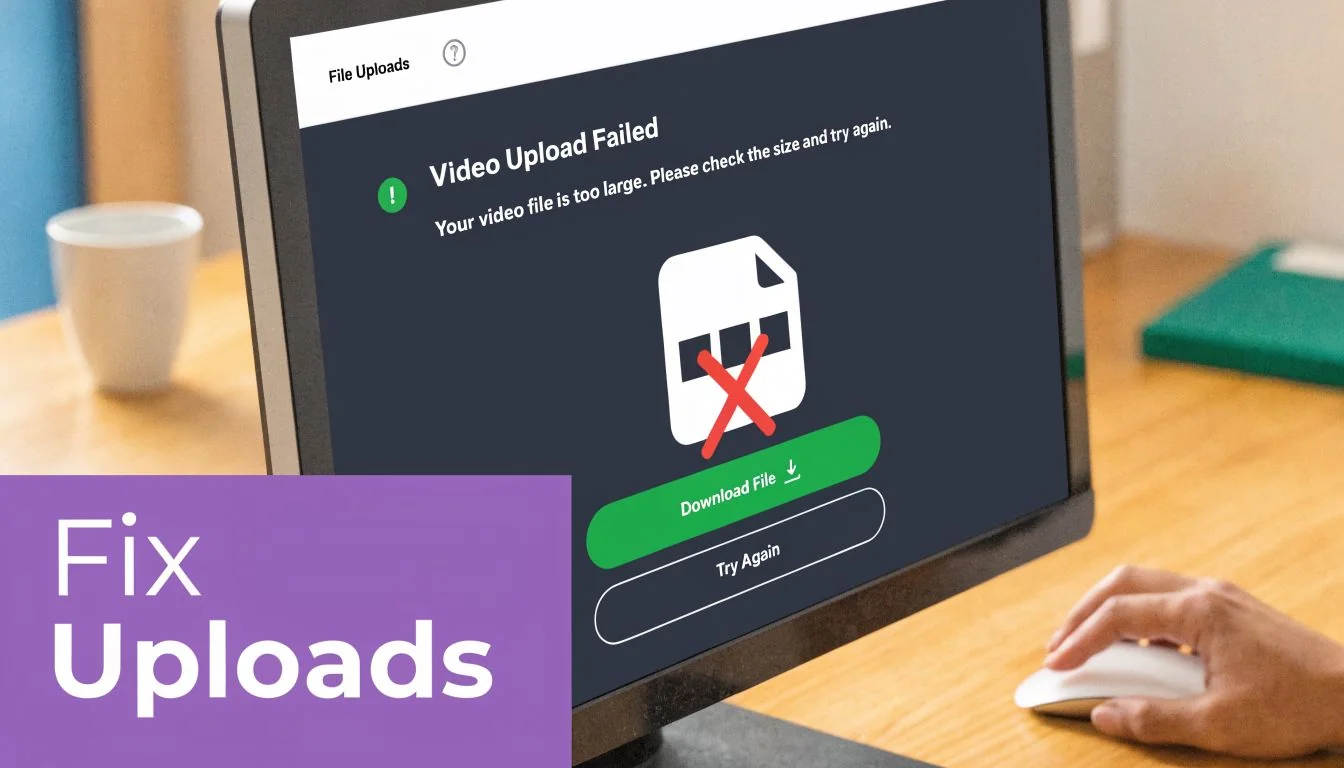
If the email won’t send
Your video file is probably too large for a direct attachment. Stop trying to force the attachment through. Compress the file or switch to hosted delivery.
If you need a practical workflow for that prep step, this guide on how to reduce video file size is the right place to start.
If recipients say the video is blurry
That usually means the file was compressed somewhere in the send or download chain. Hosted playback is the cleaner answer because it preserves the published version better than direct email attachment.
If some people can play it and others can’t
You’re probably dealing with email client incompatibility or access settings. Replace embedded playback with a linked thumbnail, and test the share permissions from an account outside your organization.
If the email lands in spam
Attachments can trigger filters, but so can the surrounding copy. If your send repeatedly underperforms, review the wording as well as the delivery format. A tool like Mailadept’s checker for spam trigger words can help you spot subject line and body copy issues before the next send.
There’s a lot of upside in getting these details right. Including the word “video” in a subject line can increase open rates by 6%, embedding a video thumbnail can boost click-through rates by 65%, and video email marketing can deliver 300% higher ROI, according to Wix’s video marketing statistics summary.
Quick fixes that usually work
- Swap attachment for link: Best first move when a send fails.
- Use a thumbnail with a play button: Better than relying on embedded playback.
- Check sharing permissions: Especially for Google Drive, OneDrive, and private hosts.
- Shorten the ask in the email body: Let the thumbnail and CTA do the work.
- Test from another inbox: Internal testing alone misses access issues.
Frequently Asked Questions About Sending Video
What’s the best video format for email
MP4 with H.264 is the safest default.
It plays well across devices, keeps file sizes reasonable, and fits the workflow organizations already use for screen recordings, product demos, and customer updates. If you record a software tutorial with an AI screen recorder, exporting to MP4 usually avoids the handoff problems that show up with MOV, AVI, or oversized raw files.
How long should a video sent by email be
Length should match the job.
A quick personal update might work at 20 to 45 seconds. A sales walkthrough or feature announcement often performs better under two minutes. A product tutorial can run longer if the viewer is trying to complete a task, but even then, shorter chapters usually beat one long recording.
For software demos, I recommend scripting around a single outcome per video. Show one workflow, one feature, or one fix. That makes the email easier to scan and the video easier to reuse in onboarding, support, or follow-up sends.
Can I autoplay a video inside an email
Autoplay is unreliable and often irritating.
Even when an email client technically supports it, recipients may have sound muted, images blocked, or settings that prevent playback. A thumbnail with a clear play button is usually the better call. It gives the viewer control and sends them to a page where the video can load properly.
Should I send a file or a link
A link is the better default for business use.
It keeps the email lighter, gives you more control over updates, and lets you point recipients to the version you want them to see. That matters for product teams and enablement teams sending tutorials, because attached files get stale fast. If the UI changes next week, a hosted video can be replaced without asking everyone to ignore the old attachment.
Attachments still have a place for small, informal clips or one-to-one communication where convenience matters more than tracking or version control.
How do I make video emails more accessible
Start with captions.
Then add a short sentence in the email that explains what the video covers, use descriptive alt text on the thumbnail, and make sure the landing page works well on mobile. For software tutorials, zoom level and cursor visibility matter too. If viewers cannot read the interface, the video is technically delivered but practically useless.
Is video in email still worth the effort
Yes, if the video solves a clear problem.
The payoff is highest when the video is specific, easy to preview, and tied to the next step. That is especially true for software companies sending onboarding clips, release demos, support walkthroughs, or internal training. A generic “watch this” video gets ignored. A short demo that shows exactly how to complete a task gets clicks.
If your team creates demos, onboarding videos, support walkthroughs, or knowledge base content, Tutorial AI is built for that workflow. It turns raw screen recordings into polished tutorials fast, helps subject matter experts speak naturally without editing like pros, and makes it easier to produce on-brand videos that are ready to share by email, embed in docs, or publish across your training stack.