Think of a good knowledge base article template as your secret weapon for creating support content that actually works. It’s the blueprint that guides you in building out clear, consistent FAQs, how-to guides, and troubleshooting articles, letting users solve problems on their own.
Why a Great Knowledge Base Article Template Matters
Using a solid template does way more than just save your team a bit of time. It’s a strategic move that has a real impact on customer happiness and how smoothly your support operation runs. When you standardize your help docs, you create an experience your customers can rely on. They quickly learn where to find information and what to expect from each article, which builds their confidence in your self-service options.
This consistency is more powerful than you might think. When a frustrated user lands on a well-organized, easy-to-follow guide, it immediately lowers their stress level and makes them feel good about finding the answer themselves. And more and more, that’s exactly what they want to do.
A 2025 analysis showed that 51% of customers would rather use a company’s knowledge base to fix a technical issue than call or email support. That number has been climbing steadily, up from just 42% in 2020, and a big reason for that shift is the improved quality and structure of the articles they’re finding.

Driving Ticket Deflection and Team Empowerment
The biggest win from a good template system? Ticket deflection. Every single time a customer finds their own answer, that’s one less ticket your support team has to field. This frees up your agents to dig into the really complex, high-stakes problems that genuinely need a human expert.
A standardized format also makes it easier for everyone to contribute, not just the support agents. Product managers can use a simple, repeatable structure to document new features, and engineers can explain technical fixes. This teamwork keeps your documentation fresh and accurate. Getting the right /b/format-for-technical-documentation is a game-changer for this kind of collaboration.
A well-implemented knowledge base article template acts as a force multiplier for your support team. It scales your ability to provide excellent service 24/7 without proportionally increasing headcount. To get the most out of your templates, you’ll want to pair them with essential knowledge base best practices. Using templates is a fantastic start, but aligning them with a bigger strategy is what ensures you’re building a self-service experience that gets better over time.
Before we dive into the specific templates, here’s a quick overview of the core types you’ll be building.
Essential Knowledge Base Article Templates
This table breaks down the three must-have templates that form the foundation of any great knowledge base. Each one serves a distinct purpose, helping you address different user needs effectively.
| Template Type | Primary Goal | Best For |
|---|---|---|
| How-To Guide | Provide step-by-step instructions | Guiding users through a specific process or feature setup. |
| Troubleshooting Guide | Diagnose and solve common problems | Helping users resolve errors or unexpected behavior. |
| FAQ Article | Answer common questions quickly | Addressing frequent, straightforward queries in one place. |
Getting these three right will cover the vast majority of your users’ self-service needs, building a strong foundation you can expand on later.
Getting the Most Out of Your How-To Guide Template
The how-to guide is the real workhorse of any knowledge base. This is the template you’ll turn to again and again to walk people through specific tasks—whether that’s setting up a new feature for the first time or navigating a more complex workflow. A well-crafted how-to guide doesn’t just answer a question; it builds a user’s confidence and can significantly cut down on support tickets.
The secret to a great how-to article lies in its structure. You want to guide the user from the high-level goal down to small, digestible actions, making sure they never feel overwhelmed or lost along the way.
The Building Blocks of a Great How-To
Think of a strong instructional article as having a few essential parts. Each one has a specific job to do, and together they create a clear path for the user to follow.
- An Action-Focused Title: Always start with a verb. Instead of a vague title like “Dashboard Filters,” make it “How to Filter Your Project Dashboard.” Right away, the user knows exactly what they’ll be able to accomplish.
- A Quick Intro: Just one or two sentences are all you need to set the stage and confirm the user has landed in the right spot. For example: “This guide will walk you through connecting your external calendar to sync all of your events.”
- A “Before You Begin” Checklist: This is a small step that makes a huge difference. Use a simple bulleted list to cover any prerequisites. What permissions do they need? Is there any information they should have handy? Have they completed a necessary previous step?
- Numbered Steps with Visuals: This is the core of the guide. Break the entire process down into a numbered list where each step covers a single, clear action. Pair every step with a sharp screenshot or, even better, a short video clip showing the action.
Remember, the point of a how-to guide isn’t just to list instructions. It’s to empower someone to solve their own problem. Every single element, from the title down to the final sentence, should be geared toward building their skills and trust in your product.
Putting the Template into Practice
Let’s make this real. Imagine we’re creating a guide for a fictional project management app called “SyncUp.” We need to show users how to create a new project.
Here’s how our knowledge base article template would look in action:
Title: How to Create a New Project in SyncUp
Intro: Follow these steps to create and configure a new project in your SyncUp workspace.
Before You Begin:
- You’ll need “Creator” or “Admin” permissions to create new projects.
- Have the project name and the team you want to assign it to ready.
1. Start the New ProjectFrom the main menu, head over to the “Projects” tab. Look for the + New Project button in the top-right corner and give it a click.
2. Fill in the Details A new window will pop up. Just fill in the “Project Name” and pick a “Due Date” from the calendar.
This classic text-and-screenshot format gets the job done, but let’s be honest—it can be slower and sometimes less clear than just showing someone what to do. This is where video comes in.
Your team’s subject matter experts can create fantastic, polished videos for these guides without getting bogged down in complicated editing. For example, using a tool like Loom is a popular starting point for screen recording for training, but the raw footage often ends up being 50-100% longer than it needs to be. On the flip side, professional software like Adobe Premiere Pro is powerful but requires a steep learning curve.
A tool like Tutorial AI bridges that gap. It allows your experts to simply talk and record their screen naturally. The AI then automatically edits the recording into a professional, on-brand video, cutting out the fluff and mistakes. This means your best people can create incredibly helpful support videos without needing any video editing skills at all.
Building a Proactive Troubleshooting Guide
Where a how-to guide shows a user the path to success, a troubleshooting article is for when they’ve already hit a roadblock. A great troubleshooting guide is proactive. It anticipates the most common snags your users will face and walks them out of the weeds, which can make a huge dent in your support ticket volume. This means you need a completely different approach—one that prioritizes diagnosis before action.
The whole idea is to shift a user’s thinking from “this is broken” to “let’s figure out why.” By breaking the problem down into smaller, more manageable pieces, you empower the user to become part of the solution. This builds their confidence and makes them far less likely to just throw their hands up and fire off a support ticket.
This decision tree is a handy way to visualize which type of article you should be writing based on your goal.
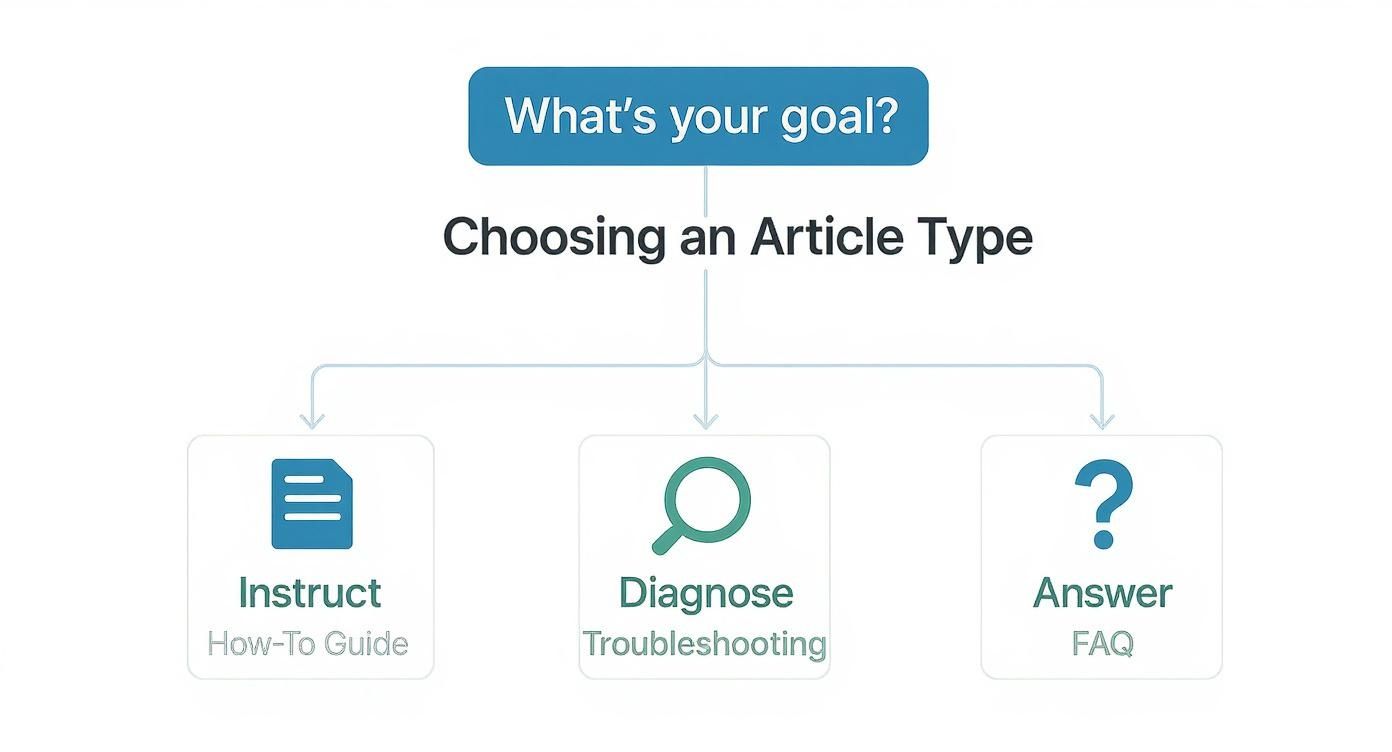
As the flowchart shows, the purpose of your content—to instruct, diagnose, or simply answer—is the key factor in choosing the right template to meet your user’s immediate need.
The Core Sections of a Troubleshooting Template
To create a guide that actually solves problems, you need to build it around three core sections. These parts create a logical flow that takes a user from identifying the issue to finally resolving it. This structure is the foundation of any effective troubleshooting knowledge base article template.
- Symptoms: You have to start by meeting the user where they are. Describe what they’re likely seeing, using the same language they would. This is the perfect place for screenshots of specific error messages. For example, you might ask, “Are you seeing a ‘Connection Timed Out’ error when you try to log in?”
- Potential Causes: Next, list the most common culprits, beginning with the simplest or most frequent ones. Think about things like incorrect login details, a spotty internet connection, or browser cache problems.
- Resolution Steps: For each potential cause, provide a clear, numbered solution. Each step should be a direct action the user can take, like “Clear Your Browser Cache” or “Verify Your Account Credentials.”
A truly proactive troubleshooting guide does more than just list fixes; it teaches users how to diagnose problems on their own. By explaining the ‘why’ behind the ‘what,’ you’re equipping them to tackle similar issues down the road without your help.
Example: The “Failed to Connect” Error
Let’s see how this template works with a classic “failed to connect” error that customers frequently run into.
Title: How to Fix the ‘Failed to Connect’ Error
Symptoms:
- You’re getting an error message that says “Connection Timed Out” or “Failed to Connect to Server.”
- The application seems to be stuck on the loading screen and never finishes.
Potential Causes:
- Your internet connection is unstable or has dropped.
- A firewall is blocking the application from connecting.
- You’re using an older, outdated version of the app.
Resolution Steps:
- Check Your Internet: The first thing to do is try visiting another website, like google.com, to make sure your connection is actually working.
- Adjust Firewall Settings: Try turning your firewall off for a moment and see if you can connect. If that works, you’ll know you need to add our application as a trusted exception.
- Update the Application: Head over to the ‘Downloads’ section of our site and check that you have the latest version installed.
This kind of structured approach makes a frustrating problem feel much less intimidating and gives the user a clear, logical path forward.
Crafting the Ultimate FAQ Article
A truly great FAQ article is more than a simple list of questions and answers. It’s the front door to your entire knowledge base, the place users turn to first for quick solutions. When done right, it builds their confidence in your product and takes a significant load off your support team.
The most effective FAQs are born from real user conversations. You’ve got to be a detective, digging through support tickets, paying attention to what prospects ask on sales calls, and keeping an eye on community forums or social media. This is how you ensure the content you’re creating actually solves the problems people are facing right now.

Bring Order to the Chaos: Structuring Your FAQ
Let’s be honest, a massive, unorganized list of questions is almost as useless as having no FAQ at all. The secret is grouping related questions into logical categories that make sense to your users, not just your internal teams.
Think about how your customers see your product. Their mental map probably looks something like this:
- Billing and Subscriptions: This is where anything related to payments, invoices, or plan management should live.
- Account Settings: A natural home for topics like resetting a password, updating a profile, or changing notification settings.
- Feature-Specific Questions: If you have a particularly complex feature, it absolutely deserves its own category to keep those specific queries organized.
Structuring your FAQ this way turns a messy Q&A page into a resource people can actually navigate. They can jump straight to their area of concern without having to scroll endlessly.
A well-organized FAQ built from a solid knowledge base article template does more than just answer one-off questions. It weaves a web of helpful content, where short answers can link out to in-depth how-to guides or troubleshooting articles. This guides users deeper into your self-service options.
Writing Answers That Genuinely Help
How you answer a question is just as important as which questions you choose to include. You’re aiming for that sweet spot between concise and comprehensive. A great answer gives a direct solution but also points the user toward more detailed resources if they need to dig deeper.
This structured approach is more than just a nice-to-have; it delivers real results. A 2025 traffic analysis that looked at over 1,200 knowledge bases discovered that articles using a structured template pulled in 2.3 times more organic search traffic than those without.
Even more impressive? FAQ templates alone were responsible for a whopping 38% of all organic visits to these help centers. They’re an absolute powerhouse for driving self-service. You can explore the full findings on knowledge base traffic from HelpDocs to see the data for yourself.
When you sit down to write, put yourself in your customer’s shoes. Use plain language, ditch the internal jargon, and link directly to other relevant articles. You’re not just solving an immediate problem—you’re showing them how to find answers for themselves next time, creating a more capable and independent user.
Bring Your Guides to Life with AI-Powered Video
Text and screenshots are the bread and butter of any solid knowledge base article, but let’s be honest—sometimes, showing is just plain better than telling. A good video can cut through complexity, ease user frustration, and make instructions feel intuitive in a way static content just can’t match.
For a long time, though, creating these videos meant choosing between two bad options. You could use a quick screen recorder like Loom, which is great for one-off explanations. But those recordings are often 50-100% longer than they need to be, full of “ums,” long pauses, and tangents that can end up confusing the viewer more.
The other path was professional editing software like Adobe Premiere Pro or Camtasia. These tools are incredibly powerful, but they require expert video editing knowledge. This creates a huge bottleneck, with subject matter experts waiting on a dedicated video editor to polish their raw footage. The whole process slows to a crawl.
A Smarter Way to Create Video
This is exactly where AI video tools like Tutorial AI are making a huge difference. They close that gap, giving your experts the power to create polished, on-brand videos without ever touching a complex editing timeline. The process is surprisingly simple.
An expert can just hit record on their screen and talk through a process naturally, like they would with a customer on a call. No need for a perfect script or multiple takes.
With a tool like Tutorial AI, your expert can speak freely without any practice, and the final video will still look professional, as if it was edited in Adobe Premiere Pro. This lets the people who know the subject best create high-quality, on-brand videos extremely efficiently. The AI handles the heavy lifting. It transcribes the audio, snips out all the filler words and awkward silences, and pieces everything together with smooth cuts. What you get is a tight, professional video that looks like a pro spent hours on it. This opens the door to creating all sorts of essential content, fast:
- Demos and Onboarding Videos: Walk new users through setup and core features.
- Explainer and Feature Release Videos: Clearly explain the “why” behind a new update.
- Knowledge Base and Support Article Videos: Show, don’t just tell, the solution to a common problem.
How to Add Videos to Your Articles
Once your AI-polished video is ready, dropping it into your knowledge base template is easy. You’ll want to place it where it delivers the most value—usually right at the top of a how-to guide or next to a tricky troubleshooting step.
Just copy the embed code from your video platform (whether it’s Tutorial AI, YouTube, or Vimeo) and paste it into your article’s editor. Most knowledge base systems today have a simple “insert video” button that handles all the code for you. If you want a deeper dive, you can learn more about creating and using knowledge base videos.
And don’t stop with just the video. Make sure to include the AI-generated transcript and captions. This is a huge win for accessibility, and it also gives search engines more text to crawl, boosting your article’s SEO.
This isn’t just about adding a video; it’s about shifting your knowledge base from a static library into a dynamic learning hub. Thinking bigger, adopting a full AI-powered knowledge management strategy can completely change how your organization shares and uses information.
Answering the Tough Questions About Knowledge Base Templates
Whenever I help a team roll out a new system for their knowledge base, the same questions almost always come up. Let’s get ahead of them, because tackling these common hurdles early will make the whole process smoother and get your team on board much faster.
One of the biggest initial roadblocks? The mountain of existing content. It’s not uncommon for teams to have hundreds of articles written over the years, all with different voices and no consistent format. The idea of redoing everything is enough to stop you before you even start.
”What Do We Do With All Our Old Articles?”
First, don’t try to boil the ocean. A massive, all-at-once content overhaul is a recipe for burnout. The smart move is to let data be your guide. Pull up your analytics and find your top 20% most-viewed articles. These are your heavy hitters, the ones solving 80% of your customers’ problems right now.
Start by converting just those high-impact articles into your new templates. This little bit of focused effort immediately improves the experience for the vast majority of your users. For everything else? Just update them as you go. When an article needs a factual update or a support ticket points out something confusing, that’s your chance to move it into the new format.
I always tell people: don’t let perfect be the enemy of good here. Focus on your most popular articles first for the biggest, fastest win. Treating this as an ongoing process, not a one-time project, is the key to staying sane. This phased approach keeps the task from feeling overwhelming and delivers real value right away, all without derailing your team’s day-to-day work.
”Which Template Should I Use?”
This question comes up a lot when someone’s staring at a blank page. The answer almost always comes down to one thing: what is the user trying to achieve? Think about their intent. Are they trying to do something, fix something, or just learn something?
- To do something: Is the user trying to set up a new feature or change a password? If they need to follow a series of steps to get something done, the How-To Guide template is your best friend. It’s built for action.
- To fix something: If a customer ran into an error message or something just isn’t working right, they’re in troubleshooting mode. Grab the Troubleshooting Guide template. Its “symptom-cause-solution” structure is designed to get them unstuck.
- To know something: Sometimes, a user just needs a quick, simple fact. Think “What are your business hours?” or “What’s the return policy?” For these, the FAQ Article template is perfect for delivering a fast, direct answer.
”How Do We Know If This Is Actually Working?”
Great question. You need to look at both the numbers and the human feedback to get the real story. For the numbers (the quantitative side), keep an eye on your ticket deflection rate. Are you seeing fewer tickets about topics that now have a crystal-clear guide? Also, watch your article view counts.
But numbers don’t tell you everything. That’s where qualitative feedback comes in. That little “Was this article helpful?” button at the bottom of a post is gold. It’s direct, unfiltered feedback from the people you’re trying to help. If a beautifully formatted article keeps getting “No” votes, that’s a huge red flag that something is missing or unclear, even if the template itself is perfect.
Combining these two types of data gives you a complete, real-world picture of how your content is performing.
Ready to create stunning knowledge base videos without the editing headache? Tutorial AI turns your raw screen recordings into polished, professional tutorials in minutes. Let your experts focus on sharing their knowledge, not on learning complex software.