Learning how to zoom in on a video is one of those skills that seems simple on the surface. You can use basic player controls for a quick look, sure. But to really do it right—to create a permanent, smooth, and professional zoom that guides your viewer’s eye without sacrificing quality—you’ll want to dive into an editor and get friendly with keyframes.
Why a Great Video Zoom Is a Storytelling Superpower
Let’s be honest, a bad zoom can completely wreck a good video. A sudden, jarring jump cut feels amateurish and can easily throw your audience off.
But a well-executed zoom? That’s a different beast entirely. It’s a powerful tool that directs your audience’s focus, highlights the details that matter, and adds a layer of professional polish that makes your content stand out.
This is especially true for any kind of instructional video. Think about software demos, employee training guides, or product tutorials. In these cases, being able to smoothly zoom in on a specific menu item, a tiny button, or a critical line of code makes all the difference. It turns a flat screen recording into an engaging, easy-to-follow lesson.
From Manual Effort to AI Precision
The whole idea of “zooming in” has come a long way. Back in the early days of video, it was more science fiction than reality. During AT&T’s first public demonstration of television on April 7, 1927, they sent live moving images from Washington, D.C., to New York City. With the clunky cameras of the 1920s, the only way to get a closer shot was to physically lug the entire camera forward. Digital magnification wasn’t even a concept yet.
Fast forward to today, and we’ve moved worlds beyond that. We’re not moving heavy cameras anymore; we’re using sophisticated software and even artificial intelligence to create flawless zooms. This leap in technology has made professional-quality video accessible to everyone, not just seasoned editors.
A strategic zoom does more than just make part of the screen bigger—it tells people where to look. By highlighting key areas, you’re actively helping your viewers understand and remember the information. This taps directly into the core principles of what is visual learning.
The Problem with Traditional Workflows
The catch is, creating these effective zooms has historically been a real headache.
Often, a subject matter expert will record a tutorial or demo using a simple tool like Loom. It’s quick and easy, but these raw recordings are frequently 50-100% longer than they need to be because the presenter is just talking off the cuff.
To clean it up, that video usually gets passed off to a professional editor who has to fire up a complex tool like Camtasia or Adobe Premiere Pro. This not only requires expert video editing knowledge but is also a slow, and often expensive, process. The whole workflow creates a bottleneck, keeping experts from quickly creating polished, on-brand videos.
A great zoom is invisible. It feels so natural that the viewer doesn’t notice the effect itself—they only notice what you want them to see. This is where Tutorial AI changes the game. Our tools let you speak freely without any practice and still your video will look professional as if it was edited in Adobe Premiere Pro. Our AI automatically generates professional zooms and cuts from your screen recordings, allowing the subject matter expert to create on-brand videos extremely efficiently.
Understanding the Foundations of Digital Zooming
Before we jump into the “how-to,” it’s crucial to get one thing straight: not all video zooms are created equal. The technique you pick can be the difference between a polished, professional-looking video and one that screams “amateur.” Think of it like a camera lens—a cheap, plastic lens and a high-end prime lens both take pictures, but the results are worlds apart.
At its heart, digital zooming is just a fancy way of saying we’re blowing up the pixels that are already there. It’s not creating new detail; it’s just making the existing detail bigger. This is why video resolution is the single most important factor in how good your zoom looks.
If you try to zoom in on a low-resolution video, you’ll quickly run into a pixelated, blurry mess. It’s distracting and looks unprofessional.
Here’s a pro tip I’ve used for years: always record in a higher resolution than you plan to deliver. If your final video will be 1080p, try recording your screen or camera in 4K. This gives you a massive canvas to work with. You have four times the pixel data, which means you can punch in tight on a detail without any visible loss in quality. It’s a total game-changer for tutorials and product demos.
Scaling vs. Cropping vs. Pan-and-Zoom
Let’s break down the common tools you’ll find in any video editor. Each one has a specific job, and knowing which one to use is key.
- Scaling: This is your most basic zoom. You’re simply enlarging the entire video frame, making everything on screen bigger. It’s quick and dirty, good for a simple magnification, but it doesn’t offer much creative control.
- Cropping: This is more like reframing your shot. You’re trimming the edges of the video to focus on a smaller area, which then fills the screen. This is a permanent choice, so it’s best for when you need to fix a poorly framed shot from the get-go.
- Pan-and-Zoom (The Ken Burns Effect): This is where the magic happens. Instead of a static zoom, you create smooth, animated movement. You can start with a wide view, slowly zoom into a specific menu item, and then pan across to another part of the screen. It feels intentional and guides your viewer’s attention exactly where you want it.
One non-negotiable rule: always maintain the original aspect ratio. If you scale the height and width independently, your video will look stretched and distorted. It’s one of the fastest ways to make your edit look sloppy. Imagine you’re making a software tutorial. A smooth pan-and-zoom that glides from a full-screen view of the app to a tiny button in the corner is infinitely more engaging than a sudden, jarring cut.
The clarity of that zoom also depends on how the video file itself is packaged. The compression method, or codec, plays a huge role. To get a better handle on this technical side, it’s worth understanding what a video codec is and how it works.
Choosing the right tool for the job—whether it’s a simple crop or a complex animated zoom—is the first real step toward creating a video that feels thoughtful and professional. To make it even clearer, here’s how these methods stack up against each other.
A Practical Comparison of Zooming Methods
This table breaks down the most common zooming techniques, what they’re best used for, and how they affect your final video quality.
| Technique | How It Works | Best For | Quality Impact |
|---|---|---|---|
| Scaling | Enlarges the entire video frame proportionally. | Simple, quick magnification of the whole scene. | High. Directly enlarges pixels, causing blurriness if overdone or from a low-res source. |
| Cropping | Trims the outer edges of the frame to re-center the subject. | Permanently reframing a poorly composed shot. | Moderate to High. Quality depends on how much you crop and the original resolution. |
| Pan-and-Zoom | Animates scale and position over time using keyframes. | Guiding viewer attention, creating dynamic movement, simulating camera motion. | Moderate. Quality loss is gradual and less noticeable, especially when starting with high-res footage. |
| Smart Zoom | AI analyzes on-screen action (like a cursor) and automatically creates zooms. | Software tutorials, presentations, and screen recordings where you need to follow action. | Low to Moderate. AI optimizes the zoom to preserve clarity, often better than manual attempts. |
Ultimately, having high-resolution source footage is your best defense against poor quality, but knowing which technique to apply in different scenarios is what separates a good editor from a great one.
Going Manual: Crafting Zooms in a Pro Video Editor
When you need absolute, frame-by-frame control, nothing beats rolling up your sleeves in a traditional video editor. Tools like Adobe Premiere Pro or DaVinci Resolve are the go-to for professionals who need to craft the perfect zoom. Even powerful mobile apps like CapCut give you a surprising amount of manual control right from your phone.
The secret sauce behind all of this is a little thing called keyframes. In simple terms, a keyframe is just a marker you place on your video’s timeline. It tells the software, “Right at this point, the video should have these specific properties.”
By setting a keyframe where you want a zoom to start (at its normal size) and another where you want it to end (zoomed in), the editor automatically creates the smooth motion between them. It’s the fundamental building block for almost any kind of animation in video editing.
How the Keyframing Workflow Feels in Practice
To pull off a basic zoom, you’ll be playing with the “Scale” and “Position” settings for your video clip. You find the spot where the zoom should begin, add your first keyframe, and leave the scale at 100%.
Then, you’ll move down the timeline to where the zoom should be fully engaged. Here, you add a second keyframe, but this time you crank up the scale value to magnify the part of the frame you want to highlight. Simple as that.
But a truly professional zoom isn’t just about getting bigger. You can fine-tune the “easing” — essentially the speed ramp — so the zoom starts and stops smoothly instead of feeling jarring and robotic. By animating both the scale and the position properties together, you create the classic “pan-and-zoom” or “Ken Burns” effect, which elegantly guides your viewer’s attention across the frame.
This hands-on approach is incredibly powerful, but it comes with a major catch: it’s time-consuming and requires a fair bit of skill. Getting the hang of keyframes, easing curves, and motion paths doesn’t happen overnight.
The real challenge for many organizations isn’t a lack of powerful software, but a lack of time and specialized expertise. Subject matter experts are fantastic at their jobs, but they’re not professional video editors. This manual process can quickly become a bottleneck. An expert can record an hour-long tutorial in, well, an hour. But then that raw footage has to be handed off to an editor who might spend the rest of the day meticulously adding all the necessary zooms, pans, and cuts to make it clear and engaging.
Interestingly, the idea of zooming in on video became mainstream with the explosion of video conferencing. The platform Zoom, launched back in 2013, skyrocketed from 400,000 users to 1 million in its first four months—a staggering 150% growth. This normalized the act of digitally focusing on shared screens. By 2020, it was handling 3.3 trillion meeting minutes a year, cementing the “video zoom” as an everyday communication tool. You can dive deeper into this fascinating shift in this history of video technology.
A Smarter Way to Zoom with AI-Powered Tools
While manually setting keyframes in a traditional editor gives you total control, it’s also incredibly time-consuming. This is a huge hurdle for subject matter experts who just need to create clear, effective content without spending hours editing.
Fortunately, there’s a much more intelligent approach now. AI can automate the most tedious parts of video editing, giving you professional results in minutes, not hours.
Platforms like Tutorial AI are completely changing the game for anyone creating screen recordings. Instead of you having to meticulously plot out every single zoom and pan, the AI does the heavy lifting. It actually analyzes your entire recording—your voice, where your cursor goes, and what you click on—to automatically apply what we call Smart Zooms. These zooms intelligently follow the action, framing the most important details perfectly, with zero manual input from you.
This is a massive time-saver for anyone creating video tutorials based on screen recordings, such as demos, onboarding videos, explainer videos, feature release videos, knowledge base videos, or support article videos.
From Raw Recording to Polished Tutorial
Think about how most screen recordings are made. A subject matter expert hits record on a simple tool like Loom and just starts talking, walking through a process without a script. The result is usually a raw, unedited video that’s often 50-100% longer than it needs to be, full of awkward pauses and rambling mouse movements.
This is where a professional editor would normally step in, sinking hours into a tool like Camtasia or professional video editing software like Adobe Premiere Pro which requires expert video editing knowledge to trim the fat and add zooms to guide the viewer’s eye. Tutorial AI’s tools let you speak freely without any practice and still your video will look professional as if it was edited in Adobe Premiere Pro. It allows the subject matter expert to create on-brand videos extremely efficiently.
The graphic below shows the basic steps of a manual zoom, which AI now handles automatically.
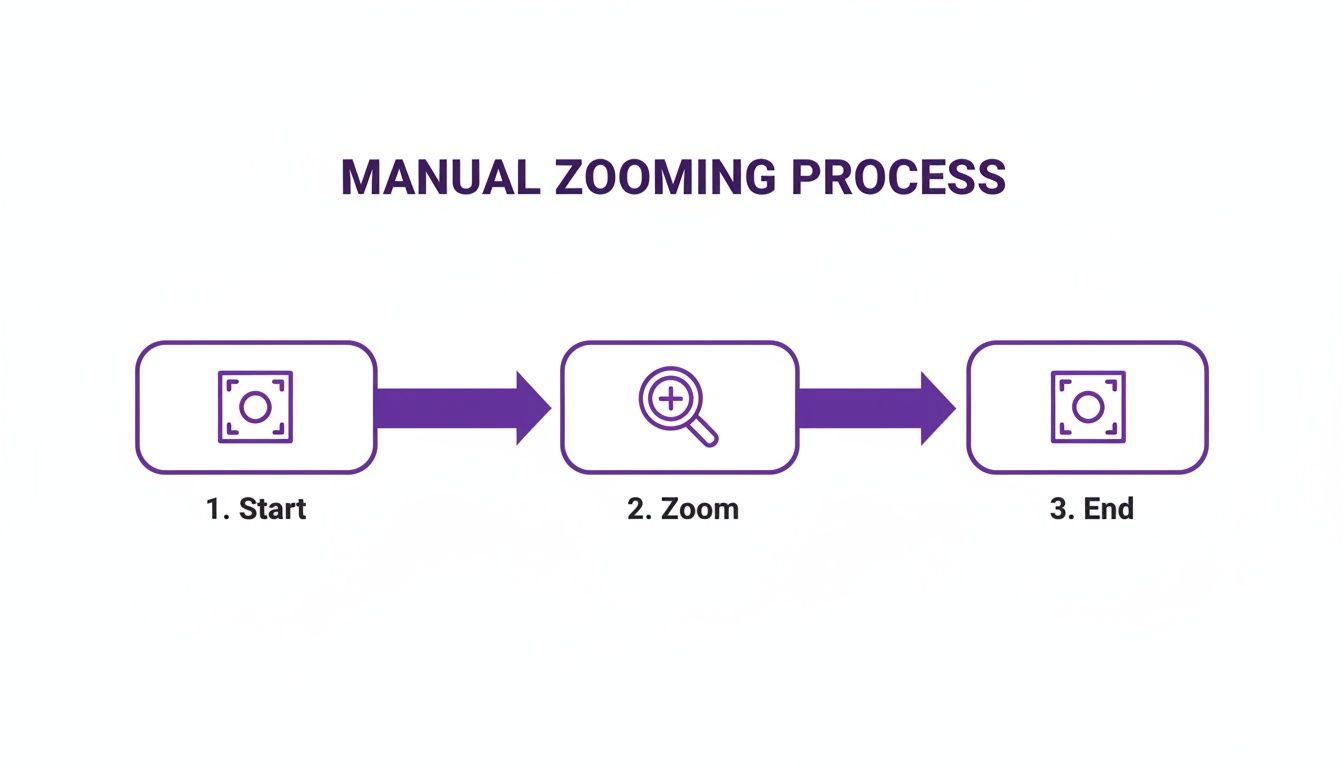
This process—setting a start keyframe, an end keyframe, and adjusting the properties for every single zoom—is exactly what eats up so much time in a traditional workflow.
The Evolution of Editing Efficiency
The desire for better video tools has been around for a long time. Back in the mid-1950s, televisions were in nearly two-thirds of U.S. homes, but zooming was still a clunky, manual lens adjustment. The 1983 Sony Betacam made portable video a real possibility, and user-generated content exploded by 500% through the 1990s, paving the way for digital tools.
Fast forward to today, with 82% of all internet traffic being video, the need for fast, efficient editing is more critical than ever.
The real beauty of AI-driven editing is that it lets experts be experts. They can focus on sharing their knowledge, not on becoming video editors. This shift frees up countless hours and helps organizations produce top-notch instructional content at a much faster pace. Some tools are even pushing the boundaries with unique effects; for example, an AI Eye Zoom feature can automatically detect and focus on a person’s eyes for a more dynamic effect.
By automating the most demanding parts of post-production, these modern tools make it possible for anyone to create professional, engaging videos. You can dive deeper into how this all works in our guide on AI video editing software.
Taking Your Zooms to the Next Level (and What Not to Do)
Once you’ve got the hang of the basic zoom, a few more advanced techniques can really make your videos stand out. These are the little touches that separate a decent edit from a truly professional one, ensuring your zooms always serve a clear purpose and feel seamless.
A great principle to start with is the classic “rule of thirds.” It’s a simple but powerful idea. Instead of just centering your subject after a zoom, imagine a 3x3 grid over your frame and place your subject along one of those lines or at an intersection. This immediately creates a more dynamic and visually interesting composition that feels more natural to the human eye.
Another pro-level move is to play with the speed and easing of the zoom itself. A slow, steady zoom can build suspense or create a contemplative mood, which is perfect for drawing attention to a critical piece of information in a tutorial. On the flip side, a quick punch-in can inject energy and emphasize a rapid action, like clicking a specific button in a software demo.
Dodging Common Zooming Pitfalls
It’s surprisingly easy to get zooms wrong, and a bad zoom can quickly disorient or even annoy your audience. Frankly, knowing what to avoid is just as critical as knowing what to do. The most common mistake I see? Overusing the effect.
When you’re constantly zooming in and out, the video can feel chaotic and just plain hard to watch. It can even make some viewers feel a bit of motion sickness. A zoom should be a deliberate choice to guide focus, not a nervous tic.
Here are a few other common missteps to keep on your radar:
- Zooming into a Blurry Mess: If your source video is low-resolution, zooming in just makes the pixels bigger and the image blurrier. There’s no magic here. Always, always start with the highest quality footage you can get.
- Abrupt, Robotic Movements: A zoom that jerks to a start and clunks to a stop just screams amateur. Use easing functions—often called “ease in” and “ease out”—to create smooth, natural-looking motion.
- Losing the Plot: Every single zoom needs to serve the story. If it doesn’t clarify a detail or emphasize something important, it’s just visual noise. Ask yourself: “Why am I zooming here?” If you don’t have a good answer, skip it.
The best zooms are the ones your audience barely even notices. They should feel like a natural shift in focus, guiding the viewer’s eye exactly where it needs to go without ever pulling them out of the moment. For really complex work where you need extreme precision, like enhancing and stabilizing shaky footage, you might want to look into specialized tools. For example, forensic video analysis software offers a level of control that goes way beyond standard editors, especially when it comes to maintaining image quality during magnification.
By steering clear of these common mistakes and applying these more nuanced techniques, your zooms will start adding real value and polish to your videos, making them far more engaging and professional.
Common Questions About Zooming In On Videos
Once you start trying to zoom in on your videos, a bunch of questions usually pop up. You might be worried about making your footage look grainy or just confused by the jargon editors throw around. Let’s clear up some of the most common things people ask.
How Do I Zoom In on a Video Without It Looking Awful?
The best trick in the book is to shoot in a higher resolution than you plan to deliver.
If your final video is going to be 1080p, recording your screen or camera in 4K gives you a massive pixel playground. Think of it like having a huge photograph; you can crop into a small section, and it still looks sharp because there’s so much detail to begin with. This extra data lets you digitally zoom without the image immediately turning into a blurry, pixelated mess.
Inside your editor, stick to using the ‘scale’ property with keyframes. This is almost always going to give you a cleaner result than a generic ‘crop’ or ‘magnify’ filter. Scaling is designed for this kind of work, while other tools can be a bit blunt. AI-powered tools are getting particularly good at this, as they can analyze the footage to apply zooms that keep things as crisp as possible.
What’s This “Ken Burns Effect” I Keep Hearing About?
You’ve definitely seen it, even if you don’t know the name. The Ken Burns effect is just a fancy term for a slow, smooth pan-and-zoom motion. It was made famous in documentaries for bringing still photos to life, but it works just as well on video.
Instead of just punching in on one spot, you create a sense of deliberate camera movement.
Imagine you have a wide shot of a software dashboard. You could use the Ken Burns effect to slowly zoom in while panning from a menu on the left over to a specific button on the right. It’s a great storytelling technique for guiding the viewer’s eye and making a static shot feel much more dynamic and professional.
Is It Possible to Zoom In on a Specific Part of a Video on My Phone?
Yes, absolutely! Mobile video editing apps have come a long way. Tools like CapCut, InShot, and LumaFusion are incredibly capable and include the keyframing features you need to pull this off.
The process is pretty much the same as it is on a desktop.
- You drop a clip into your timeline.
- Find the spot where you want the zoom to begin and add a keyframe for both scale and position.
- Then, you scrub forward to where the zoom should end, change the scale and position values to your desired “zoomed-in” state, and the app automatically creates the smooth motion in between.
The small screen can make precise adjustments a little finicky, but you can absolutely create polished, professional-looking zooms right from your phone.
Tired of all the manual keyframing? With Tutorial AI, you can just skip it. Our platform automatically creates smart, smooth zooms that follow the action on your screen, turning raw footage into a polished guide in a fraction of the time. Create your first video for free today.