Learning how to add a video to your Google Slides presentation is pretty simple, and it all starts from one place: the Insert > Video menu. You’ve got three main ways to do it—embedding from YouTube, pulling a file from Google Drive, or uploading directly from your computer. Once you get the hang of these, you can turn a basic slideshow into a much more dynamic and engaging experience.
Why Bother Adding Videos to Google Slides?
Let’s be honest, nobody wants to sit through a presentation that’s just a wall of text and static images. We’ve all been there. But when you weave in a video, you break up the monotony and give your audience a reason to tune back in. It’s a game changer for making your message stick.
Think about a sales pitch. You could spend five minutes describing a product feature, or you could show a 30-second demo of it in action. Or imagine onboarding new employees—a quick explainer video can get them up to speed far more effectively than a dense manual.
This is especially true for visual learners, who grasp concepts best when they can actually see them. A video doesn’t just tell; it shows. (If you’re curious about the science behind this, you can learn more about the principles of what is visual learning in our detailed guide.)
Boost Engagement and Keep Their Attention
The real magic of video is its ability to tell a story and connect emotionally, which makes information much more memorable.
- It grabs attention: A moving image is naturally more engaging than a static slide. It’s an easy way to keep eyes on your presentation.
- It simplifies complex ideas: A 60-second animated video can break down a complicated process that would take ten minutes to explain with words alone.
- It looks more professional: A polished, well-placed video instantly elevates the quality of your presentation and makes you look like you know what you’re doing.
When used smartly, Google Slides becomes one of the best Google Workspace productivity tools precisely because it makes integrating rich media so seamless.
A Collaborative Powerhouse for Teams
Since it first launched back in 2006, Google Slides has completely changed how teams work together on presentations. It can handle up to 100 people editing at once without grinding to a halt, which is incredible for teams collaborating on a big pitch.
Sales teams, for example, can work together to embed the perfect video demos right into their decks. And the numbers back this up—companies that use video in their sales process see 45% more revenue growth. Directly embedding those videos into the presentation itself just amplifies that effect.
Alright, you’ve decided a video is exactly what your presentation needs. Now for the fun part: getting it into your Google Slides.
The good news is that Google gives you a few different ways to do this. The best method really just depends on where your video is currently living and who you’re sharing the final presentation with. Let’s walk through the main options so you can pick the right one for your situation.
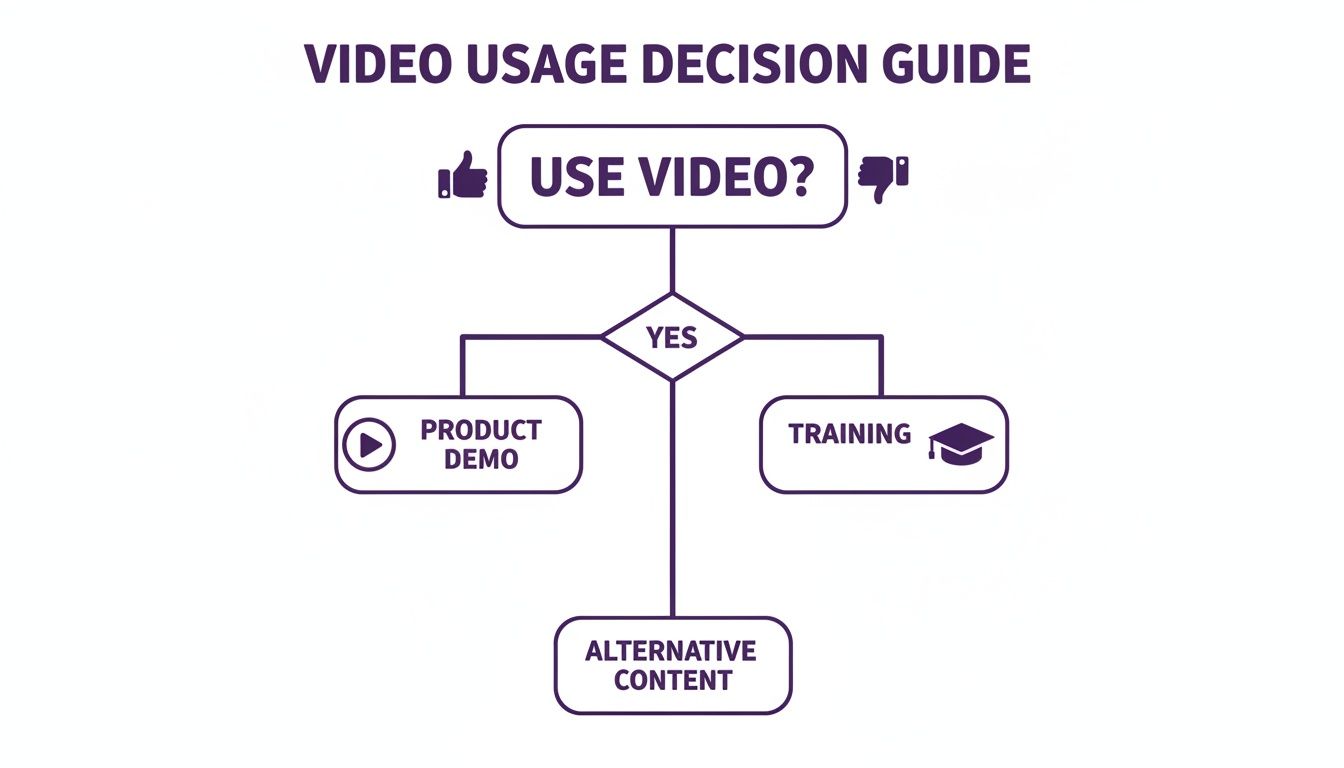
As this flowchart shows, once you decide to use a video, its purpose—whether it’s a product demo, a training module, or something else—will shape how you create and share it.
Method 1: Pulling a Video from YouTube
This is by far the most common and straightforward method, especially for content that’s already public. If you want to drop in your company’s latest marketing campaign, a great customer testimonial, or even just a relevant clip from another creator, YouTube is your go-to.
All you have to do is navigate to Insert > Video in the top menu. The dialog box that pops up defaults to the YouTube search tab. From there, you can either paste the direct URL if you have it handy or search for the video by title right inside of Slides. It’s incredibly convenient because the video is already hosted and ready to stream.
Method 2: Inserting from Google Drive
What if your video isn’t for public consumption? For anything confidential or meant for an internal team, Google Drive is the perfect solution. This is the method I always use for proprietary sales demos, new-hire onboarding videos, or internal process tutorials. Using Drive keeps your content secure and gives you granular control over viewing permissions.
The process is nearly identical. In that same Insert > Video window, just click over to the “Google Drive” tab. You can then easily browse through your “My Drive,” files that have been “Shared with me,” or your “Recent” videos.
Expert Tip: Before you present, double-check your video’s sharing settings in Google Drive itself. If your audience doesn’t have permission to view the file in Drive, they won’t be able to see it in your presentation. It’s a small step that can save you from a major headache later.
Method 3: Uploading Directly from Your Computer
At first, this looks like a separate option, but it’s actually a clever shortcut for the Google Drive method. When you choose to upload a video file straight from your computer, Google Slides is really just uploading it to your Google Drive for you in the background.
This is super handy if the video file is sitting on your desktop and you don’t want to manually upload it to Drive first. Just keep in mind that larger video files will take a few minutes to upload and process before they’re ready to play. Once it’s in there, it acts exactly like any other Google Drive video, which means you still need to be mindful of those sharing permissions.
If you’re creating the video from scratch, getting the recording right is half the battle. For some great pointers on capturing high-quality footage, take a look at our guide on how to screen record with sound.
Choosing Your Video Insertion Method
Still not sure which path to take? This quick table breaks down the pros and cons of each approach to help you decide.
| Method | Best For | Key Advantage | Potential Limitation |
|---|---|---|---|
| YouTube | Public content, marketing videos, external explainers. | Extremely easy and fast; videos are already optimized for streaming. | Requires an internet connection; ads may play on some videos. |
| Google Drive | Internal training, confidential demos, proprietary content. | Secure and provides precise control over viewing permissions. | Requires managing sharing settings correctly for your audience. |
| Upload from Computer | Video files saved locally that aren't yet in the cloud. | Convenient workflow that combines uploading and inserting. | Upload and processing time can be slow for large video files. |
Ultimately, the best method comes down to balancing convenience with control. For most public-facing presentations, YouTube is a no-brainer. For anything internal or sensitive, Google Drive is the only way to go.
Mastering Video Playback and Formatting Options
Getting your video onto the slide is just the first step. The real magic happens when you dial in the playback and formatting to make it a seamless part of your story. This is where the Format options sidebar in Google Slides becomes your control panel.
Think about how you want the video to function. Is it a customer testimonial you’ll cue up during a live meeting? Or maybe it’s a product demo that needs to loop silently on a kiosk at a trade show? A few simple tweaks in the format options can completely change the experience.
Controlling Playback Behavior
Once you click on your video, the Format options sidebar pops up on the right. This is where you tell Google Slides exactly how the video should behave during your presentation.
You’ll see three primary playback choices:
- Play (on click): This is the default setting for a reason. It keeps you in the driver’s seat, letting you start the video with a simple click when you’re ready. It’s perfect for videos that support a specific talking point.
- Play (automatically): Choose this, and your video will spring to life the moment you advance to that slide. This is fantastic for a high-impact opening, a quick animated transition, or a training module that needs to start without any fuss.
- Play (manual): This works just like “on click,” giving you full manual control.
You can also have the video loop continuously, which is brilliant for creating ambient background visuals—think of a subtle, looping product shot on your title slide. And right below that, you’ll find the option to mute audio. This is a lifesaver for decorative videos that don’t need sound.
Fine-Tuning Your Video’s Look and Feel
Playback is just one piece of the puzzle. The visual presentation matters just as much, and the format options give you plenty of control here, too.
Of course, you can drag the corners to resize the video or move it anywhere on the slide. But for a more professional touch, try adding a Drop shadow. It’s a subtle effect that adds a bit of depth, making your video stand out from the background and look far more integrated into the slide design.
One of my favorite built-in tools is the video trimmer. You don’t need to jump into a separate video editor for simple clips. Just set the exact Start at and End at times in the format panel, and Slides will only play that segment. This is incredibly handy for getting straight to the point in a longer clip. Taking a minute to master these formatting tools can make all the difference. Your video will stop feeling like a separate file you just dropped in and start feeling like a purposeful, polished part of your presentation.
Creating Polished Tutorial Videos with AI
Knowing how to add a video to Google Slides is one thing, but making sure that video actually holds your audience’s attention is another. A raw screen recording, full of pauses, mistakes, and “ums,” often feels clunky and unprofessional. This is where AI can step in, transforming your demos and tutorials from rough cuts into polished, presentation-ready assets.
Easy-to-use recording tools like Loom are fantastic, but the final video is often 50-100% longer than necessary. On the other hand, professional video editing software like Adobe Premiere Pro or Camtasia requires expert knowledge and a significant time investment most of us don’t have.
Bridging the Gap Between Simple Recording and Professional Editing
This is exactly the problem Tutorial AI was designed to solve by generating video tutorials based on your screen recordings. It allows the subject matter expert to create on-brand videos extremely efficiently. You can speak freely without any practice, and its tools will still make your video look professional, as if it was edited in Adobe Premiere Pro.
This isn’t just about saving time; it’s about making a bigger impact. Embedding high-quality video is a game-changer for engagement. Websites that feature video can rank up to 53 times higher on Google’s first page, a stat that should make any product marketing team pay close attention. If you’re interested, you can dig into more of these video marketing statistics on supplygem.com.
Tutorial AI takes your raw recording and completely overhauls it. The AI automatically cleans up the script, re-records the narration with a natural-sounding voice, adds smart zooms to highlight key actions, and layers on your company’s branding. It turns any subject matter expert into a video producer.
From Raw Footage to Polished Asset
The entire process is incredibly efficient. The AI handles all the tedious work that used to require a dedicated video editor, allowing your team to create studio-quality content at a fraction of the time and cost.
Think about the possibilities for different types of videos:
- Demos and Explainer Videos: Transform a rambling screen-share into a tight, focused product demo that gets right to the value.
- Onboarding and Training: Build a library of consistent, on-brand training materials you can update easily without re-recording everything.
- Feature Release & Knowledge Base Videos: Produce crystal-clear feature announcements or support article videos that answer customer questions effectively, cutting down on support tickets.
As you build out these polished videos, you might also want to convert your video content into text to create accessible captions or written guides.
At the end of the day, this AI-first approach empowers the people with the knowledge to create the content directly. What you get is a library of effective, high-quality videos ready to drop into your Google Slides to really drive your message home. You can get more ideas on how to create training videos with AI in our other guides.
Troubleshooting Common Video Playback Issues
You’ve done everything right—the video is perfectly placed, the timing is set, and you’re ready to present. Then, the slide comes up, and… nothing. A video that won’t play can bring a great presentation to a screeching halt. It’s a frustrating experience, but don’t worry, most of these glitches have surprisingly simple fixes.
Let’s walk through the most common hiccups and get your presentation back on track.
The Dreaded “Video Is Unavailable” Error
This is hands-down the most frequent problem, and it almost always points to one thing: ** permissions**. If you see “This video is unavailable,” it means the people trying to watch your slides don’t have the green light to view the video file itself in your Google Drive.
Luckily, the fix is quick.
- Head over to the video file in your Google Drive.
- Right-click on it and choose Share.
- In the sharing settings, change the access from “Restricted” to “Anyone with the link.”
Making this one change ensures that anyone who can see your presentation can also play the video. No more “request access” pop-ups derailing your flow.
Dealing with Processing and Buffering
Ever see the message, “This video is still processing”? This just means Google Drive is still working its magic in the background to get your video ready for streaming. It’s common with freshly uploaded or large files.
Honestly, the best solution here is a little patience. Grab a coffee and check back in a bit. For huge files, it might take up to an hour.
If the video is playing but keeps lagging or buffering, the culprit is usually a weak internet connection (either yours or your audience’s) or a massive file size. Before you upload, try to compress your video. Aiming for a file size under 100 MB is a great rule of thumb for smoother playback.
A Quick Diagnostic Tip: If a video works for you but not for others, it’s a classic sign of a permissions problem on your end or a connection issue on theirs. A great way to check is to open your presentation link in an incognito browser window—this shows you exactly what an outside viewer will see.
Fixing Audio and Autoplay Problems
Sometimes the picture is fine, but other things go wrong. No sound? First, pop open the Format options sidebar in Google Slides and make sure the video isn’t accidentally muted. It’s an easy thing to miss! Of course, also check that the device’s volume is actually turned up.
And what about a video that refuses to autoplay? Go back into the Format options and confirm you’ve selected “Play (automatically).” A key thing to remember is that this feature only kicks in when you’re in Present mode. It won’t work while you’re just editing the slides.
Common Questions (and Quick Answers) About Google Slides Videos
Even after you’ve mastered the basics, a few specific questions always seem to pop up when you’re in the thick of a project. Let’s tackle some of the most common head-scratchers I hear from people working with videos in Google Slides.
Can I Add a Video Without Using YouTube or Google Drive?
Not really, even when it looks like you are. When you select the option to upload a video straight from your computer, Google Slides is doing something clever in the background. It’s actually uploading that file to a special, almost hidden folder within your Google Drive.
The video then plays from that new cloud location. This is a crucial step because it ensures your video is hosted online, making it playable for anyone you share the presentation with (as long as they have permission to view the file, of course).
Why Does My Embedded Video Look So Blurry?
Blurry video is almost always one of two culprits. First, check the source file. If you start with a low-resolution video, it’s never going to look sharp in your presentation. For a clean, professional look, always start with a source video that’s at least 720p, though 1080p is the gold standard.
The second reason is processing time. Right after you upload a video to YouTube or Google Drive, they quickly generate a low-quality version so you can see it right away. The high-definition versions take time to process in the background—anywhere from a few minutes to an hour for larger files. If it looks blurry, just be patient. Grab a coffee, come back later, and it will likely be crystal clear.
How Can I Make a Video Play Across Multiple Slides?
This is a common request, but unfortunately, Google Slides doesn’t have a built-in feature for this. A video is locked to the specific slide it’s on; the moment you click to the next slide, the video stops cold.
Some people try a workaround by duplicating the slide, adding the same video, and using the “Start at” setting to continue where it left off. Frankly, this method is clunky and often results in a jarring stutter between slides. A much better approach is to edit your video into shorter, more focused clips that correspond to the content on each individual slide.
What’s the Real Maximum Video File Size for Google Slides?
While your technical limit is tied to your total Google Drive storage (which starts at a generous 15 GB for free accounts), the practical limit is way smaller if you care about your audience’s experience.
Trying to embed a massive video file—think anything over 1 GB—is just asking for trouble. It’s the fastest way to introduce buffering, lagging, and frustrating loading screens. As a rule of thumb, always compress your video to be under 100 MB before you even think about uploading it. This is the sweet spot for maintaining excellent quality while ensuring a smooth, buffer-free playback for everyone.
Turning your raw screen recordings from basic captures into polished, professional assets has never been easier. With Tutorial AI, you can create on-brand demos, explainers, and knowledge base videos with studio quality in minutes, not hours.