Let’s be honest, your Slack sidebar can get out of control. Channels for old projects, temporary event planning, and random water-cooler chats start to pile up, creating a wall of digital noise. Your first instinct might be to hit “delete” and clean house, but there’s a much smarter way to handle it.
Think of archiving as putting a project binder into a storage cabinet instead of tossing it in the shredder. The clutter is gone from your daily view, but the valuable information is safe and sound if you ever need it again.

Why Archiving Is Almost Always the Right Move
When you archive a Slack channel, you’re not just tidying up your workspace—you’re preserving your team’s history. Every conversation, decision, and file remains intact and, on paid Slack plans, completely searchable. This is a huge deal for maintaining what we call “institutional knowledge.”
Imagine a new team member needs to understand the background of a project from six months ago. If you deleted the channel, that context is gone forever. If you archived it, they can search the history and get up to speed without derailing current work.
It’s a simple process. Anyone in a channel (except guests) can typically archive it, with the notable exception of the default #general channel, which can’t be archived. The channel instantly disappears from everyone’s sidebar, and no new messages can be posted. For a deeper dive into the specific permissions, you can always check out Slack’s official guide on the topic.
This approach turns your old channels into a passive, searchable library—a powerful way to build a powerful knowledge base without any extra effort.
Archiving vs. Deleting a Slack Channel At a Glance
The choice between archiving and deleting a channel has significant long-term consequences. While both actions remove a channel from view, their permanence and impact on your data are completely different.
Here’s a quick comparison to help you decide which path to take.
| Action | Message & File History | Searchability | Reversibility | Best For |
|---|---|---|---|---|
| Archiving | Preserved | Kept intact and searchable (on paid plans) | 100% Reversible | Completed projects, inactive teams, temporary discussions |
| Deleting | Permanently Erased | All content is gone and unsearchable | Irreversible | Channels created by mistake or with no valuable content |
Ultimately, deleting a channel should be reserved for rare cases, like a channel made in error. Archiving offers the same decluttering benefit without the risk of permanent data loss.
Archiving protects your team’s historical context. It lets you clean up your workspace while ensuring that project debriefs, client feedback, and important decisions are never permanently lost. It’s the ultimate safety net for your team’s collective knowledge.
How to Archive a Slack Channel on Desktop and Mobile
When a project wraps up or a conversation goes stale, archiving the corresponding Slack channel is the best way to clean things up without losing history. Think of it as moving old files into a storage room—they’re out of sight but still accessible if you need them.
Before we jump in, a quick heads-up on permissions: in most workspaces, any channel member can archive a public or private channel they belong to. However, Workspace Owners can lock this down, so if you don’t see the option, it might be restricted.
Archiving from Your Desktop
On the desktop or web app, getting a channel archived is a quick, two-click affair.
- First, head into the channel you want to put on ice.
- Click the channel name in the header at the top. This opens up a menu with all the channel’s details.
- From there, just flip over to the Settings tab and look for the “Archive channel for everyone” option.
Slack will ask you to confirm, and once you do, the channel is officially archived and removed from everyone’s sidebar.
Archiving on Your Mobile Device
The process is just as smooth when you’re on your phone.
- Open the Slack app on your iOS or Android device and navigate to the channel.
- Tap the channel name at the very top of the screen.
- This will pull up the channel details, where you’ll find the Archive button.
Tap it, confirm your choice, and you’re done. The channel is now archived for the entire team, just as if you’d done it from your computer.
The most important thing to remember is that archiving is a team-wide action. When you archive a channel, you’re not just hiding it for yourself; you’re moving it out of the active list for everyone. This is perfect for retiring old project spaces and making sure the whole team is on the same page. From within a channel, the settings you need are always accessible by clicking the channel name. This is where you’ll find options directly related to that specific conversation, including the archive function.
While broader administrative tasks are handled in the main workspace settings, the power to archive an individual channel is conveniently located right inside the channel itself.
Understanding Data Retention in Archived Channels
When you archive a Slack channel, you’re not just cleaning up your sidebar. You’re essentially moving that channel into a digital filing cabinet. On paid Slack plans, this is fantastic because everything—every message, file, and decision—is preserved and remains fully searchable. These archived channels can become a goldmine of historical context for your team.
But that’s not the whole story. Your workspace administrator has the final say. They can set up custom data retention rules that completely change how archiving works. For instance, a company might have a policy to automatically delete all messages and files after 90 days or one year for security or compliance reasons. If that’s the case, anything in your archived channels will be permanently wiped out once it hits that deadline.
Actually archiving the channel is the easy part, as you can see here.
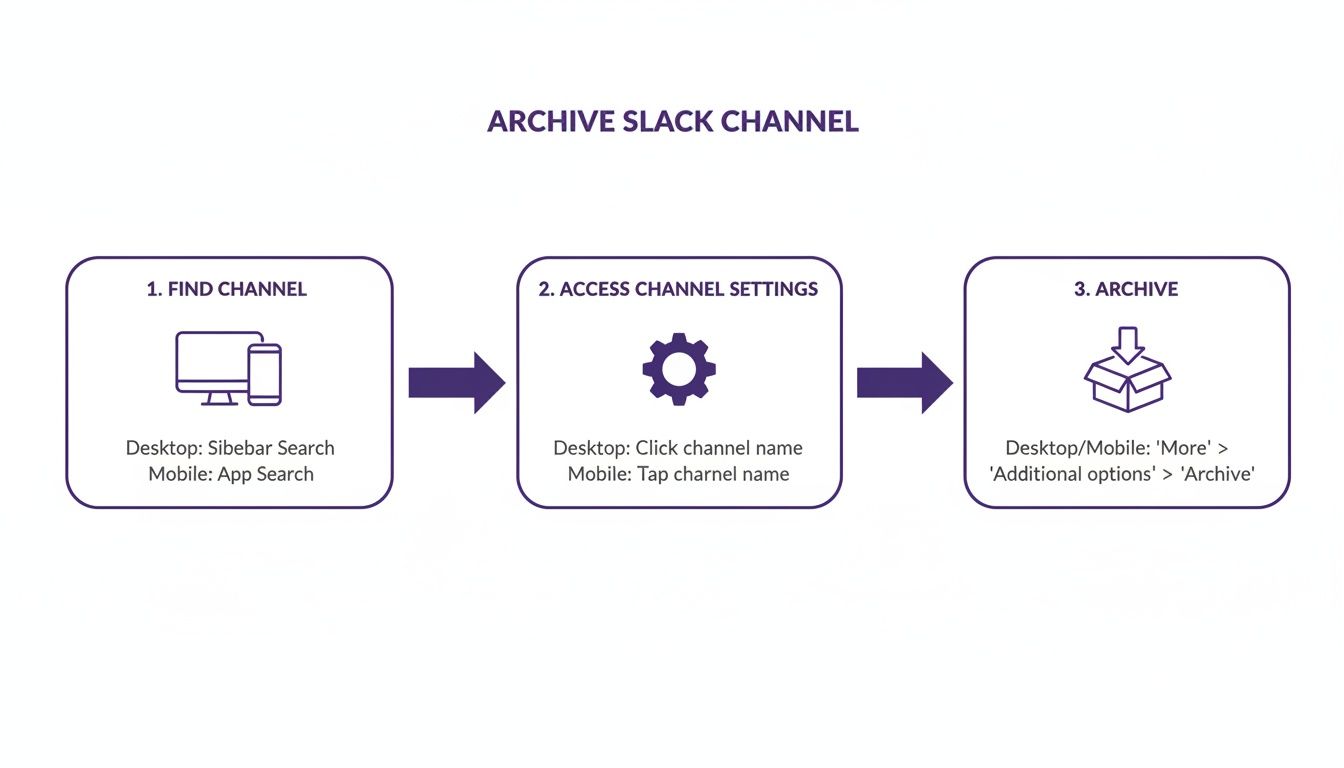
Whether you’re on your computer or phone, it only takes a couple of clicks within the channel’s settings. The real challenge is knowing what happens to your data after you click “Archive.”
How Retention Policies Affect Archived Data
This is where you need to get familiar with your organization’s rules. Retention policies are a big deal, especially for companies in regulated fields that need to control how long data sticks around. Slack gives admins granular control with presets like ‘keep messages for 1 year’ or ‘delete after 90 days,’ which typically apply across the entire workspace. If you’re curious about the specifics, you can learn more about how to customize these retention settings in Slack.
Thinking about data this way is a core part of building an effective knowledge management system — you’re making sure important information is saved while also following the rules.
Imagine a sales team that archives a channel for each major deal they close. That history is packed with insights for future negotiations. But if the company has a strict 90-day data purge policy, all that valuable context will simply vanish from the archive three months later. So, before you archive a channel full of important information, it’s crucial to know if it’s becoming a permanent record or just a temporary holding area. A quick chat with your Slack admin can save you from accidentally losing your team’s hard-earned knowledge down the road.
Turn Archived Slack Content into Polished Video Tutorials
So you’ve archived a Slack channel. It’s now a neat, self-contained record of a project, a support issue, or a team discussion. But don’t just let it sit there collecting digital dust. These archives are often goldmines of raw expertise—think customer feedback, project post-mortems, and step-by-step solutions just waiting to be reused.
The problem is, all that valuable information is trapped in static text. The real magic happens when you turn that dormant content into a dynamic video tutorial that people can actually use.
Of course, that’s easier said than done. An easy-to-use recording tool like Loom is great for speed, but the resulting video is often 50-100% longer than necessary. On the other end, professional video editing software like Camtasia or Adobe Premiere Pro requires expert knowledge and hours of tedious work.
From Raw Recordings to Refined Tutorials
This is where Tutorial AI’s tools come in, designed to let you generate polished video tutorials directly from screen recordings. The platform lets you speak freely without any practice, and your final video will still look professional, as if it was edited in Adobe Premiere Pro.
Just record your screen and talk through the process naturally. The subject matter expert can record a demo, onboarding flow, or explainer video, and Tutorial AI handles the rest. It allows them to create on-brand videos extremely efficiently.
Imagine what you could create from your archived channels:
- Onboarding Videos: Transform a
#project-setupchannel’s Q&A into a step-by-step video guide for new hires. - Feature Release Videos: Use feedback from a
#beta-testersarchive to create a compelling demo of a new feature. - Knowledge Base & Support Article Videos: Turn a complex support thread into a clear, concise explainer video.
The goal is to empower your subject matter experts to create videos that look like they were edited by a pro, but without ever leaving their browser. You can finally unlock the expertise trapped in your Slack archives and turn it into training content that actually helps people. Using an AI video script generator can help you refine your message even further, making sure every tutorial is as clear and concise as possible right from the start.
How to Find and Unarchive a Slack Channel
Ever have that moment where you need to dig up a file from a project that wrapped up months ago? It’s a common misconception that archiving a Slack channel sends it into the void. Think of it more like putting a project binder into a storage cabinet—it’s out of sight but definitely not gone for good.
Getting that channel back is surprisingly simple once you know where to look.

The quickest method is often just using Slack’s main search bar. Start typing the channel’s name, and you’ll see it pop up in the results, clearly marked with a small archive icon.
If you can’t remember the exact name or just want to browse, the Channel Browser is your best bet.
- In your sidebar, click on More.
- From the menu, choose Channels.
- Inside the browser, you’ll find a filter option. Just switch it to Archived channels to see a complete list of everything that’s been filed away.
Restoring the Channel
Once you’ve located the channel, bringing it back to life is just a few clicks away. One key thing to remember: ** you have to unarchive from the desktop app or a web browser**. The mobile app doesn’t have this function.
When you’re in the archived channel, just click the channel name in the header area. This opens up the details pane. From there, navigate over to the Settings tab and hit the Unarchive this channel button.
That’s it. The channel will immediately pop back into the sidebar for all relevant members. If it was a private channel, everyone who was a member before archiving is automatically added back. For public channels, members will need to rejoin on their own.
On paid plans, that archived history is gold. A sales channel with 10,000 messages, for example, holds a searchable record of old demo recaps and client feedback—perfect raw material for creating new sales enablement videos. Business+ and Enterprise admins can even bulk-archive channels from a central directory. You can learn more about how Slack analytics can help you quantify ROI and make the most of this data.
Common Questions About Archiving Slack Channels
When you start archiving channels, a few practical questions always pop up. Knowing the answers ahead of time helps you keep your Slack workspace tidy without causing any confusion for your team.
One of the first things people ask is whether their team members will be notified. The answer is yes. Slack automatically posts a final message right in the channel, letting everyone know it has been archived and who did it. This keeps the whole process transparent, though it won’t send a separate push notification to everyone.
What Happens to App Integrations?
It’s also crucial to consider your connected apps. When you archive a channel, any integrations and workflows tied to it—like automatic updates from Jira or event reminders from Google Calendar—are effectively paused.
If you ever decide to unarchive that channel, you’ll almost always need to re-enable or reconfigure those integrations to get them running again. It’s a small but important step to remember.
What You Can and Cannot Archive
It’s also important to know which conversations are fair game for archiving and which aren’t.
- You can archive shared channels that connect to another organization’s workspace, as long as you have the necessary permissions.
- You cannot archive your direct messages (DMs) or group DMs. For those, your only option is to hide the conversation from your sidebar.
The good news? There’s no limit to how many channels you can archive. This gives you the freedom to clean up your workspace as projects wrap up, keeping things focused for the long haul.
What about DMs? You can’t technically archive direct messages, but you can hide them by closing the conversation. The chat history is still there if you need to find it, but it won’t clutter up your daily view. Ultimately, managing channels is just one piece of the puzzle. It’s also helpful to understand the broader context of team communication tools and their features, which is often highlighted in comparisons like Weekblast vs Slack.
Ready to turn your Slack expertise into polished video tutorials? With Tutorial AI, you can transform simple screen recordings into professional, on-brand videos in minutes. Record freely and let our AI handle the rest—from editing to voiceovers. Learn more and start creating at /.