You need a video on how to use your software, and the hardest part usually isn’t the product knowledge. It’s the production gap between knowing the workflow and turning that knowledge into something clean enough to share with customers, new hires, prospects, or support teams.
Most subject matter experts know the pattern. You open Loom, talk through the feature, make a few mistakes, backtrack, say the same thing twice, and end up with a recording that’s much longer than it needed to be. It still works, but it feels rough. The other option is to hand the footage to someone who lives in Adobe Premiere Pro or Camtasia, which often means waiting, explaining context, and paying the timeline-editing tax.
That’s why this category has changed so quickly. Video isn’t a nice-to-have format for software education. Viewers retain 95% of a video’s message compared to 10% when reading the same information as text, and the brain processes imagery 60,000 times faster than text, according to these video learning findings. If you’re teaching someone how to use a product, the format matters as much as the content.
The practical breakthrough is simple. Subject matter experts no longer need to become video editors. They need a workflow that lets them record naturally, clean up the message fast, and publish something that looks deliberate instead of improvised.
Why Creating How-To Videos Is So Hard (And How to Fix It)
The classic screen recording workflow fails in two opposite ways.
One path is too easy at the start and painful at the end. You hit record, narrate as you go, and trust that your expertise will carry the video. It usually does carry the explanation, but it also captures every pause, correction, filler phrase, dead click, loading delay, and side comment. The result is often useful but bloated.
The other path is polished but expensive in attention. Traditional editors can make a tutorial look excellent, but they expect you to think in clips, cuts, ripple deletes, audio waveforms, and keyframes. That’s not how product marketers, support leads, sales engineers, or customer education managers think when they’re trying to explain a feature.
The real bottleneck isn’t recording
The bottleneck is what happens after you record.
A software tutorial usually starts as a brain dump. You know the right sequence, but you don’t say it in its final form on the first pass. You remember a missing setup step halfway through. You open the wrong menu and fix it. You decide a sentence could be clearer after you’ve already said it. None of that means you’re bad on camera. It means you’re explaining real software.
Practical rule: The best product experts usually record the messiest first drafts, because they’re thinking about the user, not performing for the timeline.
That matters because a video on how to use a feature isn’t entertainment content. It’s operational content. It needs to be clear, current, and fast to update.
The old compromise doesn’t scale
Many teams accept one of two compromises:
- Raw speed: publish the rough recording and hope the value outweighs the rough edges
- Editorial quality: send the file to a video editor and slow the whole process down
- Avoidance: keep the knowledge in docs because video feels too heavy to produce consistently
All three have costs. Rough videos weaken trust. Over-produced videos ship late. Text-only coverage misses the retention advantage video delivers.
A better approach is to treat the recording as source material, not as the finished asset. That’s the shift a lot of teams miss when they compare recorders to traditional editors. The most useful middle ground is a workflow where the expert records freely, then refines the explanation without doing classic timeline surgery.
If you’re evaluating that broader AI-assisted workflow, this breakdown of PostSyncer for AI content is a useful companion read because it frames the same larger change in how teams move from raw material to publishable video.
What actually fixes the problem
The fix is not “be more polished when recording.” That advice sounds good and wastes time.
The fix is to separate knowledge capture from video finishing. Record while you’re thinking like a product expert. Clean it up afterward in a way that feels closer to editing a document than editing a film. Once you adopt that mindset, how-to video production stops being a performance skill and starts becoming a repeatable team workflow.
From Messy Brain Dump to Flawless First Take
The fastest way to make a better tutorial is to stop chasing the perfect take.
Creators often over-script too early, then sound stiff. Or they under-plan, ramble, and end up with a long recording full of recoverable mistakes. The better approach sits in the middle. Know your checkpoints, then talk through them naturally.
Plan in scenes, not sentences
Before you record, write down the user journey as a short list of actions. Not a script. A path.
For example, a feature-release walkthrough might look like this:
- Start with the outcome. Show what the feature helps the user do.
- Set the context. Mention where to find it and who should use it.
- Demonstrate the core flow. Click through the main actions in order.
- Call out the common mistake. Show the setting or field people usually miss.
- End with the next step. Tell the viewer what to try immediately after watching.
That structure keeps your recording moving without forcing you to memorize lines. If you want a simple planning template, this sample script outline is a good starting point for demos, onboarding clips, and support videos.
Right after that planning pass, set up your recording environment.
Record like you’re helping one customer
A good software tutorial sounds better when it feels like direct help, not a webinar.
Speak as if one customer asked, “Can you show me how this works?” That framing keeps your language concrete. It also stops the common habit of stuffing every edge case into one video.
A few recording habits work well:
- Hide unrelated tabs and notifications. Fewer distractions make the recording easier to follow and easier to reuse.
- Use realistic test data. Fake but believable examples make the product flow easier to understand.
- Pause instead of restarting. If you lose your sentence, stop, breathe, and continue. Cleanup is easier than re-recording.
- Leave in small imperfections. Natural pacing helps. You only need enough clarity to support the next editing pass.
Record the truth of the workflow first. Polish the delivery second.
Keep videos modular
Length changes how people watch instructional content. Research based on 6.9 million video-watching sessions in edX MOOCs found that engagement for videos under 6 minutes approached 100%, while effectiveness dropped when videos went beyond 10 minutes, according to the study on video engagement and cognitive load.
For software education, that means one long recording can still be useful as source material, but the publishable output should usually be split into smaller units.
A practical model looks like this:
| Tutorial type | Best use |
|---|---|
| Quick answer clip | Fix one support question fast |
| Core workflow demo | Teach one repeated task end to end |
| Onboarding segment | Introduce one product area at a time |
| Feature update video | Explain what changed and why it matters |
What not to worry about during capture
You don’t need to get every phrase right live. You don’t need flawless cursor movement on the first pass. You don’t need broadcaster energy.
What matters is that your recording contains the right actions in roughly the right order. If the screen flow is there, the edit can do the rest.
This is the part many teams need to unlearn. The recording is not the product. It’s the raw material for the product.
Edit Your Video by Editing a Document
The biggest workflow shift happens after the recording.
Traditional editing asks you to revisit your explanation as media. You scrub forward, listen for the awkward part, zoom into the waveform, cut the silence, drag clips, fix the caption timing, then repeat. It works, but it turns a simple content problem into a technical editing task.
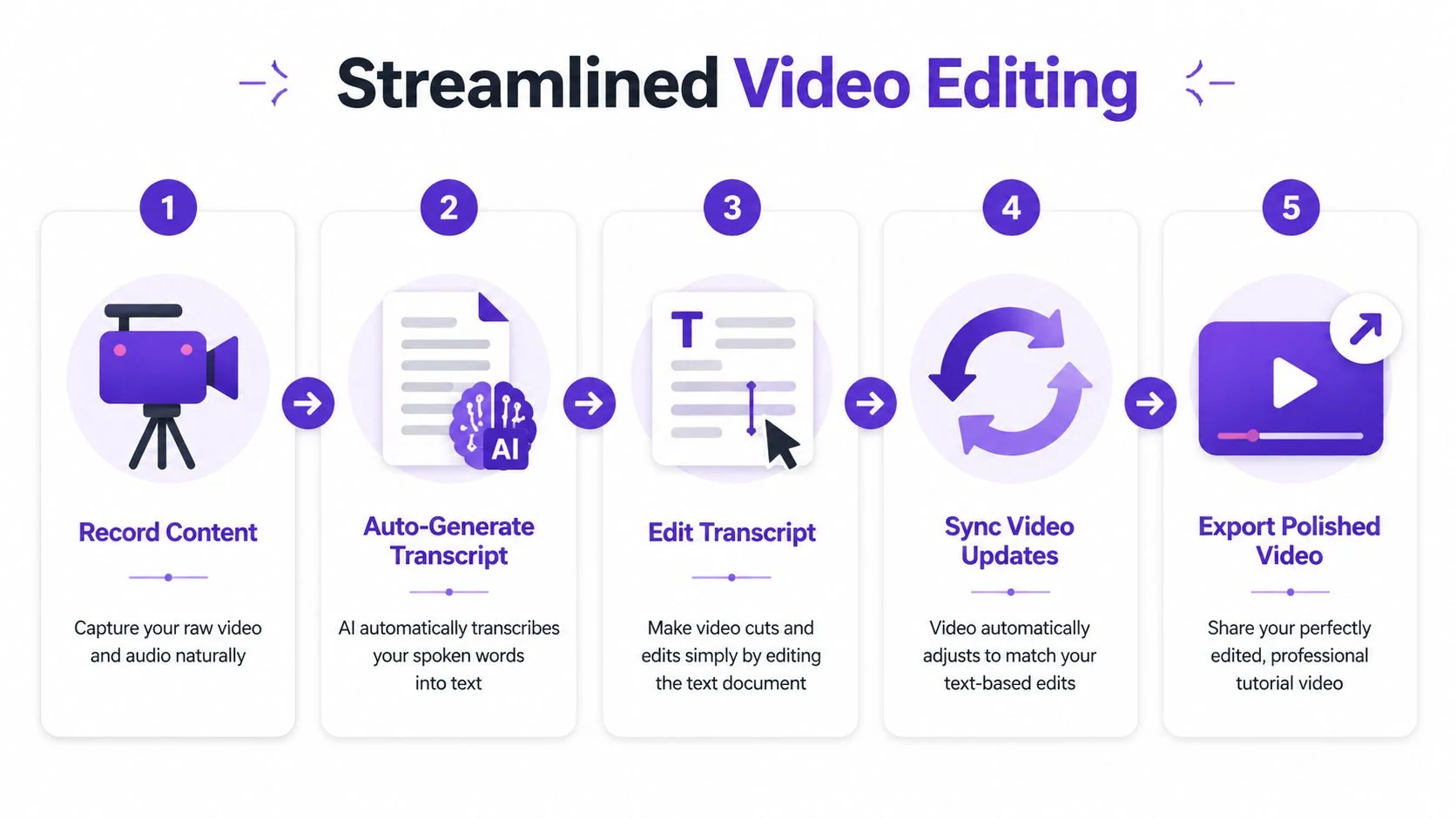
The more efficient model is script-based editing. Your spoken walkthrough becomes text. You improve the text. The video follows.
Why text is a better editing surface
Most tutorial fixes are language fixes.
You aren’t usually trying to create cinematic pacing. You’re trying to tighten an explanation, remove a detour, replace a weak sentence, or insert the setup step you forgot to mention. Those are writing tasks. They make more sense in a transcript than on a timeline.
Once the narration exists as editable text, routine cleanup becomes much simpler:
- Delete the rambling setup, and the video shortens with it.
- Rewrite a confusing line, and the spoken audio updates to match.
- Remove filler words, and the pace gets sharper.
- Tighten the opening, and the entire tutorial becomes easier to finish.
That’s the “aha” moment for many groups. The expert doesn’t need to learn advanced editing. They need to revise the explanation the same way they’d revise a help article or email.
What a practical edit actually looks like
Take a rough feature demo. The original narration might sound like this:
“So what you’re going to do first is, um, go into settings, and actually before that, you need admin access, so let me back up for a second.”
A document-style edit turns that into:
“Start in Settings. You’ll need admin access before you can change this option.”
The second version is shorter, cleaner, and easier for a viewer to follow. What’s more, it reflects how experts already improve communication. They rewrite.
If you’re comparing this approach with traditional timeline-first products, this SubmitMySaas’s comparison for creators is helpful because it highlights where classic editors still fit and where they create unnecessary friction for tutorial workflows.
The right editing order
When you’re working from a transcript, the sequence matters. Don’t start with visual polish. Fix the message first.
Use this order:
- Cut what doesn’t help the user Remove repeated explanations, dead air, and side comments. If the sentence doesn’t improve task completion, cut it.
- Clarify the task flow
Add the missing prerequisite. Rename the field the way customers describe it. Shorten the opening until the user can act quickly.
- Fix tone Replace hesitant phrasing with direct instruction. “You might want to maybe” becomes “Select.”
- Refine transitions Most software tutorials need tiny bridges, not dramatic narration. One short sentence often does the job.
- Only then review pacing Watch the revised version once through and make sure the visual flow still matches the spoken sequence.
- The opening states the task clearly
- The embed location matches user intent
- Captions are accurate and readable
- Related documentation is linked nearby
- The owner of future updates is clear
That last point is easy to miss. Product tutorials age quickly. Someone should own updates when the UI changes, settings move, or terminology shifts.
Publishing isn’t the last mile. It’s the moment your tutorial joins the rest of the customer education system.
Frequently Asked Questions about Creating How-To Videos
A lot of the friction in tutorial production comes from edge cases, not the basic workflow. These are the questions teams usually ask once they move beyond the first recording.
| Question | Answer |
|---|---|
| Should I script every word before recording? | No. For most software tutorials, a scene outline works better than a full script. A rigid script often makes experts sound unnatural. Capture the workflow first, then tighten the wording afterward. |
| Is it better to record with live narration or silently? | It depends on the task and your comfort level. Live narration is faster when you already know the explanation. Silent recording is useful when you want to focus on the on-screen flow first and finalize the wording later. |
| How long should a how-to video be? | Keep each published tutorial focused on one task or one small workflow. Modular videos are easier to watch, easier to update, and easier to reuse across onboarding, support, and sales. |
| When should I split one tutorial into multiple videos? | Split when the viewer would need different intents for different parts. Setup, basic use, troubleshooting, and advanced tips usually work better as separate assets. |
| Do I need advanced visual effects for every tutorial? | No. Most tutorials only need enough cursor clarity and zoom control to direct attention. The goal is comprehension, not spectacle. |
| What's the best way to review tutorials with other teams? | Use a shared review process with clear ownership. Product should verify accuracy, support should confirm user language, and brand or marketing should review visible design elements only where necessary. |
| Can one recording support both video and written docs? | Yes, and it should when possible. Reusing the same source material for both formats keeps explanations aligned and reduces duplicate work. |
| How do I keep tutorials current as the product changes? | Treat them like living documentation. Assign an owner, keep source files editable, and prefer workflows that let you revise language and visuals without rebuilding the whole asset. |
The teams that get the most from tutorial production usually stop thinking of each video as a one-off project. They treat each recording as reusable instructional content that can be refined, translated, embedded, reviewed, and updated over time.
If you want a faster way to turn rough screen recordings into polished demos, onboarding videos, support clips, and knowledge base content without learning timeline editing, Tutorial AI is worth trying. It’s built for subject matter experts who need professional-looking output, script-based editing, multilingual versions, collaboration, and publish-ready documentation from the same recording.