You’ve got the screen recording. The product walkthrough is solid. The narration explains the feature clearly. Then you drop the clips into Final Cut Pro and the whole thing feels rough. Every pause you removed leaves a visible jump. Every UI change feels abrupt. The content is useful, but the edit doesn’t look trustworthy yet.
That’s the moment where many software tutorials stall. The problem usually isn’t the app being demonstrated. It’s the edit rhythm. A good transition for final cut work isn’t about making the timeline flashy. It’s about controlling attention so the viewer stays oriented while the interface changes beneath them.
For software demos, the wrong transition does real damage. It can pull the eye away from the button you need the viewer to notice. It can make a simple cut feel like an error. It can also add unnecessary motion to a video that already has enough movement from cursors, popovers, menus, and zooms. The best transition is often the one the viewer barely notices.
From Jarring Cuts to Smooth Edits
A common scenario looks like this. A product marketer records a feature release demo in one take. The explanation is strong, but the raw file is full of mouse repositioning, re-recorded lines, dead air, and a few moments where the cursor lands in the wrong place before the next sentence starts.
After the first cleanup pass, the timeline is shorter and clearer, but now the cuts feel mechanical. A settings panel appears too suddenly. A modal jumps on screen. The cursor teleports from one side of the app to the other because the editor removed the wandering in between. None of those cuts are technically wrong. They just feel unfinished.
That’s why transitions matter so much in instructional editing. In a film trailer, a transition can be decorative. In a software tutorial, it’s usually functional. It helps the viewer track continuity across edits, especially when the footage is mostly screen capture and narration.
Smooth edits don’t just make the video prettier. They make the lesson easier to follow.
The fix usually isn’t “add more transitions.” It’s choosing the right moments for them. A hard cut works when the action is continuous and the cursor stays in roughly the same area. A brief dissolve works when you want to soften a time jump. A directional movement can help when you’re moving from one part of the interface to another and want that movement to feel intentional.
Editors who are new to tutorials often overcorrect. They replace every rough cut with a wipe, zoom, spin, or blur. That usually makes the video harder to watch. Professional tutorial editing is more restrained. The timeline should feel controlled, not busy.
Mastering Built-In Transitions in Final Cut Pro
Final Cut Pro already gives you enough to build a clean tutorial workflow if you stay disciplined. Most editors get slower because they browse too many presets, not because Final Cut lacks options.
Start with a default you can trust
For tutorial work, I’d begin by setting a default transition you’re comfortable using repeatedly. In Final Cut Pro, a lot of editors default to Cross Dissolve, and the keyboard shortcut Command-T is the fastest way to apply the default transition at a cut or selected edit point.
That speed matters because browsing transitions one by one destroys momentum. In tutorial-focused work, teams that use a standardized palette of 3–5 video transitions such as cross dissolve, directional blur dissolve, and a custom wipe report 25–30% faster assembly, and they cut transition audition time from 4–6 seconds to under 1.5 seconds per edit point, according to Boris FX’s discussion of transition workflows in Final Cut Pro.
A small working set also prevents style drift. One tutorial shouldn’t feel like it was edited by three different people with three different plugin packs.
Learn the three placements that actually matter
When you apply a transition at a cut, Final Cut lets you adjust where that transition sits relative to the edit. That choice changes pacing more than many editors realize.
- Centered on the cut works for most dissolves. Both clips contribute equally, so the change feels balanced.
- Start on the incoming clip is useful when the outgoing clip should finish cleanly and the new screen should ease in.
- End on the outgoing clip works when you want to soften the exit without delaying the next visual beat.
If your narration says “now open settings,” and the Settings panel appears late because the transition lingers too far into the incoming clip, the tutorial feels off. In software demos, visual timing has to support spoken timing.
Use the browser without getting trapped in it
The Transitions browser is useful, but it tempts people into endless auditioning. A cleaner workflow is this:
- Favorite the few transitions you use so they’re easy to find.
- Apply with the keyboard first whenever the default will do.
- Only open the full browser when the cut has a specific problem that a standard dissolve won’t solve.
Practical rule: If you can’t explain why a transition helps the viewer understand the next action, use a hard cut or a simple dissolve instead.
A related caution matters here. The same Boris FX source notes that when more than 25% of edit points in 8–12 minute tutorials use a visible transition, average viewer completion drops by 12–15% in those videos. That’s a strong argument for restraint, not novelty.
Adjust duration with purpose
A transition that’s too short can feel like a glitch. Too long, and it slows instruction. For screen recordings, I usually think in terms of whether the viewer needs help processing a change in context.
Use shorter transitions when:
- The UI state is nearly identical, and you’re only smoothing a jump cut
- Narration is moving quickly, and the visual must keep up
- Cursor position remains stable, so the eye doesn’t need much redirection
Use a slightly longer one when:
- The screen layout changes significantly
- You’re moving between sections, not just trimming filler
- You want to signal a chapter shift, such as leaving setup and starting the actual workflow
The Inspector is where Final Cut becomes efficient. Once the transition is on the timeline, open the Inspector and adjust duration numerically or drag the edge of the transition directly. Don’t guess. Listen to the narration, watch the cursor path, and make the timing support both.
Customizing and Creating Your Own Transitions
Built-in transitions are fine until every tutorial starts looking like a stock template. That’s usually when you need to stop shopping for more presets and start shaping your own.
Tweak the transition before replacing it
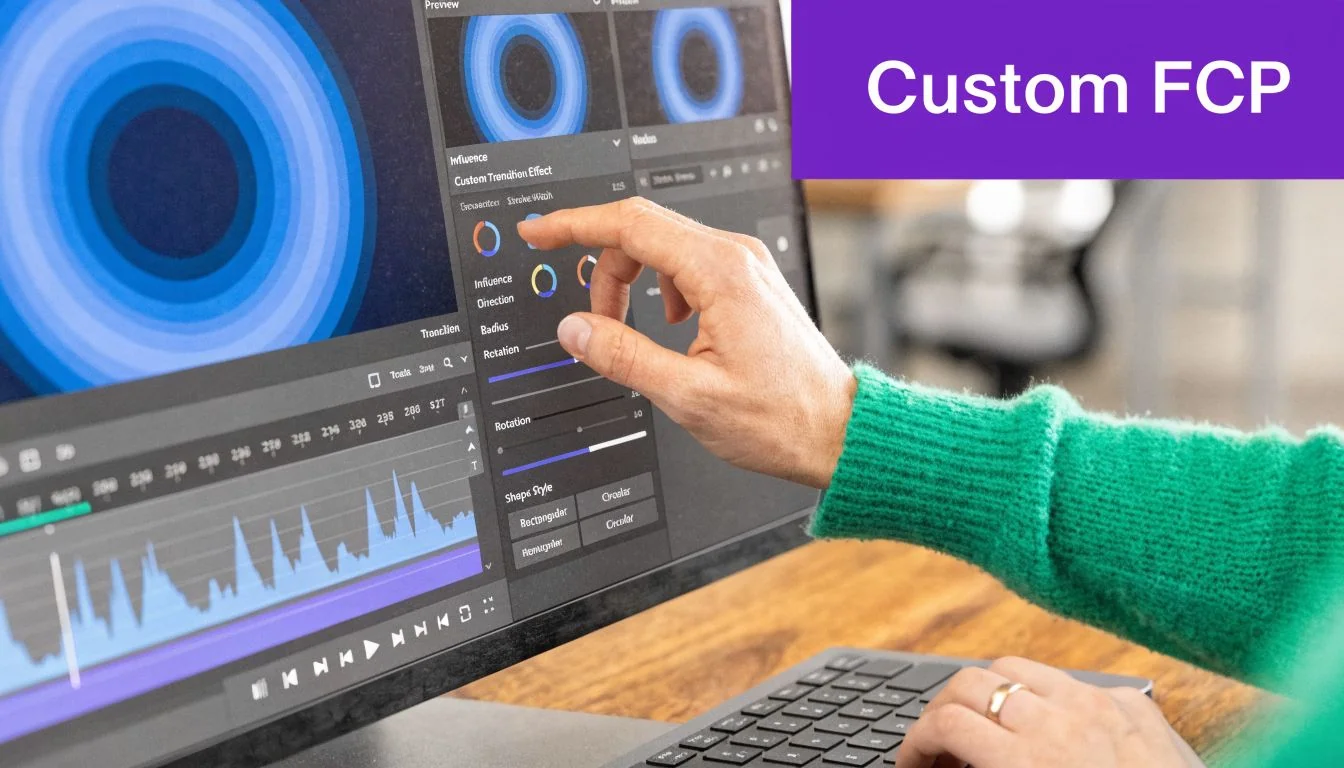
Many editors skip the Inspector and assume a preset is fixed. It isn’t. Many Final Cut transitions let you change direction, edge behavior, color, softness, or motion characteristics. Those controls are where a generic wipe becomes something that matches the product you’re demonstrating.
For example:
- A wipe can be redirected so it follows the layout of the app instead of fighting it.
- A blur-based dissolve can be softened so it hides a jump without smearing text too aggressively.
- A Fade to Color can use a brand color for section changes, though you should use that sparingly.
This is also where consistency starts. If your company uses a restrained visual system, your transitions should fit that system. A support video for an enterprise tool shouldn’t suddenly feel like a gaming montage.
Build simple branded transitions in Motion
Apple Motion is the practical next step if you want reusable transitions that don’t look off-the-shelf. You don’t need to build something elaborate. A branded slide, a subtle directional wipe, or a motion-matched blur often does the job.
In advanced tutorial workflows, editors using custom Motion-generated transitions report a 30–40% reduction in manual re-trimming because they can expose and animate key parameters directly in Final Cut Pro. The same workflows show 90% consistency in timing and feel across 50–100 edit points, compared with 55–60% when editors mix competing presets from the Transitions browser, as described in Apple’s overview of transitions in Final Cut Pro.
That consistency is what branded tutorial production needs. If one transition eases left with a soft blur and another snaps downward with a harsher edge, viewers notice the mismatch even if they can’t explain it.
A practical Motion workflow
A simple transition build usually follows this pattern:
- Create the motion idea in Apple Motion Start with a subtle move. Offset the incoming clip slightly on X or Y. Add blur or a masked reveal to the outgoing clip.
- Publish only the controls editors need Direction, blur strength, wipe amount, or speed are useful. Ten exposed controls usually aren’t.
- Set a sensible default duration If the transition will be used repeatedly in tutorial work, choose a default that won’t need constant repair.
- Save it as a Final Cut transition template Put it in a clearly named category so your team can find it fast.
If you want inspiration for how effects and transitions can support clarity rather than distract from it, this collection of video editing effects for tutorials and demos is worth reviewing before you design your own.
Later in the process, seeing another editor build and deploy a transition can help clarify the handoff between Motion and Final Cut:
Publish fewer controls than you think you need. Reusable transitions become slower, not better, when every editor has too many ways to break the style.
What doesn’t work
The most common mistake is over-animating the transition because Motion makes it easy. A branded transition should still disappear into the tutorial. If the viewer starts noticing the transition itself, you’ve probably gone too far.
Another mistake is building transitions that only work at one exact duration. Tutorial edits rarely stay fixed. You’ll trim narration, tighten pacing, and swap scenes late in the process. A useful custom transition survives those changes without forcing you back into repair mode.
Strategic Transitions for Software Demos
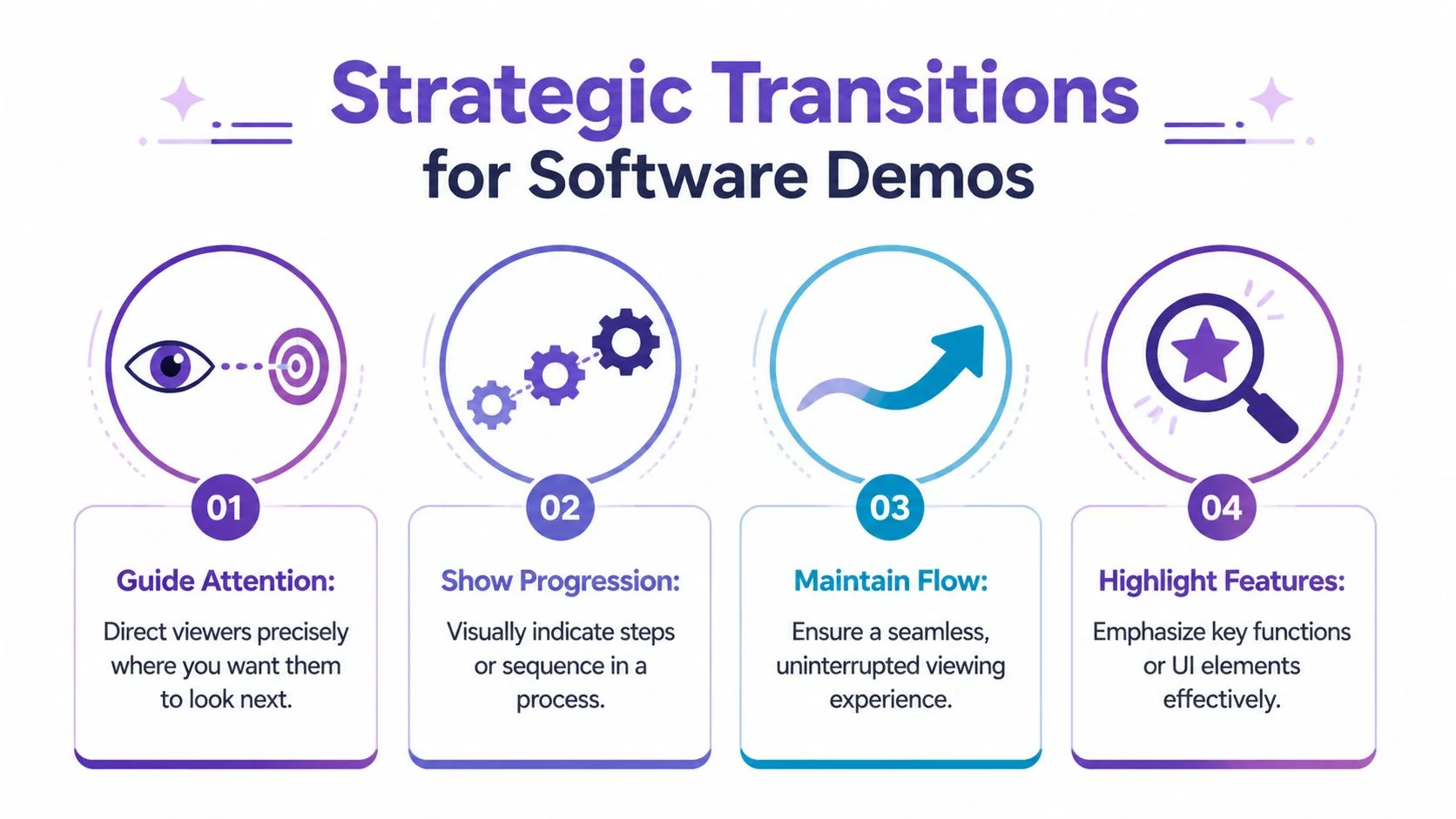
The best software tutorials use transitions as teaching cues. They don’t just connect clips. They tell the viewer where to look, when a step has changed, and whether a jump in the recording is intentional.
Match the transition to the learning task
A hard cut is often the right answer when the user is following a click-by-click action inside the same area of the interface. It’s immediate, clear, and honest. You don’t need to decorate every jump.
A dissolve helps when time has passed or when you’ve trimmed out dead air between related actions. It tells the viewer, “we’re still in the same step, but I removed the waiting.”
A directional transition can work when the viewer’s attention needs to shift across the screen. If the next action happens in a sidebar or a panel on the opposite side, a subtle movement can support that reorientation. The key word is subtle.
Use transitions to support cursor behavior
In software demos, the cursor is often the main subject. If the transition moves one way and the cursor reappears somewhere unrelated, the edit feels disjointed. That gets worse when the same tutorial has zooms, highlights, callouts, and multilingual versions.
This isn’t a small edge case. According to this discussion of branded tutorial workflows and multilingual timing issues, 2025 Pond5 analytics indicates 60% of tutorial views drop during mismatched transitions in non-English versions due to timing drifts. The same source says macOS Sequoia 15.4, noted as a Feb 2026 update, added native cursor tracking in the Screen Recording API, and that combining that with transitions such as Perspective can boost tutorial engagement by 35%.
The practical lesson is straightforward. If your tutorial will be localized, don’t build transitions so tightly around one narration timing that they break when the spoken line changes length in another language.
A working decision framework
When I’m cutting software demos, I usually test each transition choice against four questions:
| Situation | Best choice | Why it works |
|---|---|---|
| Same interface, small cleanup | Hard cut or brief dissolve | Keeps pace tight and avoids unnecessary motion |
| Jump cut in spoken explanation | Flow or soft smoothing transition | Hides the edit without calling attention to itself |
| New section or topic shift | Branded wipe or color-based transition | Signals structure clearly |
| Move to a different UI zone | Directional transition with restrained motion | Helps the eye relocate |
That last point matters if you also use cursor emphasis. Good transitions and good cursor treatment should point in the same direction. If they compete, the screen feels noisy.
A useful reference for this broader visual language is this gallery of b-roll examples for demos and explainers. Even if you’re not using classic b-roll, it’s helpful for thinking about how visual change should support the script instead of interrupting it.
Reserve style for structure
Editors often waste their best transition moments on minor cuts. Save your stronger moves for section breaks, major product shifts, or before-and-after comparisons. If everything gets a stylized wipe, nothing feels important.
A transition should answer a viewer question. Where am I now? Did we skip time? Is this a new step? If it doesn’t answer one of those, it’s probably decoration.
There’s also a good case for using Flow selectively in narrated screen recordings. It can hide ugly jump cuts well, especially when the speaker restarts a sentence. But it’s not magic. On text-heavy interfaces, it can introduce visual warping if overused. Test it on the exact UI you’re editing, not on a generic sample clip.
What professionalism looks like here
Professional tutorial editing is mostly about reducing friction. Viewers shouldn’t have to recover from your edit choices. They should move through the product explanation without getting pulled out of it by motion that feels arbitrary.
That’s why a polished software demo often looks calmer than a beginner expects. Fewer transitions. Better timed transitions. Smarter alignment between motion, cursor placement, and narration. That restraint is what makes the tutorial feel expensive.
Troubleshooting and Optimizing FCP Performance
A transition-heavy tutorial can push Final Cut Pro into a sluggish state faster than many editors expect. The timeline starts dropping frames. Scrubbing gets sticky. Playback becomes unreliable. Then export times spike and the whole session turns into technical cleanup instead of editorial work.
Why transitions slow tutorial projects down
Screen recordings seem lightweight because they’re mostly static interfaces, but long tutorial timelines often contain lots of edit points, many transitions, cursor emphasis, zooms, and layered audio cleanup. That combination creates constant preview and render work.
According to this benchmark summary on Final Cut Pro transition performance, projects with 100+ transitions render 40% slower on M1/M2 Macs when editors don’t use optimized media or manage background render limits. The same source states that Final Cut Pro 10.8, described there as an April 2026 update, introduced AI-accelerated transition previews that reduce lag by 25%, though workflow setup still matters.
The takeaway isn’t that Final Cut can’t handle tutorial work. It can. But long-form screen recordings punish sloppy project setup.
The fixes that usually help first
If playback is deteriorating, I’d check these in order:
- Use proxy or optimized media when the source recording is heavy or mixed with camera footage.
- Review background render behavior so Final Cut isn’t constantly chewing through timeline changes you’re about to replace anyway.
- Reduce stacked effects at busy edit points because transitions combined with blur, transform, and third-party plugins create preview bottlenecks quickly.
- Temporarily disable nonessential look polish while you focus on timing and structure.
A lot of lag comes from editing too many variables at once. Clean sequence first. Cosmetic refinements later.
Be careful with third-party transitions
Not all transition packs are equal. Some are efficient. Others behave like mini motion graphics templates and punish playback, especially in long tutorials with repeated use.
If a transition looks like a trailer effect, assume it costs more to render until proven otherwise.
For tutorial editing, stability matters more than novelty. Native transitions and simple Motion-built tools usually age better in real projects than oversized packs built to impress in short demos.
Bake complexity only when the edit is stable
If a section is final and keeps dragging down performance, consider rendering that portion into a cleaner intermediate asset before you continue building the rest of the tutorial. That’s not the most flexible workflow, but it can be the fastest way to regain responsiveness on a deadline.
The mistake is doing this too early. If you lock in effects before narration timing is settled, you create extra revision work. Final Cut rewards restraint here too.
The Smarter Way to Create Professional Tutorials
All of this manual craft has value. If you know Final Cut Pro well, you can shape pacing precisely, build branded transitions in Motion, smooth jump cuts, and keep a long tutorial feeling polished. But there’s no pretending the process is light. Good tutorial editing in FCP takes judgment, repetition, and cleanup discipline.
That’s a real problem for subject matter experts. The person who knows the product best usually isn’t a trained editor. They can record a useful Loom video quickly, but those recordings are often 50-100% longer than necessary because the speaker leaves in hesitations, retries, idle cursor movement, and setup chatter. On the other end of the spectrum, tools like Camtasia, Adobe Premiere Pro, and Final Cut Pro can absolutely produce excellent results, but they assume someone knows how to shape a timeline professionally.
That gap is why AI-assisted tutorial creation has become so practical for demos, onboarding videos, explainer videos, feature release videos, knowledge base videos, and support article videos. The useful promise isn’t “AI makes flashy edits.” It’s that the subject matter expert can speak freely without practice, record the screen naturally, and still end up with a result that looks professionally cut.
The biggest workflow shift is moving away from timeline-first editing. Instead of trimming every pause manually, adjusting every transition by hand, and rebuilding timing when a line changes, modern systems can turn a raw screen recording into a structured tutorial where script, narration, captions, and visual pacing stay connected.
That matters most in recurring production environments. Customer education teams, support teams, sales enablement teams, and product marketers don’t just need one polished video. They need a repeatable way to produce on-brand assets without giving every expert a crash course in Premiere Pro or Final Cut Pro.
The practical trade-off is simple. Final Cut Pro gives you deep control. AI-powered tutorial tools give you speed, consistency, and much less manual cleanup. If your job is editorial craftsmanship across varied video formats, FCP still makes sense. If your job is producing clear software instruction efficiently, the center of gravity shifts.
Choosing the Right Tool for the Edit
If you want control over every cut, timing choice, and branded motion behavior, Final Cut Pro is still a strong editor. It rewards editors who understand pacing, restraint, and system performance. But for software tutorials, speed matters as much as polish. If you’re comparing your options more broadly, this guide to video production software is a useful starting point, especially alongside a focused video editing software comparison for tutorial workflows. The right choice depends on whether you need maximum manual control or the fastest path from raw screen recording to a clean, on-brand tutorial.
If you create demos, onboarding videos, support videos, or knowledge base content regularly, Tutorial AI is worth a serious look. It’s built for screen-recorded instruction, so you can record naturally, edit by changing the script, and produce polished, on-brand videos without timeline-heavy work. That makes it a practical option for teams who want professional results without turning every subject matter expert into a full-time video editor.