Deciding between open and closed captions isn’t just a technical detail—it’s a strategic move that affects who sees your message and how they experience it. The core difference is simple: open captions are permanently burned into your video file, so everyone sees them, all the time. Closed captions, on the other hand, are a separate text file that viewers can turn on or off at their discretion.
This choice is especially important when you’re creating tutorials, product demos, or knowledge base content. The right format depends entirely on your audience, the platform you’re using, and what you want your video to achieve. Thankfully, modern tools are making it easier than ever to produce both, so you can pick the perfect option for every situation.
The Strategic Choice Between Open Vs Closed Captions
Think of it this way: open captions give you complete creative control, while closed captions give your viewer control. For many creators, this distinction is at the heart of their video strategy.
Why Every Video Needs Captions
Captions started as an accessibility feature for viewers with hearing impairments, but they’ve become essential for everyone. A huge portion of social media videos are now watched with the sound off, making captions the only way your message gets through. They also boost comprehension and focus for neurodivergent viewers and help non-native speakers follow along more easily.
But creating a high-quality video with accurate captions often feels like a trade-off:
- Fast but amateurish: Easy-to-use recording tools like Loom are great, but the raw footage is often 50-100% longer than necessary, filled with “ums,” “ahs,” and long pauses.
- Polished but time-consuming: Professional video editing software such as Camtasia or Adobe Premiere Pro delivers a sharp, clean result, but it requires expert video editing knowledge and a lot of time.
Tutorial AI’s tools solve this problem by generating video tutorials from screen recordings like demos, onboarding videos, explainer videos, feature release videos, knowledge base videos, and support article videos. Its tools let you speak freely without any practice, and your video will still look professional, as if it was edited in Adobe Premiere Pro. This allows the subject matter expert to create on-brand videos extremely efficiently.
Understanding the Key Differences
Before you can choose, you need to know exactly what you’re working with. Each caption format has distinct pros and cons that make it better suited for certain scenarios.
Here’s a quick breakdown of how they stack up.
| Feature | Open Captions | Closed Captions |
|---|---|---|
| Viewer Control | None. Captions are always visible. | Full. Viewer can turn on/off and often customize appearance. |
| Creator Control | Total. You control font, color, size, and placement. | Limited. Style is often determined by the player or user. |
| Technical Format | Burned into the video file itself. | A separate sidecar file (like .SRT or .VTT). |
| Ideal Environment | Social media, kiosks, or any sound-off environment. | Websites, training platforms, and anywhere user choice is key. |
This table gives you the basics, but the right choice often depends on your specific goals and workflow. Let’s dig into what these differences mean in practice.
Who’s in Control: Creator vs. Viewer
One of the biggest factors in the open vs. closed caption debate is who gets to call the shots on the final look.
- Open Captions for Creator Control: With open captions, what you design is what everyone gets. You can use your exact brand fonts, colors, and positioning to make sure the captions perfectly match your company’s style guide. This is a huge deal for marketing content where brand consistency is non-negotiable.
- Closed Captions for Viewer Control: Closed captions put the user in the driver’s seat. They decide if they even want to see the text. On platforms like YouTube, users can also adjust the text size, font, and background color to make it easier for them to read. This is a massive win for accessibility.
The choice really comes down to your primary goal. If a pixel-perfect brand aesthetic is your top priority, open captions provide that unbreakable control. But if you’re focused on user choice and maximizing accessibility, closed captions are the clear winner.
Technical Workflow and Making Edits
The way you create and manage each caption type is completely different, and it has a real impact on your production process.
Open captions become part of the video during the rendering stage. You add them in your video editor, and once you export, they’re baked in for good. Found a typo? You have to go back to the project file, fix the text, and re-render the entire video. That’s a painful time-sink.
Closed captions are far more forgiving. Since they are just simple text files, you upload them alongside your video. If you spot an error, you just open the text file, make the correction, and re-upload it. The whole process takes seconds, not hours. This agility is invaluable for content that needs updates, like evolving knowledge base tutorials or support videos.
The Hidden Challenge of Creating Quality Captions
No matter which type you choose, high-quality captions start with a flawless transcript. This is where many creators of tutorials and demos get stuck. Easy-to-use recording via a tool like Loom is often 50-100% longer than necessary, riddled with “ums,” long pauses, and mistakes.
On the flip side, using professional video editing software such as Camtasia or Adobe Premiere Pro to trim that recording into a polished video requires expert video editing knowledge. This often creates a bottleneck, stopping subject matter experts from quickly producing the content they need to share.
This is exactly the friction Tutorial AI was built to solve. It generates professional video tutorials based on screen recordings such as demos, onboarding videos, explainer videos, and knowledge base videos. The tools let you speak freely without any practice, and your video will still look professional, as if it was edited in Adobe Premiere Pro. This empowers the subject matter expert to create on-brand videos extremely efficiently.
How Captions Impact Your Video Strategy
Deciding between open and closed captions isn’t just a technical detail—it’s a strategic move. The choice you make will ripple across your video’s performance, affecting everything from audience reach and user engagement to your SEO and brand image. Let’s break down what’s at stake before you hit export.
Accessibility and Compliance
While both caption types help you meet accessibility laws like the Americans with Disabilities Act (ADA), they approach it differently. Open captions are always on, which is great for environments where sound is off by default, ensuring no one misses the message.
However, for true, user-focused accessibility, closed captions are almost always the better choice. They give viewers control. People can adjust the text size, change the font, and tweak the color contrast to fit their personal needs. That level of customization is the gold standard for inclusive design. For individuals with auditory processing disorders or neurodivergence, captions aren’t a convenience; they’re essential for comprehension.
The very act of being able to turn captions on or off is a huge accessibility win. While some users rely on them, others find the constant on-screen text distracting. Closed captions serve both groups beautifully. Ultimately, this flexibility makes closed captions the safer, more compliant option for most organizations. They offer a user-centric solution that adapts to the widest range of viewer needs.
User Experience and Engagement
Your captioning method has a massive impact on the user experience, especially across different platforms. In a sound-off world, open captions can be the difference between a viewer watching your video or just scrolling right past it.
Think about social media feeds on LinkedIn, Instagram, or Facebook where videos autoplay on mute. Open captions deliver your message immediately, grabbing attention in those first critical seconds before a user has to decide whether to unmute. This is absolutely vital for marketing videos or quick feature announcements where you need to make an instant impression.
On the other hand, for longer videos like in-depth product demos or knowledge base tutorials on your own site, closed captions often create a cleaner experience. Viewers have the choice to turn them on if needed, which avoids cluttering the screen for those who just want to focus on the visuals. Respecting the viewer’s context like this leads to higher satisfaction and longer watch times.
SEO and Discoverability
When it comes to search engine optimization (SEO), the difference between open and closed captions is night and day. There’s one clear winner here, and it’s not even close.
- Closed Captions: These exist as a separate text file (like a .SRT). This means search engine crawlers can read and index every single word. You’re essentially giving Google a full transcript of your video, loaded with keywords that help your content rank higher in search results.
- Open Captions: These are “burned into” the video file itself, just like any other visual element. To a search engine, that text is just pixels—it’s completely invisible. As a result, open captions offer zero direct SEO benefit.
By using closed captions, you’re creating another valuable asset that helps search algorithms understand your video’s content, dramatically increasing its chances of being discovered. To really grasp the power of text in video, take a look at our guide on /b/what-is-video-transcription. The same principle applies beyond video, as shown in this guide on how a Spotify podcast transcript can be a secret weapon for growth, proving that text is a powerful driver of discoverability.
Branding and Creative Control
For a lot of companies, brand consistency is everything. This is where open captions have a distinct advantage.
With open captions, you have total creative freedom. You can style the text using your brand’s specific fonts, colors, and positioning to make sure it looks like a seamless part of your video. This is a huge plus for polished marketing content, sales demos, and explainer videos where every visual detail counts.
Closed captions trade that brand control for user control. The appearance of the captions is dictated by the platform (like YouTube) or the viewer’s own device settings. Your perfectly chosen brand font will likely get swapped out for a generic one, which can water down your visual identity.
This often leads to a workflow dilemma. Easy-to-use screen recording via tools like Loom often produces videos that are 50-100% longer than necessary, while professional software like Adobe Premiere Pro requires expert video editing knowledge. Tutorial AI helps bridge this gap. Its tools let you speak freely without any practice, and your video will still look professional, as if it was edited in Adobe Premiere Pro. This allows the subject matter expert to create on-brand videos extremely efficiently, generating tutorials for demos, onboarding, feature releases, and more.
When To Use Open Vs Closed Captions: Practical Scenarios
Figuring out whether to use open or closed captions is more than just a technical decision—it’s a strategic one. The right choice depends entirely on who’s watching your video, where they’re watching it, and what you want them to do. Getting it right can make all the difference in how your message is received.
Let’s break down some common situations to help you decide.
Knowledge Base and Support Videos
Think about the last time you looked up a support video. You were probably looking for a quick fix to a frustrating problem. In these moments, clarity and speed are everything. Your viewers are often in a help desk portal or knowledge base where videos are muted by default.
For these types of videos, open captions are almost always the best choice. By burning the text directly onto the video, you guarantee that every single step is seen and understood, even if the sound is never turned on. It removes a step for the user and creates a seamless support experience.
When a user is frustrated and looking for a solution, forcing them to find and click the “[CC]” button is an unnecessary extra step. Open captions deliver the solution immediately, reducing user effort and improving satisfaction. This way, you know the critical details in your explainer videos, feature walkthroughs, and support articles are getting across, no matter the viewing environment.
Sales Enablement and Demo Videos
In the world of sales, your captioning strategy needs to be a bit more flexible. It should change based on where your prospect is in their journey and which platform they’re using.
Here’s a simple way to think about it:
- Short Social Media Clips: When you’re sharing quick demos or value propositions on platforms like LinkedIn, go with open captions. These videos often autoplay without sound, and you only have a few seconds to grab someone’s attention. Burned-in text makes sure your core message hits home instantly.
- Long-Form Website Demos: If you’re sending a detailed demo directly to a prospect or hosting it on your website, closed captions are the way to go. These viewers are already invested. Giving them control over their viewing experience with optional captions feels more professional and less intrusive.
This dual approach helps you capture attention at the top of the funnel while providing a more refined experience for qualified leads.
Product Marketing and Explainer Videos
For marketing content, your captioning choice should be directly tied to the campaign’s goal—whether that’s building broad awareness or providing in-depth product education.
For top-of-funnel ads and short explainers on social media, open captions are non-negotiable. In sound-off environments, they’re the only way to ensure your marketing budget isn’t wasted on silent, confusing ads. Your brand message and call-to-action need to be seen by everyone.
On the other hand, for more detailed feature deep dives or case studies on your website or YouTube channel, closed captions often work better. They give you an SEO boost by making your transcript crawlable by search engines and open the door to multilingual support, which is key for reaching a global audience. For more insights on this, you might be interested in our guide on the best AI video dubbing which discusses how text and audio work together for international audiences.
Internal Training and Onboarding Videos
Even for internal videos, the right choice depends on the content’s purpose.
- Mandatory Compliance Training: For critical training on topics like security or HR policies, open captions are the safest bet. They guarantee every employee sees the exact same information, which minimizes the risk of misinterpretation.
- Self-Paced Learning: For optional training modules or general onboarding videos, closed captions offer helpful flexibility. Employees might be watching in a busy office or multitasking. Letting them toggle captions on or off respects their workflow and learning style.
This approach ensures your internal videos are both effective and considerate of your team’s environment.
Ultimately, the real challenge isn’t just picking a caption type; it’s creating high-quality videos without wasting time. We’ve seen subject matter experts use easy-to-use screen recorders like Loom, only to end up with a raw recording that’s 50-100% longer than it needs to be. The alternative, professional video editing software such as Adobe Premiere Pro, requires expert video editing knowledge and creates a huge bottleneck.
This is exactly what Tutorial AI was built to solve. The platform generates video tutorials based on screen recordings for things like demos, onboarding videos, and support articles. Its tools let you speak freely without any practice, and your video will still look professional, as if it was edited in Adobe Premiere Pro. This allows the subject matter expert to create on-brand videos extremely efficiently, ready for any captioning strategy you choose.
How To Create Perfect Captions Efficiently
Making high-quality videos with accurate captions often feels like a trade-off. It seems you can either record content quickly or edit it professionally, but getting both done efficiently is a real challenge. This problem is especially frustrating when you’re creating demos, onboarding flows, or knowledge base videos.
On one hand, you have easy-to-use recording tools like Loom. They’re great for capturing your screen in a flash, but the raw footage is often 50-100% longer than necessary. It’s usually bogged down by filler words, long pauses, and little mistakes that you then have to spend ages trimming.
On the flip side are the professional-grade editing suites like Adobe Premiere Pro or Camtasia. These tools are powerful, no doubt. But they demand a steep learning curve and a serious time commitment, creating a bottleneck for subject matter experts who just want to share what they know.
Bridge The Gap With An AI-Powered Workflow
What if you didn’t have to choose? A more modern workflow completely sidesteps this frustrating dilemma. Tutorial AI is built to generate professional video tutorials from screen recordings for demos, onboarding videos, explainer videos, feature release videos, knowledge base videos, and support article videos. Its tools let you speak freely without any practice, and your video will still look professional, as if it was edited in Adobe Premiere Pro.
The whole process is surprisingly simple:
- Record Freely: Just hit record and start talking through your demo or tutorial. Don’t worry about misspeaking, saying “um,” or pausing to think. Get your ideas out naturally.
- Generate a Transcript: The software automatically transcribes everything you said, word for word. This transcript is now your editing timeline.
- Edit by Editing Text: Instead of messing with a complicated video track, you just edit the text. When you delete a sentence or a filler word from the transcript, the corresponding video and audio are instantly removed. The AI then smooths out the cuts, regenerates a clean AI voiceover, and adjusts the timing of all your visuals.
This text-based approach means any subject matter expert can create on-brand videos extremely efficiently without having to become a video editor overnight.
This workflow fundamentally changes video creation. It separates the act of capturing knowledge from the act of polishing the presentation, allowing experts to be experts without needing to become video editors.
Exporting With Open Vs Closed Captions
Once your video is edited and looks sharp, the final piece of the puzzle is exporting it with the right caption format. This is where the choice between open vs closed captions becomes important. A good platform will let you handle both with ease.
- Exporting with Open Captions: If your video is heading to social media, where most people watch with the sound off, you can “burn in” the captions. The text is rendered directly onto the video file, so they are always visible, no matter what.
- Exporting with Closed Captions: For content you’re hosting on your website, LMS, or YouTube, you can export a separate .SRT file. You simply upload this file with your video, which allows viewers to turn the captions on or off as they please.
As you think about the practical side of captioning, especially with compliance deadlines on the horizon, finding solutions for stress-free compliance using AI-powered captions is a huge relief. Having a tool that generates the correct files without extra work is a game-changer. You can dive deeper into the technical details in our complete guide on how to add captions to videos.
This flowchart breaks down the decision-making process, helping you choose between open and closed captions based on where you plan to share your video.
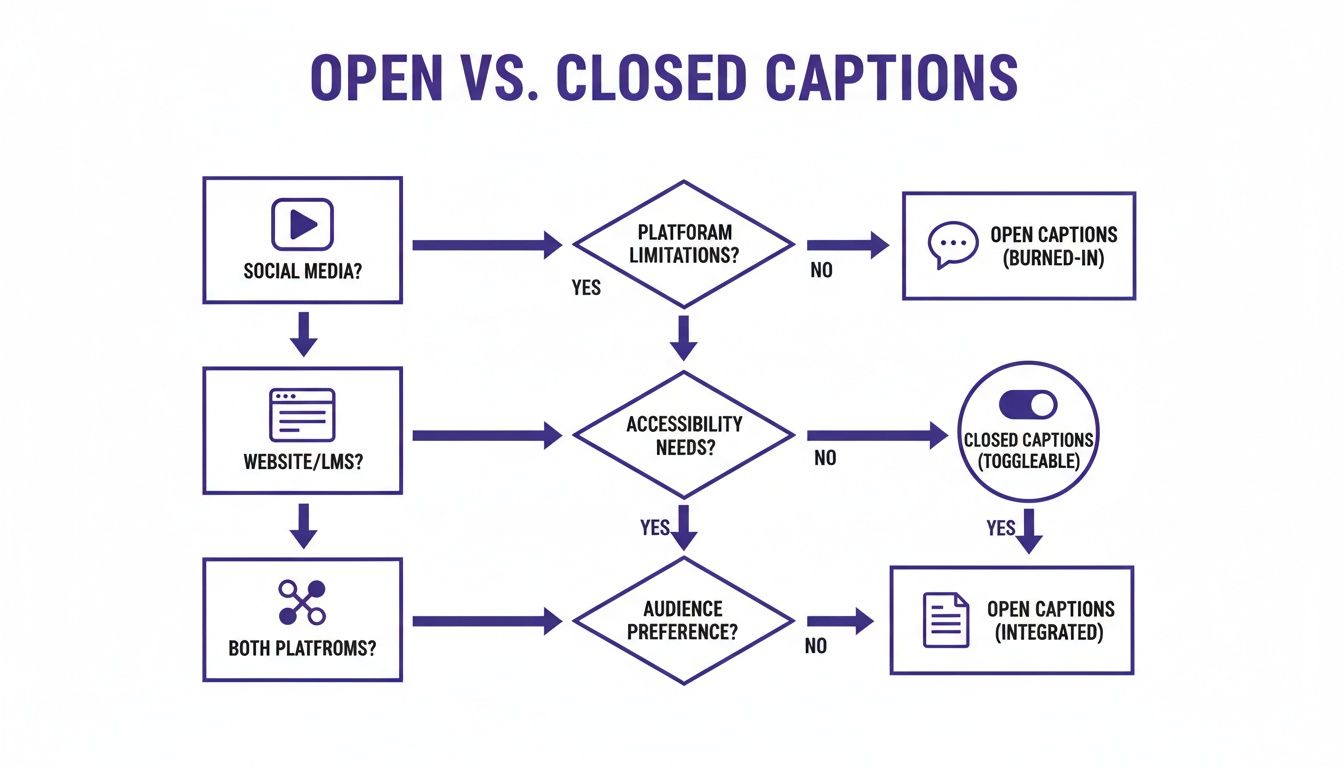
As you can see, the platform really dictates the best approach. Open captions are your go-to for grabbing attention on social feeds, while closed captions offer the flexibility and user control needed for websites and learning platforms. By adopting this workflow, you can produce perfectly captioned videos for any channel without all the usual headaches.
Your Captioning Questions, Answered
Even after you’ve decided on a general strategy, you’re bound to run into some specific questions. Let’s walk through some of the most common ones I hear from teams who are just getting their captioning workflow off the ground.
Can A Video Have Both Open And Closed Captions?
You can’t really have both types on a single video file. A video is either produced with the text permanently burned in (open captions), or it’s a clean video that relies on a separate, toggle-able caption file (closed captions).
So what’s the solution? The best practice is often a hybrid approach. You’ll simply create two versions of your video:
- Version 1 (Open Captions): This is your go-to for social media feeds on platforms like Instagram or LinkedIn. Since videos often autoplay on mute, the burned-in text guarantees your message gets across right away.
- Version 2 (Closed Captions): Here, you’ll upload the clean video (without any burned-in text) to your website, knowledge base, or YouTube. You just upload the separate
.SRTcaption file alongside it, giving your viewers total control.
This two-version method ensures your video is perfectly optimized for every platform and viewing situation.
Which Caption Type Is Better For SEO?
Closed captions are, without a doubt, the winner for SEO. It isn’t even a close race.
Search engine crawlers, like the ones from Google, can easily read the text inside a separate caption file (.SRT, .VTT, etc.). This gives them a full, keyword-rich transcript of everything said in your video, which can make a huge difference in how you rank in search results.
Open captions are just pixels burned into the video image. To a search engine, that text is completely invisible. If you want your videos to be discoverable, choosing closed captions is one of the smartest moves you can make.
Are Captions A Legal Requirement For My Videos?
In many cases, yes. Accessibility laws are in place for a reason, and they often mandate that video content be accessible to everyone. Regulations like the Americans with Disabilities Act (ADA) in the U.S. and the European Accessibility Act (EAA) are particularly important for public content from government agencies, schools, and most businesses.
Closed captions are almost always the safer bet for compliance. They give the user power—the ability to turn captions on or off, and sometimes even change the size or color, is a core principle of good accessibility.
For purely internal corporate videos, the legal rules might be a bit looser. But even then, providing captions is just good practice. It helps create an inclusive workplace for employees who are Deaf or hard of hearing, or who simply work better with text. When in doubt, it’s always wise to consult with a legal professional to understand your specific obligations.
How Do Captions Help With International Audiences?
Captions are your ticket to taking content global, and closed captions are especially useful here. Since they exist as separate text files, you can offer multiple language tracks for a single video. Someone in Spain can watch with Spanish subtitles, while a colleague in Germany can select German, all from the same video player. It’s a remarkably scalable way to localize your videos.
While open captions are fixed to one language, creating different video versions for different markets has gotten much easier.
This is where having the right tools is critical. One of the biggest hurdles is the workflow itself. Easy-to-use recording via a tool like Loom often results in raw footage that is 50-100% too long, packed with “ums,” “ahs,” and mistakes. Handing that over to a professional video editor using software such as Adobe Premiere Pro requires expert video editing knowledge and creates a bottleneck.
This is exactly what Tutorial AI was designed to solve. It generates video tutorials from screen recordings for demos, onboarding videos, feature release videos, and more. The tools let you speak freely without any practice, and your video will still look professional, as if it was edited in Adobe Premiere Pro. It allows the subject matter expert to create on-brand videos extremely efficiently. For those international audiences, Tutorial AI can even automatically adjust your video’s timing to match a translated voiceover, ensuring your content looks perfect in any language.
Ready to create professional, perfectly captioned videos without the editing headaches? With Tutorial AI, you can turn your raw screen recordings into polished demos and tutorials in minutes. Edit your video by simply editing the text, and let our AI handle the rest. Start creating for free today at Tutorial.ai.