You don’t need a massive budget or a film degree to create a professional tutorial video anymore. The modern approach to how to make tutorial videos is all about being clear, authentic, and efficient. It’s about turning a basic screen recording into a sharp, on-brand asset that people will actually sit through and learn from.
The Modern Way to Create Tutorial Videos
Creating tutorials that make an impact—whether for product demos, new user onboarding, or help center articles—is more straightforward than ever. The secret is to let your expertise shine, not get bogged down in complicated software. This guide will walk you through a proven workflow, from planning and recording all the way to editing and publishing, using smart tools to get polished results without the headache.
Historically, making a tutorial felt like a compromise. You could go with easy-to-use recording tools such as Loom, which is great for quick, informal messages. The downside? These videos are often 50-100% longer than necessary, packed with ums, ahs, restarts, and tangents that can leave viewers confused.
The other option was to wrestle with professional video editing software. Tools like Camtasia or Adobe Premiere Pro are incredibly powerful, but they require expert video editing knowledge and come with a notoriously steep learning curve. For a subject matter expert who just wants to share what they know, mastering timelines, keyframes, and complex effects is a huge roadblock.
Bridging the Gap with AI
This is where new AI-powered tools like Tutorial AI come in. They are designed to generate professional video tutorials directly from screen recordings. Imagine hitting “record,” speaking freely without any practice, and still having your video look as professional as if it was edited in Adobe Premiere Pro. Tutorial AI’s tools make this possible, allowing the subject matter expert to create on-brand videos extremely efficiently.
This unlocks the ability to produce all kinds of content without the usual friction:
- Demos and explainer videos that get straight to the point and show off your product’s value.
- Onboarding and feature release videos that help users adopt new features fast.
- Knowledge base and support article videos that solve customer problems with clear, visual steps.
To give you a clearer picture, here’s a quick summary of this streamlined workflow.
Modern Tutorial Video Workflow at a Glance
This table breaks down the core stages, showing how the focus shifts from manual labor to smart, efficient production.
| Stage | Core Focus | Essential Technique |
|---|---|---|
| 1. Planning & Scripting | Message clarity and structure | Outline key talking points and actions |
| 2. Recording | Capturing raw expertise and screen actions | Narrate freely and naturally |
| 3. AI-Powered Editing | Trimming waste and enhancing visuals | Automated silence/mistake removal |
| 4. Polishing & Branding | Adding professional touches | Apply cursor effects, zooms, and branding |
| 5. Publishing & Sharing | Distributing for maximum impact | Host and embed with captions and analytics |
This approach keeps things simple and repeatable, allowing your team to consistently produce high-quality instructional content.
The core idea is simple: You record your screen and share your knowledge, and smart technology handles the tedious editing. This shift empowers you to concentrate on the quality and clarity of your content, not the technical side of video production.
This modern workflow means no more painful manual cuts or re-recording the same segment five times to get it perfect. By leaning into smart, automated processes, you can produce more high-quality tutorials in a fraction of the time. To get the most out of your efforts, it helps to integrate these video tactics with broader content marketing best practices for sustained growth and engagement. This guide will show you exactly how.
Planning Your Tutorial for Maximum Impact

It’s tempting to just hit ‘record’ and start talking, but the secret to a great tutorial is what happens before you ever capture a single pixel. The best tutorials feel natural and effortless, but that’s the result of smart planning, not improvisation. A little forethought now will save you a world of headaches in the editing room later.
The whole point of this planning stage is to lock in your video’s single, clear purpose. Just ask yourself one question: What should my viewer be able to do after watching this? Every single word you write and every action you record should serve that one goal.
Get Clear on Your Goal and Audience
Every tutorial needs to solve a specific problem for a specific person. Are you walking a brand-new user through their initial account setup? Or are you revealing a time-saving trick for a seasoned power user? Your tone, pacing, and the level of detail you provide will be completely different for each.
Get really specific. Don’t settle for a vague goal like “Show them the dashboard.” Instead, aim for something crystal clear, like “Teach a new user how to create and save their first project in less than three minutes.” This clarity becomes your North Star for the entire project.
A well-defined goal is your best filter. It helps you decide what to include and, more importantly, what to cut. The fastest way to ruin a good tutorial is by trying to cram too much information into it. It’s no surprise that 73% of marketers are now creating explainer videos. We’ve seen a huge shift towards content that provides real, practical value. The data backs this up: how-to videos are incredibly engaging, with viewers watching 74% of them all the way through—a retention rate most other video types can only dream of.
Outline a Logical Flow for Your Content
With your goal locked in, it’s time to sketch out the key steps. This doesn’t have to be a full-blown script just yet; a simple bulleted list is a great way to start. Just focus on getting your thoughts down in a logical order.
Here are a few common structures that work well:
- Problem-Solution: Kick things off by highlighting a common pain point, then walk the viewer through the exact solution. This is perfect for support and troubleshooting content.
- Step-by-Step Process: A classic, linear walkthrough. This is your go-to for onboarding guides or feature demos where the order of operations matters.
- Feature Explainer: Start with the “why”—the benefit of the feature—before diving into the “how” and demonstrating the way it works.
If you’re dealing with a particularly complex product or workflow, understanding the principles of technical video production can make a massive difference in how clearly you communicate your steps.
Prep Your Digital Workspace
The final piece of the planning puzzle is getting your environment ready. A clean, organized digital space translates directly into a more professional video. Take five minutes to set the stage before you record.
Think of it as tidying up before company comes over.
- Close out any apps and browser tabs you don’t need.
- Silence all notifications—email, Slack, system alerts, you name it.
- Switch to a clean, neutral desktop background.
- Have all your necessary assets, tabs, and documents open and ready to go.
Doing this ensures your viewer stays focused on the lesson, not on a random pop-up. It also makes your life easier by minimizing the number of small, distracting things you’ll have to edit out later. Now, with a solid plan and a clean workspace, you’re ready for a smooth recording session.
Recording Your Screen and Voice with Confidence
Hitting that record button can feel like the spotlight just snapped on. Suddenly, there’s all this pressure to perform. But here’s the secret: recording isn’t about giving a flawless, one-take monologue. It’s simply about capturing clean visuals and crisp audio. The magic comes later.
If you invest in one piece of gear, make it a decent USB microphone. Your laptop’s built-in mic will make you sound like you’re in a tunnel, but a simple external mic makes your voice clear and professional. It’s the fastest way to build credibility and keep your audience focused.
The biggest mental hurdle to clear is the need to sound perfect. My advice? Speak freely and naturally. Don’t worry about ums, ahs, long pauses, or restarting a sentence. We’re not doing a live broadcast here. Modern editing tools are built to make those little human moments disappear.
The Old Way of Recording Was Broken
For a long time, making a tutorial video meant picking your poison. You either chose a simple screen recorder and lived with the raw results, or you braced yourself for a deep dive into complex, professional editing software.
Tools like Loom are great for quick, off-the-cuff messages. But for a polished tutorial, those raw recordings are often 50-100% longer than they need to be, bloated with pauses and filler words that you have to painstakingly snip out by hand.
On the other hand, you had the heavy hitters like Camtasia or Adobe Premiere Pro. They’re incredibly powerful, but they also have a brutal learning curve. If you’re a support agent or a product manager, you shouldn’t have to become a video editor just to share your knowledge.
A Smarter Way to Record
This is where a new wave of tools completely changes the equation. With Tutorial AI, the pressure is off. You can just hit record and walk through a complex product demo or a tricky support issue without a rigid script or hours of practice.
The freedom comes from knowing the technology will do the heavy lifting for you. You can talk through your process as it comes to mind, confident that the final video will look like it was meticulously handcrafted in a pro editing suite.
This workflow finally lets the subject matter expert—you—create on-brand, high-quality videos without the headache. It turns video creation from a specialized, time-sucking chore into a natural extension of your job. For a deeper dive, check out our complete guide to screen recording for training.
The core idea is simple: Focus on the clarity of your message, not the perfection of your delivery. Let the AI handle the polish. This approach is a game-changer for creating the kinds of videos every business needs, but without the usual production bottlenecks.
- Demos and Explainer Videos: Record a full walkthrough in one go, then let the tool automatically trim it into a tight, compelling presentation.
- Onboarding and Feature Releases: Quickly create step-by-step guides that get users up to speed on new features instantly.
- Knowledge Base and Support Videos: Build a library of visual answers to common questions, which cuts down on support tickets and makes customers happier.
When you remove the fear of messing up, you can create more content, more often. The focus shifts from wrestling with timelines and keyframes back to what actually matters: sharing what you know. This is how making tutorial videos becomes a scalable, accessible process for any team.
How to Edit Your Tutorial with AI
You’ve finished the raw recording. Now for the part that traditionally grinds everything to a halt: the edit. This is usually where you’d find yourself staring at a complex timeline, trying to wrangle audio tracks and keyframes in software like Adobe Premiere Pro or Camtasia. But there’s a completely new way to approach this, and it makes editing a video feel as easy as editing a text document.
Imagine your entire screen recording—every word, every stumble, every “um”—automatically transcribed. With AI-powered tools, this is the new reality. You don’t edit by scrubbing through a timeline; you edit by highlighting and deleting words on a page.
When you cut a sentence from the transcript, the corresponding video and audio disappear with it. It’s an incredibly intuitive way to trim a rambling, off-the-cuff recording into a tight, professional tutorial. This process easily cuts down raw recordings, which are often 50-100% longer than necessary, into polished videos that get straight to the point.
From Raw Narration to Flawless Voiceover
What if you misspeak or decide you want to rephrase something after the fact? In the past, that meant a frustrating re-recording session. Now, you can just type the correction directly into the transcript. The platform will then regenerate that sentence with a flawless, lifelike AI voiceover.
This is a massive unlock for subject matter experts who need to create on-brand videos without a film crew. The ability to generate a new voiceover in over 30 languages also opens up a world of possibilities for global teams. If you’re curious about the technology making this happen, you can learn more about how an AI voice generator for videos creates such natural-sounding narration.
This entire approach bridges the gap between simple screen recorders and complex pro software. It lets you speak freely during the recording, knowing the final product will look and sound like it was meticulously planned and edited by an expert.
The use of artificial intelligence in video creation has exploded. Today, 63% of video marketers use AI tools for video creation or editing, a significant jump from 51% the previous year. This shows just how much confidence teams are gaining in AI-assisted workflows to speed up production and lower the technical bar. That 12-percentage-point increase in just one year, highlighted in the Wyzowl video marketing report, is a clear signal that this shift is happening fast.
Guiding Your Viewer’s Eye with Smart Visuals
A truly great tutorial doesn’t just tell; it shows. Beyond just cleaning up the audio and script, AI editing automatically adds visual touches that direct your viewer’s attention right where it needs to be.
These automated effects make your tutorial clear, professional, and even secure.
- Smart Zooms: The tool automatically detects key actions on the screen and zooms in, focusing the viewer’s attention. This completely removes the tedious manual work of setting pan-and-zoom keyframes.
- Cursor Effects: Clicks and mouse movements are automatically highlighted. It’s a small detail that makes a huge difference in clarity, showing the audience exactly what you’re doing without you having to say, “…and I’m clicking here.”
- Background Blurs: If your demo shows sensitive customer data or internal company information, you can automatically blur the background or specific on-screen elements to protect privacy without tricky masking.
This intelligent automation transforms a basic screen capture into a polished, easy-to-follow guide.
Building a Scalable Video Content Engine
This AI-driven workflow empowers your team to produce high-quality videos for all kinds of needs, without having to rely on specialized video editors. The subject matter expert—the person who actually knows the product inside and out—can now own the entire creation process.
This is the perfect setup for creating:
- Product Demos: Crisp, clear walkthroughs of your software’s most important features.
- Onboarding Videos: A consistent and engaging welcome for every new user.
- Explainer and Feature Release Videos: Announce updates with visual flair and clarity.
- Knowledge Base and Support Videos: Resolve customer tickets faster with step-by-step visual solutions.
By removing the friction of traditional video editing, you can build a powerful library of helpful content that serves your customers and internal teams more efficiently than ever before.
Bringing It All Together: Polish and Distribution
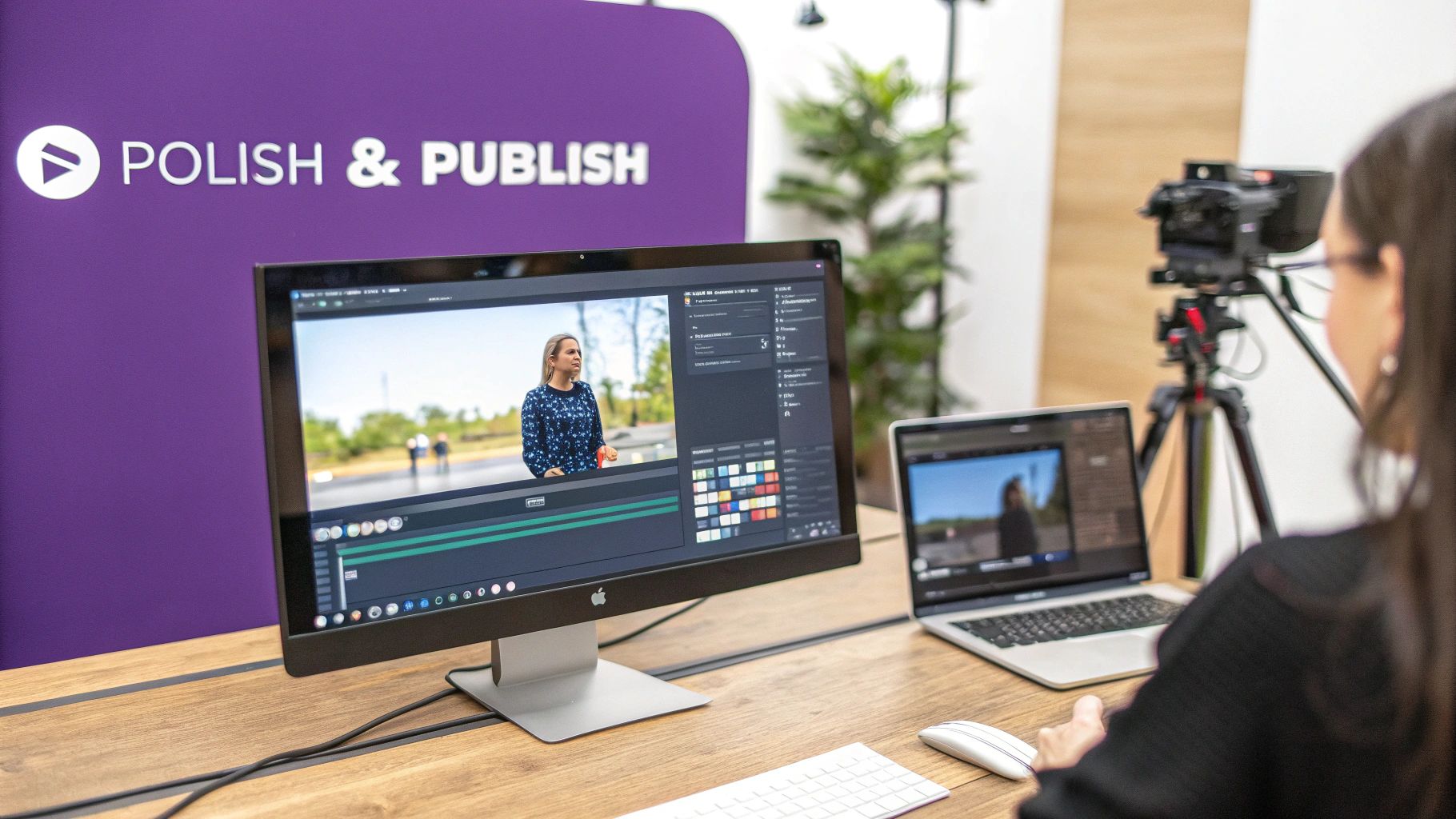
You’ve trimmed the fat and your tutorial’s core message is solid. Now it’s time for the final touches—the little things that take your video from a raw screen recording to a professional, on-brand asset. This is where you really make your content feel like it belongs to you.
Consistent branding is non-negotiable; it builds trust and makes your content instantly recognizable. Thankfully, modern tools have made this much easier. You can often set up a Brand Kit with your company’s logos, fonts, and color palette. You do it once, and then you can stamp that brand identity across every video with a single click.
Crafting a Seamless Viewing Experience
To give your tutorial that professional TV-show feel, think about adding animated intros and outros. They act as bookends for your content, signaling a clear beginning and end. This could be a simple logo animation or a title card that sets up the topic.
You can also use custom backgrounds to hide a messy desktop and keep the focus where it needs to be. All these pieces work together to build a cohesive experience, making your tutorial look authoritative and thoughtfully produced.
Making Your Content Accessible and Global
A great tutorial is one that everyone can learn from. That means accessibility isn’t just a nice-to-have; it’s a must. Generating accurate closed captions is crucial for viewers who are deaf, hard of hearing, or just watching with the sound off in a loud office. If you need a hand with this, our guide on how to add captions to videos walks you through it.
What if your audience is global? Localization can be a real headache. You translate your script, but now the new voiceover is completely out of sync with the on-screen actions. Look for tools that have something like AutoRetime technology. It’s a game-changer. This feature automatically adjusts the timing of your video to match the new voiceover, so everything stays perfectly aligned without you having to manually re-edit every single cut.
A polished video isn’t just about looking good. It’s about clarity and inclusivity. Accurate captions and smart localization open your content up to a much wider audience, ensuring your message lands no matter who is watching. This final stage is all about maximizing the impact of the work you’ve already put in.
Getting Your Video Out There
Once your tutorial is polished and ready to go, you need to get it in front of your audience. The best way to share it really depends on where your viewers hang out.
Here are the most common ways to get it done:
- Embeddable Player: This is perfect for dropping the video right into your knowledge base, LMS, or website. It keeps people on your own turf for a smooth learning experience.
- Direct Link Sharing: Need to send it out quickly? A shareable link is ideal for email, Slack, or other team messaging apps.
- High-Resolution Export: If you’re aiming for a wider public audience, export a high-quality file—up to 4K resolution—and upload it directly to platforms like YouTube or Vimeo.
Having these options means your tutorial can reach the right people, in the right place, in the right format. The goal is to make your expertise easy to find and consume, wherever your audience happens to be.
Common Questions About Making Tutorial Videos
Let’s dig into some of the most frequent questions we get from teams who are just starting to create tutorials for marketing, training, and customer support.
How Can We Create Tutorials Without Professional Video Editors?
This is a big one. The person who knows the product inside and out—the subject matter expert—is rarely a professional video editor. For a long time, this left teams stuck between two bad options.
The first was to use a simple screen recorder like Loom. These tools are fantastic for quick, informal messages, but they often produce rambling videos that are 50-100% longer than they need to be. Cleaning up all the pauses and mistakes becomes a tedious, manual chore.
The other route was to hand the footage over to someone who knew professional software like Adobe Premiere Pro or Camtasia. While these tools are incredibly powerful, they create a huge bottleneck. Your product expert has to wait for an editor, who then has to try and piece together the story without having the same deep product knowledge.
A Modern Solution for Subject Matter Experts
Thankfully, there’s a much better way to work now. A new breed of tools, like Tutorial AI, completely removes this roadblock, empowering the expert to create a polished video without ever touching a complex timeline.
The workflow is surprisingly simple. You just record your screen and talk through the process naturally—no need for a perfect script or multiple takes. The software transcribes your audio, and then you edit the video by just editing the text. Deleting a word or a sentence in the transcript automatically removes the corresponding video and audio. The final result looks like it was meticulously cut by a pro.
This is all about empowerment and speed. Your subject matter experts can now produce on-brand, studio-quality videos incredibly fast. It turns a specialized, time-consuming task into a scalable part of their actual job. This approach is perfect for creating all sorts of crucial content, from quick explainer videos and support demos to a full library of knowledge base tutorials.
How Long Should a Tutorial Video Be?
The golden rule? As short as possible, but no shorter. For a video covering a single, focused task, the sweet spot is usually 2 to 5 minutes. Anything longer, and you’ll start to see viewer engagement drop off.
If you have a more complex workflow to explain, resist the urge to create one massive, all-encompassing video. Instead, break it down into a series of shorter, bite-sized videos. Think of it like a mini-course. This makes the information much easier for your audience to digest and actually remember.
What Is the Minimum Equipment I Need?
You really only need two things to get started: a good screen recording tool and a decent USB microphone.
I can’t stress the microphone part enough. Your computer’s built-in mic might seem convenient, but it almost always sounds thin, tinny, and distant. A quality USB microphone is the single biggest bang-for-your-buck investment you can make to instantly sound more professional and authoritative.
How Do I Make My Screen Recording Look More Professional?
A professional-looking tutorial is all about clarity and focus, not flashy special effects. Before you even think about hitting record, take a minute to prep your digital workspace.
- Clean Your Screen: Close every unnecessary tab, window, and application.
- Silence Notifications: Turn off alerts from email, Slack, and your operating system. A random pop-up can derail the entire take.
- Choose a Clean Background: A simple, uncluttered desktop wallpaper keeps the focus squarely on what you’re demonstrating.
Once you get to the editing stage, subtle visual aids can make a huge difference. Smart zooms that automatically punch in on important details are a game-changer. Cursor effects, like a highlight or a click animation, guide the viewer’s eye and show them exactly where to go. Finally, applying a consistent brand kit with your logo and colors ties everything together and makes it look polished and official.