Welcome to our practical guide on making training videos that people actually want to watch. The whole process really boils down to three core stages: planning your content, recording your screen and voice, and then polishing the final product. This modern approach helps you create clear, efficient, and genuinely helpful training materials without needing a film crew.
The Modern Way to Create High-Impact Training videos
If you’re tired of clunky, hour-long training modules that struggle to hold anyone’s attention, you’re in the right place. Today, effective training is all about clarity and efficiency. We’ll explore how modern AI tools are completely changing video production, turning raw recordings into professional-looking tutorials in a fraction of the time.
This simple workflow breaks down the entire process into three manageable parts.
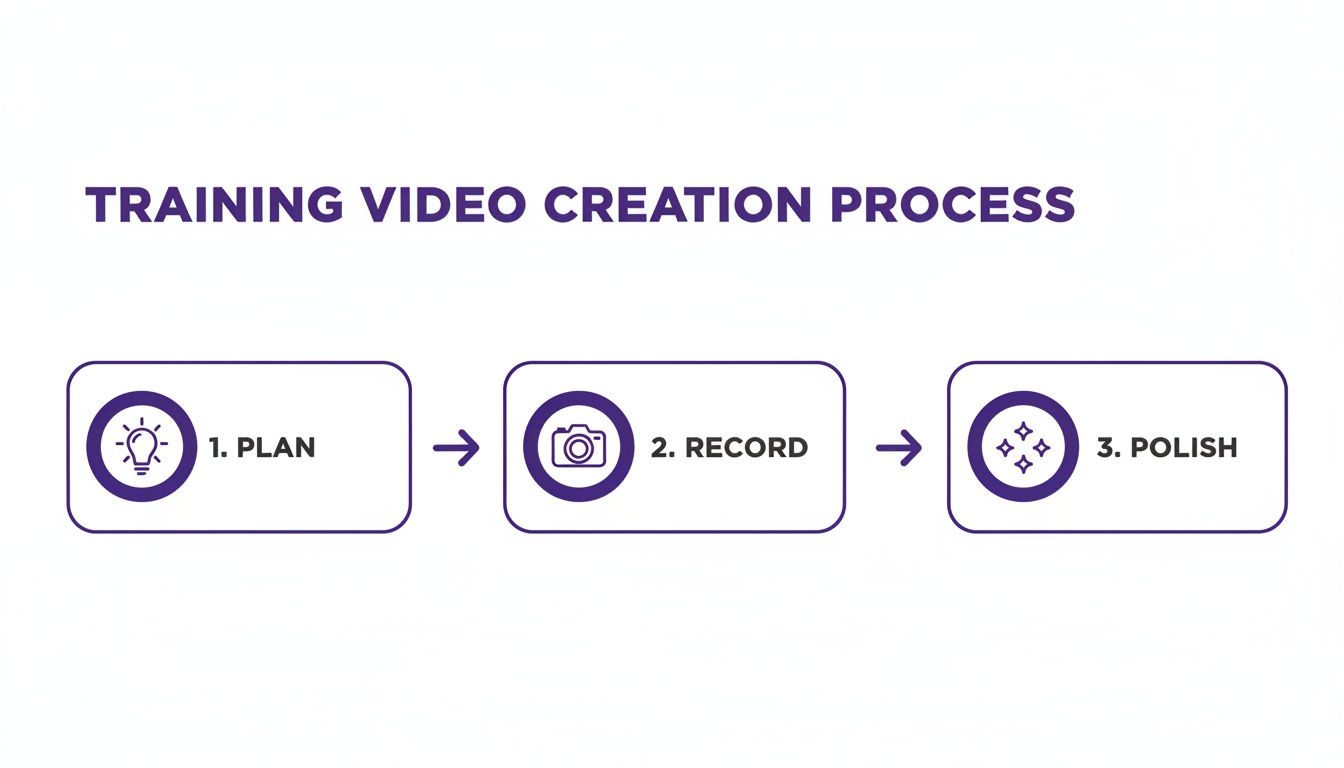
As you can see, successful video creation isn’t just about hitting “record.” The planning and polishing stages are just as crucial as the capture itself.
The Challenge With Traditional Video Creation
For years, creating screen recordings for demos or onboarding came with a difficult trade-off. Easy-to-use tools like Loom are fantastic for quick, informal captures, but the final videos often end up being 50-100% longer than they need to be, filled with ums, ahs, and mistakes. This forces viewers to sit through a lot of unedited fluff.
On the other end of the spectrum, professional software like Camtasia or Adobe Premiere Pro offers incredible editing power but requires expert video editing knowledge. This makes them inaccessible for most subject matter experts who just need to share their knowledge without becoming video editors.
A quick comparison highlights the difference between the old way and the new, AI-driven approach.
Traditional vs AI-Powered Video Production
| Aspect | Traditional Method | Modern AI-Powered Method |
|---|---|---|
| Initial Effort | Requires multiple takes, careful pacing, and practice to get a clean recording. | Record naturally, including mistakes and pauses. The AI handles the cleanup. |
| Editing Time | Hours of manual work: cutting silent parts, removing filler words, fixing errors. | Minutes. The AI automatically cuts pauses, ums, and ahs, and retakes are seamless. |
| Skill Required | Significant video editing expertise is often necessary for a professional result. | Minimal. The focus is on the content, not the technical editing skills. |
| Final Quality | Quality depends heavily on the editor's skill and the time invested. | Consistently high-quality, professional-looking output with minimal manual intervention. |
The AI-powered method essentially gives you the best of both worlds: the simplicity of a quick screen recorder with the polished output of a professional editing suite.
Tutorial AI’s tools let you generate video tutorials based on screen recordings. You can speak freely without any practice and still your video will look professional as if it was edited in Adobe Premiere Pro. It allows the subject matter expert to create on-brand videos extremely efficiently. This modern approach is perfect for a huge range of content, including:
- Demos and onboarding videos
- Explainer videos
- Feature release videos
- Knowledge base and support article videos
For more on contemporary video creation, check out this video guide. You can also grab our quick reference guide to keep these core concepts handy.
Laying the Groundwork for a Successful Training Video
I can’t stress this enough: before you even think about hitting the record button, your most valuable tool is a solid plan. Seriously. The single biggest mistake I see people make is skipping the pre-production work. It almost always leads to rambling videos, endless retakes, and a final product that just doesn’t hit the mark.

Putting in a little time upfront pays off massively down the road. A clear plan makes the entire recording and editing process smoother, saving you hours of frustration later.
Define Your Audience and Objectives
The first thing you need to figure out isn’t what you want to say, but what your audience truly needs to learn. You have to get inside their heads. What do they already know? What’s their role? Where are they getting stuck? A training video for a brand-new user is going to look completely different from one for a seasoned power user.
Once you have a handle on your audience, you can nail down your learning objective. This is the most critical question to answer before you do anything else.
What should the viewer be able to do after watching this video? Answering this forces you to be specific and focus on the outcome. A vague goal like “explain the new reporting feature” isn’t helpful. A great objective, on the other hand, sounds like this: “Demonstrate how to generate a quarterly sales report and export it as a PDF.” That clarity becomes your North Star for every decision that follows.
Crafting a Natural Sounding Script
With your objective locked in, it’s time to script. And I don’t mean writing a formal document—you’re creating a conversation. A common pitfall is writing a script that reads like an academic paper. Always, always write for the ear, not just the eye.
Keep your sentences short and simple. As you write, read your lines out loud. If a phrase feels clunky coming out of your mouth, it’s going to sound ten times worse in the final recording.
A good script usually has three parts:
- The Hook: Kick things off with a quick intro that tells people exactly what the video is about and what they’ll get out of it. This grabs their attention and sets expectations right away.
- The Core Content: This is the meat of the training. Break down the process into logical, bite-sized steps. You want to make the information easy to follow and digest, not overwhelm them.
- The Conclusion: Wrap it up with a quick summary of the key points. If it makes sense, add a call to action, like pointing them to a help doc or encouraging them to try the task themselves.
Don’t feel like you need a perfectly polished, word-for-word script. Sometimes, a simple outline of your main talking points works even better, allowing your delivery to feel more spontaneous and natural on camera.
Visualize Your Video with a Shot List or Storyboard
You don’t need to be an artist to map out your video. A simple shot list or a rough storyboard is an incredibly powerful way to plan what you’ll show on screen and when. This is especially crucial for screen recordings where you’re walking someone through a process.
A shot list is basically a visual to-do list. For a software tutorial, it might look something like this:
- Show the main dashboard.
- Click on the “Reports” menu.
- Highlight the “Quarterly Sales” option.
- Demonstrate filling in the date range fields.
- Show the final exported PDF.
A storyboard takes this a step further, using quick sketches or screenshots to map out each scene next to the corresponding part of your script. This really helps you nail the pacing and ensure your visuals and your words are perfectly in sync. Even stick figures or boxes with text work! This planning makes sure you don’t forget any critical steps and cuts down on complicated editing work later on.
Capturing Your Screen and Voice with Confidence
Alright, this is where all that careful planning starts to feel real. You’ve got your objectives and your script, and now it’s time to hit record. Getting a clean recording is the bedrock of a good training video, but the old-school way of doing it often feels like a high-wire act. You’re trying to flawlessly demonstrate a process on-screen while delivering a perfect, one-take narration at the same time. It’s a lot to juggle.
While a decent mic and a quiet room are a good start, true confidence comes from having a smarter workflow, not just fancier gear.
The Old Way is Broken
Traditionally, you’ve been stuck with a tough choice. You could use a simple, fast tool like Loom, which is great for getting something recorded quickly. The problem? The raw footage is often 50-100% longer than it needs to be, full of “ums,” long pauses, and clicks in the wrong places. Viewers just have to suffer through it.
The alternative is to use professional editing software like Camtasia or Adobe Premiere Pro. These tools can definitely clean up the mess, but they demand serious expertise. This creates a huge bottleneck. Suddenly, the subject matter expert—the one person who actually knows the material inside and out—is forced to either become a video editor overnight or hand off their raw footage and wait. Both paths add significant time and cost.
The old way forces a choice between speed and quality. You get a long, unpolished video fast, or you wait around for a polished one. Neither is a great system for creating training content at scale. This is where modern, AI-powered tools completely flip the script. You no longer have to aim for a perfect live performance. You can just record, knowing that the cleanup and polish will be handled almost automatically.
A Smarter Way to Record Your Screen
Picture this: you need to record a complex software demo, but you don’t have a script memorized. You can just start talking through the process, making mistakes, backing up to restart a step, or even pausing to gather your thoughts. With an AI-powered platform like Tutorial AI, that messy, real-world process is exactly what leads to a perfect final video.
A tool like this lets you speak freely, without any rehearsal, and still generates a video that looks like it was cut by a pro in Premiere. This modern approach separates the action of recording your screen from the art of delivering a perfect voiceover. It frees you, the expert, to focus entirely on getting the on-screen steps right.
This workflow is a game-changer for creating all kinds of on-brand content with incredible efficiency:
- Demos and Onboarding Videos: Guide new users without stressing about every word you say.
- Explainer Videos: Break down complex topics with a calm, clear narration that gets perfected after the fact.
- Feature Release Videos: Quickly produce polished announcements for your latest product updates.
- Knowledge Base and Support Videos: Build out a library of helpful visual guides to cut down on support tickets.
Let Your Experts Be Experts
The biggest win here is efficiency. The person with the knowledge can create the content directly, without having to be a professional narrator or a video editor. They can record their screen while talking naturally, or even record in complete silence to focus only on the mouse movements.
Once the recording is done, the platform automatically transcribes the audio. From there, editing is as easy as editing a text document. See an “um” or a sentence where you misspoke? Just delete the text, and the corresponding video and audio are instantly snipped out. This saves a massive amount of time compared to scrubbing through a video timeline trying to find the right frames to cut.
If you’re just starting out and want to see what’s out there, we put together a list of the best free screen capture software to help you explore your options.
Ultimately, this text-based workflow takes all the pressure off. It empowers your in-house experts to create professional, on-brand videos that are tight, clear, and ready to share in a fraction of the time. You no longer have to choose between getting it done fast and getting it done right.
Turning Raw Footage into a Polished Video with AI
Editing has always been the make-or-break step where raw footage becomes a real learning tool. For years, the choice was brutal: either settle for a long, unpolished screen recording or spend weeks trying to master professional software. Powerhouses like Adobe Premiere Pro can do amazing things, but they demand skills that most subject matter experts just don’t have the time to learn.
This is where AI-powered editing completely flips the script. It closes that massive gap between simple tools and pro-level results, making video creation feel less like a chore and more like a conversation.
Edit Your Video by Editing Text
What if editing your video felt just like editing a Word doc? That’s the reality now. Instead of getting lost in timelines, trying to split clips, and snipping out audio mistakes, modern AI editors like Tutorial AI transcribe everything you say automatically. That transcript becomes your editing canvas.
Did you stumble over a word or repeat a sentence? Just find it in the text and hit delete. The moment you do, the platform instantly removes that exact segment of video and audio from your final cut. No more hunting for timestamps or making fiddly cuts. If you want to rephrase something, just edit the text, and the AI narration updates to match.
This text-based approach means anyone can produce a clean, tight, professional-sounding video, no technical wizardry required. It strips away the most tedious and frustrating parts of the old editing process.
From Unrehearsed Ramble to Polished Tutorial
The old way of recording felt like a live performance—you had one shot to get your mouse movements and narration perfect. The pressure was immense. That’s no longer the case.
With AI tools, you can just hit record and talk through a process naturally, without a script or any practice. It doesn’t matter if you ramble a bit. The final video can still look like it was painstakingly edited in a professional suite. This is a fundamental change in how we can approach making training videos.
This relaxed workflow is perfect for creating all sorts of on-brand content incredibly efficiently:
- Demos and Onboarding: Walk new users through your software, knowing you can clean up any verbal slip-ups in seconds.
- Explainers and Feature Releases: Announce new features with a crisp, confident voiceover that was perfected long after the screen was recorded.
- Knowledge Base Videos: Quickly build a library of visual guides to help customers solve problems and cut down on support tickets.
This method empowers the actual subject matter expert—the person who knows the content best—to create fantastic, on-brand videos. The focus is finally back on the quality of the information, not on technical editing skills.
Add Professional Polish with Automated Features
Beyond just trimming out mistakes, AI brings some seriously powerful features to the table that make your videos more engaging and much easier for viewers to follow. These tools automate tasks that used to take hours of manual work.
Smart Zooms and HighlightsInstead of manually setting keyframes to zoom in on a button, smart features can automatically follow your cursor or zoom in on the part of the screen where the action is. You can also add dynamic highlights and effects to the cursor itself, ensuring your viewer’s eye is always in the right place.
Automated BlurringNeed to hide a customer’s email address or an account number? What used to be a tedious, frame-by-frame masking job is now a one-click task. AI can find and blur sensitive text or specific areas of the screen for you, automatically, through the entire clip.
Consistent BrandingApplying brand kits is another huge time-saver. You can set up your animated intros, outros, logo watermarks, and custom fonts once. Then, just apply them to any new video with a single click to ensure every piece of content looks perfectly on-brand. For even more advanced AI-powered enhancements, you might look into tools like the Auralume AI platform.
This modern workflow doesn’t just save time; it slashes production costs. You no longer need a massive budget to create high-quality training content. In fact, AI tools are bringing the price down from thousands of dollars to just a few dollars per minute. For context, traditional studio videos can cost anywhere from $40–$95 per finished minute, while AI-generated media can be produced for as little as $25 per minute.
Your video is edited, the cuts are clean, and the narration is perfect. But the job isn’t quite done yet. The final, critical steps are all about making sure people actually watch your video, understand it, and can access it—no matter who or where they are.
The biggest key to engagement? Respect your viewer’s time. We’re all busy, and attention spans are a finite resource. This is where microlearning comes into play. Think short, focused videos that zero in on a single concept or task.
The data backs this up in a big way. Videos under six minutes long see an incredible 100% completion rate. Stretch that to nine minutes, and you lose 40% of your audience, with completion dropping to just 60%. At the 12-minute mark, a staggering 80% of viewers have already clicked away. The lesson is simple: keep it brief.
Going Global? Localization is Your Friend
If your team is spread across different countries, translating your training is a must. Thankfully, the days of painstakingly re-recording and re-editing a video for every single language are over. Modern tools have made localization—adapting your content for different languages and regions—a breeze.
With a good AI-powered platform, you can now:
- Instantly translate your script into dozens of languages.
- Generate a brand new, high-quality voiceover in the target language.
- Automatically re-time all your scenes, zooms, and callouts to perfectly match the new narration.
This “AutoRetime” feature is a massive time-saver. It ensures the video flows naturally in Spanish, Japanese, or German without you having to manually adjust a single cut. It’s how you scale great training across a global organization.
Captions: An Absolute Must-Have
Let’s be clear: captions are not an optional add-on. They are fundamental to creating effective and inclusive training videos. Good captions make your content better for everyone, not just for those with hearing impairments.
They’re essential for a few key reasons:
- Accessibility: They ensure your content is compliant with standards like WCAG.
- Comprehension: They help people follow along in loud environments (like a coffee shop or open office) or when they need to watch on mute.
- Clarity: They’re a huge help for non-native speakers who can read along to reinforce what they’re hearing.
Making your content accessible isn’t just about compliance; it’s about being effective. When you add clear captions and offer localized versions, you remove barriers to learning and ensure every member of your audience gets the full value of your training. Generating captions used to be a tedious task, but now it’s incredibly simple. Most video editors can create them automatically from your script’s transcription, ensuring they’re accurate and perfectly synced. To see just how easy it is, check out our guide on how to add captions to videos.
Getting Your Video Out There and Seeing What Sticks
You’ve polished the final cut, and it looks great. But your job isn’t quite finished. Now comes the critical part: getting the video in front of your audience and figuring out if it’s actually working. This is the stage that separates a one-off video from a training asset that truly drives results.
First, you have to decide where your video will live. You need a reliable home for your content so learners can access it without a hitch. While you could just upload it to YouTube or Vimeo, a dedicated hosting platform—especially one tied to your creation tool—gives you far more control and much richer analytics. This makes it a breeze to embed videos into your knowledge base, pop them into an LMS, or just share a simple link you can track.
The Numbers That Tell the Real Story
Here’s the thing: without data, you’re flying blind. The only way to know what’s effective is to track performance. By keeping an eye on a few key metrics, you create a feedback loop that shows you exactly how people are engaging with your training.
You don’t need a million data points. Just focus on these:
- Completion Rates: This is your bread and butter. If you’re seeing a high completion rate—say, 80% or more—it’s a great sign that your content is hitting the mark and isn’t too long.
- Engagement Hotspots: Analytics can pinpoint which parts of the video people are rewatching. These are your goldmines. A hotspot often highlights a complex step or a really valuable tip that learners are coming back to.
- Drop-Off Points: On the flip side, you need to know where people are bailing. A consistent drop-off point is a huge red flag. It could mean that section is confusing, irrelevant, or maybe there’s even a technical glitch.
This data isn’t just a report card; it’s a roadmap. It tells you what’s resonating and what needs to be reworked for the next video you create.
Analyzing viewer data isn’t just about measuring success. It’s about gathering intel to make your next video even better. This is how you build a cycle of constant improvement: create, measure, and refine.
Keeping Your Training Content Fresh
Finally, treat your video library like a living, breathing resource, not a museum. Software gets updated, processes change, and your training videos have to keep up. An outdated video isn’t just unhelpful; it can actively cause confusion and frustration.
This is where good version control is a lifesaver. Using a platform that lets you update a video without breaking the original link or embed code is a game-changer. You can just tweak your recording, hit republish, and the new version seamlessly replaces the old one everywhere it lives. It’s the only way to ensure your training library stays accurate, valuable, and trustworthy.
Got Questions About Making Training Videos? We’ve Got Answers.
If you’re just dipping your toes into video creation, you probably have a few questions. I see the same ones pop up all the time. Let’s tackle them head-on so you can get started with confidence.
What’s the Magic Number for Video Length?
Honestly, shorter is almost always better. The sweet spot is a tight 2-6 minutes. This isn’t just a random number; it’s rooted in microlearning principles and consistently gets the best completion rates.
If you’re tackling a big, complex topic, resist the urge to create a 30-minute epic. Instead, break it down into a playlist of shorter, focused videos. Your learners will thank you for it.
Do I Really Need a Fancy Camera?
For the kind of training videos most of us create—like software tutorials or product demos—absolutely not. A high-quality screen recording tool and a good USB microphone are infinitely more important.
Think about it from the learner’s perspective: a crystal-clear screen capture and audio they can actually understand are way more valuable than seeing your face in 4K.
How Do I Keep People from Zoning Out on My Screen Recordings?
This is the million-dollar question. The key is to guide the viewer’s attention. Use features like smart zooms that automatically follow your on-screen action, so they’re always looking at the right place.
Adding a simple cursor highlight can make a world of difference. And keep your narration energetic! Break up longer bits of talking with on-screen text or chapter markers to keep the pace moving.
If there’s one mistake I see people make over and over, it’s skipping the planning phase. Just hitting record without a clear objective and a script is a recipe for a rambling, confusing video that will be a nightmare to edit later. Taking a few minutes to plan up front saves hours of headaches and ensures you create something that actually helps people learn.
Ready to create polished training videos without all the guesswork? See how Tutorial AI turns your screen recordings into professional-grade demos and tutorials in a fraction of the time. Get started with Tutorial AI today.