
Uploading videos
Upload existing screen recordings to start a project, or upload decorative videos into your Asset Library for reuse across slides.
Tutorial AI works with two different kinds of video, and each has its own upload path. Screen recordings are the main footage of a project — the tutorial your final video is built around. Decorative videos (like an animating rocket or a personal intro clip) live in your Asset Library and can be dropped onto any slide. This article covers both.
Uploading a screen recording
Open the Screen Recordings section from the sidebar, then click the Upload screen recording button in the top-right of the header.
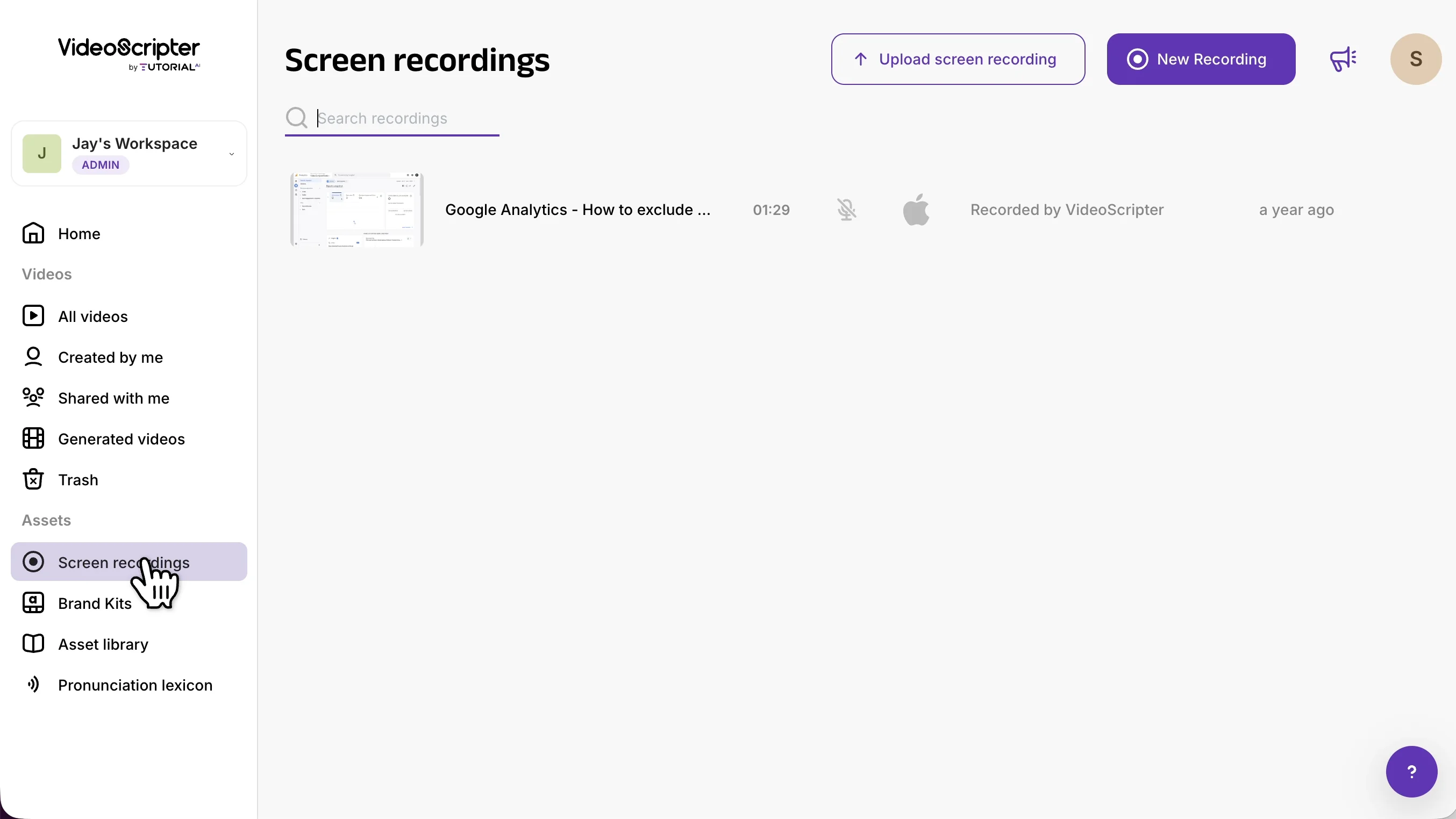
A modal opens where you pick the type of file you’re uploading — a Desktop Recording (computer screen capture) or a Mobile Recording (iOS or Android device).
Desktop recordings
Select Desktop Recording for anything captured from a computer screen — QuickTime, OBS, Loom, Camtasia, ScreenFlow, or any other tool.
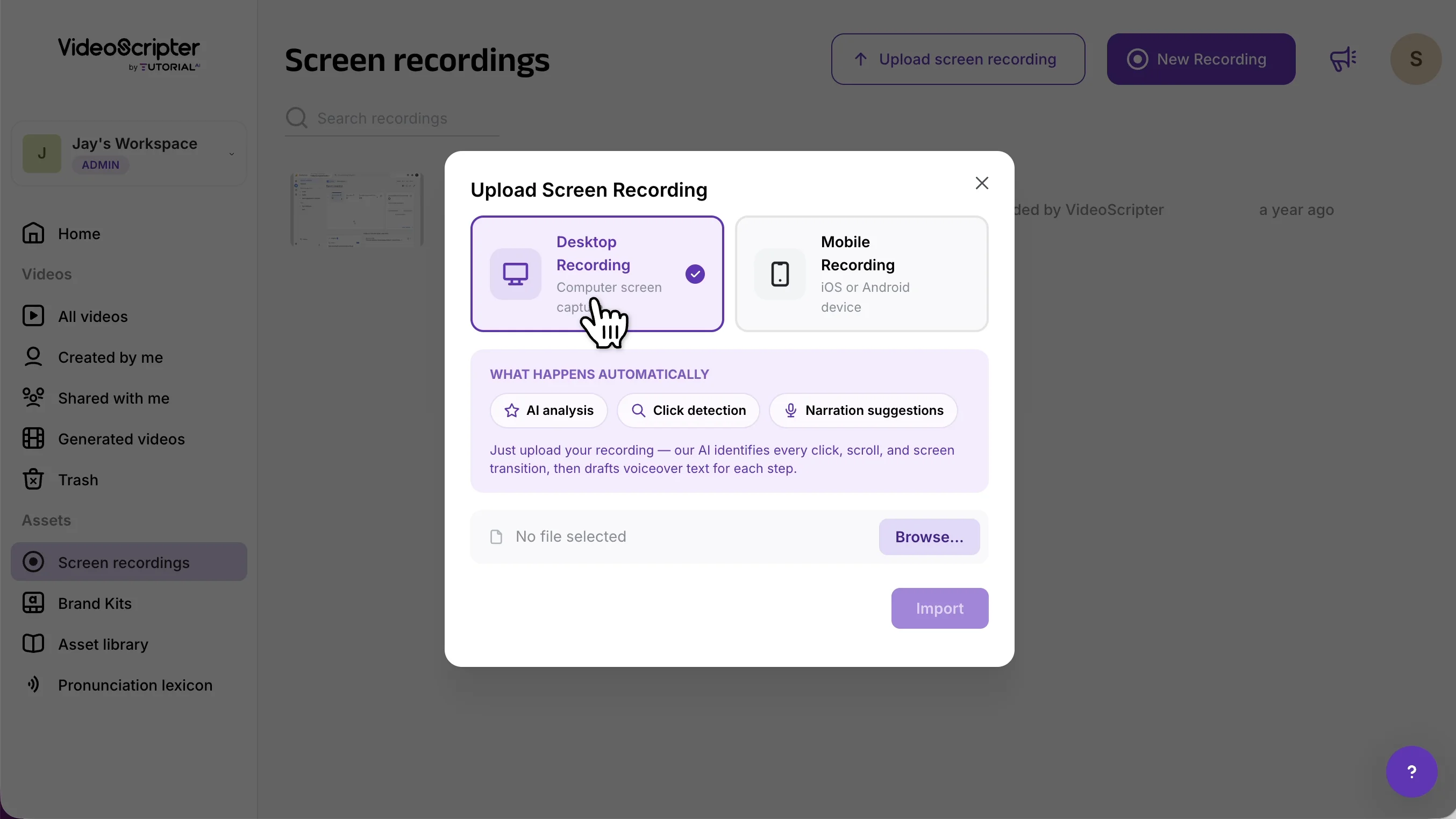
When you click Import, Tutorial AI does three things automatically:
- AI analysis — every click, scroll, and screen transition is detected and turned into a Sync Marker so your narration lines up with the video.
- Click detection — repeated hunting for buttons and interaction spots is handled for you.
- Narration suggestions — if your recording has sound, the narration is transcribed from your voice; if it’s silent, the script is drafted from the visual content.
Processing can take a few minutes for longer videos — you can leave the tab and Tutorial AI will email you when it’s ready.
💡 If your recording has sound but you don’t want it transcribed, strip the audio first with the free Remove Audio from Video tool. It runs entirely in your browser — the file never leaves your device.
Mobile recordings
Select Mobile Recording for anything captured on a phone or tablet, then pick your platform — Android or iOS.
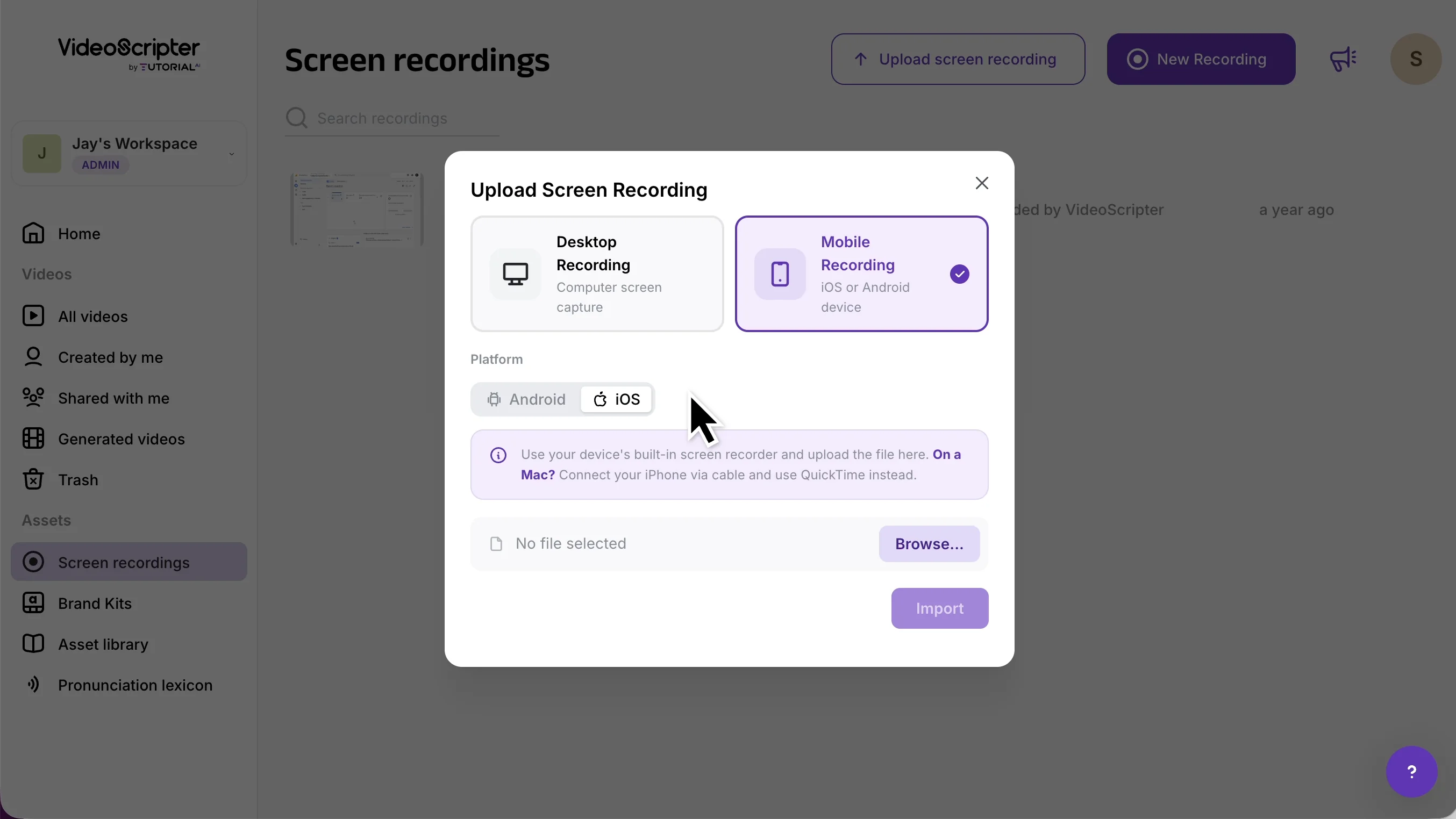
💡 On a Mac? For an iPhone recording, you can also connect the phone via cable and use QuickTime to capture its screen — then upload the resulting file here.
Mobile recordings don’t visually capture tap gestures by default. See Add Taps to Mobile Recordings to highlight each interaction after upload.
Uploading videos to the Asset Library
Some videos aren’t tutorials — they’re decorations you’ll drop onto a slide. A looping rocket animation, a short personal intro clip recorded on a phone, a product B-roll — anything you want to place on top of or alongside your slide content.
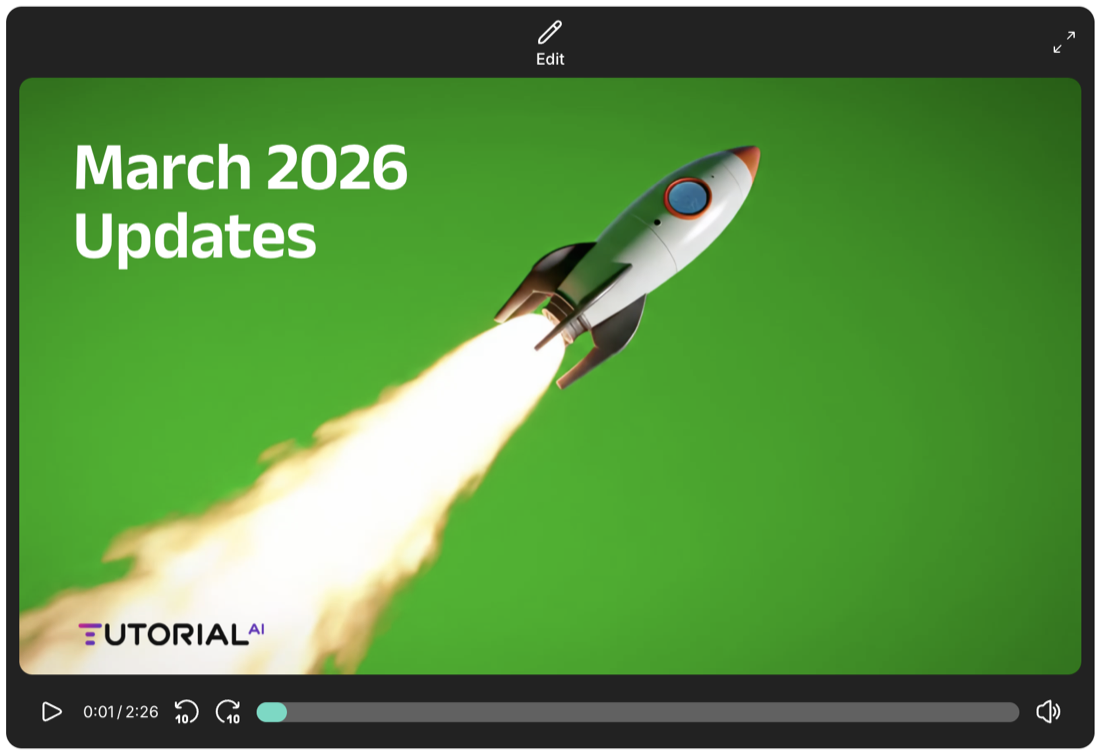
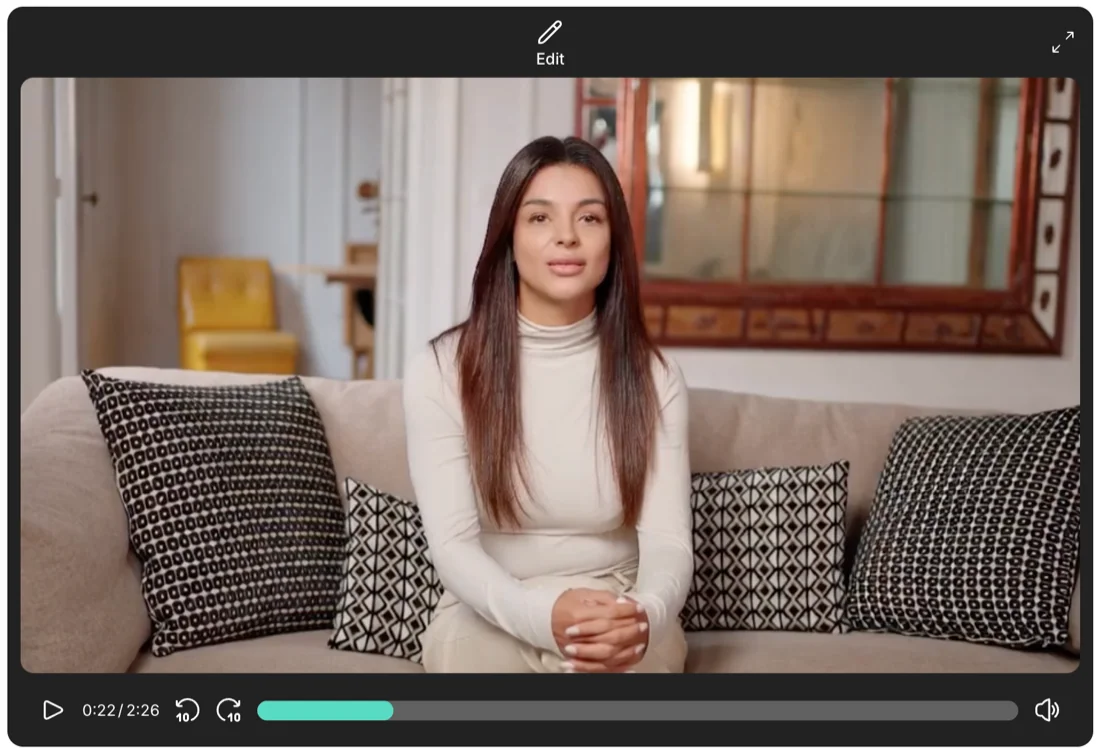
These videos belong in the Asset Library, not under Screen Recordings. Two ways to upload one:
- Open the Asset Library from the left navigation in the dashboard, then use Upload media.
- Or, while editing a slide, click the video button in the top toolbar and press Upload media.
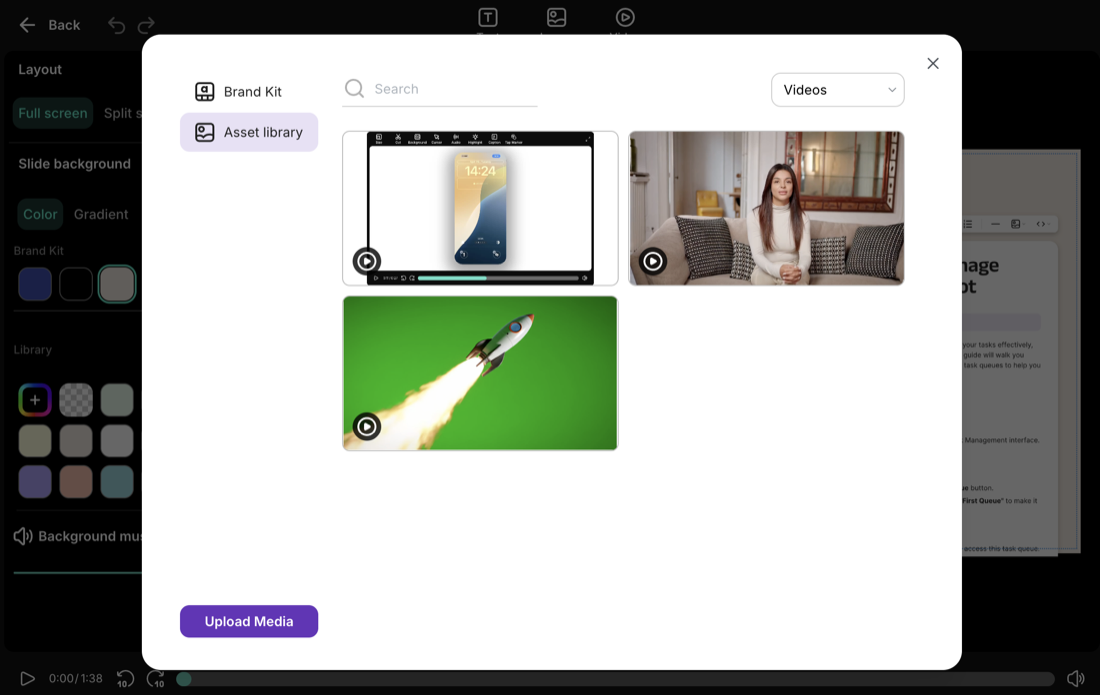
Once uploaded, the video becomes available across all your projects and can be placed onto any slide.