
Asset library - Images & Custom Fonts
Store and manage all reusable assets for your videos.
In the Asset library section, upload any assets you’d like to reuse across multiple videos. Supported asset types include: Images, Videos, Music, and Fonts.
Images
In the Asset library > Images window, see all custom images available for your videos.
To upload a new media, click on Upload Media and pass your images. Supported formats are:
- Images:
.jpg,.png,.svg(maximum size is 250MB) - Gifs:
.gif(maximum size is 250MB)
Videos
You can also upload decorative videos — short clips, animations, or personal intro recordings that you want to place on top of slides. These are different from screen recordings, which are the main footage a project is built around. See Uploading videos for the full walkthrough of both flows.
Custom Fonts
In the Asset library > Fonts page, see all custom fonts available for your videos.
Custom Fonts are available on the Enterprise plan.
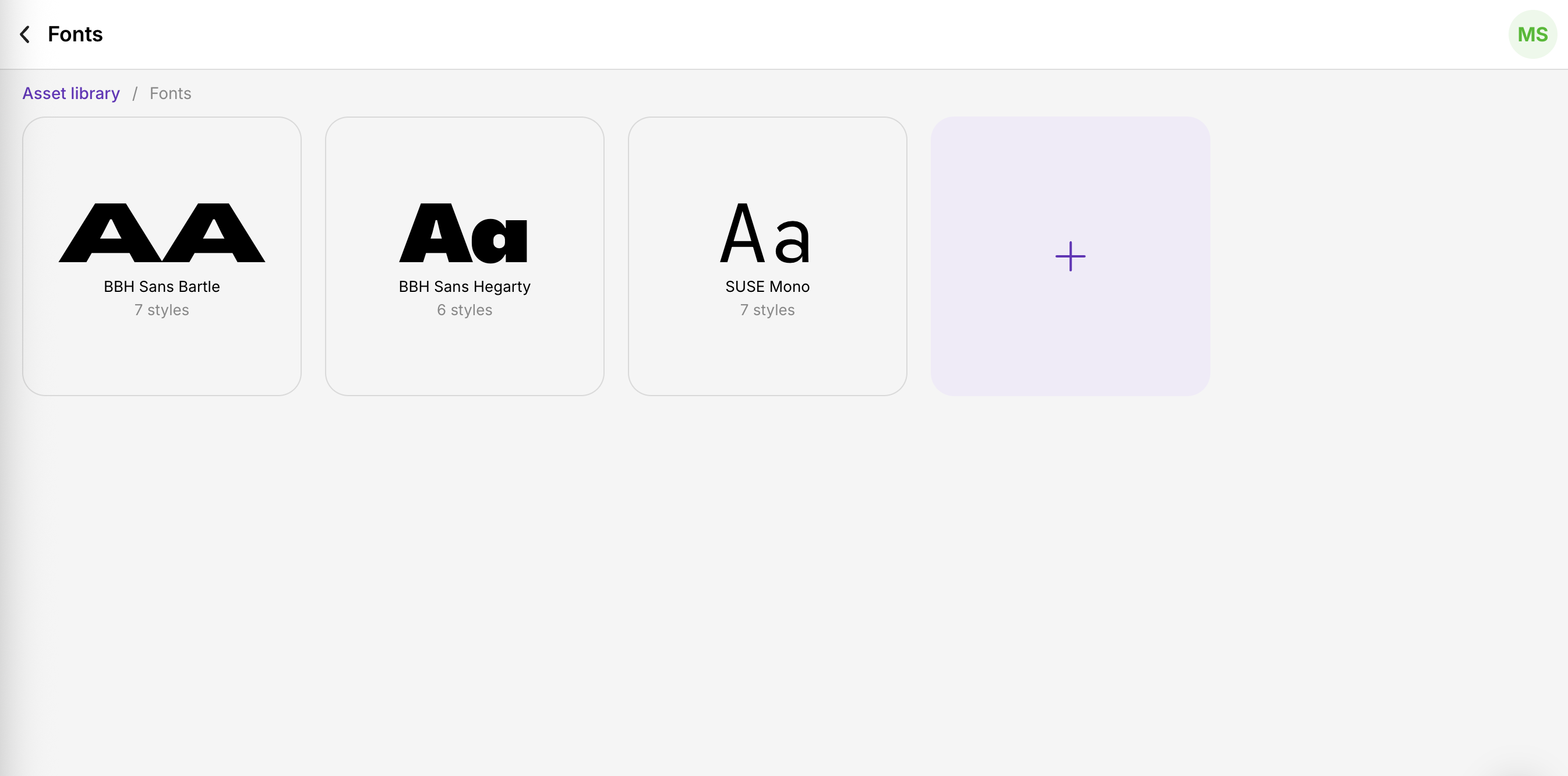
- To upload a new font, press the + icon.
- In the file window, select your custom font file to upload the first font variation.
- Next, use the Add fonts button to include all files that belong to the same typeface.
- Enter the display name exactly as you want it to appear in font selection menus.
- Finally, click Upload to add and save your custom font.
Supported formats are: .ttf, .otf, .woff, .woff2.
Variable Fonts
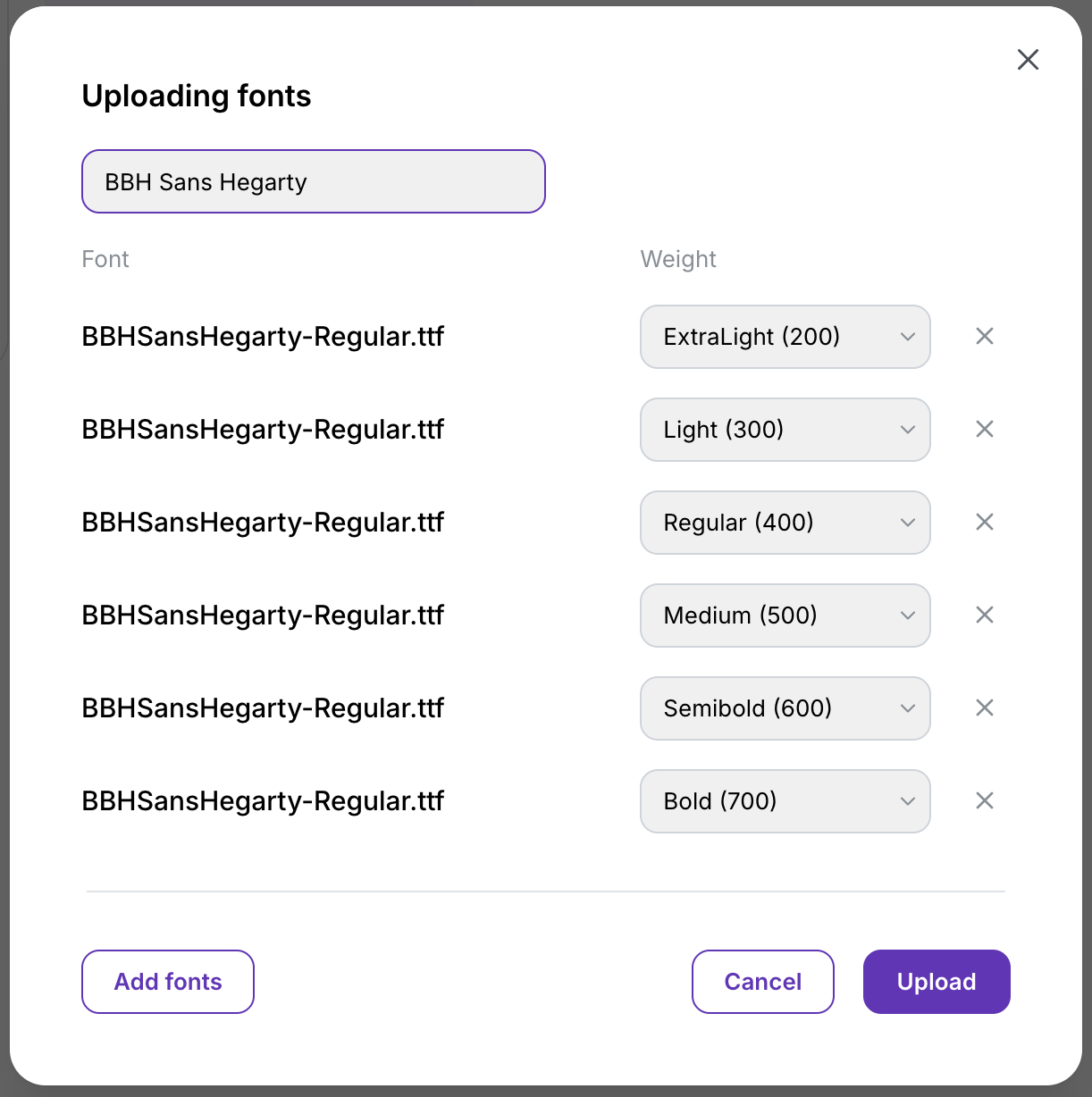
A variable font is a single font file that contains multiple styles or weights, allowing you to adjust its appearance dynamically without uploading separate files for each variation.For variable fonts, upload the same font file multiple times—once for each style you want to include—and assign a specific weight to each version individually.
Background Music
In the Asset library > Background music section, see all background music available for your videos.
Background Music uploads are available on the Enterprise plan.
To upload a new music, select Upload file and pass your music file.
Supported formats are .mp3, wav, .oga, .aac, .flac formats.