
How do I remove a pause or speed up my video?
Use Auto-Cut to remove idle moments automatically, or trim specific segments manually with the Cut Tool.
If your video feels slow or has stretches where nothing is happening, there are two tools to fix this: Auto-Cut for idle moments and the Cut Tool for anything specific.
Step 1 — Run Auto-Cut first
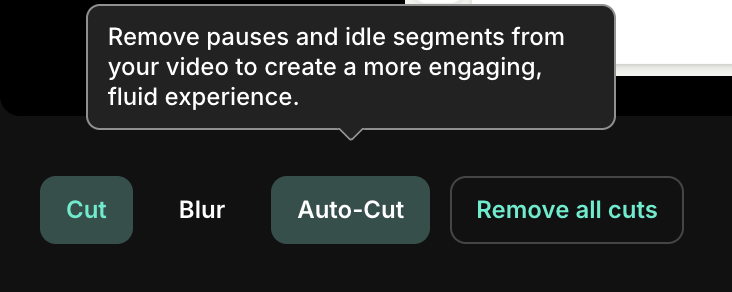
Auto-Cut automatically detects and removes idle moments from your recording — pauses between clicks, loading screens, and sections where the mouse isn’t moving. It’s the fastest way to tighten up a video in one click.
Open the Cut Tool and enable Auto-Cut. The system will analyze your recording and remove dead space throughout. Once applied, preview the result and proceed to step 2 if anything still needs trimming.
Step 2 — Manually cut remaining segments
If there are still specific sections you want to remove — unnecessary clicks, a wrong turn in the recording, or a segment that’s simply too long — use the Cut Tool to trim them out manually.
When you remove a video segment, the narration between its surrounding Sync Markers automatically adjusts to fit the shorter footage. The video will play faster through that section instead of pausing.
Why this works
In Tutorial AI, pauses in the narration are caused by the video being longer than the narration between two Sync Markers — the video has to wait. By cutting out footage, you shorten the video segment and the system no longer needs to pause.